Website profiles · Technology insights · Alternatives

app.rapidtextai.com

Set up a Campaign once and RapidTextAI writes, optimizes, and publishes SEO articles on a schedule — to WordPress, Medium, LinkedIn, and 7,000+ apps through Zapier.

Paid content
Visit website
Profile views 0 Outbound visits 0 Normal
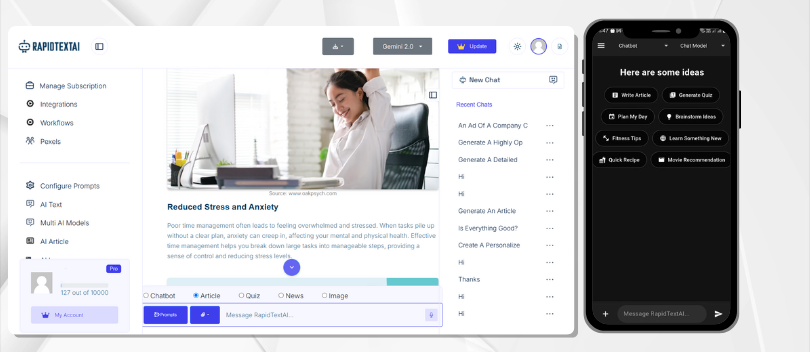
RapidTextAI - AI Article Generator & Auto-Publishing Platform Full homepage screenshot

At a glance

Category
Artificial Intelligence
Language
English
Paid-content signal
Paid contentObserved
Registered
2023
Hosting
DigitalOcean, LLCInferred
HTTPS certificate trusted
PassedObserved
Last updated

Website review

This review may include AI-generated content and is not individually verified. Domain, certificate and other facts come from the observed data on this page.

What is RapidTextAI?

RapidTextAI is an AI content automation platform: you define a campaign once (topics, AI model, tone, schedule), and it writes and publishes SEO-oriented articles on that schedule rather than producing one-off drafts you copy and paste. According to its site, publishing targets include WordPress, Medium, LinkedIn, email, and 7,000+ apps via Zapier, with a free plan and no credit card required to start.

What it actually does

  • Campaign-based generation: You set topics, tone, length, structure and posting cadence; the system generates articles on autopilot.
  • Direct publishing: Articles go out to connected destinations (WordPress, Medium, LinkedIn, Zapier-linked apps) without manual copying.
  • Access beyond the web app: A WordPress plugin for posting from the dashboard, a Chrome extension for rewriting or translating selected text on any page, a mobile app for managing campaigns, and a REST API for embedding generation into your own tools.

Who gets the most from it

The strongest fit is a small marketing team or solo operator running a blog or newsletter that needs steady output but has no dedicated writer. A concrete case: a consultant who wants two 1,500-word posts per week on WordPress can set a campaign with a topic list and tone, then review published drafts instead of writing them. Teams with an existing Zapier workflow can route articles into a CRM, CMS or email tool without new engineering.

Trade-offs to weigh

Automation shifts effort from writing to oversight. Scheduled publishing means quality control has to happen before or immediately after go-live, so budget time for editing and fact-checking, especially for topics where accuracy matters. If your content depends on original reporting, interviews or a distinctive voice, the campaign model helps less than it does for informational, SEO-driven articles. The breadth of integrations is useful, but each destination has its own formatting and SEO conventions worth checking on the first few posts.

Next step

Start with one narrow campaign — a single topic cluster, one destination, a low frequency such as weekly — and compare the first few outputs against your editorial standards before scaling the schedule or adding channels. If you already use WordPress, the plugin route keeps review in the same dashboard where you publish.

How do I set up a campaign to auto-publish articles to WordPress, Medium, LinkedIn, and other apps?

Set up a Campaign once in RapidTextAI with your topics, AI model, tone, and schedule, then connect your publishing destinations. Once the Campaign is active, RapidTextAI generates SEO articles on that schedule and auto-publishes them to WordPress, Medium, LinkedIn, email, and 7,000+ apps through Zapier — no copying or manual posting.

The four-step setup, as the site describes it

  1. Create a Campaign. Give it your topics, choose the AI model, set the tone, and pick a schedule (the site's example shows Mon/Wed/Fri SEO articles).
  2. Define the output. Length, tone, structure, and style are set per Campaign — the homepage's sample uses 2,000 words, Formal tone, Intro-Body-Conclusion structure, Informative style.
  3. Connect destinations. WordPress (directly or via the WordPress plugin), Medium, LinkedIn, email, and other apps through Zapier. The site also lists Shopify among its integration examples.
  4. Activate and let it run. The Campaign generates and publishes on schedule; you review content and publishing status from the Campaigns dashboard.

Choosing your publishing route

Route Best for Trade-off
WordPress plugin / direct WordPress Blogs you own and control Native scheduling, but limited to WordPress sites
Medium and LinkedIn Building reach on platforms you don't own You follow each platform's rules and formatting limits
Zapier (7,000+ apps) Teams with existing tool stacks (email, Shopify, CRMs) More setup and moving parts; each app's field mapping needs testing
REST API Developers wiring generation into their own product or dashboard Most control, most engineering work

A practical example

A small B2B team wants three posts a week on its WordPress blog plus a LinkedIn summary. It creates one Campaign with three weekly slots, a formal tone, and WordPress as the primary destination, then adds a Zapier step to push each new article to LinkedIn. The WordPress plugin route keeps publishing inside the dashboard; Zapier handles the cross-posting.

Decision criteria

  • Start with one destination. Connect WordPress first, confirm the first scheduled article publishes correctly, then add Medium, LinkedIn, or Zapier.
  • Match schedule to review capacity. Auto-publishing is fastest, but if you want an editorial check, keep the cadence low enough to review before each slot.
  • Use the API only if you need custom workflows. For standard blog and social publishing, Campaigns plus Zapier cover it.
  • Check plan limits before scaling. The site advertises a free plan with no credit card required and "simple, transparent pricing"; confirm article volume and destination limits on RapidTextAI's pricing page before committing to a high-frequency schedule.

Your next step: create a single test Campaign with one topic, one weekly slot, and WordPress as the only destination. Once that article publishes cleanly, add the remaining channels one at a time.

Can I try RapidTextAI for free before paying, and how does the pricing work?

Yes. RapidTextAI advertises a free plan with no credit card required, so you can test article generation before committing to a paid tier. The site lists a Pricing page but doesn't show the actual plan tiers, limits or prices in the material provided, so treat the free plan as a trial of the workflow rather than a guaranteed long-term free option—check the Pricing page for current caps on articles, words or campaigns.

What "free" is likely to cover

Based on the page, the product's core loop is: set up a Campaign with topics, AI model, tone and schedule, then have publish-ready SEO articles generated and auto-published to WordPress, Medium, LinkedIn, email and 7,000+ apps via Zapier. A free tier typically lets you run this loop at small scale—enough to judge output quality and the publishing integrations—while paid plans usually lift volume limits and unlock more models or automation.

A practical way to test it

  1. Create one Campaign with a single topic, a fixed length (the page's example uses 2,000 words) and a formal, informative tone.
  2. Generate one article and read it critically: does it match your brand voice, and would you publish it with light edits?
  3. Connect one destination only—your WordPress site or a single Zapier action—and confirm the auto-publish step works as expected.
  4. Note where you hit a limit (article count, word count, integrations). That tells you which paid tier you'd need.

Decision criteria

  • Choose free-first if you publish a handful of posts a month and mainly want to evaluate quality and integrations.
  • Move to paid if you need scheduled volume, multiple destinations, or API access to wire generation into your own tools—the page lists a full REST API, mobile app and Chrome extension as part of the broader offering.
  • Compare alternatives if multi-model choice matters; the page references models such as gpt-5 in its API example, so confirm which models each plan includes.

For independent context on AI writing tools and their pricing models, see Zapier (relevant since RapidTextAI's automation runs through it) and WordPress.org if you plan to publish via the WordPress plugin.

How do I connect RapidTextAI to Zapier or its REST API to automate content across 7,000+ apps?

RapidTextAI supports two automation routes: Zapier for connecting to 7,000+ apps without code, and a REST API for building content generation into your own tools or internal systems. Both are described on RapidTextAI as ways to run article generation and publishing on autopilot.

Zapier route (no-code, broad app coverage)

Use this when you want RapidTextAI to publish to apps beyond its native destinations (WordPress, Medium, LinkedIn, email, Shopify). The page describes setting up a Campaign once with your topics, AI model, tone, and schedule, then having articles auto-published to those 7,000+ apps through Zapier. Practically, you'd connect your RapidTextAI account inside Zapier, then build a Zap whose trigger is a new generated article and whose action sends it to your target app—for example, posting to a Slack channel, adding a row in a spreadsheet, or pushing to a CMS. This suits marketers and small teams who want scheduled output without engineering work.

REST API route (developer-controlled)

The page shows a REST endpoint (POST /v1/articles/generate) that accepts a topic and model and returns generated articles, framed as a way to "build your own tools and wire AI article generation straight into your product, workflow, or internal dashboard." This suits developers who need custom logic—conditional publishing, internal dashboards, or chaining generation into an existing pipeline. Expect to handle authentication and response parsing yourself, and to manage scheduling in your own code rather than through Campaigns.

Choosing between them

Need Better fit
Publish to many third-party apps fast Zapier
No-code scheduled campaigns Zapier + Campaigns
Custom triggers, formatting, or internal tools REST API
Full control over retries and error handling REST API

Next step: Decide whether your destination apps are already in Zapier's catalog. If yes, start with a single test Zap triggered by one generated article to confirm the payload arrives correctly. If your workflow needs custom logic or a private system, use the API endpoint shown and test one generate call before scaling.

How can I use the Chrome extension to rewrite or translate text on any website?

Select any text on a webpage, tap the pencil icon that appears, and choose the action you want — translate, rewrite, expand, or reply. RapidTextAI describes this as an AI writing agent that works "on any website," so the text stays in the field where you're already writing instead of moving to a separate editor.

Where it fits in practice

  • Translating on the fly: If you're reading a page or filling a form in a second language, select the passage and translate it in place rather than switching to a separate translator and pasting back.
  • Rewriting under length or tone limits: Comment boxes, support replies, and form fields often have character limits or a required register. Select your draft and rewrite it to fit before submitting.
  • Expanding a rough note: When a short phrase needs to become a full paragraph — a bio, a description, an email — select it and expand.
  • Replying: On a page where you're responding to something, select the text you're answering and generate a reply draft as a starting point.

What to watch

The extension can act on whatever text you select, including text in editable fields on sites you're logged into. Treat generated rewrites and translations as drafts: check names, numbers, and anything that changes meaning before you send or publish, especially in languages you don't read well. Long selections may also hit length limits in the target field even if the rewrite itself is fine.

A sensible next step

Pick one repetitive task you do weekly — say, translating client messages or trimming replies to a limit — and test the extension on it for a few days. If it consistently saves the copy-paste round trip, it's earning its place; if you find yourself re-editing most outputs, a quick manual pass is still faster. RapidTextAI also publishes a Chrome extension guide covering setup.

What can I do with the mobile app and WordPress plugin to manage content on the go?

The mobile app handles campaign setup and content creation away from your desk, while the WordPress plugin keeps scheduled publishing inside your WordPress dashboard. Together they cover the two ends of a hands-off workflow: start or adjust a Campaign from your phone, then let the plugin auto-post SEO-optimized articles to your site on schedule without copy-pasting.

Mobile app: run campaigns from your pocket

Per the site, you can set up Campaigns, create content on the go, and chat with the assistant to manage things wherever you are. A realistic use: a solo blogger approves topics and tweaks tone during a commute, then checks the week's queue before it goes live.

WordPress plugin: auto-post from your dashboard

The plugin lets you set up Campaigns directly inside WordPress so RapidTextAI auto-posts SEO articles on your schedule. This suits site owners who want publishing to happen where they already manage posts, without logging into a separate tool.

Task Mobile app WordPress plugin
Set up or adjust a Campaign Yes, from the app Yes, inside WordPress
Create content on the move Yes, including assistant chat Not its focus
Auto-post to your WordPress site Managed via Campaigns Yes, on your schedule
Best for Approving and steering content remotely Keeping publishing inside your CMS

Practical next step

Decide which job you actually need. If your bottleneck is deciding and reviewing topics while away from a computer, start with the mobile app. If it is getting finished articles onto the site without manual pasting, set up a Campaign in the WordPress plugin first. Running both makes sense once you want to steer content from your phone and have it land on WordPress automatically.

For teams publishing beyond WordPress, the site also lists Medium, LinkedIn, email, and 7,000+ apps through Zapier, plus full REST API access for wiring generation into your own tools.

Related questions

More questions →
What Is Blog Publishing and How Do You Publish a Blog?

Blog publishing is the process of writing, formatting, and making posts publicly available on the web. You can do it through a hosted platform that manages the technical side for you, or through self-hosted open-source software such as WordPress, which you install and run on your own hosting. The right choice depends on how much control you want over domain, design, and data versus how much setup and maintenance you are willing to handle.

What "publishing" actually involves

Publishing is more than hitting a button. A complete publish cycle includes:

  • Drafting the content in an editor.
  • Formatting it with headings, links, images, and categories or tags.
  • Assigning a title, slug (URL), and author.
  • Choosing visibility — public, private, or password-protected.
  • Setting a date — publish now or schedule for later.
  • Making it live so the post is reachable at its URL.

Once live, the post usually appears on the blog index, in archives, in category pages, and in the site's feed. That distribution is part of publishing too, not an afterthought.

Hosted platform vs. self-hosted software

These are the two broad approaches, and they differ on the same set of dimensions:

Dimension Hosted platform Self-hosted (e.g., WordPress)
Setup effort Sign up and start writing Need hosting, install, and configuration
Technical maintenance Handled for you You manage updates, backups, security
Domain control Often a subdomain; custom domains may be limited or paid Full control over your domain
Design flexibility Constrained to provided themes/options Themes and plugins extend almost anything
Data ownership Stored on the provider's system Stored on your own hosting
Cost model Usually tiered plans Hosting and domain costs; software itself is open source

WordPress.org describes its software as open source that you can use to "easily create a beautiful website, blog, or app." That description points to the self-hosted model: the software is free and open, but you supply the hosting environment. The trade-off is control versus convenience — pick hosted if you want to publish today with minimal setup, and self-hosted if you want ownership of domain, design, and data and are willing to maintain it.

Core steps to publish a first post

The exact menus differ by platform, but the sequence is consistent:

  1. Get a place to publish. On a hosted platform, create an account. For self-hosted software, obtain hosting and a domain, then install the software.
  2. Choose a theme. This controls layout and typography. Pick something readable and mobile-friendly before writing much.
  3. Create the post. Open the editor, add a title, and write the body. Use headings to structure sections and links to cite sources.
  4. Add media and metadata. Insert images with alt text, then set categories and tags so the post is findable.
  5. Set the slug and visibility. The slug becomes part of the URL; keep it short and descriptive. Decide whether the post is public, private, or scheduled.
  6. Preview. Check how it looks on desktop and mobile before going live.
  7. Publish. Confirm, then open the live URL to verify it loads and renders correctly.

Verification: after publishing, load the post URL in a private browser window. If it appears there, it is genuinely public and not just visible to you while logged in.

Key choices that shape the result

  • Domain: a custom domain looks more permanent and is portable if you later change platforms. A provider subdomain is faster to start.
  • Hosting: affects speed, uptime, and how much traffic you can handle. Match it to expected audience size.
  • Theme: determines readability and branding. Test it with a real post, not placeholder text.
  • Scheduling: lets you write ahead and publish at a set time, useful for consistent cadence.
  • Permalinks: the URL structure for posts. Set it early, because changing it later can break existing links.

Common issues that block publishing

  • Post stays in draft. The most common cause is not completing the publish action, or a scheduled time that has not arrived yet.
  • Page not found after publishing. Usually a permalink setting that needs refreshing, or a caching layer serving an old version.
  • Images missing or broken. Often an upload or file-path problem; re-upload and reinsert.
  • Changes not visible. Caching — clear the site cache and your browser cache, then reload.
  • Cannot reach the editor. Usually a login or permission issue; confirm you are signed in with an account that can publish.

If a post will not go live, check these in order: draft status, scheduled date, permalink settings, cache, and account permissions. One of them is almost always the blocker.

What Is Content Automation and How Do You Set It Up?

Content automation is the practice of connecting topic selection, AI drafting, SEO optimization, scheduling, and publishing into one repeatable pipeline, so articles go out on a cadence without manual copying. It fits teams or solo publishers who already know their topics and channels and want to remove the repetitive middle steps. It does not remove the need for human review of facts, brand voice, and final approval before anything goes live.

What content automation actually covers

Think of it as a production line with five stations. Each station can be automated, but the handoffs are where setups usually break.

Stage What gets automated What still needs a human
Topic intake A stored list of topics feeding the pipeline Choosing topics that match audience and search intent
Drafting AI generates the article from topic, model, tone, length, and structure Checking claims, examples, and anything time-sensitive
Optimization SEO-oriented formatting and structure applied during generation Confirming titles and internal links fit your site
Scheduling A recurring cadence (e.g., Mon/Wed/Fri) triggers generation Confirming the cadence matches your publishing capacity
Publishing Auto-post to the destination channel Verifying permissions, categories, and formatting on the live site

The useful mental model: automation handles volume and timing; people handle judgment. A pipeline that skips the judgment step will publish faster than you can catch mistakes.

How a campaign-based setup works

RapidTextAI's model is representative of how these tools are structured. You create a Campaign once, and it holds your topics, AI model, tone, and schedule. From the site's own description: "Set up a Campaign once and RapidTextAI writes, optimizes, and publishes SEO articles on a schedule." The homepage summarizes it as "Set it once. Publish everywhere."

The generation inputs shown on the site are concrete and worth knowing before you build anything:

  • Topic — e.g., "The future of renewable energy" or "Benefits of remote work in 2026"
  • Length — the example uses 2000 words
  • Tone — e.g., Formal
  • Structure — e.g., Intro-Body-Conclusion
  • Style — e.g., Informative
  • Model — the API example shows a model field (e.g., gpt-5)

Step-by-step setup

  1. Build your topic list first. Write 10–30 specific topics rather than broad categories. "How AI is transforming healthcare" is a category; "How AI triage tools are used in emergency departments" is a topic that produces a usable draft.
  2. Create the Campaign. Enter your topics, pick the AI model, set tone, length, structure, and style. These settings apply to every article the campaign produces, so decide them deliberately — a Formal tone across a casual blog will read wrong on every post.
  3. Choose publishing destinations. The site lists WordPress, Medium, LinkedIn, email, and 7,000+ apps through Zapier, plus Shopify in its integration row. Pick only the channels you will actually review.
  4. Set the schedule. The site's own example cadence is Monday, Wednesday, and Friday SEO articles. Start slower than you think you can review — one or two per week is a reasonable first cadence.
  5. Run one article manually before enabling the schedule. Use the "Generate Now" action shown in the campaign interface, publish it, and inspect the result on the live destination. This catches formatting and permission problems while the blast radius is one post.
  6. Enable the schedule and check the first three runs. Confirm each article actually appeared at the destination at the expected time.

Expected result: after step 6, new articles appear on your chosen channels on the cadence you set, and your job shifts from writing to reviewing.

Connecting channels: native vs. Zapier

There are two integration paths, and they behave differently.

  • Native destinations (WordPress, Medium, LinkedIn, email) are configured inside the campaign. The WordPress plugin lets you set up Campaigns from inside the WordPress dashboard so articles auto-post on your schedule "no copy-pasting required."
  • Zapier extends reach to the 7,000+ apps the site references. This is the right path for tools without a native connection, but it adds a second system whose failures are separate from the campaign's.

For API-minded teams, the site also exposes a REST endpoint (POST /v1/articles/generate with a topic and model) so generation can be wired into an internal dashboard or product.

If your destination is a custom or niche platform, plan for Zapier; if it's WordPress, the native plugin removes a moving part.

Where automation setups fail

These are the checkpoints worth building into your process before you trust the pipeline.

  • Scheduled jobs that never fire. A campaign can look correctly configured and still not publish. Verify by timestamp on the destination, not by the campaign's status screen.
  • Publishing permissions. Auto-posting to WordPress, Medium, or LinkedIn requires valid, non-expired authorization. Re-check after any password change or account reconnect.
  • Duplicate or near-duplicate topics. Two similar topics in one list produce two similar articles. Deduplicate the topic list before loading it.
  • Factual drift. AI drafts can state plausible but wrong specifics. Anything with numbers, dates, or claims about real organizations needs a human pass.
  • Brand voice erosion. A fixed tone setting applied to every post flattens variety. Review a sample monthly and adjust the campaign settings rather than editing each post.
  • Formatting on the live site. Headings, images, and links can render differently at the destination than in the draft. Check the first post of each channel manually.

Is it worth setting up?

Set up content automation if you have a stable topic backlog, at least one publishing channel you control, and someone who will review output on a regular cadence. The payoff is cadence consistency — articles ship on schedule without a manual publishing ritual.

Skip it, or run it in draft-only mode, if your content depends on original reporting, expert interviews, or claims you cannot verify quickly. In those cases the review burden exceeds the time saved, and a manual workflow with AI assistance for drafting is the better fit.

The site states a free plan is available with no credit card required, and lists a pricing page; check current plan limits there before committing a full campaign schedule.

What Is an AI Article Generator and How Does Auto-Publishing Work?

An AI article generator turns a topic and a few settings—length, tone, structure, style—into a publish-ready article, and auto-publishing extends that into a recurring workflow: you define a campaign once, and the tool writes, optimizes, and posts on a schedule to destinations like WordPress, Medium, LinkedIn, or thousands of other apps through Zapier. This fits teams and solo publishers who need a steady stream of SEO blog content without drafting each post by hand. It is not a substitute for editorial review on sensitive or high-stakes topics.

What the tool actually produces

Unlike a general chatbot, where you prompt turn by turn and copy the result out yourself, an article generator is built around a repeatable output: a structured article with an intro, body, and conclusion, sized to a target word count and written in a chosen tone.

On RapidTextAI, for example, the generator takes a topic (such as "The future of renewable energy"), a length (the site shows a 2000-word example), a tone (Formal), a structure (Intro-Body-Conclusion), and a style (Informative) before producing the article. The output is intended to be SEO-oriented and publish-ready rather than a raw draft you reformat.

The practical difference from a chatbot:

General chatbot AI article generator
Input Free-form prompts, one at a time Topic + saved settings (tone, length, structure)
Output Whatever you ask for Structured article sized to your spec
Repeatability You re-prompt each time Campaign reuses the same settings
Publishing Manual copy-paste Can post directly to connected destinations

The typical workflow, step by step

The pattern across these tools is: configure once, then let it run.

  1. Create a campaign. Enter your topics, choose the AI model, set tone, length, and structure, and pick a schedule. RapidTextAI describes campaigns as the container for all of this.
  2. Connect destinations. Link WordPress, Medium, LinkedIn, email, or other apps. RapidTextAI lists WordPress, Medium, LinkedIn, Shopify, email, and 7,000+ apps via Zapier.
  3. Set the cadence. The site's example schedule shows an SEO article on Monday, Wednesday, and Friday.
  4. Let it generate and publish. The tool writes and optimizes each article and posts it on schedule—"no copying, no manual work," per the site.
  5. Review the output. Check the first few articles closely before trusting the schedule (see the review checklist below).

You can also trigger generation manually ("Generate Now") rather than waiting for the schedule, and run campaigns from the mobile app or set them up inside the WordPress dashboard via the plugin.

Verification: after your first scheduled post, confirm it actually appeared at the destination with correct formatting, links, and images—not just that the campaign shows as active.

Where auto-publishing can send your content

Destinations fall into three groups:

  • Native integrations: WordPress (including a plugin that auto-posts from the WordPress dashboard), Medium, LinkedIn, Shopify, and email.
  • Zapier: connects the generator to 7,000+ apps, so you can route articles into CRMs, newsletters, social schedulers, or internal tools.
  • API: full REST access lets you wire generation into your own product or dashboard. The site shows a sample request posting a topic and model to an articles endpoint.

If your publishing stack isn't on the native list, Zapier or the API is the path—check that your target app is reachable through one of them before committing to a campaign.

What to check before you let it publish

Auto-publishing removes the human step, so build the review into the setup instead:

  • SEO: confirm the article uses your target topic naturally, has sensible headings, and isn't stuffed with repeated keywords.
  • Tone and structure: verify the saved settings actually match your brand—a "Formal" tone may not suit a casual blog.
  • Factual accuracy: AI-generated articles can state things confidently but wrongly. For anything factual, medical, legal, or financial, review before publishing or keep those topics off the schedule.
  • Images and links: check that any AI images and internal links render correctly at the destination.

A workable approach: run the first week's posts through manual review, then loosen oversight only for topic types where you've confirmed the output is reliable.

Free plan vs. paid: when each is enough

The site states a free plan is available with no credit card required, and lists "simple, transparent pricing" with a pricing page. Specific plan limits and prices aren't detailed in the available material, so check the pricing page for current tiers before deciding.

As a rule of thumb:

  • Free plan or trial: enough to test output quality on your topics, confirm a destination connection works, and judge whether the tone settings fit your brand.
  • Paid plan: worth it once you're publishing on a recurring schedule and need the volume, destinations, or automation that the free tier doesn't cover—confirm those limits on the pricing page first.

Common snags

  • Campaign runs but nothing publishes: usually a broken destination connection—re-authorize WordPress or the Zap.
  • Output drifts from your brand: settings were saved loosely; tighten tone, structure, and length in the campaign rather than editing each article.
  • Topics too broad: narrow topics (a specific angle, not "AI") produce more usable SEO articles.
  • Over-automation: scheduling sensitive topics without review is the most common quality failure—keep those manual.
How Do You Set Up a Zapier Integration for AI Article Auto-Publishing?

Set up a RapidTextAI Campaign first so articles are generated on a schedule, then connect that output to your target app through a Zapier Zap. The Campaign is the content source; Zapier is the delivery layer that pushes each generated article to WordPress, Medium, LinkedIn, or any of the 7,000+ apps Zapier supports. You need a RapidTextAI account, a Zapier account, and authorized access to the destination app before you start.

What the Zapier Integration Actually Does

RapidTextAI generates and optimizes SEO articles from a Campaign you configure once. Zapier does not generate content — it moves the finished article from RapidTextAI to another service. That split matters when troubleshooting: if no article appears, the problem is usually in the Campaign (nothing was generated) or in the Zap (the trigger or action failed), not in the writing itself.

The publishing destinations named on the site are WordPress, Medium, LinkedIn, email, and 7,000+ apps through Zapier. Shopify also appears among the supported app icons.

Before You Start

  • A RapidTextAI account with access to Campaigns.
  • A Zapier account.
  • The destination app connected and authorized (for example, your WordPress site or LinkedIn profile).
  • Your content brief decided in advance: topic, tone, length, and structure, since these are Campaign settings rather than Zapier settings.

Step 1: Create the Campaign That Feeds the Automation

In RapidTextAI, create a Campaign with your topics, AI model, tone, and schedule. The site describes the flow as: set it once, and RapidTextAI writes, optimizes, and publishes SEO articles on a schedule.

The homepage example shows the inputs you configure: a topic (e.g., "The future of renewable energy"), length (e.g., 2000 words), tone (e.g., Formal), structure (e.g., Intro-Body-Conclusion), and style (e.g., Informative). A sample cadence shown in the interface is Monday, Wednesday, and Friday SEO articles.

Expected result: an active Campaign that will produce publish-ready articles on your chosen schedule. Confirm it is enabled before moving to Zapier — a paused Campaign gives Zapier nothing to pick up.

Step 2: Build the Zap

  1. In Zapier, create a new Zap.
  2. Choose RapidTextAI as the trigger app and select the event that fires when a new article is generated or published.
  3. Connect your RapidTextAI account when prompted.
  4. Add an action step using your destination app (WordPress, Medium, LinkedIn, etc.) and choose the action that creates a post or article.
  5. Connect and authorize the destination app.
  6. Map the fields: article title to the post title, article body to the content field, and any tags, categories, or status (draft vs. published) your destination requires.

Expected result: a complete Zap with one trigger and one action, with every required destination field mapped.

Step 3: Test, Then Turn It On

Run the Zapier test step to pull a sample article through the trigger and push it to the destination. Check the result in the destination app: correct title, full body text, formatting intact, and the status you intended. If the test post looks right, enable the Zap.

Expected result: new articles from your Campaign appear in the destination app automatically, without copying or pasting.

Common Failure Points

Symptom Likely cause Fix
Zap never fires Campaign paused or no new article generated yet Confirm the Campaign is active and wait for or trigger a generation
Authorization error RapidTextAI or destination app connection expired or was revoked Reconnect the app in Zapier
Post created but empty or malformed Field mapping mismatch between article output and destination fields Remap title and body fields; check whether the destination expects HTML or plain text
Wrong publish status Destination action set to draft instead of publish, or vice versa Change the action's status setting
Duplicate posts Zap triggered more than once for the same article Check the trigger event and any filters you have added

When Zapier Is the Right Choice

Use the Zapier route when your destination is not natively covered or when you want to fan one article out to multiple services. If you publish only to WordPress, the WordPress plugin lets you set up Campaigns inside the WordPress dashboard and auto-post on your schedule without a separate Zapier step. If you publish to Medium or LinkedIn as your main channels, Zapier is the path the site describes for reaching them alongside 7,000+ other apps.

The site states a free plan is available with no credit card required; check the pricing page for current plan limits before relying on a specific volume of automated posts.

What Can an Amazon Seller Browser Extension Actually Do for Your Listings?

An Amazon seller browser extension is a small piece of software that runs inside Chrome, Edge, or Firefox and adds information or shortcuts directly onto Amazon pages you already visit. In practice, it can overlay demand and competition data on a product page, pull quick numbers while you browse a niche, flag missing or weak listing elements, and save you from switching between tabs. What it cannot do is replace a full listing engineering or growth platform: extensions are lightweight, page-level helpers, while serious listing work — keyword architecture, AI-readiness, bulk optimization, and performance tracking over time — needs a dedicated toolset. The useful question is not "extension or platform" but "which jobs belong to each."

What a browser extension typically does well

Most seller extensions cluster around a few repeatable, on-page tasks. If your workflow involves a lot of browsing, these are where the time savings are real.

On-page data overlays

While you're on a product detail page, the extension can display estimated sales, revenue, review velocity, seller count, and price history in a panel next to the listing. This turns "open a separate research tab and paste the ASIN" into "read the number where you already are." For quick sanity checks on a competitor or a potential product, that's a genuine speed gain.

Quick product and niche research

Extensions often let you scan a search results page and see metrics for every listing at once, or export a batch of ASINs. This is useful for early filtering: you can spot which results have thin review counts, unstable pricing, or a dominant seller, and decide which few are worth deeper analysis.

Listing checks and basic audits

Some extensions highlight on-page elements — title length, bullet presence, image count, whether A+ content appears, whether key fields look empty. This is a fast visual audit, not a scoring system. It tells you what's there, not whether your listing is engineered to match how Amazon discovery works now.

Convenience features

Coupon and deal finders, price-drop alerts, review-request shortcuts, and quick links to seller tools fall into this bucket. They're small quality-of-life wins rather than strategy.

Where extensions fall short

This is the part sellers most often underestimate. An extension sees the page in front of you; it doesn't hold your catalog, your history, or your strategy.

Job Browser extension Full listing/growth platform
On-page competitor snapshot Yes, fast Yes, often deeper
Keyword architecture across a listing No Yes
AI-readiness / discovery optimization Rarely Core function
Bulk edits across many ASINs No Yes
Tracking your own listings over time Limited Yes
Historical trend and seasonality Usually shallow Yes
Team workflows and permissions No Yes

The pattern: extensions are read-and-react tools for pages you're already on. Platforms are build-and-manage tools for your own catalog. If your bottleneck is "I need to know if this niche is worth entering," an extension helps. If your bottleneck is "my listings aren't converting or aren't being surfaced the way Amazon discovery now works," an extension won't fix that — you need listing engineering, not a data overlay.

Scenarios: when an extension earns its place

  • Early product research. You're scanning dozens of search pages a day. An overlay that shows demand and competition inline saves hours of tab-switching. Worth it.
  • Competitor spot-checks. You want a fast read on a rival's pricing and review momentum before a pricing decision. An extension gives you that in seconds.
  • Quick listing sanity checks. You're about to publish and want to confirm images, bullets, and title are all present. A visual audit extension is handy.
  • Ongoing listing optimization. You need to align titles, bullets, and backend terms with how Amazon's discovery systems interpret intent, and to keep that consistent across a catalog. This is platform territory — an extension can't hold or apply that structure.
  • Scaling a catalog. Once you're managing many ASINs, bulk operations, version history, and team access matter more than any single-page overlay.

What to check before installing any extension

Extensions can read the pages you visit, and some request broad permissions. Before you install:

  1. Read the permission list. Does it need access to all sites, or only Amazon domains? Broader access than the job requires is a yellow flag.
  2. Check what data leaves your browser. Does it send your browsing or seller data to a server? Is that disclosed?
  3. Confirm the vendor. Prefer extensions from established sellers/tool providers with a real product behind them, not anonymous one-off add-ons.
  4. Test on a non-critical account first. If it touches your Seller Central session, verify behavior before relying on it.
  5. Know the exit. Can you disable it cleanly, and does uninstalling remove stored data?

How to decide if it fits your stage

Ask three questions:

  • Is my main pain "I browse a lot and want data inline"? An extension is likely worth it.
  • Is my main pain "my listings underperform and I need to engineer them properly"? Skip the extension-first mindset; look at a listing/growth platform.
  • Am I managing more than a handful of ASINs? You'll outgrow page-level tools quickly; extensions become a supplement, not the system.

A practical setup for many sellers is both: an extension for fast on-page research, and a dedicated platform for the listing work that actually moves rankings and conversion. ZonGuru, for example, positions its toolset around listing engineering and AI-readiness rather than page overlays — the kind of work an extension structurally can't do. If you want to see where a full platform picks up, its pricing page outlines the options, and there's a free trial to test the workflow before committing.

The short version: a browser extension is a fast, cheap way to see more while you browse. It is not a listing strategy. Use it for the browsing jobs, and bring in a real platform for the engineering jobs — that division is what keeps your time and your listings both working.

Website Overview

Identifiable technologies and additional version or configuration signals make the service easier to fingerprint, which may help targeted scanners narrow their checks.

Domain and Registration

Transfer-protection status is present, helping reduce the risk of unauthorized domain transfers. The domain has about 3 years of registration history; its current configuration provides more context than age alone. The registrar is Cloudflare, Inc., a widely used domain service provider. The domain uses the common .com extension, which is not an independent safety signal.

DNS and Email

Nameservers are provided by Cloudflare, indicating managed DNS hosting. MX records point to the rapidtextai.com email service. No CNAME was found; the observed records resolve directly to addresses. SPF and DMARC are configured. DKIM status is unknown. TXT records include verification markers for Google. Such markers may also remain after a service stops being used.

TLS and Certificates

The certificate uses an RSA 2048-bit public key, offering broad client compatibility. The server supplied a complete certificate chain. No organization name is present in the certificate; the available fields are consistent with domain validation. The certificate was issued by Let's Encrypt, commonly associated with automated certificate services. The certificate's total validity is about 89 days, consistent with a short renewal cycle.

HTTP and Browser Security

The Server header exposes the software version: Apache/2.4.52 (Ubuntu). This makes version-targeted checks easier, but is not proof of an exploitable vulnerability. The checked browser-security headers were not detected, leaving fewer explicit browser-side safeguards. No X-Powered-By header was found, reducing one common source of backend fingerprinting information. No obvious internal addresses or debug information were found in the headers. Cookie security attributes are unknown.

Technology Stack Analysis

The public page identifies Google Tag Manager, Google Analytics, Apache 2.4.52, with exact versions exposed for 1 technologies. These details can narrow vulnerability checks, although exposure alone is not a vulnerability.

Search and Social Sharing

The meta description has 164 characters and may be shortened in search results. Twitter Card metadata is configured. JSON-LD includes Organization data, helping describe the organization as an entity. The title has 61 characters, within a common display range. The observed directives allow indexing and link following.

Hosting and Email

DNSCloudflare
HostingDigitalOcean, LLC
Emailrapidtextai.com
Approximate IP geolocation (inferred; a CDN or proxy may differ from the origin server) United States flagNorth Bergen, New Jersey, United States Inferred 159.89.80.149

Registration details

RDAP / WHOIS

RegistrarCloudflare, Inc.
Registered2023-05-22
Expires2027-05-22
Domain statusclient transfer prohibited
Nameserversjames.ns.cloudflare.com、vida.ns.cloudflare.com
DNSSECunsigned

DNS records

DNS

TypeNameValueTTLPriority
Aapp.rapidtextai.com159.89.80.149300—
MXrapidtextai.com_dc-mx.d56fb5a6ab47.rapidtextai.com3000
NSrapidtextai.comjames.ns.cloudflare.com86400—
NSrapidtextai.comvida.ns.cloudflare.com86400—
TXTrapidtextai.comgoogle-site-verification=5EWaitPLcs1jBvpB_lAWV8QFtUMeEpCLMu5Rkenr1Fs300—
TXTrapidtextai.comv=spf1 include:secureserver.net -all300—
DMARC_dmarc.rapidtextai.comv=DMARC1; p=none;300—

TLS and certificates

TLS / SSL

AssessmentNormal configuration
Supported protocolsTLSv1.2、TLSv1.3
Negotiated protocolTLSv1.3
Certificate subjectapp.rapidtextai.com
IssuerLet's Encrypt
Valid until2026-12-22T12:43 · Remaining when checked: 61 days
Verification detailsCertificate trust: Passed · Hostname match: Passed

HTTP response headers

HTTP

HeaderValue
content-typetext/html; charset=UTF-8
cache-controlno-store, no-cache, must-revalidate
serverApache/2.4.52 (Ubuntu)
set-cookieRedacted

Identified technologies

Google Tag ManagerGoogle AnalyticsApache 2.4.52

Pages, Search and Sharing

Meta descriptionSet up a Campaign once and RapidTextAI writes, optimizes, and publishes SEO articles on a schedule — to WordPress, Medium, LinkedIn, and 7,000+ apps through Zapier.
Canonical URLhttps://app.rapidtextai.com/
LanguageEnglish (default)
Twitter Cardsummary_large_image
All bots 1 allowed · 15 disallowed
  • Allow/
  • Disallow/v3/
  • Disallow/my-account
  • Disallow/dashboard/
  • Disallow/admin/
  • Disallow/adminsecure.php
  • Disallow/checkout/
  • Disallow/openai/
  • Disallow/v2/
  • Disallow/beta/
  • Disallow/betav2/
  • Disallow/plugin/
  • Disallow/reset
  • Disallow/logout
  • Disallow/validate.php
  • Disallow/api.php

User reviews (0)

  • No reviews yet.