
 简体中文
简体中文 English
Website review
This review may include AI-generated content and is not individually verified. Domain, certificate and other facts come from the observed data on this page.
What is BeeRef?
BeeRef is a free, open-source reference image viewer for artists and designers. It lets you collect, arrange and view reference images on a floating board while you work in another program, so you don't have to keep switching windows or shuffling browser tabs. It runs on Windows, Linux and macOS, and is published under the GNU General Public License v3.0.
What you can do with it
- Move, scale, rotate, crop and flip images on the board.
- Mass-scale images to the same width, height or overall size.
- Mass-arrange images vertically, horizontally, or packed to use space efficiently.
- Add text notes alongside images.
- Turn on always-on-top mode and hide the title bar so the board floats unobtrusively above your art program.
How people typically use it
A common scenario: you're painting or modelling and need to glance at several references at once — a pose, a colour study, a texture. Instead of alt-tabbing, you keep BeeRef open in a small always-on-top window beside your canvas. Before a session, you drop in your references, scale them to a consistent size, and arrange them in a grid. Text notes can hold reminders like "light source from upper left" or a palette description.
The .bee file format
When you save a board, images are embedded into a single .bee file as PNG or JPG. That file is a SQLite database with the images stored in an sqlar table, so you can extract them with the SQLite command-line program:
sqlite3 myfile.bee -Axv
This matters if you care about portability: your references travel with the file, and you can recover the images even without BeeRef installed. Exporting directly from inside BeeRef is planned but not yet available, so the SQLite route is the reliable one for now.
A practical next step
If you want to try it, download the build for your operating system from the project's latest release. Linux users need to mark the file as executable before running it, and can optionally add a desktop entry so BeeRef appears in the app menu. If it fails to start, check the debug log via Help → Show Debug Log, or find the log file in your user config directory.
For a broader look at how artists organise references, BeeRef is the tool itself; dedicated community discussions on sites like Krita Artists often cover companion workflows.
How do I install BeeRef on Linux?
Download the Linux build from BeeRef's latest release and make the file executable before running it. BeeRef is distributed as a ready-to-run file rather than through a distro package manager, so installation is mostly about picking the right build and setting permissions.
Steps
- On BeeRef, open the latest release section and get the Linux file.
- Make it executable — for example, in a terminal, run
chmod +xon the downloaded file. - Run the file to start BeeRef.
- Optional: to add BeeRef to your app menu, save the provided desktop file into
~/.local/share/applications, save the logo, and edit the path names in the desktop file to point at where you put BeeRef.
Choosing the right Linux build
The Linux versions are built on different Ubuntu releases. If your distribution isn't Ubuntu-based, one of them will likely still work, but you may need to try more than one to find a match. There is no single "correct" build for every distro, so treat this as trial and error rather than a guarantee.
If it won't start
Check the log output via Help → Show Debug Log inside the app. If BeeRef doesn't start at all, the log file is at /home/USERNAME/.config/BeeRef/BeeRef.log on Linux and macOS.
A practical next step: if you're on a non-Ubuntu distro, download two candidate builds at once, test the first, and fall back to the second before troubleshooting further — it's usually faster than diagnosing a compatibility mismatch.
Can I use BeeRef to arrange reference images while drawing?
Yes. BeeRef is built for exactly that workflow: it is a reference image viewer that lets you arrange images on a floating canvas and keep them visible while you work in another program. The page describes a minimal interface designed not to get in the way of the creative process, plus an always-on-top mode and the option to hide the title bar so the window can sit unobtrusively over your art application.
What you can do with the images
- Move, scale, rotate, crop and flip individual images.
- Mass-scale several images to the same width, height or size.
- Mass-arrange images vertically, horizontally or in a layout that uses space efficiently.
- Add text notes alongside the images.
A practical drawing scenario
Suppose you are painting a character and have collected a pose photo, a hand close-up and a colour reference. You could load all three, scale them to a consistent size, line them up along one edge of the screen, and keep the BeeRef window on top of your drawing app. When a detail is unclear, you zoom or crop that one image rather than switching to a file browser.
Worth knowing before you commit
- BeeRef is a viewer and arranger, not an image editor: it does not replace a paint program.
- The
.beefile is a SQLite database with images stored as PNG or JPG in an sqlar table. That means your references travel inside one file, and you can extract them later with the SQLite command line even without BeeRef. Built-in export options are described as planned, not present. - Installation files are provided for Windows, Linux and macOS. Linux builds target different Ubuntu versions, so you may need to test which one runs on your distribution, and the file needs executable rights. On macOS, the page points to separate instructions if the app will not launch.
- If something goes wrong, the debug log is available under Help → Show Debug Log, with log files stored in the user's config or application data folder.
If you want a next step, download the release for your operating system, open a small set of references, and test always-on-top mode over your drawing program before building a larger .bee library.
How do I open or extract images from a .bee file?
Open a .bee file in BeeRef itself, or extract the embedded images directly with the SQLite command-line tool. The .bee format is a SQLite database that stores images in an sqlar table, so no BeeRef installation is required for extraction.
Option 1: Open in BeeRef
Install BeeRef from the latest release for Windows, Linux or macOS, then open the .bee file. This is the intended route if you want to view, rearrange or continue working with the reference board. Linux builds target different Ubuntu versions, so you may need to try more than one; Linux users must also mark the file as executable before running it.
Option 2: Extract without BeeRef
The page states that images can be pulled out with the SQLite command line:
sqlite3 myfile.bee -Axv
That command extracts the archive contents into the current directory, which is useful when you only need the source images, when BeeRef won't start, or when you want to move them into another art program. Export options inside BeeRef are described as planned, so the SQLite route is the dependable fallback.
Practical notes
- Images are embedded as PNG or JPG, so extracted files should open in any standard image viewer or editor.
- If BeeRef won't launch at all, the log lives at
C:\Documents and Settings\USERNAME\Application Data\BeeRef\BeeRef.logon Windows and/home/USERNAME/.config/BeeRef/BeeRef.logon Linux and macOS. Inside a running app, use Help → Show Debug Log. - BeeRef is published under GPL v3.0. You can find it at BeeRef.
Next step: copy the .bee file to a scratch folder before running the extraction command, so the original board stays intact while you sort through the output.
What should I do if BeeRef won't start?
Start with the log file, not with reinstalling. BeeRef writes a debug log you can read, and it also exposes the same output inside the app via Help → Show Debug Log when it does launch. When it won't launch at all, open the log directly:
- Windows:
C:\Documents and Settings\USERNAME\Application Data\BeeRef\BeeRef.log - Linux and macOS:
/home/USERNAME/.config/BeeRef/BeeRef.log
If the app opens but misbehaves, use the in-app debug log instead; it saves you hunting through hidden folders.
Match the fix to your platform
| Situation | Likely cause | What to try |
|---|---|---|
| Linux: nothing happens when you run the file | File downloaded without executable rights | Give the file executable rights, then run it again |
| Linux: still won't launch | Distro mismatch — the builds are made on different Ubuntu versions | Try another Linux build; they often work on other distros |
| macOS: refuses to run | macOS blocking an unsigned/unnotarized app | Follow the detailed macOS instructions linked from the site |
| Windows: silent failure | Missing or blocked runtime | Check the log first, then confirm you're using the release build for your OS |
A concrete scenario
Say you're on Fedora and downloaded the Ubuntu 22.04 build. You double-click and nothing happens. Before assuming Fedora is unsupported, mark the file executable and run it from a terminal so errors print to the screen. If it still fails, try the build made for a different Ubuntu version — that's the intended workaround, not a sign the app is broken.
Next step
Download the file matching your operating system from the latest release on BeeRef rather than a mirror, since the page points there for all platform builds. If you're on Linux and want BeeRef in your app menu, you can also save the desktop file to ~/.local/share/applications, save the logo, and correct the paths inside the desktop file to match where you installed BeeRef.
One practical note: if the log ends abruptly with no error, the problem is often environmental — permissions, a quarantined download, or a missing library — rather than something BeeRef itself reports. Running from a terminal on Linux and macOS usually surfaces that kind of message faster than the log does.
Is BeeRef free to use and modify?
Yes. BeeRef is published under the GNU General Public License v3.0, which means you can use it free of charge and also modify it. The GPL is a free-software license, so it grants you the freedom to run the program for any purpose, study and change its source code, and redistribute copies—including modified versions—provided you pass on the same license terms.
That matters in practice if you want to:
- Adapt it to your workflow — for example, changing how images are arranged or adding export options. The page notes that exporting from inside BeeRef is planned, so a developer could build that themselves rather than wait.
- Share it with a team or classroom — you can redistribute the software without paying per-seat fees.
- Inspect how your files are stored — the
.beefile is a SQLite database with images in ansqlartable, so you can extract them with thesqlite3command line even without BeeRef. This is useful for long-term access to your reference boards.
The trade-off is copyleft: if you distribute a modified version, you generally must release it under GPL v3 as well and make the source available. That's fine for personal or internal use, but it can be a constraint if you wanted to fold BeeRef into a closed-source product.
If you're mainly a user rather than a developer, the free part is straightforward—download the build for Windows, Linux or macOS from the latest release. If you plan to modify it, start by checking the repository's license file and build instructions so you know what you're working with.
 Fastly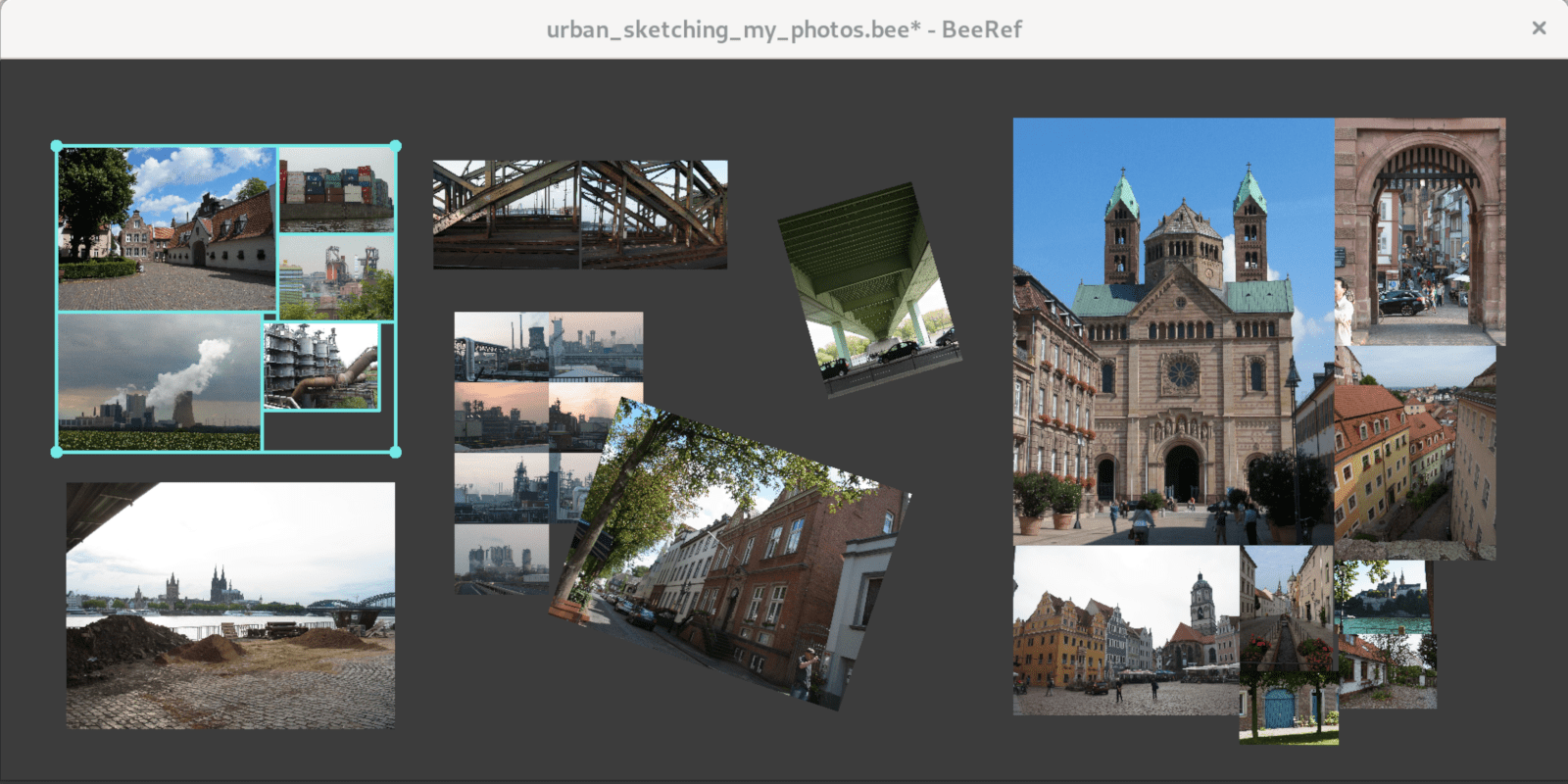

User reviews (0)