
 简体中文
简体中文 English
Website review
This review may include AI-generated content and is not individually verified. Domain, certificate and other facts come from the observed data on this page.
What is Brackets?
Brackets is a free, open-source code editor built for web development, especially HTML, CSS, and JavaScript. Its defining idea is to keep you in the editor while you work visually: you get inline views of related code instead of jumping between tabs, and a live preview that reflects HTML and CSS changes in the browser as you make them. It is lightweight rather than a full IDE, so it suits front-end work, quick prototypes, and learning, while heavier refactoring, debugging, or back-end tooling is better handled elsewhere.
The project has moved on: the site now presents Phoenix Code as the next generation of Brackets and recommends that users upgrade. The original Brackets remains available, but new users should generally start with Phoenix Code unless they depend on a Brackets-specific extension or an existing setup.
What it is good at
- Inline editors let you open a focused editing window on code related to what you are viewing, which reduces tab switching.
- Live preview connects the editor to the browser so CSS and HTML edits appear immediately — useful for layout and styling work.
- Preprocessor support matters if you write in Sass, Less, or similar and want them treated as first-class parts of the workflow.
- Extensions cover common needs: Git integration, Emmet for fast HTML/CSS writing, Beautify for formatting, Markdown preview, file icons, indent guides, Autoprefixer, and W3C validation.
Who it fits
A reasonable reader is someone building a static site or a JavaScript front-end who wants a small editor with instant visual feedback. If your day is mostly large-scale refactoring, deep debugging, or server-side work, a fuller IDE will likely serve you better. If you mainly want a familiar Brackets experience with modern maintenance, Phoenix Code is the intended path.
Brackets vs. Phoenix Code
| Brackets | Phoenix Code | |
|---|---|---|
| Status | Original open-source editor | Presented as the next generation of Brackets |
| Platforms | Desktop | Windows, macOS, Linux, and web browsers |
| Recommendation | Still usable | The site recommends upgrading |
Next step
If you are choosing today, try Phoenix Code first at Phoenix Code and keep Brackets only if a specific extension or workflow holds you there. If you want to understand the original project, its community, or how to contribute, see Brackets.
Should I upgrade from Brackets to Phoenix Code, and how do I migrate?
Yes. The Brackets project itself now points users to Phoenix Code as its successor: the site says Phoenix Code is "the next generation of Brackets," runs on Windows, macOS, Linux and in web browsers, and that Brackets recommends upgrading. Brackets still exists as an open-source editor with inline editors, live preview and preprocessor support, but if you want the actively developed path forward, Phoenix Code is the intended destination. See Brackets and Phoenix Code.
Who should migrate
- Web developers using Brackets daily: migrate. You keep the live-preview, HTML/CSS/JS workflow Brackets was known for, on a codebase that is still being developed.
- Occasional or classroom users: migrate when convenient. The concepts carry over, so the learning cost is low.
- Anyone on an old Brackets install with heavy extension use: check your extensions first, because that is where migration friction usually appears.
- Users who only need a plain text editor: neither tool is obligatory; decide based on whether you want live preview and inline editing.
How to migrate, practically
- Install Phoenix Code alongside Brackets rather than replacing it immediately, so you can compare behavior on a real project.
- Open one representative project (not your whole repository) and confirm live preview, preprocessor support and file-tree behavior.
- Reinstall the extensions you actually rely on. Brackets' popular list includes Git integration, Emmet, Beautify, Markdown Preview, File Icons, Indent Guides, Autoprefixer and W3C Validation. Availability may differ in Phoenix Code, so treat this as a checklist to verify, not a guarantee.
- Keep Brackets installed for a week or two as a fallback while you confirm your workflow.
- Only then remove the old install and update your shortcuts or file associations.
Decision criteria
| Situation | Better choice |
|---|---|
| You want ongoing updates and cross-platform/web access | Phoenix Code |
| You depend on an extension only available in Brackets | Stay on Brackets short-term, test alternatives |
| You are mid-deadline on a large project | Finish the milestone first, then migrate |
| You are learning HTML/CSS/JS | Either works; Phoenix Code keeps you on the supported path |
Next step: open your most extension-dependent project in Phoenix Code and confirm those extensions before committing to a full switch.
Is Brackets still safe to use now that it's no longer maintained?
Brackets is not a good choice for new work, and its safety depends on how you use it. The page states that Brackets is no longer the actively developed product and recommends upgrading to Phoenix Code, its successor. An unmaintained editor stops receiving security fixes, so any future vulnerability in the app or its extension ecosystem may go unpatched.
What that means in practice
- Local-only editing: If you write files on your own machine and never open untrusted projects or install new extensions, the practical risk is low.
- Extensions and plugins: These are the main risk surface. A stalled marketplace can leave malicious or outdated packages unreviewed.
- Opening unknown projects: Workspace settings, build scripts and preview servers can execute code. Treat unfamiliar repositories with care.
- Team or production use: Running an unsupported tool in a shared or regulated environment is hard to justify when maintained alternatives exist.
Your realistic options
| Option | Best for | Trade-off |
|---|---|---|
| Keep Brackets offline | Occasional edits to personal files | No fixes, shrinking extension support |
| Move to Phoenix Code | Most former Brackets users | New tool to learn, but active development |
| Switch to another maintained editor | Teams needing long-term support | Different workflow and extension set |
If you rely on Brackets mainly for its live preview and inline editing, the direct upgrade path is Phoenix Code, which the page describes as the next generation of Brackets and available for Windows, macOS, Linux and the browser. For a broader comparison of maintained editors, see Visual Studio Code and Phoenix Code.
Decision rule: if the editor touches untrusted code, shared machines or client work, migrate. If it is a personal offline tool for simple HTML, CSS and JavaScript, you can keep it with the understanding that it will not improve or receive fixes.
How does Brackets' live preview compare to Phoenix Code's for front-end work?
Brackets' live preview and Phoenix Code's live preview serve the same core purpose — showing HTML/CSS changes in a browser as you edit — but the two editors differ in how you run them and how much of the preview workflow is built in.
What the page actually says
The Brackets page describes Live Preview as a "real-time connection to your browser" where changes to CSS and HTML appear on screen instantly. It presents this as one of three headline features, alongside Inline Editors (editing code in context instead of jumping between tabs) and preprocessor support. The same page says Brackets has evolved into Phoenix Code, described as "the next generation of Brackets" that "Runs everywhere — Windows, macOS, Linux and Web Browsers," and it recommends that users upgrade. So the live-preview concept is not abandoned; it carries forward into Phoenix Code, and the browser-based version is the notable addition.
Practical comparison for front-end work
| Aspect | Brackets | Phoenix Code |
|---|---|---|
| Live preview | Real-time browser connection for HTML/CSS edits | Live preview carried into the next-generation editor |
| Where it runs | Desktop editor | Desktop plus web browser |
| Status | Maintained by the community, superseded by Phoenix Code | The recommended successor |
What this means in practice
For a typical front-end task — adjusting a layout, tweaking spacing, iterating on a responsive breakpoint — the value of live preview is the same in both: you avoid the save-refresh cycle and see CSS changes as you type. The meaningful difference is the environment. If you work on a machine where you cannot install software, or you want to open a project from a browser, Phoenix Code's browser option removes that barrier. If you already have Brackets configured with extensions such as Emmet, Beautify or Autoprefixer, the page lists those as popular extensions, and the migration path to Phoenix Code is the officially suggested route.
A concrete scenario
Imagine you are tuning a CSS grid for a portfolio page. In either editor you edit the stylesheet and watch the browser update without reloading. The friction point is not the preview itself but the surrounding workflow: preprocessor support matters if you write Sass or Less, and inline editing matters if you are working inside a single large HTML file.
Decision criterion
Choose Phoenix Code if you want the actively recommended editor and the option to work in a browser; stay on Brackets only if your existing setup and extensions are working well for you. Before switching, test one real project — open it, make a CSS change, and confirm the preview behaves as you expect in your target browser.
Which Brackets extensions are best for a Git and Emmet workflow?
For a Git-and-Emmet workflow, start with the two extensions the Brackets site itself lists: Git for version control inside the editor and Emmet for fast HTML/CSS expansion. Both are named under "Popular Extensions," so they are the obvious first installs for this pairing.
What each one gives you
- Git — Git integration for Brackets, so you can stage, commit and review changes without leaving the editor. Best if you want to stay in one window while working on a small project.
- Emmet — high-speed HTML and CSS workflow. It turns short abbreviations into full markup, which is where most of the day-to-day speedup comes from.
How they fit together in practice
A typical session: you scaffold markup with Emmet abbreviations, then use the Git extension to review the diff and commit. Because Brackets also has inline editors and live preview, you can edit a CSS rule in place and see the result immediately — useful when Emmet has generated a block you want to fine-tune.
Useful additions, not substitutes
- Beautify — formats JavaScript, HTML and CSS; helpful before committing so diffs stay readable.
- Autoprefixer — adds vendor prefixes to CSS automatically; worth having if your CSS output is part of what you commit.
- File Icons and Indent Guides — cosmetic, but they make larger files easier to scan.
A decision criterion
If you mostly work alone on small front-end projects, the Git extension plus Emmet is enough. If you collaborate on a shared repository and rely on branch-heavy workflows, check whether the extension's feature set covers what you need before committing to it; heavier Git work is often smoother in a dedicated client.
One important next step
Brackets recommends upgrading to Phoenix Code, described as the next generation of Brackets, running on Windows, macOS, Linux and web browsers. If you are setting up a workflow now, verify that your chosen extensions are available there before investing time in configuring Brackets. See Brackets for the extension list and migration link, and Phoenix Code for the current editor.
How do I install and run Brackets or Phoenix Code on Windows, macOS, Linux, or in the browser?
Brackets and Phoenix Code are two stages of the same editor: Brackets is the older open-source editor, and Phoenix Code is its successor, which the project recommends upgrading to. Both target front-end work with live preview for HTML, CSS, and JavaScript. Installation is straightforward, but the practical difference is that Phoenix Code is the maintained path and also runs in a browser.
Desktop installation (Windows, macOS, Linux)
- Go to Phoenix Code and download the build for your operating system.
- Run the installer (Windows/macOS) or unpack and launch the application (Linux).
- Open a project folder, then start editing HTML, CSS, and JavaScript files.
- Use Live Preview to see changes reflected in your browser as you type.
If you specifically want the original Brackets, the same download-and-install flow applies from the Brackets site, but expect it to be the older codebase.
Running in the browser
Phoenix Code is also available as a web editor, so you can launch it without installing anything. This is useful on a locked-down work machine, a Chromebook, or a borrowed computer where you cannot install desktop software. The trade-off is that browser-based editing depends on browser storage and permissions, so for large projects or offline work the desktop version is usually more comfortable.
Brackets vs. Phoenix Code at a glance
| Aspect | Brackets | Phoenix Code |
|---|---|---|
| Status | Older editor, upgrade recommended | Next-generation successor |
| Platforms | Desktop | Windows, macOS, Linux, and web browsers |
| Best for | Existing Brackets users, legacy setups | New users and anyone wanting the maintained version |
| Browser option | No | Yes |
Migrating from Brackets
If you already use Brackets, the project provides a migration path to Phoenix Code, so your settings and workflow can carry over rather than starting from scratch. Do the migration before you invest more time in customizing the old editor.
A practical next step
For most people, download Phoenix Code from Phoenix Code, install it on your main machine, and try the browser version once to see whether it fits your situation. Choose the browser editor if you move between computers or cannot install software; choose the desktop app if you want a stable, offline-capable environment for larger projects. If you are still on Brackets, migrate rather than install fresh.
 Amazon Route 53
 Fastly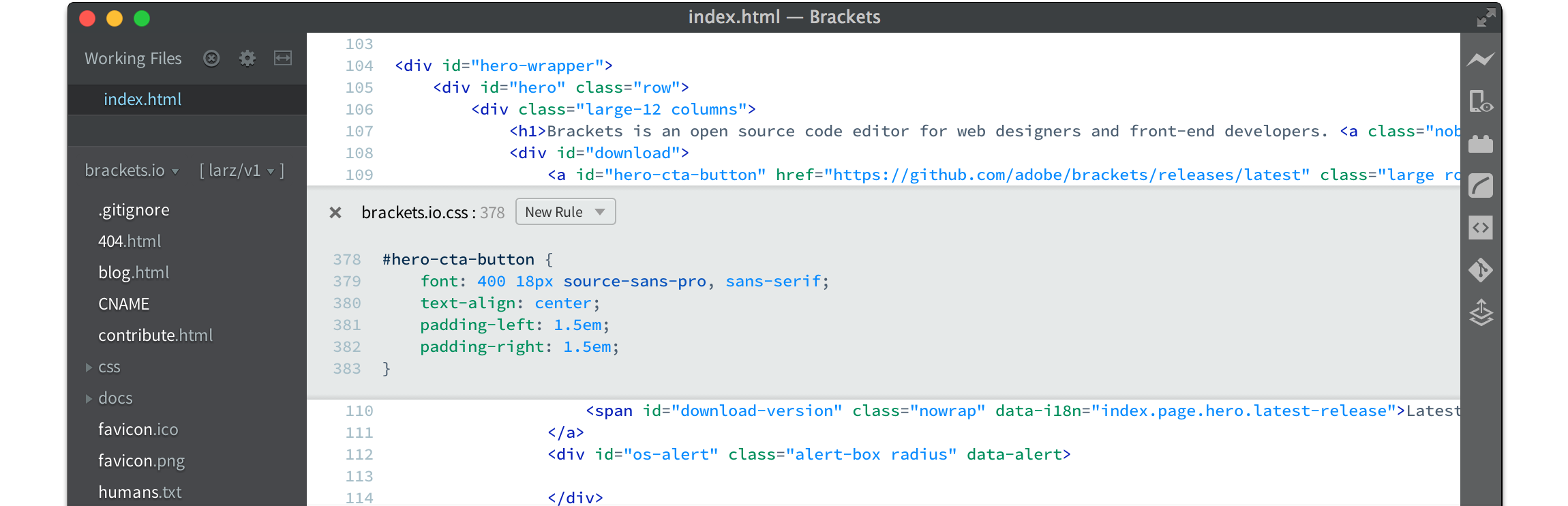

User reviews (0)