
 简体中文
简体中文 English
Website review
This review may include AI-generated content and is not individually verified. Domain, certificate and other facts come from the observed data on this page.
What is Fake Data?
Fake Data is a browser extension that automatically fills web forms with generated test data. It is aimed at web developers and testers who repeatedly type dummy names, addresses and similar values into forms while building or checking websites. According to its page, it installs on Chrome, Firefox, Microsoft Edge and Opera and is designed to work with little or no initial configuration.
What it does
- Fills forms quickly. Instead of typing sample values by hand, you let the extension populate fields.
- Works with non-standard inputs. The page notes that modern UI libraries make inputs behave unlike plain HTML fields; Fake Data says it can be extended to recognise those.
- Learns field types. It remembers what kind of data belongs in a field you have filled before, on any website.
- Can be programmed. You can write your own JavaScript to generate data for unusual cases.
Free versus paid tiers
The page lists three options: a free tier described as covering everyday form filling, a Pro licence at a one-off €4.99, and an Ultra subscription at €2.99 per month with additional services. Treat those figures as the page's stated prices rather than a settled comparison; check what each tier actually unlocks before paying, since the page describes the paid features only in general terms.
Who it suits
A developer testing a signup flow is the clearest case: install it, open the form, and fill several variants in seconds rather than inventing data each time. A QA tester working across many sites also benefits from the learning behaviour, because repeat fields stop needing manual choices. Someone who fills forms only occasionally will likely find the free tier sufficient.
As a next step, install the free version and try it on one real form you maintain, especially any field built with a custom component. That will show quickly whether its recognition covers your stack before you consider a paid tier.
How do I install Fake Data on Chrome or Firefox?
Install Fake Data from your browser's official extension store rather than from a download link on a third-party page. The site lists Google Chrome, Firefox, Microsoft Edge and Opera as supported browsers, and its own instruction is simply to install it on your browser — there is no separate setup or configuration step described for first use.
Steps
- Open the Chrome Web Store (for Chrome) or the Firefox Add-ons site (for Firefox).
- Search for "Fake Data" and check that the listing matches the form-filler tool described on fakedata.pro.
- Select Add to Chrome or Add to Firefox and confirm the permission prompt.
- Pin the extension to your toolbar so you can trigger it on any form.
- Open a test form and fill one field to confirm it responds before relying on it in real work.
Practical notes
- Permissions matter more than the install. A form filler reads and writes page inputs, so review what the prompt asks for. If you only need it on staging sites, consider restricting when it runs.
- Custom elements may need extra work. The site notes that modern UI libraries make inputs behave less like standard HTML fields, and that Fake Data can be extended to recognise them. Budget time for that if your app uses such components.
- The learning behaviour is worth testing early. Fake Data is described as remembering what type of data belongs in a field you have filled before; try it on your most repetitive form first to see whether the memory matches your naming conventions.
If the store listing and the fakedata.pro description diverge, trust the store listing for version and permission details, and treat the website's feature claims as the vendor's own description.
What's the difference between the Free, Pro, and Ultra plans?
Fake Data separates its plans by depth of use: Free covers everyday form filling, Pro is a one-time upgrade that unlocks more features, and Ultra is a subscription aimed at heavier or more demanding use.
What each tier is for
- Free is the starting point and is described as including everything needed to make form filling easier and more productive. It suits developers who want to install a filler and start testing forms without configuration.
- Pro is presented as the paid unlock for "even more awesome features," sold as a one-time lifetime purchase rather than a recurring cost. It fits someone who has outgrown the free feature set but does not need ongoing services.
- Ultra is positioned as an upgrade on top of Pro with access to "ultra powerful services that no other form filler will give you," and is billed monthly. That framing suggests recurring, service-backed capabilities rather than just extra local options, which matters if you dislike subscriptions.
What the page does not settle
The page does not list which specific features sit behind Pro or Ultra, so the practical difference between the paid tiers is not spelled out. The advertised strengths—no setup, JavaScript extensibility, support for custom UI elements like material design inputs, and learning field types as you fill them—are described as product capabilities generally, not attributed to a particular tier.
How to decide
If your work is standard HTML forms and quick manual testing, start with Free and note which limits you actually hit. Choose Pro if the missing features are one-off needs you would rather own outright. Consider Ultra only if the recurring services it mentions match a workflow you run continuously, since a monthly charge for occasional form filling rarely pays off.
A useful next step is to check the plan section on Fake Data for the current feature breakdown before paying, then trial Free on one real project to see whether the gap justifies an upgrade.
Can Fake Data fill out custom form fields built with Material Design or other UI libraries?
Yes. Fake Data is designed to work with custom form fields, including those built with Material Design and other UI libraries. The site notes that such inputs behave less and less like standard HTML inputs, and says Fake Data can be extended to recognise and work with them. It also learns from you: once you fill a particular field, it remembers what type of data belongs there, on any website.
What this means in practice
- Standard forms: work out of the box after install, with no advanced setup or configuration.
- Custom UI components: expect to extend the tool. The page offers custom JavaScript for fields that are "unlike any other," and support can help with scripts.
- Repeated fields: the learning behaviour reduces setup effort on forms you fill again.
Decision criterion
If your test suite or manual QA workflow involves many library-specific widgets (date pickers, dropdowns, masked inputs), plan for some initial scripting per component type. If you mostly fill conventional inputs, the default behaviour should cover you.
For a quick trial, install the extension, fill a Material Design input once, and check whether the remembered mapping applies on a second visit to the same form. Browser compatibility listed on the page covers Chrome, Firefox, Edge and Opera.
How does Fake Data learn and remember the data I enter for a field?
Fake Data remembers fields by learning from what you enter as you use it. The site describes this as "Learns from you": once you fill a particular field, the extension notes what type of data belongs there, and the next time you encounter the same field—on any website—it fills that kind of data automatically. The learning is tied to the field rather than to a single page, so recurring fields such as email, phone or address are recognised across sites without you re-teaching them each time.
What this means in practice
- First encounter: you fill the field manually (or accept generated data), and Fake Data associates that field with the data type.
- Later encounters: the same field is recognised and filled with the matching data type, on any site.
- Custom or non-standard inputs: the site notes that modern UI libraries make inputs behave less like standard HTML fields, and says Fake Data can be extended to recognise and work with them—typically through its custom JavaScript support.
Practical scenario
A developer testing a signup flow fills a "Work email" field once. On the next test site with a similarly labelled field, Fake Data should recognise it and populate an email-type value rather than leaving it blank or inserting something unrelated. This is most useful for repetitive QA passes across many forms.
Decision criteria
- If your forms use standard HTML inputs, the learning behaviour should cover most fields with little setup.
- If you rely heavily on custom components or unusual field names, plan to use the scripting/extensibility option, since recognition of non-standard inputs depends on it.
- If you need control over exactly which data type maps to which field, check the customisation options before relying on automatic learning.
For a broader set of generated test values, Mockaroo is a known alternative, though it works differently—as a data generator rather than a browser-based form learner.
Can I write my own JavaScript to generate custom data in Fake Data?
Yes. Fake Data documents a programmable extension path: you can write your own JavaScript to generate data the way you need, and the site describes this as a way to handle forms that don't fit the built-in behaviour. It also says support can help with writing scripts.
What that means in practice
- Custom data generation: Instead of relying only on built-in field types, you can script values for edge cases—domain-specific IDs, formatted reference numbers, or values that follow a pattern your app expects.
- Custom elements: The site notes that modern UI libraries make inputs behave less like standard HTML inputs, and says Fake Data can be extended to recognise and work with them. Custom scripting is the lever for those cases.
- Learning from use: Separately from scripting, Fake Data says it learns new fields as you use them and remembers what type of data to put in the same field next time, on any website.
A concrete scenario
Suppose you test a checkout form with a "customer reference" field that must match ACME- followed by eight digits, plus a custom date picker built from divs rather than a native input. Built-in random fillers would produce the wrong shape or skip the picker. With custom JavaScript, you'd generate the reference string and target the picker's underlying element, then reuse that setup across test runs.
Decision criterion
Choose the scripted route when your forms have validation rules, formats, or non-standard widgets that generic filling breaks. If your forms are ordinary HTML inputs, the no-configuration default is likely faster to start with. The page presents scripting as an extension capability rather than a required setup step, so treat it as the escape hatch for the hard cases.
As a next step, check the site's documentation or support channel for the scripting API details—how scripts are registered, what context they run in, and which events they can hook—before building anything complex.
 Cloudflare
 Fastly
 Amazon SES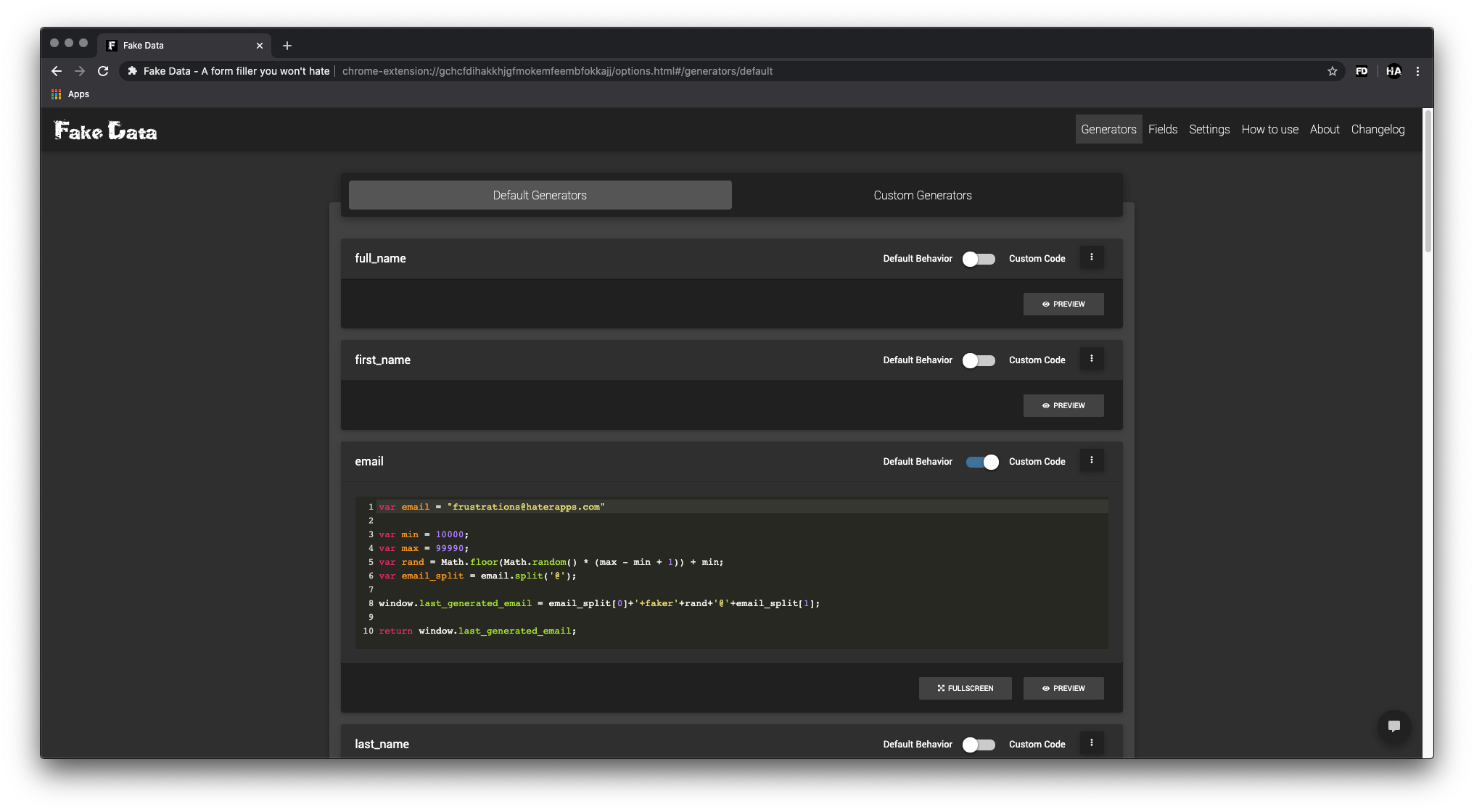
User reviews (0)