
 简体中文
简体中文 English
Website review
This review may include AI-generated content and is not individually verified. Domain, certificate and other facts come from the observed data on this page.
What is Stylebot?
Stylebot is a browser extension that lets you restyle any website without editing the site itself: you point at an element, change its appearance, and Stylebot writes the CSS and reapplies it each time you revisit the page. It runs on Chrome, Firefox and Edge on desktop and is free and open source.
What you can actually do with it
- Quick visual tweaks: pick an element and adjust text, font, size, line height, color, decoration, alignment, background, box and effects through Basic controls.
- Write CSS directly: switch to the Code panel when the visual controls aren't enough.
- Hide or reset elements: useful for removing a distracting sidebar, banner or ad slot on a site you read often.
- Save profiles per site: keep several looks for the same site and switch between them in a click.
- Work from a coding agent: a CLI lets an agent that can run commands open a tab, apply a stylesheet, and take a screenshot to check the result.
A concrete use: a reader who finds a news site's body text too small and the page cluttered can enlarge the type, warm the text color, widen the reading column and hide the ad area — then have that look load automatically on every visit.
Who it suits, and the trade-offs
| Reader | Good fit because | Trade-off to expect |
|---|---|---|
| People who dislike a site's typography or clutter | Point-and-click controls, no CSS knowledge needed | Changes live only in your browser, not for anyone else |
| Tinkerers and developers | Direct CSS editing, presets, profiles, CLI | You maintain your own styles when a site redesigns |
| Accessibility-focused users | Larger text, higher contrast, hiding noise | Not a substitute for a site's own accessibility settings |
The main limitation is scope: styles are local to your browser, so they don't fix a site for other people, and a major redesign can break your custom CSS until you adjust it.
Next step: install it, open a site you read daily, press Alt+Shift+M, and try one change — body font size or hiding a sidebar — before building a full profile. If you want to compare approaches, Stylus is another userstyle manager, while MDN Web Docs is a practical reference for the CSS properties you'll be writing.
How do I restyle a website with Stylebot without writing CSS?
Use Stylebot's point-and-click editor: open the extension on the page, select the element you want to change, and adjust its appearance with the built-in controls. Stylebot records those changes as CSS and reapplies them whenever you return to that site, so you don't need to write any code yourself.
A practical walkthrough
- Open the page you want to restyle and launch Stylebot—click its toolbar icon or press Alt+Shift+M.
- Click the element you want to change, such as a headline, paragraph, sidebar or ad block. The panel fills in that element's current styles.
- Use the Basic controls to change what you see: font, size, line height, color, decoration, alignment, background and box effects. A More properties section exposes additional settings.
- Repeat for other elements until the page looks the way you want.
- Save the result as a profile. Stylebot supports multiple profiles per site, so you can keep, say, a "reading" look and a "compact" look and switch between them in a click.
The page also offers Presets and a Hide action, which are handy when you mainly want to strip clutter—hide a sticky banner or a distracting sidebar—rather than redesign the page.
When clicking isn't enough
Some changes are awkward to express by pointing: hiding several unrelated elements at once, or making a consistent change across many pages of the same site. That's where the Code tab earns its place—you can drop in CSS directly for those cases, while still doing the everyday work visually. If you'd rather delegate, Stylebot ships a CLI that lets a coding agent open a page, apply a stylesheet and take a screenshot to check the result; that's an option for repeatable setups, not a requirement for casual use.
A concrete scenario
Suppose a news site's long-read pages feel cramped. You could enlarge the body text, increase line height, warm the text color, widen the article column and hide the ad slot beside it—all through the Basic panel—then save it as a profile so every article on that domain opens that way. The trade-off is that site updates can break your selectors: if a redesign changes the markup, a saved style may stop matching, and you'd re-pick the element. Keeping profiles few and simple makes them easier to repair.
Deciding whether it fits
| If your goal is… | Stylebot's visual editor works well because… | Watch out for… |
|---|---|---|
| Reading comfort on sites you visit often | Font, size, spacing and color controls map directly to what you see | Very complex layouts may need the Code tab |
| Removing clutter | The Hide action and presets handle common cases quickly | Hiding elements can occasionally break navigation |
| Several distinct looks for one site | Profiles let you switch between saved styles | More profiles mean more to maintain after redesigns |
| Restyling many pages at once | Styles persist per site across visits | Site-wide markup changes can invalidate selectors |
As a next step, pick one site you read daily, change only the body text size and line height first, and save that as a profile. Once that feels right, add a second change—such as hiding one distracting element—so you can tell which adjustment caused any problem later. Stylebot is free and open source for Chrome, Firefox and Edge on desktop.
Does Stylebot remember my custom styles the next time I visit the same site?
Yes. Stylebot saves the CSS you create for a site and loads it again automatically whenever you return to that site, so you don't have to redo the changes each visit. You can also keep multiple saved looks ("profiles") for the same site and switch between them in a click, which is useful if you want one style for reading and another for a cluttered dashboard.
A practical next step: pick a site you visit daily, make one small change (larger body text, a calmer background), then close and reopen the tab to confirm the style reapplies before investing time in a full restyle. If you work across several browsers, note that Stylebot runs on Chrome, Firefox and Edge for desktop, but you'll need to recreate or re-import styles per browser profile.
For readers who prefer a ready-made approach, Stylebot also offers starting styles you can adapt rather than writing CSS from scratch.
Can I use Stylebot with a coding agent or command-line workflow?
Yes. Stylebot offers a command-line interface that coding agents can drive, so you can restyle sites from a terminal or automate it inside an agent workflow rather than only clicking through the browser editor.
What the CLI enables
Per the product page, the CLI is installed with npm install -g @stylebot/cli. The page's terminal example shows a sequence an agent could run:
- Open a tab at a URL (
stylebot open harbourpost.example) - List selectable elements on the page (
stylebot outline …) - Apply a CSS file to a site (
stylebot css set harbourpost.example < night.css) - Capture a screenshot to verify the result (
stylebot screenshot … -o check.png)
That pattern—open, inspect, apply CSS, screenshot—is what makes it usable for an agent: the agent can read the DOM outline, write CSS, then check the rendered page without a human pointing and clicking.
Who benefits
- Developers who keep site tweaks in version-controlled CSS files and want them applied consistently.
- Agent users who want an assistant to draft and test restyling in a loop.
- Tinkerers who prefer scripting over the visual editor for repeatable changes.
Trade-offs to weigh
The visual editor remains the faster route for one-off, exploratory tweaks—point, adjust a field, done. The CLI suits repeatable or programmatic work but assumes comfort with a terminal and npm. Profiles still let you keep separate looks per site, so scripted and manual styles can coexist.
A practical next step: pick one site you restyle often, save the CSS to a file, and script the open → apply → screenshot sequence so you can re-run and verify it after each change. Stylebot is free and open source for Chrome, Firefox and Edge on desktop, per Stylebot.
How do I save and switch between different visual profiles for one website?
Use Stylebot's profiles: a profile is a saved set of CSS rules for one site, and you can keep several per site and switch between them in a click. The workflow is: open the editor, pick an element, restyle it, then save the result as a named profile. Stylebot writes the CSS and reapplies it each time you return to that site.
The basic loop
- Open the Stylebot editor on the page you want to change — the page evidence shows the icon or the shortcut
Alt+Shift+M. - Click the element you want to change; the panel shows its current text, font, colour, background and box styles.
- Adjust with the Basic controls, or write CSS directly in the Code tab if you want precise rules.
- Save it as a profile. The page evidence shows a profile selector (shown as "Default") plus a "Create profile" action, so you can add a second look for the same hostname rather than overwriting the first.
- Switch profiles from that same selector when you want a different look.
When profiles are worth the extra setup
- Reading vs. working on the same site. A news site might get one profile with larger serif body text and warmer colours for evening reading, and another that hides sidebars and ads for quick scanning. Keeping them separate means you don't lose the reading version when you tighten the layout.
- Shared machines or different displays. A profile tuned for a small laptop screen and one for a large external monitor can coexist, and you switch rather than re-edit.
- Iterating safely. Build a new profile from scratch, compare it against your current one, and only then delete the old one. This is my suggested practice, not something the page states.
A concrete example
On a long article page, one profile could enlarge the headline and body text and remove the ad slot; a second could leave the layout alone but switch to a dark background. Both live under the same site entry, so the switch is a single selection rather than a re-edit each time.
Practical trade-offs
- More profiles mean more to maintain. A site redesign can break rules in every profile at once; start with two and add only when you actually reuse a look.
- Profiles are per site (hostname), not per page. The page evidence shows the profile tied to a domain with a path beneath it, so expect one set of looks to apply across that site's pages — useful for consistency, less so if you wanted a different look for one section only. Writing narrower CSS selectors is the way to handle that.
- The visual editor gets you most of the way; CSS gets you the rest. Use the controls for quick changes and drop into Code for anything the panel doesn't expose, such as hiding a specific element by class.
Next step
Create a second profile on the site you read most, change only one thing (body size or background), and switch back and forth once to confirm the original look is intact. If you later want to script or automate restyling, the page notes a command-line interface and mentions compatibility with coding agents that can run commands, which is a different route from clicking through the panel.
Stylebot is free and open source for Chrome, Firefox and Edge; see Stylebot for the current editor and CLI details.
Which browsers does Stylebot support and is it free?
Stylebot runs on Chrome, Firefox and Edge on desktop, and it is free and open source. There is no paid tier implied by the page; the tool is presented as a free extension you add to your browser and use directly.
What that means in practice
- Cross-browser use: You can install it in Chrome, Firefox or Edge and get the same core workflow: open the editor, click an element, change its styles, and have the CSS reload each time you revisit the site.
- Open source: The code is available to inspect and modify, which matters if you want to verify what the extension does or adapt it.
- Desktop only: The page specifies desktop browsers, so don't expect the same extension experience on mobile browsers.
A concrete scenario
Suppose you read long articles on a news site and find the body text too small and the sidebar distracting. You install Stylebot in Firefox, press Alt+Shift+M, click the paragraph, raise the font size, and hide the sidebar. Stylebot writes the CSS and reapplies it on your next visit. You can save that as a profile and switch it off when you want the original look.
Decision criterion
Choose Stylebot if you want a free, open-source way to restyle sites across Chrome, Firefox and Edge without maintaining a separate userstyle manager. If you only use one browser and need advanced sync or sharing features, compare it with alternatives before committing. For a broader styling workflow, Stylebot is the reference point here.
Next step: Install it in your main browser, restyle one site you visit daily, and save the result as a profile so you can toggle it on and off.
 Google Cloud DNS
 Fastly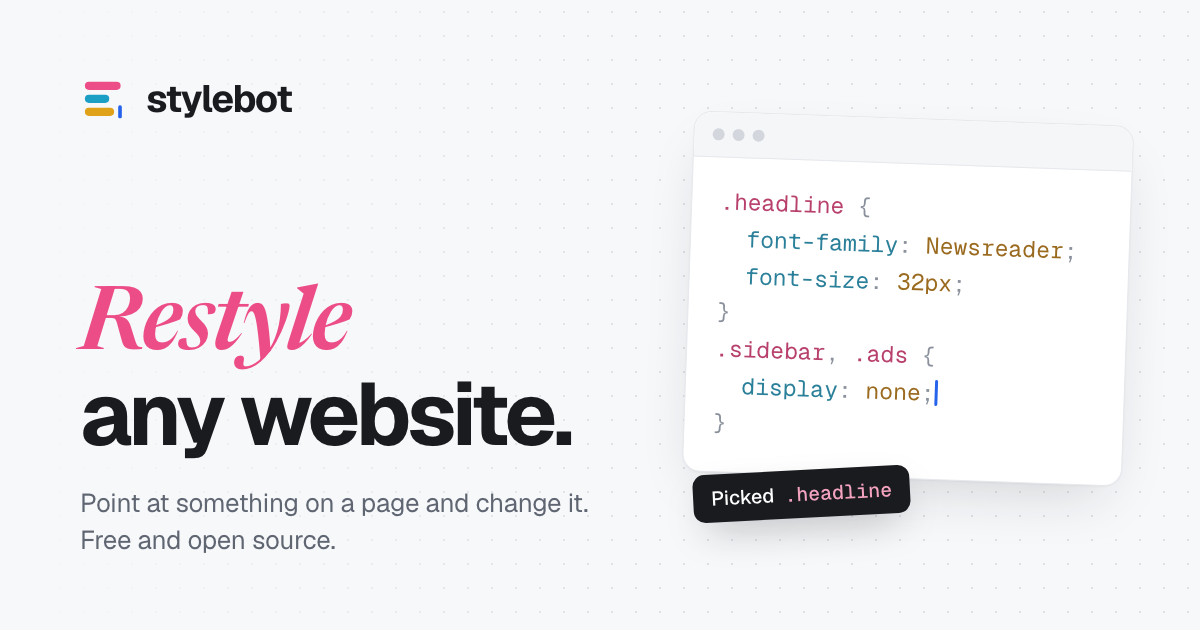
User reviews (0)