
 简体中文
简体中文 English
Website review
This review may include AI-generated content and is not individually verified. Domain, certificate and other facts come from the observed data on this page.
What is SVGcode?
SVGcode is a browser-based tool that converts raster images—PNG, JPG, JPEG, WEBP, AVIF, GIF and similar bitmap formats—into SVG vector graphics. It handles both color and monochrome conversions, so you can choose between reproducing a full-color image as vectors or reducing it to a single-color tracing.
What that means in practice
Raster images are grids of pixels, so they blur or pixelate when scaled up. SVG files describe shapes and paths mathematically, so they stay sharp at any size and are usually much smaller for logos, icons and line art. SVGcode's job is to make that conversion without installing desktop software.
Who it suits
- Designers who need a quick vector version of a logo or icon before refining it in a vector editor.
- Web developers who want lightweight SVG assets instead of heavy PNGs.
- Anyone tracing a scanned sketch or a simple illustration for print or cutting workflows.
Trade-offs to expect
Automatic tracing works best on high-contrast, uncluttered images—logos, silhouettes, line drawings. Photographs with gradients, soft shadows and fine texture tend to produce large, messy SVGs that look worse than the original and are painful to edit. Monochrome mode is the safer choice for simple black-and-white artwork.
A useful next step
Start with a clean, high-resolution source image and try monochrome first. Compare the exported SVG against the original at a large zoom level; if edges look jagged or the file size balloons, the image is probably too detailed for clean tracing and is better kept as a raster or redrawn by hand.
How do I convert a PNG or JPG image to SVG using SVGcode?
Open SVGcode in a modern desktop browser, drag your PNG or JPG onto the page (or use its file picker), then adjust the trace settings and download the resulting SVG. The whole conversion runs locally in the browser, so your image is not uploaded to a server — handy for screenshots, logos, scanned line art or anything you would rather not send elsewhere.
A typical workflow
- Load the bitmap. Drop in a PNG, JPG/JPEG, WEBP, AVIF or GIF. Photos work, but they produce large, heavy SVGs.
- Choose color or monochrome. Monochrome suits black-and-white logos, signatures and icons; color mode tries to preserve the original palette.
- Tune the trace. Fewer colors and simpler shapes give cleaner, smaller files; more detail gives a closer match but a bulkier SVG.
- Check the preview. Zoom in on curves and thin strokes — auto-tracing tends to wobble on anti-aliased edges and gradients.
- Download the SVG and open it in a vector editor such as Inkscape or Illustrator for cleanup.
What it is good for — and not
| Source image | Likely result | Verdict |
|---|---|---|
| Flat logo, icon, line drawing | Crisp paths, small file | Good fit |
| Screenshot with text and UI | Readable but slightly lumpy edges | Acceptable with cleanup |
| Photograph with gradients | Many paths, large file, "posterized" look | Usually the wrong tool |
Practical decision criterion: if the image has fewer than roughly a dozen distinct colors and clear edges, tracing will save you time. If it is a photo or has soft shadows and gradients, keep it as a raster image or redraw it by hand — an SVG traced from a photo is often bigger than the JPEG and looks worse.
After downloading, open the SVG in a vector editor to merge stray nodes, delete background fragments and simplify paths; that cleanup step usually matters more than the tracing settings themselves.
Can SVGcode convert color images to color SVG, or only monochrome?
SVGcode can do both. It converts color bitmap images (PNG, JPG, JPEG, WEBP, AVIF, GIF) into color SVG vector graphics, and it also supports a monochrome mode that traces the image as a single-color vector. So the choice is yours, not a limitation of the tool.
How to think about the trade-off
- Color mode preserves the original hues, which suits logos, flat illustrations, screenshots, maps, or artwork where color carries meaning. The output SVG will be larger because it has to describe multiple color regions.
- Monochrome mode reduces the image to one color, producing a smaller, simpler file. It works well for icons, stamps, signatures, line art, or any case where you mainly want the shape and will recolor it later in CSS or a design tool.
A concrete scenario
Suppose you have a scanned hand-drawn sketch on off-white paper. Monochrome mode is usually the better starting point: it strips the paper tone and gives you clean black strokes you can restyle. If instead you have a colorful flat-design poster, color mode keeps the palette intact — but expect a heavier SVG, so check the file size before using it on a web page.
Next step
Try the same image in both modes and compare the SVG file size and edge quality. If the color version looks blotchy or huge, the image likely has gradients or photographic detail that vector tracing handles poorly regardless of mode; in that case, consider keeping it as a raster image or using a dedicated vector editor such as Inkscape to trace and clean up manually.
What image formats does SVGcode support as input and output?
SVGcode accepts common raster image files as input and produces SVG vector graphics as output.
Input formats: PNG, JPG, JPEG, WEBP, AVIF, GIF, and similar bitmap formats.
Output format: SVG (Scalable Vector Graphics), available in either color or monochrome mode.
The tool is aimed at converting pixel-based images into resolution-independent vectors. A practical scenario: you have a small logo saved as a PNG and want to scale it up for print without blur — converting it to SVG lets it resize cleanly.
Next step: if your source image is a detailed photo, expect limited results, since automatic tracing works best on flat colors, sharp edges, and simple shapes. For photographic content, vector output will look simplified rather than photorealistic.
Is SVGcode free to use, and does it require an account or upload my images to a server?
SVGcode is free to use, and the page evidence shows no sign-in, account, or payment flow. It is presented as a browser-based converter for turning bitmap images (PNG, JPG, WEBP, AVIF, GIF and similar) into SVG vector graphics, in either color or monochrome output.
Does it upload your images? The available page evidence doesn't explicitly state whether processing happens entirely on your device or on a server, so treat that as unconfirmed rather than guaranteed. What is clear is that no account is required to reach the tool, and there is no pricing or checkout mechanism in the supplied signals.
Practical next step: if you're handling sensitive or client images, open the tool, load one unimportant test image, and check your browser's network activity (developer tools → Network tab). If no image data leaves your machine, you can use it confidently for private material; if requests appear, keep confidential files off it.
When it fits well:
- Quick one-off conversions of logos, icons, or simple illustrations
- Monochrome line art, where vectorizing tends to produce the cleanest results
- Situations where you don't want to install desktop software or create an account
Trade-offs to expect: automatic tracing works best on flat colors and clear edges. Photographs and images with gradients, textures, or heavy noise usually convert poorly, producing large files with visible artifacts. In those cases, manual tracing in a dedicated vector editor gives far better control.
For a broader comparison, Inkscape is a free desktop option with a built-in trace tool, and Vectorizer.AI is a hosted alternative — useful reference points if you want to weigh local versus online processing.
How does SVGcode's vector output compare to other raster-to-SVG converters for logos or icons?
For logos and icons, SVGcode is best understood as a browser-based, one-image-at-a-time converter whose output is a tracing of the bitmap you give it — not a reconstruction of the original vector design. The page evidence shows only the product name, its stated purpose (converting color or monochrome bitmaps such as PNG, JPG, WEBP, AVIF and GIF into color or monochrome SVG), and footer links to GitHub, Twitter, and policy pages. It gives no detail about its tracing algorithm, path simplification, or export options, so claims about "cleaner curves" or "smaller files" than rivals aren't supported here.
Practical differences for logo and icon work come down to a few questions you can test yourself:
- Color vs. monochrome intent. A logo with flat fills and few colors is the easy case; a photographic or gradient-heavy icon is the hard case. Tracing tools generally handle the first well and the second poorly, regardless of brand.
- Editability of the result. A traced SVG is usually many small filled paths, not a handful of named shapes. If you plan to recolor, rescale, or animate individual parts, traced output often needs manual cleanup in a vector editor.
- Resolution and anti-aliasing in the source. Tracing a small, blurry, or JPEG-compressed logo tends to produce ragged edges and stray specks; a larger, cleaner source gives smoother curves.
- Batch workflow. If you have hundreds of icons, a tool with folder or bulk conversion saves real time compared with converting files one by one.
A reasonable decision rule: if the logo or icon already exists as a clean, high-contrast bitmap and you only need a usable SVG for the web, an in-browser tracer is a fast first pass. If you need a precise, brand-accurate mark with few paths, tracing is a starting point and you should finish the job in a vector editor such as Inkscape Inkscape or Illustrator.
As a next step, take one representative logo, convert it, and open the SVG in a vector editor to count paths and inspect node density. Compare that against a manual redraw of the same mark; the gap tells you whether tracing is a shortcut or a detour for your specific assets.
 Google Cloud DNS
 Fastly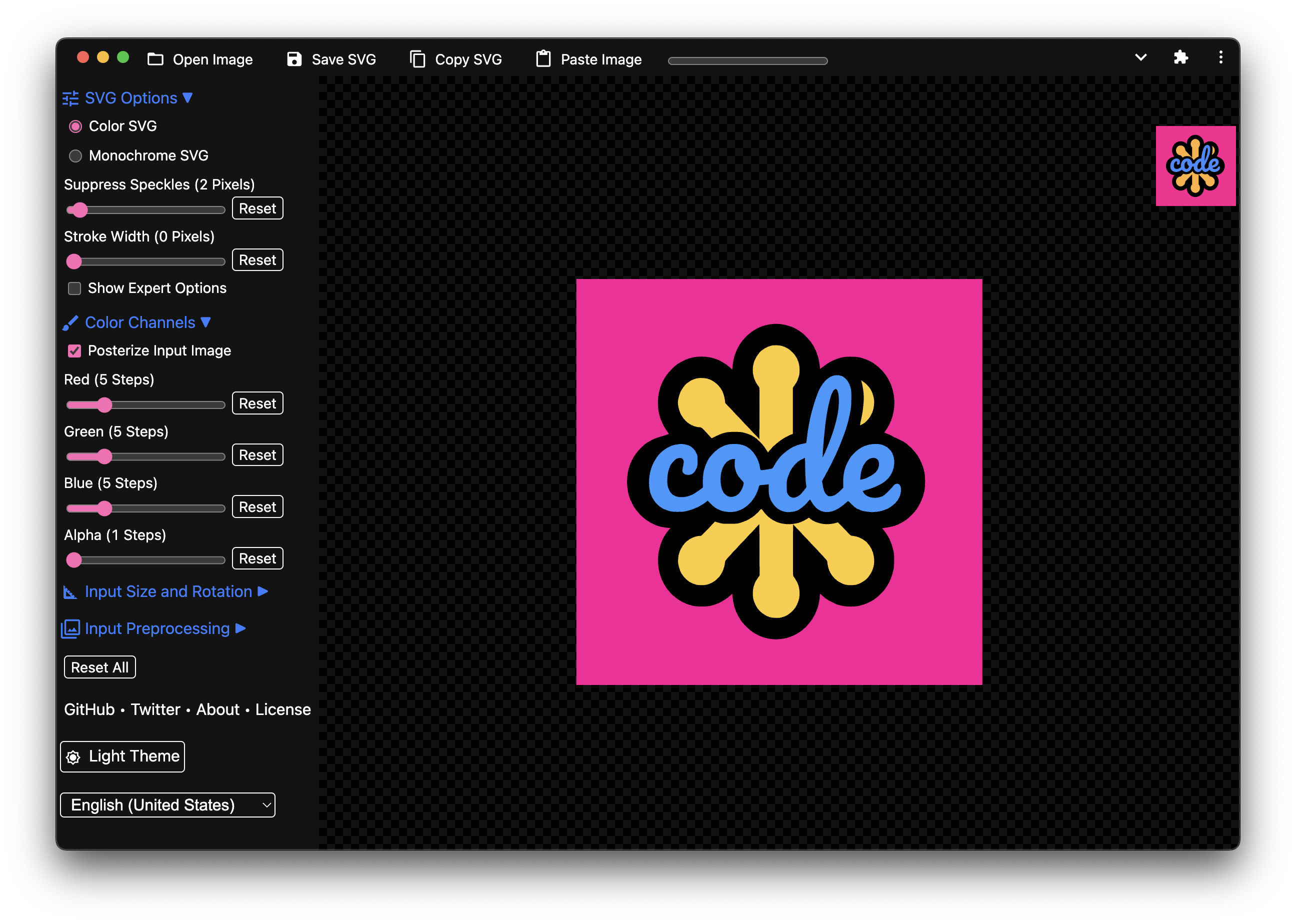

User reviews (0)