

 Visit website
 Updated: 2026-09-30 09:24
 Language: English (default)
 Access: Normal
 Profile views 3
  Outbound visits 0
 Website Review
What is ASCII Theater?
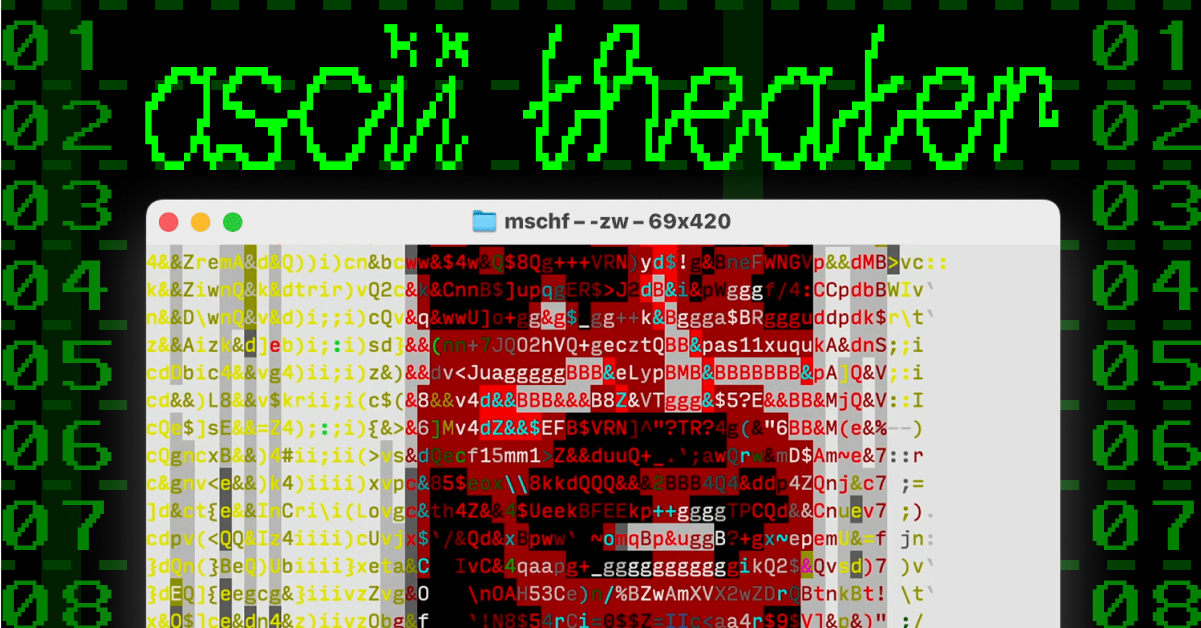
ASCII Theater is a free, browser-free way to watch movies as text art inside your computer's terminal. Instead of opening a video player, you open a terminal window, paste a single SSH command, and a text-based movie starts playing in the same window you'd normally use for command-line work. It's a project from MSCHF, the art collective known for playful, internet-native stunts, and the site presents it as a desktop-only experience.
The appeal is part novelty, part constraint. You're not getting high-definition video; you're getting a deliberately low-fi, character-based rendition of a film. That makes it interesting for people who enjoy retro computing aesthetics, terminal culture, or odd web experiments, and less useful for anyone who actually wants a comfortable movie night.
How it works
- The website shows a command to paste into your terminal, something like
ssh -o StrictHostKeyChecking=no watch.ascii.theater, followed by Enter. - On Windows, you open
cmd.exefrom the Start menu; on macOS, you open Terminal.app from Applications → Utilities. - Once connected, today's screening begins. The site lists a "Today's Screening" and a "Now Playing" slot, so the movie changes rather than letting you pick from a catalog.
- To stop, close the terminal window or press
q.
Who it's for
It suits curious developers, students, and anyone who likes MSCHF-style experiments. It does not suit people who want subtitles, playback controls, or the ability to choose a specific film on demand. Because it runs over SSH in a terminal, it's also not designed for phones or tablets; the site itself says desktop only and offers separate instructions for PC and Mac.
A practical next step: if you're on a work or shared machine, check whether outbound SSH is allowed before trying it, since some networks block it. If you just want to see what it looks like without committing, the concept is simple enough to grasp from the site's own three-step instructions.
How do I stream a movie on ASCII Theater?
Open a terminal on a desktop computer and run the SSH command shown on the ASCII Theater page. That connects you to the stream, and the current movie starts playing as text in your terminal window.
The site is operated by MSCHF and presents itself as a free, text-based movie stream. It is desktop-only, so a phone or tablet browser will not play it.
H3 Windows
- Open the Start menu, type
cmd, and press Enter. - Copy the SSH command from the page and paste it into the Command Prompt window.
- Press Enter. The movie begins.
- To stop, press
qor close the terminal window.
H3 macOS
- Open Applications → Utilities → Terminal.
- Paste the same SSH command and press Enter.
- Press
qor close Terminal to stop.
H3 What to expect
- The film renders as text characters rather than video, so it looks like an animated terminal display.
- It is a single scheduled screening, not an on-demand catalog. The page shows what is playing today and what is coming tomorrow, so you cannot pick a title.
- No account is needed to watch. The email signup on the page is for future MSCHF announcements, not for access.
- If you are on a phone or a locked-down work computer without SSH access, you will not be able to stream it.
If SSH is unfamiliar, the practical test is simple: if typing ssh in your terminal returns a usage message rather than "command not found," you have what you need. For a related free, browser-based experiment in unconventional formats, MSCHF is the studio behind this project.
What movies are currently playing on ASCII Theater?
ASCII Theater does not publish a fixed catalog of films. Its page shows a single "TODAY'S SCREENING" slot, and the actual title is only revealed once you connect — the visible page repeats the placeholder rather than naming a movie. So the answer to "what's playing right now" is: whatever today's screening is, and you have to open the terminal stream to see it.
How to check in about a minute
- Open your terminal —
cmd.exeon Windows,Terminal.appon macOS (the site gives step-by-step instructions for both). - Paste the connection command shown on the page, which connects you to
watch.ascii.theaterover SSH, and press Enter. - The current screening starts playing as text in your terminal. Press
qor close the window to stop.
What to expect
- It is desktop only — no phone or tablet browser route is offered.
- Content is rendered as ASCII text, so the experience is closer to watching a silent-era broadcast in characters than streaming video. Dialogue, scene changes and pacing all read differently than they would on screen.
- Because only one screening runs at a time, there is no on-demand library to browse or rewatch. If you miss tonight's title, you wait for the next one.
Practical judgment
This suits someone curious about experimental or net-art distribution, or a developer who already lives in a terminal and wants a low-effort diversion. It is a poor fit if you want to choose a specific film, need subtitles or accessibility features, or want to watch on a phone or TV. The trade-off is deliberate: extreme simplicity and zero setup cost, in exchange for no control over what you watch.
If you want to know before connecting, the honest next step is simply to run the command — that is the only place the title appears. ASCII Theater is associated with MSCHF, whose other projects you can see at MSCHF.
Can I watch ASCII Theater on Windows or Mac?
Yes — Windows and Mac are the two platforms ASCII Theater explicitly supports. It is not a website you watch in a browser; the movie streams into your terminal, and the site labels itself "desktop only" with separate step-by-step instructions for each operating system.
Windows: open cmd.exe from the Start menu (type cmd, press Enter), paste the code shown on the page, and press Enter. Mac: open Terminal.app from Applications → Utilities, paste the same code, and press Enter. In both cases the connection starts today's screening automatically. To stop it, close the terminal window or press q.
The commands shown on the page are ssh -o StrictHostKeyChecking=no watch.ascii.theater — the ssh prefix is what tells your machine to connect to a remote server, which is why a terminal is required rather than a browser tab.
A few practical notes:
- Terminal comfort matters more than OS. If you have never opened a command line, the Windows path is usually the easier first attempt because the site walks through the Start menu; Mac users just need to find Terminal.app, which is already installed.
- The
StrictHostKeyChecking=noflag skips the usual host-key confirmation prompt. That is convenient for a one-off stream, but it means you are not verifying the server's identity — fine for casual viewing, worth knowing if you are cautious about what you connect to. - No mobile or tablet path is described. The page points "on a different device?" toward PC instructions, so phones are not a supported route.
- Timing: the page frames the content as a daily screening ("Today's Screening," "Now Playing," "Tomorrow"), so what you see depends on when you connect rather than on choosing a title.
If you want to try it now: on Windows press the Windows key, type cmd, hit Enter, then paste the code from the page and press Enter. If nothing appears within a few seconds, check that you copied the full line including ssh.
ASCII Theater is an MSCHF project; if you want to see what else that group releases, the page offers an email signup for future releases.
Is ASCII Theater free to use?
Yes. ASCII Theater streams its text-based movies at no cost — the page presents it as a free service you access by pasting a single SSH command into your terminal, with no pricing, subscription or payment step mentioned anywhere.
The trade-off is access method rather than money: it's desktop-only, and you need to be comfortable opening a terminal.
- Windows: open
cmd.exefrom the Start menu, paste the code shown on the page, press Enter. - macOS: open Terminal.app from Applications → Utilities, paste the code, press Enter.
- Stopping playback: close the terminal window or press
q.
If you're unsure, try it on a machine you don't mind experimenting on, and close the window when you're done.
How do I stop a movie from playing on ASCII Theater?
Press q in the terminal window, or simply close the terminal application. Either action ends the stream.
If q doesn't respond: click into the terminal window first so it has keyboard focus, then press q again. If the stream is still running, closing the window (or quitting Terminal.app on macOS / closing cmd.exe on Windows) always works.
Next step: to start a new screening, reopen your terminal and paste the connection code from the ASCII Theater page again. The site is desktop-only and runs through an SSH connection to watch.ascii.theater, so playback lives entirely inside that terminal session — nothing keeps playing in the background once you exit it.
 Hosting and Email
 Cloudflare
 Hosting
 Location
 Pages, Search and Sharing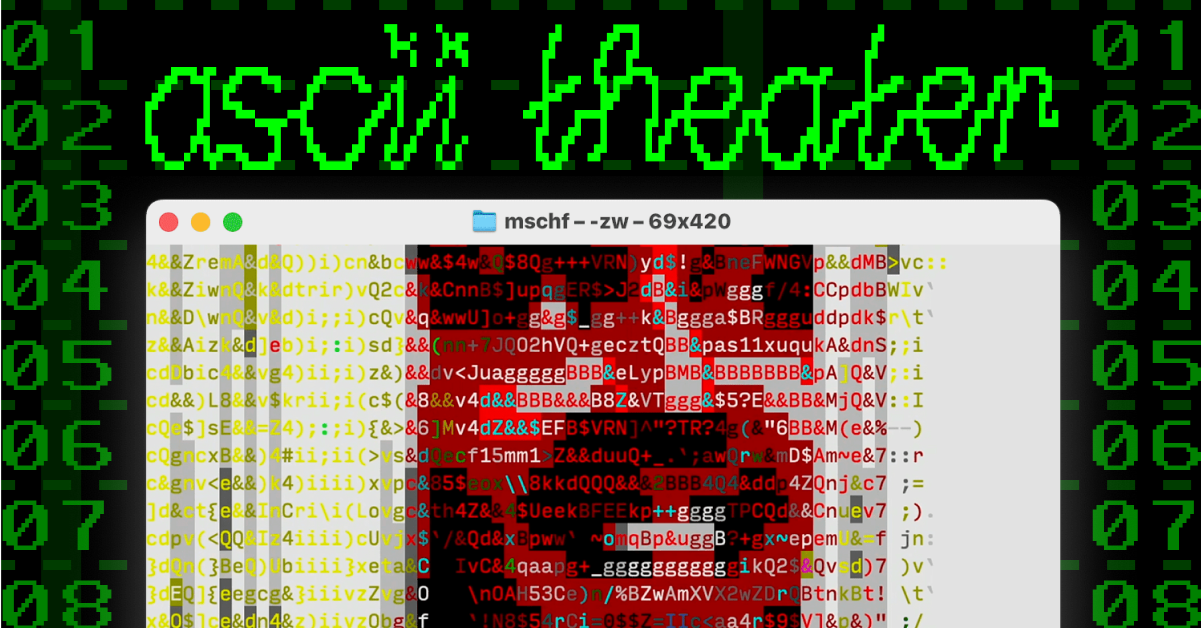

 Registration details

 Identified technologies
User reviews (0)