
 简体中文
简体中文 English
Website review
This review may include AI-generated content and is not individually verified. Domain, certificate and other facts come from the observed data on this page.
What is ClipBook?
ClipBook is a clipboard history app for Mac. It runs in the background, records what you copy, and lets you find and reuse that content later—either by pasting directly into the active app or by reopening the history window. According to its page, it handles text, images, files and folders, links, colors, and emails, and it requires macOS 13.0 or later.
What it's useful for
The core benefit is not having to re-copy something you copied earlier. A practical example: you're assembling a report and copying quotes from several browser tabs, a PDF, and a code editor. Instead of switching back and forth, you copy everything first, then return to your document and paste items from history in the order you need them.
ClipBook's page describes several features aimed at that kind of workflow:
- Paste to the active app with Return or a double-click, without opening the history window.
- Paste in sequence using a keyboard shortcut, advancing through history items one at a time.
- Copy & Merge, which appends newly copied text to the previous text item.
- Paste multiple items at once with a chosen separator (Return, Tab, Space, or none).
- Merge or split text items, so several fragments can become one item or a multi-line block can become separate lines.
- Text transformations—78 options are listed—for reformatting copied text.
- Copy text from images, for screenshots or image files containing text.
- Paste as plain text, which helps when copying from websites, PDFs, or IDEs brings unwanted formatting.
- Retention settings by item type (a day up to forever), with favorites and tagged items kept indefinitely.
Who it suits
The page positions ClipBook for "advanced Mac users," and the feature set supports that: sequence pasting, merging, splitting, and text transformations are more than a basic history list. If you mostly copy the occasional link, a simpler tool may be enough. If your work involves gathering material from many sources—research, writing, coding, data entry—the organizing and reuse features are where the value sits.
A decision criterion
Before committing, think about what you actually lose today: is it earlier clips, or the cleanup after pasting (formatting, line breaks, combining fragments)? ClipBook's page emphasizes the second problem as much as the first, so it's worth checking whether those tools match your habits. The site offers a download and a Homebrew install option, and pricing is listed separately at ClipBook if you want to compare cost against how often you'd use the advanced features.
How do I set up ClipBook on my Mac using Homebrew?
ClipBook's site gives the Homebrew command directly: open Terminal and run
brew install --cask clipbook
The --cask flag matters—it tells Homebrew to install a Mac app rather than a command-line tool. The site lists macOS 13.0+ as the requirement, so check your version under → About This Mac before starting.
What to expect after installing
Homebrew drops the app into your Applications folder; launch it from there or via Spotlight. Because ClipBook runs in the background and records what you copy, macOS will likely ask for permissions the first time—expect prompts related to accessibility or automation so it can paste into the active app. Approve only what you're comfortable with, and check System Settings → Privacy & Security if a feature seems blocked. If macOS warns that the app can't be verified, right-click the app and choose Open rather than disabling Gatekeeper globally.
A practical first-run routine
- Copy a few different things—text, a link, an image—to confirm they appear in history.
- Set retention per item type (a day up to forever) so sensitive clipboard contents don't linger.
- Star or tag items you'll reuse; the site says favorites and tagged items can be kept indefinitely.
- Try pasting straight into the active app with Return or a double-click, and plain-text paste to strip formatting from web or PDF text.
If you'd rather not manage updates through Homebrew, the direct download on ClipBook is the alternative; brew upgrade --cask clipbook keeps the Homebrew install current.
How can I find a specific item I copied days ago in my clipboard history?
In ClipBook, finding something you copied days ago depends on that item still being in your history and on using the app's search and organization features. ClipBook keeps a clipboard history you can browse and search, and it lets you choose how long different types of items are kept—a day, a week, a month, a year, or forever. If your retention setting is shorter than "days," the item may already be gone; favorite items and tagged items are kept indefinitely. See ClipBook for the current details.
A practical way to find an older copy
- Open the clipboard history window and search for a distinctive word, filename, link fragment or email address you remember from the item.
- Narrow by type. ClipBook stores text, images, files and folders, links, colors and emails, so filtering to the right kind of item cuts down the list.
- Use tags and favorites. If you tagged or favorited the item when you copied it, it will be easier to locate and will remain stored regardless of the normal retention period.
- Check the retention setting if the search comes up empty. An item copied days ago survives only if your chosen retention window covers that period.
Example
Suppose you copied a client's email address on Monday and need it on Thursday. Search for part of the address or the client's name, then look through the email-type results. If you had tagged it "clients," that tag gives you a faster route next time.
Make future searches easier
- Tag as you go for anything you expect to reuse, such as addresses, license keys or reference links.
- Favorite important items so they are kept permanently.
- Set retention by type—for example, keep text longer than images if text is what you usually retrieve.
- Use Copy & Merge when collecting related snippets, so they end up as one findable item.
For a general workflow, treat the clipboard history as a searchable archive rather than a single temporary slot: search first, then filter by type, then rely on tags and favorites for anything you will need again.
Can I paste multiple copied items together or in sequence without opening the history window?
Yes. ClipBook supports both approaches without opening the history window, depending on what you want to paste.
Paste multiple items together
Select several items in your clipboard history, then paste them all at once with a separator of your choice. The page lists these separator options: Return, Shift Return, Up, Down, Space, Tab, or none. Items are pasted in the order you selected them. This suits building a single block of text — for example, collecting several copied snippets into one email or document.
Paste items one by one in sequence
Use ⌃V to paste history items one at a time into the active app. Each paste automatically advances to the next history item, so you can walk through a series of copied values without reopening the history window. This suits filling in a form or spreadsheet where each copied value goes into a separate field.
Which fits your task
- One combined output: select multiple items and paste with a separator.
- Separate destinations: use sequential pasting with ⌃V.
- Mixed text types: text, links, emails and colors can be merged into a single item; multi-line text can also be split into separate items first.
As a next step, decide whether your destination expects one block or many fields, then pick the matching mode before you start copying.
How does ClipBook help me strip formatting when pasting text from websites or PDFs?
ClipBook's "Paste as plain text" option is the direct answer: it removes the formatting carried over from websites, PDFs, IDEs and similar sources, so copied text lands in your target app without stray fonts, sizes, colors or link styling. That matters most when you're assembling text across sources—pasting a paragraph from a PDF into a document that already has its own styles, or dropping quoted text into an email without inheriting the web page's look.
How it fits into a real workflow
- Mixed-source documents: You pull sentences from a PDF, a website and your own notes into one draft. Plain-text pasting keeps the draft's formatting consistent instead of mixing three visual styles.
- Email and chat: Pasted text from a styled page often arrives with odd fonts or oversized headings; stripping it keeps messages clean.
- Code and config files: Formatting from a rendered page can introduce invisible inconsistencies, so plain-text paste avoids surprises.
Related features worth knowing
Because ClipBook keeps a searchable history, you can also revisit an earlier copy, extract text from an image via its "Copy text from image" option, or merge several text items into one before pasting. Its 78 text transformations are useful when you want to reshape text—such as changing case—rather than only stripping style.
A practical next step
Test it on a real case: copy a formatted paragraph from a PDF, paste it into a plain editor and into a styled document, and compare. If you mostly need clean text, make plain-text paste your default habit; if you sometimes want the original formatting preserved, keep the standard paste for those moments. For a broader look at clipboard managers on macOS, ClipBook itself is the reference for its own feature set.
Is ClipBook free, or do I need to buy a license?
ClipBook is not presented as a free app. The site's own calls to action point to a purchase path ("Buy License" and "buy a license"), which signals that using it beyond any trial or free tier requires buying a license. The page evidence doesn't state the price, whether a trial exists, or what a license covers, so check the pricing page before committing.
What to verify before buying
- Trial or free tier: Whether you can test the app before paying, and any limits on history length or features.
- License type: One-time purchase versus subscription, and how many Macs a license covers.
- Updates: Whether future major versions (the site references ClipBook 2.0) are included.
- macOS requirement: The page lists macOS 13.0+, so confirm your machine qualifies.
A practical way to decide
If you copy text, images, links and files constantly across apps, a paid clipboard manager can earn its cost quickly through paste-to-active-app, search, tags and favorites. If you only occasionally need older clipboard items, a free alternative may be enough. Compare options such as ClipBook against free tools before deciding, and treat the purchase as justified only if you'll use features like Copy & Merge, sequential pasting or text transformations regularly.
 GoDaddy
 Fastly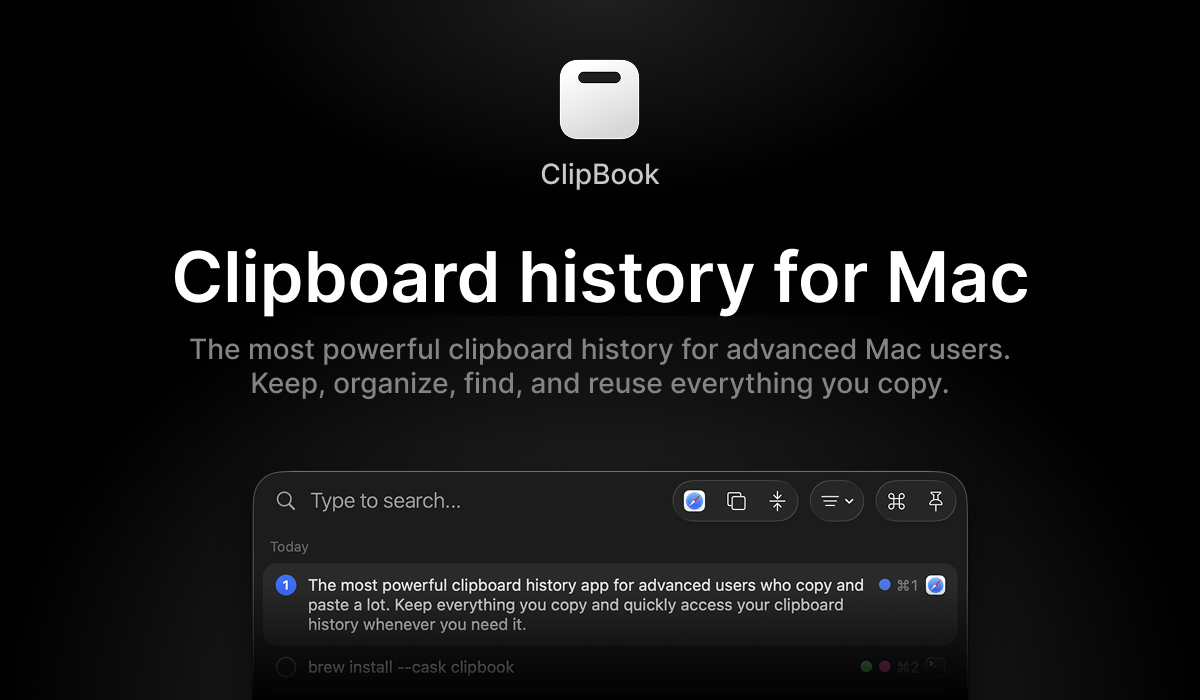

User reviews (0)