Website profiles · Technology insights · Alternatives

csgotrader.app

CSGO Trader - Steam Trading Enhancer Extension for Chrome and Firefox that is designed to help with CS:GO trading.

No paid content found
Visit website
Profile views 1 Outbound visits 0 Normal
CSGO Trader Full homepage screenshot

At a glance

Category
Other
Language
English
Paid-content signal
No paid content foundObserved
Registered
2019
Hosting
Amazon CloudFrontInferred
HTTPS certificate trusted
PassedObserved
Last updated

Website review

This review may include AI-generated content and is not individually verified. Domain, certificate and other facts come from the observed data on this page.

What is CSGO Trader?

CSGO Trader is a free, open-source browser extension for Chrome and Firefox that adds trading tools to Steam and CS:GO-related pages. It is aimed at people who trade CS:GO items and want pricing, float data and bulk actions without leaving the inventory, trade offer or market page they are already on. It builds on what Steam Inventory Helper offers and adds more, according to its own description.

What it does in practice

The extension works across three main surfaces:

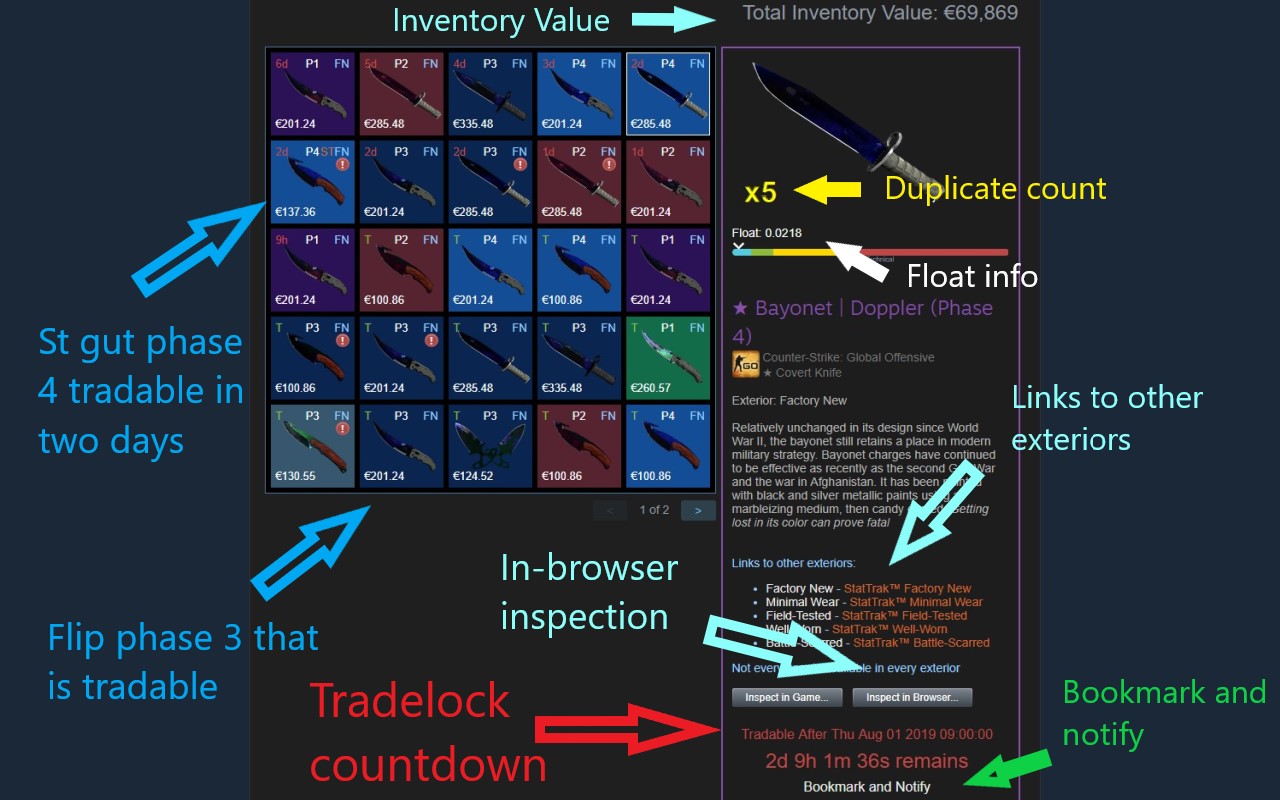
  • Inventories and trade offers: shows item prices, total inventory value and total offer value, and highlights the profit on incoming offers, with the option to sort by most profitable first.
  • Market pages: adds float and pattern information (paint index, paint seed, Doppler phase, fade percentage, marble fade patterns), lets you sort by float and show more than the default 10 listings, and adds an "Inspect in Browser" button.
  • Item handling: mass listing and selling, adding or removing similar items in a trade, generating an inventory list for ads, and bookmarking items with a notification when the trade lock expires.

Smaller conveniences include a currency converter and percentage calculator, a real chat status on profiles, rarity-coloured inventories, auto-bumping on CSGOLounge and CSGOTraders, and spam-comment reporting.

Who it suits, and the trade-offs

It fits active traders who check floats and patterns before buying, and who send or receive enough offers that sorting by profit and mass-listing save real time. Casual players who only occasionally buy a skin will find most features irrelevant, and anyone uneasy about a third-party extension reading page content on Steam should weigh that before installing — the open-source code is the main way to check what it actually does.

A practical next step: install it, open one inventory and one market listing, and confirm the float and price figures match what you see on Steam and on a float-checking site such as CSGOFloat before relying on them for a trade.

How do I install the CSGO Trader extension on Chrome or Firefox?

Install CSGO Trader from the official browser add-on store for your browser, then pin the extension so its popup and inventory/trade features are easy to reach. The extension is open source and is published for both Chrome and Firefox, so use the listing that matches your browser rather than a third-party download.

Chrome

  1. Open the Chrome Web Store and search for "CSGO Trader" (or go to the store listing linked from CSGO Trader).
  2. Click Add to Chrome, then confirm the permissions prompt.
  3. Click the puzzle-piece icon in the toolbar and pin CSGO Trader so it stays visible.
  4. Open a Steam inventory or trade offer page to confirm pricing info and other overlays appear.

Firefox

  1. Open Firefox Add-ons (addons.mozilla.org) and search for "CSGO Trader," or follow the install link from CSGO Trader.
  2. Click Add to Firefox, then Add on the permission prompt.
  3. Optionally pin the icon from the extensions menu.
  4. Visit a Steam inventory or market page to check that the added info loads.

Practical checks after install

  • If nothing appears on Steam pages, reload the tab; extensions usually need a fresh page load after installation.
  • Make sure the extension is enabled for steamcommunity.com in your browser's extension settings.
  • Use the popup's currency converter and percentage calculator as a quick test that the extension is running.
  • If you use other Steam trading add-ons, watch for overlapping features (for example, duplicate price overlays) and disable one if the page becomes cluttered.

For troubleshooting or version-specific notes, the changelog and FAQ on CSGO Trader are the most direct reference, and the Steam Group linked there is where user reports tend to surface.

How can I check the total value and profit of a CS:GO trade offer before accepting?

Use the CSGO Trader browser extension CSGO Trader. Its feature list states that it shows pricing info in inventories and trade offers, a total inventory value and trade offer value, and the profit for incoming trade offers, with the option to sort offers by most profitable first. That gives you a quick value-and-margin check directly on the incoming offers page before you accept.

A practical check before accepting

  1. Open your incoming trade offers and read the offer value against your side's value.
  2. Confirm the profit figure and sort by most profitable to spot outliers.
  3. Sanity-check individual items with the float, paint seed and pattern info the extension shows, since a high-value pattern or low float can justify a gap the raw totals miss. The extension also pulls float rank data from csgofloat.
  4. Check trade-lock countdowns so you aren't valuing items you can't move.
  5. Cross-reference against a second price source, such as Steam Community Market, especially for illiquid skins.

Trade-offs

The totals depend on the pricing providers the extension draws on, and its list includes CSGO Trader, Steam, CS.MONEY, Bitskins, LOOT.FARM and CSGO.TM. Different providers can disagree on thin markets, so treat the profit number as a starting point rather than a final verdict. It's an open-source extension for Chrome and Firefox, which suits traders who want the numbers inline rather than in a separate calculator tab.

How do I use CSGO Trader to spot profitable trades and sort incoming offers by profit?

CSGO Trader shows pricing in inventories and trade offers, calculates total inventory and trade offer value, and displays the profit of incoming offers with an option to sort them most profitable first. That combination is the core workflow for spotting good trades: open your incoming offers, read the profit figure on each, then sort by profit to put the best candidates at the top.

A practical routine

  1. Set up the extension in Chrome or Firefox and check that pricing data loads in your inventory and on the trade offer page. The extension draws on several pricing providers (CSGO Trader, Steam, CS.MONEY, Bitskins, LOOT.FARM, CSGO.TM), so confirm which source you are reading before trusting a number.
  2. Open incoming offers and sort by profit. Treat the top of the list as a shortlist, not a verdict.
  3. Check the details behind each offer before accepting: float value and float rank (from csgofloat), paint seed and pattern index, Doppler phase, fade percentage or marble fade pattern. Two items with the same price can differ a lot in desirability.
  4. Account for trade locks. The extension shows when an item's trade lock expires and adds a countdown, so you can see whether a "profitable" item is actually tradable soon.
  5. Compare against listings, not just the extension's estimate. The "Starting at" price and sales volume info help you judge whether the quoted price is realistic, and the "Inspect in Browser..." button lets you look at the item itself.

Where it fits and where it doesn't

Situation How the profit sorting helps What to watch
Many low-value offers arriving daily Sorts the noise so worthwhile offers surface first Small margins can vanish with float or pattern differences
Trading for specific skins or patterns Float, phase and pattern data support the decision Profit estimates depend on the pricing provider chosen
Building a trade-locked inventory Countdowns show when items become tradable Locked items tie up value in the meantime
Advertising trades on marketplaces Auto-bumping on CSGOLounge and CSGOTraders and inventory list generation save time Bumping increases visibility, not the quality of the trade

A concrete example

Suppose ten offers arrive overnight. You sort by profit and the top three each show a positive margin. Before accepting, you check each item's float and pattern: one is a common float with a high price estimate, one has a low float rank worth keeping, and one is trade-locked for two weeks. The second is the strongest pick; the third may still be fine if you can wait, but its value is frozen until the lock expires.

Decision criteria

  • Use profit sorting as a filter, not a final answer. Verify with float, pattern and actual market listings.
  • Prefer offers whose profit holds across more than one pricing source. A margin that appears only under a single provider is fragile.
  • Weigh liquidity and lock time. A profitable item that is hard to sell or locked for weeks is less useful than a smaller, immediate gain.
  • Keep your own records of what you paid and what items actually sold for; the extension estimates value, but your realized results are the real measure.

For broader market context and price history, cross-check with established trading sites such as CSGOSTASH or Steam Community Market before committing to a trade.

How can I see float values and pattern details for CS:GO skins on the Steam market?

Float values and pattern details appear directly on Steam Community Market pages when you use the CSGO Trader browser extension, available for Chrome and Firefox. Once installed, the extension adds float values, paint index, paint seed, pattern index, Doppler phases, fade percentages and Marble Fade patterns (such as Fire and Ice, blue tip or red tip) to market listings, and it also shows exterior and links to other versions of the item. You can additionally sort market listings by float value and display more than the default 10 listings per page, which makes it practical to compare wear across many copies of the same skin before buying.

A practical workflow

A collector hunting a low-float AK-47 or a specific Doppler phase can open the market page for that skin, expand the listing count, sort by float, and check phase or pattern labels in the same view rather than opening each item individually. The same data appears in inventories and trade offers, so you can verify a seller's item before accepting a trade.

Trade-offs to weigh

The extension is open source and consolidates many trading tools beyond float data, including pricing from several providers, trade-lock countdowns and mass listing. That breadth suits active traders but may be more than a casual buyer needs; those users can rely on the built-in Steam market filters alone, though Steam does not expose float or pattern details natively. Float rank data comes from csgofloat, so the accuracy of that specific figure depends on that external service.

As a next step, install the extension, open any market listing for a skin with visible wear, and confirm that float and pattern columns appear before relying on them for a purchase. For reference on float mechanics themselves, see CSGOFloat.

How do I use CSGO Trader to auto-bump my trades on CSGOLounge and CSGOTraders?

Enable the auto-bump option in the extension, then leave a CSGOLounge or CSGOTraders tab open while you're logged in so the extension can periodically refresh your listings and keep them near the top. The page_evidence lists "CSGOLounge.com auto-bumping" and "CSGOTraders.net auto-bumping" as current features, so the setup is a setting plus an active session rather than a separate tool.

Practical setup

  1. Install the extension in Chrome or Firefox, then open its options or popup and turn on the auto-bump toggle for each site you use.
  2. Log in to CSGOLounge and/or CSGOTraders in the same browser profile and keep the tab open. If you close it or get logged out, bumping stops.
  3. Confirm it works by watching one of your listings for a refresh cycle, then check that the listing's position moved up.
  4. Keep the tab pinned or in its own window if you browse heavily, since a discarded or sleeping tab may pause the refresh.

Trade-offs and cautions

  • Account risk: automated refreshing can look like bot activity. Keep intervals conservative, avoid running it overnight on both sites, and check each site's rules.
  • Resource use: an open tab plus periodic reloads costs memory and bandwidth; on a low-spec machine, run one site at a time.
  • Not a substitute for pricing: bumping only improves visibility. Use the extension's price and float data to set competitive listings, or you'll just surface trades nobody wants.

If you trade mostly through Steam itself, the extension's trade-offer profit sorting and float display may matter more than bumping; Steam Community is where those offers arrive.

Related questions

More questions →
What is CSGO Trader (csgotrader.app)?

CSGO Trader is an open-source browser extension for Chrome and Firefox that adds pricing, float, and trade-management tools to Steam and CS:GO trading pages. It is aimed at CS:GO traders who want faster item valuation, better trade-offer sorting, and more technical item data than Steam shows by default. It is not a standalone trading site or a bot service — it works on top of pages you already use, such as Steam inventories, trade offers, and the Community Market.

What the extension does

The extension's own feature list describes it as starting with functionality that Steam Inventory Helper (SIH) lacked, and it now covers SIH's most important features plus more. The main capabilities fall into four groups:

  • Pricing and valuation: price info in inventories and trade offers, total inventory value, trade offer value, profit shown for incoming offers, and "starting at" price plus sales-volume info in other users' inventories.
  • Item technical data: floats, paint index, paint seed, pattern index, Doppler phases, fade percentages, marble fade patterns (fire and ice, blue tip, red tip), float rank (e.g. "5th best in existence") from csgofloat, and trade-lock expiry countdowns.
  • Trading workflow: instant accept/decline buttons on incoming offers, sorting offers by most profitable, bookmarking items with a notification when they become tradable, adding or removing similar items from a trade, and generating an inventory item list for advertisements.
  • Market and profile utilities: ordering market listings by float, showing more than the default 10 listings, an "Inspect in Browser" button, a currency converter and percentage calculator in the popup, a NSFW filter, colorful rarity-based inventory backgrounds, and auto-bumping on CSGOLounge and CSGOTraders.

Pricing data comes from multiple providers: CSGO Trader, Steam, CS.MONEY, Bitskins, LOOT.FARM, and CSGO.TM.

Who it is for

The extension suits traders who regularly compare offer values, hunt for specific float or pattern items, or list items in bulk. If you only occasionally buy a skin on the market, the float and pattern tools will matter less than the basic price display. If you trade often, the profit sorting and instant accept/decline buttons are the features most likely to save time.

How to get it

The site lists an Install section alongside Changelog, Release Notes, a Steam Group, and an FAQ. Installation is through the Chrome or Firefox extension store for your browser; the site does not describe a separate account system or sign-in for the extension itself. Because it is open source, the code can be reviewed independently of the published build.

Limits to keep in mind

  • The feature list on the site is explicitly described as incomplete, so the current build may differ from what is listed.
  • Price figures depend on third-party providers and can lag or differ between them; treat displayed values as reference points, not guaranteed sale prices.
  • The site materials do not state pricing for the extension, so check the store listing for your browser before installing if cost matters to you.
  • Features tied to third-party sites (CSGOLounge, CSGOTraders auto-bumping) depend on those sites continuing to work as expected.
What Features Does the CSGO Trader Extension Add to Steam Trading?

CSGO Trader (csgotrader.app) is an open-source browser extension for Chrome and Firefox that adds pricing, item-detail, and trade-management tools directly into Steam inventory, trade offer, and market pages. It suits CS:GO traders who want faster valuation and bulk actions without leaving Steam; it is not a standalone trading site, and the site does not state pricing or login requirements for the extension itself.

Pricing and valuation inside Steam

The extension places price data where trades are actually reviewed:

  • Pricing info in inventories and trade offers, so item values appear next to the items themselves.
  • Total inventory value and trade offer value, giving a running sum rather than manual addition.
  • Profit display for incoming trade offers, with the option to order offers by most profitable first.
  • "Starting at" price and sales volume shown in other users' inventories.
  • Original currency and listed price for market listings, so converted prices don't hide the source figure.
  • Multiple pricing providers: CSGO Trader, Steam, CS.MONEY, Bitskins, LOOT.FARM, and CSGO.TM.

A practical example: when several incoming offers arrive at once, sorting by profit lets you evaluate the best one first instead of opening each trade and checking prices by hand.

Item detail: floats, patterns, and phases

For traders who care about wear and pattern rather than just exterior, the extension surfaces technical data in inventories, offers, and on the market:

  • Float values plus float rank data from csgofloat (e.g., "5th best in existence").
  • Paint index, paint seed, and pattern index.
  • Doppler phases, fade percentages, and marble fade patterns (fire and ice, blue tip, red tip, and similar).
  • Trade lock expiry with a countdown, so you know when an item becomes tradable.
  • Exterior shown on each item, with links to other versions on inventory and market pages.
  • Order market listings by float value and show more than the default 10 listings.

These details matter because two items with the same skin name can differ substantially in value based on float and pattern; having the numbers inline avoids a separate lookup step.

Bulk actions and faster trade handling

Several features target repetitive work:

  • Mass listing/selling of items.
  • Instant accept and instant decline buttons on the incoming trade offers page.
  • Add or remove similar items from a trade, including adding a whole page or all similar items at once.
  • Generate a list of inventory items, useful for posting advertisements elsewhere.
  • Check the value of multiple items by selecting them in an inventory.
  • Sort inventories and trade offers by price and tradability.
  • Bookmark an item and get a notification when it becomes tradable.
  • "Inspect in Browser..." button on the market, inventories, and trade offers.

Visibility, bumping, and comment tools

Beyond valuation, the extension adds convenience and profile-management features:

  • Auto-bumping on CSGOLounge.com and CSGOTraders.net, keeping your trades near the top.
  • Automatic reporting of known spam and scam comments, such as fake giveaway comments on profiles.
  • Reply to comments by tagging the other user's name, and a +rep button to post a reputation message after a trade.
  • Real chat status on profiles (away, busy, snooze rather than just online).
  • Colorful inventories that shade each item's background by rarity.
  • NSFW filter mode to hide inappropriate profile content at work.
  • Currency converter and percentage calculator in the extension popup.

How to get it and what to expect

Install it from the Chrome or Firefox extension store; the site lists Install, Changelog, Release-Notes, a Steam Group, and an FAQ as its main sections. The feature list on the site is described as incomplete, so the current build may include additions beyond what is listed here. Because the extension is open source, the code can be reviewed before installing — relevant if you are cautious about extensions that interact with your Steam session.

One caveat worth planning around: pricing accuracy depends on the provider selected, and the site does not document update frequency or coverage per provider, so treat displayed values as a reference point rather than a guaranteed market price.

How to Install CSGO Trader on Chrome or Firefox

CSGO Trader is an open-source browser extension for Chrome and Firefox designed to help with CS:GO trading. To install it, open csgotrader.app and use the Install section on the site, choosing the build for your browser. The site does not list a price, so treat cost and any account or login requirements as unconfirmed until you check the install page itself.

What You Need Before Installing

  • A desktop browser: Chrome or Firefox (the two browsers named on the site).
  • Access to csgotrader.app — the site is a JavaScript app, so JavaScript must be enabled for the page to load.
  • A Steam account you normally use for trading, since the extension works on Steam inventory, market, and trade offer pages.

Installation Steps

  1. Go to csgotrader.app.
  2. Find the Install section on the page.
  3. Select the option for your browser (Chrome or Firefox).
  4. Follow the browser's extension install prompt to add it.
  5. Confirm the extension appears in your browser's extension list or toolbar.

Expected result: The extension is active, and its features appear when you browse Steam inventory, market, and trade offer pages.

How to Verify It's Working

Open a Steam inventory or trade offer page and check for signs the extension is running, such as pricing info on items, total inventory or trade offer value, or float and other technical item details. If you see none of these, the extension is likely not enabled for that page or not installed correctly.

Common Stumbling Blocks

  • Blank or non-loading site: The page needs JavaScript enabled; without it, the app will not render.
  • Wrong browser build: Make sure you picked the Chrome or Firefox version matching the browser you actually use.
  • No visible changes on Steam: Confirm the extension is enabled, then reload the Steam page.

What You Get After Installing

The extension's feature list includes pricing info in inventories and trade offers, total inventory and trade offer value, profit display for incoming offers, mass listing/selling, trade-lock countdowns, float and pattern details, Doppler phases and fade percentages, market sorting by float, an NSFW filter, item bookmarks with trade-ready notifications, CSGOLounge and CSGOTraders auto-bumping, multiple pricing providers, instant accept/decline buttons, and a currency converter and percentage calculator in the popup. The site describes this as an incomplete list, so expect more than what is named here.

Because the project is open source, you can review its code and release notes through the Changelog and Release-Notes links on the site if you want to check what changed in a given version before updating.

Where Does CSGO Trader Get Its Item Pricing Data?

CSGO Trader (csgotrader.app) pulls prices from six named providers — CSGO Trader, Steam, CS.MONEY, Bitskins, LOOT.FARM, and CSGO.TM — and displays them inside Steam inventories and trade offers. That means the numbers you see are third-party market and platform prices, not a single official Steam price. Use them as comparison points across markets, and check which provider a given figure comes from before you treat it as the value of an item.

How pricing appears in the extension

The extension is an open-source browser add-on for Chrome and Firefox built to support CS:GO trading. Its pricing features, as listed on the site, include:

  • Pricing info shown in inventories and trade offers
  • Total inventory value and total trade offer value
  • Profit shown for incoming trade offers, with the option to order offers by most profitable first
  • "Starting at" price info and sales volume info in other users' inventories
  • The original currency and listed price an item was placed on the market with
  • A currency converter and percentage calculator in the extension popup

So the data serves two purposes: valuing what you hold or are being offered, and comparing an item's price across the providers above.

What the multiple providers mean for trust

Because prices come from several marketplaces rather than one source, the same item can show different values depending on the provider selected. A few practical implications:

  • Cross-market comparison is the point. Steam, CS.MONEY, Bitskins, LOOT.FARM, and CSGO.TM are separate venues with their own listings; the extension surfaces them side by side.
  • "Starting at" and sales volume add context. A lowest listing price alone can mislead; the sales volume figure helps you judge whether that price reflects actual trading.
  • Original currency is preserved. When an item was listed in a currency other than yours, the extension shows the original currency and price, which avoids conversion ambiguity.
  • Profit estimates depend on the provider chosen. The "most profitable first" ordering for incoming offers is only as good as the price source behind it.

The site does not publish a methodology for how each provider's price is fetched or how often it refreshes, so treat displayed values as reference points and confirm against the source marketplace for anything high-value.

Checking it yourself

  1. Install the extension from its Chrome or Firefox listing (the site's Install section covers this).
  2. Open a Steam inventory or an incoming trade offer.
  3. Compare the price shown against the same item on the named provider's own site.
  4. Use the popup's currency converter when a listing is in a different currency.

If a price looks off, the fastest check is to open the provider directly — the extension is a convenience layer over those markets, not an authority on value.

Where to Find CSGO Trader FAQ, Changelog, and Support

CSGO Trader's help resources are split across three places on csgotrader.app: the FAQ page for common questions, the Changelog / Release-Notes pages for version history, and the Steam Group for community support. The About page gives background on the extension itself. Use the FAQ first for how-to questions, the changelog when something changed after an update, and the Steam Group when you need a person to respond.

What each resource covers

Resource Best for What you'll find
FAQ Recurring how-to and setup questions Answers about the extension's behavior and use
Changelog / Release-Notes "Why did this change?" after an update Version-by-version record of what was added or fixed
Steam Group Community help and announcements Discussion with other users and extension news
About Understanding what the extension is Description of the extension and its purpose

The site's navigation lists these as Changelog, Release-Notes, Steam Group, FAQ, and About CSGO Trader Extension, so you can reach any of them from the main menu.

Which one to open first

  • A feature isn't working as expected after an update. Check the Changelog and Release-Notes first. If a feature was changed or removed in a recent version, the notes will say so, and you avoid troubleshooting something that was intentional.
  • You want to know whether the extension can do something. Read the About page's feature list. It covers pricing info in inventories and trade offers, total inventory and trade offer value, profit sorting for incoming offers, float and pattern data, Doppler phases and fade percentages, mass listing, trade-lock countdowns, and auto-bumping on CSGOLounge and CSGOTraders.net, among others.
  • You have a question the feature list doesn't answer. Go to the FAQ.
  • You need a response from other users. Post in the Steam Group.

A practical example

Suppose the profit display on incoming trade offers stops appearing after a browser update. Open the Changelog and Release-Notes to see whether the pricing or offer-value feature was touched in the latest version. If the notes mention a change, you have your answer. If not, check the FAQ for known issues, then ask in the Steam Group with your browser name and extension version so others can reproduce the problem.

Limits to keep in mind

The site describes the feature list as incomplete, so the About page is a starting point rather than a full manual. The available site information does not specify response times for the Steam Group or a separate ticketing system, so treat the group as community support rather than guaranteed one-to-one help. For installation questions specifically, the site also has an Install section covering Chrome and Firefox.

Website Overview

An established domain and managed infrastructure suggest continuity of operations and may support dependable delivery, although neither guarantees service quality. Page metadata, canonical configuration and social previews work together to provide more consistent search and sharing presentation.

Domain and Registration

Registered in 2019, this domain has about 7 years of history. That suggests continuity, although ownership and purpose may have changed. Transfer-protection status is present, helping reduce the risk of unauthorized domain transfers. The registrar is Namecheap Inc., a widely used domain service provider. The domain uses the common .app extension, which is not an independent safety signal.

DNS and Email

The observed email authentication setup is incomplete: DMARC is missing. The lowest TTL is 60 seconds, supporting rapid record changes at the cost of more frequent lookups. Nameservers are provided by Amazon Route 53, indicating managed DNS hosting. MX records point to the Microsoft 365 email service. No CNAME was found; the observed records resolve directly to addresses.

TLS and Certificates

The certificate uses an RSA 2048-bit public key, offering broad client compatibility. The server supplied a complete certificate chain. No organization name is present in the certificate; the available fields are consistent with domain validation. The certificate was issued within the Amazon cloud or CDN ecosystem. The certificate is valid for about 197 days in total, with 194 days remaining.

HTTP and Browser Security

The checked browser-security headers were not detected, leaving fewer explicit browser-side safeguards. No X-Powered-By header was found, reducing one common source of backend fingerprinting information. The x-cache, via response header indicates a CDN or caching proxy in the delivery path. No obvious internal addresses or debug information were found in the headers. The Server header contains the custom value AmazonS3.

Technology Stack Analysis

The public page identifies Google Analytics, Amazon CloudFront without precise versions, leaving fewer clues for version-specific scanning.

Search and Social Sharing

The title has 46 characters, within a common display range. A meta description is present, with 114 characters. The observed directives allow indexing and link following. No Generator meta tag is publicly exposed. A viewport declaration is present, providing a basis for mobile layout.

Hosting and Email

DNSAmazon Route 53
HostingAmazon CloudFront
EmailMicrosoft 365
Approximate IP geolocation (inferred; a CDN or proxy may differ from the origin server) United States flagUnited States Inferred 3.161.188.103

Registration details

RDAP / WHOIS

RegistrarNamecheap Inc.
Registered2019-05-25
Expires2027-05-25
Domain statusclient transfer prohibited
Nameserversns-1503.awsdns-59.org、ns-1718.awsdns-22.co.uk、ns-675.awsdns-20.net、ns-95.awsdns-11.com
DNSSECunsigned

DNS records

DNS

TypeNameValueTTLPriority
Acsgotrader.app3.161.188.10360—
Acsgotrader.app3.161.188.11560—
Acsgotrader.app3.161.188.360—
Acsgotrader.app3.161.188.4560—
MXcsgotrader.appcsgotrader-app.mail.protection.outlook.com3000
NScsgotrader.appns-1503.awsdns-59.org172800—
NScsgotrader.appns-1718.awsdns-22.co.uk172800—
NScsgotrader.appns-675.awsdns-20.net172800—
NScsgotrader.appns-95.awsdns-11.com172800—
TXTcsgotrader.appMS=ms791632063600—
TXTcsgotrader.appgoogle-site-verification=I2XsxLTpKg-nj9t0mEC_NNzEBhm6JNJmc1zY3Zi2FfU3600—
TXTcsgotrader.appv=spf1 include:spf.protection.outlook.com -all3600—

TLS and certificates

TLS / SSL

AssessmentNormal configuration
Supported protocolsTLSv1.2、TLSv1.3
Negotiated protocolTLSv1.3
Certificate subjectcsgotrader.app
IssuerAmazon
Valid until2027-05-05T23:59 · Remaining when checked: 194 days
Verification detailsCertificate trust: Passed · Hostname match: Passed

HTTP response headers

HTTP

HeaderValue
content-typetext/html
serverAmazonS3

Identified technologies

Google AnalyticsAmazon CloudFront

Pages, Search and Sharing

Meta descriptionCSGO Trader - Steam Trading Enhancer Extension for Chrome and Firefox that is designed to help with CS:GO trading.
Canonical URLhttps://csgotrader.app/
LanguageEnglish (default)
Twitter CardNot detected
All bots 0 allowed · 0 disallowed

No sitemaps found

User reviews (0)

  • No reviews yet.