Website profiles · Technology insights · Alternatives

darkreader.org

Enable dark mode (night mode) on all websites

No paid content found
Visit website
Profile views 7 Outbound visits 6 Normal
Dark Reader Full homepage screenshot

At a glance

Category
Development
Language
English
Paid-content signal
No paid content foundObserved
Registered
2017
Hosting
FastlyInferred
HTTPS certificate trusted
PassedObserved
Last updated

Website review

This review may include AI-generated content and is not individually verified. Domain, certificate and other facts come from the observed data on this page.

What is Dark Reader?

Dark Reader is a browser extension that applies a dark theme to websites that don't offer one themselves. Rather than relying on each site's own night mode, it rewrites page colors on the fly, so you get a consistent dark look across Facebook, Amazon, YouTube, Google Search, Wikipedia, Twitter and most other sites. It's open source, has been developed since 2014, and is used by roughly 10 million people, according to the project.

It's aimed at anyone who reads or works in a browser at night or in dim rooms and finds bright white pages uncomfortable. The practical appeal is coverage: instead of toggling dark mode site by site, you set it once and it follows you around the web.

What you can adjust

  • Brightness, contrast and sepia — the three main controls for tuning how the dark theme looks, useful when a site's images or text become hard to read.
  • Scope — apply dark mode to all websites or only to particular domains, so you can leave sites that already look good untouched.
  • Per-site control — handy for pages where an inverted color scheme breaks charts, maps or embedded editors.

Trade-offs to expect

Situation What happens
Ordinary article or social feed Usually clean and readable with little tweaking
Sites with their own dark mode You may prefer to exclude them to avoid double-darkening
Image-heavy or data-viz pages Colors can look off until you adjust or disable for that domain
Privacy The project states it doesn't send user data anywhere; as with any extension, check the permissions it requests

A sensible first step: install it from the official browser store for your browser — Dark Reader links to versions for Chrome, Firefox, Safari and Edge — then open a site you use daily, adjust brightness and contrast once, and add an exclusion for any page where the result looks worse than the original.

How do I install Dark Reader on my browser?

Install Dark Reader as a browser extension from your browser's official add-on store, then adjust the generated dark theme to taste.

Install by browser

Browser Where to get it
Chrome Chrome Web Store
Firefox Firefox Add-ons
Safari App Store (Safari extension)
Edge Edge Add-ons

Open the store page, choose Add to Chrome/Firefox/Edge or install the Safari extension, confirm the permission prompt, and pin the extension icon if you want quick access. Dark Reader is listed as an open-source, eye-care extension that does not send user data anywhere, so no account or signup is needed.

After installing

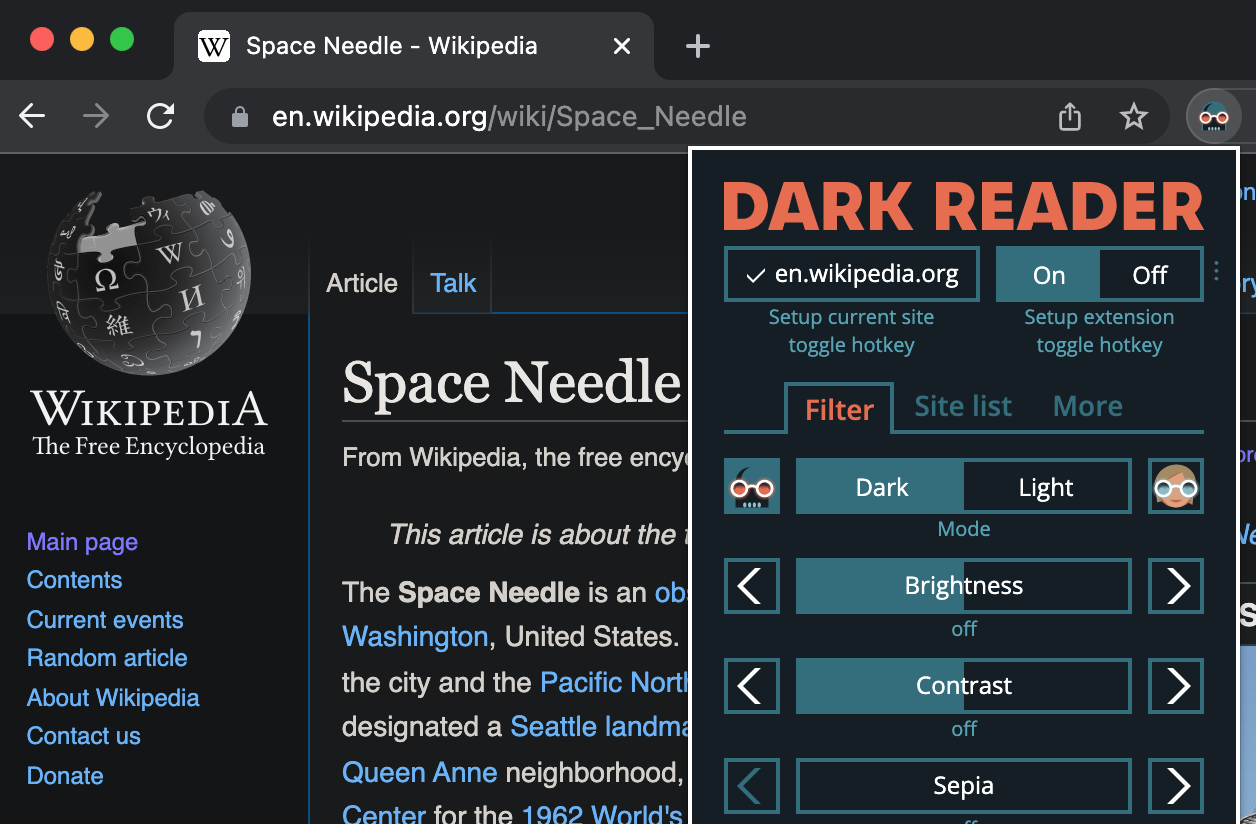
  • Click the Dark Reader icon to toggle dark mode on or off for the current site.
  • Use the panel's brightness, contrast and sepia controls to soften harsh white pages or reduce blue light.
  • Choose whether to apply the theme to all websites or only specific domains; the latter is useful if one site already has a good built-in dark mode.
  • If a page looks broken, disable Dark Reader just for that domain rather than uninstalling it.

A practical example

Suppose you read long articles on Wikipedia at night but prefer YouTube's own dark theme. Set Dark Reader to "enabled by default," then add YouTube to the disabled list. That way every site gets a dark theme except the ones that already handle it well.

Decision criterion

Install it if you frequently read text-heavy sites with bright white backgrounds and want one consistent control across browsers. Skip it if you mainly use apps with native dark modes and dislike extensions that modify page styling.

For the official per-browser links and current instructions, see Dark Reader.

How can I adjust the dark theme's brightness, contrast, and sepia in Dark Reader?

Open Dark Reader's popup from your browser toolbar, then use the Brightness, Contrast, and Sepia sliders near the top. Changes preview live on the current page, and Dark Reader applies them globally by default, so the same values carry over to other sites until you change them again.

  • Brightness — raises or lowers overall luminance. Useful when a page still feels too bright at night, or too washed out during the day.
  • Contrast — pushes text and backgrounds further apart or closer together. Increase it if text looks faint; lower it if images and text start looking harsh or blown out.
  • Sepia — adds a warm, yellowish cast that reduces blue light. A small amount softens the look; large amounts distort colors noticeably.

Practical setup

A common starting point is a modest brightness reduction, a small contrast bump for readability, and a light sepia value for evening use. If colors on a specific site (photo galleries, design tools, dashboards with charts) look wrong, don't fight it with global sliders — open the Site list in the popup and either disable Dark Reader for that domain or set per-site settings so your global values stay intact.

Deciding between global and per-site tuning

Situation Better choice
General browsing, reading articles Global brightness/contrast/sepia
Image-heavy or color-critical sites Per-site toggle or per-site values
One site looks broken Disable for that domain rather than re-tuning everything

The extension is available for Chrome, Firefox, Safari, and Edge via the official links on Dark Reader, and it's open source with no data sent from your browser.

Next step: adjust the three sliders on a text-heavy page first, since that's where readability differences show up most clearly, then check a photo or video site to confirm the sepia and contrast values aren't overcorrecting.

Can I enable Dark Reader for only specific websites instead of all websites?

Yes. Dark Reader can be enabled for all sites or limited to particular domains, so you can keep most of the web in its normal light theme and darken only the sites that bother you.

Dark Reader describes the core setup as installing the browser extension, then configuring the dark theme with brightness, contrast and sepia. The same page notes you can enable it "for all websites or particular domains," which is the toggle you want.

How to use it selectively

  • Install Dark Reader in your browser. The official page lists versions for Chrome, Firefox, Safari and Edge.
  • Open the extension settings and look for the site-list or "only for" option.
  • Add the domains you want darkened, or switch the global toggle off and enable Dark Reader per site.
  • Adjust brightness, contrast and sepia per domain if a particular site's images or colors look wrong.

When this approach makes sense

A practical scenario: you prefer light mode for work tools and documentation, but late-night reading on news sites or forums strains your eyes. Instead of forcing dark mode everywhere, you whitelist those few domains. This avoids the common trade-off where automatic darkening mangles sites with complex graphics, maps or design-heavy layouts.

The main cost is maintenance. Every new site you want darkened needs to be added manually, and per-site settings can drift as you accumulate exceptions. If you mostly want dark mode everywhere and only a handful of sites are problematic, the reverse strategy — enable globally, then disable for specific domains — is usually less work.

For a quick decision: if the number of sites you want dark is smaller than the number you want light, use the allowlist approach; if it's the other way around, enable globally and blocklist the exceptions.

Does Dark Reader collect or send my browsing data anywhere?

Dark Reader states that it does not send your data anywhere. It describes itself as an open-source eye-care browser extension, which means the code is publicly available for inspection rather than something you have to take on faith.

What that means in practice

  • The extension works locally in your browser to generate dark themes for sites that don't offer one.
  • Your brightness, contrast and sepia settings are applied on your device.
  • Because it is open source, security researchers and independent developers can review how it handles data.

How to verify it yourself

  1. Check the extension's permissions in your browser's extension settings. Dark Reader needs access to page content to restyle it, which is expected for this kind of tool.
  2. Review the source code or community audits if you want independent confirmation rather than the developer's own statement.
  3. If you use a managed work browser, confirm with your IT team before installing, since page-access permissions may conflict with policy.

Who should care most

Privacy-conscious users, people on shared or work devices, and anyone browsing sensitive accounts will want to weigh the broad page access this type of extension requires. For casual readers who mainly want comfortable night reading, the local-processing claim is usually the deciding factor. You can read more at Dark Reader.

A practical next step: install it, open a site you use daily, and check your browser's extension permission list so you know exactly what access you've granted.

Is Dark Reader available for Chrome, Firefox, Safari, and Edge?

Yes. Dark Reader is available as a browser extension for Chrome, Firefox, Safari and Edge, and the official site links to each of those versions. The same extension is used to apply dark mode across websites such as Facebook, Amazon, YouTube, Google Search, Wikipedia and Twitter.

H3 Where each version fits

  • Chrome and Edge: Both are Chromium-based, so the extension installs from their respective extension stores. This is the usual choice on Windows, macOS and Linux desktops.
  • Firefox: Available as a Firefox add-on, useful if you prefer Firefox's privacy controls or use it across desktop platforms.
  • Safari: Available for Safari, which matters mainly on macOS and iOS/iPadOS, where Chrome and Firefox extensions are not interchangeable.

H3 What it does once installed

After installing, you configure the dark theme with brightness, contrast and sepia, then choose whether to apply it to all websites or only particular domains. That per-domain control is the practical part: you can leave sites that already have a good native dark mode untouched and only force dark mode where a site lacks one.

The project describes itself as an open-source eye-care extension that does not send user data anywhere, and it has been developed since 2014. If avoiding an account or a cloud service matters to you, that positioning is relevant; the trade-off is that settings live with the browser profile rather than syncing through a separate Dark Reader account.

Next step: open the official site and pick the link for the browser you actually use — Dark Reader — then set brightness and contrast once on a text-heavy site before enabling it everywhere, so you can judge the result rather than accepting the defaults blindly.

Related questions

More questions →
How to Use Ahrefs for Your First SEO Audit: A Step-by-Step Tutorial

If you're new to Ahrefs and want to run your first SEO audit, the fastest path is: open Site Explorer, enter your target URL, review the Overview for a health snapshot, then dig into Organic Keywords, Top Pages, and Site Audit to find specific problems. From there, build a short prioritized to-do list instead of trying to fix everything at once.

This tutorial walks through that workflow using a realistic starting scenario, explains what the numbers mean, and shows how to turn findings into actions.

Before You Start: Pick a Narrow Scope

A common beginner mistake is auditing an entire large website on day one. The reports become overwhelming, and you can't tell which issues matter.

Instead, choose one of these starting points:

  • A single important page (your homepage or a key product/service page)
  • A small site (under ~50 pages, e.g., a personal blog or small business site)
  • One section of a bigger site (e.g., /blog/)

For this tutorial, assume you're auditing a small business site with about 30 pages. The same steps scale up later.

You'll need an Ahrefs account to follow along. Ahrefs offers paid plans, and pricing and feature limits change over time, so check the current Pricing page for what's included in each tier before committing.

Step 1: Enter Your Target in Site Explorer

Site Explorer is Ahrefs' core tool for analyzing any website or URL.

  1. Open Site Explorer from the top navigation.
  2. In the search box, paste your domain (e.g., example.com).
  3. Choose the Exact URL or Domain mode depending on scope. For a full-site view, use Domain or Prefix; for a single page, use Exact URL.
  4. Press Enter.

You'll land on the Overview report. Don't try to absorb everything — focus on four numbers first.

Reading the Overview Snapshot

Metric What it tells you How to use it
Ahrefs Rank (AR) Relative strength of the site's backlink profile vs. others in the database Useful for comparing against competitors, not as a standalone goal
Organic traffic Estimated monthly visits from search A rough trend indicator, not exact analytics
Organic keywords Estimated number of keywords the site ranks for Shows breadth of visibility
Backlinks / Referring domains Total links and unique sites linking to you Referring domains matter more than raw backlink count

Important caveat: Ahrefs' traffic and keyword numbers are estimates based on its own data. They won't match Google Search Console or your analytics exactly. Treat them as directional, not absolute.

Step 2: See What You Already Rank For

Go to Organic Keywords in the left sidebar. This shows queries where your site appears in search results.

Sort by Traffic (descending) to see which pages bring the most estimated visitors. Then look for:

  • Keywords ranking in positions 4–15 — these are often the easiest wins. A small content or on-page improvement can push them onto page one.
  • Keywords with high volume but low position — potential opportunities if the topic is relevant.
  • Irrelevant keywords — if you rank for something off-topic, it may signal thin or mismatched content.

Write down 5–10 of the position 4–15 keywords. These become your first optimization targets.

Step 3: Find Your Best and Weakest Pages

Open Top Pages. This ranks your URLs by estimated organic traffic.

Look for two things:

  1. Your top performers — understand what topics and formats work. Can you create more content like this?
  2. Pages with traffic but poor rankings — these may need on-page fixes (title, headings, internal links).

If a page gets zero traffic and targets a topic you care about, it's a candidate for a rewrite or consolidation.

Step 4: Run a Technical Site Audit

Now move to Site Audit. This crawls your site and flags technical and on-page issues.

  1. Click Site Audit → New project.
  2. Enter your domain and set crawl settings (default is usually fine for a small site).
  3. Start the crawl and wait for it to finish.

Once complete, you'll see a Health Score and a list of issues grouped by category.

Which Issues to Fix First

Not all issues are equal. Prioritize in this order:

Priority Issue type Why it matters
1 Broken links (404s) Bad for users and crawl efficiency
2 Pages blocked from indexing They can't rank at all
3 Missing or duplicate title tags Directly affects click-through and relevance
4 Slow-loading pages Affects experience and rankings
5 Thin content Low value to users and search engines

Ignore low-impact warnings (like minor meta description length) until the big items are handled.

Step 5: Turn Findings Into a To-Do List

You now have raw data. Convert it into a short, actionable list. Example:

  1. Fix 3 broken links found in Site Audit.
  2. Rewrite title tags on 5 pages with duplicate titles.
  3. Improve 4 pages ranking in positions 6–12 by adding missing subtopics and internal links.
  4. Remove or update 2 thin pages with no traffic.

Keep the list to 5–10 items max for your first audit. Finishing a short list beats starting a long one.

Common Beginner Mistakes

  • Chasing every red flag. Site Audit flags many minor issues. Fix what affects rankings and users first.
  • Trusting estimates as exact numbers. Ahrefs data is modeled, not measured from your analytics.
  • Auditing a huge site too early. Start small to learn the interface.
  • Ignoring search intent. A page can be technically perfect but still fail if it doesn't match what searchers want.
  • Forgetting to re-crawl. After fixes, run Site Audit again to confirm improvements.

Where to Go Next

Once your first audit is done:

  • Compare with competitors using Site Explorer's Competing Domains and Content Gap reports.
  • Track keyword rankings over time with Rank Tracker.
  • Explore backlink opportunities in the Backlinks and Link Intersect reports.
  • Set up recurring Site Audit crawls so new issues surface automatically.

Your first audit isn't about perfection — it's about building a repeatable habit: enter a target, read the key reports, pick the highest-impact fixes, and act. Do that once a month and your site's health compounds.

Is Dark Reader Safe? What It Collects and How to Verify It

Dark Reader is an open-source browser extension that, according to its own documentation, does not send user data anywhere. If your concern is whether installing it exposes your browsing activity to a third party, the available evidence points to no — but the claim is worth checking yourself rather than taking on faith. This article covers what the site states, what "open source" and "no data sent" actually mean in practice, and how to verify both.

What Dark Reader Says About Itself

The official site describes Dark Reader as "an open source eye-care browser extension" that "doesn't send user's data anywhere." It also states it is trusted by 10,000,000 users and has been developed since 2014. Those are the site's own claims, presented on its homepage alongside links to its Help, Blog, Terms of Use, and Privacy Policy pages.

Two of those claims are independently checkable:

  • Open source — the code is publicly available, so anyone can read what the extension does rather than relying on the developer's description.
  • No data sent — this is a behavioral claim about network traffic, which you can observe directly (see the verification section below).

The user-count and development-history figures are marketing context. They suggest the extension is widely used and long-maintained, which reduces (but does not eliminate) the risk of an abandoned or hastily built tool. They are not security guarantees on their own.

Why "Open Source" Matters Here

An extension that modifies every page you visit sits in a privileged position: it can read page content and, in principle, transmit it. That is exactly why the open-source property carries weight.

With closed-source extensions, you have only the developer's word about what happens to your data. With open source, the code can be audited by anyone — security researchers, other developers, or you. If the extension were secretly sending browsing data somewhere, that behavior would have to appear in the code, and it would be visible.

This does not mean open source is automatically safe. Code can be hard to read, and a malicious change could be introduced in an update. But it shifts the situation from "trust the vendor" to "the behavior is inspectable," which is a meaningfully stronger position.

What "Doesn't Send User Data" Means in Practice

Dark Reader's core function is local: it applies a dark theme to websites by adjusting colors in your browser. The site's instructions describe configuring brightness, contrast, and sepia, and enabling the theme for all websites or only particular domains. None of that requires sending your browsing history to a server — the processing happens in your browser.

So the "no data sent" claim is consistent with how the tool works. A dark-mode extension does not need a remote server to recolor a page, which makes the claim plausible rather than surprising.

That said, "doesn't send user's data anywhere" is the site's phrasing. If you want certainty about a specific version, verify it (next section) or read the Privacy Policy and Terms of Use linked on the site.

How to Verify the Privacy Claim Yourself

You do not have to accept the claim on trust. A few practical checks:

  1. Read the Privacy Policy and Terms of Use. Both are linked from the Dark Reader site. These are the documents that state, in binding terms, what the developer commits to regarding your data.
  2. Inspect network activity. Open your browser's developer tools (Network tab), use the extension normally for a while, and watch for requests going to unexpected destinations. A tool that sends nothing should generate no suspicious outbound traffic tied to your browsing.
  3. Check the source. Because the project is open source, you can review the code or look for third-party security reviews and audits of the extension.
  4. Install from official sources only. The site lists official links for Chrome, Firefox, Safari, and Edge. Installing from those store listings avoids counterfeit or repackaged versions, which is a common way "safe" extensions become unsafe.

The last point deserves emphasis: the biggest realistic risk with a popular extension is not the official version but a look-alike copy. Use the official store links the site provides.

A Quick Decision Guide

Your concern What the evidence supports
Does it send my browsing data? The site states it does not, and its local-processing design is consistent with that. Verify via network inspection if you want certainty.
Can I check the code? Yes — it is open source.
Is it widely used and maintained? The site states 10M+ users and development since 2014.
Where do I read the formal terms? The Privacy Policy and Terms of Use linked on the site.
How do I avoid a fake version? Install only via the official Chrome, Firefox, Safari, or Edge links listed on the site.

Bottom Line

Based on the site's own statements, Dark Reader is an open-source extension that does not send user data anywhere, used by a large user base and maintained since 2014. The open-source nature and local-processing design make those claims checkable rather than purely promotional. If privacy is your deciding factor, read the Privacy Policy and Terms of Use, install only from the official store links, and — if you want direct proof — watch the extension's network activity in your browser's developer tools.

How to Install Dark Reader on Chrome, Firefox, Safari, and Edge

Dark Reader is available as an official browser extension for Chrome, Firefox, Safari, and Edge. To install it, open the official store page for your browser, click the install button, and confirm the permission prompt. After installation, the extension applies a dark theme to websites automatically, and you can adjust brightness, contrast, and sepia or limit it to specific domains.

Install Dark Reader on Your Browser

The installation path is the same in principle for every supported browser: go to the official listing, add the extension, then confirm. The table below points to the correct store for each browser.

Browser Where to install What to expect
Chrome Dark Reader for Chrome (Chrome Web Store) Click "Add to Chrome," then confirm
Firefox Dark Reader for Firefox (Firefox Add-ons) Click "Add to Firefox," then confirm
Safari Dark Reader for Safari (App Store / Safari extensions) Install, then enable the extension in Safari settings
Edge Dark Reader for Edge (Edge Add-ons) Click "Get" or "Add to Edge," then confirm

Use only the official links listed on darkreader.org. Third-party mirrors or repackaged builds are not the official distribution channel.

Step-by-step

  1. Open the official Dark Reader page or the store listing for your browser.
  2. Click the install/add button for that browser.
  3. Approve the permission request when the browser asks. Dark Reader needs access to page content to restyle it.
  4. If the page you are viewing does not change immediately, refresh the tab. In some cases a browser restart helps the extension initialize.

Expected result: the site you are viewing switches to a dark theme, and the Dark Reader icon appears in your toolbar.

Configure the Dark Theme

After installation, Dark Reader works on websites by default. The official guidance describes three adjustable settings:

  • Brightness — how light or dark the generated theme is.
  • Contrast — how strongly text and background separate.
  • Sepia — adds a warm tint, which some users prefer for long reading sessions.

You can apply the theme to all websites or enable it only for particular domains. The per-domain option is useful when a site already has its own dark mode or when the generated theme interferes with a specific layout.

What Dark Reader Does and Does Not Do

Dark Reader is an open-source eye-care browser extension. According to the site, it does not send user data anywhere, it has been developed since 2014, and it is trusted by 10,000,000 users. Those claims describe the project's stated privacy stance and scale; they are not a security audit, so treat them as the developer's own description.

It works by generating a dark theme for sites that do not provide one, which is why it can cover Facebook, Amazon, YouTube, Google Search, Wikipedia, Twitter, and many other websites rather than only a fixed list.

Common Installation Issues

  • The extension installs but nothing changes. Refresh the page first; if that fails, restart the browser.
  • A site looks wrong in dark mode. Disable Dark Reader for that domain instead of turning it off globally.
  • Safari does not show the extension. Safari extensions must be enabled in the browser's extension settings after installation, unlike Chrome and Firefox where the add-and-confirm flow usually activates them directly.
  • You are unsure which build is official. Start from darkreader.org and follow its links rather than searching a store for similarly named extensions.
What Is Dark Reader?

Dark Reader is a free, open-source browser extension that applies a dark theme to websites that don't offer one themselves. Instead of relying on each site to build its own night mode, it rewrites colors on the page so text stays readable against a dark background. It's aimed at anyone who wants less bright white on screen — for eye comfort, late-night browsing, or a consistent dark look across the web.

What Dark Reader actually does

Most websites are designed with light backgrounds. Dark Reader generates a dark color scheme for them on the fly, so you get a night-mode appearance even on sites that have never implemented one. According to the project, it works across Facebook, Amazon, YouTube, Google Search, Wikipedia, Twitter, and many other websites.

The extension is described as an eye-care tool. It has been developed since 2014 and is trusted by 10,000,000 users, per the official site.

Key features

  • Dark mode on all websites — applies a dark theme broadly rather than only on supported sites.
  • Adjustable theme settings — you can configure brightness, contrast, and sepia to tune how the dark theme looks.
  • Per-site or global control — you can enable it for all websites or only for particular domains.
  • Open source — the code is publicly available.
  • No data sent — the project states it doesn't send user data anywhere.

How to get started

  1. Install the browser extension. Dark Reader publishes official builds for Chrome, Firefox, Safari, and Edge. Use the official link for your browser rather than a third-party copy.
  2. Configure the dark theme. Adjust brightness, contrast, and sepia until the result is comfortable to read.
  3. Choose where it applies. Turn it on for all websites, or restrict it to particular domains where you want dark mode.

The expected result: pages that were light now render with a dark background and readable text, and the change follows you across the sites you browse.

Who it's for

Dark Reader suits you if:

  • You browse at night or in low light and want to reduce screen brightness.
  • You want a consistent dark experience without waiting for each site to add its own dark mode.
  • You prefer an open-source tool and care about not having your browsing data sent elsewhere.

It may be less necessary if you only use a handful of sites that already ship a good built-in dark mode, or if you don't want an extension modifying page colors.

Things to keep in mind

  • Because Dark Reader recolors pages dynamically, some sites with unusual designs or images may look different from their original styling. The brightness, contrast, and sepia controls exist precisely to correct for this.
  • It's a browser extension, so it applies within the browser you install it in — not system-wide across all apps.
  • The official site lists separate install links per browser; matching the right build to your browser avoids compatibility problems.

For the current install links and any updates, check the official Dark Reader website for your specific browser.

How to Enable Dark Reader for All Websites or Specific Domains

Dark Reader applies a dark theme to websites in two ways: globally, so every site you open gets darkened, or selectively, so only the domains you choose are affected. You switch between these modes in the extension's settings, and you can flip the current site on or off at any time from the toolbar icon. The official page describes the core flow as: install the extension, configure brightness, contrast and sepia, then "enable for all websites or particular domains."

The two modes you're choosing between

Mode What it does When it makes sense
All websites Dark Reader darkens every page you visit by default You want a consistent dark experience everywhere and rarely need exceptions
Particular domains Dark Reader stays off unless a site is on your list You only want dark mode on a few sites, or you want most of the web untouched

The extension ships with a default behavior, and the official instructions treat "all websites" and "particular domains" as the two options you pick from. Which one is active by default isn't stated on the page, so check your own settings rather than assuming.

Toggling the current site from the toolbar

The fastest control is the extension icon in your browser toolbar:

  1. Open the site you want to change.
  2. Click the Dark Reader icon.
  3. Use the on/off switch at the top of the popup.

Expected result: the page re-renders in dark mode (or returns to its original light styling) immediately, without a reload. This toggle is per-site, so it doesn't change how other domains behave.

Setting global vs. per-domain behavior in settings

  1. Open the Dark Reader popup and go to its settings (the page lists "Configure the dark theme: brightness, contrast and sepia" as part of the same setup flow).
  2. Find the site-list or automation section, where the extension separates "enabled everywhere" from "enabled on specific sites."
  3. Choose the mode that matches your intent:
    • All websites — dark mode becomes the baseline; add exceptions for sites you want left alone.
    • Particular domains — nothing is darkened until you add a domain.
  4. Add or remove domains in the list to build your exceptions.

Expected result: after saving, newly loaded pages follow the mode you selected, and any listed exceptions keep their original appearance.

Common snags

  • A site looks wrong in dark mode. Add it to your exceptions so it stays light, rather than turning the extension off entirely.
  • You toggled a site off but it came back dark. A per-site toggle and a global "all websites" setting can conflict; check which mode is active before re-toggling.
  • You want dark mode only on a handful of sites. Pick "particular domains" first, then add each one — starting from "all websites" and subtracting is more work.

Where to install it

The official page points to builds for each major browser: Dark Reader for Chrome, Firefox, Safari, and Edge. The project describes itself as an open source eye-care extension that doesn't send user data anywhere, trusted by 10,000,000 users and developed since 2014.

Website Overview

An established domain and managed infrastructure suggest continuity of operations and may support dependable delivery, although neither guarantees service quality.

Domain and Registration

Registered in 2017, this domain has about 9 years of history. That suggests continuity, although ownership and purpose may have changed. Transfer-protection status is present, helping reduce the risk of unauthorized domain transfers. The registrar is GoDaddy.com, LLC, a widely used domain service provider. The domain uses the common .org extension, which is not an independent safety signal.

DNS and Email

Nameservers are provided by GoDaddy, indicating managed DNS hosting. MX records point to the Google Workspace email service. No CNAME was found; the observed records resolve directly to addresses. SPF and DMARC are configured. DKIM status is unknown. TXT records include verification markers for Google. Such markers may also remain after a service stops being used.

TLS and Certificates

The certificate uses an RSA 2048-bit public key, offering broad client compatibility. The server supplied a complete certificate chain. No organization name is present in the certificate; the available fields are consistent with domain validation. The certificate was issued by Let's Encrypt, commonly associated with automated certificate services. The certificate's total validity is about 89 days, consistent with a short renewal cycle.

HTTP and Browser Security

The checked browser-security headers were not detected, leaving fewer explicit browser-side safeguards. CORS permits any origin to read this response. This is common for public resources; sensitive responses need narrower handling. No X-Powered-By header was found, reducing one common source of backend fingerprinting information. The x-cache, x-served-by, via response header indicates a CDN or caching proxy in the delivery path. No obvious internal addresses or debug information were found in the headers.

Technology Stack Analysis

The public page identifies Fastly without precise versions, leaving fewer clues for version-specific scanning.

Search and Social Sharing

No homepage canonical URL was detected. If duplicate URLs exist, consolidation may be less explicit. The title has 11 characters, within a common display range. A meta description is present, with 45 characters. The observed directives allow indexing and link following. No Generator meta tag is publicly exposed.

Hosting and Email

DNSGoDaddy
HostingFastly
EmailGoogle Workspace
Approximate IP geolocation (inferred; a CDN or proxy may differ from the origin server) United States flagUnited States Inferred 185.199.108.153

Registration details

RDAP / WHOIS

RegistrarGoDaddy.com, LLC
Registered2017-03-28
Expires2027-03-28
Domain statusclient delete prohibited、client renew prohibited、client transfer prohibited、client update prohibited
Nameserversns15.domaincontrol.com、ns16.domaincontrol.com
DNSSECunsigned

DNS records

DNS

TypeNameValueTTLPriority
Adarkreader.org185.199.108.1533254—
Adarkreader.org185.199.109.1533254—
Adarkreader.org185.199.110.1533254—
Adarkreader.org185.199.111.1533254—
MXdarkreader.orgaspmx.l.google.com36001
MXdarkreader.orgalt1.aspmx.l.google.com36005
MXdarkreader.orgalt2.aspmx.l.google.com36005
MXdarkreader.orgalt3.aspmx.l.google.com360010
MXdarkreader.orgalt4.aspmx.l.google.com360010
NSdarkreader.orgns15.domaincontrol.com3600—
NSdarkreader.orgns16.domaincontrol.com3600—
TXTdarkreader.orggoogle-site-verification=BqvDnYzEiJkjuQ-w_alVv6mr4d8SPW5pzq0QlFkWLco3600—
TXTdarkreader.orggoogle-site-verification=vC4SaG9qHJuTQUqmFn18-phgoVtVhVyfu5DpZQgCpvk3600—
TXTdarkreader.orgv=spf1 include:dc-aa8e722993._spfm.darkreader.org ~all3600—
DMARC_dmarc.darkreader.orgv=DMARC1; p=reject; rua=mailto:[email protected]; pct=100; adkim=r; aspf=r3600—

TLS and certificates

TLS / SSL

AssessmentNormal configuration
Supported protocolsTLSv1.2、TLSv1.3
Negotiated protocolTLSv1.3
Certificate subjectdarkreader.org
IssuerLet's Encrypt
Valid until2026-11-21T00:24 · Remaining when checked: 53 days
Verification detailsCertificate trust: Passed · Hostname match: Passed

HTTP response headers

HTTP

HeaderValue
content-typetext/html; charset=utf-8
cache-controlmax-age=600
serverGitHub.com
access-control-allow-origin*

Identified technologies

Fastly

Pages, Search and Sharing

Meta descriptionEnable dark mode (night mode) on all websites
Canonical URLNot detected
LanguageEnglish (default)
Twitter CardNot detected
All bots 0 allowed · 1 disallowed
  • Disallow/404.html

No sitemaps found

User reviews (0)

  • No reviews yet.