
 简体中文
简体中文 English
Website review
This review may include AI-generated content and is not individually verified. Domain, certificate and other facts come from the observed data on this page.
What is Equinox?
Equinox is a free, open-source macOS app for building your own dynamic wallpapers. Instead of downloading a static image, you choose a wallpaper type, supply the images, and Equinox assembles the file so the desktop picture changes on its own. It is aimed at people who want a custom look without paying for a wallpaper pack or editing files by hand.
What it does
The page describes three wallpaper modes, each suited to a different intent:
| Mode | How the picture changes | Best for |
|---|---|---|
| Solar | Based on the sun's position at a chosen location | A day-to-night feel that follows real daylight |
| Time | Based on times you set | Predictable switches, such as a morning and evening image |
| Appearance | Based on light or dark system mode | Matching your desktop to macOS appearance settings |
A solar calculator is included, so you pick a location and the app handles the sun-position math. The workflow is local: create the wallpaper, set it as your desktop right away, and make as many as you like.
Who it suits
It fits Mac users who already have two or more images they like and want them to rotate meaningfully, and tinkerers comfortable grabbing an app from GitHub. If you just want a ready-made wallpaper with no setup, a curated wallpaper gallery will be quicker. If you want full control over which images appear and when, Equinox is the more direct route.
What reviewers noticed
App Store reviewers quoted on the page, such as Malik G. and the_armyn, single out ease of use and the absence of ads, paid tiers or watermarks. Reddit commenters like maxunmen describe the appeal as being able to build a dynamic wallpaper exactly when they wanted one. My read: the praise centers on simplicity and cost rather than deep customization, so expect a focused tool rather than a full wallpaper editor.
As a next step, decide which mode matches your images. Two versions of one scene point to Appearance; a set that should track daylight points to Solar. Then download it from GitHub and set the result as your desktop.
How do I choose between solar, time, and appearance wallpaper types for my Mac?
Choose based on what should trigger the change: the sun's position (Solar), a schedule you set (Time), or your Mac's light/dark mode (Appearance). Equinox, a free and open-source Mac app, offers exactly these three types Equinox - Create dynamic wallpaper for macOS for free., so the decision is mostly about which cue matches how you use the Mac.
Quick comparison
| Type | What drives the change | Best for | Main trade-off |
|---|---|---|---|
| Solar | Calculated sun position for a chosen location | People who want the desktop to feel in sync with real daylight | Needs a location set; behavior depends on the solar calculation, not your actual lighting |
| Time | Times you choose during the day | Predictable routines, e.g., a calmer image after work hours | You must pick sensible times and update them if your schedule shifts |
| Appearance | macOS light vs. dark mode | Anyone who already switches appearance manually or on a schedule | Needs two images, one for light and one for dark; changes only when appearance changes |
How to decide
- You work near a window and notice daylight shifting. Solar is the natural fit. Equinox includes a calculator where you select a location, and the desktop picture changes through the day based on the sun's position Equinox - Create dynamic wallpaper for macOS for free..
- Your day has fixed phases. If you want a bright scene in the morning and something subdued in the evening regardless of season, Time gives you direct control over when each image appears.
- You already live in dark mode after sunset. Appearance is the simplest option: supply one light and one dark image, and the wallpaper follows the system setting. It requires the least tuning.
A practical next step: start with Appearance if you only have two good images, since it needs no location or schedule. Move to Solar if you want the wallpaper to track the seasons, or Time if you want changes at specific hours. You can create as many wallpapers as you like locally and set one right after creating it Equinox - Create dynamic wallpaper for macOS for free..
What do I need to prepare before creating a light and dark mode wallpaper in Equinox?
For a light and dark mode wallpaper in Equinox, choose the Appearance wallpaper type and prepare two separate images: one intended for macOS Light mode and one for Dark mode. The page describes this type as needing exactly those two images, so the main preparation is selecting and, if necessary, editing a matched pair.
What to prepare
- Two images in the same dimensions and aspect ratio. Use the resolution of your Mac's display, or larger if you want the wallpaper to scale cleanly. A mismatched pair will look inconsistent when macOS switches appearance.
- A visually related pair. The images do not have to be identical, but they should share a subject, framing or colour logic so the change feels intentional rather than like two unrelated wallpapers.
- Light and dark versions that suit each mode. For Light mode, avoid very bright areas that make desktop icons and menu bar text hard to read. For Dark mode, avoid large pure-black regions that swallow window edges and dock shadows.
- Files in a format Equinox accepts. The page does not list supported formats, so check the import step in the app before spending time on final exports. Keep an editable master of each image in case you need to re-export.
- A sensible crop for your display. If you use multiple monitors or a non-standard aspect ratio, decide the focal point first; cropping after import is usually more awkward than preparing the composition beforehand.
A practical decision criterion
If your two images differ a lot in brightness or subject, test them as a pair before committing. Put the light version on the desktop, switch macOS to Dark mode, and check whether the transition reads as a deliberate day/night or mood change. If it feels jarring, adjust exposure or framing rather than replacing both images.
Equinox's other wallpaper types are worth considering if you do not have a matched pair: Solar and Time change the picture through the day based on sun position or chosen times, while Appearance is the type tied to Light and Dark mode. The app is free and open-source, and the page notes it is available on GitHub and the Mac App Store; you can find it at Equinox.
How does Equinox calculate the sun's position to change my wallpaper throughout the day?
Equinox uses solar calculations tied to a location you select for its Solar wallpaper type. The page states that the desktop picture changes throughout the day "based on the position of the sun in the sky," and that you do the solar calculations in one place by selecting a location (with drag-and-drop mentioned). It does not publish the underlying formula, so the exact astronomical method isn't documented on the page.
What this means in practice
- Location is the input that matters. The sun's path differs by latitude and longitude, so the same wallpaper set can shift at different times for someone in Oslo versus Singapore. If you move or want a different city's daylight rhythm, expect to redo the location step.
- Solar mode is for daylight-driven changes. It suits wallpapers that should brighten at sunrise and darken at sunset without you picking fixed clock times.
- Time and Appearance modes are alternatives, not part of the solar math. Time mode changes the picture on a schedule you choose, and Appearance mode switches between one light and one dark image based on system appearance. These are simpler and more predictable if you don't want location-dependent behavior.
Choosing between them
If your priority is a wallpaper that tracks real daylight where you live, Solar is the fit. If you want changes at specific hours regardless of season, use Time. If you only care about matching macOS light and dark mode, use Appearance with two images.
As a next step, try one Solar wallpaper with your own city and observe a day's transitions against your local sunrise and sunset times; that tells you quickly whether the pacing matches your expectations better than a fixed schedule would. Equinox is described as free and open-source, and the app is listed as available on GitHub and the Mac App Store via Equinox.
Can I use Equinox to create dynamic wallpapers on macOS versions before Mojave?
No. Equinox is built for macOS's Dynamic Desktop and Light/Dark Desktop wallpaper types, which Apple introduced with macOS Mojave. On earlier macOS versions those wallpaper formats and the system behavior that switches them aren't available, so there's nothing for Equinox to produce that the OS could use. The app's page frames it entirely around Mojave-era dynamic wallpapers, so treat pre-Mojave Macs as out of scope.
Practical next step
If you're on Mojave or later, Equinox is a free, open-source way to build three kinds of wallpaper from your own images:
- Solar — changes through the day based on the sun's position at a chosen location.
- Time — changes at times you set.
- Appearance — swaps between a light-mode image and a dark-mode image.
For example, a photographer could pair a dawn shot and a dusk shot as a solar wallpaper for their own location, or use two variants of one scene for light and dark modes. You can set the result as your desktop right after creating it.
Decision criterion
Check Apple menu → About This Mac first. If the version is Mojave (10.14) or later, Equinox fits; if it's earlier, you'll need to rely on static wallpapers instead, since the dynamic format isn't supported there. Reviews quoted on the page, such as Malik G. on the App Store praising it as free with no ads or watermark, and a Reddit user noting it worked on Monterey, come from users on supported versions.
Is Equinox really free and open-source, and how do I access the source code on GitHub?
Yes. Equinox is described on its own site as a free, open-source macOS app for creating dynamic wallpapers, and the page states there are no ads, paid premium tiers or watermarks. The source code is available on GitHub; the site links to it under "Available on Github" and in its footer.
What "free and open-source" means here
- Free to use: You can create and set wallpapers locally without paying. The site does ask for optional support via PayPal, which is a donation, not a requirement.
- Open source: The code is published on GitHub, so you can inspect it, report issues or build it yourself if you have the tooling.
- No account needed: Wallpaper creation happens on your Mac; the site describes it as local creation.
How to get the source
- Open the Equinox site and choose the GitHub link (labeled "Available on Github").
- On the repository page, use the green Code button to clone the repo or download a ZIP.
- To build it yourself, open the project in Xcode; otherwise, install the ready-made Mac App Store version from the site's download link.
If you only want the app, the App Store build is the simplest route. If you want to verify behavior, modify the solar/time calculations or contribute fixes, clone the repository and build locally. Reviewers quoted on the page, such as Malik G. and the_armyn on the App Store, specifically praise that it is free without premium features — treat those as user opinions, not guarantees of future licensing.
 Cloudflare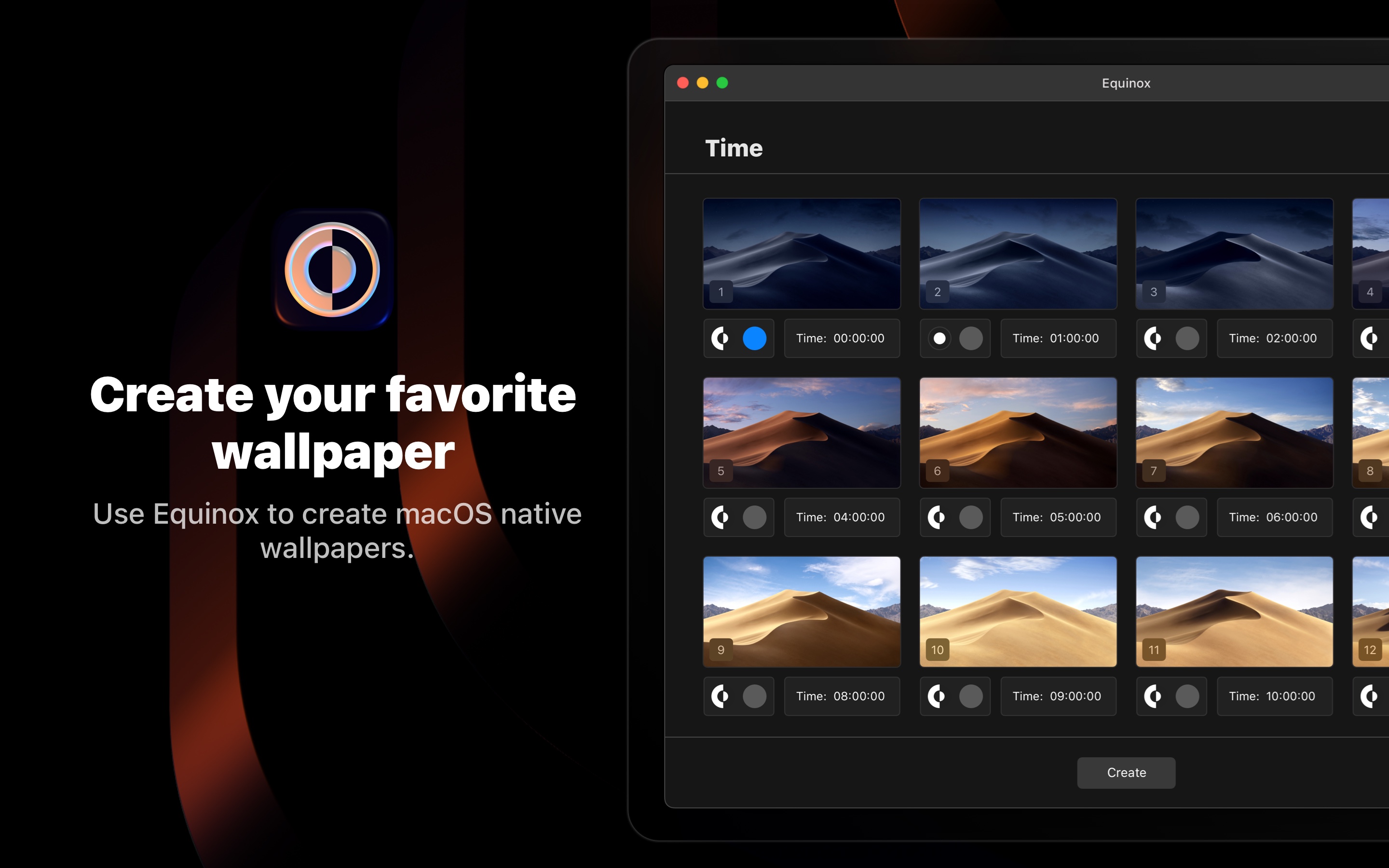

User reviews (0)