
 interfacer.xyz
No paid content found
interfacer.xyz
No paid content found
Categories: Design & Creativity
Interfacer is a collection of 300+ free design resources found on the Web.
 Visit website
 Updated: 2026-10-07 00:16
 Language: English (default)
 Access: Normal
 Profile views 0
 Outbound visits 0
Related questions
More questions →How to Find and Download Free Fonts Safely and Legally
You can download free fonts from sites like wfonts.com in minutes, but "free" on a font-sharing site does not always mean free for commercial use. Before you install anything, confirm the license covers your intended use. The steps below cover how to browse a large font library, narrow it down with category and popularity filters, check what you're actually allowed to do with a file, and install it on Windows or macOS.
Start with the license, not the font
The single biggest mistake is downloading a font because it looks right, then discovering months later it was personal-use-only or an unlicensed copy of a commercial typeface.
Font-sharing sites typically mix several very different things:
- Genuinely free fonts released by their designers under open terms (SIL Open Font License, Apache, CC0, or a permissive custom license).
- Free-for-personal-use fonts — fine for a school project or a personal blog, not for client work or products you sell.
- Demo or trial versions of commercial fonts, often with missing characters or a limited character set.
- Unauthorized uploads of commercial fonts. These carry real legal risk if you use them commercially, regardless of what the site says.
wfonts.com's own description calls its catalog "free fonts" and notes daily updates and a library of more than 100,000 fonts. That describes the site's framing, not the license of any individual file. Treat each download as its own case.
What to check before you download
- Look for a license field or readme. Many listings include the license or a link to the designer's page. If there's no license information at all, assume you cannot use it commercially.
- Find the original source. Search the font name plus the designer's name. If it's a real free font, there's usually a foundry page, GitHub repo, or Google Fonts entry with the actual license text.
- Check the character set. Open the font in a preview tool and confirm it has the glyphs you need — accents, punctuation, currency symbols, non-Latin scripts. Demo versions often cut these.
- Keep a record. Save the license text and the URL you downloaded from alongside the font file. If a client or platform ever questions it, you have proof.
If you need commercial use and can't find clear terms, the safe move is to use a font from a source with explicit licensing, such as Google Fonts, or buy a license from the foundry.
Narrowing down a large font library
A catalog with 100,000+ fonts is unusable without filters. wfonts.com organizes its library in ways that map to real design decisions, and you can use the same logic on any font site.
Browse by category
The site groups fonts into broad families and sub-styles, including:
| Group | Examples from the site |
|---|---|
| Core styles | Blackletter/Gothic, Modern/Minimal, Monospace/Typewriter, Sans Serif, Script/Handwritten |
| Style variants | Display, Decorative, General, Elegant/Wedding, Fantasy/Esoteric, Gaming, Geometric/Grid, Horror/Grunge, Kids/Cartoon, Music/Dance, Nature/Organic, Pixel/Bitmap, Retro/Vintage, Sport, Stencil/Military, Techno/Sci-Fi, Urban/Tattoo, Western |
| Thematic | Holiday/Seasons, Mood/Lifestyle, Culture/Language, Ancient/Mythic, Classical, East Asian, European, Latin American, Middle Eastern/Asian, National Styles, Vietnamese |
| Brand & media | Brand/Logo Style, Film/Television, Franchise/Character |
| Symbols | Dingbats/Ornaments, People/Faces, Shapes/Icons |
| System | OS Fonts, Encoding, Technical |
Pick the group that matches your project first, then narrow. If you're designing a wedding invitation, "Elegant, Wedding" under Style Variants is a faster entry point than scrolling the full list.
Use popularity signals — carefully
The site surfaces several ranked lists: Most recent fonts, Most view fonts, Most download fonts, and Best rated fonts. These are useful for discovery but each measures something different.
- Most recent shows what's new — good for finding fresh releases, but no quality signal.
- Most view / Most download reflect popularity, which often means a font is widely available elsewhere too. High download counts can also mean a font is bundled with an OS or app rather than being a designer's free release.
- Best rated reflects user ratings, which is a weak quality signal but can surface fonts that render well in practice.
For example, the site's "Most download fonts" list includes Traditional Arabic, Batang, Nirmala UI, Lucida Grande, and VNI-Avo — several of these are system or bundled fonts rather than standalone free releases, so check the license before treating them as freely usable. The "Best rated" list (Joystix, VictorianD, Fritz-Quad, Starter, and others) is a better starting point if you want display fonts that other users found usable.
A practical workflow: filter by category → sort by rating or downloads → open the preview → check the license → download.
Installing a downloaded font
Once you have a font file (usually .ttf, .otf, or .woff/.woff2 for web), installation is straightforward. The steps differ slightly by platform.
Windows
- Locate the downloaded file (often in your Downloads folder).
- Right-click the file and choose Install for your user account, or Install for all users if you have admin rights and want it available system-wide.
- Alternatively, open Settings → Personalization → Fonts and drag the file into the font list.
- Open your application (Word, Photoshop, Figma, etc.). If the font doesn't appear, restart the app — most apps only read the font list at launch.
macOS
- Double-click the font file. Font Book opens with a preview.
- Click Install Font. Font Book validates the file and adds it.
- For manual control, open Font Book and use File → Add Fonts to install into your user library, or drag files into the Fonts folder.
- Restart any open design or office app to see the new font.
Web use
For websites, .woff2 is the most efficient format. You'll typically self-host the file and declare it with @font-face in CSS, or upload it to a service that handles hosting. Confirm the license permits web embedding — many free-for-desktop fonts do not allow it.
Troubleshooting common problems
The font doesn't appear after installing. Restart the application first — this fixes most cases. If it still doesn't show, confirm the file installed correctly (check the system font list) and that you're looking under the right name; some fonts install under a family name different from the filename.
Missing characters or "tofu" boxes. The font likely doesn't include those glyphs. This is common with demo versions and display fonts that only cover basic Latin. Check the character set before relying on a font for multilingual text.
The file won't install or appears corrupted. Re-download it — transfers can fail. If it still fails, the file may be malformed or in an unsupported format. Try a different source for the same font.
Text looks wrong in one app but fine in another. Some apps substitute fonts or apply their own rendering. Verify the font is actually selected in that app's font menu rather than being auto-substituted.
You can't tell if commercial use is allowed. Don't guess. Find the original source and its license, or choose a font with explicit terms. Using an unlicensed font in commercial work is the riskiest outcome of downloading from a sharing site.
A quick decision guide
- Personal project, no commercial use: a free-for-personal-use font is fine. Still note the source.
- Client work, products, or anything you sell: use only fonts with an explicit commercial-use license (OFL, Apache, CC0, or a purchased license).
- Web embedding: confirm the license allows it, and prefer
.woff2. - Can't find the license: treat it as not usable commercially and pick an alternative.
The catalog size on a site like wfonts.com is an advantage for discovery, not a guarantee of licensing. Use the category and rating filters to find candidates fast, then spend your time on the license check — that's the step that protects you.
What Are Open Source Fonts and How Do You Use Them?
Open source fonts are typefaces released under a license that lets anyone use, study, modify, and redistribute them—including the font files themselves. You can use them in websites, apps, and print without paying a license fee, provided you follow the specific terms of the license (most commonly SIL OFL, Apache 2.0, or GPL). This guide explains the difference between open source, freeware, and public domain fonts, how the major licenses work, where to find and verify them, and the practical steps for embedding and attribution.
Open Source vs. Freeware vs. Public Domain
These three terms are often used interchangeably, but they mean different things:
| Category | Can you use it? | Can you modify it? | Can you redistribute it? | Source files available? |
|---|---|---|---|---|
| Open source (e.g., SIL OFL) | Yes | Yes | Yes, under same license | Usually yes |
| Freeware | Often yes, per EULA | Usually no | Usually no | No |
| Public domain | Yes | Yes | Yes | Not required |
- Open source fonts come with a license that grants the same freedoms as open source software. The license travels with the font, so derivatives must keep the same terms.
- Freeware fonts are free to download but the license may restrict modification, redistribution, or commercial use. "Free" here means zero cost, not freedom.
- Public domain fonts have no copyright restrictions at all. You can do anything with them, but the original designer gives up attribution rights.
The key practical difference: with open source fonts, you can legally modify the glyphs, rename the font, and ship it inside your product—as long as you comply with the license.
Common Open Font Licenses and What They Allow
SIL Open Font License (OFL)
The most widely used license for open source fonts (e.g., most Google Fonts). It allows:
- Use in commercial and non-commercial projects
- Modification and redistribution
- Embedding in websites, apps, and documents
Requirements:
- The font must not be sold by itself.
- Modified versions must not use the Reserved Font Name (if one is declared).
- Any derivative must also be released under the OFL.
Apache License 2.0
Used by some open fonts (e.g., early versions of Roboto). It allows:
- Commercial use, modification, distribution
- Patent grant from contributors
Requirements:
- You must include a copy of the license and state changes made.
- It does not have the "no selling by itself" restriction, but you still need to keep notices.
GNU General Public License (GPL)
Less common for fonts but used in some projects (e.g., GNU FreeFont). It allows:
- Use, modify, redistribute
Requirements:
- If you distribute a modified version, you must release the source under GPL.
- This can be problematic for embedding in proprietary software, because the copyleft may extend to the whole work depending on how it's linked. Many font projects use GPL with a font exception to clarify.
Rule of thumb: For most web and app projects, SIL OFL is the safest and most permissive choice. Apache 2.0 is also fine if you don't mind including notices. Avoid GPL fonts in closed-source products unless you understand the copyleft implications.
How to Find and Verify Open Source Fonts
Community libraries like Font Library (fontlibrary.org) collect fonts that are explicitly licensed for open use. When you download from such a library, the font page usually states the license.
To verify a font's license:
- Check the font file itself. Open the font in a font editor (e.g., FontForge) or use a command-line tool like
otfinfoorfc-query. The license is often embedded in the name table. - Look for a LICENSE or OFL.txt file in the download package.
- Check the project's website or repository (e.g., GitHub). If the license is not stated, assume it's not open source.
- Search the font name on a license database like the SPDX license list or the Google Fonts license page.
If you cannot find a clear license, do not use the font in a commercial project. "Free download" does not mean open source.
Practical Use: Websites, Apps, and Print
Embedding in websites
- Self-hosting: Download the font files (WOFF2 is best for web), place them in your project, and use
@font-facein CSS. This gives you full control and avoids third-party requests. - Third-party hosting: Google Fonts and similar services host open fonts and provide a CSS link. Check that the font's license allows this (OFL and Apache do).
- Attribution: OFL does not require attribution in the website's visible text, but you must keep the license file with the font files. Apache 2.0 requires you to include a NOTICE file if one exists.
Example @font-face for an OFL font:
@font-face {
  font-family: 'MyOpenFont';
  src: url('myopenfont.woff2') format('woff2');
  font-weight: 400;
  font-style: normal;
}
Embedding in apps
- Mobile apps: You can bundle OFL and Apache fonts in your app. For OFL, include the license text in your app's about screen or a licenses file. For Apache, include the license and any NOTICE.
- Desktop apps: Same rules apply. If you modify the font, you must rename it if the original has a Reserved Font Name.
- You can use open source fonts in printed materials (books, posters, packaging) without restriction, as long as you don't sell the font itself.
- If you modify the font for a logo, check the license: OFL allows modification but requires the derivative to be under OFL. That means you cannot claim exclusive copyright on the modified font, but you can use it in a logo.
Common Licensing Mistakes and How to Avoid Them
- Assuming "free" means open source. Many free fonts are freeware with restrictive licenses. Always check the license file.
- Forgetting attribution for Apache fonts. Apache 2.0 requires you to keep copyright notices and state changes. Put them in a licenses file.
- Using GPL fonts in closed-source apps. The copyleft may require you to release your app's source. Use OFL or Apache instead.
- Selling a font you got for free. OFL and many other licenses prohibit selling the font by itself. You can sell a product that uses the font, but not the font files alone.
- Modifying a font with a Reserved Font Name. If the original font has a Reserved Font Name (e.g., "Roboto"), you must rename your modified version. Check the license for the RFN clause.
- Not including the license file when redistributing. Always bundle the original license text with the font files.
By following these guidelines, you can confidently use open source fonts in any project while staying compliant with their licenses.
What Is Web Design and What Does It Actually Involve?
Web design is the planning of a website's layout, navigation, content structure, and visual style before and alongside development. It answers what goes where, how people move through it, and how it looks and feels — not just how it is coded. It applies whether you are commissioning a site, building one yourself, or hiring a studio such as Fuel180 Creative, a New Jersey multimedia development facility whose in-house services include design, internet site development, e-marketing, social media, interactive development, video production, animation, and presentation design.
Where web design sits among related disciplines
Web design overlaps with several fields but is not identical to any of them.
| Discipline | Core question | Typical output |
|---|---|---|
| Web design | What should the site look like and how should it be organized? | Sitemap, wireframes, mockups, style guide |
| Web development | How does it work in code? | Front-end and back-end implementation |
| UX design | How does the experience feel end to end? | Research, user flows, usability testing |
| Branding | What does the organization stand for visually and verbally? | Logo, palette, voice, brand guidelines |
A designer may handle UX and branding tasks, and a developer may make design decisions during implementation. The distinction matters mainly for scoping: if you hire for "web design" only, confirm whether research, copywriting, and coding are included.
The core phases of a web design project
1. Discovery and goals
Define who the site serves, what visitors should do, and how success is measured. Outputs often include a written brief, competitor review, and success metrics such as inquiries, signups, or time on page.
2. Information architecture
Organize content into a hierarchy. The deliverable is usually a sitemap showing pages and their relationships, plus navigation labels. This is where you decide whether services, products, or resources get top-level placement.
3. Wireframes
Low-fidelity layouts that show structure without final visuals — where the headline, call to action, and supporting content sit on each page type. Wireframes are cheap to change, so review them carefully before visual design begins.
4. Visual design
Typography, color, imagery, spacing, and component styling are applied to the approved structure. A style guide or design system documents the rules so future pages stay consistent.
5. Handoff to development
The designer delivers mockups, assets, specifications, and interaction notes. Development then builds the site, and design review continues during implementation to catch issues that only appear in a browser.
Key decisions you will be asked to make
- Responsive layout — how the design adapts across phone, tablet, and desktop. Designing only for desktop is a common and costly pitfall.
- Typography and color — how many typefaces and colors, and whether they meet contrast requirements for readability.
- Accessibility — whether the design works for keyboard users, screen readers, and people with low vision. Retrofitting accessibility later is harder than designing for it.
- Performance trade-offs — large hero images, video backgrounds, and web fonts look impressive but add load time. Decide what is worth the cost.
- Content and conversion goals — the design should serve the content you actually have, not placeholder text that never gets replaced.
Typical deliverables and how to evaluate them
| Deliverable | What to check |
|---|---|
| Sitemap | Does every important page have a home, and are labels clear to outsiders? |
| Wireframes | Is the primary action obvious on each page type? |
| Mockups | Do they reflect real content lengths, not idealized short text? |
| Style guide | Could a new designer produce a consistent page from it? |
| Prototype | Can you click through the main user journey without confusion? |
Common pitfalls
- Designing for desktop first and treating mobile as an afterthought.
- Skipping discovery, so the site reflects internal preferences rather than visitor needs.
- Ignoring content: a beautiful layout collapses when real headlines and product descriptions are longer than the mockup.
- Losing conversion focus — every page should make the next step clear.
- Treating design as finished at handoff, when many issues surface only during development.
If you are commissioning work, ask which phases are included, what deliverables you will receive, and who owns the files afterward. Those three answers prevent most misunderstandings before a project starts.
What Are Free Icons and How Do You Find and Use a Free Icon Set?
Free icons are icon files you can download and use at no cost, but "free" describes the price, not the permissions. Before using any set, check its license (MIT, CC0, or attribution-required), confirm the format (SVG, font, or PNG), and match the style to your interface. Slim Icons is one example: a free and open source library of 200 icons in a slim outline style, with adjustable stroke width and color, plus a GitHub link and a contribution/request workflow.
What "free" actually means for icons
The word free hides three separate questions. Answer all three before you ship anything.
- Price: Can you download and use it without paying?
- License: What does the license let you do — commercial use, modification, redistribution?
- Attribution: Must you credit the creator, and where?
A set can be free to download but still require attribution, or restrict commercial use. Treat the license file, not the download button, as the source of truth.
| License type | Typical permissions | What to watch |
|---|---|---|
| MIT | Commercial use, modification, redistribution, usually with a license notice | Keep the copyright/license notice in your project |
| CC0 / public domain | Broad use with minimal conditions | Still verify the specific set's statement |
| Attribution-required (e.g. CC BY) | Use allowed if you credit the creator | You must place credit where users can see it |
| Custom / unclear | Varies | Don't assume; ask or avoid |
For Slim Icons specifically, the page describes it as "free & open source" and links to GitHub, which is where you should confirm the exact license terms before commercial use.
Matching icon style to your interface
Style is not decoration — it changes how legible and consistent your UI feels. The main families:
- Outline (stroke-based): Light, modern, works well for navigation, toolbars, and dense interfaces. Slim Icons fits here — its stated style is "slimmer than you."
- Filled (solid): Higher visual weight, good for active states, small sizes, and emphasis.
- Minimal: Fewer details, scales down cleanly, reduces visual noise.
- Duotone: Two tones for hierarchy; heavier and more decorative.
A practical rule: pick one family and one stroke weight, then apply it everywhere. Mixing outline and filled icons in the same toolbar usually looks accidental unless the difference signals state (for example, outline = inactive, filled = active).
Practical details to check before committing
Icon count and format decide whether a set can carry a whole product.
- Count: Slim Icons ships 200 icons. That covers common interface actions, but a large product with niche needs may outgrow it — check coverage against your actual screens first.
- Format: SVG is the default choice for web and app UI because it scales without blur and can be styled with CSS. Font icons are convenient but harder to control per-icon; PNG is fixed-resolution and best avoided for UI.
- Customization: Slim Icons exposes stroke width (default 1.5 px) and color controls, plus a reset. Adjustable stroke width matters because a 1.5 px stroke that looks right at 24 px may look too thin at 16 px.
How to download and use icons in a project
The workflow below applies to most free SVG icon sets, including Slim Icons.
- Open the library and browse or search for the icon you need.
- Set stroke width and color using the on-page controls (Slim Icons defaults to 1.5 px). Match these to your design tokens so icons don't drift from your type and border weights.
- Download the icon as SVG. Slim Icons also offers a "Download all" option if you want the full set.
- Add it to your project. For web, either inline the SVG or reference it as an
<img>/background. Inline SVG lets you controlstrokeandstroke-widthvia CSS:
<svg viewBox="0 0 24 24" fill="none" stroke="currentColor" stroke-width="1.5">
  <path d="..." />
</svg>
- Verify the result. Check the icon at your smallest and largest real sizes, confirm it aligns with adjacent text, and make sure color inherits correctly (using
currentColormeans the icon follows your text color automatically). - Record the license and attribution in your project's credits or license file if required.
Common snags: stroke width that looks correct in the preview but too heavy after scaling; icons that don't align to your grid because their viewBox differs; and forgetting that "Download all" may include icons you'll never use, bloating your bundle.
Contributing and requesting icons
If a set is open source, you can often shape it. Slim Icons provides a "How to contribute" link, a "Request icons" option, and a GitHub repository. Use these when:
- You need an icon the library doesn't have — request it rather than drawing an inconsistent one.
- You want to fix or improve an existing icon — contribute via GitHub.
- You're evaluating long-term viability — an active repo and request process suggest the set will keep growing.
Before relying on a small library for a long project, weigh its current count (200 for Slim Icons) and its contribution activity against your roadmap.
Choosing between free icon sets
Compare candidates on the same dimensions, then decide based on your constraints:
| Dimension | What to check |
|---|---|
| License | Commercial use allowed? Attribution required? |
| Style | Outline, filled, minimal, or duotone — and does it match your UI? |
| Count & coverage | Enough icons for your screens, with room to grow? |
| Format | SVG available? Font or PNG as fallback? |
| Customization | Adjustable stroke width and color? |
| Maintenance | Active repo, contribution and request process? |
If you need a lightweight, consistent outline set for a web or product UI and 200 icons covers your needs, Slim Icons is a reasonable fit — just confirm its license on GitHub first. If you need thousands of icons or multiple styles in one system, look for a larger library and apply the same checklist.
Website Overview
An established domain and managed infrastructure suggest continuity of operations and may support dependable delivery, although neither guarantees service quality. Page metadata, canonical configuration and social previews work together to provide more consistent search and sharing presentation.
Domain and Registration
The domain uses .xyz. Assess the website's identity and content rather than relying on the extension alone. Registered in 2018, this domain has about 7 years of history. That suggests continuity, although ownership and purpose may have changed. Transfer-protection status is present, helping reduce the risk of unauthorized domain transfers.
DNS and Email
The lowest TTL is 60 seconds, supporting rapid record changes at the cost of more frequent lookups. Nameservers are provided by Cloudflare, indicating managed DNS hosting. No CNAME was found; the observed records resolve directly to addresses. No MX record was found. A conventional explicit inbound-mail route is not configured. DNSSEC signatures were not detected, so this additional DNS authenticity protection is not confirmed.
TLS and Certificates
The public key uses EC with 256 bits. The server supplied a complete certificate chain. No organization name is present in the certificate; the available fields are consistent with domain validation. The certificate was issued within the Google Trust Services cloud or CDN ecosystem. The certificate's total validity is about 90 days, consistent with a short renewal cycle.
HTTP and Browser Security
The checked browser-security headers were not detected, leaving fewer explicit browser-side safeguards. No X-Powered-By header was found, reducing one common source of backend fingerprinting information. The cf-ray response header indicates a CDN or caching proxy in the delivery path. No obvious internal addresses or debug information were found in the headers. The Server header identifies cloudflare without an exact version.
Technology Stack Analysis
The public page identifies Cloudflare without precise versions, leaving fewer clues for version-specific scanning.
Search and Social Sharing
Open Graph is partially configured; og:type is missing. Twitter Card metadata is configured. The title has 39 characters, within a common display range. A meta description is present, with 74 characters. The observed directives allow indexing and link following.
 Hosting and Email
 Cloudflare
 Hosting
 Location
 unknown
104.21.38.184
Location
Location unknown
104.21.38.184
 Pages, Search and Sharing
| Meta description | Interfacer is a collection of 300+ free design resources found on the Web. |
|---|---|
| Canonical URL | https://interfacer.xyz |
| Language | English (default) |
| Twitter Card | summary_large_image |
Social Sharing Preview
6 fields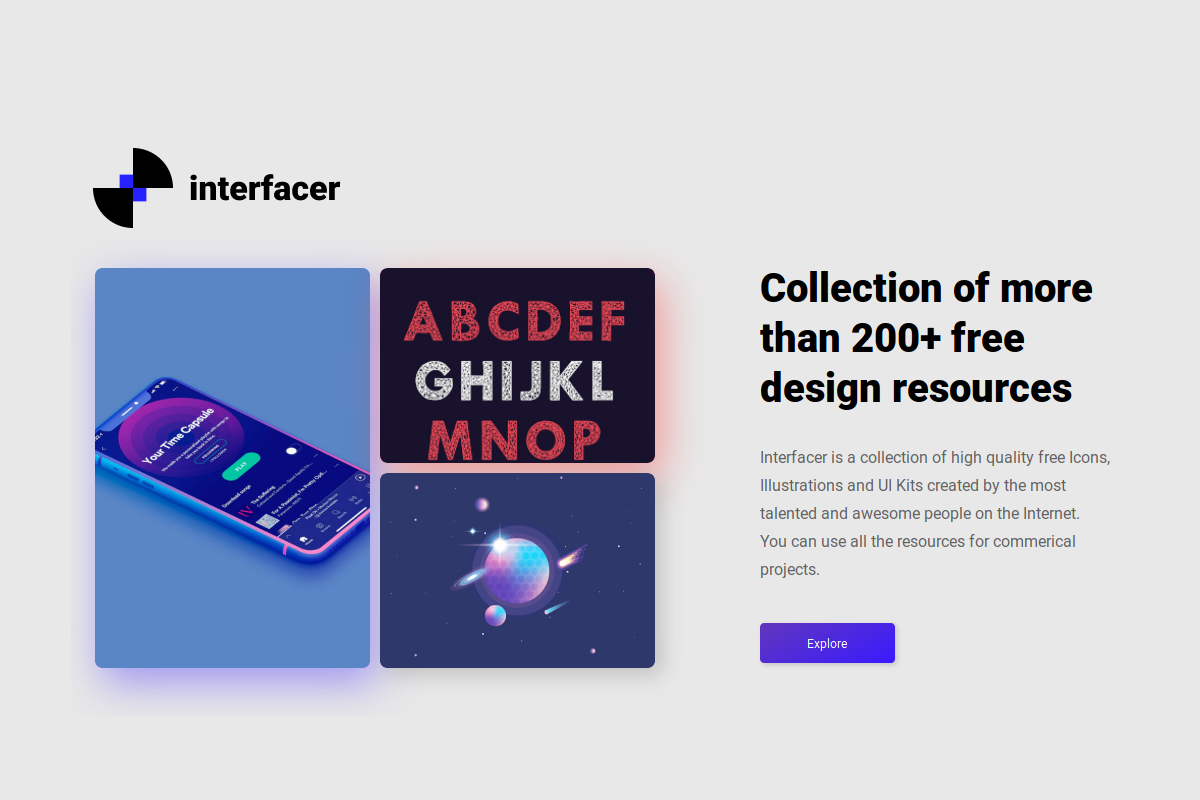
Sharing metadata
| og:url | https://interfacer.xyz/ |
|---|---|
| og:image | https://interfacer.xyz/assets/site_assets/interfacer-og-card.png |
| og:title | 300+ free design resources |
| og:description | Interfacer is a collection of 300+ free design resources found on the Web. |
| twitter:card | summary_large_image |
| twitter:creator | @harowitzblack |
robots.txt (opens in a new tab)
0 rulesNo rules found
No matching rules.
Sitemaps
1 Registration details RDAP / WHOIS
| Registrar | Sav.com, LLC |
|---|---|
| Registered | 2018-12-09 |
| Expires | 2026-12-09 |
| Domain status | client transfer prohibited |
| Nameservers | rommy.ns.cloudflare.com、ulla.ns.cloudflare.com |
| DNSSEC | unsigned |
 DNS records
| Type | Name | Value | TTL | Priority |
|---|---|---|---|---|
| A | interfacer.xyz | 104.21.38.184 | 300 | — |
| A | interfacer.xyz | 172.67.137.91 | 300 | — |
| AAAA | interfacer.xyz | 2606:4700:3035::ac43:895b | 300 | — |
| AAAA | interfacer.xyz | 2606:4700:3037::6815:26b8 | 300 | — |
| NS | interfacer.xyz | rommy.ns.cloudflare.com | 86400 | — |
| NS | interfacer.xyz | ulla.ns.cloudflare.com | 86400 | — |
| TXT | interfacer.xyz | eyJ0eXAiOiJKV1QiLCJhbGciOiJIUzI1NiJ9.eyJkb21haW4iOiJpbnRlcmZhY2VyLnh5eiIsImV4cCI6MTc0MzAzMzYwMH0.wvxBnWL33Oh-CeYxwqI2XjD6HfPROueu6FSy92U0XD4 | 60 | — |
 TLS and certificates
| Assessment | Normal configuration |
|---|---|
| Supported protocols | TLSv1.2、TLSv1.3 |
| Negotiated protocol | TLSv1.3 |
| Certificate subject | interfacer.xyz |
| Issuer | Google Trust Services |
| Valid until | 2026-12-02T12:43 · Remaining when checked: 56 days |
| Verification details | Certificate trust: Passed · Hostname match: Passed |
 HTTP response headers
| Header | Value |
|---|---|
| content-type | text/html |
| server | cloudflare |
 Identified technologies
User reviews (0)