Website profiles · Technology insights · Alternatives

jamstart.app Paid content

Categories: Education & Learning

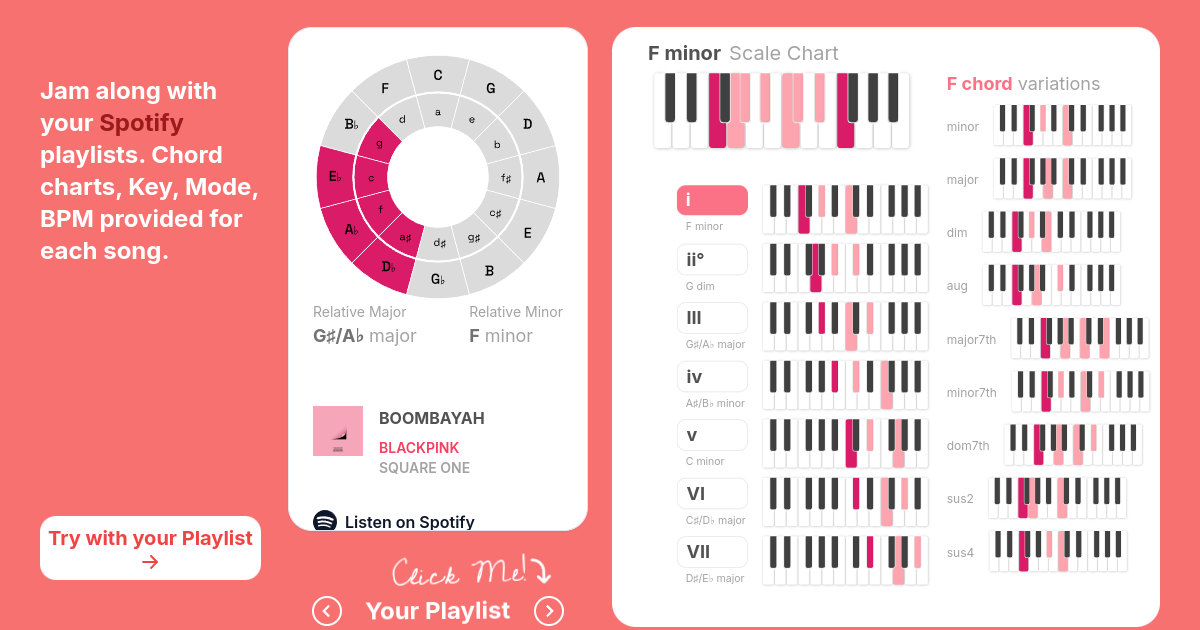
Search for the key and mode of any song from jamstart, using Spotify's catalog, search a database of over 70 million songs. Music charts are provided for each song, including chord charts, scale charts, circle of fifths

Visit website

Updated: 2026-10-03 11:07 Language: English (default) Access: Normal

Profile views 2 Outbound visits 0
JamStart Full homepage screenshot
Editorial Review

Website Review

What is JamStart?

JamStart is a web tool for musicians who want to jam along with songs rather than study theory in the abstract. It looks up the key, mode and BPM of tracks in Spotify's catalog, then shows chord charts, scale charts and a circle-of-fifths view for each song. The pitch is "learn music the easy way. The fun way": you connect a playlist, see what key each track is in, and play along.

What it actually does

  • Song lookup — search by song name, album or artist to get key, mode and BPM plus chord and scale charts.
  • Playlist analysis — paste a public playlist ID, or sign in to analyse your own playlists and get keys and modes for every track.
  • Filtering — narrow a playlist to songs in one key or mode (the site's own example is a playlist reduced to only B minor tracks).
  • Export — push the filtered results into a new playlist, so you can build sets like "all C major" or "minor songs only".
  • Reference charts — diatonic chords for the detected key, chord variations (minor, major7th, sus4 and so on), and a circle-of-fifths diagram.

Who it suits

Player Why it fits
Guitarist or pianist jamming to Spotify Key and chord charts appear per track, so you can follow along without transcribing
Singer picking repertoire Filtering by key helps keep a set in a comfortable range
Beginner learning theory in context Scale and diatonic-chord charts attach theory to songs you already like
Teacher or jam host building setlists Export of filtered songs turns analysis into a usable playlist

The trade-off is that it is an analysis layer, not a practice app: it tells you what key a song is in and which chords belong, but it does not slow tracks down, loop sections or show tab. Key detection is also an estimate — the site itself links an explanation of its accuracy — so treat unusual or modulating songs as a starting point and verify by ear.

A concrete scenario: you have a 40-song Spotify playlist for a jam session and half of it is in keys your singer can't reach. Paste the playlist, filter to one or two comfortable keys, export that subset as a new playlist, and open the chord charts for those tracks as you play.

Next step: the free tier covers public searches and playlist-by-ID lookups, while your own playlists, filtering and export sit behind the subscription, so start with a public playlist search to see whether the key and chord readouts match what you hear. If they do, the paid tier is mainly worth it for the filtering and export workflow.

How can I find the key, mode, and BPM of a song?

Use a key/BPM lookup tool, or work it out by ear against a reference. JamStart is built for the lookup route: it searches Spotify's catalog and returns chord charts, key, mode, and BPM for each song, plus scale charts and a circle-of-fifths view. You can search by song, album, or artist, or paste a public playlist ID; with a login, you can pull keys and modes for your own playlists, filter songs by key or mode, and export the filtered tracks into a new playlist.

The lookup route

  • Search the song title, album, or artist. Check that the match is the right recording — live versions and remasters can differ.
  • Read the result as a pair: key plus mode (for example D minor), not just "D." The mode is what tells you whether the tonic chord is major or minor.
  • Treat BPM as a starting tempo. Half-time and double-time counting are common, so a track listed at 150 BPM may feel like 75.

The by-ear route

  1. Find the note that sounds like "home" — the chord the song resolves to at the end of a phrase.
  2. Decide whether that home chord is major or minor; that gives you the mode.
  3. Tap along to a bar and count beats for 15 seconds, then multiply to get BPM, or tap a tempo app in time with the pulse.

Which to choose

Situation Better approach
Learning a cover or jam set quickly Lookup tool, then verify by playing along
Song not in a streaming catalog By ear, or a chord/tab source
Building a practice playlist in one key Lookup tool with key/mode filtering
Odd meter, tempo drift, or heavy production By ear; automated BPM is less reliable

If you use JamStart's free tier, features like playlist import and filtering sit behind the subscription, so test with a single song search first. A practical next step: pick three songs you already know well, look them up, and play along — if the reported key matches what your ear expects, you can trust it for unfamiliar material. For a second opinion on a specific track, chord and tab communities such as Ultimate Guitar often list the key alongside user-corrected chords.

Can I use JamStart with my Spotify playlists?

Yes. JamStart is built around exactly that use case: you connect or look up a Spotify playlist, and it returns key, mode and BPM for the songs in it. The public page shows a playlist example where each track gets a chord chart, a scale chart and a circle-of-fifths view, and you can filter the list so only songs in a chosen key or mode remain.

What you can do with a playlist

  • Get key, mode and BPM for each song in the playlist.
  • See chord charts and scale charts per song, including diatonic chord information.
  • Filter the playlist by key or mode — the page uses "only B minor songs" as its example.
  • Export the filtered songs into a new playlist, so you can build sets like "C major only" or "minor songs only."

What to expect in practice

Two practical limits matter more than the feature list. First, playlist import and filtering sit behind an account: the public features are song search and playlist lookup by playlist ID, while keys/modes for your own playlists, charts, filtering and export are listed as login features. The site also says "Try it for free or Subscribe for full features," so assume some of this is gated. Second, key and BPM detection is estimated, not authoritative — JamStart itself links a "How accurate is this?" note next to its key display. Treat results as a strong starting point for jamming, not as sheet music.

A concrete scenario: you have a 60-song Spotify playlist for a jam session and want to avoid key clashes. Import it, filter to one key, export that subset as a new playlist, and you have a set that will sit together without transposing between songs.

Next step

Open JamStart and try one small playlist first — around ten songs — to see how its key and BPM estimates line up with songs you already know well. If the accuracy holds for your repertoire, move your real playlists over. If you only need occasional single-song lookups, the free search may be enough and you can skip the account entirely.

How do I filter songs by key or mode?

Filtering by key or mode on JamStart starts with a playlist rather than a single song. You connect or look up a playlist, and the site reads the key and mode of each track so you can narrow the list down to just the songs that fit the key you want.

According to the page, the filter is part of the logged-in feature set. The public side covers searching for a song and looking up a playlist by its ID; getting keys and modes for your own playlists, filtering by key or mode, and adding the filtered songs to another playlist require logging in.

H3 How the filter works in practice

  1. Get your playlist into JamStart (your own playlist, or one you can access).
  2. Let it analyze the tracks, which is where the key, mode, BPM and chord charts come from.
  3. Apply a key or mode filter. The page's own example shows a playlist reduced to only the songs in B minor.
  4. Export or add the filtered songs to a new playlist if you want to keep that subset.

H3 What this is good for

  • Building a jam set that stays in one key, so you are not transposing between every song.
  • Practicing a single mode, such as collecting only minor songs or only C major songs.
  • Prepping a medley or DJ-style run where key clashes would be obvious.
  • Checking whether a playlist you already like is more key-consistent than it feels.

H3 Trade-offs and things to watch

Key and mode detection is estimated from the recording, so treat it as a strong starting point rather than gospel. Songs with ambiguous tonality, modulations, or heavy production can be labelled in a way you disagree with. For jamming, a wrong label costs you a quick re-check; for performance, verify by ear or with your instrument before committing.

The bigger practical limit is that filtering and exporting sit behind login, so if you only want to look up one song's key, the public search is enough. If your goal is a curated same-key playlist, the login is worth it.

H3 A concrete scenario

Suppose you play guitar and want a 40-minute practice block in D minor. Load a playlist you already enjoy, filter to D minor, then export the result as a new playlist. You now have a warm-up set where the scale shapes and chord voicings stay consistent, and you can spend the session on phrasing instead of hunting for the key.

If you would rather work from a reference for the theory behind the charts, Music Theory covers scales, modes and the circle of fifths in a structured way.

Next step: open JamStart, log in, pick one playlist, and filter it to a single key or mode before you try anything more elaborate. That one pass will tell you whether the detected keys match your ears well enough to trust the feature for your repertoire.

What are the paid features of JamStart?

JamStart separates its features into public tools and features that require login or a subscription. The page states that you can "try it for free or subscribe for full features." The public side covers search for a song and search for a playlist by playlist ID; the fuller workflow—keys and modes for songs inside your own playlists, chord and scale charts for each song, filtering by key or mode, and adding filtered songs to another playlist—is listed under "Login to try these features."

What the page indicates is gated

  • Keys and modes for songs inside your playlists
  • Chord and scale charts for each song
  • Filter by key or mode
  • Add filtered songs to another playlist

What is available publicly

  • Search for a song
  • Search for a playlist by playlist ID

Practical use

A guitarist preparing for a jam session could use the public search to check a single song's key, mode and BPM, then decide whether the full playlist workflow is worth it: filtering a whole Spotify playlist down to, say, only B minor songs and exporting that filtered set as a new playlist. The subscription matters most if you work with playlists regularly rather than looking up one song at a time.

The pricing page at JamStart is the place to confirm the current free limits and subscription terms, since the site does not state exact prices or quotas in the material above.

How accurate is JamStart's key and mode detection?

JamStart does not publish an accuracy figure for its key and mode detection; the page itself asks "How accurate is this?" and leaves the answer to your own ears. Treat the results as a strong starting point rather than a verdict.

What the page actually claims

  • Chord charts, key, mode and BPM are "provided for each song."
  • Detection runs against Spotify's catalog, which the site describes as a database of over 70 million songs.
  • Each song gets a scale chart, a circle-of-fifths chart and diatonic chord info, plus chord variations (minor, major, dim, aug, maj7, min7, dom7, sus2, sus4).
  • Free users can search songs and public playlists by playlist ID; keys and modes for your own playlists, filtering by key or mode, and exporting filtered songs sit behind the subscription.

Where automatic detection tends to go wrong

These are general limitations of key-detection algorithms, not claims about JamStart specifically:

  • Modal ambiguity. A song in D Dorian shares all its notes with C major. Algorithms often pick the relative major or minor because it is the statistically safer guess.
  • Relative major/minor confusion. The page shows F major with D minor as its relative minor — the same notes, different tonal centre. Songs that hover between the two are the hardest cases.
  • Modulation and borrowed chords. A track that shifts key in the bridge, or leans on chords outside the scale, can pull the estimate toward the wrong tonic.
  • Intros and outros. Sparse or ambiguous openings can skew a whole-song estimate.

A practical way to check

Pick a song you already know cold, look up its key on JamStart, and compare it with the scale chart shown. If the chart's diatonic chords match what you actually play, the detection is working for that track. If the notes fit but the tonal centre feels off, you are probably looking at a relative major/minor or modal mix-up — trust your ear and adjust.

For a second opinion on a specific track, cross-check the key against Hooktheory or a chord reference such as Ultimate Guitar and see whether the community transcription agrees.

Who this matters for

  • Jammers and cover players: a wrong key still gets you in the right neighbourhood, since the relative major/minor shares the same chords. You can usually start playing and correct by ear.
  • Producers and remixers: if you need an exact key for pitching vocals or layering synths, verify the tonic yourself rather than relying on the label alone.
  • Music students: the scale and circle-of-fifths charts are useful study aids, but only if you check the stated key against the notes shown.

Next step: run three songs you know well — one straightforward major-key pop track, one minor-key track, and one modal or modulating track — and compare the reported key with the chord chart. That tells you quickly how much you can lean on it for your own repertoire.

Related questions

More questions →
How to Compose and Share a Song Online with JummBox

JummBox is a browser-based tool for sketching and sharing instrumental music, and you can start writing a song in it without installing anything. The workflow is: click notes into patterns, arrange those patterns across rows to build sections, then copy the URL — which always contains your full song — to save or share it. This guide covers that path from empty editor to shareable link, plus the editing shortcuts and note controls that make it faster.

Getting notes into the editor

The note grid is the core of the tool. Click the gray rows at the top to add or remove notes, and JummBox plays each note out loud as you place it, so you can hear what you're writing instead of guessing.

Notes live inside patterns, and you edit one pattern at a time. The numbered boxes at the bottom of the editor are those patterns. Click a box to jump to a different part of the song, or click the arrows on the currently selected box to swap which pattern plays during that part.

JummBox can play several rows of patterns at once, and each row has its own set of patterns. Most rows handle melodies or harmonies; the bottom row is reserved for drums.

Shaping a single note

Once a note exists, you can change how it behaves:

  • Duration — click and drag horizontally on a note.
  • Chords — click above or below an existing note to add notes that play simultaneously.
  • Bulk moves — long-press in the pattern editor to select a time range, then drag to move multiple notes together.
  • Pitch bend — drag vertically from an existing note.
  • Volume — drag vertically from above or below the note. Hold Control while doing this for fine adjustment.

Arranging patterns into a song

Patterns are the building blocks; the rows and numbered boxes are how you sequence them. A practical way to work:

  1. Write a short melodic idea in one pattern.
  2. Copy it to another pattern slot and vary it for a second section.
  3. Assign patterns to the numbered boxes so the song plays section A, then section B, then back to A.
  4. Add a drum pattern on the bottom row so the sections have a rhythmic base.

If you want to reuse material across the arrangement, select part of the pattern grid by clicking and dragging, then press C to copy and V to paste — this works for mass copy/paste of song parts, not just single notes.

Keyboard shortcuts worth learning

JummBox responds to shortcuts when its interface has focus, so click on the editor first.

Key Action
Spacebar Play or pause the song
Shift + Spacebar Play from the mouse location
Z Undo
Y or Shift + Z Redo
C Copy pattern from selection
V Paste pattern into selection
0–9 Assign a pattern number to the selection
Arrow keys Move selection
Ctrl + Arrows Rearrange channels
[ ] Move the playhead backward or forward
F / H Jump to the first or highlighted pattern
Shift + Drag Select part of a pattern

The edit menu holds more shortcuts than the ones listed here, so it's worth opening when you need something not covered above.

Saving and sharing your song

There is no separate save step to remember: all song data is contained in the URL at the top of your browser, and that URL updates every time you change the song. When you're happy with the result, copy the URL and paste it wherever you want to keep or send it. Anyone opening that link gets the song as you left it.

This also means the URL is the song — if you lose the link, you lose that version, so copy it before you start experimenting further.

Where to go next

JummBox has more features than the note grid alone suggests. The buttons and menus on the right side are the place to explore, and clicking the label next to any option shows a description of what it does. Some functions are deliberately tucked away — for example, modulator channels have their own hidden interactions — so when something in the interface looks inert, check its label before assuming it does nothing.

What Is Next.js and What Is It Used For?

Next.js is a React framework for building web applications. It adds structure and built-in capabilities on top of plain React — server-side rendering, static site generation, file-based routing, and API routes — so you can ship production sites without assembling a toolchain yourself. It fits projects where SEO, fast initial page loads, and a mix of static and dynamic content matter: marketing sites, blogs, documentation, e-commerce storefronts, and dashboards. If you are building a purely client-side single-page app with no server rendering or routing needs, plain React may be enough.

How Next.js Relates to Plain React

React is a UI library: it gives you components and a rendering model, but leaves routing, data fetching, and build configuration to you. Next.js is a framework built on React that makes those decisions for you.

Concern Plain React Next.js
Routing Add a router (e.g., React Router) yourself File-based routing built in
Rendering Client-side by default Server-side rendering, static generation, and client rendering per page
Data fetching You wire it up Conventions for fetching at build time or per request
Backend endpoints Separate server needed API routes in the same project
Build setup You configure bundling Preconfigured, with sensible defaults

The trade-off: Next.js gives you conventions and less setup, but you adopt its opinions about routing and rendering. Plain React gives you freedom at the cost of assembling more pieces.

Core Features and What They Do

Server-side rendering (SSR)

Pages are rendered on the server per request, so the browser receives ready HTML. Useful for content that changes often or depends on the request — personalized pages, dashboards behind login.

Static site generation (SSG)

Pages are rendered at build time into static HTML. Fast to serve and easy to cache. Good for blogs, docs, and marketing pages whose content changes on a publish cadence rather than per request.

File-based routing

The file structure defines the routes. Adding a file creates a route; nesting folders nests routes. This removes most manual route configuration.

API routes

You can define server endpoints inside the same project, which is handy for form handling, webhooks, or small backend tasks without a separate service.

Common Use Cases

  • Marketing and landing pages — static generation for speed and SEO.
  • Blogs and documentation — content-heavy, mostly static, benefits from fast loads.
  • E-commerce — product pages can be static or incrementally updated, while cart and checkout use server or client rendering.
  • Dashboards and authenticated apps — server-side rendering for per-user data.

Pairing Next.js With a Headless CMS

Next.js handles rendering and routing; it does not manage content authoring. A headless CMS stores content separately and delivers it to your Next.js app via an API or build-time fetch. This separation lets editors work in a visual interface while developers keep control of the front end.

TinaCMS is one option in this space. It is an open-source, headless CMS with built-in Git version control, and it stores content as Markdown in your Git repository. That means content stays in a format that is portable and readable by both humans and tooling. TinaCMS offers a visual editing experience for React sites, and its documentation notes it can be added to React websites for real-time content editing. It also provides TinaDocs, a documentation starter built on top of TinaCMS.

If you want to try the setup path, TinaCMS documents a starting command:

npx create-tina-app@latest my-blog

The expected result is a Markdown-based content repository scaffolded for you, which you then connect to your Next.js front end.

When to Choose Next.js

Choose Next.js when you need:

  • SEO-friendly rendering or fast first loads
  • A mix of static and dynamic pages in one project
  • Routing and API endpoints without extra setup

Consider plain React or another approach when your app is entirely client-side, has no SEO or initial-load concerns, and you prefer to pick each library yourself.

If content editing by non-developers is part of the plan, decide on the CMS separately from the framework choice — Next.js and a headless CMS like TinaCMS are complementary, not alternatives.

What Is JamStart and How Can You Use It to Jam with Spotify Playlists?

JamStart is a web app that looks up the key, mode, and BPM of songs and generates chord and scale charts for them, so you can play along with your own Spotify playlists instead of guessing. It's aimed at musicians who want to jam, practice, or learn music theory against real songs. You can start with public features — searching a song or a playlist by ID — without logging in; features tied to your own playlists, filtering, and exporting require an account, and the site states you can try it for free or subscribe for full features.

What JamStart actually gives you

For each song it covers, JamStart provides:

  • Key and mode — for example, D minor, with the relative major (F major) shown alongside.
  • BPM — tempo, so you can set a click or loop before playing.
  • Chord chart — diatonic chords for the key, plus chord variations (minor, major, dim, aug, major7th, minor7th, dom7th, sus2, sus4).
  • Scale chart — the notes of the scale laid out for reference.
  • Circle of Fifths chart — a visual of where the key sits and how its diatonic chords relate.

The site describes its catalog as drawing on Spotify's catalog and a database of over 70 million songs, and it notes the accuracy question openly ("How accurate is this?"), so treat the output as a strong starting point rather than a guaranteed transcription.

How to use it with a Spotify playlist

1. Look up a single song

Use Search for Songs by Name, Album or Artist. Enter a title, album, or artist name and you get the chord chart, key, mode, and BPM for matching songs. This is the fastest way to check one track before you sit down to play.

2. Analyze a public playlist by ID

Use Search for Playlists by Playlist ID. Paste a public playlist's ID and JamStart returns key and mode information for the songs in it. This works without logging in, which makes it useful for checking someone else's playlist or a shared one.

3. Analyze your own playlists

After logging in, you can get keys and modes for the songs inside your own playlists. This is the core jamming workflow: point JamStart at a playlist you already listen to, and it tells you what key each track is in.

4. Filter by key or mode

Once a playlist is loaded, you can filter it — for example, showing only the songs in B minor. This is how you turn a mixed playlist into a practice set in one key.

5. Export the filtered songs

You can add the filtered songs to another playlist, so you can build specialized sets such as "only C major" or "only minor songs." The result is a new playlist you can play straight from Spotify.

A concrete example

Say you have a playlist with a Japanese rock track like "青い、濃い、橙色の日" by MASS OF THE FERMENTING DREGS. JamStart shows it in D minor, with F major as the relative major, and lists the diatonic chords: i (D minor), ii° (E dim), III (F major), iv (G minor), v (A minor), VI (A♯/B♭ major), VII (C major). You can then pull up the D minor scale chart, try the chord variations, and jam over the track knowing which chords fit — or filter the whole playlist down to only D minor songs for a focused session.

Free vs. subscribed

The site splits features into public and account-based:

Feature Public (no login) Logged in / subscribed
Search for a song Yes Yes
Search playlist by ID Yes Yes
Keys and modes for your own playlists No Yes
Chord and scale charts per song — Yes
Filter by key and mode No Yes
Add filtered songs to another playlist No Yes

The site's own wording is "Try it for free or Subscribe for full features," so the playlist-analysis, filtering, and export tools sit behind the account/subscription line. Pricing details aren't specified in the available information — check the pricing page before committing.

Where it fits in a practice routine

JamStart is most useful when you already have playlists you like and want to play along without transcribing by ear first. Use it to:

  • Check the key of a song before you pick up an instrument.
  • Build single-key practice playlists from your existing listening.
  • See the diatonic chords so you know what to reach for during a solo.
  • Compare a song's key against its neighbors in a playlist to plan transitions.

If you want a quick answer on one song, the public search is enough. If you want to reshape your own playlists around keys and modes, you'll need to log in and likely subscribe.

How to Find Song Lyrics Online and Verify They're Accurate

The fastest way to find lyrics is to search a dedicated lyrics site by artist name or song title, then cross-check the result against a second source before you trust it. AZLyrics, for example, organizes its catalog alphabetically (A–Z plus a "#" section for titles starting with numbers or symbols) and provides a single search box that accepts either an artist name or a song title. That works well when you already know what you're looking for. The harder cases — a half-remembered line, a disputed transcription, or a site that looks sketchy — need a different approach, covered below.

Searching when you know the artist or title

On a site like AZLyrics, the homepage search field is the primary entry point. You type an artist name or a song title, submit, and you land on either the song page directly or an artist page listing their songs.

Two practical notes:

  • Artist pages are usually the better route. Searching a common song title ("Home," "Stay," "Alive") can return dozens of unrelated results. Searching the artist first narrows the list to one catalog.
  • The A–Z index is a fallback, not the main tool. AZLyrics lists artists and titles alphabetically with a "#" bucket for names beginning with numbers or symbols. It's useful for browsing a catalog, but slower than search for a specific song.

If the site returns nothing, check your spelling against how the artist is officially credited — featured artists, stylized capitalization (ROSÉ, beabadoobee), and punctuation all affect matching.

Finding a song from a lyric fragment

When you only remember a line, the reliable method is to search the exact phrase in quotation marks on a general search engine, not inside a lyrics site's own search box. Lyrics-site search usually matches titles and artists, not full lyric text, so a fragment often returns nothing there.

A few things that improve your odds:

  • Quote the phrase exactly as you remember it. Search engines treat quoted text as a required string.
  • Try the most distinctive words. Common words ("love," "tonight," "heart") appear in millions of songs and won't narrow anything.
  • Add a genre, decade, or "lyrics" to the query if the phrase alone is too generic.
  • Expect misheard lyrics to fail. If your remembered line is a mondegreen, the exact-phrase search won't match. Try the corrected spelling of the word you likely misheard.

Once you get a candidate title, confirm it by searching that title plus the artist on a lyrics site and reading the surrounding verse — the fragment should appear in context.

Checking whether lyrics are accurate

Lyrics sites are generally transcriptions, and transcriptions contain errors: wrong words, missing verses, repeated choruses collapsed into one, or ad-libs omitted. A single source is not proof of accuracy.

Useful verification habits:

Method What it catches
Compare two or more independent lyrics sites Typos and one-off transcription errors
Check official sources (artist's channel, label uploads, liner notes, official lyric videos) Authoritative wording, especially for singles
Listen to the specific line while reading Misheard words, missing lines, wrong verse order
Check the song page's metadata (album, release year, writers) Whether you're on the right version of the song

Different versions matter. Radio edits, remixes, live performances, and clean versions often have different lyrics from the album track. If two sites disagree, they may both be right about different versions.

Judging whether a lyrics site is legitimate

Look for a few concrete signals rather than trusting the design:

  • A copyright/DMCA policy page. AZLyrics, for instance, links a DMCA Policy, Privacy Policy, and Cookie Policy in its footer. A site with no takedown or copyright contact is a weaker signal.
  • A licensing or permissions statement. AZLyrics describes its catalog as "legal" and "every day growing." Treat such self-descriptions as a claim to check, not a guarantee.
  • A way to submit or correct lyrics. A submission channel suggests the site maintains its catalog rather than scraping it once.
  • Ads and behavior. Heavy pop-ups, forced redirects, or download prompts are a reason to leave, regardless of the lyrics quality.

Note that lyrics are copyrighted works. Legitimate sites typically operate under licensing arrangements or display lyrics within the bounds of fair use and takedown procedures. A site's own claim of legality is not independent verification.

When you can't find the lyrics or they look wrong

Work through these in order:

  1. Confirm the song exists under that exact title. Alternate titles, translated titles, and soundtrack or collaboration credits are common causes of dead ends.
  2. Search the artist's page directly instead of the global search box.
  3. Try a different site. Coverage differs; a track missing on one site is often present on another.
  4. Check whether it's an unreleased or very new track. New releases may not be transcribed yet — AZLyrics' "Hot Songs" and "Hot Albums" sections show what's currently being added.
  5. If the lyrics are wrong, compare against an official lyric video or the artist's own posting before assuming the site is at fault.
  6. Use the site's contact or submission form to report an error if one is offered.

If a song genuinely has no published lyrics anywhere, that usually means no transcription exists yet rather than that you're searching wrong.

How to Listen to Free Music, Radio, and Podcasts on iHeart

iHeart is a free streaming platform that combines live radio stations, customizable artist stations, playlists, and podcasts in one place. You can start listening without paying by opening iheart.com in a browser or using the iHeart app, then searching for a station, artist, song, or podcast. A subscription is only relevant for certain premium features; the core listening experience described on iHeart's site is available for free.

What you can listen to on iHeart

iHeart organizes its content into a few main types, and knowing the difference helps you find what you want faster.

Content type What it is Best for
Live radio stations Thousands of real-time broadcast stations Hearing a scheduled show, local station, or live event
Artist stations Stations built around a specific artist Continuous music in the style of an artist you like
Playlists Curated or self-made collections of songs A defined set of tracks for a mood or activity
Podcasts On-demand episodic shows Talk, news, storytelling, and interviews
Music and trending news Updates on artists, songs, and bands Discovering what's new

The key distinction is live versus on-demand. Live radio plays whatever is broadcasting right now, so you can't skip tracks. Artist stations and playlists behave more like on-demand listening, where you control the starting point.

How to start listening for free

You can begin on either the web or the app. The steps are similar.

  1. Open the platform. Go to iheart.com in a browser, or install the iHeart app on your phone or tablet.
  2. Search or browse. Use the search function to enter a station name, artist, song, or podcast. Alternatively, browse categories to see what's available.
  3. Select what you want to hear. Choosing a live station starts playback immediately. Choosing an artist creates or opens a station built around that artist.
  4. Press play and adjust. Use the player controls to pause, change volume, or move between stations. On live radio, expect no track skipping; on artist stations, you have more control over what plays next.
  5. Save what you like. Favoriting a station or artist makes it easier to return to later without searching again.

Expected result: audio begins playing shortly after you select content, and your favorites appear in your account for quick access next time.

Creating your own stations and playlists

  • Artist stations: Start from an artist you like, and the station plays music in that style. This is the fastest way to get continuous music without building a list yourself.
  • Playlists: Add individual songs to a playlist when you want a specific set of tracks rather than a continuous stream. This suits workouts, commutes, or a fixed party set.
  • Tip: Use artist stations for discovery and playlists for control. If a station drifts away from what you want, switch to a playlist instead of fighting the stream.

What's free versus what needs a subscription

iHeart's own description states that its music, podcasts, and radio stations are available for free, and that you can listen to thousands of live stations or create your own artist stations and playlists. The site also references a subscription, which indicates that some features sit behind a paid tier.

Because the exact free-versus-paid split isn't fully detailed in the available information, treat it this way:

  • Assume free: live radio stations, artist stations, playlists, podcasts, and general music/news browsing, based on iHeart's stated offering.
  • Check before assuming: any feature labeled as premium, ad-free, or subscription-only. If a paywall appears, that specific feature requires payment.
  • Don't assume: that a subscription is required to listen at all, or that everything is free. Verify at the point where you're asked to sign up or pay.

Common snags and how to handle them

  • A station won't play. Live stations can be unavailable due to regional restrictions or temporary outages. Try another station to confirm whether the issue is the station or your connection.
  • You can't skip a track. That's expected on live radio. Switch to an artist station or playlist if you want control.
  • Search returns too many results. Add the type of content to your search, such as the artist name plus "station," or search podcasts separately from music.
  • You lose your favorites. Sign in to an account so saved stations and playlists persist across sessions and devices.

Quick decision guide

  • Want background music with no effort? Open an artist station.
  • Want a specific set of songs? Build a playlist.
  • Want a live show or local broadcast? Pick a live radio station.
  • Want talk or storytelling? Go to podcasts.
  • Want to avoid paying? Stick to the free listening options above and check any prompt before entering payment details.

Website Overview

Several search or sharing settings need attention. Together they may make snippets, preview images or preferred URLs less consistent across platforms.

Domain and Registration

Transfer-protection status is present, helping reduce the risk of unauthorized domain transfers. The domain has about 2 years of registration history; its current configuration provides more context than age alone. The registrar is CloudFlare, Inc., a widely used domain service provider. The domain uses the common .app extension, which is not an independent safety signal.

DNS and Email

Nameservers are provided by Cloudflare, indicating managed DNS hosting. No CNAME was found; the observed records resolve directly to addresses. No MX record was found. A conventional explicit inbound-mail route is not configured. TXT records include verification markers for Google. Such markers may also remain after a service stops being used. DNSSEC signatures were not detected, so this additional DNS authenticity protection is not confirmed.

TLS and Certificates

The public key uses EC with 256 bits. The server supplied a complete certificate chain. No organization name is present in the certificate; the available fields are consistent with domain validation. The certificate was issued within the Google Trust Services cloud or CDN ecosystem. The certificate's total validity is about 90 days, consistent with a short renewal cycle.

HTTP and Browser Security

X-Powered-By exposes backend information: Next.js. The checked browser-security headers were not detected, leaving fewer explicit browser-side safeguards. The cf-ray response header indicates a CDN or caching proxy in the delivery path. No obvious internal addresses or debug information were found in the headers. The Server header identifies cloudflare without an exact version.

Technology Stack Analysis

The public page identifies Next.js, Cloudflare without precise versions, leaving fewer clues for version-specific scanning.

Search and Social Sharing

The title has 79 characters and may be truncated in search results. The meta description has 219 characters and may be shortened in search results. Twitter Card metadata is configured. The observed directives allow indexing and link following. No Generator meta tag is publicly exposed.

Hosting and Email

DNSCloudflare
HostingCloudflare
EmailUnknown
Location Location unknown 104.21.91.212

User reviews (0)

  • No reviews yet.

Pages, Search and Sharing

Meta descriptionSearch for the key and mode of any song from jamstart, using Spotify's catalog, search a database of over 70 million songs. Music charts are provided for each song, including chord charts, scale charts, circle of fifths
Canonical URLhttps://jamstart.app/
LanguageEnglish (default)
Twitter Cardsummary_large_image

No rules found

No sitemaps found

Registration details RDAP / WHOIS

RegistrarCloudFlare, Inc.
Registered2023-12-27
Expires2026-12-27
Domain statusclient transfer prohibited
Nameserversjason.ns.cloudflare.com、zainab.ns.cloudflare.com
DNSSECunsigned

DNS records

TypeNameValueTTLPriority
Ajamstart.app104.21.91.212300—
Ajamstart.app172.67.180.117300—
AAAAjamstart.app2606:4700:3031::ac43:b475300—
AAAAjamstart.app2606:4700:3034::6815:5bd4300—
NSjamstart.appjason.ns.cloudflare.com86400—
NSjamstart.appzainab.ns.cloudflare.com86400—
TXTjamstart.appgoogle-site-verification=oZhGFO0oG_qu8sit2UFmoI_KEEoLNADi9y2rySrr0uk3600—

TLS and certificates

AssessmentNormal configuration
Supported protocolsTLSv1.2、TLSv1.3
Negotiated protocolTLSv1.3
Certificate subjectjamstart.app
IssuerGoogle Trust Services
Valid until2026-12-10T03:59 · Remaining when checked: 67 days
Verification detailsCertificate trust: Passed · Hostname match: Passed

HTTP response headers

HeaderValue
content-typetext/html; charset=utf-8
servercloudflare

Identified technologies

Next.jsCloudflare