
 简体中文
简体中文 English
Website review
This review may include AI-generated content and is not individually verified. Domain, certificate and other facts come from the observed data on this page.
What is Just the Browser?
Just the Browser is an open-source project that strips desktop browsers back to their core function: browsing. It removes AI features, telemetry reporting, sponsored content, and bundled product integrations from Chrome, Edge, Firefox, and Brave, using enterprise-oriented hidden settings that most users never see in normal menus.
What it actually does
- Provides configuration files for each supported browser, plus documentation and setup scripts.
- Offers a one-command install: a PowerShell command on Windows (run as administrator) and a Terminal command on Mac/Linux.
- Keeps manual guides for anyone who prefers not to run scripts with administrator/root access, or whose script fails.
- Publishes an RSS/Atom releases feed so you can track when configurations change.
Who it suits
| User | Fit |
|---|---|
| Privacy-conscious users who dislike telemetry and AI panels | Strong — that is the core purpose |
| IT-minded users comfortable with admin scripts | Strong — fastest path |
| Users who want to avoid admin-level scripts | Workable — use the manual guides instead |
| Users expecting a separate browser app | Not a fit — it modifies browsers you already have |
Practical trade-offs
Enterprise policy settings are powerful but can be overridden or reset by browser updates, and some managed devices may already enforce their own policies. The project itself notes a Windows bug (a CPU loop tied to uninstall shortcuts in "Installed apps"), which shows why following the current script version matters. Running scripts as administrator also means trusting the source — review the GitHub repository before executing anything.
Next step: if you use Chrome or Edge on Windows and want less noise, start with the manual guide for your browser rather than the script, so you can see exactly which settings change before applying them. For release notes as they ship, follow the project feed via a reader such as Feedly or The Old Reader.
How do I install Just the Browser on Windows, Mac, or Linux?
Just the Browser is installed by running a single command in a terminal: PowerShell on Windows, Terminal on Mac and Linux. The project's setup script downloads and applies configuration files for Chrome, Edge, Firefox and Brave; you can also apply the same settings by hand using its per-browser guides.
Windows
- Open the Start Menu, search for "Windows PowerShell", right-click it and choose Run as administrator.
- Paste the command below and press Enter:
& ([scriptblock]::Create((irm "https://raw.githubusercontent.com/corbindavenport/just-the-browser/main/main.ps1")))
On older Windows versions, the project says you may first need to run:
[Net.ServicePointManager]::SecurityProtocol=[Net.SecurityProtocolType]::Tls12
Mac and Linux
- Open Terminal from your applications list.
- Paste the command below and press Enter (Cmd+V to paste on Mac):
/bin/bash -c "$(curl -fsSL https://raw.githubusercontent.com/corbindavenport/just-the-browser/main/main.sh)"
Choose the script or the manual guides
The script is the quickest route and needs administrator/root access. The project explicitly offers manual guides for Chrome, Edge, Firefox and Brave as the alternative if you don't want to run a script with elevated privileges or the script fails. For a work laptop or any machine where you want to see exactly what changes, the manual route is the safer choice; for a personal machine you can reimage, the script saves time.
Practical notes
- The settings rely on administrative policy options intended for organizations, so expect to re-check them after major browser updates. Subscribing to the project's releases feed (usable in any RSS reader) tells you when the configuration files change.
- The project documents a Windows bug where CompatTelRunner.exe can loop on CPU when its uninstall shortcuts appear under "Installed apps"; current scripts and registry files omit those shortcuts, so use the current version rather than an old copy.
- If a step fails, the project points to its GitHub issues page and Discord for help.
As a next step, read the manual guide for the one browser you actually use before running anything, so you know which features and reporting settings will be turned off.
Which browsers does Just the Browser support, and what settings does it change in each?
Just the Browser publishes configuration files and setup scripts for four desktop browsers: Google Chrome, Microsoft Edge, Firefox, and Brave. Each has a manual guide on the site alongside the one-click install script, which matters if you'd rather not run something with administrator or root access.
What it changes, by browser
| Browser | What the configuration targets |
|---|---|
| Google Chrome | AI features, telemetry reporting, sponsored content, and product integrations, using enterprise-style policy settings |
| Microsoft Edge | The same categories, which in Edge's case includes its built-in shopping, news and Copilot-style integrations |
| Firefox | Telemetry and AI/assistant features, via policy files rather than the normal settings UI |
| Brave | Its own AI and promotional features, while leaving the browser's core blocking intact |
The site frames all of this as "just the browser": it removes AI features, telemetry data reporting, sponsored content, product integrations, and other annoyances. The mechanism is the key point — it uses hidden settings intended for companies and other organizations, so the changes apply at the policy level rather than as ordinary preferences you could toggle by hand.
What that means in practice
Take a Chrome user on a work laptop who wants the browser to stop phoning home and stop surfacing promotional modules, but who doesn't want to switch browsers or install an extension stack. The policy approach fits that case: it's applied once, it survives restarts, and it doesn't depend on the user remembering to re-enable anything. The trade-off is that policy-level changes are also the kind that can conflict with a managed device — if your machine is already governed by an organization's Chrome or Edge policies, adding another set is the situation to check before running anything.
A second consideration is reversibility. The site documents an uninstall path, and its FAQ addresses a Windows bug where leftover uninstall shortcuts in "Installed apps" caused a CPU loop; the current script and registry files omit those shortcuts. If you're on an older Windows build, that history is worth knowing.
Next step
Open the manual guide for your specific browser first and read the list of settings before running the script — that tells you exactly what will change on your machine, and whether any of it overlaps with policies you already have. If you'd rather track changes than install blind, the project publishes a releases feed you can follow in any reader, such as Feedly or The Old Reader, and the source and issue tracker are on GitHub.
How do I manually apply the configuration without running a script with administrator access?
Use the project's manual configuration guides instead of the setup script. Just the Browser ships per-browser guides for Google Chrome, Microsoft Edge, Firefox and Brave, intended for exactly this case: you don't want to run a PowerShell or shell script with administrator/root access, or the script didn't work. The guides walk you through the same configuration files that the script would install, so you apply the changes yourself.
Practical approach
- Pick your browser's guide (Chrome, Edge, Firefox or Brave) and follow it on the machine where the browser is installed.
- Expect to work with the browser's organization-level settings — the project's premise is that it uses hidden settings meant for companies, so the manual route generally means placing configuration files or registry entries yourself rather than toggling ordinary preferences.
- Keep a note of every file or registry key you add, so you can reverse it later.
- Subscribe to the releases feed so you know when the configuration files change and your manual setup needs updating.
Trade-offs to weigh
| Setup script | Manual guides | |
|---|---|---|
| Effort | A few clicks, one pasted command | Step-by-step, per browser |
| Privileges | Administrator/root | Whatever each step requires — you control it |
| Transparency | Trust the script's contents | You see and place each change |
| Updates | Re-run the script | Re-apply changes when releases change |
A concrete scenario: on a work laptop where you can't elevate privileges, the manual guide is the route to try first — but check with whoever administers the machine, since organization-level browser settings are often managed centrally and may be overwritten.
If a step in the guide doesn't match your browser version, the project's own support channels are a GitHub issue or its Discord; the FAQ section on the site is worth checking first. For background on the browsers involved, see Google Chrome and Mozilla Firefox.
How do I keep Just the Browser's configuration files up to date when new releases come out?
Subscribe to the project's releases feed and re-run the setup script (or reapply the manual guides) when a new release appears. The official releases feed is at https://github.com/corbindavenport/just-the-browser/releases.atom, which the project says you can read in any feed reader. If you have a GitHub account, you can also open the repository, click Watch, then choose Custom > New releases to get release notifications there.
A practical routine
- Add the releases feed to your reader—for example Feedly or The Old Reader—so changes show up alongside your other subscriptions.
- When a release note mentions changes to configuration files, documentation or scripts, re-run the setup script for your platform, or follow the updated manual guide for Chrome, Edge, Firefox or Brave.
- If you installed manually, compare your current settings against the updated guide rather than assuming nothing changed.
Choose based on how you installed it
| Your setup | Update approach | Trade-off |
|---|---|---|
| Ran the setup script | Re-run the script after a release | Fastest, but it needs administrator/root access |
| Applied the manual guides | Recheck the guide and reapply changed settings | More control, more manual work |
| Only want to know what changed | Follow the releases feed | Keeps you informed without touching settings |
The project itself notes that if you don't like running scripts with administrator/root access, or the script doesn't work, the manual guides are the alternative—so manual users should treat each release note as a prompt to review their browser settings, not just a notification to dismiss.
Why is CompatTelRunner.exe constantly running after installing Just the Browser?
It is a known Windows bug tied to Just the Browser's uninstall shortcuts, not to the configuration files themselves. According to the project's own FAQ, CompatTelRunner.exe can enter a CPU loop when Just the Browser's uninstall entries appear in the "Installed apps" section of Windows Settings. The current install script and registry files no longer create those shortcuts, so a fresh install from the current version should not trigger it.
What to do if you are affected
- Remove the leftover Just the Browser uninstall entries from "Installed apps" (Settings > Apps), or reinstall using the current script, which omits them.
- Reboot afterward and check Task Manager to confirm the CompatTelRunner.exe process has settled.
- If the loop persists without any Just the Browser entries present, the cause is something else in Windows, since CompatTelRunner.exe is a normal Windows telemetry component.
A practical note
The trade-off is that removing the shortcuts also removes the easy uninstall path, so keep the manual guides for Just the Browser handy if you want to revert settings later. For a reader who prefers not to run administrator scripts at all, the manual configuration guides for Chrome, Edge, Firefox and Brave are the safer route, and they avoid this installer-related issue entirely.
 Fastly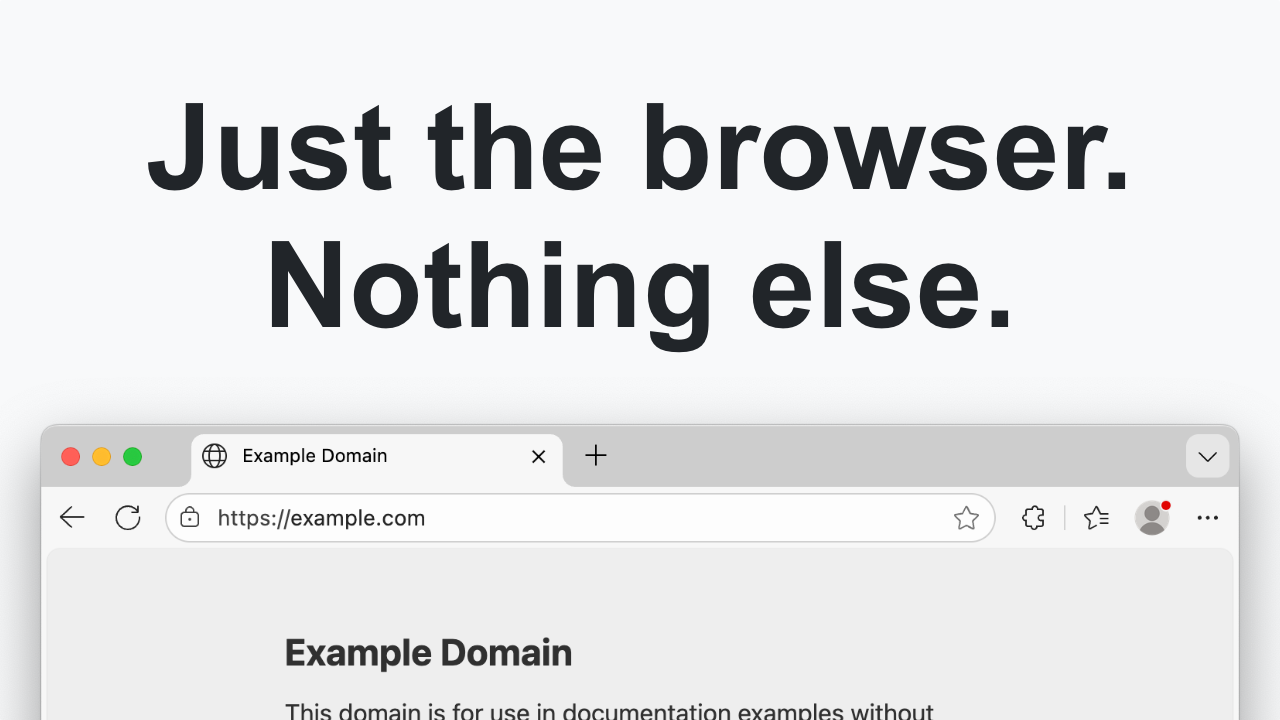

User reviews (0)