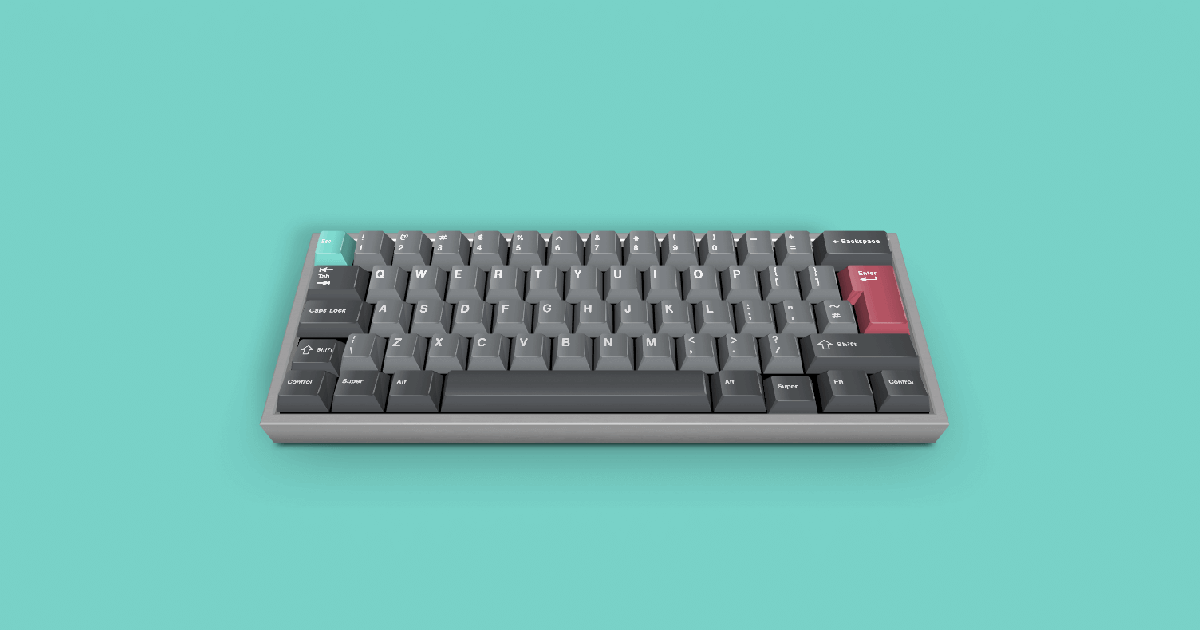
Website profiles · Technology insights · Alternatives

keyboardsimulator.xyz

Design and test virtual keyboards

No paid content found
Visit website
Profile views 0 Outbound visits 0 Normal
Keyboard Simulator Full homepage screenshot

At a glance

Category
Design & Creativity
Language
English
Paid-content signal
No paid content foundObserved
Registered
2020
Hosting
Amazon CloudFrontInferred
HTTPS certificate trusted
PassedObserved
Last updated

Website review

This review may include AI-generated content and is not individually verified. Domain, certificate and other facts come from the observed data on this page.

What is Keyboard Simulator?

Keyboard Simulator is a browser-based tool for designing and testing virtual keyboards. You use it to lay out keys, try how a keyboard arrangement feels and behaves, and check it before building it into a real interface or device. It suits anyone prototyping an on-screen keyboard, a custom layout or an input method for a web app, kiosk or app UI.

What you can do with it

  • Sketch a key layout and see how the keys are arranged together.
  • Test the layout interactively in the browser rather than only on paper.
  • Iterate on a design quickly before committing to implementation.

Who it is for

  • Web and app developers adding or replacing an on-screen keyboard.
  • UI and UX designers exploring key sizes, grouping and spacing.
  • Hardware and accessibility tinkerers checking a custom layout idea.

Trade-offs to keep in mind

A simulator is best for early layout and interaction checks. It does not replace testing on real devices, with real users, or in the target environment, where screen size, touch accuracy and input method support matter.

Next step: open Keyboard Simulator, build a small layout that matches your use case, and use it to compare two or three arrangements before choosing one to implement.

How can I test a custom keyboard layout before building it physically?

Use Keyboard Simulator to design a virtual keyboard layout and try it in the browser before committing to hardware. For a custom layout, the practical workflow is to build the key arrangement there, then test typing on it to catch awkward key positions, missing keys and thumb-cluster problems while changes are still free.

A concrete test routine

  1. Recreate your intended layout in the simulator, including layer keys and thumb keys if your design uses them.
  2. Type a few realistic passages rather than only the home row: prose, code with brackets and symbols, and shortcuts you rely on.
  3. Note every moment you hesitate or reach uncomfortably — those are the layout changes worth making before fabrication.
  4. Revise and repeat until the layout feels natural, then use the final arrangement as the reference for your physical build.

This suits anyone planning a split, ortholinear or reduced-key board, and it is especially useful for people who cannot yet visualize whether a smaller key count will work for them. The trade-off is that a browser test cannot reproduce physical factors: keycap shape, switch weight, stagger and hand travel only become clear with real hardware. Treat the simulator as a layout check, not a comfort guarantee.

As a next step, compare your simulated layout against established designs to see how others solved the same key-count and thumb-key problems — for example QMK for firmware and layout conventions, or Keebio for split-keyboard layouts you can study before finalizing your own.

Can I share or export my virtual keyboard design with others?

Keyboard Simulator is presented as a tool for designing and testing virtual keyboards, but the supplied page information does not confirm a share or export feature. The safe answer is: treat sharing as something to verify inside the tool itself rather than assume it exists.

What to check before relying on it

  • Look for Share, Export, Download, or Save controls after building a layout.
  • Check whether designs are saved to an account, a local file, or only the current browser session.
  • Test with a small layout first, then reload the page to see whether the design persists.

Practical workaround

If no export option is available, keep a manual record of your layout: key labels, order, sizes, and any styling choices. You can share that record with a collaborator, who can rebuild it in the same tool. Screenshots are useful for visual reference but usually cannot be re-imported.

For a concrete scenario: a teacher building a custom on-screen keyboard for a student could screenshot the finished layout and note the key arrangement, then send both to a colleague. That preserves the design intent even without a native export file.

How do I simulate key presses to check for layout errors or conflicts?

Use Keyboard Simulator as a test bench: define or load your layout in the browser-based designer, then press the physical keys you care about and watch which virtual key lights up or fires. That visual feedback is the quickest way to catch a key mapped to the wrong position, a dead key sitting on the wrong layer, or two keys claiming the same slot.

A practical checking routine

  1. Map one layer at a time. Clear or isolate a layer, then walk the physical keys in order (top row to bottom row, left to right) and confirm each one lands where you expect. Doing this per layer stops mistakes from hiding behind a modifier.
  2. Hunt for conflicts deliberately. Press every key that shares a role — for example all keys you assigned to the same symbol or macro — and see whether the simulator reports two outputs or only one. A key that produces nothing is usually a duplicate assignment or a layer that never activates.
  3. Test the modifier path. Hold each modifier (Shift, Ctrl/Control, Alt, the layer key) and repeat your walk. Many real-world "layout errors" are actually layer-entry problems: the base layer is fine, but the modifier never switches the map.
  4. Test the awkward combos. Rollover-style problems show up when you press three or four keys together — the shortcuts you actually use (copy, paste, undo, window switching). Press them as chords, not one at a time.
  5. Record what passed. Keep a short checklist of keys and combos you verified so a later edit doesn't silently break an earlier fix.

What the simulator can and can't tell you

The tool shows logical mapping — which keycode your layout emits. It does not prove how a physical board's firmware, matrix wiring or operating system will behave. So treat a clean simulator run as a mapping check, not a hardware guarantee; confirm the final layout on the real device before relying on it.

For a concrete scenario: if you're building a compact board and moved the arrow cluster onto a layer, open the layout, activate that layer, and press each arrow position. If the wrong direction appears, you've found a transposed assignment; if nothing appears, check whether the layer key itself is mapped. Repeat for punctuation and function keys, which are the usual casualties of space-saving layouts.

A useful next step is to keep a plain-text list of your intended mappings beside the simulator and tick each one off as you confirm it — that turns an ad-hoc test into a repeatable regression check you can rerun after every edit.

Is Keyboard Simulator free to use, or does it require payment?

Keyboard Simulator is free to use. The site presents itself as a tool for designing and testing virtual keyboards, and nothing on the page indicates paid tiers, subscriptions or payment requirements. You can open it and start building without a checkout step.

What this means in practice

  • Best for quick, low-stakes work: trying out a key layout, checking how a custom keyboard feels before committing to a design, or mocking up an on-screen keyboard for a project.
  • Good fit for: hobbyists, students, and developers who want a fast way to prototype layouts without buying software.
  • Trade-off to keep in mind: free browser tools typically store work locally or not at all, so treat any layout you care about as something to export, copy or recreate elsewhere rather than assuming it is saved to an account.

A concrete scenario

Suppose you are building a compact keyboard for a small desk and want to test whether a 60% layout with a function layer feels workable. Open Keyboard Simulator, lay out the keys, and type against it to see which positions cause reach problems. If the layout works, record the key map in a document or your CAD files before closing the tab.

Decision criterion

Use it when you need a free, no-signup way to explore a layout idea. If you need persistent cloud storage, team sharing or export to manufacturing files, check whether the tool offers those features before relying on it as your only design environment.

What keyboard layouts or languages can I design and test with this tool?

Keyboard Simulator is presented as a tool for designing and testing virtual keyboards, but the available page information doesn't list specific layouts or languages. So the practical answer is: it isn't limited to a fixed menu of named layouts in anything I can confirm; the layout and language coverage depend on what the designer builds in the tool.

What that means in practice

  • Custom layouts: You can treat it as a workspace for arranging keys and testing how a layout behaves, rather than as a library of ready-made regional keyboards.
  • Language coverage: Any language support would come from the characters and key arrangement you define, not from a published list of supported languages.
  • Testing: The value is in checking a design interactively—useful if you're prototyping a non-standard layout, an alternative to QWERTY, or a layout for a script that standard keyboards handle poorly.

A useful next step

If you need a specific language or standard (for example, a national layout or an ergonomic variant), open the tool and check whether it starts from a blank canvas or offers presets. That single observation tells you whether you'll be building the layout yourself or adapting an existing one.

For comparison, established layout references such as KB Layout Info document many official Windows layouts, and Unicode is the authority on character coverage—useful if you need to confirm which characters a layout must include before designing it.

Related questions

More questions →
What Is Keyboard Simulator (keyboardsimulator.xyz)?

Keyboard Simulator is a browser-based tool for designing and testing virtual keyboards. It is aimed at people who build or evaluate keyboard layouts—layout designers, developers, and testers—rather than at general typing practice. You use it in a web browser; there is no separate desktop app described on the site.

What the site actually offers

The site describes itself as a place to "Design and test virtual keyboards." That single description covers two related jobs:

  • Design — laying out keys and arranging a virtual keyboard.
  • Test — trying out a layout to see how it behaves.

Because the tool runs in the browser, the workflow stays in one place: you open the site, work on a layout, and test it without installing software.

Who it is for

User Typical reason to use it
Keyboard layout designers Build and iterate on a virtual keyboard layout
Developers Test how a keyboard layout behaves before shipping it
Testers and reviewers Evaluate an existing layout

If your goal is simply to learn touch typing or measure your words per minute, this is not the tool's stated purpose—it is focused on design and testing.

What to expect when you open it

The site's own description is brief, so the most reliable next step is to open keyboardsimulator.xyz and look at the interface directly. Expect a browser workspace where you can create a virtual keyboard and then test it. Specific controls, export options, and supported platforms are not described in the available site information, so check them on the page itself before relying on any particular feature.

Practical notes before you start

  • No pricing information is stated in the available site details. Do not assume the tool is free or that it requires an account—confirm on the site.
  • Browser-based means your work depends on the page staying open; check whether the site offers saving or export before investing time in a layout.
  • Test early: build a small layout first, test it, then expand, so you learn the tool's behavior before committing to a full design.

If you need a quick way to prototype or check a virtual keyboard layout, Keyboard Simulator is a reasonable starting point; open the site to confirm the current features match your project.

How to Use Keyboard Simulator (keyboardsimulator.xyz) in a Web Browser

Keyboard Simulator (keyboardsimulator.xyz) is a browser-based tool for designing and testing virtual keyboards. You use it by opening the site in a modern web browser and working directly with its design and test features — no installation is indicated by the site's own description. The exact menu labels and workflow aren't documented in the available page evidence, so the steps below describe the general browser workflow rather than specific button names.

Before You Start

  • A modern browser: Chrome, Firefox, Edge, or Safari on desktop is the safest bet for a design tool; a larger screen helps when arranging keys.
  • No install step: The site describes itself as a place to "design and test virtual keyboards," which points to an in-browser experience. That said, the available evidence doesn't confirm offline use or account requirements, so treat those as unknown until you see them on the page.
  • A clear goal: Know whether you want to lay out a keyboard, test how typing feels, or both. That determines which part of the tool you spend time in.

Step-by-Step: Using the Tool

  1. Open the site. Enter keyboardsimulator.xyz in your browser's address bar and load the page. You should land on the main design/test interface.
  2. Find the design area. Look for the on-screen keyboard layout or canvas. This is where keys are placed and arranged. If the page presents a blank or default layout, that's your starting point.
  3. Build or adjust the layout. Add, move, or resize keys to match the keyboard you have in mind. Expect the tool to update the preview as you change the layout — that live feedback is the core value of a simulator.
  4. Test the result. Use the test feature to type on your virtual keyboard and check that key positions and behavior match your intent. This is where you catch awkward spacing or misplaced keys before committing to a design.
  5. Iterate. Return to the design area, fix what felt wrong in testing, and test again. Repeat until the layout behaves as expected.

What to Verify at Each Step

Step Expected result If it doesn't happen
Loading the site Main interface appears Check your connection; try another browser
Designing Layout updates as you edit Confirm you're in the design view, not a static preview
Testing Keystrokes register on the virtual keyboard Refresh the page and retest

Common Snags

  • Small screens: Designing a keyboard on a phone is cramped. Use a desktop or tablet if the layout feels hard to control.
  • Unclear labels: Because the site's documentation isn't available in the evidence, feature names may differ from what you expect. Explore the visible controls rather than assuming a standard menu structure.
  • Saving work: The evidence doesn't state whether designs are saved, exported, or stored locally. If keeping a layout matters, check the page for any save or export option before closing the tab.

Who This Workflow Suits

This browser-based approach fits anyone who wants to sketch or try out a keyboard layout quickly — hobbyists, students, or designers prototyping an idea — without installing software. If you need guaranteed persistence, collaboration, or documented export formats, confirm those features on the site first, since the available description doesn't cover them.

Who Is Keyboard Simulator (keyboardsimulator.xyz) For?

Keyboard Simulator is for people who need to design or test a virtual keyboard in a browser: custom-layout designers, anyone checking how a keyboard behaves before committing to it, and users who want a lightweight browser-based tool rather than installed software. The site describes itself as a place to "design and test virtual keyboards," so it fits layout experimentation and testing work. It is not positioned as a general typing tutor or a hardware store, and the available site information does not list pricing, account requirements, or platform limits — check those on the site before relying on it for a team workflow.

Who gets the most value

Custom keyboard layout designers

If you are mapping keys, arranging a non-standard layout, or iterating on where keys should sit, a browser tool removes the install step. You can open the site, build or adjust a layout, and test it in the same session. This suits early-stage exploration: trying arrangements, spotting awkward key placement, and comparing variants before moving to hardware or firmware work.

People who need to test a virtual keyboard

Testing is the second half of the site's stated purpose. This covers checking whether a layout is usable in practice — whether keys are reachable, whether the arrangement makes sense for the intended input, and whether the result behaves as expected when you actually press keys. Anyone validating a layout idea, a prototype, or an on-screen keyboard concept falls into this group.

Users who want a browser-based tool

If your constraint is "no installs, no local setup," a browser-based keyboard design tool is the practical choice. It fits quick sessions on a shared or locked-down machine, and it avoids committing to desktop software for a one-off layout experiment.

Who should look elsewhere

  • Typing-speed trainers: the site is framed around designing and testing keyboards, not structured typing courses or progress tracking.
  • Hardware buyers: there is no indication the site sells keyboards or compares physical products.
  • Teams needing guaranteed uptime or SLAs: nothing in the available information supports enterprise guarantees; verify before depending on it.
  • Users who need offline access: a browser tool generally implies a connection; confirm offline behavior on the site if that matters to you.

How to decide in a few minutes

  1. Open keyboardsimulator.xyz and confirm the design and test functions match what you need.
  2. Try one small task: lay out a handful of keys in your intended arrangement, then test pressing them.
  3. Check the constraints that matter to you — account requirement, saving or exporting layouts, and any stated limits — since the available site information does not cover them.
  4. If the trial task works, adopt it for layout iteration; if you need saved projects, collaboration, or offline use, confirm those features exist before standardizing on it.

The core fit test is simple: if your job is "figure out how a keyboard should be laid out and check that it works," this tool is aimed at you. If your job is typing practice, hardware purchasing, or production-grade tooling with guarantees, it is not the right starting point.

What You Can Design and Test with Keyboard Simulator (keyboardsimulator.xyz)

Keyboard Simulator is a browser-based tool for designing and testing virtual keyboards. According to the site's own description, it lets you "design and test virtual keyboards" — so the core workflow is: create a keyboard layout, then try it out to see how it behaves. It's aimed at anyone who wants to experiment with keyboard layouts without installing desktop software.

Designing Virtual Keyboard Layouts

The design side is about building a keyboard layout — deciding what keys exist and how they're arranged. This is useful when you want to:

  • Prototype a custom layout for a specific language, script, or input method
  • Rearrange keys for ergonomics or a specialized workflow
  • Explore alternative layouts before committing to one on a real device

Because it runs in the browser, you can iterate quickly: adjust the layout, check the result, and keep refining without a build-and-install cycle.

Testing How a Layout Behaves

Designing a layout is only half the job — you also need to know how it feels and functions in use. The testing side lets you interact with the virtual keyboard and observe its behavior. Typical things to check:

  • Whether keys produce the expected output
  • How the layout handles the keys you use most
  • Whether the arrangement makes sense for the intended task

This is where the "simulator" part matters: you can try a layout before deploying it anywhere real.

Iterating in the Browser

The main practical advantage is the tight loop between design and test. You can:

  1. Sketch out a layout.
  2. Test how it behaves.
  3. Adjust based on what you observe.
  4. Repeat — all within the browser.

For anyone exploring keyboard ideas — custom layouts, accessibility arrangements, or language-specific input — this makes the tool a low-friction starting point.

What to Keep in Mind

  • It's a simulator, not a driver. The tool is for designing and testing virtual keyboards; it doesn't replace the keyboard on your operating system.
  • Browser-based. No installation is described, which keeps experimentation simple.
  • Best for exploration. Use it to validate an idea before investing in a full implementation.

If your goal is to try out a keyboard layout idea quickly and see how it behaves, Keyboard Simulator gives you a direct path: design it, test it, refine it — right in the browser.

Website Overview

An established domain and managed infrastructure suggest continuity of operations and may support dependable delivery, although neither guarantees service quality. Page metadata, canonical configuration and social previews work together to provide more consistent search and sharing presentation.

Domain and Registration

The domain uses .xyz. Assess the website's identity and content rather than relying on the extension alone. Registered in 2020, this domain has about 6 years of history. That suggests continuity, although ownership and purpose may have changed. Transfer-protection status is present, helping reduce the risk of unauthorized domain transfers. The registrar is Squarespace Domains II LLC, a widely used domain service provider.

DNS and Email

The lowest TTL is 60 seconds, supporting rapid record changes at the cost of more frequent lookups. Nameservers are provided by Amazon Route 53, indicating managed DNS hosting. No CNAME was found; the observed records resolve directly to addresses. No MX record was found. A conventional explicit inbound-mail route is not configured. DNSSEC signatures were not detected, so this additional DNS authenticity protection is not confirmed.

TLS and Certificates

The certificate uses an RSA 2048-bit public key, offering broad client compatibility. The server supplied a complete certificate chain. No organization name is present in the certificate; the available fields are consistent with domain validation. The certificate was issued within the Amazon cloud or CDN ecosystem. The certificate is valid for about 197 days in total, with 106 days remaining.

HTTP and Browser Security

The checked browser-security headers were not detected, leaving fewer explicit browser-side safeguards. No X-Powered-By header was found, reducing one common source of backend fingerprinting information. The x-cache, via response header indicates a CDN or caching proxy in the delivery path. No obvious internal addresses or debug information were found in the headers. The Server header contains the custom value AmazonS3.

Technology Stack Analysis

The public page identifies Amazon CloudFront without precise versions, leaving fewer clues for version-specific scanning.

Search and Social Sharing

Twitter Card metadata is configured. The title has 54 characters, within a common display range. A meta description is present, with 33 characters. The observed directives allow indexing and link following. No Generator meta tag is publicly exposed.

Hosting and Email

DNSAmazon Route 53
HostingAmazon CloudFront
EmailUnknown
Approximate IP geolocation (inferred; a CDN or proxy may differ from the origin server) United States flagUnited States Inferred 99.84.132.58

Registration details

RDAP / WHOIS

RegistrarSquarespace Domains II LLC
Registered2020-07-17
Expires2027-07-17
Domain statusclient transfer prohibited、client delete prohibited
Nameserversns-1089.awsdns-08.org、ns-1778.awsdns-30.co.uk、ns-247.awsdns-30.com、ns-997.awsdns-60.net
DNSSECunsigned

DNS records

DNS

TypeNameValueTTLPriority
Akeyboardsimulator.xyz99.84.132.5860—
Akeyboardsimulator.xyz99.84.132.6460—
Akeyboardsimulator.xyz99.84.132.6660—
Akeyboardsimulator.xyz99.84.132.8560—
NSkeyboardsimulator.xyzns-1089.awsdns-08.org172800—
NSkeyboardsimulator.xyzns-1778.awsdns-30.co.uk172800—
NSkeyboardsimulator.xyzns-247.awsdns-30.com172800—
NSkeyboardsimulator.xyzns-997.awsdns-60.net172800—

TLS and certificates

TLS / SSL

AssessmentNormal configuration
Supported protocolsTLSv1.2、TLSv1.3
Negotiated protocolTLSv1.3
Certificate subject*.keyboardsimulator.xyz
IssuerAmazon
Valid until2027-02-11T23:59 · Remaining when checked: 106 days
Verification detailsCertificate trust: Passed · Hostname match: Passed

HTTP response headers

HTTP

HeaderValue
content-typetext/html
cache-controlpublic, max-age=0, s-maxage=2
serverAmazonS3

Identified technologies

Amazon CloudFront

Pages, Search and Sharing

Meta descriptionDesign and test virtual keyboards
Canonical URLhttps://keyboardsimulator.xyz/
LanguageEnglish (default)
Twitter Cardsummary_large_image
All bots 0 allowed · 0 disallowed

No sitemaps found

User reviews (0)

  • No reviews yet.