Website profiles · Technology insights · Alternatives

oneidahealth.org

A premier integrated health network in Oneida, NY. Offering Primary and Specialty Care to the Utica, Rome, Oneida patients.

Paid content
Visit website
Profile views 1 Outbound visits 10 Normal
Oneida Health Full homepage screenshot

At a glance

Category
Lifestyle
Language
English
Paid-content signal
Paid contentObserved
Registered
2017
Hosting
CloudflareInferred
HTTPS certificate trusted
PassedObserved
Last updated

Website review

This review may include AI-generated content and is not individually verified. Domain, certificate and other facts come from the observed data on this page.

What is Oneida Health?

Oneida Health is a regional health network based in Oneida, New York, serving patients in the surrounding Mohawk Valley communities, including Utica and Rome. It describes itself as an integrated network offering both primary and specialty care, which means a patient can use it for routine checkups and ongoing conditions as well as for specialized treatment.

What the site is set up to do

The homepage is organized around the practical tasks patients and families arrive with:

  • New patients can find a doctor and review care services before booking.
  • Current patients can reach their care office, use a patient portal, request medical records, or give feedback.
  • Visitors can check the visitor guide, parking and directions, and a campus map.
  • Supporters can donate, volunteer, or learn about the foundation.

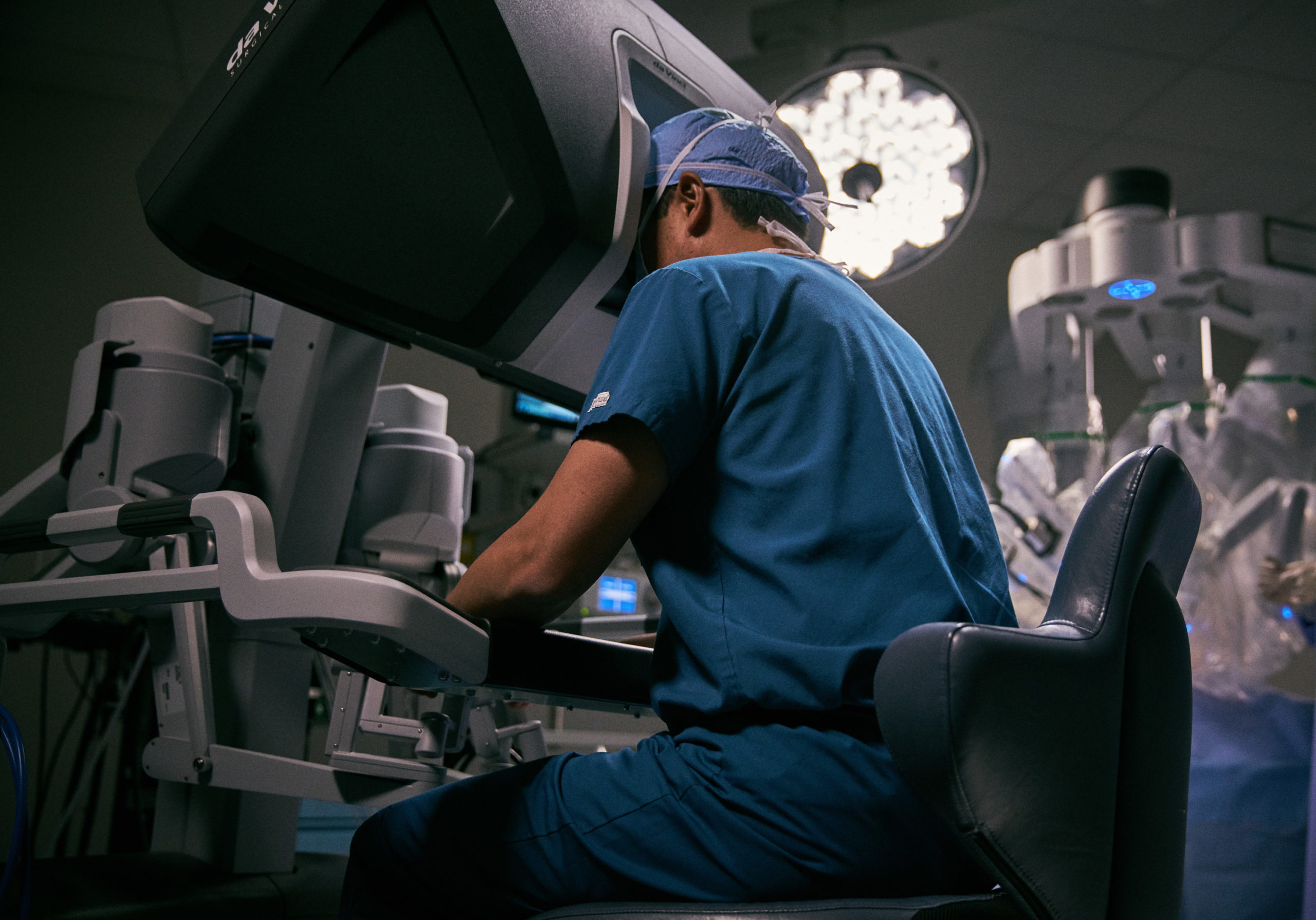
The site also highlights recent institutional news, such as workplace-recognition awards and foundation fundraising campaigns, and features a specific imaging technology, a Siemens Biograph mCT PET/CT scanner, under the heading "Meet Holmes."

A practical example

Suppose you have moved to the Oneida area and need a primary care provider, but you also have a condition that may require a specialist. You would start under New Patients to find a doctor, confirm which care services match your needs, and then set up portal access once you are established. A family member visiting you for an appointment would use the Visitor Info section for parking and directions rather than the patient pages.

How to judge whether it fits your needs

The main trade-off is local, integrated care versus choice and convenience. A single network can make referrals and records sharing simpler, but you should confirm that the specific specialty you need is offered, that your insurance is accepted, and how far you would travel for appointments. If you are comparing options, look at the Find A Doctor and Care Services pages first, then check billing and insurance information before scheduling. For broader context on the region, the official city site at City of Oneida and the county's tourism site at Madison County can help you understand the area the network serves.

How can I find a doctor or specialist within the Oneida Health network?

Use the Find A Doctor tool on Oneida Health as your starting point. It sits under the New Patients section of the site and is designed for people choosing a provider before their first appointment. From there you can browse by name or by the type of care you need, then contact the office directly to confirm availability and insurance.

A practical way to search

  1. Decide what kind of care you need: primary care for ongoing needs, or a specialty service for a specific concern.
  2. Search by specialty if you don't have a name; search by name if a referral or family member pointed you to someone.
  3. Note the office location, since the network serves Oneida, Utica and Rome, and travel time matters for follow-up visits.
  4. Call the office to ask about accepting new patients, insurance participation and the earliest appointment. The site's Contact Your Office and Billing & Insurance pages support this step.

Matching the search to your situation

Your situation Best first move What to confirm by phone
New to the area, no urgent issue Primary care search Accepting new patients; typical wait for a first visit
Referred for a specific condition Specialty search, or ask your primary care office Whether a referral is required; records needed
Need care soon Search, then call several offices Soonest available appointment; urgent care alternatives
Managing a chronic condition Primary care, plus any specialty already involved Care coordination between offices; portal access

A concrete example

Suppose you've moved to the Utica area and need a primary care doctor for a yearly checkup and a recurring prescription. Search primary care, shortlist two or three offices within a comfortable drive, and call each with three questions: are you taking new patients, do you accept my plan, and how do I transfer my records? The Patient Portal and Medical Records Request links on the site tell you how records are handled once you've chosen.

If you can't find the right match

Call the office you're considering and ask whether the service you need is offered elsewhere in the network, or ask your insurer for in-network options. For comparison, New York State publishes consumer health information, and your insurer's own directory is the reliable check on coverage. Choosing a doctor is mostly about fit and access, so a short phone call beats a long search.

How do I pay my bill or check price transparency for services at Oneida Health?

Oneida Health provides a dedicated Pay Your Bill page for making payments and a separate Price Transparency and Price Estimation page for understanding costs before you receive care. The billing page is the practical starting point for settling an existing balance; the price transparency page is where you look when you want an estimate for a planned service.

Which page to use

Your situation Page to start with What it's for
You have a statement or balance due Pay Your Bill Submitting payment on an existing account
You're planning a procedure and want a cost estimate Price Transparency and Price Estimation Understanding service pricing and requesting an estimate
You're unsure what you owe and why Billing & Insurance Information Background on billing and insurance handling

A practical next step

If you're scheduling a non-emergency service, such as imaging or a planned procedure, request an estimate before the appointment rather than after the statement arrives. Having the estimate in hand lets you confirm what your insurance will cover and plan for any out-of-pocket portion. For an existing balance, use the payment page directly; if the amount doesn't match your explanation of benefits, contact the billing office before paying so the account can be reviewed.

Where to find these pages

Start at Oneida Health and use the Pay Your Bill link in the site navigation for payments, or the Price Transparency link under billing and insurance information for cost estimates. The site's Patient Portal and Contact Your Office options are useful if you need to reach a specific department about a charge.

What visitor guidelines, parking, and directions should I know before going to an Oneida Health campus?

Before visiting an Oneida Health campus, plan around three things: check the current visitor policy first, confirm which building and entrance you need, and allow extra time for parking and wayfinding. Oneida Health's site groups this information under "Visitor Info," including a COVID-19 Visitor Response Plan, Visitor Guide, Parking & Directions, and Campus Map, so those pages are the practical starting points.

Visitor guidelines

  • Visitor rules can change, especially during respiratory illness seasons. Check the COVID-19 Visitor Response Plan before you travel rather than relying on an old printed guide.
  • Confirm visiting hours and any limits on the number of visitors with the specific department or office you are visiting; policies can differ between inpatient units, outpatient clinics and specialty offices.
  • If you are going to a scheduled appointment rather than visiting a patient, ask the office about arrival time and what to bring, since check-in requirements vary by service.

Parking and directions

  • Use the Campus Map to identify the correct building and entrance before leaving; large health campuses often have multiple lots serving different departments.
  • The Parking & Directions page is the best source for where to park relative to your destination. Note that parking guidance for a hospital visit may not apply to a separate specialty office.
  • Build in 10–15 minutes beyond your drive time for parking, walking and check-in, particularly for first visits or early-morning appointments.

A practical example

Suppose you are visiting a patient at the hospital and also have a primary care appointment nearby the same day. Check the visitor plan for the inpatient unit, then use the campus map to see whether the clinic is in a different building with its own lot. If it is, park once in the lot that serves both, or move the car between visits to avoid a long walk.

Decision checklist

Question Where to look
Can I visit, and when? COVID-19 Visitor Response Plan and the relevant department
Which entrance should I use? Campus Map
Where do I park? Parking & Directions
What should I bring to an appointment? The office where you are scheduled

For broader context on the network, see Oneida Health. If you are coming from Utica or Rome, confirm the campus location with the office when you schedule, since the network serves multiple communities and not every service is at the same site.

How can I access my patient portal or request medical records as a current patient?

Current patients can reach the patient portal through the "Patient Portal" link under the Current Patients section of the Oneida Health site. For medical records, use the separate "Medical Records Request" link in the same area; the portal is for viewing your care information, while a records request is the route for obtaining copies. If you are unsure which applies, start with the patient portal link and follow the records-request option when you need formal copies sent elsewhere.

Practical next step

Before submitting a records request, note what you need and where it should go: a visit summary for your own files, records sent to a new specialist, or imaging and test results. Having the recipient's details and the date range ready makes the request easier to process.

When to choose which

  • Patient portal: routine access to your own information and staying connected with your care.
  • Medical records request: copies or transfers of records, such as for a new provider or insurance.

For questions about your account or a specific office, the "Contact Your Office" link under Current Patients is the most direct starting point.

What ways can I donate, volunteer, or support the Oneida Health Foundation?

You can support the Oneida Health Foundation through three main routes: giving money, volunteering your time, or participating in community fundraising campaigns. The site's navigation lists Donate, Volunteer, Foundation, and Give Today as separate entry points, and its recent press highlights two active efforts—the first-ever MV Gives campaign and an annual Golf Classic that raised over $127,000—so directing a gift to a named campaign or event is a realistic option alongside general giving.

Ways to give or help

Route What it involves Best suited to
Direct donation Using the "Donate" or "Give Today" path on the Foundation pages Anyone wanting a straightforward gift, including memorial or tribute gifts
Campaign or event support Contributing to MV Gives or the Golf Classic, whether by giving, sponsoring, or playing Local businesses, groups, and donors who like a visible community event
Volunteering Registering through the "Volunteer" section People with time to offer rather than money, such as retirees or students
Workplace giving Asking your employer about matching gifts or wellness-related partnerships Employees at regional employers; the network has received a workplace wellness award, which suggests openness to employer partnerships

A practical next step

If you already know your intent, start with the option that matches it: a one-time gift through the donation page, or a volunteer inquiry if you want to be on-site. If you are unsure where a gift does the most good, contact the Foundation directly and ask which current campaign has the clearest need—this also lets you confirm whether tribute gifts, naming opportunities, or employer matching are handled.

For context on the organization behind the Foundation, the network's own site is Oneida Health. If you are comparing local health-related causes before deciding, general charity evaluators such as Charity Navigator and Candid can help you review how nonprofits report their finances, though small hospital foundations are often listed under the parent system rather than individually.

Related questions

More questions →
What to Know Before Visiting Oneida Health

Before visiting Oneida Health in Oneida, NY, review four items on the website: the COVID-19 Visitor Response Plan, the Visitor Guide, Parking & Directions, and the Campus Map. These are the visitor resources the site lists under "Visitor Info." The site does not publish specific visiting hours, screening rules, or entry requirements in the available content, so treat the linked pages as the authoritative source and confirm details with the facility before you travel.

The Four Visitor Resources and What Each Covers

Resource What it is for What to check before you go
COVID-19 Visitor Response Plan Current visitor rules tied to COVID-19 response Whether any screening, masking, or restriction applies to your visit
Visitor Guide General guidance for visitors Any general expectations the facility sets for visitors
Parking & Directions How to reach the campus and where to park Route, entrance, and parking location
Campus Map Layout of the campus Where your destination sits relative to parking and entrances

The site's excerpt lists these under "Visitor Info" without further detail, so the pages themselves are where the specifics live. Because visitor policies can change, check the COVID-19 Visitor Response Plan close to your visit date rather than relying on an earlier reading.

A Practical Pre-Visit Checklist

  1. Confirm the visit is allowed under current rules. Open the COVID-19 Visitor Response Plan and check for any active restrictions or screening steps.
  2. Read the Visitor Guide for general expectations that apply to visitors.
  3. Plan the route and parking using Parking & Directions.
  4. Locate your destination on the Campus Map so you know which entrance and lot to use.
  5. Call the relevant office if anything on the pages is unclear or if your situation is unusual. The site's "Contact Your Office" link under Current Patients is a starting point for reaching the right department.

What the Site Does Not Tell You

The available content does not specify visiting hours, the number of visitors allowed, age limits for visitors, or whether proof of vaccination is required. It also does not state whether parking is free or paid. Do not assume any of these; confirm them directly with Oneida Health before your visit.

If You Are Also a Patient or New to Oneida Health

Visitors sometimes arrive with a patient. The site separates "New Patients" (Find A Doctor, Care Services) from "Current Patients" (Contact Your Office, Patient Portal, Medical Records Request, Provide Feedback). If you are helping someone who is new to the network, the New Patients section is where to start; if you are supporting an existing patient, the Patient Portal and Contact Your Office links are the relevant ones.

Bottom Line

Use the Visitor Info section as your pre-visit checklist: read the COVID-19 Visitor Response Plan for current rules, the Visitor Guide for general expectations, and Parking & Directions plus the Campus Map for logistics. Since the site does not publish hours or entry requirements, call ahead to confirm the details that matter for your specific visit.

How to Get Started as a New Patient on the Oneida Health Website

Start at the New Patients section of oneidahealth.org, then use Find A Doctor to choose a provider and Care Services to confirm the type of care you need. The site also groups Connect / Get Started options alongside these entries, so you can move from finding a provider to taking the next step without hunting through the site. Oneida Health describes itself as an integrated health network in Oneida, NY, serving Utica, Rome, and Oneida patients with primary and specialty care.

The four entry points that matter

Entry point What it is for When to use it
New Patients Starting point for people who have not yet used Oneida Health First visit to the site
Find A Doctor Provider search You know what kind of care you need but not who to see
Care Services Overview of service lines You are unsure whether your need is primary or specialty care
Connect / Get Started Next-step links grouped with the new-patient flow You have picked a direction and want to act

Step-by-step: from landing page to first appointment

  1. Open the homepage. The main navigation lists New Patients, Current Patients, Visitor Info, Giving, and Recent Press.
  2. Select New Patients. This is the intended path for first-time patients; the Current Patients section is for people already in the system.
  3. Use Find A Doctor. Search by the specialty or type of care you identified. If you are not sure, read Care Services first to match your need to a service line.
  4. Confirm the care setting. Oneida Health separates primary care from specialty care; choose the one that fits your situation before searching.
  5. Move to Connect / Get Started. These links sit with the new-patient entries and carry you into the actual onboarding step.
  6. Verify before you travel. Check the provider's office contact details and the Visitor Info section for parking, directions, and the campus map.

Expected result: you leave the site knowing which provider or service you are pursuing and which office to contact.

What to check once you are a patient

The Current Patients section is where existing patients go for the Patient Portal, Medical Records Request, Contact Your Office, and Provide Feedback. If you have already been seen and need records or portal access, skip the new-patient path and go there directly.

Common sticking points

  • Searching before choosing a care type. Find A Doctor works best after you know whether you need primary or specialty care; Care Services settles that question.
  • Using Current Patients as a new patient. Portal and records tools assume an existing relationship, so start with New Patients instead.
  • Ignoring visitor logistics. Parking, directions, and the campus map are under Visitor Info, not under the new-patient entries, and are easy to miss on a first visit.
  • Assuming online booking. The site's new-patient flow centers on finding a doctor and connecting; confirm appointment options with the office you select rather than assuming a self-scheduling tool.

Cost and billing questions

Billing is handled on separate pages: Pay Your Bill and Price Transparency and Price Estimation. If cost is part of your decision, review those pages before your visit. The site does not state that services are free or that any portal access is unrestricted, so treat billing details as something to confirm with the office.

A quick example

Suppose you have moved to the Rome area and need a primary care provider. Open the site, choose New Patients, read Care Services to confirm primary care is the right fit, run Find A Doctor for that category, note the office contact, then use Connect / Get Started. Before the appointment, check Visitor Info for parking and directions to the correct campus.

What Is Oneida Health and What Services Does It Provide?

Oneida Health is an integrated health network based in Oneida, New York, serving patients in the Oneida, Utica, and Rome areas. It provides primary and specialty care and organizes its services around three groups: new patients, current patients, and visitors. If you are looking for a doctor, a care service, or help managing your own records, the site routes you to a specific starting point for each.

Who Oneida Health Serves

Oneida Health describes itself as a premier integrated health network in Oneida, NY, offering primary and specialty care to patients in Utica, Rome, and Oneida. That geographic scope is the clearest signal of who the network is built for: people living in or near those central New York communities who want coordinated care rather than a single standalone practice.

Services and Resources by Audience

The site organizes its offerings by who you are and what you need to do next.

For new patients

  • Find A Doctor — the entry point for choosing a provider.
  • Care Services — an overview of the types of care available across the network.
  • Connect / Get Started — a path to begin a relationship with the network.

For current patients

  • Contact Your Office — direct contact with the office handling your care.
  • Patient Portal — online access to your patient information.
  • Medical Records Request — a route to request your records.
  • Provide Feedback — a channel for commenting on your experience.

For visitors

  • COVID-19 Visitor Response Plan — current visitor rules and response measures.
  • Visitor Guide — general guidance for visiting.
  • Parking & Directions and Campus Map — practical logistics for getting to and around the campus.

Other ways to engage

  • Giving — donate, volunteer, or support the Oneida Health Foundation.
  • Recent Press — news such as the Foundation's MV Gives campaign, the Golf Classic raising over $127,000, the BRiDGES Workplace Wellness Impact Award, and recognition as one of America's Greatest Midsize Workplaces by Newsweek.

Technology and Care Capabilities

The site highlights advanced imaging on its homepage, featuring the Siemens Biograph mCT PET/CT ("Meet Holmes"). For patients, this signals that the network offers diagnostic imaging alongside routine and specialty care, though the site's main navigation keeps the focus on finding a doctor and accessing services rather than listing every clinical capability.

Billing and Cost Information

Two billing-related resources are available:

  • Pay Your Bill — an online path to handle payments.
  • Price Transparency and Price Estimation — information on pricing and estimates, located under Billing & Insurance Information.

The site does not publish specific prices or state whether online payment requires an account, so check the billing pages directly for the details that apply to your situation.

How to Get Started

  1. Choose your path — new patient, current patient, or visitor.
  2. New patients: use Find A Doctor to select a provider, then review Care Services to confirm the type of care you need.
  3. Current patients: use the Patient Portal for records and information, Contact Your Office for care questions, and the Medical Records Request page if you need copies of your records.
  4. Visitors: review the COVID-19 Visitor Response Plan and Visitor Guide before arriving, and use Parking & Directions and the Campus Map on the day of your visit.

The expected result at each step is a direct route to the right office, record, or piece of information rather than a general contact form. If a link does not match your need, the audience-based menu is the fastest way to reorient.

How to Pay Your Bill or Find Price Information at Oneida Health

Oneida Health lists two separate online entry points for money matters: Pay Your Bill for paying an existing balance, and Price Transparency and Price Estimation (under Billing & Insurance Information) for understanding costs before or after care. Use the first if you already owe something; use the second if you are planning a procedure or want an estimate. Both are linked from the main site navigation, and neither page's login or payment requirements are described in the available site information, so treat access details as something to confirm on the page itself.

Paying a bill

The site's Pay Your Bill link is the starting point for settling an account. The available site information confirms the link exists but does not describe the payment platform, accepted card networks, guest-payment options, or whether an account number is required.

Before you start, have ready:

  • The patient name exactly as it appears on the statement
  • The account or statement number from your paper or electronic bill
  • The date of service, if the form asks for it to locate the account

Then open Pay Your Bill, enter the identifying details the page requests, and confirm the amount shown matches your statement before submitting. The expected result is a payment confirmation — save or print it, since it is your record if a balance question comes up later.

Common sticking points to plan for:

  • Name mismatches. A bill issued under a maiden name, a nickname, or a guarantor's name may not match what you type. Try the name printed on the statement first.
  • Multiple accounts. If you have had more than one episode of care, a single payment may apply to only one account. Check whether the page lets you choose.
  • No listed platform. Because the site information does not name a payment processor, do not assume a saved card or stored profile from another provider will carry over.

Finding price information

For cost planning, the relevant resource is Price Transparency and Price Estimation, filed under Billing & Insurance Information. The site describes Oneida Health as an integrated network offering primary and specialty care to the Utica, Rome, and Oneida areas, so the price pages are the place to look for the standard charges and estimation tools that go with that scope.

A practical sequence:

  1. Open the Price Transparency and Price Estimation page from the Billing & Insurance Information section.
  2. Look for the standard-charge file or the estimation tool, depending on whether you want a published rate or a personalized figure.
  3. Match the service description to the care you expect — specialty visits and hospital-based services are typically listed separately.
  4. If you need a written estimate for planning, note that the site information does not state whether Oneida Health issues estimates on request or only through a self-service tool; confirm that on the page or with the billing office.

Reading an estimate correctly

A price estimate is not a bill. The figure you see usually reflects a list price or a modeled scenario, and your actual responsibility depends on your insurance plan's negotiated rate, deductible status, and whether the visit is classified as office-based or hospital-based. For example, a patient with a met deductible will owe a different amount than the same service quoted to an uninsured patient. Use the estimate to compare scenarios, not to predict a final balance.

Which resource to use

Your situation Start here What you get
You received a statement and owe a balance Pay Your Bill A payment path for the existing account
You are scheduling care and want to budget Price Transparency and Price Estimation Published charges or a scenario-based estimate
You are unsure whether insurance will cover a service Billing & Insurance Information section Context for how billing and coverage are handled
You need records rather than payment help Patient Portal or Medical Records Request (Current Patients) Access to your own health information

Related patient resources worth knowing

The site also organizes New Patients (Find A Doctor, Care Services), Current Patients (Contact Your Office, Patient Portal, Medical Records Request, Provide Feedback), and Visitor Info (Visitor Guide, Parking & Directions, Campus Map). If your billing question is really a "did this visit happen / who did I see" question, the Patient Portal and Medical Records Request routes are the faster way to get the underlying detail before you pay or dispute a charge.

For anything the two money pages do not resolve — a payment that will not go through, a charge you do not recognize, or an estimate that does not match your service — the site's Contact Your Office and Provide Feedback links under Current Patients are the documented channels for reaching the organization.

What Resources Does Oneida Health Offer Current Patients?

Current patients at Oneida Health can use four main resources on oneidahealth.org: Contact Your Office, the Patient Portal, the Medical Records Request process, and the Provide Feedback option. These sit under the "Current Patients" section of the site and cover the everyday tasks of reaching your care team, viewing your health information, obtaining copies of your records, and sharing comments about your experience. The site does not publish portal login steps, record request forms, or response times, so treat the descriptions below as a map of what exists rather than a walkthrough.

The Four Current-Patient Resources at a Glance

Resource What it is for What the site provides
Contact Your Office Reaching your provider's office directly A link to office contact information
Patient Portal Accessing your personal health information online An entry point to the portal
Medical Records Request Obtaining copies of your medical records A request pathway
Provide Feedback Sharing comments about your care or experience A feedback channel

Contact Your Office

Use this when your question is about scheduling, a prescription, a referral, or anything specific to your care team. The site routes you to your office's contact details rather than a single central number, so have your provider's name or location ready. Oneida Health describes itself as an integrated network serving Oneida, Utica, and Rome, NY, with primary and specialty care, so the right office depends on where you receive care.

Patient Portal

The Patient Portal is the site's route to your personal health information online. The homepage lists it as a starting point under "Current Patients." Because the site does not document registration, login, or which records appear in the portal, the practical step is to open the portal link and follow the prompts there; if you cannot get in, contact your office using the resource above.

Medical Records Request

This is the path for formal copies of your records, as distinct from day-to-day portal access. The site lists "Medical Records Request" as a current-patient resource but does not publish the form, required identification, fees, or turnaround time. Before submitting anything, confirm with your office or the records department what they need from you, since requests for records typically require a signed authorization.

Provide Feedback

The "Provide Feedback" option lets you comment on your experience. The site does not state how feedback is routed or whether you receive a reply, so for anything urgent or clinical, use Contact Your Office instead.

Related Pages Worth Knowing

  • Pay Your Bill and Price Transparency appear on the site as separate billing resources, useful if your question is financial rather than clinical.
  • Visitor Info covers the COVID-19 visitor response plan, a visitor guide, parking and directions, and a campus map — relevant if you are helping a family member prepare for a visit.
  • Find A Doctor and Care Services help if you need a different provider or service line.

Practical Notes

  • Start with Contact Your Office for anything time-sensitive; the portal and records request are better for information you need to retrieve rather than act on immediately.
  • The site does not state that any of these resources are free or require no login, so check directly with Oneida Health before assuming either.
  • If you are switching providers or moving, request records early — the site gives no timeline, and record requests commonly take longer than expected.

Website Overview

An established domain and managed infrastructure suggest continuity of operations and may support dependable delivery, although neither guarantees service quality. Page metadata, canonical configuration and social previews work together to provide more consistent search and sharing presentation.

Domain and Registration

Registered in 2017, this domain has about 9 years of history. That suggests continuity, although ownership and purpose may have changed. Transfer-protection status is present, helping reduce the risk of unauthorized domain transfers. The domain uses the common .org extension, which is not an independent safety signal.

DNS and Email

The observed email authentication setup is incomplete: DMARC is missing. Nameservers are provided by GoDaddy, indicating managed DNS hosting. MX records point to the arsmtp.com email service. TXT records include verification markers for Google, Microsoft. Such markers may also remain after a service stops being used. DNSSEC signatures were not detected, so this additional DNS authenticity protection is not confirmed.

TLS and Certificates

The public key uses EC with 256 bits. The server supplied a complete certificate chain. No organization name is present in the certificate; the available fields are consistent with domain validation. The certificate was issued by Let's Encrypt, commonly associated with automated certificate services. The certificate's total validity is about 89 days, consistent with a short renewal cycle.

HTTP and Browser Security

X-Powered-By exposes backend information: WP Engine. The checked browser-security headers were not detected, leaving fewer explicit browser-side safeguards. The cf-ray, x-cache response header indicates a CDN or caching proxy in the delivery path. No obvious internal addresses or debug information were found in the headers. The Server header identifies cloudflare without an exact version.

Technology Stack Analysis

The public page identifies Powered by WPBakery Page Builder - drag and drop page builder for WordPress., WordPress, jQuery, Google Tag Manager, Cloudflare without precise versions, leaving fewer clues for version-specific scanning.

Search and Social Sharing

The Generator tag identifies Powered by WPBakery Page Builder - drag and drop page builder for WordPress., making the publishing system easier to fingerprint. Twitter Card metadata is configured. JSON-LD includes Organization data, helping describe the organization as an entity. The title has 32 characters, within a common display range. A meta description is present, with 123 characters.

Hosting and Email

DNSGoDaddy
HostingCloudflare
Emailarsmtp.com
Approximate IP geolocation (inferred; a CDN or proxy may differ from the origin server) United States flagUnited States Inferred 141.193.213.10

Registration details

RDAP / WHOIS

RegistrarWild West Domains, LLC
Registered2017-04-27
Expires2027-04-27
Domain statusclient delete prohibited、client renew prohibited、client transfer prohibited、client update prohibited
Nameserversns73.domaincontrol.com、ns74.domaincontrol.com
DNSSECunsigned

DNS records

DNS

TypeNameValueTTLPriority
Aoneidahealth.org141.193.213.10600—
Aoneidahealth.org141.193.213.11600—
MXoneidahealth.orgoneidahealth-org.mx1.arsmtp.com60010
MXoneidahealth.orgoneidahealth-org.mx2.arsmtp.com60020
NSoneidahealth.orgns73.domaincontrol.com3600—
NSoneidahealth.orgns74.domaincontrol.com3600—
TXToneidahealth.orgMS=ms81850575600—
TXToneidahealth.orgduo_sso_verification=tEVejJQYwX1u0TUMIcSRCapfB8GOOQS6mIQtWW2H63ZfrqVQjQs6Fmt7Osi5cupg600—
TXToneidahealth.orggoogle-site-verification=_2QErsJ1Ggn8KALItgiF6lRqi9DEUh4k4-k3t7zmIg4600—
TXToneidahealth.orgv=spf1 include:spf.edgepilot.com include:spf.myconnectwise.net include:spf.protection.outlook.com ~all600—
CNAMEwww.oneidahealth.orgoneidahealth.org3600—

TLS and certificates

TLS / SSL

AssessmentNormal configuration
Supported protocolsTLSv1.2、TLSv1.3
Negotiated protocolTLSv1.3
Certificate subjectwww.oneidahealth.org
IssuerLet's Encrypt
Valid until2027-01-20T08:09 · Remaining when checked: 87 days
Verification detailsCertificate trust: Passed · Hostname match: Passed

HTTP response headers

HTTP

HeaderValue
content-typetext/html; charset=UTF-8
cache-controlmax-age=600, must-revalidate
servercloudflare

Identified technologies

Powered by WPBakery Page Builder - drag and drop page builder for WordPress.WordPressjQueryGoogle Tag ManagerCloudflare

Pages, Search and Sharing

Meta descriptionA premier integrated health network in Oneida, NY. Offering Primary and Specialty Care to the Utica, Rome, Oneida patients.
Canonical URLhttps://www.oneidahealth.org/
LanguageEnglish (default)
Twitter Cardsummary_large_image
All bots 0 allowed · 0 disallowed

User reviews (0)

  • No reviews yet.