Website profiles · Technology insights · Alternatives

onlinecube.com

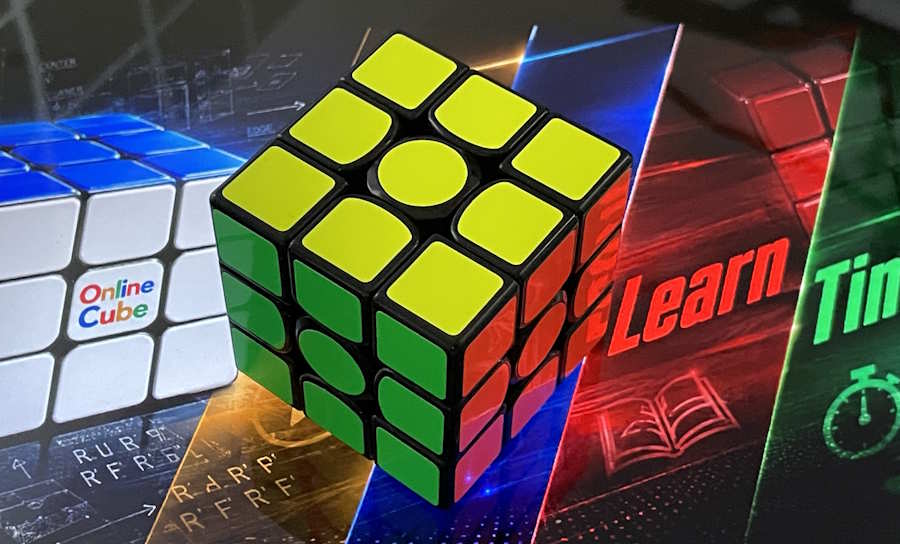
Free online 3D 3x3 cube: simulator, one-click solver that answers in about 20 moves, speedcube timer and the easiest layer-by-layer beginner tutorial.

No paid content found Multilingual
Visit website
Profile views 1 Outbound visits 10 Normal
Online 3x3 Cube - Simulator, Solver, Timer and Tutorial Full homepage screenshot

At a glance

Category
Other
Language
English
Paid-content signal
No paid content foundObserved
Registered
2004
Hosting
CloudflareInferred
HTTPS certificate trusted
PassedObserved
Last updated

Website review

This review may include AI-generated content and is not individually verified. Domain, certificate and other facts come from the observed data on this page.

What is Online 3x3 Cube?

Online 3x3 Cube is a free browser-based tool that combines four things in one place: a draggable 3D cube simulator, a one-click solver, a speedcube timer, and a beginner tutorial. It's aimed at anyone from a total beginner who wants to learn the layer-by-layer method to a casual speedcuber who wants to track times.

What you can actually do with it

  • Simulate a cube. Drag a sticker and that layer follows your finger; drag the background to spin the whole cube. You can also turn faces with the U, L, F, R, B and D keys, holding Shift for a counterclockwise turn. Useful if you don't have a physical cube handy, or want to see how a move sequence looks from the back.
  • Get a solution. Paint your scrambled cube's colors onto the net, press Solve, and it returns a solution in roughly twenty moves, computed in your browser with the Kociemba two-phase algorithm. You can step through moves one at a time with the 3D cube turning alongside. If the color pattern is impossible on a real cube, it flags the piece that looks wrong rather than giving a solution that can't work.
  • Time your solves. Hold the space bar and release to start, press again to stop; on a phone, tap the clock. Each solve gets a fresh scramble, and the timer tracks best time, average, and averages of 5 and 12 — the formats used in competition. Inspection can be switched on for the WCA's 15 seconds, and times are saved in your browser.
  • Learn the method. A seven-step layer-by-layer tutorial: white cross, white face, middle layer, yellow cross, then ordering the last layer, with only a handful of short sequences to memorize.

Who it suits, and the trade-offs

If you are… Best entry point Worth knowing
A complete beginner The seven-step tutorial Layer-by-layer is slower than advanced methods but far easier to learn; the page suggests most people get through it in a weekend
Stuck on a scrambled cube The solver Twenty-odd moves is efficient, not necessarily beginner-friendly — follow it move by move rather than memorizing it
Practicing for speed The timer with inspection on Browser-saved times are convenient but tied to that device and browser
Without a cube in reach The simulator Keyboard turning and drag control are fine for learning, but nothing replaces finger feel for real speedcubing

A practical next step: if you're new, work through the tutorial with the simulator open in a second tab, and use the solver only as a check when you get lost. If you're already solving, run a set of 12 timed solves with inspection on so the average of 12 is meaningful, then compare it against a later session.

For broader solving references beyond this page, see SpeedCubeDB for algorithms and World Cube Association for official competition rules and timing formats.

How do I use the online solver to solve my scrambled cube?

Paint your scrambled cube's colors onto the solver's flat net, then press Solve. The site's page describes the solver returning a solution in about twenty moves, worked out in your browser with the Kociemba two-phase algorithm. You can then step through the moves one at a time while the 3D cube turns to match.

Doing it accurately

  • Copy the colors as you see them, not as you think they should be. The six center stickers define the faces, so you don't need to hold the cube a particular way; just paint each face relative to its center.
  • Check each face before solving. If the pattern couldn't exist on a real cube, the solver flags which piece looks wrong rather than giving you a solution that can't work. A mis-painted sticker is the usual cause.
  • Follow the moves on your own cube. Step through one move at a time and turn your physical cube to match; this is easier to track than reading the whole sequence first.

For a concrete case: if your cube has a swapped edge from an accidental twist, the solver will tell you a piece is wrong instead of producing a long, unusable sequence. Fix that piece on the cube, repaint the net, and solve again.

If you're practicing rather than solving

Use the simulator's Scramble button to generate a mixed state, solve it on screen first to learn the notation, then apply the same approach to your physical cube. The timer and the seven-step layer-by-layer tutorial on the same page suit beginners who want to move from "solver does it" to "I do it."

As a next step, decide your goal: if you just want the cube solved once, the solver is enough. If you want to solve it yourself, work through the beginner tutorial and use the solver only to check a state you can't untangle.

What do the timer's averages of 5 and 12 mean for speedcubing?

Averages of 5 and 12 are rolling averages that reduce the effect of a single lucky or unlucky solve. In speedcubing, an "average of 5" (Ao5) is the standard way to measure consistent performance: you take your five most recent solves, discard the fastest and slowest, and average the remaining three. An "average of 12" (Ao12) does the same across twelve solves, trimming the best and worst and averaging the middle ten. The Online 3x3 Cube's timer keeps both, alongside your best single time and overall average, so you can watch consistency improve even when your best time stalls.

Why the trimmed average matters

A single fast solve often comes from an easy scramble or a lucky skip. Dropping the extremes means the Ao5 and Ao12 reflect your typical solving, not your luckiest moment. That is why competitions rank competitors by average, using the single only as a tiebreak or a separate record.

How to use them in practice

  • Track Ao5 for short sessions. It responds quickly, so it shows whether a new technique or cube is helping within a dozen solves.
  • Use Ao12 for a steadier read. It smooths out one bad solve and is a better gauge of whether you are genuinely getting faster.
  • Compare like with like. The timer generates a fresh scramble each solve, so your averages stay comparable across sessions; mixing hand-scrambles with generated ones would muddy the picture.
  • Watch the gap between best single and average. A large gap usually means inconsistency—often pauses during look-ahead—rather than a lack of speed.

If you are new, ignore averages at first and focus on finishing solves without stopping; once your times settle, the Ao5 becomes the number to beat.

How can I learn to solve the cube with the beginner layer-by-layer tutorial?

The beginner layer-by-layer tutorial on Online 3x3 Cube teaches the method most cubers learn first, in seven steps. You build the white cross, finish the white face, then fill in the middle layer. After that you make the yellow cross and put the last layer in order. The page notes there are only a handful of short sequences to remember, and most people get through it in a weekend.

How to work through it

  1. Read one step at a time and practice it on the 3D simulator at the top of the page before moving on. Dragging a sticker turns that layer, and dragging the background spins the whole cube so you can check the back.
  2. Use the Scramble button to mix the cube, then try to reproduce each step on your own cube.
  3. When you get stuck, copy your cube's colors onto the solver's net and press Solve. The answer comes back in about twenty moves. Step through it one move at a time; the 3D cube turns along with you.
  4. Paint the six center stickers as you see them. The solver uses them to name the faces, so you don't need to hold the cube any particular way.
  5. Once you can finish a solve without help, switch on the timer. Hold the space bar, let go to start, and press again to stop. Turn on inspection if you want to practice the WCA's 15 seconds.

A practical tip

Don't try to memorize every sequence at once. Learn the white cross and white face first, and repeat them on scrambled cubes until they feel automatic. The solver is most useful as a check after you've made an honest attempt, not as a shortcut from the start.

For extra practice material, the official World Cube Association publishes competition regulations and results, and SpeedSolving.com hosts a community forum with beginner discussions.

Can I practice the cube simulator on my phone or tablet?

Yes. The simulator is built to work on phones and tablets as well as desktop browsers. You drag a sticker and that layer follows your finger, and it snaps square once you pass a third of a turn; dragging the background spins the whole cube so you can see the back. The page also notes that on a phone you tap the clock to start and stop the timer instead of holding the space bar, so the touch controls cover both the puzzle and the timer.

A few practical points for touch use:

  • Turning layers: short, deliberate drags past the one-third mark are more reliable than fast flicks, since the snap is what commits the turn. A stylus or a fingernail tip can help on smaller screens.
  • Seeing the whole cube: spin the background rather than trying to turn faces when you just want to check the back or the bottom. The full-screen button gives you a bigger view, which matters most on a phone.
  • Solving your own cube: the solver works by painting colors onto a flat net, which is tap-heavy but fine on a tablet; on a phone, expect it to take a few minutes of careful tapping. The six centers name the faces, so paint them as you see them and the rest follows.
  • Timing solves on a physical cube: the timer is the part most people use on a phone, propped up next to their real cube. Tap the clock to start and stop, and your times stay saved in the browser.

If you mainly want to time real solves, a phone is perfectly adequate. If you plan to work through the seven-step beginner tutorial while turning a virtual cube, a tablet's larger screen makes the step-by-step moves easier to follow.

What does the solver do if I enter an impossible color pattern?

It flags the problem instead of giving you a solution. According to the site's own description, if the color pattern you paint onto the net could never exist on a real cube, the solver tells you which piece looks wrong and refuses to hand you a sequence that cannot work.

That is the right behavior for a solver built on the Kociemba two-phase algorithm: the math only produces a solution for a cube state that is actually reachable, so an impossible entry has no valid answer to return. Common causes are a single flipped edge, a swapped pair of pieces, or a sticker painted with the wrong center color as its reference.

Practical next step: when the warning appears, recheck the piece it names against your physical cube, especially edges that look almost right. Since the six centers define the face names, confirm those first — a mispainted center throws off every piece around it.

Related questions

More questions →
What Beginners Should Know About the 3x3 Cube on Online 3x3 Cube

The 3x3 is the cube most people mean when they say "the cube": 20 moving pieces that can sit in 43,252,003,274,489,856,000 different arrangements, yet every one of those arrangements can be solved in 20 turns or fewer. That limit is called God's Number, and researchers only proved it in 2010. Online 3x3 Cube (onlinecube.com) is built around this puzzle, and its simulator works with any 3x3 speedcube — an original Rubik's brand cube, a GAN, a MoYu, or the one that came free in a cereal box — because the method and the moves are the same regardless of brand.

The numbers worth knowing before you start

Two facts explain why the cube feels impossible and why it isn't:

  • 43,252,003,274,489,856,000 arrangements. That is roughly 43 quintillion states for a puzzle with only 20 moving pieces. The count comes from the permutations of the corners and edges, not from the stickers.
  • 20 turns or fewer, always. No scramble needs more than 20 moves if you find the optimal solution. Beginners will not solve in 20 moves, and that is fine — the number describes the puzzle's ceiling, not your learning curve.

The practical takeaway: a scrambled cube is never "broken" or unsolvable. If a pattern truly cannot exist on a real cube, the site's solver says so and points to the piece that looks wrong instead of returning a solution that cannot work.

What the site actually offers

The page combines four tools around the same 3x3 puzzle:

Tool What it does
3D simulator A real 3D cube you drag by the stickers; layers snap square past a third of a turn. Drag the background to spin the whole cube, use Scramble to mix it, or turn faces from the keyboard with U, L, F, R, B and D (hold Shift for counterclockwise).
Solver You copy your scrambled cube's colors onto a net and press Solve. The answer comes back in about 20 moves, computed in your browser with the Kociemba two-phase algorithm, and you can step through the moves one at a time while the 3D cube turns along.
Timer Hold the space bar and release to start, press again to stop; on a phone, tap the clock. Each solve gets a fresh 20-move scramble, and the timer tracks your best time, average, and averages of 5 and 12 — the numbers speedcubers use at competitions. Inspection can be turned on for the WCA's 15 seconds.
Tutorial A seven-step layer-by-layer beginner method: white cross, finish the white face, fill in the middle layer, make the yellow cross, then put the last layer in order.

How the 3x3 differs from other cube sizes

The site is explicit that the 3x3 is the standard cube, distinct from 2x2, 4x4 and larger puzzles. The distinction matters for beginners because the layer-by-layer method taught here is written for the 3x3's structure: fixed centers that name each face, 12 edges and 8 corners. On a 2x2 there are no centers or edges to work with, and on 4x4 and up the centers move, so the same sequences do not transfer directly.

A sensible first session

  1. Open the simulator and press Scramble a few times, dragging stickers to get a feel for how layers turn and snap.
  2. Work through the seven-step tutorial. Most people get through it in a weekend, and there are only a handful of short sequences to remember.
  3. When you can solve without looking at the steps, switch to the timer: hold space, release, solve, press again. Watch your average of 5 rather than any single time.
  4. If you get stuck mid-solve, enter your cube's colors into the solver and step through its ~20-move answer to see where your own solution went wrong.

Your times stay saved in your browser, so you can return to the same averages later. The solver does not require you to hold the cube any particular way — the six center stickers name the faces, so you paint them as you see them and the solver works out the rest.

How to Use the Online 3x3 Cube Timer for Speedcubing Practice

To use the timer on onlinecube.com, hold down the space bar and release it to start timing, then press the space bar again to stop. On a phone, tap the clock instead. Each solve comes with a fresh 20-move scramble, and the timer automatically tracks your best time, your average, and your averages of 5 and 12 — the figures speedcubers use in competition. You can also switch on inspection to get the WCA-standard 15 seconds, and your times stay saved in your browser between visits.

Starting and Stopping a Solve

The control scheme is built around the space bar, which mirrors how most speedcubing timers work in practice:

  1. Hold the space bar down. This is the "ready" position — keep holding until you're set.
  2. Release the space bar to start the clock.
  3. Press the space bar again to stop it when you finish the solve.

On a touchscreen, tap the clock in place of the space bar for both the start and stop actions.

A few practical notes:

  • The hold-then-release pattern exists so you can't start the timer by accident with a stray keypress. Get in the habit of holding until your hands are in position.
  • If you're solving on the on-screen 3D cube rather than a physical cube, you'll need to move between the simulator and the timer. Most people use the timer alongside a real cube.
  • The timer is designed for any 3x3 speedcube — the site notes it works with an original Rubik's brand cube, a GAN, a MoYu, or whatever cube you happen to own.

What the Timer Records

Every solve feeds into a set of statistics that update automatically:

Statistic What it tells you
Best time Your single fastest solve
Average Your running mean across solves
Average of 5 Mean of your last five solves (with best and worst dropped in standard practice)
Average of 12 Mean of your last twelve solves

Averages of 5 and 12 are the numbers used at official competitions, so tracking them gives you a realistic picture of your progress rather than a flattering single lucky solve. Watch the ao5 and ao12 trends rather than your best time — a dropping average means you're genuinely getting faster, while a single fast solve can just be luck.

Using Inspection Mode

If you want to practice under competition conditions, turn on inspection. This gives you the WCA's 15-second inspection window before each solve, so you can plan your first moves the way you would at a real event.

Inspection changes your routine: instead of picking up the cube cold, you get a fixed period to study the scramble and decide on your cross. Practicing with it on trains the planning habit that separates casual solvers from competitors.

Scrambles and Saved Times

Each solve generates a new 20-move scramble, so you never repeat the same position twice in a session. That's enough moves to thoroughly mix the cube — the site points out that a 3x3 has over 43 quintillion possible arrangements, and any one of them can be solved in 20 turns or fewer (a limit known as God's Number).

Your times are stored in your browser, which means:

  • You can close the tab and come back later without losing your history.
  • Your records are tied to that browser on that device — they won't follow you to a different browser or a different computer.
  • Clearing your browser data will wipe your saved times.

A Simple Practice Routine

If you're new to timed solving, a workable session looks like this:

  1. Enable inspection if you're training for competition; leave it off if you're just building consistency.
  2. Hold, release, solve, stop — one solve at a time, no rushing between attempts.
  3. After every five solves, glance at your ao5. After twelve, check your ao12.
  4. Use the scramble each time rather than re-solving a cube you've half-mixed by hand.

The layer-by-layer beginner method taught on the same site is a reasonable first solving approach — most people get through it in a weekend — and once you can solve without referring to the steps, the timer becomes a useful way to measure whether your practice is paying off.

How the Online 3x3 Cube Solver Works and How to Use It

To solve your scrambled cube on onlinecube.com, copy each sticker color from your physical cube onto the flat net in the solver section, then press Solve. The site returns a solution in about twenty moves, calculated in your own browser with the Kociemba two-phase algorithm. You can then step through those moves one at a time while the 3D cube on screen turns along with you. This works for any 3x3 speedcube, and you don't need to hold your cube in a particular orientation.

Entering your cube correctly

The solver reads the six center stickers as the names of the faces, so you paint the net exactly as you see your cube — no reorientation needed.

  1. Pick a face to start with. Any face works. Use its center sticker color as the reference for that side of the net.
  2. Fill in the eight surrounding stickers for that face, matching what you see on your cube.
  3. Repeat for the remaining five faces, always keying each face off its own center sticker.
  4. Press Solve.

Expected result: a move sequence of roughly twenty turns. Because the centers anchor each face, a cube held "sideways" or upside down still solves correctly — the solver works out the rest from the centers.

If your pattern is impossible

If the colors you entered could never exist on a real cube — for example, a corner with two stickers of the same color — the solver will not return a solution. Instead it tells you which piece looks wrong. Recheck that piece against your physical cube and correct the net. This guard means you never get handed a sequence that cannot work.

Stepping through the solution

Once the solution appears, you can advance one move at a time. The 3D cube turns in sync with each step, so you can follow along on your real cube and confirm each turn before moving on. This is the main reason to use the solver as a learning aid rather than just a answer machine: you see how each move changes the cube.

Related tools on the same page

The solver sits alongside three other features that share the same 3D cube:

Tool What it does How to use it
Simulator A real 3D cube you can turn by dragging stickers or pressing keys Drag a sticker and the layer follows; it snaps square past a third of a turn. Drag the background to spin the whole cube. Keys U, L, F, R, B, D turn faces; hold Shift for counterclockwise. Scramble and full-screen buttons are provided.
Timer Speedcube timer with scrambles and averages Hold the space bar and release to start; press again to stop. On a phone, tap the clock. Each solve gets a fresh 20-move scramble. Tracks best time, average, and averages of 5 and 12. Inspection can be turned on for the WCA's 15 seconds. Times are saved in your browser.
Tutorial Seven-step layer-by-layer beginner method Build the white cross, finish the white face, fill the middle layer, make the yellow cross, then order the last layer. A handful of short sequences; most people get through it in a weekend.

Why about twenty moves is enough

A 3x3 has 20 moving pieces that can be arranged in 43,252,003,274,489,856,000 different ways. Despite that, any arrangement can be solved in 20 turns or fewer — a limit called God's Number, proved by researchers only in 2010. The solver's roughly twenty-move answers sit right at that ceiling, which is why the output stays short even for heavily scrambled cubes.

Practical tips

  • Use the simulator to practice the returned moves before applying them to your physical cube, especially if you're new to notation.
  • Keep the timer's inspection off until you're comfortable with the layer-by-layer method; the 15-second WCA countdown adds pressure you don't need while learning.
  • Trust the impossible-pattern warning. If the solver flags a piece, the error is almost always a misread sticker on the net, not a broken cube.
What the Online 3x3 Cube Beginner Tutorial Teaches

The tutorial on onlinecube.com teaches the layer-by-layer method, the approach almost every cuber learns first. It walks you through building the white cross, finishing the white face, filling in the middle layer, making the yellow cross, and then putting the last layer in order. Only a handful of short sequences need to be memorized, and according to the site, most people get through it in a weekend.

The Seven-Step Structure

The tutorial is organized as a seven-step path for beginners. The page evidence names these stages:

  1. Build the white cross
  2. Finish the white face
  3. Fill in the middle layer
  4. Make the yellow cross
  5. Put the last layer in order

The remaining steps complete the final layer arrangement. The exact sequence names beyond the yellow cross are not detailed in the available page text, so treat the list above as the confirmed core and expect the final steps to finish orienting and permuting the last-layer pieces.

Why layer-by-layer first

The layer-by-layer method is the standard entry point because it breaks the cube into small, repeatable goals rather than requiring you to understand the whole puzzle at once. Each stage leaves the previous work intact, so you always know what "done" looks like before moving on.

What You Actually Need to Memorize

The site describes the method as requiring "only a handful of short sequences." That is the key practical point for a beginner: you are not memorizing hundreds of algorithms. You learn a small set of move sequences and apply them in the right situations.

Stage What you're doing Memory load
White cross Place four white edge pieces around the white center Intuitive, minimal memorization
White face Insert white corners to complete the first layer A short repeatable sequence
Middle layer Slot the four middle-layer edges One or two short sequences
Yellow cross Orient last-layer edges One short sequence, repeated
Last layer order Arrange the final layer A few short sequences

The table reflects the structure described on the page; the specific algorithm counts per stage are not enumerated in the source.

How Long It Takes

The site states most people get through the tutorial in a weekend. That estimate assumes you work through the steps in order and practice each stage before moving on. If you only have short sessions, expect it to spread across a few days rather than a single sitting.

How the Tutorial Fits With the Rest of the Site

The tutorial sits alongside three other tools on the same page, and they reinforce each other:

  • The 3D simulator lets you drag stickers and turn faces with the keyboard (U, L, F, R, B, D; hold Shift for counterclockwise). You can practice the sequences from the tutorial directly on screen.
  • The solver takes your scrambled cube's colors on a net and returns a solution in about twenty moves, using the Kociemba two-phase algorithm in your browser. You can step through moves one at a time with the 3D cube turning along. This is useful for checking your own work or getting unstuck.
  • The timer gives a fresh 20-move scramble per solve and tracks your best time, average, and averages of 5 and 12, with an optional 15-second WCA inspection.

For a beginner, the practical loop is: read a tutorial step, practice it on the simulator, then use the timer to measure progress once you can solve without help.

Common Sticking Points

Based on the method's structure, beginners typically struggle in these places:

  • Middle-layer edges — the first stage where you must recognize a case and apply a sequence rather than place a piece intuitively.
  • Yellow cross — the sequence is short but must be repeated from different angles; recognizing the starting position matters.
  • Last layer order — the final arrangement step has the most cases to distinguish.

If a sequence isn't working, the solver can confirm whether your cube state is even reachable. The site notes that if a color pattern could never exist on a real cube, the solver tells you which piece looks wrong rather than returning an impossible solution.

Who This Tutorial Is For

It suits complete beginners who want a guaranteed path to a first solve, and anyone who wants a refresher on the layer-by-layer method before moving to faster techniques. It is not a speedcubing method tutorial — the timer supports speed practice, but the tutorial itself teaches the beginner approach. The site notes it works with any 3x3 speedcube, whether an original Rubik's brand, a GAN, a MoYu, or a budget cube.

What Is Online 3x3 Cube and What Can You Do on It?

Online 3x3 Cube (onlinecube.com) is a free browser-based site built around the standard 3x3 Rubik's Cube. It combines four tools on one page: a 3D simulator you can drag and turn, a one-click solver that returns a solution in about 20 moves, a speedcube timer that tracks your best time and averages, and a seven-step beginner tutorial. It works with any physical 3x3 cube, so you can use it alongside a GAN, a MoYu, an original Rubik's brand, or a budget cube.

The 3D simulator: drag, scramble, and turn

The cube at the top of the page is a real 3D model, not a video or image. You interact with it directly:

  • Drag a sticker and that layer follows your finger. It snaps into place once you pass about a third of a turn.
  • Drag the background to spin the whole cube and inspect the back faces.
  • Scramble mixes the cube for you.
  • Full screen gives you a larger view.
  • Keyboard turns: use U, L, F, R, B and D for face turns. Hold Shift for a counterclockwise turn.

This is useful if you don't have a cube in hand, want to visualize an algorithm before trying it, or need to check what a move sequence actually does.

The solver: enter your colors, get a move list

The solver is designed for a scrambled physical cube you want to solve. The workflow is:

  1. Copy the colors of your scrambled cube onto the flat net shown in the solver.
  2. Press Solve.
  3. Step through the returned moves one at a time — the 3D cube turns along with you.

A few details worth knowing before you rely on it:

  • The answer comes back in about twenty moves. The calculation runs in your own browser using the Kociemba two-phase algorithm.
  • Orientation doesn't matter. The six center stickers name the faces, so you paint them as you see them and the solver works out the rest. You don't need to hold the cube a particular way.
  • Impossible patterns are flagged. If a color arrangement could never exist on a real cube, the solver tells you which piece looks wrong instead of returning a solution that can't work. This is handy for catching a mistyped sticker or a physically twisted corner.

The timer: best time, averages of 5 and 12

The timer is set up for speedcubing practice rather than casual timing:

  • Hold the space bar, then release to start. Press again to stop. On a phone, tap the clock instead.
  • Every solve gets a fresh 20-move scramble.
  • It tracks your best time, your average, and your averages of 5 and 12 — the numbers speedcubers use in competition.
  • Inspection mode gives you the WCA's 15 seconds.
  • Your times stay saved in your browser, so they persist between visits.

If you're preparing for competition-style practice, the ao5 and ao12 tracking is the main reason to use this over a plain stopwatch.

The tutorial: layer-by-layer in seven steps

The tutorial teaches the layer-by-layer method, the approach almost every cuber learns first. The sequence is:

  1. Build the white cross.
  2. Finish the white face.
  3. Fill in the middle layer.
  4. Make the yellow cross.
  5. Put the last layer in order.

There are only a handful of short sequences to memorize, and according to the site most people get through it in a weekend. If you're completely new, the layer-by-layer route is the right starting point — it's slower than advanced methods but far easier to learn and remember.

A bit of context: why 20 moves matters

The 3x3 has 20 moving pieces that can be arranged in 43,252,003,274,489,856,000 different ways. Despite that number, any arrangement can be solved in 20 turns or fewer — a limit called God's Number, which researchers only proved in 2010. The solver's "about twenty moves" answer sits right at that theoretical ceiling, which is why it can handle any valid scramble you give it.

Who each tool is for

If you want to… Use…
Learn to solve a cube for the first time The seven-step tutorial
Solve a scrambled physical cube without memorizing algorithms The solver
Practice speed and track improvement The timer with ao5/ao12
See how a move sequence works without a cube in hand The 3D simulator

All four tools live on the same page, so you can move between learning, solving, and timing without switching sites.

Website Overview

An established domain and managed infrastructure suggest continuity of operations and may support dependable delivery, although neither guarantees service quality. Page metadata, canonical configuration and social previews work together to provide more consistent search and sharing presentation.

Domain and Registration

Registered in 2004, this domain has about 22 years of history. That suggests continuity, although ownership and purpose may have changed. Transfer-protection status is present, helping reduce the risk of unauthorized domain transfers. The registrar is NameCheap, Inc., a widely used domain service provider. The domain uses the common .com extension, which is not an independent safety signal.

DNS and Email

Nameservers are provided by Cloudflare, indicating managed DNS hosting. No CNAME was found; the observed records resolve directly to addresses. No MX record was found. A conventional explicit inbound-mail route is not configured. TXT records include verification markers for Google. Such markers may also remain after a service stops being used. DNSSEC signatures were not detected, so this additional DNS authenticity protection is not confirmed.

TLS and Certificates

The public key uses EC with 256 bits. The server supplied a complete certificate chain. No organization name is present in the certificate; the available fields are consistent with domain validation. The certificate was issued within the Google Trust Services cloud or CDN ecosystem. The certificate's total validity is about 90 days, consistent with a short renewal cycle.

HTTP and Browser Security

The checked browser-security headers were not detected, leaving fewer explicit browser-side safeguards. No X-Powered-By header was found, reducing one common source of backend fingerprinting information. The cf-ray response header indicates a CDN or caching proxy in the delivery path. No obvious internal addresses or debug information were found in the headers. The Server header identifies cloudflare without an exact version.

Technology Stack Analysis

The public page identifies Google Analytics, Cloudflare without precise versions, leaving fewer clues for version-specific scanning.

Search and Social Sharing

Twitter Card metadata is configured. JSON-LD includes Organization data, helping describe the organization as an entity. The page declares 17 language or regional alternatives using hreflang. The title has 55 characters, within a common display range. A meta description is present, with 150 characters.

Hosting and Email

DNSCloudflare
HostingCloudflare
EmailUnknown
Approximate IP geolocation (inferred; a CDN or proxy may differ from the origin server) Location unknown Inferred 104.21.9.5

Registration details

RDAP / WHOIS

RegistrarNameCheap, Inc.
Registered2004-08-14
Expires2029-08-14
Domain statusclient transfer prohibited
Nameserversmichelle.ns.cloudflare.com、simon.ns.cloudflare.com
DNSSECunsigned

DNS records

DNS

TypeNameValueTTLPriority
Aonlinecube.com104.21.9.5300—
Aonlinecube.com172.67.140.205300—
AAAAonlinecube.com2606:4700:3033::6815:905300—
AAAAonlinecube.com2606:4700:3036::ac43:8ccd300—
NSonlinecube.commichelle.ns.cloudflare.com86400—
NSonlinecube.comsimon.ns.cloudflare.com86400—
TXTonlinecube.com700 dolcsi volt300—
TXTonlinecube.comgoogle-site-verification=0SFxJ-88shqoi7KZKLSUKnwSC2QcRRm7V6v9Zy1uunA300—
TXTonlinecube.comgoogle-site-verification=blablabla300—

TLS and certificates

TLS / SSL

AssessmentNormal configuration
Supported protocolsTLSv1.2、TLSv1.3
Negotiated protocolTLSv1.3
Certificate subjectonlinecube.com
IssuerGoogle Trust Services
Valid until2026-12-16T05:56 · Remaining when checked: 52 days
Verification detailsCertificate trust: Passed · Hostname match: Passed

HTTP response headers

HTTP

HeaderValue
content-typetext/html
cache-controlprivate
servercloudflare

Identified technologies

Google AnalyticsCloudflare

Pages, Search and Sharing

Meta descriptionFree online 3D 3x3 cube: simulator, one-click solver that answers in about 20 moves, speedcube timer and the easiest layer-by-layer beginner tutorial.
Canonical URLhttps://onlinecube.com/
LanguageEnglish (default) · Multilingual
Twitter Cardsummary_large_image
All bots 0 allowed · 0 disallowed

User reviews (0)

  • No reviews yet.