
 简体中文
简体中文 English
Website review
This review may include AI-generated content and is not individually verified. Domain, certificate and other facts come from the observed data on this page.
What is Shottr?
Shottr is a lightweight screenshot and annotation app for macOS. It is aimed at people who care about pixel-level detail — the site names designers, front-end engineers and mobile developers — and it combines fast capture with editing tools that usually require a separate image editor.
What it does, based on the product's own description:
- Capture quickly. The app is described as a small native build optimized for Apple silicon, with capture and display times measured in milliseconds.
- Annotate and present. Add text, freehand drawing, highlights and spotlights, or place screenshots on gradient backgrounds with shadows and rounded corners.
- Capture beyond the screen. Scrolling screenshots work in any app or window, so long web pages and chat threads can be captured in one image.
- Hide sensitive content. Pixelate areas, remove objects, or use text mode to blank out text without disturbing the rest of the image.
- Extract text and codes. OCR copies text from areas that cannot be selected, and the same feature reads QR codes.
- Measure on screen. Arrow keys plus mouse movement measure vertical or horizontal distances, and a click imprints the measurement onto the screenshot.
- Work with multiple images. Combine captures on one canvas, resize in-app, overlay images with transparency, or pin images as floating always-on-top windows.
- Pick colors and zoom. Zoom into a capture and press TAB over a pixel to copy its color.
Who it suits
| If you… | Shottr's relevant strength |
|---|---|
| Document UI bugs or design specs | Measurement, zoom, color picker, precise annotation |
| Write tutorials or support replies | Scrolling capture, backgrounds, arrows and highlights |
| Share screenshots that contain private data | Pixelate, object removal, text mode |
| Copy text from images, PDFs or videos | OCR and QR reading |
| Keep a visual reference while working | Pinned floating windows, dedicated save folder |
The trade-off is focus: this is a Mac-only utility built around screenshots rather than a full image editor or a cross-platform collaboration suite. If your work stays on macOS and mostly involves capturing, marking up and sharing, that narrowness is the point. If you need Windows support or team review workflows, look elsewhere.
A practical first step: install it, take one scrolling capture of a long page you actually need, and annotate it. That single task will tell you quickly whether the speed and toolset fit how you work. For a broader look at the same category, Shottr sits alongside general-purpose options such as CleanClip if clipboard history matters to you.
How do I take a scrolling screenshot on Mac with Shottr?
Open Shottr, start a capture, then drag to select the area you want to scroll through. In the capture toolbar, choose the scrolling screenshot option and scroll inside the selected region; Shottr stitches the frames into one tall image as you go. Finish the capture when you have reached the bottom, then annotate, save, or copy the result.
Practical workflow
- Launch Shottr and trigger a capture (menu bar icon or your configured hotkey).
- Drag a selection around the content — a long web page, chat thread, or document.
- Pick the scrolling capture mode from the toolbar.
- Scroll slowly and steadily inside the selection until you reach the end.
- Stop the capture, then use the annotation tools (arrows, highlights, pixelate) before saving.
Where it fits
Shottr is pitched at designers, front-end engineers, and mobile developers — people who care about pixel-level detail — and its scrolling capture works with any app or window, not just browsers. If your main need is a quick one-screen grab with markup, the scrolling mode is optional overhead; if you regularly capture long pages or chat logs, it is the reason to keep the app around.
Things to watch
- Scroll in small, even steps. Large jumps are the usual cause of duplicated or missing bands in the stitched image.
- Fixed headers, sticky navbars, and floating chat input boxes can repeat in the final image, since the tool stitches what it sees.
- Resize the selection first if you only need part of the page; a narrower region scrolls more predictably.
- If a page uses lazy loading, pause briefly so images finish rendering before they scroll past.
Alternatives worth knowing
Apple's built-in screenshot tool on recent macOS versions handles full-page captures in some apps, and CleanClip and Snagit cover clipboard history and cross-platform capture respectively. Shottr remains the lighter, Mac-native choice if speed and small size matter more than a broad feature set.
Can Shottr extract text from an image using OCR?
Yes. Shottr includes a text-recognition (OCR) mode: you press a hotkey, drag over the area containing the text, and Shottr parses it and copies the result to your clipboard. The same OCR feature also reads QR codes, so a code in a screenshot or on screen can be decoded without a separate app.
Where it fits in a real workflow
A front-end engineer reviewing a staging page can capture a screenshot of a rendered error message that can't be selected, OCR it, and paste the text straight into a ticket or search bar. A designer collecting copy from a mockup image, or anyone pulling an address, tracking number or receipt total off a photo, gets the same benefit: no retyping, no manual transcription errors.
Worth knowing before you rely on it
- OCR quality depends on contrast, font size and image sharpness. Clean UI text and printed documents are the easy cases; handwriting, stylised display fonts and low-resolution captures are where you should expect to correct output.
- If you only need part of a long capture, crop or zoom first — Shottr's zoom and pixel inspection tools are built for exactly this kind of close reading.
- Treat the clipboard result as a draft for anything consequential (numbers, legal text, code). A quick visual check against the source is cheaper than debugging a misread character.
How it compares to the alternatives
- Built into macOS: Apple's own Live Text works in Preview, Safari and Quick Look without installing anything, but it's tied to those contexts rather than to a screenshot-and-annotate tool.
- Dedicated OCR apps: Tools such as OCR.space or TextSniper focus purely on extraction, sometimes with batch or multi-language support; you'd keep Shottr if you want OCR as one step inside a capture-and-annotate flow.
- Note-taking and PDF apps: Many document and note apps now bundle OCR, which suits archiving scanned pages rather than grabbing text off your screen mid-task.
If OCR is your main reason for trying Shottr, test it on your own hardest sample first: a blurry screenshot, a small font, or a page in a non-Latin script. That tells you quickly whether the clipboard output is good enough to skip retyping, or whether you still need a dedicated OCR tool alongside it.
How do I measure pixel distances or dimensions in Shottr?
Shottr includes a screen ruler for measuring distances directly on screen. Open the capture overlay, then press the ↑ or ↓ arrow key to measure vertically, or ← / → to measure horizontally. Move your mouse to size the measurement, and click to imprint the measurement onto the screenshot.
How it works in practice
- Vertical measurement: press ↑ or ↓, then move the mouse up or down. The distance is measured as you move.
- Horizontal measurement: press ← or →, then move the mouse left or right.
- Commit the measurement: click to stamp it onto the image. This is useful when you need the measurement to remain visible in a shared screenshot, bug report or design review.
Where it fits
The ruler is most useful for front-end engineers checking spacing between elements, designers verifying padding or gaps, and mobile developers comparing layout against a spec. Because it works on a captured screenshot rather than live in an app's inspector, it's a quick visual check, not a substitute for exact values from developer tools or design software.
Related measurement tasks
- Color values: after taking a screenshot and zooming in, hover over a pixel and press TAB to copy the color under the cursor.
- Text or QR content: select an area with the OCR hotkey to copy text that can't be selected normally, or read a QR code.
Next step
If you need precise pixel dimensions of an element rather than a distance between two points, take a screenshot, zoom in, and use the ruler against the element's edges. For repeatable measurements across many screenshots, keep a dedicated save folder (⌘S) so your measured captures stay organized.
Is Shottr free to use?
Shottr is offered as a free macOS screenshot app. The site presents it as a lightweight, native tool you can download for Mac, and the feature set includes scrolling screenshots, annotation, OCR, QR reading, color picking, measurement tools and S3 upload. The page also includes a “Check prices” link, which suggests there may be paid options or tiers beyond the free download, but the page evidence does not specify what those paid options cost or exactly what they include.
For practical purposes, treat Shottr as free to download and use for its core screenshot and annotation features, with the caveat that some capabilities or future updates may involve payment. If budget matters, start with the free download and test the features you actually need: scrolling capture for long pages, OCR for copying text from images, pixelation for hiding sensitive details, and pinned screenshots for reference windows.
A useful next step is to check the official pricing or purchase page linked from the site before relying on it for team or commercial work. If you only need occasional screenshots, the free version is likely enough. If you need S3 uploads, advanced annotation workflows or guaranteed updates, verify the current paid terms directly.
For alternatives, you can compare with Apple built-in screenshot tools, which are free with macOS but lack Shottr’s scrolling capture and OCR conveniences.
How do I hide or blur sensitive information in a screenshot with Shottr?
Use Shottr's pixelate and text-mode tools to cover sensitive content before you save or share the shot. Both are part of the annotation workflow, so you can apply them right after capturing without opening another app.
The two redaction options
- Pixelate: Draws a mosaic over the area you select. Best when you want it obvious that something was hidden, such as a name, avatar or account number.
- Text mode: Hides text without corrupting the rest of the image. Useful when only a line or two needs to disappear but the surrounding layout should stay intact, like a chat message or an email address.
Shottr's page also describes object removal "as if it was never there," so if the goal is a clean-looking image rather than a visibly censored one, that is the option to look for in the toolbar.
Practical steps
- Capture the screenshot as usual.
- Open the annotation toolbar and pick the pixelate or text-hiding tool.
- Drag over the sensitive region. Zoom in first if the area is small, since you can magnify pixels before drawing.
- Check the result at 100% before exporting — a blur that looks solid when zoomed out can still leak shapes.
- Save with ⌘S to your chosen screenshot folder, or copy and paste directly.
A word on blur strength
If you use a soft blur rather than pixelation, be cautious: light blurring can sometimes be reversed or read through. Pixelation with a coarse block size, or full removal of the text, is the safer choice for anything genuinely private. For a concrete case, a support agent sharing a customer's order confirmation should pixelate the order number and address, then zoom in to confirm no characters remain legible.
For a fuller look at these tools and the surrounding features, see Shottr.
 Cloudflare
 Google Workspace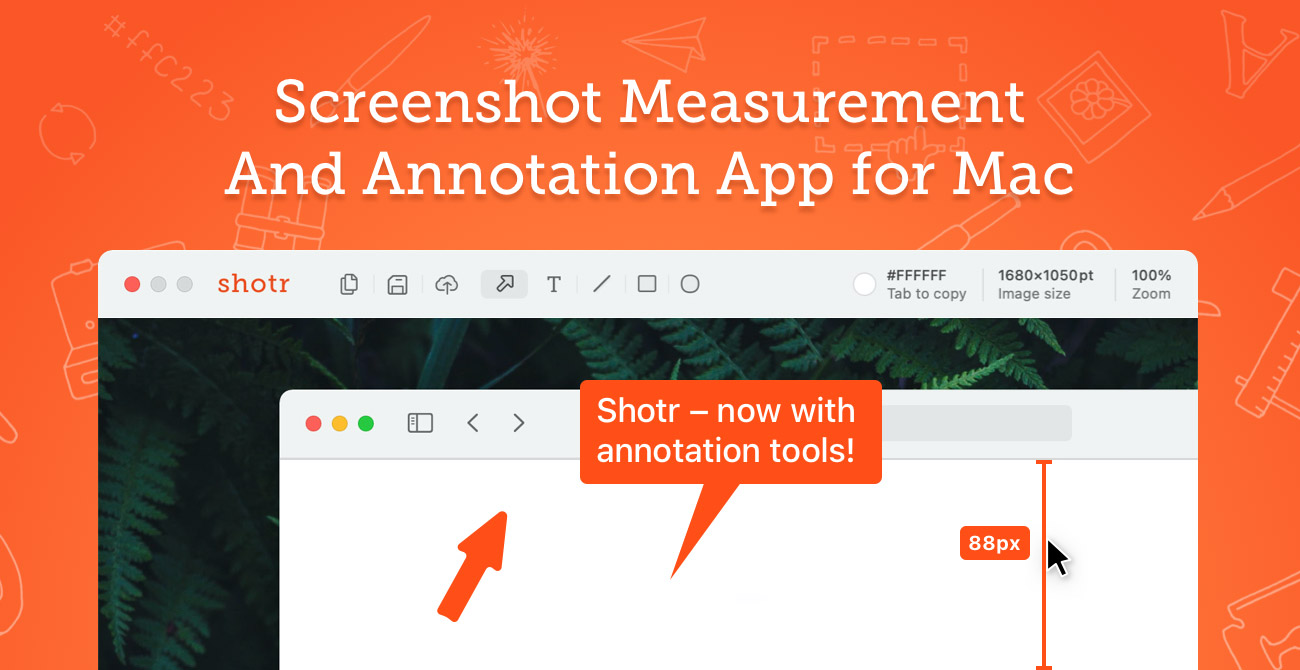

User reviews (0)