

 Paid content
 Visit website
 Updated: 2026-09-24 03:12
 Language: English (default)
 Access: Normal
 Profile views 2
  Outbound visits 0
 Website Review
What is Simple Image Resizer?
Simple Image Resizer is a browser-based tool for changing image dimensions and file size without installing software. You upload a photo, choose a new size, and download the result. It supports JPG, PNG, WEBP and HEIC, which covers the usual phone photos and web graphics.
What it does
- Resize by percentage or exact pixel width and height
- Keep aspect ratio, or use stretch, auto crop or manual crop to hit a target shape
- Batch uploads on the free tier are limited (the page mentions a maximum of 3 files), with a paid tier for larger batches and an ad-free experience
- Extra tools on the same site: video compression, PDF compression, preset sizes for Instagram and social media, and a Chrome extension
Who it suits
- Someone who needs a quick resize for an email attachment, a job application portal or a social post, and does not want to open Photoshop or GIMP
- Web publishers preparing images so pages load faster
- Phone photographers converting HEIC to a more shareable format
Trade-offs
| Need | Simple Image Resizer | Desktop editor |
|---|---|---|
| Speed for one-off resizes | Fast, no install | Slower to start |
| Precise control, layers, colour work | Limited to sizing and cropping | Full control |
| Large batches | Free tier caps file count; paid tier raises it | Depends on the software |
| Privacy | Files are deleted after the download link expires (stated as 24 hours) | Files stay on your machine |
If your images are sensitive — ID documents, medical scans, client material under NDA — a desktop tool keeps everything local. For ordinary photos and web images, an online resizer is usually the faster route.
A practical example
You have five phone photos that are 4–6 MB each and a form that accepts a maximum of 2 MB per file. Resize by percentage first (try 50%), check the resulting file size, then switch to pixel dimensions if you need an exact width. Keep aspect ratio on unless the destination demands a fixed shape; stretching distorts faces and text.
Next step
Start with one image, note the percentage or pixel size that lands under your target file size, then apply the same setting to the rest. If you need preset social dimensions, the site's Instagram and social media tools save you guessing. For other established options, ILoveIMG and Canva cover resizing alongside broader editing.
How do I resize an image without losing quality?
Resize in modest steps, keep the aspect ratio locked, and export at the size you actually need — quality loss usually comes from shrinking too far in one pass or letting the tool stretch the image.
A practical workflow on Simple Image Resizer
- Upload up to 3 files on the free tier (the page notes premium raises this to 25 files at once, ad-free).
- Choose your method: Percentage (%) for quick proportional changes, or Dimensions (px) when a platform demands exact pixels.
- Leave Keep aspect ratio on unless you deliberately want a crop or stretch.
- Pick how the tool handles the mismatch — Stretch, Auto Crop, Manual Crop, Fit, or a fill color (white/black/blur).
- Download before the link expires; the site says files are deleted after 24 hours and are not shared with third parties.
Why "no quality loss" is partly about format
- Shrinking a photo is usually safe: fewer pixels, same detail per pixel.
- Enlarging always invents detail, so it will look soft no matter the tool.
- Keep JPG for photos, PNG for screenshots and graphics with text or transparency, WEBP when you need small files for the web.
Choosing between the resize modes
| Mode | Use it when | Trade-off |
|---|---|---|
| Fit | You need the whole image inside a size limit | Leaves empty margins |
| Auto Crop | You need exact dimensions, e.g. a social post | Trims edges |
| Manual Crop | You want control over what gets cut | Slower for batches |
| Stretch | Almost never, unless distortion is intended | Squashes the subject |
Next step: decide your target first. For Instagram, the page links a dedicated "Fit to Instagram" tool; for email, percentage reduction of 50–70% is often enough. If you resize often in a browser, the site also offers a Chrome extension so you can work from any page without re-uploading. For a second opinion on format choices, MDN Web Docs explains how JPEG and WEBP compression differ.
What image formats can I resize for free?
Simple Image Resizer lists support for JPG, PNG, WEBP and HEIC files, so those are the free-resizable formats you can work with directly in the browser.
H3. What that covers in practice
- JPG and PNG are the everyday choices for photos, screenshots and web graphics.
- WEBP is useful when you already have modern web-optimised images and want them smaller.
- HEIC matters if your images come from an iPhone, since many tools reject that format.
H3. A quick reality check on "free" The free tier is limited by file count per batch: the page states a maximum of 3 files, while premium raises this to 25 files and removes ads. So the formats are free to resize, but a large batch of HEIC photos will push you toward the paid option.
H3. Choosing between formats
| Format | Best for | Trade-off |
|---|---|---|
| JPG | Photos, email attachments | No transparency |
| PNG | Logos, screenshots, transparency | Larger files |
| WEBP | Web pages, fast loading | Older software may not open it |
| HEIC | iPhone originals | Not universally supported elsewhere |
A practical next step: if you only need a handful of images resized, upload up to three at a time and keep the originals as a backup. If you are preparing a whole product gallery or a batch of HEIC phone photos, compare the batch limits before committing, since the free tier's 3-file cap is the main constraint rather than the format list. For broader image editing beyond resizing, dedicated editors such as Photopea may suit you better.
How can I reduce a photo's file size for email or social media?
Use a two-step approach: resize the pixel dimensions first, then adjust compression or format if the file is still too large. For email, the practical target is usually under a few megabytes per attachment and often much smaller; for social media, matching the platform's recommended dimensions avoids unnecessary upscaling or downscaling.
How Simple Image Resizer fits in
Simple Image Resizer is designed for exactly this kind of quick task. Its page evidence shows you can upload JPG, PNG, WEBP, or HEIC files, then define a new size by percentage or exact width and height in pixels. A "Keep aspect ratio" option prevents distortion, and you can choose how to handle the frame with Stretch, Auto Crop, Manual Crop, Fit, or a background fill such as white, black, or blur.
The free tier accepts a maximum of 3 files at once; the site mentions a premium option for up to 10 or 25 files at once and an ad-free experience. Uploaded images are described as deleted permanently once the download link expires after 24 hours. There is also a Chrome extension for resizing directly from a page.
A practical workflow
- Decide the final use. For email, a long edge of around 1600–2000 pixels is usually plenty. For Instagram or similar feeds, a square or 4:5 crop is often more useful than a wide original.
- Upload the photo and set either a percentage reduction or exact pixel dimensions.
- Leave "Keep aspect ratio" on unless you deliberately want a specific crop shape.
- Resize and download. If the file is still too large for your email provider, reduce dimensions further or convert to a more efficient format such as WEBP where supported.
- Check the result at 100% zoom before sending or posting, especially faces and text.
Choosing between tools
| Situation | Better fit |
|---|---|
| One or two photos, quick resize, no install | Browser-based resizer such as Simple Image Resizer |
| Many photos with the same target size | Batch mode or a desktop tool with presets |
| Precise print or brand dimensions | Desktop editor with exact canvas control |
| HEIC photos from an iPhone | A tool that accepts HEIC input, as this one does |
For heavier or repeated work, Canva or Adobe offer more control, but they are more than most email or social posts need. If you only need to shrink a handful of images, start with the browser tool and check the downloaded file size before attaching or uploading.
What are the limits and benefits of the premium plan?
The page shows one concrete limit difference between free and premium: the free tier caps uploads at 3 files per batch, while premium raises that to 10 files (one page section mentions 25 files at once, so treat the exact batch ceiling as worth confirming on the pricing page). Premium also removes ads.
What premium appears to change
| Aspect | Free (as shown) | Premium (as shown) |
|---|---|---|
| Batch upload | Max 3 files | Up to 10 files (a page section says 25 — verify) |
| Ads | Ads present | Ad-free |
| Core resize tools | Percentage, pixel dimensions, aspect-ratio lock, stretch/auto crop/manual crop/fit | Same tools, no extra editing features mentioned |
| File handling | Secure upload, deleted after the 24-hour download link expires | Same terms stated |
What this means in practice
The benefits are throughput and a cleaner interface, not extra capability. Everything a casual user needs — resizing by percentage or exact pixels, keeping aspect ratio, choosing stretch, auto crop, manual crop, or fit — is already in the free tier. Premium is aimed at people processing many images in one sitting, such as a seller listing dozens of product photos, a social media manager preparing a week of posts, or anyone who finds ads disruptive during repetitive work.
The trade-off is straightforward: you are paying to remove friction (fewer batches, no ads), not to unlock better output quality or new formats. If you resize one or two images occasionally, the free limit is unlikely to bother you. If you regularly hit the 3-file wall, the upgrade starts to make sense.
Next step
Open Simple Image Resizer and check the pricing page for the current batch limit, since the page itself is inconsistent (10 vs. 25 files). Then count how many images you typically resize in one session: under three, stay free; well above it, premium is the practical choice.
How does Simple Image Resizer protect my uploaded images?
Simple Image Resizer states that uploads are handled securely: files are never shared with third parties and are deleted permanently once the download link expires, which the site says happens after 24 hours. It also caps free uploads at 3 files at a time (10 with the premium tier), so most sessions involve small, short-lived batches rather than a long-term library.
What this means in practice
- The protection model is short retention, not permanent private storage. Your images exist on their servers only long enough for you to download the resized result.
- Because the link expires, download your resized files promptly. If you close the tab and come back the next day, expect to re-upload.
- "Never shared with 3rd parties" is a commitment about disclosure, not a statement about encryption at rest or on the wire. Treat it as a reasonable baseline for non-sensitive images.
When to use it, and when not to
| Situation | Reasonable fit? |
|---|---|
| Resizing product photos, blog images, social posts | Yes — quick, no account needed |
| One-off HEIC/JPG/PNG/WEBP conversions | Yes |
| ID scans, medical images, contracts, client NDAs | Prefer an offline tool or a service with an explicit retention and encryption policy |
| Large batches (dozens of files) | Free tier is limited to 3 per upload; the premium tier raises this to 10 |
A concrete scenario
Say you shot 40 phone photos for a marketplace listing. You'd upload in small batches of 3, resize each set, and download immediately — keeping the originals on your device as the master copies. That workflow matches how the site is built and avoids depending on the link staying alive.
Next step
Before uploading anything confidential, ask yourself whether you'd be comfortable with that file sitting on someone else's server for up to a day. If not, resize locally. If yes, this tool's retention window is short enough for everyday web and social use. For alternatives with published privacy policies, compare Simple Image Resizer against a desktop editor or your phone's built-in resize function.
 Hosting and Email
 Cloudflare
 Hosting
 Location
 Pages, Search and Sharing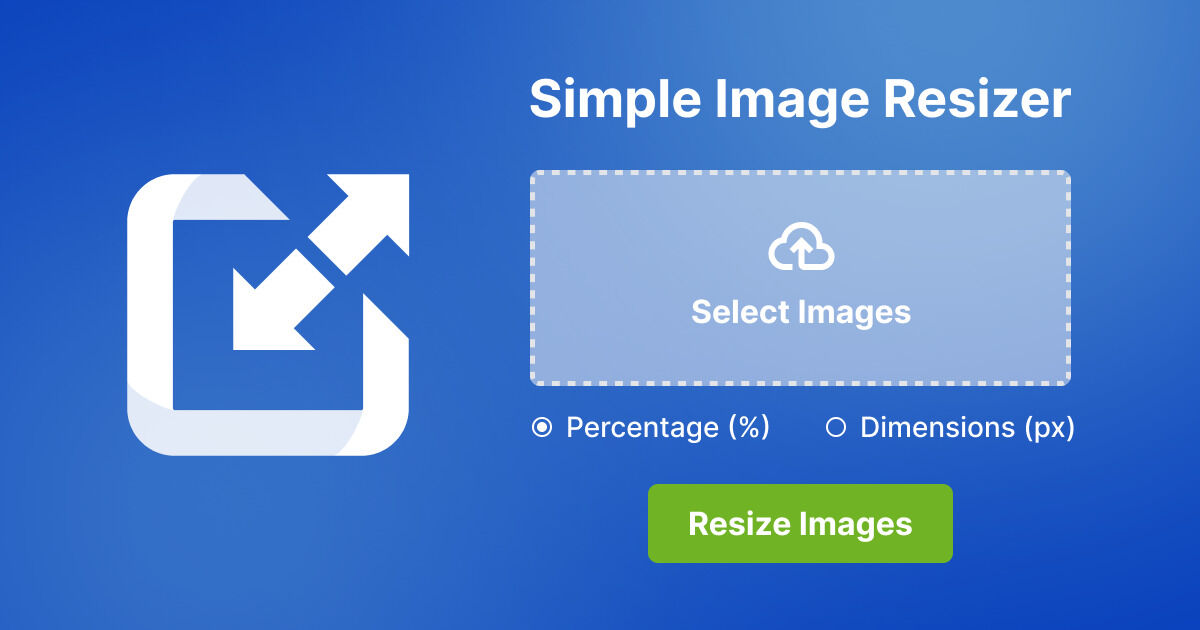


 Registration details

 Identified technologies
User reviews (0)