Website profiles · Technology insights · Alternatives

typ.ing

A clean and simple typing trainer that cares about how you feel. Type to find out.

No paid content found
Visit website
Profile views 3 Outbound visits 9 Normal
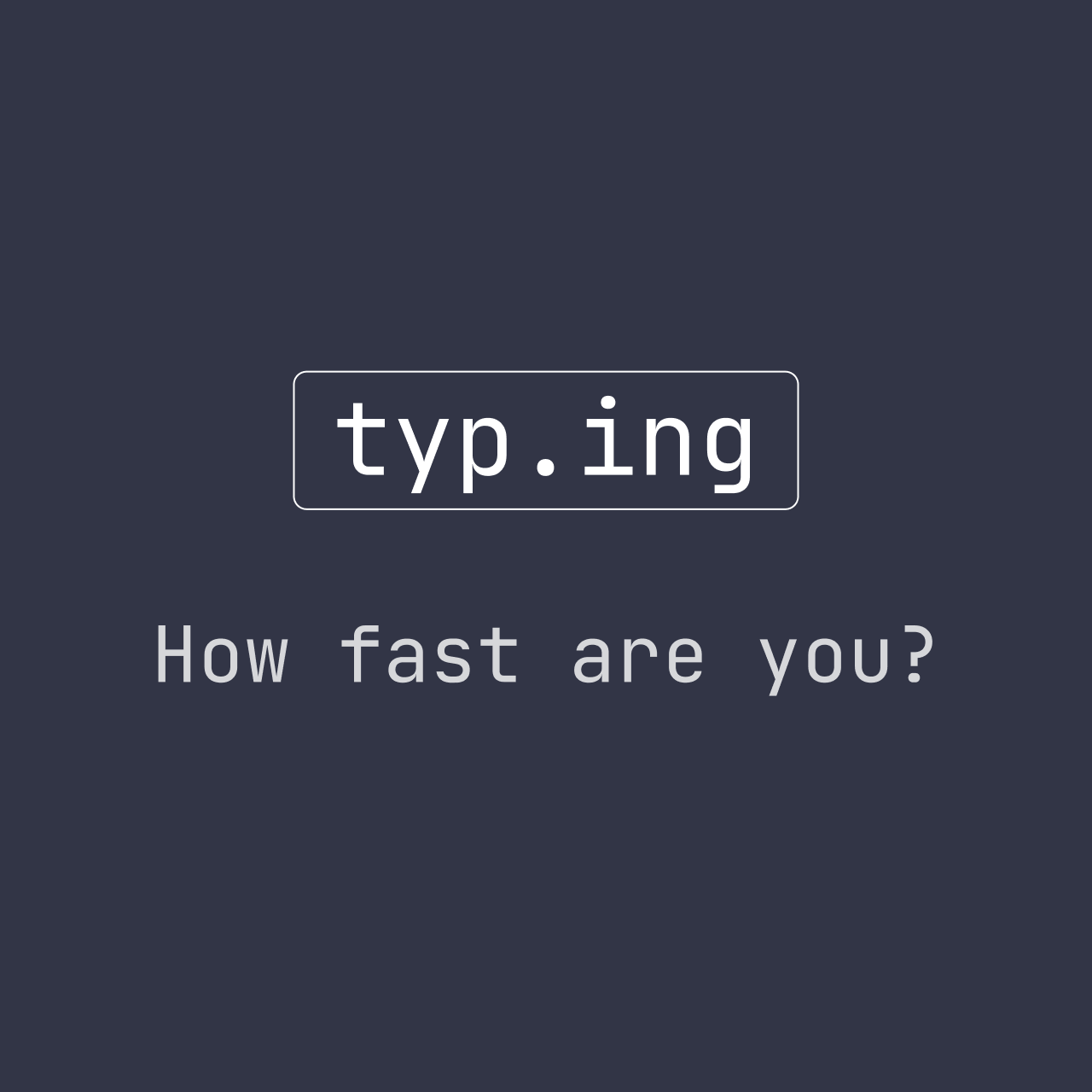
typ.ing Full homepage screenshot

At a glance

Category
Education & Learning
Language
English
Paid-content signal
No paid content foundObserved
Registered
2023
Hosting
CloudflareInferred
HTTPS certificate trusted
PassedObserved
Last updated

Website review

This review may include AI-generated content and is not individually verified. Domain, certificate and other facts come from the observed data on this page.

What is typ.ing?

typ.ing is a browser-based typing trainer built around speed and accuracy when using a physical keyboard. Its stated aim is to help you type faster and more accurately with an external keyboard, and it presents itself as "clean and simple" and attentive to how you feel as you practise.

What it actually is

It is a practice tool rather than a full course or certification platform. You use it in a browser, and it is designed for desktop or laptop use: the site itself notes that it works much better with a physical keyboard plugged in and suggests using a computer instead of a mobile device. It is also labelled "Open Source & Repairable," which matters if you care about inspecting or adapting the tool.

Who it suits

  • Desk workers improving keyboard speed — someone who types all day and wants short, focused practice rather than a structured curriculum.
  • People learning touch typing on a laptop or external keyboard — the emphasis on an external keyboard means it is aimed at real keyboard use, not thumb typing.
  • Users who prefer lightweight, open tools — the open-source and repairable framing appeals to people who dislike locked-down training apps.

Trade-offs to weigh

A minimal trainer like this is easy to start and stays out of your way, but it typically offers less structure than a full typing course: expect less hand-holding, fewer progress dashboards and no formal lessons unless the site adds them. The mobile limitation is a real constraint — if you mostly practise on a phone or tablet, this is not the right tool.

Next step

If you have a laptop or desktop with a physical keyboard, open typ.ing and do one short session to see whether the interface and feedback style suit you. As a decision criterion: choose it for quick, distraction-free drills; look for a more structured course if you need graded lessons and long-term progress tracking.

Can I use typ.ing on a phone or tablet without a physical keyboard?

Yes. typ.ing loads on a phone or tablet without a physical keyboard, but the site itself warns that it works much better with an external keyboard and suggests using a computer. On a touchscreen, the on-screen keyboard covers part of the page and typing speed and accuracy figures mostly reflect tapping rather than real keyboard skill.

When it makes sense

  • Quick look: You want to see how the trainer works before committing to a desk setup.
  • Casual tapping practice: You mainly care about touch-typing on glass rather than a physical keyboard.
  • Testing a tablet with a keyboard case: Pair the case and treat the tablet as a small laptop.

For serious speed and accuracy practice, use a computer or pair a Bluetooth keyboard with your tablet. A practical next step: try one short session on your phone, then repeat it on a laptop and compare how the experience feels. If the mobile layout gets in the way, that's the signal to switch devices rather than push through.

How does typ.ing differ from other typing trainers in how it cares about how I feel?

typ.ing frames typing practice around how you feel rather than around speed scores alone. The site describes itself as "a clean and simple typing trainer that cares about how you feel," and its opening prompt is simply "Type to find out" — you start typing and the trainer responds, rather than choosing a lesson, target WPM or drill from a menu first. It is also built for an external keyboard: the page explicitly asks whether you have a physical keyboard connected and warns that it works much better on a computer than a mobile device, so the intended experience is focused, desk-based practice.

That positioning implies a different emphasis from conventional trainers, which typically lead with timed tests, WPM/accuracy charts, structured lesson curricula and streak or leaderboard mechanics. typ.ing's evidence points to a low-pressure, exploratory loop: the feedback is the point, and the "cares about how you feel" framing suggests the session adapts to your comfort rather than pushing you toward a benchmark. The page also states "Open Source & Repairable," which matters if you want to inspect or modify how the trainer behaves — a contrast with closed commercial platforms.

Aspect typ.ing (per page evidence) Typical typing trainers
Starting point Type and find out; no lesson picker described Choose lesson, test length or course
Emphasis How you feel during practice Speed and accuracy metrics, progress tracking
Device External/physical keyboard, desktop preferred Often mobile-friendly
Transparency Open source and repairable Usually closed

A concrete scenario: if you already know how to type and want a short, calm session after work without chasing a personal best, typ.ing fits that mood; if you need structured touch-typing instruction from home-row basics, a curriculum-driven trainer such as TypingClub is the more direct route, and for benchmark testing against standard texts, 10FastFingers or MonkeyType give you comparable WPM figures.

Next step: try one five-minute session on typ.ing with your usual keyboard, then decide whether its feel-first feedback helps you practice more consistently than a scoreboard does — that consistency, not the interface, is what actually improves typing.

Is typ.ing open source, and can I repair or modify it myself?

Yes. typ.ing describes itself as "Open Source & Repairable," so it is intended to be inspectable and modifiable rather than a closed product. For a typing trainer, that is more meaningful than it might sound: the drills, timing logic and scoring rules are the substance of the tool, and open code lets you see exactly how speed and accuracy are calculated instead of guessing.

What repair and modification look like in practice

  • Inspect the logic. If a result feels off, you can read how keystrokes, errors and timing are handled rather than trusting a black box.
  • Run your own copy. Because it is open source, you can host it locally or on your own server, which also means you keep working if the public site changes.
  • Adapt the drills. A teacher, for example, could adjust exercises toward the keys or words a class struggles with, and a developer could swap in their own word lists.

Trade-offs to weigh

Self-repair shifts effort onto you. You need some comfort with running a small web project and reading code; changes you make are yours to maintain, and there is no support line. If you only want to practise typing, the hosted version at typ.ing is the simpler route, and it notes that it works best with a physical keyboard on a computer.

A practical next step

Open the project's repository, find the file that defines the typing test or word list, and change one entry to see how the trainer responds. That single experiment tells you quickly whether the codebase is approachable enough for the modifications you have in mind.

What typing speed and accuracy improvements can I expect from regular practice on typ.ing?

Regular practice on typ.ing can be expected to improve both speed and accuracy, but the site itself does not publish target scores, benchmarks or promised gains, so any specific number would be an estimate rather than a feature of the trainer. What typ.ing does provide is a clean, simple practice loop built around typing on an external keyboard, which is the setup where speed and accuracy gains transfer most directly to everyday computer work.

What realistic progress looks like

  • Early weeks: most of the change is in accuracy and consistency. Beginners often see fewer errors and less hesitation before noticeable speed gains, because they stop hunting for keys.
  • Middle weeks: speed tends to follow accuracy. Once mistyped words become rarer, the same practice sessions produce a higher effective words-per-minute figure.
  • Ongoing: gains flatten into small, steady increments. Short, frequent sessions usually beat occasional long ones for retaining finger patterns.

These are general expectations from typing practice, not measurements taken from typ.ing.

A practical way to use it

Treat typ.ing as a short daily drill rather than a test. Type for five to ten minutes, note whether errors cluster around particular keys or letter combinations, and slow down deliberately on those passages. Because typ.ing is designed for a physical keyboard, use it at a desk with your usual keyboard; practicing on a phone or tablet will not reflect the skill you are trying to build.

Decision criteria

Choose typ.ing if you want a low-pressure, distraction-free trainer and are willing to track your own progress. If you need structured lessons, formal certificates or detailed per-key analytics, compare it with a curriculum-based trainer such as TypingClub or a test-focused site such as 10FastFingers before committing.

Do I need to create an account or pay to start using typ.ing?

No. typ.ing is presented as a typing trainer you can start using directly—there is no mention of an account, signup, or payment step in the supplied information. The page does, however, note that it works best with a physical keyboard and suggests using a computer rather than a mobile device.

Practical next step

If you're on a phone or tablet, connect a Bluetooth or wired keyboard first, then open typ.ing and begin a test. If you're on a laptop or desktop, just start typing—no registration is described as necessary.

When an account might still matter

General advice, not a typ.ing feature: accounts become useful when a typing tool needs to save history, sync progress across devices, or support classrooms and teams. For a quick speed-and-accuracy check, an accountless trainer is usually the faster choice.

Related questions

More questions →
How to Start a Typing Practice Session on typ.ing

typ.ing is a browser-based typing trainer that opens straight into practice: the page tells you to "type to find out," so the first session begins by typing rather than by creating an account or walking through a setup wizard. It is built for an external keyboard, and the site itself recommends a computer or a plugged-in physical keyboard for the best experience. No account, download, or configuration steps are indicated on the page, so the practical starting point is opening the site on a device with a real keyboard and beginning to type.

What to expect on your first visit

The site describes itself as "a clean and simple typing trainer that cares about how you feel," and its stated purpose is to help you get faster and more accurate when typing with an external keyboard. Two things follow from that:

  • The interface is minimal by design. There is no described dashboard, lesson library, or settings panel to work through first. The prompt to "type to find out" is the entry point.
  • Practice is the product. The training goal named on the page is speed and accuracy with a physical keyboard, not touch-typing lessons, games, or courses.

The page also notes that typ.ing is "Open Source & Repairable," which matters if you care about being able to inspect or modify the tool, though nothing on the page describes a repository, license, or contribution process.

Step-by-step: starting a session

  1. Open typ.ing in a desktop or laptop browser. The site explicitly says it works much better on a computer.
  2. Connect a physical keyboard if you are on a tablet or phone. The page detects mobile devices and asks whether a physical keyboard is connected.
  3. Answer the keyboard prompt if it appears. Choosing "Yes" proceeds on the assumption of a real keyboard; "No, but I want to try anyway" lets you continue on a touchscreen.
  4. Start typing. The site's instruction is literally to type to find out how it works — the first keystrokes are how you discover the exercise format.
  5. Watch speed and accuracy as you go. These are the two outcomes the trainer says it is designed to improve, so they are the metrics to pay attention to between attempts.

Verifying it is working

There is no described pass/fail or completion state. The practical check is that your keystrokes register and the exercise responds as you type; if nothing responds on a phone or tablet, the missing physical keyboard is the most likely cause, which is exactly the situation the site's mobile prompt is warning about.

Common sticking points

  • Typing on a phone with no external keyboard. The site does not block this — it offers "No, but I want to try anyway" — but it states plainly that the experience is much better with a physical keyboard. Treat touchscreen use as a fallback, not the intended mode.
  • Looking for an account or saved progress. Nothing on the page indicates sign-up, login, or stored history, so do not plan a session around resuming past results.
  • Expecting structured courses. The described scope is speed and accuracy practice with an external keyboard; structured curricula are not mentioned.
  • Assuming a price or free tier. The available page material contains no pricing information, so cost and any access limits are unconfirmed either way.

Is typ.ing the right fit for you?

Your goal Fits typ.ing? Why
Quick, low-friction speed and accuracy drills on a computer Yes The site is built around typing with an external keyboard to build speed and accuracy
Practicing on a phone without a keyboard Only as a fallback The site warns it works much better with a physical keyboard
A structured touch-typing course with lessons Unclear No lesson structure is described on the page
Tracking progress across sessions via an account Unclear No account or saved-progress features are indicated
Inspecting or modifying the tool's code Possibly The site labels itself open source and repairable, but details are not on the page

If your situation is "I have a laptop, five spare minutes, and want to type," typ.ing is designed for exactly that: open it, start typing, and let the exercise reveal itself. If you need lessons, accounts, or guaranteed mobile support, check those specifics on the site itself before committing, since the available page material does not confirm them.

What is typ.ing?

typ.ing is a clean, simple typing trainer designed to help you type faster and more accurately using an external keyboard. It is open source and repairable, and it works best on a computer or with a physical keyboard connected. If you are on a mobile device, the site itself recommends plugging in a physical keyboard or switching to a computer before practicing.

What typ.ing focuses on

The site describes itself as a typing trainer that "cares about how you feel." In practice, that means the tool is positioned around the experience of practice, not just raw speed scores. The core purpose is straightforward: help you improve typing speed and accuracy with a real keyboard.

Two design choices stand out from the available information:

  • Simplicity: it presents itself as clean and simple, so the practice surface is the main thing you interact with.
  • Open source and repairable: the project is openly developed and can be fixed or modified, which matters if you want to inspect how it works or keep using it long term.

Who it is for

typ.ing suits people who want a low-friction typing trainer and already have a physical keyboard. Typical cases:

  • You want to build speed and accuracy for everyday typing, schoolwork, or coding.
  • You prefer a minimal practice tool over a feature-heavy course.
  • You care whether a tool is open source and can be repaired or adapted.

It is less suitable if you only have a phone or tablet and no external keyboard. The site explicitly warns that it works much better with a physical keyboard, and offers a "try anyway" option if you want to proceed without one.

How to get started

  1. Open typ.ing in a browser on a computer, or connect a physical keyboard to your device.
  2. If prompted about whether a physical keyboard is connected, answer honestly: choose "Yes" if one is connected, or "No, but I want to try anyway" to continue on a touch device.
  3. Start typing as prompted and use the session to gauge your speed and accuracy.
  4. Repeat sessions over time to track improvement.

Expected result: you complete a typing practice session and get a sense of your current speed and accuracy. The exact metrics and interface details are not specified in the available information, so treat the first session as a way to see what the trainer measures.

Common snags

  • Practicing on a phone without a keyboard: the site warns this works much worse. Connect a physical keyboard or move to a computer.
  • Expecting structured lessons: the description emphasizes a clean, simple trainer rather than a curriculum, so do not assume guided courses.
  • Assuming it is free or requires no login: the available information does not state pricing or login requirements either way. Check the site directly before relying on it for a class or team.

Bottom line

Choose typ.ing if you want a simple, open-source typing trainer and have a physical keyboard. Skip it for now if you can only practice on a touchscreen, or verify pricing and account requirements on the site first if those matter to you.

Does typ.ing work on mobile devices or without a physical keyboard?

Yes, it will load, but it is not the intended experience. typ.ing is a typing trainer built for an external keyboard, and the site itself detects mobile devices and warns that it "will work much better if you plug a physical keyboard in (or just use a computer)." If you continue on a phone or tablet without a keyboard, you are given a "No, but I want to try anyway" option — so you can proceed, just with a degraded experience.

What the site actually does when you arrive

The first thing typ.ing checks is your input setup. On a mobile device it presents a prompt asking whether you have a physical keyboard connected, with two choices:

  • Yes — you have a keyboard paired or plugged in
  • No, but I want to try anyway — continue on the touchscreen

This is a deliberate gate, not a paywall or login requirement. It exists because the trainer is designed around typing speed and accuracy with a real keyboard, and a touchscreen keyboard changes both.

Why a physical keyboard matters here

typ.ing describes itself as a clean, simple typing trainer that "cares about how you feel," and its stated purpose is helping you get faster and more accurate when typing with an external keyboard. That purpose shapes the whole experience:

Setup What you get
Computer with built-in keyboard The intended experience
Phone or tablet + paired/plugged keyboard The intended experience
Phone or tablet, touchscreen only Loads, but the site warns it works much better with a keyboard

The practical issue is that on-screen keyboards introduce autocorrect, predictive text, and a different finger layout — all of which distort the speed and accuracy signals a typing trainer is trying to measure. If your goal is to track real improvement, touchscreen input gives you numbers that don't mean much.

How to get the intended experience

  1. On a computer: just open typ.ing and start typing. No setup needed.
  2. On a phone or tablet: pair a Bluetooth keyboard or connect one via an adapter before opening the site, then answer Yes to the keyboard prompt.
  3. If you have no keyboard handy: choose No, but I want to try anyway to explore the trainer, understanding that results won't reflect keyboard typing.

Common snag

If you answer Yes but your keyboard isn't actually connected or paired, typing input won't register as expected. Pair or plug in the keyboard first, then reload the page so the prompt reflects your real setup.

The short version

typ.ing works on mobile in the sense that it opens and lets you continue, but it is explicitly designed for an external keyboard, and the site tells you so. For meaningful practice, use a computer or connect a physical keyboard to your mobile device.

What "Open Source & Repairable" Means for typ.ing

typ.ing labels itself "Open Source & Repairable," which signals that the project is built to be inspected and fixed rather than treated as a closed product. In practice, that means you can reasonably expect the code behind the typing trainer to be available for review and the project to be maintainable by someone other than its original author. The label alone does not confirm which license applies, where the repository lives, or what support channels exist—those details would need to be checked on the site itself.

The two claims, separated

Open source

"Open source" describes how the software is licensed and distributed. For a typing trainer, the practical implications are:

  • Inspectability — you or a developer can read the source to see how typing speed and accuracy are calculated, rather than trusting a black box.
  • Reuse and modification — depending on the license, you may be able to run your own copy, adapt it, or contribute changes back.
  • Community contribution — open projects typically accept fixes and improvements from outside contributors.

The label does not tell you which open-source license is used. Licenses differ meaningfully: some require derivative works to stay open, others permit closed reuse. If license terms matter to you, verify them at the source rather than inferring from the badge.

Repairable

"Repairable" is less standard as a software term. Applied to a web-based typing trainer, it most plausibly means the project is structured so that problems can be diagnosed and corrected—by the maintainers, by contributors, or by anyone running their own instance. It suggests an emphasis on maintainability over lock-in.

It does not mean there is a formal repair service, a warranty, or guaranteed response times for bug reports. Those would be support commitments, and the page evidence does not establish any.

What this means if you're choosing a typing trainer

If your priority is… What the label tells you What you still need to check
Trusting the accuracy metrics Code can be inspected Whether a public repository is linked
Running your own copy Modification is likely permitted The specific license terms
Getting bugs fixed Project is designed to be maintainable Where to report issues and expected responsiveness
Just practicing typing Little practical difference Nothing—use the trainer directly

For most people who simply want to practice typing with an external keyboard, the open-source and repairable framing is a confidence signal, not a feature you interact with. It becomes actionable if you are a developer evaluating whether to self-host, fork, or contribute—in which case the next step is to locate the repository and license from the site itself, since neither is confirmed in the available page information.

A concrete way to test the claim

If you want to verify rather than assume, try this: open the site, look for a link to source code or a project page, and check whether a license file is present. A genuinely open and repairable project will typically make both easy to find. If you cannot locate them, treat the label as a stated intention rather than a verified fact—and decide accordingly based on how much that matters to your use case.

Website Overview

The available information shows a mix of normal operation and configuration gaps. Depending on how the website is used, these gaps may affect secure access or the consistency of its public presentation.

Domain and Registration

Transfer-protection status is present, helping reduce the risk of unauthorized domain transfers. The domain has about 2 years of registration history; its current configuration provides more context than age alone. The domain uses the common .ing extension, which is not an independent safety signal.

DNS and Email

Nameservers are provided by Cloudflare, indicating managed DNS hosting. CAA records restrict which certificate authorities are authorized to issue certificates. No CNAME was found; the observed records resolve directly to addresses. No MX record was found. A conventional explicit inbound-mail route is not configured. DNSSEC signatures were not detected, so this additional DNS authenticity protection is not confirmed.

TLS and Certificates

The public key uses EC with 256 bits. The server supplied a complete certificate chain. No organization name is present in the certificate; the available fields are consistent with domain validation. The certificate was issued within the Google Trust Services cloud or CDN ecosystem. The certificate's total validity is about 90 days, consistent with a short renewal cycle.

HTTP and Browser Security

The checked browser-security headers were not detected, leaving fewer explicit browser-side safeguards. No X-Powered-By header was found, reducing one common source of backend fingerprinting information. The cf-ray response header indicates a CDN or caching proxy in the delivery path. No obvious internal addresses or debug information were found in the headers. The Server header identifies cloudflare without an exact version.

Technology Stack Analysis

The public page identifies Next.js, Cloudflare without precise versions, leaving fewer clues for version-specific scanning.

Search and Social Sharing

No homepage canonical URL was detected. If duplicate URLs exist, consolidation may be less explicit. Twitter Card metadata is configured. The title has 7 characters, within a common display range. A meta description is present, with 82 characters. The observed directives allow indexing and link following.

Hosting and Email

DNSCloudflare
HostingCloudflare
EmailUnknown
Approximate IP geolocation (inferred; a CDN or proxy may differ from the origin server) Location unknown Inferred 104.21.12.199

Registration details

RDAP / WHOIS

Registrar101domain, Inc.
Registered2023-12-05
Expires2027-12-05
Domain statusclient transfer prohibited
Nameserverscosmin.ns.cloudflare.com、elma.ns.cloudflare.com
DNSSECunsigned

DNS records

DNS

TypeNameValueTTLPriority
Atyp.ing104.21.12.199300—
Atyp.ing172.67.153.56300—
AAAAtyp.ing2606:4700:3035::6815:cc7300—
AAAAtyp.ing2606:4700:3035::ac43:9938300—
NStyp.ingcosmin.ns.cloudflare.com86400—
NStyp.ingelma.ns.cloudflare.com86400—
CAAtyp.ing0 issue "comodoca.com"3600—
CAAtyp.ing0 issue "digicert.com; cansignhttpexchanges=yes"3600—
CAAtyp.ing0 issue "letsencrypt.org"3600—
CAAtyp.ing0 issue "pki.goog; cansignhttpexchanges=yes"3600—
CAAtyp.ing0 issue "ssl.com"3600—
CAAtyp.ing0 issuewild "comodoca.com"3600—
CAAtyp.ing0 issuewild "digicert.com; cansignhttpexchanges=yes"3600—
CAAtyp.ing0 issuewild "letsencrypt.org"3600—
CAAtyp.ing0 issuewild "pki.goog; cansignhttpexchanges=yes"3600—
CAAtyp.ing0 issuewild "ssl.com"3600—

TLS and certificates

TLS / SSL

AssessmentNormal configuration
Supported protocolsTLSv1.2、TLSv1.3
Negotiated protocolTLSv1.3
Certificate subjecttyp.ing
IssuerGoogle Trust Services
Valid until2027-01-13T14:49 · Remaining when checked: 77 days
Verification detailsCertificate trust: Passed · Hostname match: Passed

HTTP response headers

HTTP

HeaderValue
content-typetext/html
cache-controlpublic, max-age=0, must-revalidate
servercloudflare

Identified technologies

Next.jsCloudflare

Pages, Search and Sharing

Meta descriptionA clean and simple typing trainer that cares about how you feel. Type to find out.
Canonical URLNot detected
LanguageEnglish (default)
Twitter Cardsummary_large_image

No rules found

Recent Updates

  • Website images
  • Screenshots
  • Pages and Search Information

User reviews (0)

  • No reviews yet.