
 简体中文
简体中文 English
Website review
This review may include AI-generated content and is not individually verified. Domain, certificate and other facts come from the observed data on this page.
What is 3dtext2gif?
3dtext2gif is a browser-based tool for turning short text into animated 3D GIF stickers. You type your text, choose a font and motion style, adjust colors, lighting and camera settings, then export a GIF at a chosen sticker size.
It is aimed at people who want a quick animated wordmark or sticker without opening a full 3D application: chat and social sticker makers, streamers, small brands, or anyone making a reaction GIF from a name or catchphrase.
H3 What you can control
- Text and typeface: enter your text and pick from a font list, including a very large set of glyphs for Chinese, Japanese, Korean and Thai.
- Motion: presets such as Motion, Craze and Light, plus manual controls for vertical/horizontal modulation, stretch, camera position and "craze" depth.
- Look: text color, line color, zoom depth, line height, direct and ambient light, plus material metalness and roughness.
- Output size: low (180×180), medium (240×240) or high (300×300) GIF sticker.
H3 Practical trade-offs The fixed square sizes suit sticker slots in messaging apps, but they are too small for banners, thumbnails or print. GIF is widely supported and loops automatically, yet it is limited to a small palette, so gradients and soft lighting can band or dither. Large glyph sets also mean heavier files, which matters if you plan to post many stickers.
H3 A concrete use A streamer could type a channel name in a bold font, apply a Craze motion, set a neon text color on a dark line color, and export a 240×240 GIF for alert overlays and chat emotes.
H3 Next step Start with a short word of four to six characters, pick one motion preset, and export at medium size. If the edges look rough, increase the output size before adding more lighting controls. For static or higher-resolution versions, a general design tool is usually a better fit than a GIF sticker maker.
How do I create an animated 3D text GIF sticker with 3dtext2gif?
Open 3dtext2gif, type your text into the main field, pick a font and a motion preset, adjust the look, then choose a size and click Create GIF Sticker. The tool is built for short, sticker-style animated text rather than long paragraphs or precise typographic layouts.
The basic workflow
- Enter your text. Keep it short — a word, name, or brief phrase. Stickers read best at a glance, and very long strings make the 3D geometry crowded and the file heavier.
- Choose a font and motion. The page lists fonts (including non-Latin options such as Chinese, Japanese, Korean and Thai) and motion presets like Motion, Craze and Light. Presets set the animation style before you fine-tune it.
- Set colors. Pick the text color and line color. The defaults shown are a pale pink fill with black outlines — high contrast between fill and outline is what keeps small stickers legible.
- Tune the 3D shape. Zoom, depth, line height, and the modulate/stretch and camera position controls change how thick, wide, or angled the lettering looks. Depth is the single biggest factor in whether it reads as flat text or a chunky 3D object.
- Adjust lighting and material. Direct light, ambient light, metalness and roughness decide whether the result looks glossy, metallic, or matte.
- Pick a size and export. The size options are Low (180×180), Medium (240×240) and High (300×300) pixels. Then click Create GIF Sticker.
Choosing a size
| Size | Best for | Trade-off |
|---|---|---|
| Low 180×180 | Small chat reactions, tight sticker slots | Fewest pixels; fine outlines can look rough |
| Medium 240×240 | General messaging and social stickers | Balanced detail and file size |
| High 300×300 | Places where the sticker is displayed larger | Largest file; more detail in edges and lighting |
Practical notes
- Animated GIFs have no transparency in the usual sense. Expect a visible background or a solid surround, so choose text and outline colors that work against the surface where you'll post it.
- Non-Latin scripts are heavier. The glyph list shows Latin fonts in the 0.1–0.4 MB range, while Chinese, Japanese and Korean entries run into several megabytes. That reflects the number of glyphs involved; it also means a CJK sticker will be a much larger download than a Latin one.
- Iterate on one variable at a time. If the result looks wrong, change depth or lighting first; those two controls affect perceived shape and readability more than small color tweaks.
A useful next step: make a first version at Medium size with a simple motion preset, then compare a Low and a High export side by side before committing to a style for a set of stickers. If you'd rather browse finished examples for inspiration, the site links to its own gallery, and broader sticker communities such as GIPHY can show how animated text stickers are typically framed and sized.
What customization options are available for the 3D text, such as fonts, colors, and motion effects?
3dtext2gif focuses on one task: turning short text into an animated 3D GIF sticker. Its controls are grouped around text styling, motion, camera, lighting and output size, so you can adjust the look without leaving the page.
H3 Text and color controls
- Font selection: The tool offers a set of fonts, including basic and more expressive display styles. The page lists options such as Basic Font, Motion and Craze, with glyph file sizes shown for Latin, Chinese, Japanese, Korean and Thai character sets.
- Text color: A dedicated text color control lets you pick the fill color for the letters.
- Line color: A separate line color control handles the outline or stroke around the text.
- Line height: Adjusts the thickness or spacing of the outlined edge, depending on how the renderer applies it.
- Zoom depth: Changes how far the 3D extrusion appears to push toward or away from the viewer.
H3 Motion and deformation effects
- Motion Craze: A named motion preset that animates the text in a lively, distorted way.
- Modulate vertical and horizontal: Warps the text along either axis for a rippling or bending effect.
- Stretch horizontal and vertical: Scales the letterforms unevenly to create elongated or compressed shapes.
- Craze horizontal, vertical, depth and direct: A set of controls for pushing the “craze” distortion in different directions, including depth and a direct mode.
H3 Camera and lighting controls
- Camera horizontal and vertical position: Moves the viewpoint around the text, changing the angle of the 3D effect.
- Direct light and direct light distance: Adjusts the main light source and how far it sits from the text.
- Ambient light: Controls the overall fill light, affecting how bright or moody the scene looks.
- Material metalness and material roughness: Change the surface finish, from shiny metallic to matte or rough.
H3 Output size The tool offers three GIF sticker sizes: low (180×180), medium (240×240) and high (300×300). These are square formats suited to sticker use in messaging apps.
A practical next step: if you want a clean, readable sticker, start with a basic font, set text and line colors with good contrast, keep motion and craze settings low, and choose the medium or high size. If you want a more playful result, increase the craze and modulate values and try the Motion preset. The main trade-off is that heavier motion, deeper zoom and larger output sizes can make the GIF busier and larger in file size.
Can I use 3dtext2gif to make GIF stickers with non-English characters like Chinese, Japanese, or Korean text?
Yes. The generator lists separate glyph sets for Chinese (CN), Japanese (JP), Korean (KR) and Thai (TH) alongside its English (EN) sets, so you can build animated 3D text stickers in those scripts rather than being limited to Latin characters.
A few practical things to know before you start:
- Pick the right glyph set first. The font list is grouped by language, and the non-Latin sets are much larger files than the English ones (the CJK entries run into the multi-megabyte range while English sets are typically under half a megabyte). Choose your script's set, then type your text, so you don't waste time previewing the wrong font.
- Watch the download size. Because the CJK glyph sets are heavier, a sticker with several Chinese, Japanese or Korean characters will take longer to load and render than a short English one. Keep an eye on the size figure shown next to each set.
- Short strings work best. GIF stickers are small by nature — a few characters read clearly at 180×180, while longer phrases get cramped. If you need more text, try the medium or high output size.
- Styling is script-agnostic. The colour, line, zoom, depth, camera, lighting and material controls apply the same way regardless of language, so you can match the look of your Latin stickers.
Next step: open the tool, select your language's glyph set from the font list, type a short phrase, and render at 180×180 to check legibility before committing to a larger export. If you want inspiration for how animated text stickers are used in chat apps, browsing a public sticker gallery can help you judge sizing and motion.
What resolution should I choose for my GIF sticker on 3dtext2gif, and how does it affect file size?
Pick the smallest size that still looks sharp where you'll post it: Low (180×180) for messaging-app stickers and chat reactions, Medium (240×240) for most social posts, High (300×300) only if the sticker will be viewed large or on a high-density screen. Bigger output means more pixels per frame, and every frame is stored in the GIF, so file size climbs quickly as you move up.
H3. The trade-off in practice The page lists Low, Medium and High as the only size choices, so there's no custom width/height field to fine-tune. That makes the decision simple but blunt: you can't shave a few pixels to squeeze under a platform's upload cap.
Two other controls affect file size more than people expect:
- Zoom depth and the camera/craze position sliders change how much of the frame the text fills and how much it moves. More movement across more frames generally means a heavier GIF.
- Font glyph set: the picker shows per-font weights, and the CJK and other large glyph fonts are listed in the multi-megabyte range (for example, one Chinese font at roughly 15 MB) versus fractions of a megabyte for basic Latin fonts. A large glyph set doesn't automatically mean a large export, since only the characters you actually type get rendered, but it's a signal that complex glyphs cost more per frame.
A quick decision path
- Start at Medium and export.
- Check the file size and how it looks in the target app (WhatsApp, Discord, Telegram and similar usually re-compress or cap stickers).
- If it's rejected or looks soft, drop to Low before shrinking the animation; if it looks pixelated on a desktop or large preview, step up to High.
- If High is too heavy, reduce motion or zoom depth rather than resolution — a static-ish sticker at 300×300 often reads better than a busy one at 180×180.
For transparency about how these trade-offs play out in real use, the creator's own output examples are worth a look: 3dtext2gif links to a gallery from the tool page, which is the fastest way to see what each size and motion setting actually produces before you commit.
Is 3dtext2gif free to use, and where can I see examples of GIF stickers created with it?
Yes — 3dtext2gif is a free, browser-based tool. You type text, choose a font and motion style, adjust color, lighting and material sliders, then export an animated GIF sticker. There is no account requirement or paywall described on the page, and the interface itself is the whole product.
Where to see examples
The site's own gallery is the intended showcase: the page footer links to a GALLERY alongside the creator credit (FUZZYW). That is the most direct place to judge whether the default styles — Motion, Craze, the light and depth controls — produce the look you want before spending time in the editor.
For broader context, general GIF and sticker communities are useful comparison points, since 3D text stickers usually end up in chat apps, social posts or streaming overlays:
- GIPHY — large searchable pool of animated stickers; good for checking how 3D text stickers read at small sizes.
- Tenor — similar library, often stronger for chat-app sticker formats.
- Reddit — subreddits for graphic design and GIF making, where people post results and critique.
Practical notes before you start
- Output sizes on the page run from about 180×180 up to 300×300, so these are sticker-scale assets, not full-resolution graphics. Text with fine serifs or thin strokes will suffer most at the low end.
- The font list mixes Latin, Chinese, Japanese, Korean and Thai glyph sets, and file weights vary a lot — some CJK sets are several megabytes while Latin ones are well under 1 MB. Heavier sets mean slower loading in the browser.
- Sliders for zoom, depth, line height, camera position, stretch, craze, direct and ambient light, metalness and roughness give a lot of room, but also mean results depend heavily on your own tuning rather than presets.
Next step: open the gallery first and pick two or three stickers whose style is close to what you need. Then recreate one in the editor with the same font and motion settings to see how much adjustment the look actually requires. If the gallery has nothing resembling your target style, the tool is probably the wrong fit regardless of cost.
 Akamai Connected Cloud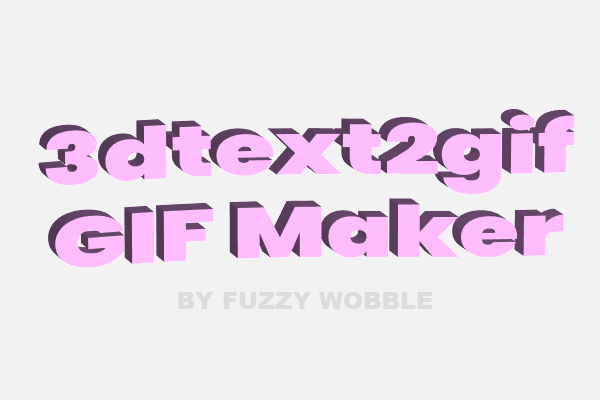

User reviews (0)