
 简体中文
简体中文 English
Website review
This review may include AI-generated content and is not individually verified. Domain, certificate and other facts come from the observed data on this page.
What is 1Piece?
1Piece is a multifunctional Mac utility that bundles several window- and cursor-management tools into one app. Rather than doing a single job, it collects small conveniences that speed up switching between windows, moving them around, and controlling the mouse and display corners.
What it covers
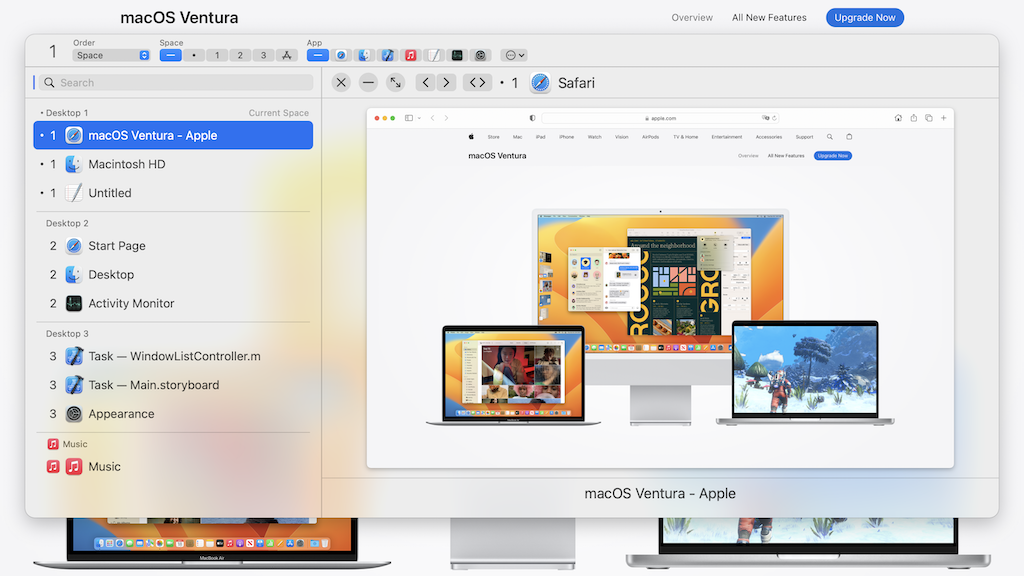
- Window List and Desktop Windows: show a list or thumbnail view of open windows so you can jump to one.
- Window Manager: resize and reposition windows with hot keys, menus, or snapping.
- Hot Corners and Mouse Trigger: run functions by moving the mouse to screen corners or to spots like a window's title bar or tab bar.
- Switching helpers: jump to the previous window, a saved Favorite Window, or a window to the left, right, top, bottom, or behind the active one.
- Window and app housekeeping: deminimize windows, send the active window backward, switch apps when the current app's windows are closed or minimized, and auto-toggle the Dock.
- Cursor controls: move the cursor to the center of the active window or another display, hide it, or warp it to set locations.
- App Menu Bar access: open an app's menu bar as a context menu via hot key, with favorites for running menu items, AppleScript scripts, or Automator workflows.
Who it suits
It is aimed at people who work with many open windows and want keyboard- and mouse-driven shortcuts instead of reaching for the Dock or Mission Control. If you mainly need one capability—say, window snapping—a focused tool may be simpler; 1Piece's value is having these features in one place, at the cost of learning more shortcuts and settings.
A practical next step: list the two or three window tasks you repeat most (switching, resizing, cursor movement) and check whether 1Piece's matching features replace what you currently do by hand before committing to it.
How can 1Piece help me manage and switch between many open windows on my Mac?
1Piece is designed to reduce the friction of a crowded desktop by giving you several faster ways to find, switch to and arrange open windows. From the page evidence, its core window-management features are:
- Window List: shows a list of open windows so you can jump directly to the one you want.
- Desktop Windows: presents a thumbnail list of windows on the desktop for visual switching.
- Window Manager: resizes and repositions windows using hot keys, menus or snapping.
- Previous Window and Favorite Window: jump back to the last active window or to a window you have marked as a favorite.
- Focus Window: switches to the window to the left, right, above, below or behind the active one, using hot keys.
- Deminimize Window: restores a minimized window with a hot key or menu.
- Hot Corners and Mouse Trigger: run actions by moving the mouse to screen corners or to specific spots such as a window's title bar or tab bar.
- Send Window Backward: pushes the active window back and cycles through windows on the desktop.
- Adjust Windows: automatically resizes or repositions an app's windows when the app is activated.
Who gets the most from it
This suits people who keep many windows from several apps open at once—writers researching across browser tabs and documents, developers moving between editor and terminal, or anyone who dislikes reaching for the Dock or Mission Control. The mix of a textual window list, thumbnails and directional focus means you can choose the switching style that fits the moment: search a list when you know the window, use thumbnails when you recognize it visually, or nudge focus sideways when windows are arranged in a grid.
The trade-off is that many of these tools depend on remembered hot keys and mouse gestures. If you only occasionally have a few windows open, macOS's built-in switching may be enough; if window clutter is a daily problem, the payoff comes from learning a handful of shortcuts rather than all of them.
A practical next step
Pick one recurring annoyance—say, losing a minimized document or hunting for a specific window—and assign a single hot key to the matching feature, such as Deminimize Window or Window List. Use it for a week before adding Hot Corners or Mouse Trigger, so each new gesture becomes habit. The download page at 1Piece is the place to check the current feature set and terms before relying on a particular shortcut.
Can 1Piece resize and reposition windows with keyboard shortcuts or snapping, and how does it work?
Yes. 1Piece's Window Manager is described on its page as resizing and repositioning windows through hot keys, menus, or snapping. Snapping and keyboard shortcuts are two routes to the same result, so you can drag a window to an edge or use a key combination depending on how you prefer to work.
How the pieces fit together
- Window Manager: the core tool for resizing and repositioning, with hot keys, menus and snapping listed as the ways in.
- Hot Corners: corners of the display can trigger functions via mouse actions, which can complement window placement.
- Mouse Trigger: actions on specific spots such as a window's title bar or tab bar can also perform functions.
- Focus Window and Previous Window: hot keys switch to a window left, right, top, bottom or behind the active one, or back to the last active window, which helps when arranging several windows.
- Adjust Windows: the page says app windows can be automatically adjusted in size and position when the app is activated, with large windows maximized or moved to stay within the display.
A practical example
Suppose you keep a browser and a notes app side by side. You could snap the browser to one half, use a hot key to focus the notes window, and snap it to the other half. If you later switch apps, the Adjust Windows behavior may reposition windows for you rather than leaving them half off-screen.
Choosing between shortcuts and snapping
Use hot keys when you want an exact, repeatable layout without reaching for the mouse. Use snapping when you are already dragging a window and want a quick placement. The page presents both as options within the same Window Manager, so the choice is about your workflow rather than separate features.
What can I do with Hot Corners and mouse triggers in 1Piece to speed up common Mac tasks?
Hot Corners in 1Piece turn the four display corners into mouse-activated shortcuts, and Mouse Triggers extend the same idea to specific interface locations such as a window's title bar or tab bar. Together they let you fire off window and app actions with a quick flick of the pointer instead of hunting through menus or reaching for the keyboard.
What the page says these features do
- Hot Corners: perform "various functions with mouse actions on the corners" of the display, including switching the active Space or the active window.
- Mouse Triggers: perform various functions through mouse actions on specific locations, such as the title bar and tab bar.
The page lists these as part of a broader set of window-management tools, so the practical value depends on which actions you assign to each corner or trigger.
Concrete ways to use them
- Switch Spaces from a corner: park the pointer in a corner to move between Spaces when you keep mail, a browser and a code editor on separate desktops.
- Jump to the previous window: combine a corner action with the app's Previous Window switching so you can bounce between two documents without Cmd-Tab cycling through every open app.
- Resize or reposition from the title bar: if you map a Mouse Trigger to the title bar, a quick gesture there can snap or move a window while your hands stay on the mouse.
- Reach the app menu bar: the page notes a hot key that opens the app menu bar as a context menu, with Favorites for running menu items, AppleScript scripts or Automator workflows—useful if you prefer pointer-driven access to commands.
Choosing between them
| Approach | Best for | Trade-off |
|---|---|---|
| Hot Corners | Space switching, showing a window list, quick global actions | Corner zones can fire accidentally when you move the pointer to a screen edge or menu |
| Mouse Triggers | Actions tied to a window's title bar or tab bar | Depends on hitting a small target; may conflict with drag or double-click habits |
A practical next step
Start with one corner and one trigger, not all of them. Assign a single frequent action—switching Spaces or recalling the previous window—and use it for a few days. If it fires unintentionally, move it to a less-traveled corner or drop it; if it saves repeated menu trips, add a second. Readers who want a broader window-switching toolkit can compare approaches at 1Piece.
Does 1Piece include features for moving the mouse cursor, hiding it, or warping it to specific locations?
Yes. 1Piece includes three separate cursor-related tools, and they target different problems rather than duplicating each other.
- Move Mouse Cursor: a hot key jumps the cursor to the center of the active window or to another display. This is mainly a reachability aid: on a large monitor or a multi-display setup, it saves the long hand movement back to the window you are working in.
- Hide Mouse Cursor: a hot key hides the pointer, and it reappears as soon as you move the mouse. This suits presenting, screen recording or reading, where a parked pointer distracts from the content.
- Warp Mouse Cursor: after pressing a hot key, you can send the cursor to specific locations using shortcut keys or a slight mouse movement. This is the most configurable of the three and works best when you repeatedly return to the same spots, such as a toolbar or a panel edge.
In practice, these combine well with the window tools on the same page. A keyboard-heavy user who resizes and repositions windows with hot keys can keep the cursor out of the way and bring it back only when needed, instead of reaching for the trackpad between steps. Someone who mainly works on one display and rarely uses hot keys will get less from the cursor features, though hiding the pointer during screen sharing is useful on its own.
To decide, note the cursor actions you perform most in a typical hour—chasing the pointer across displays, hunting for a menu, or clearing it from view—and check whether 1Piece's hot-key approach matches them. The page's screenshots for each feature show the available options before you commit.
How do 1Piece's window focus and cycling shortcuts compare with macOS's built-in window switching?
1Piece adds a layer of directional and history-based window switching on top of macOS's built-in app and window switching. The built-in system is app-centric (Command-Tab cycles applications, Command-` cycles windows within one app, and Mission Control or App Exposé show overviews). 1Piece, per its page, is window-centric: it offers Focus Window to jump to the window left, right, above, below, or behind the active one; Previous Window to return to the last active window; Favorite Window to jump to a window you've preset; and Send Window Backward to push the active window back and cycle through windows on the desktop.
Where the difference matters
| Need | macOS built-in | 1Piece (as described) |
|---|---|---|
| Switch between apps | Command-Tab | Not its focus; it has a separate "Switch Active App" behavior for when an app's windows are minimized or closed |
| Cycle windows in one app | Command-` | Window List and desktop thumbnail list for picking a window directly |
| Spatial movement between windows | Not built in | Focus Window (left/right/top/bottom/behind) |
| Return to last window | Limited | Previous Window hot key |
| Pinned/recurring target | Not built in | Favorite Window |
| Window layout | Manual or third-party | Window Manager: resize/reposition via hot keys, menus, or snapping |
A concrete scenario
You're editing a document with a reference PDF on the left, a browser on the right, and a chat window behind. With built-in switching you'd Command-Tab between apps and Command- within each. With 1Piece you could map a hot key to Focus Window left to reach the PDF, another to jump behind to the chat, and Previous Window to bounce back to the document. The trade-off is setup: these are custom hot keys you must learn and remember, whereas Command-Tab and Command- are universal across Macs.
Decision criterion
Choose 1Piece's shortcuts if your work is spatial and multi-window within apps and you want keyboard-driven precision without reaching for Mission Control. Stay with built-in switching if you move between Macs often, share machines, or prefer minimal configuration and predictable, system-wide shortcuts. If snapping and layout are the main draw, note that macOS's own window tiling has improved in recent versions, so compare that against 1Piece's Window Manager before adding a utility.
 Japan
Japan
User reviews (0)