
 简体中文
简体中文 English
Website review
This review may include AI-generated content and is not individually verified. Domain, certificate and other facts come from the observed data on this page.
What is Cursorful?
Cursorful is a browser-based screen recorder that automatically adds zooms and pans to your recordings. Its main hook is that the cursor drives the camera: when you click, the recording zooms in on that spot and pans smoothly between points of interest, so viewers' attention follows the action without you editing anything.
What it does
- Records your browser window on Chrome, Edge and Brave, across macOS, Windows and Linux.
- Applies follow-cursor zooms automatically, or lets you load an existing video into the editor and place zooms manually, adjusting position, depth and timing on a timeline.
- Offers preset or custom backgrounds, and a one-click option to hide browser toolbars, tabs, bookmarks and developer tools for a cleaner frame.
- Exports the same recording in multiple aspect ratios — vertical for short-form platforms, horizontal for everything else.
- Renders locally and offline, so footage stays on your machine unless you deliberately upload it.
Who it suits
It fits people who record browser walkthroughs and want them to look produced without learning a video editor: product demos, software tutorials, async team updates, bug reports, and short-form content clipped from a longer session. The free plan covers browser recording for non-commercial use with unlimited exports; a one-time Pro payment adds commercial use, microphone and camera support, 4K exports and desktop apps. Check the current pricing page rather than relying on any figure quoted elsewhere.
Trade-offs to weigh
The automatic zoom is the selling point and the main limitation: it works best when your clicks clearly mark where attention should go, and less well for slow scrolling, reading, or footage where the interesting part isn't under the cursor. Manual editing exists, but it's timeline-based zoom adjustment rather than full video editing — no cutting, transitions or audio mixing. Recording is also browser-scoped, so anything outside the browser window isn't captured.
Next step
If you're deciding, record a two-minute demo of a real task first — something with a handful of distinct clicks — and watch it back. If the automatic zooms land where you'd have placed them yourself, the tool is doing its job; if you spend the whole time wanting to fix framing, you're better served by a general-purpose editor.
How does Cursorful automatically add zooms and pans to my screen recordings?
Cursorful watches your clicks and cursor movement during a browser recording, then generates zooms and pans that follow that activity. The page describes "follow-cursor zooms" as the default behavior: when you click or move to a new area, the recording smoothly zooms in and pans to keep that spot centered, so the viewer's attention tracks what you are doing without you editing anything.
What is automatic vs. manual
- Automatic: follow-cursor zooms and pans are generated as you record, based on clicks.
- Manual: you can load a video into the editor and add zooms yourself, adjusting position, depth and timing on the timeline.
- Mixed: zooms can either follow the cursor or be fixed in place, so you are not locked into one style.
Why this matters in practice
If you record a software walkthrough, a tutorial or a product demo, the raw capture usually shows a full browser window where important buttons are tiny. Automatic zooms solve that by reframing around each interaction. A reader scenario: you record a five-minute onboarding flow, click through settings menus, and the export already reads like an edited demo rather than a flat screen capture.
The trade-off is control. Automatic zooms can feel busy if your cursor moves constantly, so plan to open the editor and thin out or retime zooms for calmer footage. The page also notes you can hide browser toolbars and tabs for a cleaner frame, and export the same video in multiple aspect ratios — vertical for short-form, horizontal elsewhere.
Next step: record a short two-minute task with follow-cursor zooms on, then open the editor and check whether each zoom lands on the click you care about. If it does not, switch those moments to fixed zooms and set depth and timing manually.
Cursorful runs as a browser extension on Chrome, Edge and Brave across macOS, Windows and Linux, with rendering done locally on your machine. The free plan covers non-commercial use with unlimited exports; the paid tier is aimed at commercial use and desktop features. See Cursorful for the current feature list.
Can I use Cursorful for commercial projects, or is it limited to non-commercial use?
Commercial use is not included in the free plan. According to the page evidence, Cursorful Free is explicitly listed as "non-commercial use," while the paid Cursorful Pro tier includes "Commercial use (1 user)" as a listed benefit.
What this means in practice:
- If you record browser sessions for a client, sell the footage, or use it in monetized content (ads, courses, sponsored videos), the free tier does not cover that.
- Commercial use on Pro is scoped to 1 user, so a team where several people record commercially would need to check how seats are handled before relying on a single purchase.
- The free tier's feature set (unlimited exports, automatic zoom and pan, multiple aspect ratios, local offline rendering) is otherwise broad, so the restriction is a licensing limit, not a technical one.
Decision criterion: Are you producing recordings that support a business, paid client work, or monetized content? If yes, budget for Pro as a one-time cost rather than treating the free plan as sufficient. If your recordings are personal, educational, or internal non-commercial use, the free plan's stated terms fit.
Next step: Confirm the current commercial-use wording and seat rules on the official site before purchasing, since licensing terms can change: Cursorful.
What is the difference between the free plan and Cursorful Pro?
The main difference is commercial use and recording scope, not the core zoom editing. On the Free plan you can record in the browser, get automatic zooms and pans based on clicks, edit zoom position, depth and timing, add preset or custom backgrounds, hide browser toolbars, export in multiple aspect ratios, and render locally offline. Pro costs a one-time payment (listed at $79 with an early-bird discount) and adds the rights and features you need for paid work.
Free vs Pro at a glance
| Cursorful Free | Cursorful Pro | |
|---|---|---|
| Recording scope | Browser only | Desktop app for macOS and Windows (2 devices) |
| Commercial use | Not permitted | Permitted for 1 user |
| Audio/video capture | Not listed | Microphone and camera support |
| Export resolution | Not specified as 4K | 4K exports |
| Future features | — | Lifetime access to future offline features; 1-year access to future cloud features |
| Activations | — | 3 browser profiles, 2 desktop activations |
| Cost | Free, no sign-up | One-time payment, listed as $79 (early bird, down from $119) |
The practical split: Free is for non-commercial browser recordings, while Pro is for paid work and for anything that needs desktop capture, a microphone or camera, or 4K output. Pro is a one-time purchase rather than a subscription, which matters if you record occasionally and dislike recurring fees.
Which one fits you
- Choose Free if you're making tutorials, demos or internal clips inside a browser tab and aren't selling the result. The automatic follow-cursor zooms and offline rendering carry over.
- Choose Pro if you record client work, courses, product marketing or anything monetised, or if you need your face or voice on screen. Desktop capture also helps when the content isn't confined to a browser.
A useful next step is to test the Free plan on a real recording first: install the extension, record a short click-heavy flow, and check whether the automatic zooms land where you'd want them. If the zoom quality is good enough, the upgrade decision comes down to commercial use, desktop recording and 4K output rather than editing capability.
How do I export my recordings in different aspect ratios for platforms like YouTube Shorts or TikTok?
Open the editor after recording, choose the aspect ratio preset for your target platform, and export. Cursorful's editor is where ratio changes happen — the page lists "Export in multiple aspect ratios" as a feature, with the stated intent of going vertical for short-form and horizontal for everywhere else. It also lists local offline rendering, so the export is processed on your machine rather than uploaded.
Practical steps
- Record in the browser with Cursorful, or load an existing video into the editor.
- Open the editor timeline and set your zooms first — either follow-cursor zooms from the recording or manually added fixed zooms.
- Pick the export aspect ratio: vertical for TikTok, YouTube Shorts or Reels; horizontal for standard YouTube and most web embeds.
- Export. Your zooms are baked in at the ratio you chose, so if you want both a horizontal and a vertical cut, treat them as separate exports rather than one file you crop later.
Why the order matters
Zoom framing is the part that breaks when you change ratio. A zoom that reads well in 16:9 can cut off the cursor action or the UI element you were pointing at once the frame narrows to 9:16. Setting zooms while viewing the vertical frame — or re-checking them after switching — avoids a re-export.
Choosing between ratios
| Target | Ratio | What to watch |
|---|---|---|
| YouTube Shorts, TikTok, Reels | Vertical | Cursor movement near the frame edges; keep zooms tighter |
| YouTube, websites, docs | Horizontal | Wider pans are fine; text stays legible |
| Multi-platform | Export twice | Re-check zoom timing in each frame |
Free vs paid note
The page states the free plan covers recording the browser for non-commercial use with unlimited exports, automatic zoom and pan, and multiple aspect ratio export. Commercial use, microphone and camera support, and 4K exports are listed under Pro. If you're making client or monetized content, that distinction is the one to check before you build a workflow around it.
Next step
Record a short 30-second clip, export it once vertically and once horizontally, and compare the zoom framing side by side. That single test tells you how much manual zoom adjustment your usual content needs. If you want a second opinion on short-form editing habits generally, OBS Project covers recording setups, though its focus is capture rather than automatic zoom.
Is Cursorful available on my operating system and browser?
Cursorful runs as a browser extension, so your browser matters more than your operating system. According to the site, it works on Chrome, Edge and Brave, and those browsers are available on Windows, macOS and Linux. So if you're on one of those three browsers on a desktop or laptop, you're covered.
There's also a separate desktop tier mentioned in the Pro plan, listed for macOS and Windows only. That suggests Linux users may be limited to the browser version. The site's pricing section lists Pro Desktop as covering 2 devices with 3 browser profile activations and 2 desktop activations.
If you want to check before installing, open your browser's extension store and search for Cursorful, or visit Cursorful directly. If you're on Linux and need the desktop app features, confirm availability with the team first, since the site only names macOS and Windows for desktop.
 Cloudflare
 Fastmail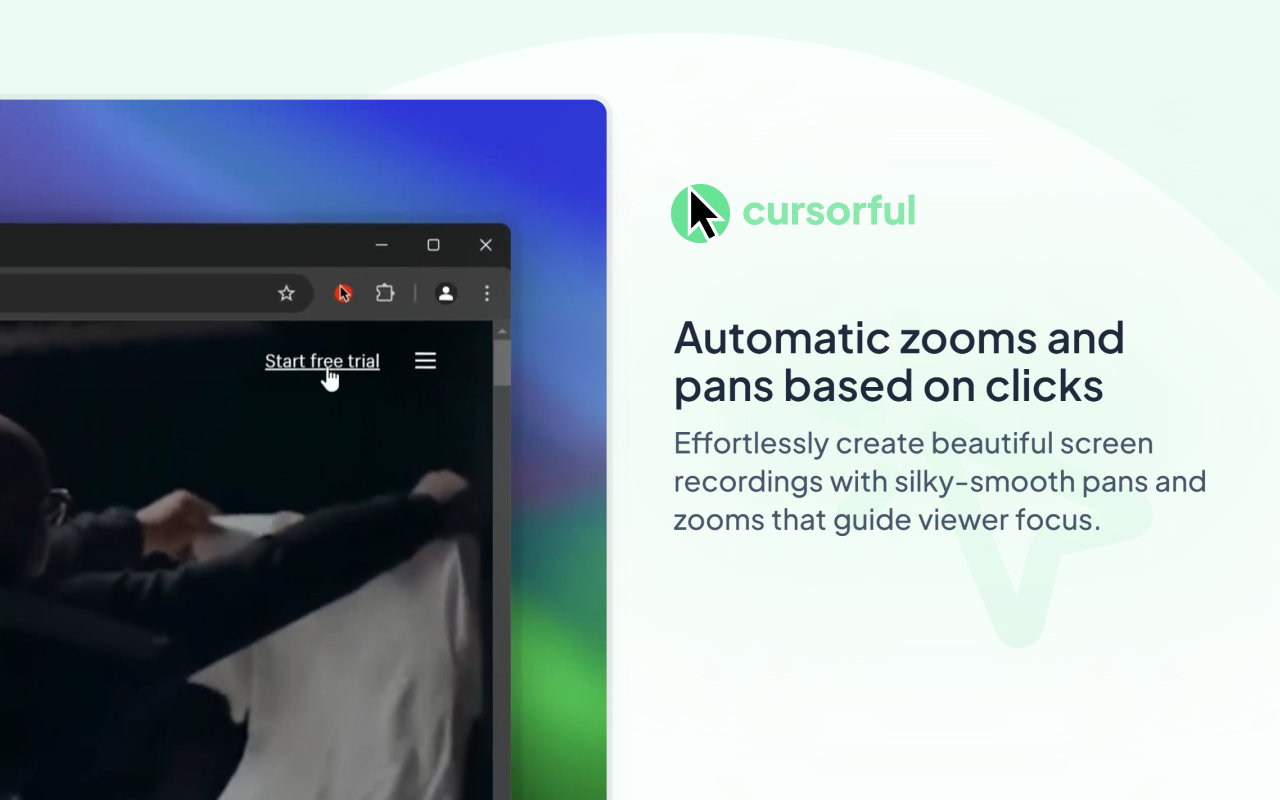

User reviews (0)