
 简体中文
简体中文 English
destinyitemmanager.com
Swap items, check stats, and build the loadout to Become Legend with Destiny Item Manager.
At a glance
- Category
- Other
- Language
- English
- Paid-content signal
- No paid content foundObserved
- Registered
- 2015
- Hosting
- CloudflareInferred
- HTTPS certificate trusted
- PassedObserved
- Last updated
Related questions
More questions →How to Search for Specific Items and Armor Rolls in Destiny Item Manager
Type what you're looking for into DIM's search bar and let autocomplete finish the query — DIM's search system is built to find any item quickly, and it supports complex queries for pinpointing specific armor rolls, which you can save and reuse. Recommended rolls from community wishlists are marked with a thumbs-up on the item itself, so you can also browse rather than query. This works on any device with a supported browser, since DIM is a progressive web app.
Start with type-ahead search
The fastest path is the search bar itself. According to DIM's own description, you "just start typing what you want and let the autocomplete do the rest." In practice that means:
- Open DIM in your browser (or the installed PWA) and make sure your Destiny account is loaded.
- Click into the search field and begin typing an item name, type, or perk.
- Watch the autocomplete suggestions and pick the one that matches your intent.
- Confirm the results list narrows to matching items across your characters and vault.
The expected result is a filtered view of your inventory, not a separate results page — you're narrowing what DIM displays. If nothing narrows, your query likely doesn't match any owned item; clear the field and try a broader term.
Build complex queries for armor rolls
Simple name searches won't isolate a specific roll. For that, DIM supports complex search queries aimed at identifying specific armor rolls. The site doesn't publish the full query syntax on its landing page, so the reliable starting point is the in-app search documentation and the search video DIM links to. A workable approach:
- Identify the attributes that define the roll you want — the stat thresholds or perk combinations that make the piece worth keeping.
- Compose a query combining those conditions rather than searching by name.
- Test and refine: run the query, check whether the results actually match your criteria, and adjust terms until the list is precise.
- Save the query once it works, so you don't rebuild it each session.
DIM explicitly supports saving queries for repeated use, which is the main efficiency gain here: a saved armor-roll query becomes a one-click filter you can rerun whenever new drops arrive.
Why saving matters
Armor rolls are evaluated repeatedly — every time you get a new drop, you want to know whether it beats what you have. Rebuilding a multi-condition query each time is the slow path; a saved query turns it into a standing filter. Treat your saved queries as a personal checklist of "rolls I care about."
Use wishlists to spot recommended rolls without searching
If you'd rather have good rolls surface automatically, DIM's built-in recommendations do that work. DIM partners with community experts to curate a wishlist of item rolls, and items matching those rolls are marked with a thumbs-up in your inventory. Clicking any item's name shows a listing of all its recommended rolls.
You can also create your own wishlist with your favorite item rolls and use it in DIM. That's useful when the community list doesn't cover the niche roll you're chasing — your custom wishlist flags it the same way.
Choosing between the two approaches
| Approach | Best for | What you do | What you get |
|---|---|---|---|
| Search queries (including saved ones) | Hunting a specific roll or a known item | Type a query, refine it, save it | A filtered list matching your exact criteria |
| Wishlists (community or custom) | Passive monitoring of new drops | Rely on curated or self-made roll lists | Thumbs-up markers on qualifying items |
Use saved queries when you know exactly what you want and need to check against it repeatedly. Use wishlists when you want DIM to flag good rolls as they arrive without you running a search each time. The two combine well: a saved query for your top priority, wishlists for everything else.
Common snags
- Autocomplete suggests something unexpected — keep typing until the suggestion matches; the autocomplete is doing the parsing for you.
- A complex query returns nothing — your conditions are probably too strict or use a term DIM doesn't recognize. Loosen one condition at a time to find the culprit.
- No thumbs-up appears on an item you expected — the item's roll isn't in the active wishlist. Check which wishlist is enabled, or add the roll to your own.
- Search behaves differently on mobile — DIM runs in mobile browsers as a PWA; the search function is the same, but screen space makes long queries harder to review, so saved queries are more valuable there.
For the authoritative query syntax and any updates, use the User Guide linked from DIM's site and the search video DIM references.
What Is Destiny Item Manager (DIM)?
Destiny Item Manager (DIM) is a free, browser-based item management tool for Destiny players, accessible at destinyitemmanager.com. It lets you move weapons and armor between your vault and characters, inspect stats, and build complete loadouts from one screen. It is a third-party community tool, not an official Bungie product — the site itself notes that Destiny is a Bungie trademark and that some content and images belong to Bungie. You can use it on PC, tablet, or phone through any supported browser, and install it for an app-like experience on Windows, Android, and iOS.
What DIM actually does
The site describes five core capabilities:
- Item transfer: Click and drag an item from your vault to an active character while you're flying into an activity. If you're in the Tower or in orbit, you can equip it directly.
- Loadout building: The loadout optimizer lets you pick the stats and mods you want, and DIM finds a set of items that meets them. If your loadout specifies mods, DIM can equip those for you.
- Search: A query system with autocomplete finds items fast. You can write complex queries to identify specific armor rolls and save them for reuse.
- Recommendations: DIM partners with community experts to curate wishlists of desirable item rolls; items matching a wishlist get a thumbs-up marker. Clicking an item's name shows its recommended rolls, and you can build your own wishlist.
- Progress and bounties: A progress page and bounty guide help you track where to go next and which items to bring to complete the most bounties in one trip.
Who it's for and when to use it
DIM is useful if you play Destiny across multiple characters and a full vault, and you're tired of loading into the Tower just to swap gear. The clearest use case from the site: you forgot your favorite hand cannon in the vault while loading into an activity — drag it to your character mid-flight, or equip it once you're in orbit or the Tower.
It's less necessary if you only play one character with a small inventory, since the in-game menus may be enough.
How to get started
- Go to destinyitemmanager.com and select Launch DIM (there's also a beta option).
- Sign in with your Bungie account when prompted — DIM needs account access to read your inventory and move items.
- Use the search bar to find an item, then drag it to a character or the vault. Expect the item to move in-game shortly after.
- To build a loadout, open the loadout optimizer, set your desired stats and mods, and let DIM assemble the set.
- Optionally install DIM as an app: the site offers install links for Windows, Android, and iOS, or you can install it from a PWA-capable browser like Chrome, Edge, or Safari.
Verification: after a transfer, check the item's location in DIM's character and vault views, or confirm in-game.
Common sticking points
- It's not official. Support comes from the DIM community, not Bungie. The site links to a Support page and a User Guide for help.
- Browser dependency. DIM is a progressive web app, so it needs a supported browser; the installable app experience depends on PWA support in that browser.
- Equipping vs. moving. Equipping only works in certain contexts (Tower, orbit); otherwise you're moving items, not equipping them.
The site doesn't publish pricing details, so treat any cost questions as unconfirmed rather than assuming free access beyond what's stated.
How Destiny Item Manager Lets You Move and Equip Items
Destiny Item Manager (DIM) is a web app that connects to your Destiny account so you can move and equip gear without opening the game's inventory screens. You drag an item from your vault to an active character while flying into an activity, or equip it directly when you're in the Tower or orbit. It runs in any supported browser on PC, tablet, or phone, and can be installed as an app-like progressive web app (PWA) from browsers such as Chrome, Edge, and Safari.
Moving items: drag and drop from anywhere
DIM's core promise is "your items anywhere, anytime." The site's own example: you forgot to grab your favorite hand cannon from the vault, so you click and drag it onto your active character while flying into an activity.
The mechanics to understand:
- Vault to character transfers work through drag and drop in the DIM interface, not by navigating the game's menus.
- Transfers during transit are supported, which matters because the game's own inventory is limited while you're loading into an activity.
- Equipping is a separate action from moving. DIM can equip items directly only when your character is in a valid state for it — the site names the Tower and orbit as examples.
When direct equipping works
| Your situation | What DIM can do |
|---|---|
| In the Tower or orbit | Move items and equip them directly |
| Flying into an activity | Move items to your active character |
| On another device | Access the same item controls through the browser-based PWA |
The practical takeaway: plan around equipping before you launch, and use DIM's transfers to fix loadout mistakes mid-flight.
Building and equipping a full loadout
DIM's loadout optimizer goes beyond single items. You choose the stats and mods you want, and DIM searches your inventory for the set of items that gets you there. When a loadout specifies mods, DIM can equip those mods for you.
This is the feature that turns DIM from a transfer tool into a build tool. Instead of manually comparing armor pieces for stat tiers, you state the target and let the optimizer assemble the set.
Finding the right item fast
DIM includes a search query system with autocomplete: start typing what you want and the suggestions complete it. You can also write complex queries to isolate specific armor rolls and save those queries for repeated use. The site points to a video on search for learning the syntax.
For repeated farming sessions, saved queries are the time-saver — build the filter once, reuse it every time you check new drops.
Recommendations and progress tracking
- Community wishlists: DIM partners with community experts to curate item rolls, and items matching a recommended roll get a thumbs-up marker in your inventory. Clicking an item's name shows all its recommended rolls. You can also create your own wishlist.
- Progress page and bounty guide: these help you track where to go next and which items to bring so you complete the most bounties in one trip.
Getting started
- Open destinyitemmanager.com and launch DIM (a beta version is also offered).
- Connect your Destiny account through the app's sign-in flow.
- Try a drag-and-drop transfer from your vault to your active character.
- Open the loadout optimizer, set your desired stats and mods, and let DIM build the set.
- Optionally install DIM as a PWA for an app-like experience — the site provides install links for Windows, Android, and iOS.
A common snag to expect: direct equipping depends on where your character is, so if an equip action isn't available, move the item first and equip once you're in the Tower or orbit.
How DIM's Progress Page and Bounty Guide Improve Efficiency
DIM's progress page and bounty guide help you plan a play session before you load into it: the progress page shows where to go next, and the bounty guide tells you which items to bring so you can complete the most bounties at that destination. The payoff is fewer trips back to the vault and fewer bounties left unfinished because you brought the wrong gear. This applies to any player running bounties across destinations, and it works alongside DIM's item moving and loadout tools rather than replacing them.
What each tool does
Progress page
The progress page is DIM's tracking view for "where to go next." It gives you a forward-looking picture of your outstanding objectives so you can decide which destination or activity to tackle instead of guessing.
Bounty guide
The bounty guide works from the other direction: once you've picked a destination, it indicates which items to bring so you can get the most bounties done while you're there. That means matching your loadout to the bounties you're carrying before you leave orbit, not after you've already landed.
How they combine into an efficient session
The two tools form a simple loop:
- Check the progress page to see where you should go next.
- Open the bounty guide for that destination to see what to bring.
- Build or adjust your loadout so the required weapons and gear are on your active character.
- Move anything missing from the vault using DIM's drag-and-drop or direct equip, which works while you're flying into an activity or in the Tower/orbit.
- Play the destination once with everything you need, completing the most bounties in a single visit.
The efficiency comes from doing steps 1–4 before you commit to a destination. Each return trip to the vault or a second visit to the same location is time you don't get back.
A concrete example
Suppose you're deciding what to do tonight. You open the progress page and see several unfinished objectives pointing to one destination. You open the bounty guide for that destination and it tells you which items to bring. You notice one required weapon is sitting in your vault, so you drag it onto your active character while still in orbit, then equip it. You fly in once and clear the bounties in a single run instead of discovering mid-activity that the weapon is missing and having to re-run the destination later.
Where this fits with the rest of DIM
These tools are part of the same workflow as DIM's other features, so you don't need separate apps:
| Need | DIM feature |
|---|---|
| Decide where to go next | Progress page |
| Know what to bring to a destination | Bounty guide |
| Get the right gear onto your character | Drag-and-drop or direct equip (works in orbit/Tower and while flying in) |
| Match stats and mods for the run | Loadout optimizer |
| Find a specific item or armor roll fast | Search with autocomplete and saved queries |
Because DIM is a progressive web app, you can check the progress page and bounty guide on your PC, tablet, or phone, and install it from browsers that support PWAs such as Chrome, Edge, and Safari. That makes it practical to plan a session before you sit down at your main screen.
Practical tips
- Plan before you launch. Use the progress page and bounty guide while still in orbit or before starting the game, so your loadout is ready the moment you land.
- Save repeated searches. If you routinely hunt for the same armor rolls, save the query so setup for a bounty run takes seconds.
- Pair with the loadout optimizer. When the bounty guide tells you what to bring, the optimizer can assemble a set that meets your stat and mod targets at the same time.
- Use recommendations as a shortcut. Items flagged with a thumbs-up from community wishlists help you spot good rolls quickly while you're assembling a run.
How Does DIM's Loadout Optimizer Work?
DIM's loadout optimizer works by taking the stat and mod targets you choose and searching your available gear for a set of items that meets them, then letting you save that set as a loadout that DIM can equip, including the mods you specified. It is built for players who know which stats they want on a build but don't want to compare armor pieces by hand. You need your Destiny inventory visible to DIM (the site is a companion app that reads your items) and a set of target stats and mods in mind.
The basic mechanism
The optimizer is a constraint solver pointed at your own inventory. You define the outcome — for example, a minimum tier in certain stats plus specific armor mods — and DIM evaluates combinations of your weapons and armor to find a set that satisfies those constraints.
The official description frames it as: "Use DIM's powerful loadout optimizer to choose the stats and mods that you want and let DIM find the perfect set of items to get you there."
Two things follow from that:
- The result is limited to what you own. The optimizer selects from your items, not from all possible gear in the game. If no combination of your armor reaches your targets, no loadout can be produced.
- You set the goal, DIM does the matching. The quality of the output depends on how specific and realistic your targets are.
Mods are part of the search, not an afterthought
DIM states that it "can even equip your mods for you when you create a loadout that specifies them." So mods are not just a note attached to a saved set — when a loadout includes specified mods, DIM can apply them during equipping. This matters because mods affect stat totals, so treating them as part of the target rather than a separate step is what makes the "perfect set" claim meaningful.
What you actually do, step by step
- Open DIM in a supported browser (it is a progressive web app, so it runs on PC, tablet, or phone, and can be installed from Chrome, Edge, or Safari for an app-like experience).
- Set your targets in the loadout optimizer: the stats you want to hit and the mods you want included.
- Let DIM search your inventory for a combination of items that meets those targets.
- Review the proposed set and save it as a loadout.
- Equip the loadout — DIM can equip the items and the specified mods for you.
Expected result: a saved loadout whose gear and mods are chosen to hit your stated stat and mod goals, equippable in one action.
Where the optimizer fits in DIM's toolkit
The optimizer is one of several features that share the same inventory data. Knowing the neighbors helps you decide when to use which:
| Need | DIM feature | What it does |
|---|---|---|
| Hit specific stat/mod targets | Loadout optimizer | Finds a set of your items meeting your chosen stats and mods; can equip mods |
| Move one item quickly | Click-and-drag / direct equip | Drag an item to a character while flying into an activity, or equip directly in the Tower or orbit |
| Find a specific item or roll | Search query system | Autocomplete search, including complex saved queries for specific armor rolls |
| Judge whether a roll is good | Built-in recommendations | Community-expert wishlists mark recommended rolls with a thumbs up; click an item's name to see its recommended rolls |
| Plan a session | Progress page and bounty guide | Tracks what to do next and which items to bring for bounties |
The optimizer is the right tool when the question is "which combination of my gear gets me to these stats?" For "where is my favorite hand cannon?" the drag-and-equip flow is faster.
Practical points that affect results
- Start from your real inventory. Because the search runs over owned items, vault and character gear both count toward what's possible. The more armor you keep, the more combinations exist.
- Set targets you can actually reach. If the optimizer can't satisfy your constraints, loosen a stat tier or a mod requirement rather than assuming the tool failed.
- Use saved searches alongside it. DIM's search supports complex queries for specific armor rolls that you can save and reuse; identifying which pieces are worth keeping makes the optimizer's job easier.
- Check recommendations before you commit. The wishlist thumbs-up markers and per-item recommended rolls help you decide whether a piece the optimizer picked is also a roll the community values.
- Equip mods through the loadout. Since DIM can equip mods specified in a loadout, put your mod choices into the loadout definition rather than applying them manually afterward.
Common sticking points
- Expecting gear you don't own. The optimizer cannot suggest items outside your inventory.
- Forgetting mods change stats. A target that ignores mods may produce a set that only works once the mods are applied — which is why specifying them in the loadout matters.
- Treating the output as final. The optimizer finds a set that meets your constraints; whether those constraints match how you actually play is your call.
DIM is free to launch from its site, and a beta version is also offered alongside the main launch. Destiny is a registered trademark of Bungie, and some content and images on the site belong to Bungie.
Website Overview
An established domain and managed infrastructure suggest continuity of operations and may support dependable delivery, although neither guarantees service quality. Several search or sharing settings need attention. Together they may make snippets, preview images or preferred URLs less consistent across platforms.
Domain and Registration
Registered in 2015, this domain has about 11 years of history. That suggests continuity, although ownership and purpose may have changed. Transfer-protection status is present, helping reduce the risk of unauthorized domain transfers. The registrar is Squarespace Domains II LLC, a widely used domain service provider. The domain uses the common .com extension, which is not an independent safety signal.
DNS and Email
Nameservers are provided by Cloudflare, indicating managed DNS hosting. MX records point to the mailchannels.net email service. No CNAME was found; the observed records resolve directly to addresses. SPF and DMARC are configured. DKIM status is unknown. DNSSEC signatures were not detected, so this additional DNS authenticity protection is not confirmed.
TLS and Certificates
The public key uses EC with 256 bits. The server supplied a complete certificate chain. No organization name is present in the certificate; the available fields are consistent with domain validation. The certificate was issued within the Google Trust Services cloud or CDN ecosystem. The certificate's total validity is about 90 days, consistent with a short renewal cycle.
HTTP and Browser Security
The checked browser-security headers were not detected, leaving fewer explicit browser-side safeguards. No X-Powered-By header was found, reducing one common source of backend fingerprinting information. The cf-ray response header indicates a CDN or caching proxy in the delivery path. No obvious internal addresses or debug information were found in the headers. The Server header identifies cloudflare without an exact version.
Technology Stack Analysis
The public page identifies Google Analytics, Cloudflare without precise versions, leaving fewer clues for version-specific scanning.
Search and Social Sharing
No homepage canonical URL was detected. If duplicate URLs exist, consolidation may be less explicit. Open Graph is partially configured; og:description is missing. Twitter Card metadata is configured. The page declares 14 language or regional alternatives using hreflang. The title has 20 characters, within a common display range.
Hosting and Email
 Cloudflare
Registration details
| Registrar | Squarespace Domains II LLC |
|---|---|
| Registered | 2015-04-02 |
| Expires | 2027-04-02 |
| Domain status | client delete prohibited、client transfer prohibited |
| Nameservers | brett.ns.cloudflare.com、yolanda.ns.cloudflare.com |
| DNSSEC | unsigned |
DNS records
| Type | Name | Value | TTL | Priority |
|---|---|---|---|---|
| A | destinyitemmanager.com | 104.21.18.2 | 300 | — |
| A | destinyitemmanager.com | 172.67.178.247 | 300 | — |
| AAAA | destinyitemmanager.com | 2606:4700:3031::ac43:b2f7 | 300 | — |
| AAAA | destinyitemmanager.com | 2606:4700:3034::6815:1202 | 300 | — |
| MX | destinyitemmanager.com | mx1.mailchannels.net | 300 | 0 |
| MX | destinyitemmanager.com | mx2.mailchannels.net | 300 | 0 |
| NS | destinyitemmanager.com | brett.ns.cloudflare.com | 86400 | — |
| NS | destinyitemmanager.com | yolanda.ns.cloudflare.com | 86400 | — |
| TXT | destinyitemmanager.com | v=spf1 mx include:netblocks.dreamhost.com include:relay.mailchannels.net -all | 300 | — |
| DMARC | _dmarc.destinyitemmanager.com | v=DMARC1; p=none; rua=mailto:[email protected] | 300 | — |
TLS and certificates
| Assessment | Normal configuration |
|---|---|
| Supported protocols | TLSv1.2、TLSv1.3 |
| Negotiated protocol | TLSv1.3 |
| Certificate subject | destinyitemmanager.com |
| Issuer | Google Trust Services |
| Valid until | 2027-01-07T04:00 · Remaining when checked: 75 days |
| Verification details | Certificate trust: Passed · Hostname match: Passed |
HTTP response headers
| Header | Value |
|---|---|
| content-type | text/html |
| cache-control | max-age=600 |
| server | cloudflare |
Identified technologies
Pages, Search and Sharing
| Meta description | Swap items, check stats, and build the loadout to Become Legend with Destiny Item Manager. |
|---|---|
| Canonical URL | Not detected |
| Language | English (default) · Multilingual |
| Twitter Card | summary_large_image |
Social Sharing Preview
4 fields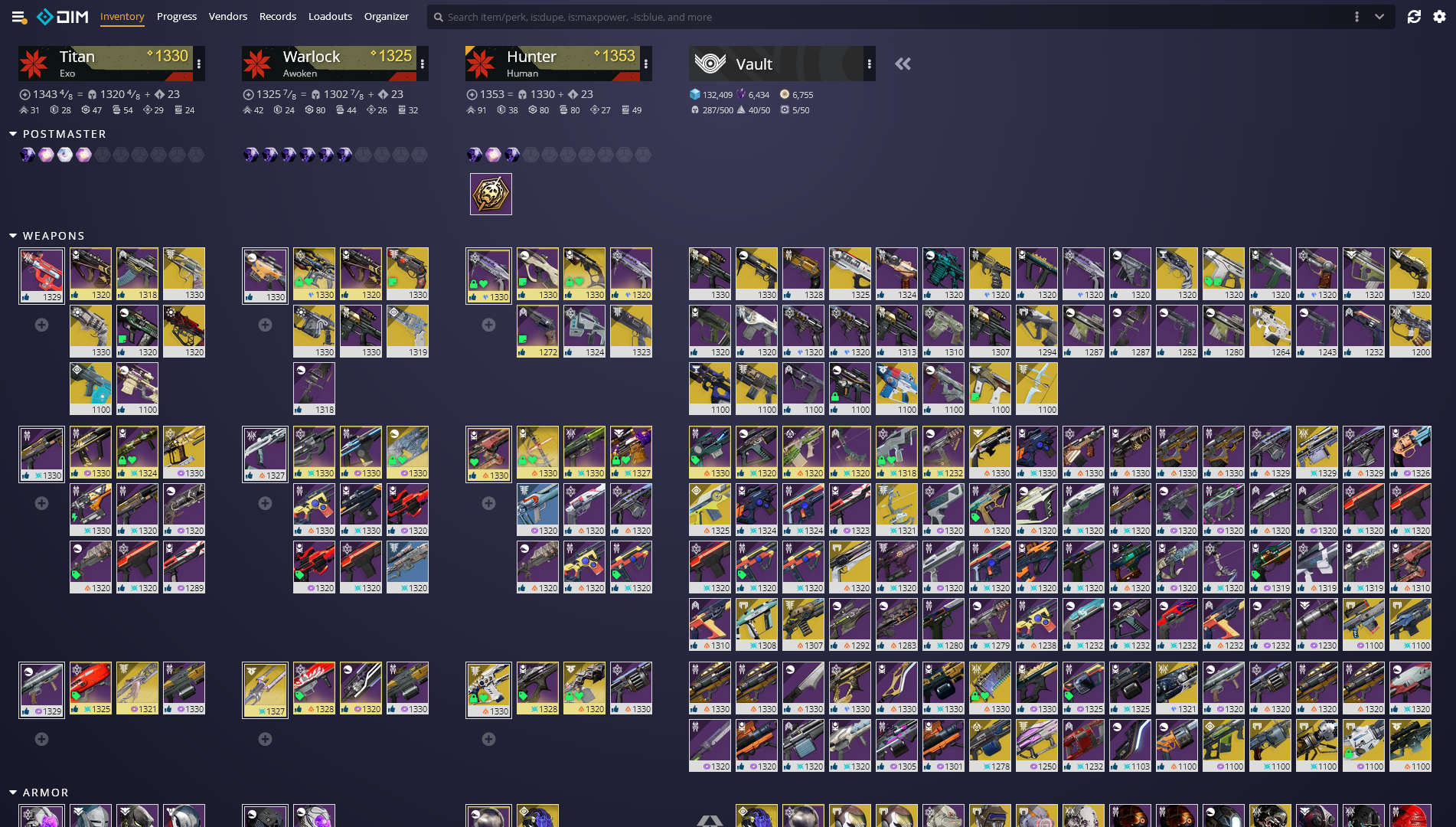
robots.txt (opens in a new tab)
0 rulesNo rules found
No matching rules.
Sitemaps
0No sitemaps found
Recent Updates
- Website images
- Screenshots
- Network details
- Website Technologies
- Pages and Search Information
- TLS and certificates
- DNS Information
- HTTP Response Information
- Domain Registration
- Website profile
- Website Description
- Website Name
- Website profile
- Website Description
- Website Name
User reviews (0)