
 简体中文
简体中文 English
Website review
This review may include AI-generated content and is not individually verified. Domain, certificate and other facts come from the observed data on this page.
What is DiffFind?
DiffFind is a comparison tool for finding what changed between two versions of a document or dataset. You provide a "before" and an "after" — by pasting text, uploading a file, or loading content from a URL or cURL command — and it highlights the differences precisely, with optional AI analysis that explains what those differences mean.
Its core strength is breadth of formats. Rather than handling only plain text, it works across text, JSON, YAML, XML, CSV, PDF, and Excel (XLS/XLSX). For structured formats it compares the underlying structure, not just lines of text; for PDFs it highlights changes on the page; for spreadsheets it can compare every sheet at once. You can control the comparison granularity — character, word, sentence, line, or paragraph — and it tracks additions, removals, and moved text.
DiffFind targets three broad audiences:
- Business users comparing contracts, invoices, budgets, or policy documents to see which terms or figures changed before signing off.
- Everyday users checking what changed between drafts of a résumé, email, or article without manual redlining.
- Developers and power users who want fine-grained comparison options or full automation via cURL, a REST API, and agent-ready functions.
The optional AI layer is positioned as evidence-based: it explains the meaning behind a change, and cited facts are checked against your source documents with verification status shown. That matters if you need to justify a change to someone else rather than just see it.
A practical next step: if you're evaluating it, start with the free text compare on the homepage using a real pair of documents you already have — for example, two versions of a contract or a config file. That tells you quickly whether the granularity and output format fit your workflow before you consider the file, PDF, or API routes.
How do I compare two PDF files with DiffFind?
Use DiffFind's PDF comparison mode: open the PDF Comparison tool, load your two versions (the page mentions loading local PDFs), and DiffFind shows the changes highlighted on the page rather than dumping both documents as raw text. That on-page highlighting is the main reason to pick it over a plain text diff — you keep the layout, tables and figure positions, so you can see where a clause or figure moved, not just that the words differ.
Before you start, decide what counts as a change:
- Text-only edits (wording, numbers, dates): on-page highlighting is usually enough.
- Layout or reflow (a paragraph pushed to a new page): expect noise, since the same content in a new position may read as changed. Skim for structural shifts first, then read the wording.
- Scanned PDFs: if there's no text layer, a diff engine has nothing to align. Check before uploading — if you can't select text in your reader, treat the file as an image and look for an OCR step first.
A practical workflow
- Load the older file as "before" and the newer as "after".
- Run the comparison and scan the highlighted pages for anything you didn't expect.
- For contracts or invoices, cross-check every changed figure or defined term against the surrounding sentence — a moved decimal or a swapped "shall/may" matters more than a reworded heading.
- If you need to explain why a change matters, DiffFind offers optional AI analysis with cited facts checked against your source documents and a verification status shown. Treat the citations as the part to read, not the summary.
DiffFind also handles Excel workbooks sheet by sheet and structured formats like JSON, YAML, XML and CSV, so a PDF plus its source spreadsheet can both be checked in one session.
Next step: run one real pair — last quarter's contract versus this quarter's — and time how long the review takes. If most of your time goes into confirming unchanged sections, the on-page view is doing its job; if it goes into reading AI summaries you don't trust, turn that option off and work from the highlights alone.
Can DiffFind explain what a change means, not just highlight it?
Yes. DiffFind pairs its diff engine with optional AI analysis that is meant to explain the meaning behind a change, not just mark it red or green. The page describes "insight with evidence": cited facts are checked against your source documents and a verification status is shown, so an explanation comes with something you can trace back rather than a bare assertion.
That distinction matters in practice. A conventional diff tells you a clause, figure or line disappeared; an explanation tells you what the edit likely does — for example, whether a reworded contract term shifts an obligation, or whether a budget number moved in a direction that changes the total. The verification step is the useful part for anyone acting on the result: you can check the claim against the source before relying on it.
Where this fits
- Business users reviewing contracts, invoices, budgets or policy documents get a plain-language read on which terms or figures changed before signing off.
- Everyday users comparing two drafts of a resume, email or article can see what a revision actually does to the message.
- Developers and power users can hand-tune comparison options or automate runs via cURL, a REST API and agent-ready functions, and treat the AI layer as an optional add-on.
H3: What it is not The AI analysis is described as optional, so it is a layer on top of the comparison, not a replacement for it. The core is still a precise diff — comparing by character, word, sentence, line or paragraph, and tracking additions, removals and moved text. Treat the explanation as a first pass to orient you, and the diff plus source evidence as the thing you verify against. If a change is small and mechanical, the plain diff will usually be faster; the explanation earns its place on longer documents where the consequence of an edit is not obvious from the markup alone.
A practical next step: run one document you already understand well through both modes and compare the AI explanation against your own reading. That tells you quickly how much weight to give it in your own workflow.
How do I compare Excel spreadsheets or JSON files with DiffFind?
For Excel, DiffFind compares XLS/XLSX workbooks sheet by sheet, so you can see what changed across the whole file rather than one tab at a time. For JSON, it compares structure as well as values, which surfaces added, removed, or moved keys rather than just showing a wall of red and green. Both are file-format comparisons within the same tool, so the workflow is identical: bring the before and after, pick the format, then review differences.
Step by step
- Bring your before and after. Paste text, choose a local file, or load content from a URL or cURL command.
- Choose the format and options. Select the Excel or JSON comparison mode, then set how granular the diff should be (for text, DiffFind supports comparison by character, word, sentence, line, or paragraph).
- Review the differences. Additions, removals, and moved content are tracked without losing context.
- Optionally add AI analysis. The optional AI layer explains what a change means, with cited facts checked against your source documents and verification status shown.
Which mode fits your task
| Situation | Better fit | Why |
|---|---|---|
| Two versions of a budget, invoice, or multi-tab workbook | Excel comparison | Compares every sheet at once, so changes on a tab you forgot about still show up |
| Two API responses, config files, or data exports | JSON comparison | Compares structure, so a moved or renamed key is visible as a structural change, not just a text edit |
| Contract or policy wording | Text comparison | Word- or sentence-level diff keeps changes readable for non-technical reviewers |
A practical example: a business user reviewing an updated budget can load both XLSX files and scan each sheet for changed figures before sign-off, while a developer diffing two JSON payloads can spot a renamed field that would otherwise break a downstream integration.
If you only need a quick check, start with the text compare box on the DiffFind site to confirm the tool behaves as you expect, then move to the file-based Excel or JSON comparison for the real documents. For a broader look at comparable tools, see Diffchecker and JSON Diff.
Is DiffFind suitable for non-technical users comparing contracts or invoices?
Yes. DiffFind is explicitly aimed at business users who need to compare contracts, invoices, budgets and policy documents without technical training, and its core workflow is paste-and-compare rather than configuration-heavy. The page names that audience directly, alongside everyday users checking drafts and developers who want fine-grained control.
Why it works for contracts and invoices
- You supply a before and after version — paste text, upload a file, or load from a URL — then review the differences.
- Comparison granularity is adjustable (character, word, sentence, line or paragraph), so you can view a clause-level change without drowning in noise.
- Additions, removals and moved text are tracked, which matters when a term has been relocated rather than rewritten.
- For spreadsheets, XLS/XLSX comparison covers every sheet at once — relevant for budgets and invoice line items.
- PDF comparison highlights changes on the page itself, so a signed contract can be reviewed in its original layout.
Where non-technical users should be careful
The optional AI analysis is the part most likely to mislead if used uncritically. The page states that cited facts are checked against your source documents with verification status shown — treat that status as the thing to read, not the prose summary. For a contract, an AI explanation of "what a change means" is a starting point for a question to your lawyer, not a substitute for legal review. The diff itself — what was added, removed or moved — is the reliable layer.
Also note the privacy wording: text is sent to the DiffFind app only when you click "Find difference," and nothing is stored on the page. That describes the landing-page demo, not necessarily every comparison mode, so check the handling for uploaded contracts and invoices before putting confidential commercial terms through it.
A practical test before you commit
Take one invoice pair you already know the answer to — one where you've manually spotted the changed figure. Run it through DiffFind and see whether the highlighted difference matches what you found. If it does, the tool is doing its job for your document type; if it buries the change in formatting noise, adjust the comparison granularity before trying a real contract.
For related background, see Diffchecker and Draftable.
How can I automate comparisons with DiffFind's API or cURL commands?
Automation is one of DiffFind's stated capabilities: the site lists cURL commands, a REST API, and "agent-ready functions" alongside its manual comparison options. So the intended workflow is that anything you can do by hand in the interface—text, JSON, YAML, XML, CSV, or spreadsheet comparisons—can also be triggered programmatically.
Because the site does not publish endpoint paths, authentication details, or request/response schemas on the page described, treat the following as the practical path rather than a literal spec.
A realistic automation setup
- Compare one pair manually first. Paste a known before/after pair into the interface and note which options you choose: comparison granularity (character, word, sentence, line, or paragraph), format, and whether AI analysis is on. Those settings become your API parameters.
- Generate a cURL command. The site presents cURL as a first-class way in, which usually means you can capture a working request and reuse it verbatim in a script or CI job.
- Move to the REST API when you need repetition. A cURL call is fine for one-off checks; a REST API is what you want for nightly jobs, pull-request checks, or batch document review.
- Add AI analysis deliberately. AI insight is described as optional and as citing facts checked against your source documents, with verification status shown. In automation, decide per job whether you need the explanation or only the raw diff—the explanation is the part most likely to add latency and cost.
Where it fits
- Business users: a scheduled comparison of contract or budget versions, with the diff routed to whoever signs off.
- Everyday users: less need for automation, though a saved cURL command is a quick way to re-run the same draft comparison.
- Developers and power users: the clearest fit—URL and cURL comparison, plus API access, means diffs can run inside a build, a review bot, or an agent workflow.
H3. Decision criteria Automate when the same comparison repeats on a schedule or on every commit, and when a human only needs to review the output rather than run it. Stay manual when you are exploring an unfamiliar document pair, since choosing the right granularity is easier with the differences visible.
Next step: run one comparison in the browser, then reproduce that exact comparison as a cURL command before writing any surrounding code. If you need a second opinion on how programmatic diffing fits a review pipeline, GitHub Actions and similar CI tools are where these checks usually live.
 Namecheap
 Fastly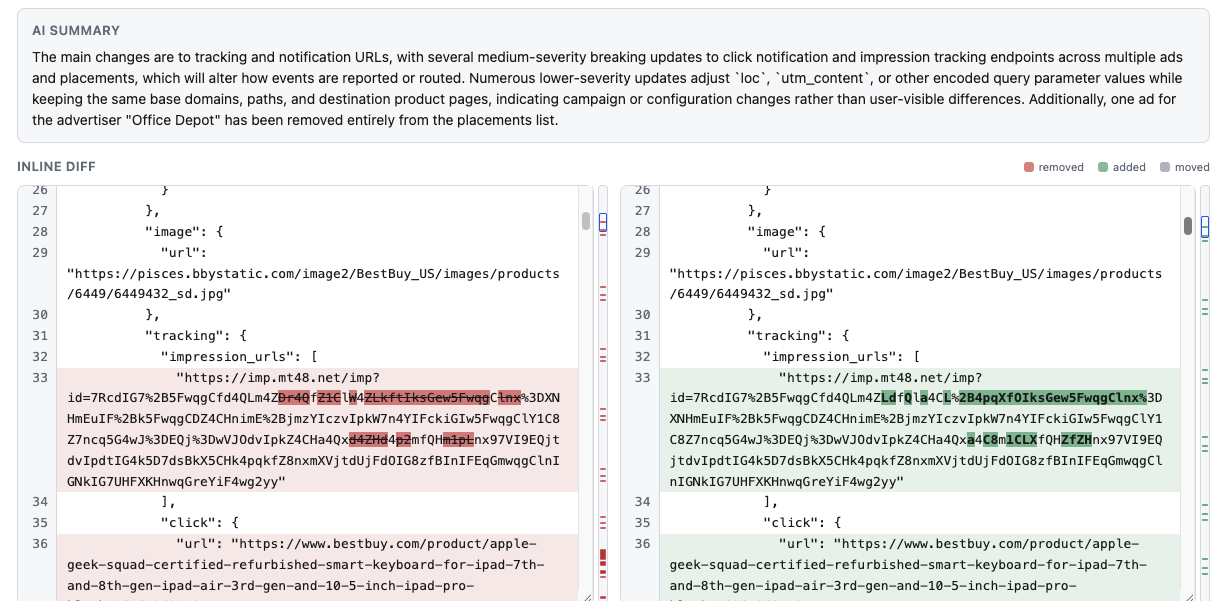

User reviews (0)