
 简体中文
简体中文 English
Website review
This review may include AI-generated content and is not individually verified. Domain, certificate and other facts come from the observed data on this page.
What is eqMac?
eqMac is a system-wide audio processor for macOS. Rather than equalizing only one app's playback, it sits between macOS audio output and your speakers or headphones, so the same EQ, volume and spatial treatment applies to music, video calls, games and browser audio alike. It runs on macOS 10.13 or later, on both Intel and Apple Silicon Macs, and is distributed as a free download from eqMac.
What it does
- Equalization in three tiers. A Basic mode offers simple bass/mids/treble sliders; an Advanced mode gives 10 fixed bands; an Expert mode provides unlimited bands with control over gain, frequency, bandwidth (Q factor or octaves) and multiple filter types, plus graphical controls and a spectrum analyzer.
- Per-app volume mixing. An App Mixer sets volume independently for each application, the way Windows' volume mixer does.
- Headphone presets. Reference presets are provided for a large catalogue of headphone models.
- Spatial audio. An effect that simulates different listening environments.
- Separate left/right EQ. Each channel can be equalized independently.
- Device coverage. Built-in, Bluetooth, AirPlay 1, USB, HDMI, DisplayPort, Thunderbolt, aggregate and MultiOutput devices are supported, with volume and balance control and boosting beyond 100%.
Who it suits
Someone who wants one consistent sound signature across everything they play on a Mac, or who needs to tame a specific pair of headphones, will get the most from it. The App Mixer is particularly useful if you take calls while music or a game runs in the background. Listeners who only ever tweak one player's built-in EQ have less reason to add a system-level layer.
Free versus paid
The tiering is the main decision point. Basic and Advanced EQ, headphone presets, volume/balance, device support and UI customization are listed as free. The Expert parametric EQ, App Mixer, Spatial Audio, separate L/R EQ, Super Presets, Audio Unit hosting, cloud sync, file rendering, virtual output and remote control are marked Pro. Note that several Pro items are also flagged as in development.
A practical next step: install it, open the App Mixer, and set one loud app lower than the rest. If that alone changes how you work, the Pro tier is likely worth it; if you only wanted a bass boost, the free tiers cover that.
How do I install and use eqMac on my Mac?
eqMac is a system-wide audio processor for macOS: install it once, grant it permission to capture system audio, then shape sound in the menu-bar app. According to the eqMac page, it targets macOS 10.13+ on both Intel and Apple Silicon, and downloads exceed 2.2 million.
Install
- Download the free app from the official site and open the disk image or installer.
- Drag eqMac into Applications, then launch it from there rather than from the mounted image.
- macOS will ask for audio-capture and possibly accessibility permissions; approve them in System Settings > Privacy & Security, then restart eqMac if the audio doesn't take effect immediately.
- Pick your output device in eqMac's menu-bar window — built-in speakers, Bluetooth, AirPlay, USB, HDMI, DisplayPort, Thunderbolt, aggregate and Multi-Output devices are all listed as supported.
Use
- Basic Equalizer (free): bass, mids and treble sliders for quick tonal fixes.
- Advanced Equalizer (free): 10 fixed bands for more targeted correction.
- Expert Equalizer (Pro): unlimited bands with gain, bandwidth (Q factor or octaves), frequency and multiple filter types, plus graphical controls and a spectrum analyzer.
- App Mixer (Pro): set volume per application, the way Windows' volume mixer works — handy when one app is much louder than the rest.
- Headphone Presets (free) and Super Presets (Pro): the former supplies reference curves for a large headphone catalogue; the latter switches presets automatically based on output device or main audio app.
- Volume & Balance (free): extends volume and balance control to HDMI, DisplayPort and other devices, and allows boosting beyond 100%.
- Spatial Audio, separate L/R EQ, Audio Unit hosting and Remote Control: Pro features for surround-style effects, channel-specific correction, plugin chaining and phone-based control on the same network.
A practical first run: play a familiar track, start with the Basic Equalizer to confirm audio is flowing, then switch to the Advanced or Expert view and adjust one band at a time. If you use several outputs — say laptop speakers at a desk and Bluetooth headphones elsewhere — set up Super Presets so the right curve loads automatically.
Is eqMac free or do I need to pay for Pro features?
eqMac is free to download and use, but it splits its feature set between a free tier and a paid Pro tier. The free tier is genuinely functional rather than a short trial, while Pro unlocks the more specialised audio tools.
What you get for free
- Basic Equalizer — bass, mids and treble adjustment.
- Advanced Equalizer — 10 fixed bands with gain control.
- Headphone Presets — reference presets covering a large catalogue of headphones.
- Any Audio Device support — built-in, Bluetooth, AirPlay, USB, HDMI, DisplayPort, Thunderbolt, aggregate and MultiOutput devices.
- Volume & Balance — including boosting volume beyond 100%.
- Customisable UI — colours, feature visibility and arrangement.
- Super Presets — automatic preset switching based on conditions such as output device or main audio app.
- API access — control eqMac over HTTP from any language that supports it.
- Community support.
What Pro adds
- Expert Equalizer — unlimited bands with gain, bandwidth (Q factor or octaves), frequency, multiple filter types, graphical controls and a spectrum analyser.
- App Mixer — per-application volume control across the system.
- Spatial Audio — simulated listening environments.
- Separate L/R equalizer — independent left and right channel EQ.
- Audio Unit hosting — load and chain your own Audio Units alongside eqMac's effects.
- Cloud Sync, File Rendering, Virtual Output and Remote Control from an iOS, iPadOS or Android device on the same local network.
- Pro-level support.
How to decide
If you mainly want to correct headphone tuning, tame harsh treble, or nudge bass on a laptop or desktop setup, the free tier covers that well — the headphone presets alone are a strong starting point. Pro becomes worth considering when you need per-app volume mixing, multi-band surgical EQ with a spectrum analyser, or you want to route processed audio into other applications.
A practical test: install the free version, run the Advanced Equalizer and a headphone preset for a week. If you keep reaching for finer frequency control, per-app levels, or separate channel correction, that's your signal to move to Pro.
How does eqMac's App Mixer control volume per application?
eqMac's App Mixer applies per-application volume control on macOS, so you can set different levels for each app rather than one master volume for the whole system. It sits in eqMac's Pro tier, alongside features like Spatial Audio and separate left/right equalization, while the Basic and Advanced equalizers are free. If you have ever wanted Spotify quieter than a video call, or a game loud while a browser stays silent, this is the control that makes that possible.
How it fits into the audio chain
eqMac processes system audio, and the App Mixer adjusts the level of individual applications before that audio reaches your output device. In practice:
- Each app gets its own volume slider, independent of the macOS menu-bar volume.
- Changes apply across the system, similar to the per-app mixer Windows users get.
- It works with the audio devices eqMac supports, which the site lists as built-in, Bluetooth, AirPlay 1, USB, HDMI, DisplayPort, Thunderbolt, Aggregate and MultiOutput.
Practical scenarios
- Work and meetings: keep a music player low while a conferencing app stays at full level.
- Streaming or recording: balance a game against voice chat without touching each app's internal settings.
- Shared Macs: set sensible per-app defaults so one person's loud app does not dominate.
Trade-offs and things to check
- App Mixer is Pro, so it is not part of the free tier.
- Per-app mixing changes relative levels, not the absolute ceiling of your output device; for that, eqMac separately offers Volume & Balance with boost beyond 100 percent, also Pro.
- Very new or sandboxed apps occasionally behave differently with system-level audio processing, so test your specific apps after installing.
Next step: install eqMac, open the App Mixer, and start by lowering just one app — a browser or music player — to confirm the effect is what you expect before building a full per-app mix. For reference on the app itself, see eqMac.
Can eqMac improve my headphone sound with presets?
Yes. eqMac includes headphone presets, described on its site as reference presets for over 4,600 headphone models, and they are available on the free tier. So if your headphones are in that list, you can pick your model and get a correction-style starting point without building an EQ curve yourself.
What the presets do and don't do
A headphone preset is a target curve applied to your system audio. It typically nudges the frequency response toward a more neutral or preferred balance — trimming a boosted bass shelf, taming a peak in the upper mids, or lifting a dip. It is not a personalised calibration for your specific unit, your ears, or your fit, and it won't create detail that the headphones can't reproduce.
How to use it in practice
- Install eqMac, open the equalizer, and find the headphone preset list.
- Select your exact model. If you can't find it, a close sibling model is a reasonable starting point.
- Listen to a few familiar tracks and adjust from there — the Advanced (10-band) and Expert (unlimited bands, Q/octaves, filter types, spectrum analyzer) modes let you fine-tune rather than accept the preset as-is.
- Save your tweaked version so you don't lose it.
Trade-offs worth knowing
- Presets are a fast baseline, but they can sound worse than flat if the preset was measured on a different revision or pad type than yours.
- Free covers the basic 3-band EQ, the 10-band advanced EQ, and headphone presets. Per-app volume mixing, spatial audio, separate left/right EQ, and Audio Unit hosting sit behind Pro.
- System-wide EQ affects everything, so a preset tuned for music may not suit calls or video.
A concrete scenario
You have bass-heavy closed-back headphones and find vocals muddy. Load the preset for your model, then in Expert mode pull down the low shelf a couple of dB and slightly reduce a peak around 200–400 Hz. Compare against bypass for a minute or two; if the preset alone already fixes the muddiness, stop there.
Next step
Check whether your exact model appears in eqMac's preset list before downloading — that determines whether you get a one-click fix or need to shape the curve manually. For cross-checking what a given headphone's measured response looks like, eqMac lists the models it supports, and Reddit communities often discuss preset results for specific models.
What can I do with eqMac's Expert Equalizer and unlimited bands?
eqMac's Expert Equalizer is the tier where the app stops behaving like a simple bass/mid/treble tone control and becomes a full parametric EQ. According to the page, it gives you unlimited bands with control over gain, bandwidth (expressed as Q factor or octaves), frequency, and multiple filter types, plus graphical controls and a spectrum analyzer. In practice, that means you can shape audio with far more precision than fixed-band tools allow: cut a narrow resonance without dulling the surrounding range, apply a gentle wide boost to lift a whole register, or stack several small corrections that together sound more natural than one large one.
What unlimited bands actually buy you
The useful distinction is between three levels described on the page:
| Level | Control | Typical use |
|---|---|---|
| Basic Equalizer | Bass, mids, treble | Quick tonal tilt for casual listening |
| Advanced Equalizer | 10 fixed bands | Broad correction without much decision-making |
| Expert Equalizer | Unlimited bands, gain, bandwidth, frequency, filter types | Surgical or creative shaping, headphone correction, room or device compensation |
With unlimited bands, the limiting factor shifts from the software to your own judgment. A concrete scenario: you use one pair of headphones across a laptop's built-in speakers, a Bluetooth set, and a USB interface. Each output has different weaknesses, so you build a separate preset for each and switch between them rather than compromising on one curve.
Practical starting points
- Correct one problem at a time. Solo a band, sweep its frequency, find where the harshness or boom lives, then set a modest cut with a narrow bandwidth.
- Use the spectrum analyzer as a reference, not a target. A visual dip is not automatically a problem worth fixing; trust your ears on the final decision.
- Keep bandwidth decisions deliberate. Narrow settings suit surgical cuts; wide settings suit broad tonal shaping. Mixing the two in one curve is normal and often better than an all-narrow approach.
- Save presets per output device. The page notes presets are a recurring part of eqMac's feature set, and Super Presets (a Pro feature) can switch automatically when your output device or main audio app changes — handy if you move between speakers and headphones often.
A sensible next step is to start with the free Basic or Advanced Equalizer to learn how your gear responds, then move to the Expert Equalizer once you know which specific frequencies you want to address. If preset management across devices matters to you, check the Pro tier details on eqMac directly, since the page lists several advanced features — App Mixer, Spatial Audio, separate left/right EQ, Audio Unit hosting, and cloud sync — as Pro.
 Cloudflare
 Google Workspace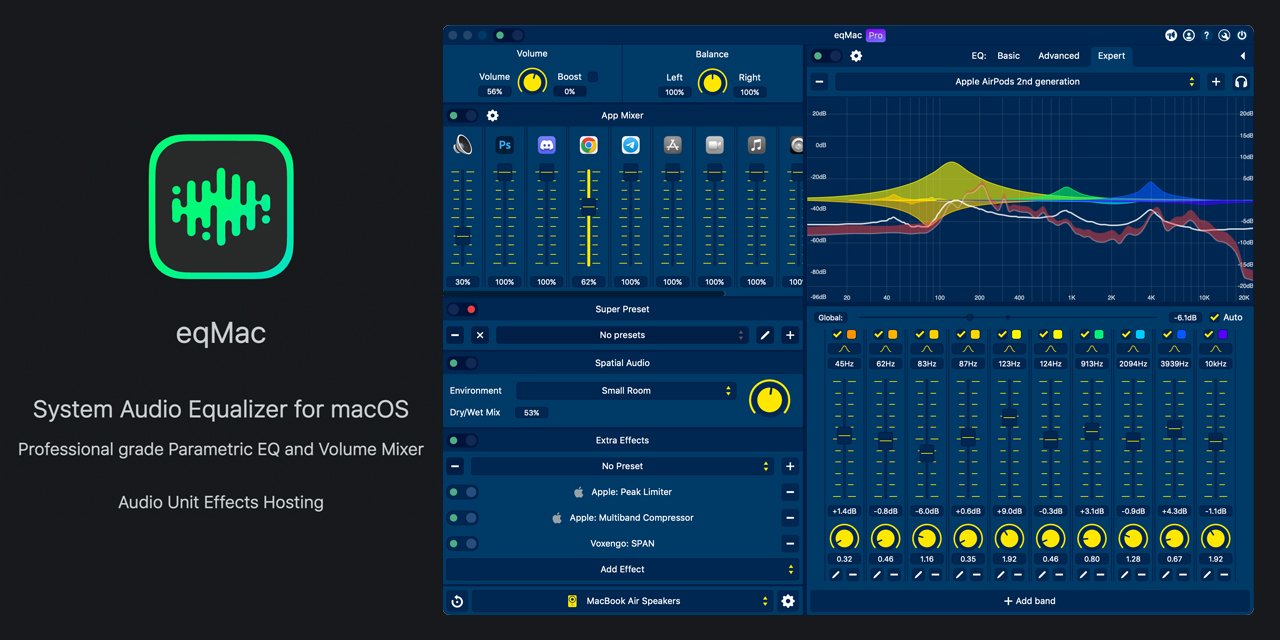
User reviews (0)