
 简体中文
简体中文 English
Website review
This review may include AI-generated content and is not individually verified. Domain, certificate and other facts come from the observed data on this page.
What is Drafts?
Drafts is a note-taking app built around a single idea: start typing immediately, then decide where the text should go. On iPhone, iPad, Mac, and Apple Watch, it opens to a blank page with the keyboard ready, and dictation is available for hands-free capture. Instead of asking you to pick a folder or a name first, it puts new entries in an Inbox where you can later tag, flag, or archive them.
What it actually does
The page describes three practical layers:
- Fast capture. No folder-picking or naming step before you write, which matters when you're recording something mid-conversation or on the move.
- Actions as a launching-off point. Once text exists, actions can copy it, share it, or deep-link it into other apps and services — composing a message, creating a file in Dropbox, or sending a task to Reminders are the examples given.
- Editing control. Custom fonts, spacing, line height, and margins let you tune the writing surface itself.
There is also a Directory for ready-made actions and workspaces, a user guide, community forums, and a script reference for the app's JavaScript library, so the extension side is documented rather than left to guesswork.
Who it suits, and the trade-off
Drafts fits people who think in text and sort it out afterward: someone who jots a meeting note and later turns part of it into a task, or drafts a social post and sends it straight from the app. The cost is that it is not a filing system by default — organisation is something you add through tags and flags, and the real value depends on setting up actions you'll actually use. If you want a structured notebook with folders from the first screen, this will feel like extra work.
Next step: install it and keep it in your dock for a week, as the page itself suggests, capturing everything in the Inbox without organising. At the end of the week, look at what piled up — that tells you which two or three actions are worth configuring. For background on the app's recognition, MacStories has covered it extensively.
How does Drafts differ from a standard notes app like Apple Notes?
Drafts is built to be a starting point for text rather than a place where notes live permanently. A standard notes app like Apple Notes is organized around storing and browsing notes in folders; Drafts opens straight to a blank page with the keyboard ready, so the first move is always to type. The difference shows up in what happens next: Drafts treats each entry as something to send somewhere—copy it, share it, or run an action that deep-links into another app or service. Apple Notes is oriented toward keeping the note and finding it again later.
Where the two approaches diverge
| Drafts | Apple Notes-style app | |
|---|---|---|
| Opening behavior | New draft, keyboard up, type immediately | Note list or last-viewed note |
| Primary purpose | Capture, then dispatch text outward | Store and retrieve notes |
| Organization | Inbox, then tag, flag or archive | Folders and note lists |
| Extensibility | Actions, workspaces and a JavaScript scripting library | Built-in formatting and sharing features |
| Editing | Adjustable fonts, spacing, line height and margins | Standard note formatting |
The capture-first design suits people who write fragments all day and route them elsewhere: a task to a reminders app, a paragraph to a document, a message to a chat service. The trade-off is that Drafts expects you to decide what to do with text rather than simply filing it, and its action and scripting system rewards setup time. Someone who mainly wants a searchable archive of meeting notes or a shared family shopping list will find Apple Notes more direct. Drafts lists iPhone, iPad, Mac and Apple Watch among its platforms, with a free download and a sign-up flow on the site; the page does not state pricing details, so check the app listing for current terms.
A practical test: for one week, put Drafts in your dock and use it only for the first thing you write each morning—a message, a task, a rough idea. If most of those drafts end up sent somewhere else, Drafts fits your habits. If most of them pile up unread, a conventional notes app is the better home.
What are Drafts actions and how do they send text to other apps?
Drafts actions are reusable commands that take the text you've written and do something with it: copy it, share it, or pass it into another app or service. On Drafts, the page describes text as a "launching-off point"—you write first, then choose an action to move it where it belongs. Examples given include composing a tweet or message, creating a file in Dropbox, or sending a task to Reminders. There's also a directory for ready-made actions, workspaces and integration guides, plus a script reference for building your own.
How the sending works in practice
The typical flow is: open Drafts (it starts on a new page with the keyboard up), type or dictate, then run an action. The action handles the handoff—copying to the clipboard, opening a share sheet, or deep-linking into a target app with your text pre-filled. That means the destination app does the final step, so results depend on what each app accepts.
A concrete scenario: you jot a half-formed thought on your phone, then later run an action to send it to your task manager as a reminder, or to a notes file in Dropbox. You never had to name a folder or pick a destination at capture time.
Trade-offs to weigh
- Speed at capture vs. decisions later. Deferring "where does this go?" is the core benefit, but it leaves an inbox you'll need to clear—Drafts handles this with tags, flags and archiving.
- Flexibility vs. setup. Prebuilt actions and the directory lower the barrier; custom scripting gives precise control but takes effort.
- App-dependent reliability. Since actions often hand off to other apps, formatting and edge cases can vary by destination.
Next step: pick one recurring capture—say, meeting notes or quick tasks—and test a single action end-to-end for a week before adding more. If you want to compare approaches, see Obsidian for local file-based notes or Todoist as a task destination.
How do I organize drafts using tags, flags, and the archive?
Drafts separates capture from organization: new text lands in the Inbox first, and you decide later whether to tag it, flag it, or archive it. That three-part system is the whole organizing model described on Drafts.
What each control is for
- Inbox: the default landing spot for anything you type or dictate. It's a holding area, not a filing system, so it's fine for it to be messy.
- Tags: the flexible layer. Use them for topics, projects, clients, or contexts ("meeting-notes," "recipes," "invoice-followup"). A draft can carry several tags, so this is where most of your sorting happens.
- Flags: a small, deliberate set of "deal with this" markers. Keep flags rare enough that a glance at them means something; if everything is flagged, nothing is.
- Archive: removes a draft from the active inbox without deleting it. Archive when the text has served its purpose but you might want it again.
A workable routine
- Capture without naming or filing anything.
- Once or twice a day, open the Inbox and tag each draft by topic.
- Flag only the items that need action from you.
- Archive anything finished or reference-only, keeping the Inbox close to empty.
The trade-off: tags are powerful but require you to invent and stick to a vocabulary, while flags are simple but don't scale past a handful of items. If you tend to over-flag, lean on tags for volume and reserve flags for this week's work.
A concrete example: a note from a client call gets tagged "client-acme" and "calls," flagged until you've sent the follow-up, then archived once the follow-up is out. It stays findable by tag but no longer competes for attention.
What does it cost to use Drafts on iPhone, iPad, Mac, and Apple Watch?
The Drafts website does not list a price for using the app on iPhone, iPad, Mac, or Apple Watch. Its page promotes a "Free Download" and says the app is available across those four Apple platforms, but it gives no dollar figure, subscription rate, or free-versus-paid breakdown.
What the page does establish
- Drafts is offered for iPhone, iPad, Mac, and Apple Watch.
- The page describes it as a "different kind of notes app" that opens straight to a blank page so you can type or dictate immediately.
- Text is then sent onward through actions—copying, sharing, or deep-linking into other apps such as a messaging app, Dropbox, or Reminders.
- Entries land in an Inbox and can be tagged, flagged, or archived.
None of that tells you whether all features are free or whether some require payment.
Practical next step
If cost is the deciding factor, check the App Store listing for Drafts on each device you plan to use, since that is where the current price and any in-app purchase options appear. Also note that a Mac purchase and an iPhone purchase may not be handled the same way, so confirm each platform separately before committing.
Can I use Drafts with dictation and keyboard shortcuts for hands-free capture?
Yes. Drafts is built around fast, low-friction capture: the app opens to a new page with the keyboard ready so you can type immediately, and it also supports Dictation for hands-free entry. The pitch on Drafts is that you get text down before you forget it, without deciding on folders or names first.
What that looks like in practice
- Dictation for hands-free moments: walking, driving-adjacent breaks, or mid-task when typing isn't practical. You speak the note and sort it out later.
- Keyboard-first capture: on iPhone, iPad and Mac, the new-page-and-keyboard default means a shortcut or quick launch lands you straight in a blank draft.
- Deferring organization: new entries go to the Inbox, where you can later tag, flag or archive them, so capture and filing stay separate steps.
The trade-off to weigh
Dictation suits short, spoken thoughts; it's weaker for precise wording, code, or names that speech recognition tends to mangle. Treat dictated drafts as raw material to clean up rather than finished text. Keyboard capture is the reverse: fast and exact, but requires a device and a free hand.
A practical test: for one week, keep Drafts in your dock and dictate every quick thought the moment it arrives, then review the Inbox each evening. If most dictated notes are usable after light editing, hands-free capture fits your workflow; if you spend more time correcting than you saved, lean on keyboard capture and reserve dictation for reminders and rough ideas.
For setup specifics, the app's own User Guide and Script Reference cover features, settings and automation, including how actions can send text onward to other apps and services.
 Namecheap
 Akamai Connected Cloud
 Google Workspace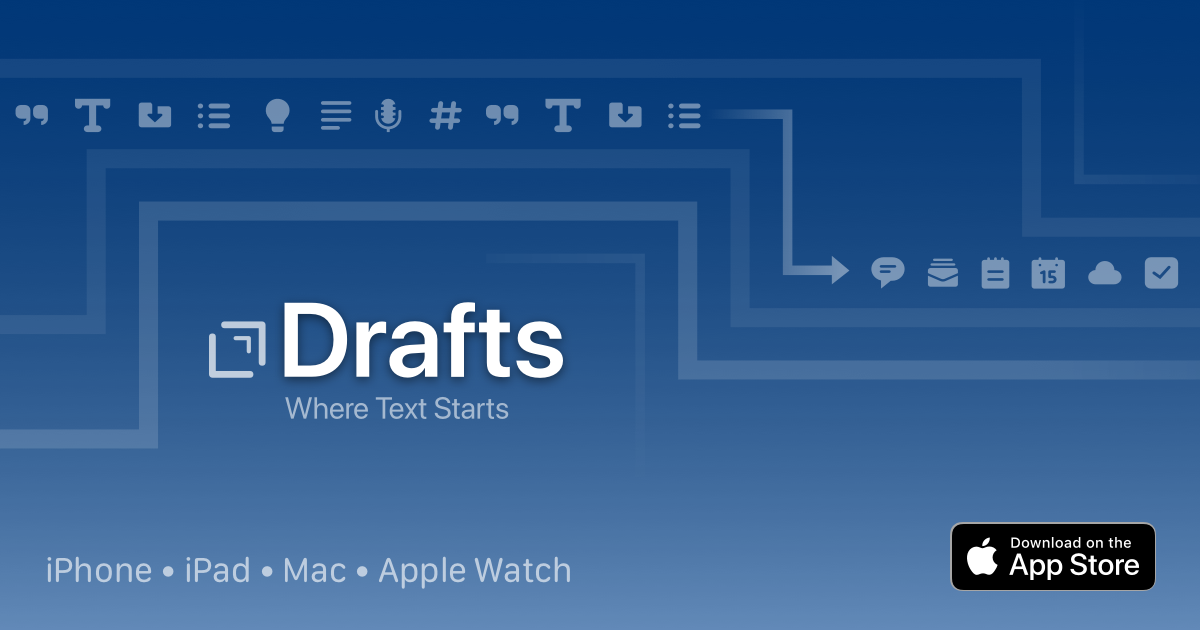

User reviews (0)