
 简体中文
简体中文 English
Website review
This review may include AI-generated content and is not individually verified. Domain, certificate and other facts come from the observed data on this page.
What is IINA?
IINA is a free, open-source media player built specifically for macOS. It is designed to look and behave like a native Mac app rather than a cross-platform player that happens to run on macOS, and it is built on the mpv playback engine. According to its own site, it supports familiar macOS features such as trackpad gestures, media controls, Picture in Picture, and Live Text, and it does not include tracking or telemetry.
What it does well
- Native Mac feel: Interface conventions, gestures, and system integrations match what Mac users already expect, which reduces the friction of switching from QuickTime or VLC.
- Customizable layout: Controls, sidebars, and other interface elements can be adjusted, which matters if you dislike the default placement of playback controls or want a cleaner window.
- Plugin support: Community plugins can add subtitle sources, video tools, and new interfaces, extending the player beyond its built-in feature set.
- Open source and private: The project is community-maintained, and the site states there is no tracking or telemetry.
Who it suits
A typical user is someone on a Mac who watches local video files — downloaded movies, screen recordings, or camera footage — and wants better format support and subtitle handling than QuickTime offers, without VLC's less Mac-like interface. It also suits tinkerers who want to adjust controls or install plugins. If you mainly stream from official services in a browser, a dedicated player adds little.
Trade-offs to weigh
Native design and plugin flexibility come with a smaller ecosystem than VLC's, and plugin quality depends on community maintainers. Because it is macOS-only, it is not a choice if you also work on Windows or Linux and want one player everywhere.
Next step
Check the current release notes and system requirements on IINA before installing, and confirm the version matches your macOS. If you want a comparison point for cross-platform playback, VLC is the usual alternative at VideoLAN.
How does IINA compare to VLC or QuickTime for playing videos on a Mac?
IINA sits between QuickTime and VLC: it aims for a macOS-native feel like QuickTime while playing far more formats, similar to VLC. The page evidence describes IINA as "made for macOS," with trackpad gestures, media controls, Picture in Picture, and Live Text, plus adjustable controls and sidebars and plugin support. It is free and open source, built on mpv, with no tracking or telemetry.
How the three differ in practice
| IINA | QuickTime Player | VLC | |
|---|---|---|---|
| Design focus | Native macOS look and gestures | Native macOS, Apple-first | Cross-platform utility |
| Format range | Broad, via mpv | Limited to Apple-supported codecs | Very broad |
| Customization | Interface controls, sidebars, plugins | Minimal | Skins, extensions, advanced settings |
| Best for | Mac users who want native feel plus format range | Simple playback of Apple-friendly files | Cross-platform, codec-heavy, or odd files |
QuickTime is the simplest choice when your files are standard and you want zero setup. VLC is the safe fallback for unusual formats or when you also use Windows and Linux. IINA is for people who live on macOS and want both: a native interface and broad playback, with the option to extend it through community plugins.
A practical way to decide
Try a file that QuickTime refuses in IINA. If it plays without fuss and the window feels like a Mac app, IINA is likely your default. Keep VLC installed as a backup for edge cases, and use QuickTime when you want the simplest possible playback. If you want to compare the alternatives directly, see VLC and QuickTime Player.
How do I install and set up IINA on macOS?
Download IINA from IINA, open the disk image, and drag the app into your Applications folder. On first launch, macOS may ask you to confirm opening an app downloaded from the internet; approve it in System Settings → Privacy & Security if the standard Open prompt doesn't appear. The site lists the current download as version 1.5.0, requiring macOS 12.0, or macOS 11.0 on Intel Macs, so check your version under → About This Mac before installing.
First-run setup
IINA works with sensible defaults, so you can start playing files immediately. A short setup pass makes it fit your habits:
- Set default file types. In Preferences → General, choose which video and audio formats open in IINA by default, or leave them with QuickTime and open files manually via File → Open.
- Learn the gestures. Trackpad gestures, media keys, and Picture in Picture are built in, so try pinch-to-zoom and three-finger swipes during playback before changing anything.
- Adjust the interface. Controls and sidebars can be rearranged or hidden, which matters if you prefer a minimal window or a large playlist panel.
- Add subtitles. IINA can load local subtitle files, and community plugins can add online subtitle sources if you watch foreign-language content regularly.
- Install plugins selectively. Plugins extend video tools and interfaces, but each one is community-maintained; add only what you need and remove anything that slows startup.
A practical scenario
If you watch downloaded lecture videos, set IINA as the default for MKV and MP4, enable Picture in Picture so you can take notes in another window, and add a subtitle plugin for auto-generated captions. If you mainly play music videos, keep the default window and rely on media keys instead.
Trade-offs to weigh
IINA is free, open source, and built on mpv, with no tracking or telemetry. The trade-off is that plugin quality varies because plugins come from the community, and some advanced mpv configuration requires editing config files rather than using the graphical preferences. If you want a player that behaves like a native macOS app without configuration, the defaults are enough; if you want fine control over rendering and subtitles, expect to spend time in preferences and plugin documentation.
What plugins are available for IINA and what can they add?
IINA's plugin ecosystem is community-driven, so the exact catalogue changes over time; the page evidence confirms plugins can add subtitle sources, video tools, new interfaces, and other features, but does not list individual ones. The reliable way to see what exists is the in-app plugin browser or the "Explore Plugins" link on IINA, which points to the maintained index.
What plugins typically add
- Subtitle sources — extra providers so IINA can fetch subtitles for films and shows it doesn't already cover.
- Video tools — processing or playback aids layered on top of the mpv engine.
- New interfaces — alternative control layouts or panels beyond the built-in sidebar and controls.
- Other community features — anything a developer builds against the plugin API.
How to decide whether to install one
Plugins are third-party, so the useful check is whether the plugin is actively maintained and what it asks for. A subtitle plugin that queries an external service sends your search terms to that service; a purely local video tool does not. IINA itself is built on mpv and, per the page, includes no tracking or telemetry — but that says nothing about what an individual plugin does.
A practical next step
Open IINA's plugin section, read the description and last-update date for anything you're considering, and install one plugin at a time so you can tell what changed if playback or subtitles behave oddly. If you want to build rather than consume, the site links documentation for plugin developers.
How do I use IINA's Picture in Picture, trackpad gestures, and Live Text features?
IINA treats these three features as native macOS capabilities rather than bolted-on extras: Picture in Picture, trackpad gestures, and Live Text are listed among the system features the player supports. That means the controls mostly live where macOS users already expect them, not in a separate settings maze.
Picture in Picture
Start playback, then look for the PiP control in the player window or use the standard macOS PiP button that appears in the video area. Once active, the video floats above other windows, so you can keep a lecture, match, or reference clip visible while taking notes in another app. The practical trade-off is that PiP is best for passive viewing: complex subtitle styling and precise seeking are easier in the full window.
Trackpad gestures
IINA is designed around trackpad gestures, so two-finger and multi-finger movements handle common playback actions without hunting for buttons. In practice this suits laptop users who watch while browsing or writing: a gesture can pause, seek, or adjust volume with less pointer travel. If a gesture feels unintuitive, the interface is adjustable, so you can rearrange controls and sidebars to match your habits.
Live Text
Live Text uses macOS text recognition on video frames. Pause on a frame containing a sign, slide, or on-screen code, then select and copy the text using the same macOS text-selection behavior you use in Preview or Safari. It is most useful for still frames with clear, high-contrast text; fast motion or stylized fonts will be less reliable.
A practical starting routine
- Play a video and trigger Picture in Picture to confirm the floating window behaves as expected.
- Try a few trackpad gestures during playback and note which ones you actually use.
- Pause on a text-heavy frame and test Live Text selection.
- Adjust controls or sidebars so the features you use most are closest to hand.
- If you want extra subtitle sources or video tools, explore the plugin ecosystem rather than expecting them built in.
For a concrete scenario: a student watching a recorded lecture can pop the video into PiP, gesture to pause and rewind, then pause on a slide and copy a formula or citation with Live Text. If your priority is a player that follows macOS conventions instead of fighting them, this design is the main reason to choose IINA over cross-platform alternatives. You can download it from IINA, and the same site links to plugin and developer documentation if you want to extend it.
How can I contribute to or support the IINA open-source project?
You can contribute to IINA in several ways, depending on whether you want to give time, skills, money, or feedback. The project is free and open source, built on mpv and maintained by its community, and it states that it does not include tracking or telemetry. The official site lists reporting issues, suggesting features, contributing code on GitHub, translating on Crowdin, and supporting with a donation as ways to take part.
Ways to help
- Report issues: If playback, subtitles, or macOS integration misbehaves, file a clear report. Include your macOS version, IINA version, the file format or stream involved, and steps to reproduce. This is often the most useful contribution because it turns a vague problem into something maintainers can fix.
- Suggest features: Feature requests are welcome, but frame them around a real viewing problem rather than a preference. For example, "I switch between two subtitle tracks often and want a faster keyboard path" is more actionable than "add more options."
- Contribute code: The project points to GitHub for code contributions. Bug fixes, macOS-native improvements, and plugin-related work are natural fits. If you are new, start with a small, well-scoped issue rather than a large redesign.
- Translate: Crowdin is the listed translation platform. This helps non-English speakers use the player with familiar menus and settings, and it does not require programming experience.
- Donate: The site lists donation as a support option. Donations help with maintenance and infrastructure rather than unlocking features, since IINA is free and open source.
A practical next step
Pick the path that matches your skills and available time. If you are a developer, browse the GitHub issue tracker for a bug labeled as small or beginner-friendly, reproduce it locally, and submit a focused pull request. If you are not a developer, write one detailed bug report or translate a small set of strings on Crowdin. Both are concrete, bounded tasks that help more than a general offer to "help out."
How to choose
| If you have... | Best contribution | Why |
|---|---|---|
| Programming skills | Code on GitHub | Direct fixes and features |
| Another language | Crowdin translation | Broadens access without coding |
| Time but no code | Issue reports and feature suggestions | Improves reliability and direction |
| Money but no time | Donation | Supports ongoing maintenance |
For official links and current instructions, start at IINA. If you use another player alongside IINA, the same contribution principles apply to projects like mpv or VLC — but always check each project's own contribution guide, since the channels and expectations differ.
 Cloudflare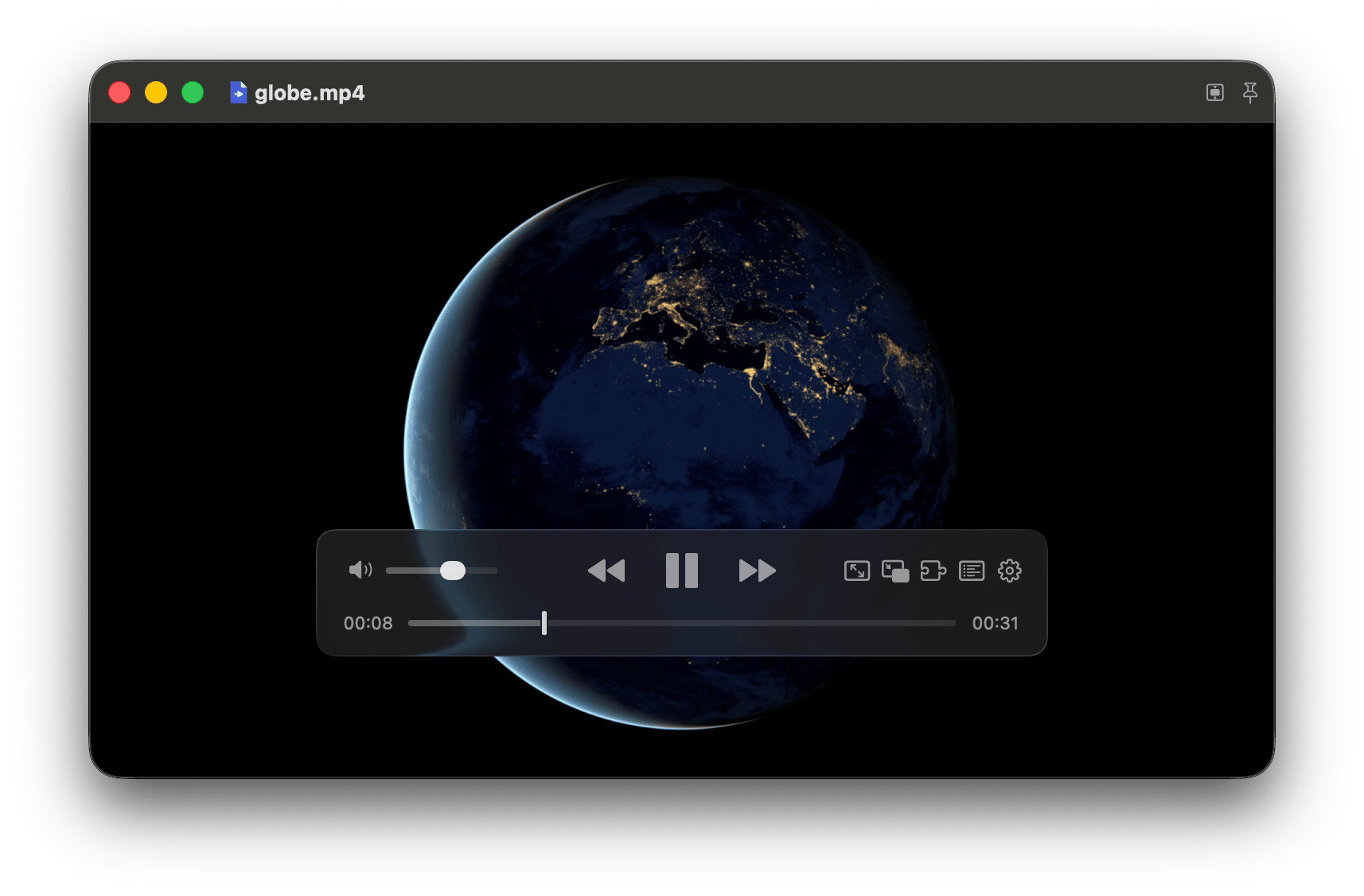

User reviews (0)