Website profiles · Technology insights · Alternatives

imgdownloader.com

Use our free online image downloader to extract images from a website link. Preview and download photos, JPG, PNG, WebP and more.

No paid content found Multilingual
Visit website
Profile views 11 Outbound visits 8 Normal
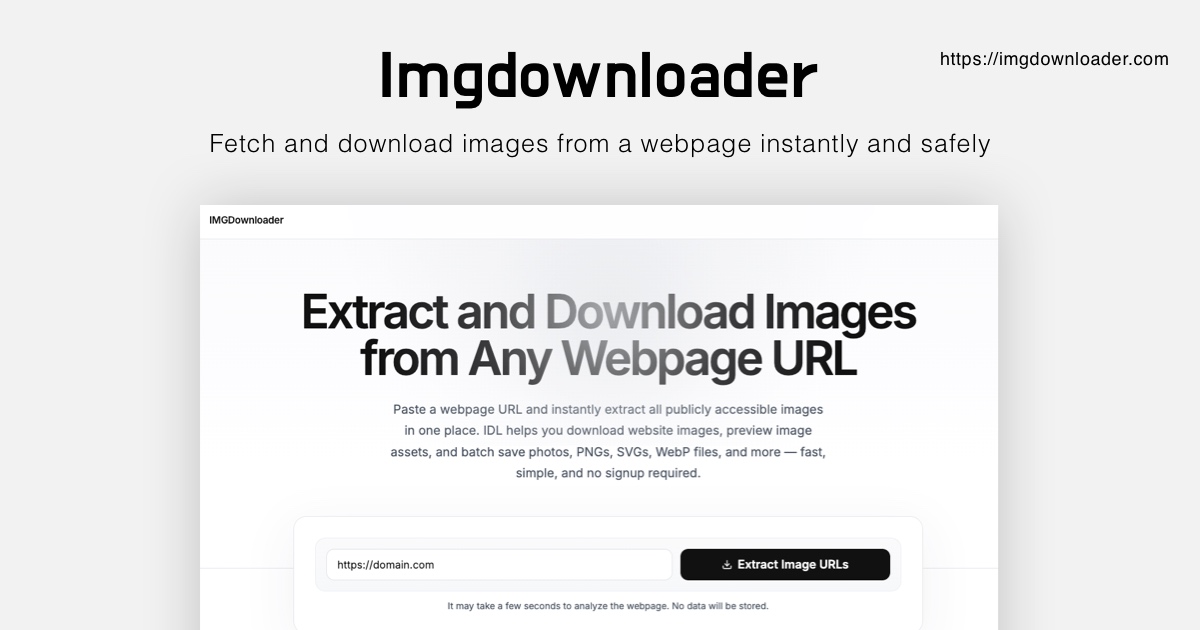
Image Downloader | Extract & Download Images from Websites Full homepage screenshot

At a glance

Category
Image Tools
Language
English
Paid-content signal
No paid content foundObserved
Registered
2021
Hosting
CloudflareInferred
HTTPS certificate trusted
PassedObserved
Last updated

Website review

This review may include AI-generated content and is not individually verified. Domain, certificate and other facts come from the observed data on this page.

What is Image Downloader?

Image Downloader is a free online tool that pulls images from a public webpage link so you can preview and save them. Paste a page URL, run the extraction, browse the results, then download individual files or all available images as a ZIP. It works in a browser with no installation and handles common formats such as JPG, PNG, WebP, GIF, SVG, and AVIF, depending on what the source page actually serves.

Who it's for and what it does well

  • Designers, marketers, and researchers collecting visual references or product images from blogs, galleries, and product pages.
  • Anyone who wants to inspect a page's images without opening developer tools or saving the whole page.
  • Bulk collection: "Download All" packages the extraction results into a single ZIP, which is faster than right-clicking each image.
  • Selective saving: you can preview each result and take only what you need.

Trade-offs to keep in mind

  • Results depend on the source site. Images loaded dynamically, lazy-loaded, or behind a login may not appear.
  • It extracts publicly accessible images; it does not grant rights to reuse them. Check licensing and terms before republishing.
  • Quality is whatever the page serves — often compressed thumbnails rather than originals.

A practical next step

If you need one image, a simple right-click and "Save image as" is usually enough. Use a downloader when a page has many images you want to compare or collect at once. For a broader set of options, you can compare with ImageCyborg or Extract.pics, then pick the one whose preview and bulk-download behavior fits your workflow.

How do I download images from a website link?

Paste the public webpage URL into Image Downloader, run the extraction, preview the results, and save individual images or use Download All to get a ZIP of everything it found. No installation is required for the web version.

What to expect from the workflow

The tool describes a three-step process: copy the page link, start extraction, then preview and download. It presents JPG, PNG, WebP, GIF, SVG, and AVIF assets when they are available on the page, and results depend on how the source site serves its images.

A practical example: you are assembling a mood board or product comparison and want the visuals from a public gallery or product page. Rather than saving images one by one from your browser, you extract the page once, scan the previews, and take only what you need. Download All suits the case where you want the whole set in one archive.

Decide before you download

  • If you need one or two images, individual previews are faster and avoid clutter.
  • If you need a full set for reference, the ZIP option keeps files together.
  • If the page uses lazy loading, infinite scroll, or a gallery behind a click, extraction may miss images that never load in the initial page — check the previews rather than assuming the list is complete.
  • Check usage rights before reusing anything. Extracting a file does not grant permission to republish it, and product photography, stock images, and illustrations are often licensed.

A quick next step

Open the target page in your browser first and confirm the images you want are publicly visible without logging in. Then extract that exact URL. If a site blocks automated access or renders images only after interaction, the extractor will return fewer results — in that case, save the specific images from the page itself.

Can I download all images from a webpage at once as a ZIP file?

Yes. IMGDownloader provides a Download All option that packages the downloadable extraction results from a page into a single ZIP archive, so you don't have to save each image one by one. You still start the same way: paste a public webpage URL, run the extraction, and review the results.

What to expect in practice

  • One action, many files: Download All bundles the images that the extractor found on that page.
  • Preview first: You can inspect individual images and download only the ones you want instead of the whole set.
  • Mixed formats: Results may include JPG, PNG, WebP, GIF, SVG, and AVIF; what you actually get depends on what the source page serves.
  • Public pages only: The tool works with publicly accessible pages, not content behind a login.

A realistic scenario

Suppose you're building a mood board from a design blog or collecting product shots from a category page. Paste the URL, scan the grid, then use Download All to grab the set at once. If only two or three images are relevant, individual downloads are cleaner and keep your folder free of clutter.

Decision criteria

Choose the ZIP route when you want most of the images on a page or need them archived together. Choose single downloads when you're selective, when the page mixes useful and irrelevant graphics, or when you want to avoid sorting a large archive afterward.

One practical caveat: a webpage's visible images aren't always the same as the files the extractor finds — background images, lazy-loaded items, and embedded graphics can behave differently. Always check usage rights before reusing anything you download, and verify you have permission for images that aren't yours.

For a quick start, run one extraction on a page you already know well and compare the ZIP contents against what you see on the page; that tells you how complete the results are for your typical sources.

What image formats can I extract from a website?

The tool reports support for JPG, PNG, WebP, GIF, SVG, and AVIF assets found on a public webpage. What you actually get depends on the source site: a page that only publishes WebP files will not yield JPGs, and images loaded dynamically or blocked by the site may not appear at all.

A practical test: paste a product page and a blog post from the same site. If the product page returns only a few thumbnails, the site likely serves full-size images from a separate location or lazy-loads them, so extraction will be incomplete.

For format choice, match the file to the job:

  • JPG for photographs and large photo sets where file size matters.
  • PNG for logos, screenshots, and images needing transparency or crisp edges.
  • SVG for icons and logos that must scale without blur.
  • WebP or AVIF when you want smaller files but can accept limited support in older software.
  • GIF for simple animations; quality is low for still photos.

If you need a different format than the page provides, convert after downloading rather than expecting the extractor to re-encode. For comparison, Image Downloader presents results for preview and individual or ZIP download, while browser-based options like Imageye and Extract.pics work as extensions or web tools with their own compatibility limits.

Before reusing anything, confirm licensing — extraction finds files, it does not grant rights to publish them.

Is it legal to download and reuse images from websites?

It depends on the image, not the tool. Downloading a file and having the right to reuse it are two separate questions. imgdownloader.com itself frames this correctly: its page says to "Check usage rights before reusing downloaded assets." That is the practical rule to follow.

The two questions to separate

  • Can you download it? Technically, an image downloader like Image Downloader extracts images from public webpages. The site notes that results depend on the source website and that it works on public pages.
  • Can you reuse it? This is a copyright and licensing question. Most images on the web are protected by copyright by default, even when they are publicly viewable and even when no watermark or notice appears.

Quick guide by likely use

Situation Typical risk What to do
Personal reference, mood board, private study Lower, but not zero Keep it private; do not republish
Client work, ads, product pages, social posts High Get a licence or use a source that grants one
Public domain, CC0, or explicit permission Low Keep proof of the licence or permission
Stock or paid asset library Low if licensed Follow the licence terms (attribution, limits)

Practical decision criteria

  • Check the source. A government site, a museum open-access collection, or a library like Wikimedia Commons usually states the licence clearly. A random blog or shop page usually does not.
  • Look for a licence statement or terms page. If there is no licence, assume "all rights reserved" rather than "free to use."
  • Identify the rights holder. A photo may belong to the photographer, not the site that published it.
  • Consider trademarks and personality rights. Logos and images of identifiable people can create problems beyond copyright, especially in commercial use.
  • Keep records. Save the URL, the date, and the licence text. This matters if a question arises later.

A useful next step

If you need images you can safely reuse, start from sources built for that purpose rather than extracting from arbitrary pages. Options include Unsplash, Pexels, and Openverse, each with its own licence terms you should read. Use an extractor when you have a specific page and a specific right to the images on it. When in doubt about commercial use, ask the rights holder or a qualified lawyer — this is general guidance, not legal advice.

Does the image downloader protect my privacy and handle my data securely?

It says it extracts images from public webpages and that no installation is needed, but the page evidence does not spell out a retention period, encryption details, or whether extracted URLs are stored. So the honest answer is: the tool is designed for public pages, and the privacy question depends on details the page doesn't document. Treat that as a gap to check before you paste anything sensitive.

What the page does say

  • It works from a pasted public webpage URL.
  • It has a "Downloads & privacy" FAQ section, which suggests privacy is addressed somewhere on the page.
  • It offers a Chrome extension as an alternative to the web tool.

Practical analysis

The main privacy risk with any image extractor isn't the images themselves — it's the URL you submit. A URL can contain query parameters, tokens, session IDs, or internal hostnames. If you paste a link from a private dashboard, an unlisted gallery, or a staging site, you may be handing over more than a public page address.

A safer workflow

  1. Use the tool only on genuinely public pages you'd be comfortable sharing.
  2. Strip tracking parameters and anything after ? before pasting, unless the page needs them to load.
  3. Don't paste links containing token=, session=, auth=, or similar.
  4. For client or internal work, download images directly from the source site instead.

What to verify yourself

  • Whether submitted URLs are logged, and for how long.
  • Whether extraction results are cached or tied to your IP.
  • What the Chrome extension can access in your browser — extension permissions matter more than the web form, since an extension can read pages you visit. Compare permissions before installing.

If privacy is a hard requirement, self-hosting an open-source extractor or using your browser's built-in developer tools (Network tab, filter by Img) keeps the URL on your machine. For a quick public-page job, the web tool is reasonable — just don't feed it links you wouldn't post publicly.

Related questions

More questions →
How to Download Images from a Webpage Link Online

Paste a public webpage URL into an online image downloader, run the extraction, preview the results, then save individual images or use Download All to get a single ZIP archive. This works for publicly accessible pages such as blogs, galleries, and product pages, and needs no installation. It won't work on private or login-protected pages, and results depend on what the source site exposes.

Step-by-step: from link to saved files

  1. Copy the page link. Grab the URL of a public webpage that contains the images you want.
  2. Paste it into the downloader. Enter the webpage URL and start the extraction.
  3. Browse the extracted images. The tool presents available photos, illustrations, and graphics found on the page.
  4. Preview each image. Check the file before saving so you only keep what you need.
  5. Download. Save individual pictures, or choose Download All to package all downloadable results into one ZIP archive.

Expected result: the images you selected end up as local files, either one by one or grouped in a ZIP.

What you can extract

The downloader surfaces image assets found on publicly accessible webpages — blogs, galleries, and product pages included. You may see any of these formats:

Format Typical use
JPG Photos
PNG Graphics, transparent images
WebP Modern web images
GIF Animated or simple graphics
SVG Icons and vector graphics
AVIF Next-gen compressed images

Which formats actually appear depends on the source website. The extractor can only show images the page makes available.

Choosing individual files vs. Download All

  • Individual download: best when you only need one or a few images, or when you want to review each file first.
  • Download All (ZIP): best when you're collecting many assets — visual references, product photography, graphics — and want them together in a single download.

Previewing before downloading is the safer default, since it lets you skip duplicates, thumbnails, or images you don't need.

Before you reuse a downloaded image

Check the usage rights on the source site. Extracting an image does not grant permission to republish it. Confirm licensing or ownership before using downloaded assets in your own projects.

When no images appear

If the extraction returns nothing or fewer images than expected, the usual causes are:

  • The page is private or behind a login. Only public webpages can be extracted.
  • The source blocks or limits access. Results depend on the source website.
  • Images load dynamically. Some pages only render images after interaction, so they may not be exposed to the extractor.

In these cases, try a different public page or check whether the images are reachable directly.

How to Extract and Download All Images from a Website Online

Paste the public page URL into an online image extractor such as extract.pics, run the scan, review the thumbnails, then select and download the images you want. This works for publicly reachable pages and requires no software installation. It will not work for pages behind a login, and results can be incomplete when images load lazily or scripts are blocked.

What the tool does

extract.pics is described as a free tool that extracts, views, and downloads images from any public website using a virtual browser, and it also offers an API. The virtual browser matters: instead of just reading the raw HTML, it renders the page the way a browser would, which is what lets it pick up images that only appear after scripts run.

Step-by-step: extract images from a page

  1. Copy the full page URL. Use the address of the specific page that contains the images, not just the site's homepage.
  2. Paste it into the extractor and start the scan. The tool loads the page in its virtual browser and collects the image URLs it finds.
  3. Review the thumbnails. Results typically include everything on the page, so you will often see icons, logos, spacers, and tracking pixels mixed in with the images you actually want.
  4. Filter the list. Sort or scan by size and dimensions to push tiny decorative assets to the bottom, and ignore anything that looks like a UI element rather than content.
  5. Select images. Pick individual thumbnails, or bulk-select when you want everything that survived your filtering.
  6. Download. Save a batch as a ZIP, or download images one at a time if you only need a few.

Choosing between bulk download and single saves

Situation Better option
You need most of the images on the page Bulk-select and download as a ZIP
You only want one or two specific images Download them individually
The page mixes content images with lots of UI assets Filter first, then bulk-select the remainder
You plan to repeat this on many pages Use the API instead of the web interface

Common problems and fixes

The scan returns nothing or very few images. The page may load its images lazily, meaning they only appear as a visitor scrolls. Some extractors handle this automatically; if yours does not, the results will be incomplete.

Images are missing even though you can see them. Content behind a login, or images served only after authentication, generally cannot be reached by a tool that visits the page as an anonymous visitor.

The page blocks automated access. Some sites detect and block scripted browsers, which can produce empty or partial results.

You get too many results. This is usually tracking pixels and icons rather than a real problem — filter by dimensions and file size rather than trying to review every thumbnail.

Before you download

Check that you have the right to reuse the images. Publicly visible does not mean free to use, and site terms or copyright still apply to whatever you save.

How to Download Images from a Website Link with an Online Image Downloader

Paste the URL of a public webpage into an online image downloader, run the extraction, preview the results, and save the images you want — either one at a time or all at once as a ZIP. This works for publicly accessible pages such as blogs, galleries, and product pages, and needs no installation. It does not apply to pages behind a login, and results depend on how the source site loads its images.

What you need before starting

  • The full URL of a public webpage that contains the images.
  • A browser and an internet connection.
  • A destination folder on your device for the downloaded files.

If the page requires a sign-in or sits behind a paywall, extraction will typically return nothing useful. Check that you can open the page normally in a private/incognito window first — that confirms it is publicly reachable.

Step-by-step: extract and download images from a link

1. Copy the page link

Open the webpage in your browser and copy the full address from the address bar. Include the whole URL, not just the domain.

2. Paste it into the image downloader

Go to the online image downloader, paste the URL into the input field, and start the extraction. The tool scans the page and collects the image assets it can find.

3. Browse the extracted images

The results show the photos, illustrations, and graphics available on that page. Common formats you may see include:

Format Typical use
JPG Photos, general web images
PNG Graphics, transparency
WebP Modern compressed web images
GIF Simple animations
SVG Icons and vector graphics
AVIF Next-gen compressed images

Which formats appear depends entirely on the source website.

4. Preview before saving

Open each image to check it is the right one — resolution, crop, and content. This lets you pick individual pictures without downloading the entire page.

5. Download your selection

  • Single images: save the ones you need one by one.
  • Everything at once: use Download All to package all downloadable results into a single ZIP archive, keeping photos, illustrations, and other assets together.

6. Verify the files

Open the downloaded files (or unzip the archive) and confirm they open correctly and match what you previewed.

When a page returns no images or incomplete results

  • The page loads images with JavaScript. Some sites inject images after the page loads, so a simple link scan may miss them. Try the page's direct image URLs, or a browser extension approach.
  • Lazy loading. Images far down the page may not load until you scroll. Scroll through the whole page first, then re-run the extraction.
  • The page is not public. Login walls, paywalls, and region locks block extraction.
  • The site blocks automated access. Some servers refuse scraper requests; there is no reliable workaround from the tool side.
  • Background images and CSS sprites. Images set in CSS rather than as <img> elements often won't appear in results.

Before you reuse downloaded images

Extraction only gets you the file — it does not grant you rights to it. Check the usage rights and licensing for every asset before republishing, especially product photography and stock-style images. When in doubt, treat the image as all-rights-reserved and seek permission or use a properly licensed alternative.

Website Overview

Page metadata, canonical configuration and social previews work together to provide more consistent search and sharing presentation.

Domain and Registration

Transfer-protection status is present, helping reduce the risk of unauthorized domain transfers. The domain has about 5 years of registration history; its current configuration provides more context than age alone. The domain uses the common .com extension, which is not an independent safety signal.

DNS and Email

Nameservers are provided by Cloudflare, indicating managed DNS hosting. No CNAME was found; the observed records resolve directly to addresses. No MX record was found. A conventional explicit inbound-mail route is not configured. TXT records include verification markers for Google. Such markers may also remain after a service stops being used. DNSSEC signatures were not detected, so this additional DNS authenticity protection is not confirmed.

TLS and Certificates

The public key uses EC with 256 bits. The server supplied a complete certificate chain. No organization name is present in the certificate; the available fields are consistent with domain validation. The certificate was issued within the Google Trust Services cloud or CDN ecosystem. The certificate's total validity is about 90 days, consistent with a short renewal cycle.

HTTP and Browser Security

X-Powered-By exposes backend information: Next.js. The checked browser-security headers were not detected, leaving fewer explicit browser-side safeguards. The cf-ray response header indicates a CDN or caching proxy in the delivery path. No obvious internal addresses or debug information were found in the headers. The Server header identifies cloudflare without an exact version.

Technology Stack Analysis

The public page identifies Next.js, Cloudflare without precise versions, leaving fewer clues for version-specific scanning.

Search and Social Sharing

Twitter Card metadata is configured. JSON-LD includes Organization data, helping describe the organization as an entity. The page declares 12 language or regional alternatives using hreflang. The title has 58 characters, within a common display range. A meta description is present, with 129 characters.

Hosting and Email

DNSCloudflare
HostingCloudflare
EmailUnknown
Approximate IP geolocation (inferred; a CDN or proxy may differ from the origin server) Location unknown Inferred 104.21.43.212

Registration details

RDAP / WHOIS

RegistrarNameSilo, LLC
Registered2021-02-18
Expires2027-02-18
Domain statusclient transfer prohibited
Nameserversdamon.ns.cloudflare.com、sue.ns.cloudflare.com
DNSSECunsigned

DNS records

DNS

TypeNameValueTTLPriority
Aimgdownloader.com104.21.43.212300—
Aimgdownloader.com172.67.185.230300—
AAAAimgdownloader.com2606:4700:3031::ac43:b9e6300—
AAAAimgdownloader.com2606:4700:3036::6815:2bd4300—
NSimgdownloader.comdamon.ns.cloudflare.com86400—
NSimgdownloader.comsue.ns.cloudflare.com86400—
TXTimgdownloader.com_dmarc.imgdownloader.com300—
TXTimgdownloader.comgoogle-site-verification=tPVcspVIwPd5ZEptIwn9p6z0Rv1EAxC0PV4XuvyVZCY300—
TXTimgdownloader.comv=spf1 a mx ip4:162.214.92.114 ~all300—

TLS and certificates

TLS / SSL

AssessmentNormal configuration
Supported protocolsTLSv1.2、TLSv1.3
Negotiated protocolTLSv1.3
Certificate subjectimgdownloader.com
IssuerGoogle Trust Services
Valid until2026-10-29T20:43 · Remaining when checked: 31 days
Verification detailsCertificate trust: Passed · Hostname match: Passed

HTTP response headers

HTTP

HeaderValue
content-typetext/html; charset=utf-8
cache-controlprivate, no-cache, no-store, max-age=0, must-revalidate
servercloudflare
set-cookieRedacted

Identified technologies

Next.jsCloudflare

Pages, Search and Sharing

Meta descriptionUse our free online image downloader to extract images from a website link. Preview and download photos, JPG, PNG, WebP and more.
Canonical URLhttps://imgdownloader.com
LanguageEnglish (default) · Multilingual
Twitter Cardsummary_large_image
All bots 1 allowed · 34 disallowed
  • Allow/
  • Disallow/api/
  • Disallow/auth/
  • Disallow/account/
  • Disallow/pricing/
  • Disallow/zh-TW/auth/
  • Disallow/zh-TW/account/
  • Disallow/zh-TW/pricing/
  • Disallow/zh/auth/
  • Disallow/zh/account/
  • Disallow/zh/pricing/
  • Disallow/es/auth/
  • Disallow/es/account/
  • Disallow/es/pricing/
  • Disallow/fr/auth/
  • Disallow/fr/account/
  • Disallow/fr/pricing/
  • Disallow/ja/auth/
  • Disallow/ja/account/
  • Disallow/ja/pricing/
  • Disallow/ko/auth/
  • Disallow/ko/account/
  • Disallow/ko/pricing/
  • Disallow/de/auth/
  • Disallow/de/account/
  • Disallow/de/pricing/
  • Disallow/it/auth/
  • Disallow/it/account/
  • Disallow/it/pricing/
  • Disallow/vi/auth/
  • Disallow/vi/account/
  • Disallow/vi/pricing/
  • Disallow/ru/auth/
  • Disallow/ru/account/
  • Disallow/ru/pricing/

User reviews (0)

  • No reviews yet.