Website profiles · Technology insights · Alternatives

learngitbranching.js.org

An interactive Git visualization tool to educate and challenge!

No paid content found
Visit website
Profile views 6 Outbound visits 1 Normal
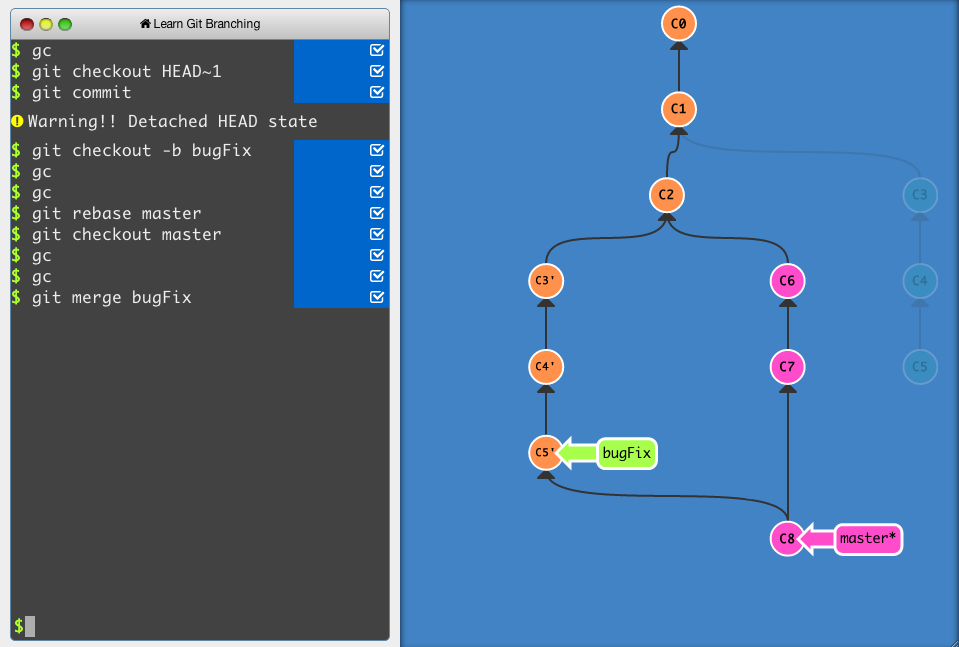
Learn Git Branching Full homepage screenshot

At a glance

Category
Education & Learning
Language
English
Paid-content signal
No paid content foundObserved
Registered
1996
Hosting
FastlyInferred
HTTPS certificate trusted
PassedObserved
Last updated

Website review

This review may include AI-generated content and is not individually verified. Domain, certificate and other facts come from the observed data on this page.

What is Learn Git Branching?

Learn Git Branching is a browser-based interactive simulator that teaches Git branching and history manipulation by letting you run real Git commands against a visualized repository. Instead of reading about how merge, rebase, cherry-pick, or reset behave, you type the commands and watch the commit graph redraw itself after each step. The page itself states that it simulates a git repository in your browser and requires JavaScript to run.

It is best understood as a practice environment, not a reference manual. The core loop is: read a short goal, enter commands in a simulated terminal, and see the resulting graph. Because everything happens in the browser, a mistake costs nothing — no local repo, no remote, no cleanup.

Who it suits

  • Git beginners who understand commit and branch but find merge conflicts and history rewriting abstract.
  • Intermediate users who use Git daily but avoid rebase -i, rebase --onto, or relative refs like HEAD~2 because the mental model is fuzzy.
  • Teachers and study groups who want a shared, zero-setup exercise that works on any machine with a browser.

It is less useful if you already reason confidently about commit graphs, or if you need help with hosting, CI, or repository administration — those are outside a branching simulator's scope.

What you actually practice

The exercises are organized as levels, so you build up rather than jump straight into advanced rewriting. Typical ground covered:

  • Creating, moving, and deleting branches; switching with checkout or switch.
  • Merging versus rebasing the same set of commits, and seeing why the resulting graphs differ.
  • Moving commits around with cherry-pick.
  • Referring to commits by relative position and by hash.
  • Undoing and repositioning work with reset and revert.

Trade-offs to weigh

Strength Limitation
Instant visual feedback on the commit graph Simplified repository — no remotes, hooks, submodules, or real file conflicts
No installation or account needed Requires JavaScript; the app will not load without it
Safe place to make destructive-looking mistakes Graph intuition does not transfer automatically to merge-conflict resolution in real files

A practical next step: open Learn Git Branching and work the introductory sequence in one sitting, then immediately repeat the same operations in a scratch repository on your own machine (git init in a throwaway folder). The gap you notice between the two — usually around conflict handling or working-tree state — tells you what to study next. For a text reference to pair with it, the official Git documentation covers the same commands in prose.

How does the interactive visualization help me understand Git branching?

Learn Git Branching turns Git branching into something you manipulate directly rather than read about. Instead of typing commands into a real repo and guessing what happened, you issue each command against a simulated repository and watch the commit graph redraw itself after every step. The branch labels, HEAD pointer, and new commits move visibly, so the cause-and-effect of commands like branch, checkout, merge, and rebase becomes concrete.

What the visualization actually shows you

  • The commit history as a graph, with branches as labeled pointers that slide forward as you commit.
  • Where HEAD sits, which explains why some commands act on your current branch and others do not.
  • How merges create a new commit joining two lines of history, versus how rebase replays commits onto a new base and rewrites their positions.
  • Detached HEAD states, which are the usual source of confusion when you check out a commit hash instead of a branch.

A concrete scenario

Suppose you have a main branch and a feature branch that have diverged. You run git merge feature and see a merge commit appear with two parents. Then you reset and try git rebase main on feature instead, and watch the feature commits get copied on top of main with new hashes. That side-by-side experience is the part that tends to stick, because you see why rebase produces a linear history and why it changes commit identity.

Trade-offs to keep in mind

The environment is a browser simulation, so it teaches branching and history manipulation well but does not cover everything a real repository involves — remote authentication, hooks, submodules, or resolving conflicts in actual files. Treat it as a way to build a correct mental model of the graph, then practice those commands in a throwaway local repo.

Next step

Work through the levels once for the graph intuition, then immediately recreate the same sequence in a scratch repository on your own machine. If you want a written reference alongside it, the official Git documentation is at Git.

Can I practice Git commands without installing Git on my computer?

Yes. Learn Git Branching runs a simulated Git repository directly in your browser, so you can type commands and see how commits, branches and merges behave without installing anything locally.

What that means in practice

The page simulates a repository and renders a visual commit graph next to a terminal, so each command you enter visibly moves branches and HEAD. This is useful if you want to:

  • Try git branch, git checkout, git merge and git rebase safely, with no risk to real work.
  • Build intuition for how commits relate to branches before touching a real project.
  • Practise on a locked-down or shared computer where you cannot install software.

Trade-offs to keep in mind

A browser simulator is a teaching model, not a full Git installation. You will not be practising your local configuration, SSH keys, remote authentication, hooks, submodules or conflict resolution in real files. The commands are real Git concepts, but the environment is simplified.

If you also want to practise against actual files and a real remote, GitHub's own documentation and sandbox-style guides are a reasonable complement: GitHub Docs.

A practical next step

Open the site, start with the introductory sequence rather than jumping to rebase, and after each exercise write down in one sentence what the graph looked like before and after. When the visual model feels predictable, install Git locally and repeat the same branch-and-merge exercise on a throwaway repository — that is the point where the simulated knowledge transfers.

What specific Git branching concepts and commands can I learn through this tool?

You can learn the core branching model of Git by manipulating a simulated repository in your browser and watching the commit graph update after each command. Learn Git Branching is built around that visual feedback loop, so the concepts it teaches best are the ones where the shape of the graph matters.

Concepts it covers

  • Commits as nodes and branches as movable pointers, which makes "a branch is just a label" concrete rather than abstract.
  • Relative references: HEAD, ^ and ~ for walking backwards through history, and how they differ when a commit has multiple parents.
  • Divergence and convergence: how two branches drift apart after a shared ancestor, and what it takes to bring them back together.
  • Merge versus rebase, including the trade-off between preserving history and producing a linear sequence.
  • Detached HEAD, and why moving around without a branch pointing at your work is risky.
  • Remote-tracking branches and the local/remote distinction, plus how fetching differs from pulling.

Commands you practise

git commit, git branch, git checkout (and the newer git switch idea), git merge, git rebase, git cherry-pick, git reset, git revert, git tag, git fetch, git pull, git push, and git clone. The tool also mentions a Mercurial (Hg) mode, so the same graph reasoning can be compared across two systems.

How the learning actually works

The app runs a simulated repository in your browser and requires JavaScript. You type real Git commands into a terminal pane; the commit graph on the left redraws to show the result. Because the graph is visible, a mistake is instructive rather than merely annoying — you can see exactly which pointer moved.

Who gets the most from it

  • Beginners who have used git commit and git push but freeze when a merge conflict or a detached HEAD appears.
  • Developers who can follow recipes but cannot predict what git reset --hard HEAD~2 will do to their branch.
  • Anyone preparing for a workflow where rebasing is expected and wants to rehearse it somewhere disposable.

Where it stops

It is a sandbox, not a full environment. You will not practise conflict resolution inside real files, hooks, submodules, .gitignore behaviour, or the social side of reviewing a pull request. Treat it as the place to build the mental model, then apply that model in a scratch clone of a real repository.

A useful next step: after finishing a level on rebase or reset, open a throwaway clone and repeat the same sequence there, checking git log --oneline --graph --all after every command. If the graph matches what you predicted in the tool, the concept has transferred. For a text-based reference to pair with it, the official Git documentation at Git covers the same commands with full option lists once you know which ones you need.

Is Learn Git Branching suitable for beginners or does it require prior Git experience?

Learn Git Branching suits beginners, but it works best if you have a basic idea of what a commit is and why branches exist. It's a browser-based simulator that renders Git's commit graph visually, so you can see branches move as you type commands. That visual feedback is the main reason it's beginner-friendly: instead of memorizing what git merge does from a manual, you watch the graph change.

Learn Git Branching

Where it helps beginners

  • Branching and merging concepts. The graph view makes divergent and convergent history concrete rather than abstract.
  • Safe experimentation. You work inside a simulated repository, so mistakes don't damage anything real.
  • Guided progression. The site is structured as levels, starting with basic commit and branch operations before moving into rebasing and more advanced history manipulation.

Where prior experience matters

The tool focuses on branching and history, not on everyday repository setup. A complete beginner may still need to learn how to install Git, initialize a repo, stage files, and commit before the lessons feel grounded. The interface is terminal-style, so comfort with typing commands helps. If you've never opened a terminal, expect a short adjustment period.

A practical way to decide

Ask yourself one question: can you explain what a branch points to? If not, spend an hour on the basics first, then use this site to make branching click. If you already know the basics but find rebase, cherry-pick, or detached HEAD confusing, this is a strong fit — the visualization is exactly the tool for those topics.

A good next step is to pair the site with a reference you can consult for command syntax while you work through the levels. Git is the official documentation and a sensible companion, and GitHub hosts plenty of beginner repositories where you can practice the same commands on real projects once the simulated levels start feeling easy.

How does the browser simulation of a Git repository work?

The simulation is a self-contained app that runs entirely in the browser: it implements a Git-like command interpreter and repository model in JavaScript, renders the commit graph visually, and responds to the commands you type in its terminal pane. Nothing is installed locally and nothing is sent to a server, so you can experiment freely without touching a real project.

Learn Git Branching

H3 How the pieces fit together

  • Terminal input. You type Git commands into an in-page terminal. The app parses them and applies them to its internal model rather than calling a real git binary.
  • Repository model. Commits, branches, tags, HEAD and the staging area exist as data structures inside the page. Each command mutates that model.
  • Visual graph. The commit graph is redrawn after each command, so you can see how a branch moves, where HEAD points, and how merges or rebases reshape history.
  • Levels and challenges. Tasks give you a goal state; the app checks your graph against it, which turns abstract commands into something you can verify by eye.

H3 What this means in practice

Because the repository is simulated, mistakes are cheap: you can reset, rebase or delete branches to see what happens, then reload the page. The trade-off is fidelity. A browser model is designed for teaching, so it emphasizes branch topology and command effects; it won't reproduce everything about a real working tree, hooks, remote authentication or merge conflicts in large codebases.

A useful way to use it: pick one concept you keep getting wrong, such as rebasing a feature branch onto main, and work through the relevant level until the graph matches what you intended. Then repeat the same sequence in a throwaway local repository to confirm the commands behave as expected with real files. For reference alongside it, the official Git documentation covers the same commands in full detail.

Related questions

More questions →
Why Does Learn Git Branching Show "Loading..." and How Can I Fix It?

Learn Git Branching shows "Loading..." because the app runs entirely in your browser and needs JavaScript to simulate a Git repository. If JavaScript is disabled or blocked, the page never gets past that message. The site's own instruction is to enable JavaScript and refresh the page. If that alone doesn't work, the usual cause is a browser extension or a strict privacy setting blocking the script.

What the app actually needs

The site states plainly that it "simulates a git repository in your browser," so JavaScript is required to use it. There is no server-side fallback that renders the lessons for you. That single dependency explains almost every case of a stuck loading screen: the browser either refuses to run the script or never receives it.

Fixes to try, in order

1. Enable JavaScript and refresh

Check that JavaScript is allowed for learngitbranching.js.org in your browser's site settings, then reload the page. This is the fix the site itself suggests.

Expected result: the loading message is replaced by the terminal interface.

2. Test in a private or incognito window

Open the site in a private window with extensions disabled. If it loads there, an extension is the problem.

3. Disable script-blocking extensions

Content blockers, script managers, and privacy extensions can block the app's JavaScript even when JavaScript is enabled globally. Turn them off for this site, or allow the domain, then refresh.

4. Loosen strict privacy or tracking-protection settings

Browsers with aggressive tracking protection or "block all scripts" modes can stop the app from initializing. Set the site to a standard protection level and reload.

5. Try a different browser or network

If nothing above works, load the site in another browser. A corporate network, DNS filter, or firewall that blocks the script will produce the same endless loading state regardless of your browser settings.

Quick reference

Symptom Likely cause Action
Stuck on "Loading..." everywhere JavaScript disabled Enable JavaScript, refresh
Loads in incognito, not normally Extension blocking scripts Disable or allowlist the extension
Loads on one browser only Browser privacy settings Lower protection for the site
Fails on one network only Network or firewall filter Switch network or browser

If it still won't load

The app is a browser-only simulation, so there is no offline or no-JavaScript version to fall back on. If every step above fails, the block is happening outside your control — most often at the network level — and the practical move is to try a different connection or device.

Learn Git Branching vs. Docs and Videos: Which Way Should You Learn Git?

Learn Git Branching (learngitbranching.js.org) is a browser-based Git simulator where you type real commands into a terminal and watch commit and branch graphs update as you go. It is the strongest option if your goal is to build muscle memory for branching and merging. Reading the official documentation and watching video tutorials remain better for breadth — covering configuration, remotes, hooks, and workflow conventions that the tool's levels do not reach. Most people get the best result by using the simulator for hands-on branching practice and keeping a reference open for everything else.

What each option actually gives you

Dimension Learn Git Branching Git documentation Video tutorials
Format Interactive terminal + visual graph Reference text Passive watch-along
Feedback loop Immediate — the graph redraws after each command None; you verify on your own machine None until you pause and try it
Branching and merging Core focus, taught through leveled exercises Covered, but as reference rather than drill Varies by creator
Breadth (config, remotes, hooks, workflows) Limited to what the levels include Comprehensive Depends on the series
Setup required A browser with JavaScript enabled A local Git install to practice A local Git install to practice
Cost No pricing information is published on the site Free Free and paid options exist

Where the simulator wins

The tool's advantage is that it removes the gap between reading a command and seeing what it does. You type into a simulated repository, and the commit tree redraws so you can see exactly where HEAD moved, which commit a branch now points to, and how a merge or rebase reshaped history.

That matters most for the concepts people struggle with on paper:

  • Branch pointers as movable labels. Watching a branch label slide to a new commit makes "a branch is just a pointer" concrete rather than abstract.
  • Merge vs. rebase. You can run both against the same starting graph and compare the resulting shapes side by side.
  • Relative references. Practicing HEAD~2, HEAD^, and similar notation against a visible graph builds intuition that a text description rarely delivers.
  • Detached HEAD and recovery. You can make a mess and reset it without risking a real repository.

Because the exercises are leveled and gated, you also get a completion signal — you know when you have actually internalized a concept rather than just read about it.

Where docs and videos still win

The simulator is deliberately narrow. It teaches branching mechanics, not the full surface of Git you will meet at work. Documentation and video courses are better when you need:

  • Command reference. Exact flags, options, and edge cases for git log, git config, git stash, and similar commands.
  • Remote collaboration. Cloning, fetching, pushing, pull requests, and how a shared remote changes what "branch" means.
  • Configuration and environment. Aliases, credential helpers, .gitignore behavior, line-ending handling.
  • Workflow conventions. Trunk-based development, Git Flow, commit message standards — these are team decisions, not Git features, and no simulator can settle them for you.
  • Troubleshooting real repositories. Recovering a lost commit in your actual project is a different skill from solving a puzzle.

Videos add one thing text does not: watching someone narrate their reasoning while they work. That is useful for workflow judgment, less so for command syntax you could look up faster.

A practical way to combine them

  1. Start with the simulator if branching is your weak point. Work through the introductory sequence until merges and rebases stop feeling like guesswork.
  2. Keep a reference open in a second tab for any command the levels do not cover. When a level introduces a command, read its documentation entry once so you know what the flags mean.
  3. Move to a scratch repository on your own machine. Create a throwaway repo, reproduce the graph shapes you practiced, and confirm the commands behave the same outside the simulator.
  4. Use videos for workflow, not syntax. Watch them when you need to understand how a team structures branches, not when you need to remember a flag.
  5. Return to the simulator when a specific concept — interactive rebase, cherry-pick, reset vs. revert — keeps tripping you up in real work.

Common snags

  • The page shows "Loading..." and nothing else. The application simulates a Git repository in your browser, so it requires JavaScript. Enable JavaScript and refresh the page.
  • You finish the levels but still feel lost in a real repo. That is expected. The simulator covers branching logic, not remotes, configuration, or team workflow. Fill those gaps with documentation and hands-on practice in a scratch repository.
  • You treat the simulator as a complete Git course. It is not. Use it as a drill for one skill area and pair it with reference material for everything else.

The short version

Choose Learn Git Branching when you need to do Git and see the consequences, especially for branching, merging, and rebasing. Choose documentation when you need to look up exact behavior or cover topics the levels skip. Choose videos when you want to absorb how an experienced developer reasons through a workflow. The three are complementary, and the fastest path is usually simulator first, reference always within reach.

What Is Learn Git Branching?

Learn Git Branching (learngitbranching.js.org) is a browser-based interactive tool for learning Git, with a focus on visualizing branches and commits. It simulates a Git repository directly in your browser, so you don't need to install Git or set up a local repository to start practicing. The only requirement noted on the site is that JavaScript must be enabled for the app to run.

What You Can Do With It

The tool is built around two connected activities:

  • Lessons that introduce Git concepts, especially branching and merging.
  • Practice challenges that ask you to reach a specific repository state using Git commands.

Because the repository is simulated in the browser, you get immediate visual feedback: as you type commands, the commit graph updates so you can see how each command changes branches, commits, and history.

Why the Visualization Matters

Git's branching model is easier to understand when you can see it. In a normal terminal, commands like git rebase or git cherry-pick change history in ways that aren't obvious from text output alone. Learn Git Branching renders the commit graph, so the effect of a command is visible right away. This makes it useful for building intuition about how branches relate to each other before you apply the same commands in a real project.

When to Use It

Learn Git Branching fits well if you:

  • Are new to Git and want to understand branching without risking a real repository.
  • Already use basic Git commands but find rebasing, cherry-picking, or resetting confusing.
  • Want to practice specific scenarios repeatedly until the commands feel natural.

It is less suited as a reference for everyday Git workflows or for learning non-branching topics in depth. Treat it as a practice environment for branching and history manipulation, not as a complete Git course.

How to Get Started

  1. Open learngitbranching.js.org in a browser with JavaScript enabled.
  2. Start with the introductory levels, which walk through commits and branches.
  3. Type Git commands into the simulated terminal and watch the graph update.
  4. Work through the challenge levels, which give you a target state to reach.

If the page shows only a loading message, JavaScript is likely disabled or blocked. Enable it and refresh.

A Practical Note

The commands you practice here are the same ones you use in a real repository, so the skills transfer directly. The difference is that mistakes cost nothing — you can reset a level and try again. That makes it a low-risk way to build confidence before running branch-rewriting commands on actual work.

How to Get Started with Learn Git Branching

Open learngitbranching.js.org in a browser with JavaScript enabled, wait for the simulated terminal to load, and start with the introductory levels. The site runs a Git repository simulation entirely in your browser, so JavaScript is required — if you see "Loading..." instead of the terminal, enable JavaScript and refresh the page.

What you need before you start

  • A desktop or laptop browser with JavaScript turned on. The site itself states: "This application simulates a git repository in your browser, so you will need JS to use the app."
  • No Git installation, account, or local repository is required — everything happens in the browser simulation.
  • Basic familiarity with typing commands helps, but the early levels assume no prior Git branching experience.

Step-by-step: your first session

  1. Load the site. Go to learngitbranching.js.org. The page shows a loading state while the simulation initializes, then presents a terminal interface.
  2. Pick the terminal type. The interface offers a choice between Git and Hg (Mercurial) terminals. Choose Git unless you specifically want to practice Mercurial.
  3. Start the first level. Begin with the introductory levels rather than jumping to advanced branching or rebasing challenges. The early levels introduce one concept at a time.
  4. Type commands into the built-in terminal. Enter Git commands as instructed and watch the visualization update. The commit graph on screen reflects what your commands actually did, so you can see the effect of each command immediately.
  5. Verify your result. Each level states an objective. When your command sequence produces the required graph state, the level confirms completion and you can move on.
  6. Progress to unlock more. Completing levels unlocks more complex scenarios and practice objectives, including branching and rebasing challenges.

How the practice loop works

The core mechanic is a feedback loop: you enter a command, the simulated repository changes, and the visualization redraws the commit graph. That means a wrong command is visible immediately — you see the branch pointer move somewhere you didn't intend, or a commit land in the wrong place — and you can correct it in the same session without touching a real repository.

This is the main difference from reading docs or watching videos: you get to make the mistake and see its consequence rather than only reading about it.

Common snags

  • Stuck on "Loading..." — almost always JavaScript being disabled or blocked. Enable it and refresh.
  • Skipping ahead — advanced branching and rebasing levels assume the vocabulary and mental model built in the introductory ones. Working through them in order costs less time than backtracking.
  • Expecting a real repo — the terminal is a simulation. Commands affect the in-browser model, not any files on your machine.

Where to go next

Once the introductory levels are done, move into the branching and rebasing challenges. Those are the scenarios the site is best known for, and they build directly on the command-and-observe loop you practiced at the start.

Who Is Learn Git Branching For and What Git Skills Can You Practice There?

Learn Git Branching (learngitbranching.js.org) is an interactive, browser-based Git visualization tool for anyone who wants to understand how branches, commits, and history manipulation actually work. It suits complete beginners who need a visual, hands-on introduction to branching, and it also gives intermediate users structured practice with rebasing, merging, and moving commits around. The site runs a simulated Git repository in your browser and requires JavaScript to load.

Who it fits

  • Git beginners who have used commit and push but get confused about what a branch really is, where HEAD points, or why a merge creates a new commit.
  • Intermediate users who understand the basics but want to build confidence with rebase, cherry-pick, resetting, and rearranging history.
  • Visual learners who benefit from seeing the commit graph update after every command instead of reading about it.

It is not a general Git course. It does not cover installation, configuring remotes, hosting workflows (GitHub/GitLab), pull request etiquette, or day-to-day team conventions. If you need those, treat this as a supplement, not a replacement.

What you can practice

The lessons are organized as interactive levels, each with a goal and a simulated terminal. You type real Git commands, and the visualization shows the resulting commit graph.

Skill area What you practice
Branching basics Creating branches, switching with checkout/switch, understanding HEAD
Merging Fast-forward vs. non-fast-forward merges, merge commits
Rebasing Moving and replaying commits, keeping history linear
History manipulation cherry-pick, resetting, reverting, relative refs like HEAD~1
Navigating commits Referring to commits by hash, parent, and relative position
Remote concepts Fetching, pulling, pushing, and tracking branches (in later levels)

How a level works

  1. Read the goal — each level states what the commit graph should look like when you finish.
  2. Type commands in the simulated terminal, for example git branch new-feature or git rebase main.
  3. Watch the graph update — the visualization redraws commits and branch labels after each command.
  4. Verify — the level confirms success when the graph matches the target, or lets you retry.

Because it's a sandbox, mistakes are free: you can reset a level and try a different approach without touching a real repository.

Practical notes

  • The app simulates a repository in your browser, so nothing you do affects any real project.
  • If the page shows "Loading..." and stays blank, JavaScript is likely disabled — enable it and refresh.
  • The interface includes a terminal view and a commit-graph view side by side, which is the core of the learning experience.

How to get the most out of it

  • Do the levels in order; later ones assume you're comfortable with relative refs and rebasing.
  • After finishing a level, redo it using a different command sequence to see how the graph changes.
  • Pair it with a real throwaway repository so you can repeat the same commands outside the sandbox.

If your goal is to stop fearing branches and finally understand what rebase does to your history, this is a well-targeted place to practice. If you need setup, hosting, or team workflow guidance, look elsewhere.

Website Overview

An established domain and managed infrastructure suggest continuity of operations and may support dependable delivery, although neither guarantees service quality. Several search or sharing settings need attention. Together they may make snippets, preview images or preferred URLs less consistent across platforms.

Domain and Registration

Registered in 1996, this domain has about 30 years of history. That suggests continuity, although ownership and purpose may have changed. Transfer-protection status is present, helping reduce the risk of unauthorized domain transfers. The registrar is NameCheap, Inc., a widely used domain service provider. The domain uses the common .org extension, which is not an independent safety signal.

DNS and Email

Nameservers are provided by Cloudflare, indicating managed DNS hosting. MX records point to the improvmx.com email service. DNSSEC is enabled, allowing validating resolvers to authenticate signed DNS data. No CNAME was found; the observed records resolve directly to addresses. SPF and DMARC are configured. DKIM status is unknown.

TLS and Certificates

The public key uses EC with 256 bits. The server supplied a complete certificate chain. No organization name is present in the certificate; the available fields are consistent with domain validation. The certificate was issued by Let's Encrypt, commonly associated with automated certificate services. The certificate's total validity is about 89 days, consistent with a short renewal cycle.

HTTP and Browser Security

The checked browser-security headers were not detected, leaving fewer explicit browser-side safeguards. CORS permits any origin to read this response. This is common for public resources; sensitive responses need narrower handling. No X-Powered-By header was found, reducing one common source of backend fingerprinting information. The cf-ray, x-cache, x-served-by, via response header indicates a CDN or caching proxy in the delivery path. No obvious internal addresses or debug information were found in the headers.

Technology Stack Analysis

The public page identifies Google Analytics, Cloudflare, Fastly without precise versions, leaving fewer clues for version-specific scanning.

Search and Social Sharing

No homepage meta description was detected, leaving snippet selection more dependent on page text. No homepage canonical URL was detected. If duplicate URLs exist, consolidation may be less explicit. The title has 19 characters, within a common display range. The observed directives allow indexing and link following. No Generator meta tag is publicly exposed.

Hosting and Email

DNSCloudflare
HostingFastly
Emailimprovmx.com
Approximate IP geolocation (inferred; a CDN or proxy may differ from the origin server) Location unknown Inferred 104.26.8.84

Registration details

RDAP / WHOIS

RegistrarNameCheap, Inc.
Registered1996-06-26
Expires2032-06-25
Domain statusclient transfer prohibited
Nameserversmiles.ns.cloudflare.com、pam.ns.cloudflare.com
DNSSECsigned

DNS records

DNS

TypeNameValueTTLPriority
Alearngitbranching.js.org104.26.8.84300—
Alearngitbranching.js.org104.26.9.84300—
Alearngitbranching.js.org172.67.73.64300—
AAAAlearngitbranching.js.org2606:4700:20::681a:854300—
AAAAlearngitbranching.js.org2606:4700:20::681a:954300—
AAAAlearngitbranching.js.org2606:4700:20::ac43:4940300—
MXjs.orgmx1.improvmx.com30010
MXjs.orgmx2.improvmx.com30020
NSjs.orgmiles.ns.cloudflare.com86400—
NSjs.orgpam.ns.cloudflare.com86400—
TXTjs.orggithub-verification=Co5XEGjgZ54phI90tdeEbcXBt0LErl0nKNUpqPmR300—
TXTjs.orgv=spf1 -all300—
DSjs.org2371 13 2 bb5749b06b705cabaa999f6adc60b60e528c502078e1a1075206a852956d86703600—
DMARC_dmarc.js.orgv=DMARC1; p=reject; pct=100; rua=mailto:[email protected]; sp=reject; aspf=s;300—

TLS and certificates

TLS / SSL

AssessmentNormal configuration
Supported protocolsTLSv1.2、TLSv1.3
Negotiated protocolTLSv1.3
Certificate subjectjs.org
IssuerLet's Encrypt
Valid until2026-11-27T14:02 · Remaining when checked: 54 days
Verification detailsCertificate trust: Passed · Hostname match: Passed

HTTP response headers

HTTP

HeaderValue
content-typetext/html; charset=utf-8
cache-controlmax-age=600
servercloudflare
access-control-allow-origin*

Identified technologies

Google AnalyticsCloudflareFastly

Pages, Search and Sharing

Meta descriptionNot detected
Canonical URLNot detected
LanguageEnglish (default)
Twitter CardNot detected

No robots.txt found

No sitemaps found

User reviews (0)

  • No reviews yet.