Website profiles · Technology insights · Alternatives

makeayo.com

The easiest way to get started with generative art

Paid content
Visit website
Profile views 0 Outbound visits 0 Normal
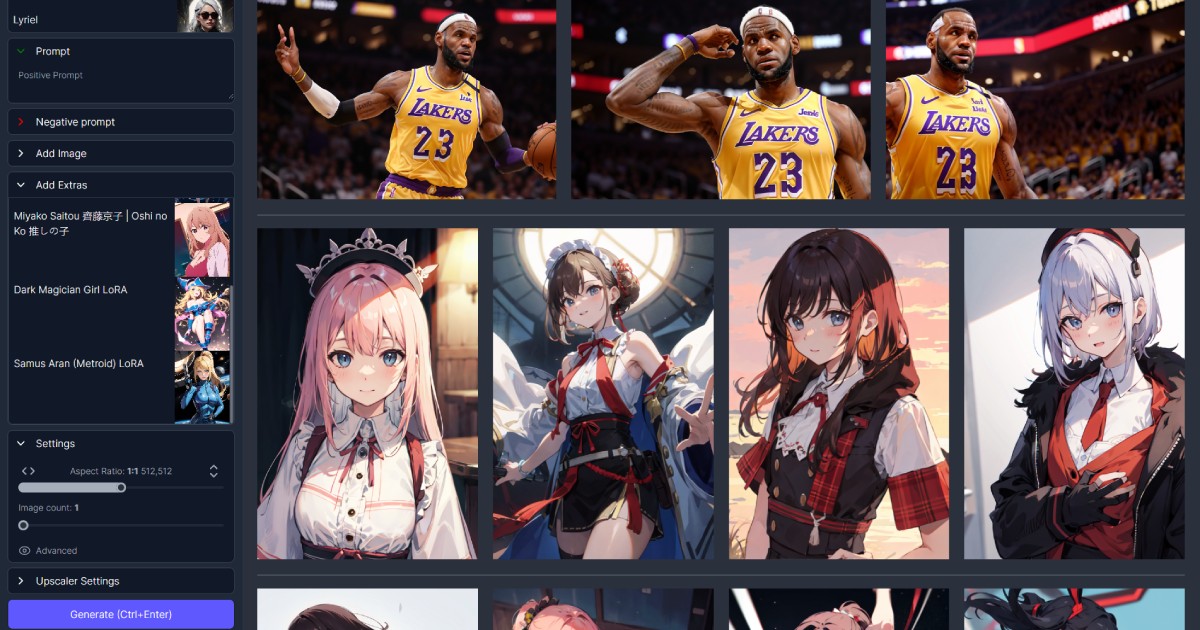
Makeayo makeayo.com Makeayo creates or edits images with generative AI and text-based controls. ↗ Full homepage screenshot

At a glance

Category
Artificial Intelligence
Language
English
Paid-content signal
Paid contentObserved
Registered
2023
Hosting
CloudflareInferred
HTTPS certificate trusted
PassedObserved
Last updated

Website review

This review may include AI-generated content and is not individually verified. Domain, certificate and other facts come from the observed data on this page.

What is Makeayo?

Makeayo is a Windows desktop application for generating and editing images with AI. You describe a picture in text, choose a base model, and it produces results locally on your own computer rather than in the cloud. It is aimed at people who want a click-and-generate experience without assembling a technical pipeline, while still offering controls like pose matching and image transformation for more directed work.

What it does

  • Text-to-image generation: pick a base, describe the picture, generate.
  • Image transform: restyle an existing image into a new look.
  • HD upscaling: enlarge results toward 4K and beyond.
  • Pose matching via ControlNets: carry a pose from a reference image into a new output.
  • Model library: hundreds of community models to choose from.

Who it suits

A hobbyist or designer on Windows who wants fast iteration, unlimited generations without per-image cost, and a large pool of community models — without managing a cloud account. The trade-off is hardware: Makeayo recommends at least an NVIDIA GeForce GTX 1050, and performance depends on your GPU. It currently supports Windows 10 and 11, with Mac and Linux stated as coming soon. If you need to run in a cloud environment instead, the site points to RunDiffusion.

As a next step, check your graphics card against that recommendation and try a few prompts on a single model before exploring pose matching or upscaling, since those are the features that most change your workflow.

Can my computer run Makeayo, and what GPU do I need?

Makeayo runs locally on Windows 10 or 11, not in the cloud, so your own hardware does the generation work. The page states a recommended minimum of an NVIDIA GeForce GTX 1050 or greater; Mac and Linux support is described as coming soon, so those systems cannot run it yet.

What this means in practice

  • Operating system: Windows 10/11 only for now. A Mac or Linux machine is not an option today.
  • GPU: The GTX 1050 is a floor for getting started, not a target for comfortable use. If you plan to work with large models, ControlNet pose matching, or 4K-and-beyond upscaling, a newer card with more VRAM will matter more than the minimum listed.
  • No cloud fallback: Because it runs on your desktop like Photoshop or DaVinci Resolve, a weak laptop will feel slow regardless of internet speed.

A concrete check before installing

Compare your GPU against the GTX 1050 using its VRAM and generation, not just its name. A reader with a 4 GB laptop GPU should expect the basic workflow to work but heavier features to strain; someone with 8 GB or more from a recent generation will have headroom for the model library and upscaling.

If your machine falls short

The page points to RunDiffusion for running Makeayo in a cloud environment, which shifts the load off your computer. That is the practical route for Mac users, Linux users, or anyone whose GPU sits below the stated minimum.

Next step: confirm your exact GPU model and VRAM in Windows Task Manager or your system settings, then decide whether the GTX 1050 baseline is enough for the features you actually want to use.

Is Makeayo free, and are there limits on how many images I can generate?

Yes—Makeayo describes itself as free to use, and its page states that generations are unlimited at no additional cost. That combination is unusual for a generative-art tool, where free tiers typically cap daily images or require credits.

What "free and unlimited" covers, based on the site's own description

  • Cost: The FAQ answer is simply "Makeayo is free to use!" A separate pricing page exists, so check it directly if you need current terms—the page text doesn't spell out any paid tier details.
  • Generation volume: The features list promises "unlimited generations" with no additional cost, framed as freedom to keep refining an image.
  • What you supply: It's a desktop app for Windows 10 and 11 (Mac and Linux are listed as coming soon), and it recommends an NVIDIA GTX 1050 or better. So the real constraint isn't a per-image fee but your own hardware—long sessions depend on your GPU, not a quota.
  • Included tools: Text-to-image with a chosen base model, image transformation into new styles, HD upscaling to 4K and beyond, pose matching via ControlNets, and hundreds of community models.

Practical reading

For a hobbyist sketching ideas nightly, unlimited local generation is a strong fit—you can iterate dozens of times on one prompt without watching a counter. A freelancer on a tight deadline should weigh the trade-off: local rendering ties up your machine's GPU, whereas cloud tools free your computer but usually meter usage. The page notes that cloud running is possible via RunDiffusion if your hardware is the bottleneck.

One caveat worth verifying yourself: "free" and "unlimited" are marketing claims on the homepage, and the separate pricing page may define fair-use limits not visible here. Check that page before committing a large project.

Next step: Install the Windows build, run a short batch of 10–20 generations, and note render times and GPU load—that tells you whether "unlimited" is genuinely usable on your machine. For broader context on desktop AI art tools, see RunDiffusion.

How do I install and start using Makeayo on Windows?

Makeayo is a Windows desktop app, not a browser tool, so installation means downloading it from Makeayo and running it locally on Windows 10 or 11. The site states Mac and Linux versions are planned but not yet available.

Install and first launch

  1. Go to the Makeayo website and download the Windows build.
  2. Run the installer and open Makeayo.
  3. On first launch, expect it to prepare or download the AI models it needs. Because generation runs on your own graphics card rather than in the cloud, this local setup is the step most likely to take time.
  4. Check that your GPU meets the recommendation: the site suggests an NVIDIA GeForce GTX 1050 or better. If your machine falls short, generation may be slow or fail.

Generate your first image

The workflow is a three-step loop: choose a base, describe your picture in text, then generate results. Start with a simple prompt and a default model, then refine. The page advertises unlimited generations at no additional cost, which makes iterating on wording and settings practical rather than costly.

Once you have a result you like, the advertised features give you clear next moves: image transform to restyle an existing picture, pose matching via ControlNets to carry a pose from an input image, and HD upscaling for 4K-and-beyond output. Hundreds of community models are available if the defaults don't fit your style.

Practical caveats

  • Hardware matters more than with cloud tools. A modest laptop GPU will feel the difference; a desktop with a dedicated NVIDIA card is the smoother path.
  • No cloud fallback in the app itself. The site notes that cloud use is possible through RunDiffusion if your local machine struggles.
  • Cost: the site describes Makeayo as free to use, with a separate pricing page; check that page for current terms rather than assuming.

As a next step, write one short prompt describing subject, style and lighting, generate a small batch, then adjust a single variable at a time. That habit will teach you the app's controls faster than chasing complex prompts immediately.

What can I do with image transform, pose matching, and HD upscaling in Makeayo?

In Makeayo, these three features cover distinct jobs: restyling an existing image, controlling the pose of a generated figure, and increasing output resolution. All are text-and-image-driven tools within a desktop generative art app for Windows 10 and 11.

What each feature does

  • Image transform turns an input image into a new style. The page describes it as transforming images "into captivating new styles." A practical use: take a rough sketch, photo, or concept and shift it toward a painted, illustrated, or other stylistic look while keeping the underlying composition as a guide.
  • Pose matching uses ControlNets to match poses from input images. This is useful when the body position matters—character design, reference-driven illustration, or keeping a figure's stance consistent across variations—while the prompt and model still shape appearance and setting.
  • HD upscaling raises detail and can generate at 4K and beyond. Use it after you've settled on a composition, so you spend effort enlarging a result you actually want rather than iterating at high resolution.

Choosing between them

Goal Feature to reach for
Change the style of an existing picture Image transform
Recreate or follow a specific body pose Pose matching
Make a finished image larger and more detailed HD upscaling

A sensible workflow is to iterate at normal resolution with prompts and models, use pose matching when the figure's position is the constraint, apply image transform when style is the constraint, and upscale last. Because Makeayo runs locally on your desktop rather than in the cloud, upscaling and repeated generations lean on your own GPU; the page recommends an NVIDIA GeForce GTX 1050 or better, so expect larger upscales to take longer on modest hardware. The page also states generations are unlimited at no additional cost, which suits trial-and-error work like pose and style exploration.

As a next step, pick one reference image and test it twice: once through pose matching with a prompt describing a new scene, and once through image transform with a style-focused prompt. Comparing the two results will show which control matters more for your project. Related tools worth knowing include RunDiffusion for running in a cloud environment.

Can I run Makeayo in the cloud instead of on my desktop?

Yes, but not through Makeayo itself. Makeayo is a Windows desktop application, so it runs on your own PC rather than in a browser. The official answer on its site is that you can run Makeayo in a cloud environment using RunDiffusion, a separate service Makeayo.

What this means in practice

  • Local use: You install Makeayo on Windows 10 or 11 and generate images on your own hardware. The site recommends at least an NVIDIA GeForce GTX 1050, and notes Mac and Linux support is planned but not yet available.
  • Cloud use: If your machine is underpowered or you don't want to tie up your desktop during long generation sessions, a cloud desktop service like RunDiffusion lets you run the software remotely. You'd be paying that provider, not Makeayo, which the site describes as free to use.

Choosing between them

Situation Better fit
You have a Windows PC with a capable GPU and want zero extra cost Local install
Your GPU is weak, or you're on a laptop that overheats during long runs Cloud desktop
You want to keep working on your PC while images render Cloud desktop
You need offline use or want to keep images entirely on your machine Local install

A concrete case: if you're on a Mac or Linux machine today, the local route isn't open yet, so a cloud Windows environment is the practical way to try Makeayo now.

Next step: check whether your GPU meets the GTX 1050 baseline before installing. If it doesn't, price out a cloud session on RunDiffusion for the hours you'd actually generate, and compare that against the cost of a hardware upgrade.

Related questions

More questions →
How to Compress Images for the Web Without Losing Visible Quality

You can cut most images to a fraction of their original file size without any visible quality loss by doing three things in the right order: resize the image to the dimensions it will actually display at, pick the right format for the content, then apply compression at a quality level that survives a side-by-side check. The single biggest mistake is skipping step one — an oversized image compressed at maximum quality is still far heavier than a correctly sized one.

Why file size and quality are a trade-off, not a fixed setting

Every compressed image is a negotiation between three variables: how many pixels you keep, how precisely each pixel is described, and how much the format is allowed to guess.

  • Dimensions decide how many pixels exist at all. Halving width and height removes 75% of the pixel data before any compression happens.
  • Quality level decides how aggressively the encoder discards detail it thinks you won't notice.
  • Format decides the kind of discarding allowed — some formats throw away color precision, others only remove redundancy.

Because these interact, "quality 80" means something different on a 4000px photo than on a 600px thumbnail. Tune dimensions first, then quality.

Pick the format before you touch the quality slider

Format Best for Compression type Transparency Notes
JPEG Photographs, gradients, complex scenes Lossy No Smallest for photos; artifacts appear around sharp edges and text
PNG Logos, icons, screenshots, flat color, anything needing transparency Lossless (or lossy via quantization) Yes Often 5–10× larger than JPEG for photos; excellent for flat graphics
WEBP Almost everything, as a modern default Both lossy and lossless Yes Typically 25–35% smaller than JPEG at comparable quality; broad browser support
SVG Logos, icons, diagrams, charts Vector (resolution-independent) Yes Stays crisp at any size; not suitable for photos
GIF Short simple animations only Lossless, 256 colors Yes (1-bit) Superseded by WEBP/MP4 for animation in nearly all cases

Practical rule: photos → JPEG or lossy WEBP; flat graphics and transparency → PNG or lossless WEBP; anything vector → SVG.

The four levers, in the order you should pull them

1. Resize to display size (biggest win, zero quality cost)

If your layout renders an image at 800px wide, serving a 2400px original wastes roughly 89% of the pixels. Resize to the largest size it will ever be displayed at, and add a 2× version only if you need retina sharpness.

2. Choose the format

Match the format to the content type using the table above. Converting a photographic PNG to JPEG or WEBP alone can shrink it by 80% or more.

3. Set the quality level

For JPEG and lossy WEBP, most photographs hold up well between quality 70 and 85. Below ~60, banding appears in skies and blur around text. Above ~90, file size climbs steeply for gains nobody can see.

4. Strip metadata

EXIF data, camera info, and embedded thumbnails can add tens of kilobytes. Remove them unless you specifically need copyright or orientation data — and note that stripping orientation can rotate an image, so verify after export.

When lossy compression is fine, and when it isn't

Lossy is acceptable when:

  • The image is a photograph or has natural texture.
  • It's decorative or below the fold.
  • Slight softening won't be noticed at final display size.

Use lossless or vector instead when:

  • The image contains text, UI elements, or thin lines (lossy creates ringing artifacts).
  • It's a logo, icon, or diagram — SVG or PNG keeps edges clean.
  • It will be edited again later; repeated lossy saves compound degradation.
  • It's a screenshot of code or a chart where color accuracy matters.

Compressing vs. resizing: don't confuse them

Compressing reduces the bytes needed to describe the same pixels. Resizing reduces the number of pixels. They're independent, and resizing usually delivers the larger saving. A 3000×2000 photo at quality 95 might be 2 MB; the same photo resized to 1200×800 at quality 80 might be 180 KB. Doing only the quality reduction gets you maybe 40% off; doing both gets you over 90%.

A repeatable workflow

  1. Determine the maximum display width in your layout (inspect the element or check your CSS).
  2. Export at that width (plus a 2× variant if needed).
  3. Convert to the right format — WEBP as a modern default, JPEG as a fallback, PNG/SVG for graphics.
  4. Apply quality 75–85 for lossy formats and compare against the original.
  5. Strip metadata and re-check orientation.
  6. Verify before publishing (see below).
  7. Serve the right file with srcset so small screens don't download the large variant.

How to verify quality before you publish

  • View at 100% at final display size, not zoomed in — artifacts you can't see at real size don't matter.
  • Toggle between original and compressed in a viewer or an online compressor's before/after preview.
  • Check the worst-case areas: skies, smooth gradients, sharp edges, and any text.
  • Compare file sizes and ask whether the extra kilobytes buy visible improvement. If not, go smaller.
  • Test on a mid-range phone, where banding and blur are often more obvious than on a desktop monitor.

Common mistakes

  • Compressing a full-resolution image and calling it optimized.
  • Using PNG for photographs.
  • Setting quality to 100 "to be safe" — it inflates size with no visible benefit.
  • Re-saving a JPEG repeatedly, stacking artifacts each time.
  • Forgetting that GIF animations are usually better as WEBP or video.
  • Ignoring metadata, which can silently add weight.

Quick reference

Goal Do this
Photo on a webpage Resize to display width → WEBP (fallback JPEG) → quality 75–85
Logo or icon SVG; fall back to PNG if vector isn't possible
Screenshot with text PNG or lossless WEBP
Transparent photo cutout Lossy WEBP or PNG
Short animation WEBP or MP4, not GIF

The order matters more than any single setting: resize, then choose format, then tune quality, then strip metadata, then verify at real display size. Follow that sequence and you'll routinely land at 10–20% of the original file size with no quality your visitors can detect.

Is Makeayo Free to Use?

Yes. According to Makeayo's own FAQ, Makeayo is free to use, and the site states that you can generate images "endlessly at no additional cost." The main conditions are that it runs as a desktop application on Windows 10 or Windows 11 (Mac and Linux are listed as coming soon) and that your machine meets the graphics requirement of an NVIDIA GeForce GTX 1050 or greater.

What "Free" Covers

Makeayo describes its offer as free with unlimited generations, so you are not paying per image or hitting a generation cap according to the site's claims. The feature set listed as part of the product includes:

  • Text-to-image generation — pick a base model, describe your picture, and generate results.
  • Image transform — restyle existing images into new styles.
  • HD upscaling — output at 4K and beyond.
  • Pose matching — use ControlNets to match poses from input images.
  • Hundreds of models — community-contributed models to choose from.

The site also mentions an active Discord community and a blog as resources.

Where Cost Could Still Enter

"Free to use" does not mean there are zero possible costs in every setup. Two practical caveats:

  1. Hardware. Makeayo runs locally on your desktop rather than in the cloud, similar to Photoshop or DaVinci Resolve. If your current PC doesn't meet the GTX 1050 recommendation, running it may require a hardware upgrade — a real cost even if the software is free.
  2. Cloud alternative. If you prefer not to run it locally, the FAQ points to RunDiffusion for running Makeayo in a cloud environment. That is a separate service, and its terms are not described on the Makeayo page, so check RunDiffusion directly for any charges.

A pricing page exists at makeayo.com/pricing for reference; the site's stated position is that the product is free.

Quick Answers to Related Questions

Question Answer per Makeayo
Is there a free tier or trial? The product is described as free to use overall
Are generations limited? No — "unlimited generations" at no additional cost
Does it run in the browser? No — it's a desktop app; cloud use is via RunDiffusion
Supported OS Windows 10 and Windows 11; Mac and Linux coming soon
Minimum GPU NVIDIA GeForce GTX 1050 or greater

Bottom Line

If you have a Windows 10/11 machine with at least a GTX 1050-class NVIDIA GPU, you can download Makeayo and start generating without paying, per the site's stated terms. If your hardware falls short, factor in an upgrade or look into the RunDiffusion cloud option and confirm its pricing separately.

Where to Download Makeayo and Get Help

Download Makeayo for Windows directly from makeayo.com — the site's download section is the official entry point. The app runs locally on Windows 10 or Windows 11; Mac and Linux versions are listed as "coming soon." For help, the site points to its Discord community, a support email, and its social accounts.

Downloading Makeayo

Makeayo is a desktop application, not a browser tool. The site describes it as running on your computer "like other editing programs such as Photoshop or DaVinci Resolve."

  • Platform: Windows 10 and Windows 11 only. Mac and Linux are not yet supported.
  • Where to get it: Use the download option on makeayo.com. The site's own copy reads "Download Makeayo for even more!" and "Makeayo for Windows."
  • Cloud option: If you don't want to run it locally, the site says you can run Makeayo in a cloud environment on RunDiffusion.

Check your hardware first

Before downloading, confirm your machine meets the stated graphics requirement: the site recommends an NVIDIA GeForce GTX 1050 or greater. If your GPU falls below that, expect the app to be slow or unusable — the site does not list a fallback for weaker cards.

Getting help and staying connected

Need Where to go
Community help, tips, and troubleshooting from other users Makeayo Discord
Direct questions or support requests Email via the contact address listed on makeayo.com
Product news and updates Twitter and Instagram (linked in the site footer)
Guides and articles The Resources/Blog section of the site
Affiliate program inquiries Email the site; the program is listed as "coming soon"

The site's FAQ covers the most common questions — supported operating systems, cloud use, minimum GPU, cost, and the affiliate program — so check there before emailing.

What you get once it's installed

The download gives you a text-to-image and image-editing tool built around a simple three-step flow the site describes as: select your base, describe your picture, generate results. Key capabilities listed on the site:

  • Unlimited generations at no additional cost, so you can iterate on a prompt repeatedly.
  • Image transform to restyle existing images.
  • HD upscaling to produce images at 4K and beyond.
  • Pose matching via ControlNets, using poses from input images.
  • Hundreds of models contributed by the community.

Cost

The site's FAQ states plainly: "Makeayo is free to use!" and generations are described as unlimited at no additional cost. A Pricing page exists at makeayo.com/pricing, so check it if you want the current details on any paid tiers or terms before relying on the free description.

Practical notes

  • Because the app runs on your own GPU, performance depends heavily on your card — a GTX 1050 is the floor, not a target.
  • If you're on a Mac or Linux machine today, the RunDiffusion cloud route is the only option the site mentions.
  • Join the Discord early if you plan to use community models; that's where the model ecosystem and troubleshooting discussion live.
How to Create and Edit Images with Makeayo

Makeayo is a Windows desktop app that generates and edits images from text prompts and reference images. To use it, install it on Windows 10 or 11, pick a base model, describe what you want, and generate; you can then transform, upscale, or pose-match the result. It runs locally on your own GPU rather than in the cloud, and the site states it is free to use.

What you need before starting

  • Operating system: Windows 10 or Windows 11. Mac and Linux are listed as "coming soon," so they are not options today.
  • Graphics card: an NVIDIA GeForce GTX 1050 or better is the recommended minimum.
  • Local install: Makeayo runs on your desktop like Photoshop or DaVinci Resolve. If your machine can't handle it, the site points to RunDiffusion as a way to run it in a cloud environment.

Create an image from text

  1. Select your base. Choose the model you want to start from. The site advertises hundreds of community models, so the base you pick sets the style and subject matter the prompt will follow.
  2. Describe your picture. Write the text prompt that describes the image you want.
  3. Generate results. The site describes results appearing "in seconds," and generations are unlimited at no additional cost, so you can keep refining the same idea rather than rationing attempts.

The practical loop is: adjust the prompt or base, regenerate, and keep the version that gets closest. Because there's no per-generation cost, iterating is the intended workflow rather than a single perfect prompt.

Edit and extend an existing image

Makeayo's editing features work on images you bring in or on ones you've just generated:

Task What it does When to use it
Transform images Restyles an input image into a new style You have a photo or sketch and want a different look
Pose matching (ControlNets) Matches poses from an input image You need a character in a specific stance or composition
HD upscaling Generates at 4K and beyond The composition is right but you need more detail or resolution

A sensible order is to settle the composition first, then upscale. For example, if you're making a character illustration, use pose matching to lock the stance, transform to push the style, and upscale last so you're not spending detail on an image you'll still change.

Common sticking points

  • Wrong OS: if you're on Mac or Linux, the app won't run yet; the site lists those as future support.
  • Weak GPU: below the GTX 1050 recommendation, expect the app to be impractical. The cloud option via RunDiffusion exists for this case.
  • Expecting a browser tool: Makeayo is a desktop program, not a web app, so there's nothing to open in a browser tab.
  • Pricing questions: the site's FAQ states Makeayo is free to use. Check the Pricing page for any current details before relying on that for a specific plan.

Where to get help

The site links a Discord community for creators, plus a blog and contact email for unanswered questions. An affiliate program is listed as coming soon.

Makeayo System Requirements: What You Need to Run It

Makeayo runs locally on Windows 10 or Windows 11, and the official recommendation is an NVIDIA GeForce GTX 1050 or greater graphics card. If your machine doesn't meet those conditions, the documented alternative is running Makeayo in a cloud environment via RunDiffusion. Mac and Linux support is listed as "coming soon," so it isn't available yet.

Supported Operating Systems

OS Status
Windows 10 Supported
Windows 11 Supported
macOS Coming soon
Linux Coming soon

If you're on Mac or Linux today, Makeayo won't install natively — the cloud route is the only documented workaround.

Graphics Card: The Main Gating Factor

Makeayo's own FAQ recommends an NVIDIA GeForce GTX 1050 or better. That's the only hardware figure the site publishes, so treat it as the floor rather than a guarantee of smooth performance on every feature.

Worth knowing: the feature list includes HD upscaling to 4K and beyond and pose matching via ControlNets. Both are heavier workloads than basic text-to-image generation, so a card sitting right at the GTX 1050 line may handle simple generations comfortably while upscaling and ControlNet work feel slower. The site doesn't publish VRAM or RAM requirements, so there's no official number to check against beyond the GPU model.

Local Desktop, Not Cloud — By Default

Makeayo installs and runs on your own computer, the same way Photoshop or DaVinci Resolve does. Your GPU does the generation work, which is why the graphics card matters so much. This also means:

  • No waiting in a shared cloud queue for standard generations
  • The site states generations are unlimited at no additional cost
  • Performance depends on your hardware, not your internet connection

If Your Computer Falls Short: RunDiffusion

The documented cloud option is RunDiffusion, which lets you run Makeayo in a cloud environment instead of on your local machine. This is the path to consider if:

  • You're on a Mac or Linux machine and don't want to wait for native support
  • Your GPU is older or weaker than a GTX 1050
  • You want to try Makeayo before committing to hardware

The site doesn't detail RunDiffusion's setup steps or its own requirements, so check RunDiffusion's documentation directly before relying on it.

Quick Self-Check Before Installing

  1. Confirm you're on Windows 10 or Windows 11 (Settings → System → About).
  2. Identify your GPU (Task Manager → Performance → GPU, or Device Manager → Display adapters).
  3. Compare it against the GTX 1050 baseline.
  4. If you're below that or not on Windows, plan on RunDiffusion instead.

Common Stumbling Points

  • Assuming "free" means "no hardware needed." Makeayo is free to use, but it still leans on your local GPU — a weak card is the most likely reason it underperforms.
  • Expecting a Mac build. "Coming soon" means it isn't there yet; don't plan around it.
  • Treating GTX 1050 as a performance target. It's a minimum recommendation, and demanding features like 4K upscaling will benefit from more headroom.

For anything not covered here — including pricing details beyond the free-to-use statement — the site points to its [email protected] contact address and Discord community.

Website Overview

Several search or sharing settings need attention. Together they may make snippets, preview images or preferred URLs less consistent across platforms. An active inbound-mail setup with incomplete authentication may leave the domain more open to impersonation. Provider hosting alone does not close that gap.

Domain and Registration

Transfer-protection status is present, helping reduce the risk of unauthorized domain transfers. The domain has about 3 years of registration history; its current configuration provides more context than age alone. The registrar is Cloudflare, Inc., a widely used domain service provider. The domain uses the common .com extension, which is not an independent safety signal.

DNS and Email

The observed email authentication setup is incomplete: SPF is missing. Nameservers are provided by Cloudflare, indicating managed DNS hosting. MX records point to the Google Workspace email service. No CNAME was found; the observed records resolve directly to addresses. TXT records include verification markers for Google. Such markers may also remain after a service stops being used.

TLS and Certificates

The public key uses EC with 256 bits. The server supplied a complete certificate chain. No organization name is present in the certificate; the available fields are consistent with domain validation. The certificate was issued within the Google Trust Services cloud or CDN ecosystem. The certificate's total validity is about 90 days, consistent with a short renewal cycle.

HTTP and Browser Security

X-Powered-By exposes backend information: Next.js. The checked browser-security headers were not detected, leaving fewer explicit browser-side safeguards. The cf-ray, via response header indicates a CDN or caching proxy in the delivery path. No obvious internal addresses or debug information were found in the headers. The Server header identifies cloudflare without an exact version.

Technology Stack Analysis

The public page identifies Next.js, Cloudflare without precise versions, leaving fewer clues for version-specific scanning.

Search and Social Sharing

No homepage title was detected; search engines may construct one from other page content. No homepage meta description was detected, leaving snippet selection more dependent on page text. No homepage canonical URL was detected. If duplicate URLs exist, consolidation may be less explicit. The observed directives allow indexing and link following. No Generator meta tag is publicly exposed.

Hosting and Email

DNSCloudflare
HostingCloudflare
EmailGoogle Workspace
Approximate IP geolocation (inferred; a CDN or proxy may differ from the origin server) Location unknown Inferred 104.21.7.138

Registration details

RDAP / WHOIS

RegistrarCloudflare, Inc.
Registered2023-05-31
Expires2027-05-31
Domain statusclient transfer prohibited
Nameserversnatasha.ns.cloudflare.com、sullivan.ns.cloudflare.com
DNSSECunsigned

DNS records

DNS

TypeNameValueTTLPriority
Amakeayo.com104.21.7.138300—
Amakeayo.com172.67.135.248300—
AAAAmakeayo.com2606:4700:3032::ac43:87f8300—
AAAAmakeayo.com2606:4700:3037::6815:78a300—
MXmakeayo.comaspmx.l.google.com36001
MXmakeayo.comalt1.aspmx.l.google.com36005
MXmakeayo.comalt2.aspmx.l.google.com36005
MXmakeayo.comalt3.aspmx.l.google.com360010
MXmakeayo.comalt4.aspmx.l.google.com360010
NSmakeayo.comnatasha.ns.cloudflare.com86400—
NSmakeayo.comsullivan.ns.cloudflare.com86400—
TXTmakeayo.comgoogle-site-verification=n_shREXx-GFiVygpju26UiZCm4QPMBflZvfGuuuGgGs3600—
DMARC_dmarc.makeayo.comv=DMARC1; p=none;300—

TLS and certificates

TLS / SSL

AssessmentNormal configuration
Supported protocolsTLSv1.2、TLSv1.3
Negotiated protocolTLSv1.3
Certificate subjectmakeayo.com
IssuerGoogle Trust Services
Valid until2026-11-23T08:22 · Remaining when checked: 34 days
Verification detailsCertificate trust: Passed · Hostname match: Passed

HTTP response headers

HTTP

HeaderValue
content-typetext/html; charset=utf-8
servercloudflare

Identified technologies

Next.jsCloudflare

Pages, Search and Sharing

User reviews (0)

  • No reviews yet.