Website profiles · Technology insights · Alternatives

mavaul.com

A private vault for photos and videos. AES-256 on your phone, Face ID or a passcode, no account. Free to download.

Paid content
Visit website
Profile views 7 Outbound visits 1 Normal
Mavaul Full homepage screenshot

At a glance

Category
Software & Apps
Language
English
Paid-content signal
Paid contentObserved
Registered
2026
Hosting
CloudflareInferred
HTTPS certificate trusted
PassedObserved
Last updated

Website review

This review may include AI-generated content and is not individually verified. Domain, certificate and other facts come from the observed data on this page.

What is Mavaul?

Mavaul is a private photo and video vault app that keeps encrypted media on your phone rather than in a cloud account. According to its own description, files are locked with AES-256 encryption on the device, and access is gated by Face ID or a passcode. It requires no account, and the free download is positioned as the entry point, with pricing details available separately.

What it does

  • On-device encryption: Media is encrypted locally with AES-256, so the vault contents are protected on the handset itself.
  • Biometric or passcode access: Face ID or a passcode unlocks the vault.
  • No account required: There is no sign-up step, which reduces the trail of personal data tied to the app.
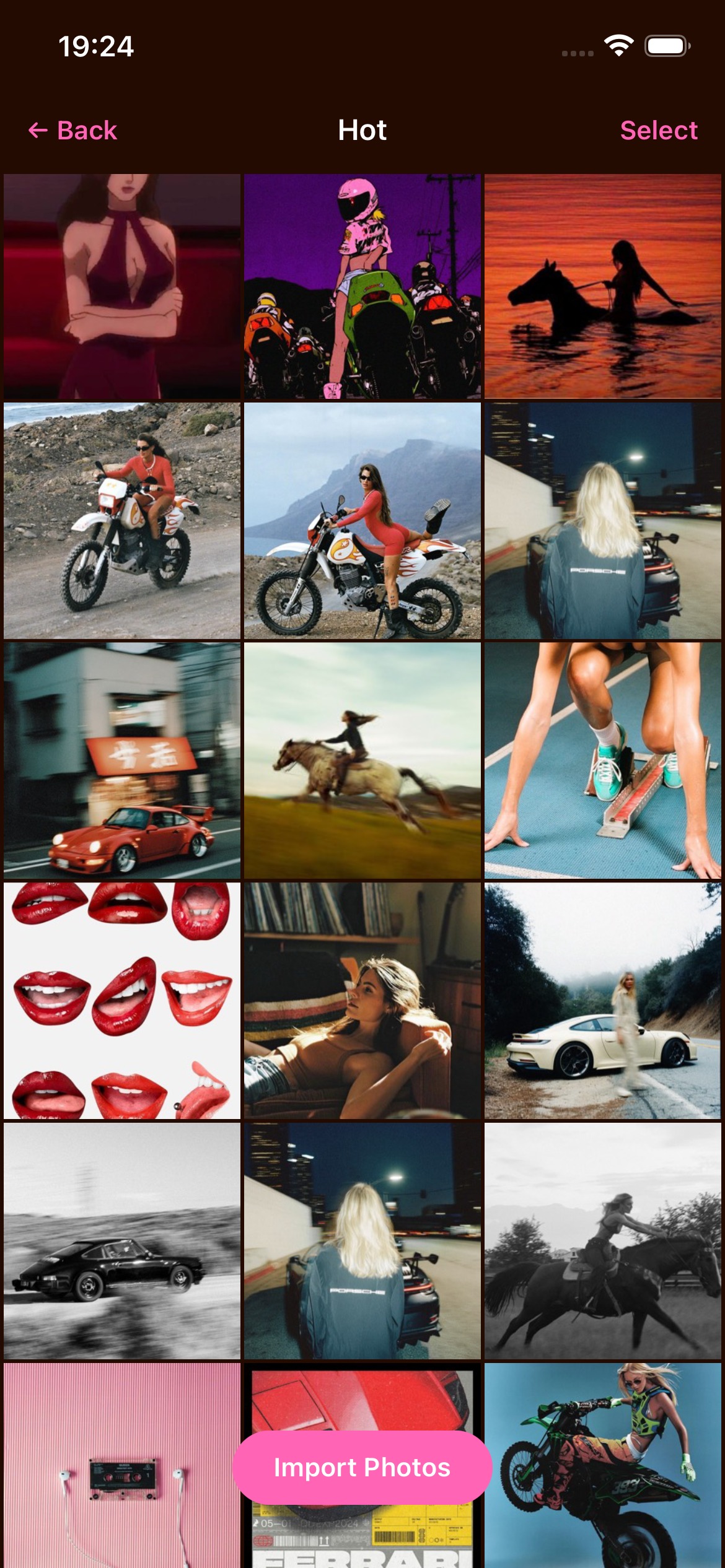
  • Photo viewer: Encrypted photos and videos can be browsed inside the app rather than through the normal camera roll.
  • Wi-Fi Share: A sharing feature that works over a local Wi-Fi connection.
  • Encrypted backup: A backup option for the vault's contents.

Who it suits

This is aimed at people who want a second, locked space for sensitive photos and videos on a phone they already carry — for example, scans of ID documents, private family footage, or work images that should not sit in the standard gallery. The no-account, no-cloud-by-default stance also appeals to anyone who does not want another login or a service holding copies of their media.

The trade-off is that on-device encryption puts more responsibility on you: if the phone is lost, wiped, or the passcode is forgotten, recovery depends on the backup path you set up. Cloud-based vaults, by contrast, make cross-device access easier but place copies on someone else's servers.

A practical next step

Before trusting it with anything important, install it, move a single test photo into the vault, confirm you can view it, then run one encrypted backup and restore it on the same device. That tells you whether the backup and unlock flow fits how you actually use your phone — the part that matters most for a vault app.

How does Mavaul keep my photos and videos private without an account?

Mavaul keeps your photos and videos private by encrypting them on your phone and giving you no account to tie them to. According to the site, AES-256 locks each photo and video on the device, Face ID or a passcode controls access, and there is no account and no cloud by default. That combination means the vault is protected by something only you hold — your face or your passcode — rather than by a username and password that could be reused, phished, or reset through a support desk.

What "no account" changes in practice

The practical effect is that privacy does not depend on trusting a company's servers or on a login you might forget. If you lose the device, the encrypted files are still locked behind your biometric or passcode. The trade-off is that account-based recovery usually does not exist in this model: there is no password reset email that can restore access, so losing the passcode can mean losing the vault. That is the price of on-device encryption, not a flaw in it.

Where the privacy holds and where it stops

  • On the device: Strong. Encryption happens locally, so the files are unreadable without your unlock method.
  • In transit or backup: Check before relying on it. Mavaul lists Wi-Fi Share and Encrypted Backup as features, which suggests you can move or back up files, but the privacy guarantee depends on whether those paths stay encrypted end to end.
  • In the cloud: The site says no cloud by default. If you enable a cloud or backup option, that is a change you are choosing, so treat it as a new decision rather than an automatic part of the vault.

A useful next step

If your main worry is someone picking up your unlocked phone and scrolling through your camera roll, this model fits well: install it, set a passcode, enable Face ID, and move sensitive items into the vault. If your main worry is losing access after a broken phone, decide your backup plan first — read the Encrypted Backup details on Mavaul and confirm how recovery works before you rely on it.

Can I recover my encrypted photos if I lose my phone or forget my passcode?

Mavaul's own description points to on-device AES-256 encryption, Face ID or passcode access, and no account, with cloud backup off by default. That combination shapes recovery: your encrypted photos live on the phone itself, and the passcode or Face ID is what unlocks them. If the phone is lost, the vault goes with it unless you had an encrypted backup already in place. If you forget the passcode, there is no account-based reset described on the page, so recovery depends on whatever backup or export you set up beforehand.

What each loss scenario means

Scenario What likely happens What helps
Phone lost or stolen, no backup Vault data is gone with the device An encrypted backup made earlier
Phone lost, encrypted backup exists You can restore onto a new device Keeping the backup and its credentials safe
Passcode forgotten, phone still works Face ID may still open the vault Enabling Face ID before you need it
Passcode forgotten, no biometrics No account reset path is described A backup you can restore, if one exists

Practical takeaway

Treat the passcode and any backup credentials as the real keys to your library, because the encryption is designed so that no one else — including the service — can open it for you. Set up Face ID while you still remember the passcode, and make an encrypted backup before you travel, replace a phone, or hand a device to someone else.

For specifics on how backup and restore are meant to work, check the official pages at Mavaul and its pricing details, since the exact recovery flow depends on features the product page only summarises.

How does Mavaul compare to using my phone's built-in hidden album or a cloud photo service?

Mavaul sits between two common options: your phone's built-in hidden album, which is convenient but lightly protected, and a cloud photo service, which syncs across devices but stores copies on someone else's servers. Mavaul's pitch is a local vault: AES-256 encryption applied on the phone, unlocked with Face ID or a passcode, and no account required, with no cloud storage by default.

Where each option fits

Approach Protection model Best for Main trade-off
Built-in hidden album Often just hides items from the main gallery; may rely on your device passcode rather than a separate secret Quick tidying so casual viewers don't stumble on private shots Anyone with your unlocked phone can usually open it; no real encryption layer of its own
Cloud photo service Provider-side encryption and account security; copies live on remote servers Multi-device access, sharing, automatic backup, recovering a lost phone Your library depends on an account, a provider and a network; deletion and privacy follow their policies
Mavaul On-device AES-256, Face ID or passcode, no account, no cloud by default Keeping sensitive photos and videos on the device, away from gallery apps and cloud sync Protection is tied to the phone; if the device is lost or wiped without a backup, the vault goes with it

A practical scenario

Suppose you keep scans of your passport, ID cards and private family photos. The hidden album keeps them out of casual view but a friend scrolling your gallery after you hand over an unlocked phone could still reach them. A cloud service gives you backup and access from a laptop, but it also means those documents sit on a server under an account you must secure. Mavaul targets the middle case: the files stay encrypted on the phone, and the app itself is the locked door.

How to decide

  • Choose the hidden album if the goal is only to reduce accidental viewing and you accept that device access equals album access.
  • Choose a cloud service if you need sync, sharing, or recovery after losing a phone, and you are comfortable with a provider holding your library.
  • Choose Mavaul if the priority is local encryption and no account, and you are willing to manage your own backup.

Mavaul lists an Encrypted Backup feature, which matters here: without a backup, a lost or reset phone means a lost vault. Check Mavaul's pricing page and the "How it works" section to confirm how backup is stored and whether it stays encrypted end to end. If you already pay for a cloud plan mainly for backup, compare that cost against a local vault plus your own backup routine before switching.

What does Mavaul cost, and is there a free version?

Mavaul is free to download, and its core idea is a local, account-free vault rather than a subscription-first service. The site describes AES-256 encryption performed on your phone, with unlocking through Face ID or a passcode, and no cloud by default. It also lists a photo viewer, Wi-Fi sharing, and encrypted backup as features. For current pricing details, use the official pricing page: Mavaul pricing.

What that means in practice

If your main goal is keeping personal photos and videos out of a general camera roll or cloud library, the free download is enough to evaluate the core workflow: import media, lock it behind biometrics or a passcode, and view it inside the app. You are not creating an account, so there is no signup step to test.

Paid tiers, if any, are most likely to matter for people who want encrypted backup, larger storage, or sharing across devices. The page evidence does not specify what is included at each price, so treat backup and multi-device use as the features to check on the pricing page before committing.

Decision criterion

Download it free and test three things: whether on-device encryption fits your phone's storage, whether Face ID or passcode unlocking feels fast enough for daily use, and whether you need backup beyond the phone. If you only need a private local vault, the free version may be sufficient. If you need off-device backup or family sharing, compare the paid options on the official pricing page.

How do I transfer encrypted photos and videos from Mavaul to another device?

Mavaul’s page evidence points to two relevant routes: Wi-Fi Share for sending files directly to another device, and Encrypted Backup for keeping a protected copy that can be restored elsewhere. Both sit alongside on-device AES-256 encryption, so the transfer should preserve protection rather than expose a plain version.

Direct transfer with Wi-Fi Share

Use this when the other device is nearby and you control both ends. The receiving device typically needs to be on the same Wi-Fi network and ready to accept the transfer. This is the most practical option for moving a batch of photos or videos to a new phone, tablet or computer without routing them through a cloud account.

Encrypted Backup and restore

If the destination is a new phone or a long-term storage location, an encrypted backup is usually the better fit. The backup remains protected, and you restore it on the target device using the same app. This avoids leaving unencrypted copies in a downloads folder or camera roll.

What to check before you start

  • The receiving device has enough free space for the full set.
  • You know the passcode or biometric unlock method for the vault.
  • You are on a trusted Wi-Fi network, not public Wi-Fi, for Wi-Fi Share.
  • You have confirmed the destination before deleting anything from the original device.

A practical scenario

You are moving from an old phone to a new one. Install Mavaul on the new phone, use Encrypted Backup to create a protected copy, then restore it on the new device. For a one-off handoff to a laptop, Wi-Fi Share is faster. Keep the original vault intact until you have opened several files on the new device and confirmed they play correctly.

For exact steps and device-specific limits, use the in-app transfer or backup flow and the official pricing page at Mavaul.

Related questions

More questions →
What Is Mavaul and What Does It Do?

Mavaul is a private vault app for photos and videos on your phone. It encrypts files on the device with AES-256, unlocks with Face ID or a passcode, and requires no account. It is free to download, and its default mode keeps media out of the cloud. If you want a separate, locked space for private photos and videos without signing up for a service, Mavaul is built for exactly that.

What Mavaul does

Mavaul's core job is to keep selected photos and videos apart from your normal camera roll and behind an encryption layer. According to the site, every photo and video is locked with AES-256 on your phone, and there is no account and no cloud by default. The stated goal is that not even the developers can view your media.

The main capabilities listed on the site are:

  • On-device encryption — AES-256 locks each photo and video locally.
  • Face ID & passcode — you unlock the vault with biometrics or a passcode.
  • Photo viewer — browse the protected media inside the app.
  • Wi-Fi Share — a sharing feature over Wi-Fi.
  • Encrypted backup — a backup option that keeps encryption in place.

How it differs from a normal hidden album

Most phones let you hide photos, but hidden albums are usually just visually concealed — the files still sit in the regular photo library and can reappear in other apps or backups. Mavaul instead treats privacy as an encryption problem: the media is locked with AES-256 on the device, and access requires Face ID or a passcode.

The no-account design matters too. You do not create a login, so there is no server-side profile tied to your media by default. That reduces the number of places your photos could be exposed, but it also means the vault is tied to your device and its unlock method rather than to a recoverable online account.

Who it is for

Mavaul fits situations like:

  • You want private photos and videos separated from the everyday camera roll.
  • You prefer local encryption over uploading personal media to a cloud service.
  • You do not want to register an account just to lock files.
  • You want biometric unlocking instead of typing a long password each time.

It is less suited if your main need is syncing a large library across many devices through a web account, since the default design is on-device and account-free.

What to check before relying on it

  • Pricing: the site links to a pricing page, so confirm current terms there rather than assuming every feature is free. The download itself is described as free.
  • Backup behavior: "encrypted backup" is listed, but check where backups go and how keys are handled before depending on it for irreplaceable media.
  • Recovery: with no account, losing your passcode or device access is a real risk. Understand the recovery path before moving important files in.
  • Platform availability: verify the app is offered for your phone's operating system.

In short, Mavaul is a local, encrypted vault for photos and videos that unlocks with Face ID or a passcode and needs no account. It is a good fit for keeping private media off your main gallery and out of the cloud by default — provided you confirm the pricing, backup, and recovery details on the official site first.

How Does Mavaul Keep My Photos and Videos Private?

Mavaul keeps your photos and videos private by encrypting them with AES-256 directly on your phone, storing them without an account or cloud upload by default, and gating access behind Face ID or a passcode. That combination means the protection travels with the device rather than depending on a server-side promise. It suits anyone who wants a local, locked-down album for sensitive media and is comfortable managing access through their phone's own biometrics or passcode.

Where the encryption happens

The core of Mavaul's privacy model is that encryption runs on-device. According to the site, AES-256 locks every photo and video on your phone. Two consequences follow from that:

  • Your media is encrypted at rest on the device itself, not after being sent somewhere else.
  • Because there is no account and no cloud by default, there is no server-side copy of your library to be breached, subpoenaed, or scanned.

This is the key distinction from cloud photo services: with Mavaul, the default state is that your media never leaves the phone.

How access is controlled

Unlocking the vault relies on something only you have:

Method What it uses
Face ID Your phone's biometric authentication
Passcode A code you set

There is no username/password account to recover or leak, because there is no account system at all. That removes a common attack surface (credential stuffing, password resets, account takeover) but also means access control is tied to your device and your memory of the passcode.

What "not even we can peek" means

The site states plainly that not even Mavaul can view your content. This claim is consistent with the architecture described: on-device AES-256 encryption plus no default cloud upload means the operator has no plaintext copy to look at. Treat this as a design property rather than an audited guarantee — the site describes the mechanism, and the mechanism is what makes the claim plausible.

The features that round it out

Beyond the core encryption and unlock, the listed capabilities are:

  • Photo Viewer — browse your encrypted media.
  • Wi-Fi Share — share over a local Wi-Fi connection rather than through a cloud intermediary.
  • Encrypted Backup — back up your vault in encrypted form.

Wi-Fi Share is worth noting for privacy: sharing over your local network avoids routing files through a third-party server.

What to check before relying on it

  • Backups matter more here. With no cloud by default, a lost or wiped phone can mean lost media unless you use the encrypted backup. Confirm your backup routine before trusting the vault with anything irreplaceable.
  • Passcode recovery is on you. No account means no "forgot password" reset through a provider. If you forget the passcode and biometrics fail, recovery options are limited.
  • Download and pricing. The app is described as free to download, and the site links to a pricing page — check that page for any paid tiers rather than assuming everything is free.

If your priority is keeping sensitive photos and videos off any server and locked behind your phone's own security, Mavaul's on-device AES-256, account-free, no-cloud-by-default design matches that goal. If you need automatic multi-device sync or provider-side account recovery, that same design is a limitation rather than a feature.

Is Mavaul Free, and How Do I Get It?

Mavaul is free to download, and it does not require an account to use. According to the official site, it is "free to download," and the app's core privacy design — AES-256 on-device encryption, Face ID or passcode unlocking, and no cloud by default — is presented as part of the product itself rather than a paid tier. The site also links to a pricing page ("See pricing"), so paid options may exist; check that page before assuming everything is free forever.

What "free" covers

Based on the site's own description, these are the baseline capabilities:

  • On-device encryption: AES-256 locks every photo and video on your phone.
  • No account: there is no sign-up step to use the vault.
  • No cloud by default: files stay on your device unless you choose otherwise.
  • Face ID or passcode: you unlock the vault with biometrics or a passcode.
  • Photo viewer: browse what you've stored.
  • Wi-Fi Share: a listed feature for sharing.
  • Encrypted Backup: a listed feature for backing up.

The site's framing — "Not even we can peek" — describes the encryption model, not a pricing tier. Nothing in the available material states that any of these features sit behind a paywall, but nothing rules it out either. The pricing page is the place to confirm.

How to get it

  1. Go to mavaul.com.
  2. Look for the download link on the site (the description says "Free to download").
  3. Install it on your phone.
  4. Open the app and set up Face ID or a passcode — this is your unlock method, since there is no account.
  5. Add photos and videos to the vault; they are encrypted on the device.

Expected result: a locked, on-device vault you open with biometrics or a passcode, with no login credentials to manage.

Before you download: check these two things

Device compatibility. The site describes an on-device, phone-based app with Face ID support. Face ID is an Apple feature, so if you're on Android, confirm on the site which unlock methods apply to your device before installing. The available material doesn't list supported platforms or minimum OS versions.

Whether you need backup. The vault is local by default. If your phone is lost or wiped, locally stored files go with it unless you use the Encrypted Backup feature. Decide up front whether you want that, since it changes how you use the app.

Free download vs. paid plan: what to check

Question Where to look
Is there a paid tier? The pricing page linked from mavaul.com
What does the free version include? The site's feature list and pricing page
Is backup part of free? Pricing page — backup is listed as a feature but its tier isn't stated here
Do I need an account to pay or restore? Not stated in the available material; check the pricing page

If your goal is to try the privacy model first — on-device encryption, no account, no cloud — the free download lets you do that. If encrypted backup or sharing matters to you, read the pricing page before committing, because the available material doesn't say which tier those features fall under.

Common snags

  • No account means no password recovery. Your passcode or Face ID is the only way in. If you forget the passcode, there is no account-based reset described.
  • "No cloud by default" is not "no cloud ever." Backup is a listed feature, so cloud storage may be something you opt into. Read how backup works before enabling it if staying fully local is your priority.
  • Free to download ≠ free forever. The pricing link exists for a reason. Treat the download as free and the ongoing cost as unconfirmed until you check that page.
Do You Need an Account to Use Mavaul, and How Do You Unlock It?

No. Mavaul does not require an account, sign-up, or login. You unlock the vault on your own device using Face ID or a passcode you set yourself. Because there is no account, there is no username, email, or password tied to a server — the unlock step happens on your phone, not in the cloud.

Why there is no account

Mavaul is described as a private vault for photos and videos that uses AES-256 encryption on your phone, with no account and no cloud by default. The design choice matters for two reasons:

  • Less personal data exposed. With no account, there is no email address, phone number, or profile stored with a service to link back to you.
  • Unlocking stays local. Face ID or your passcode is checked on the device, so access does not depend on a remote login.

The site's own framing is blunt about this: encryption happens on-device, and "not even we can peek."

How unlocking works

The unlock flow is built around two options, both handled on your device:

  1. Face ID — biometric unlock, using the face recognition already set up on your phone.
  2. Passcode — a code you create for the vault, used when you prefer not to or cannot use Face ID.

In practice, you open the app, authenticate with one of these, and the vault contents become visible. There is no separate "create account" or "sign in" step in between.

What this means day to day

Situation What you do
Opening the vault normally Unlock with Face ID
Face ID unavailable (mask, angle, wet hands) Enter your passcode
New phone You would restore from an encrypted backup rather than log into an account

Common points to check before relying on it

  • Your passcode is the fallback, so don't lose it. Since there is no account recovery through a login, the passcode is the practical backup to Face ID. Treat it as something you need to remember.
  • No account does not automatically mean no cloud. The site says "no cloud by default," and separately lists an Encrypted Backup feature. If you turn backup on, understand where that backup goes before assuming everything stays only on the phone.
  • Free to download is not the same as fully free. The site states the app is free to download and links to a separate pricing page, so check that page for what is paid.

Quick answer

You can use Mavaul without creating an account, and you unlock it with Face ID or a passcode on your device. If you want the full picture of what is free versus paid, see the pricing page at mavaul.com/pricing/.

What Features Does Mavaul Offer for Managing Private Photos and Videos?

Mavaul is a private vault app for photos and videos that encrypts files on your phone with AES-256 and unlocks them with Face ID or a passcode, with no account required. Beyond basic encrypted storage, it also includes a built-in photo viewer, Wi-Fi sharing between devices, and an encrypted backup option — so the app covers storing, viewing, and moving private media, not just locking it away.

Core privacy features

These are the features that define how Mavaul protects content:

  • On-device encryption (AES-256): Every photo and video is locked on your phone. According to the site, there is no account and no cloud by default, and "not even we can peek."
  • Face ID and passcode unlock: You open the vault with biometrics or a passcode rather than a username and password.

Because encryption happens on the device and no account is created, the privacy model does not depend on a login tied to your identity. For more on that mechanism, see the related question on how Mavaul keeps photos and videos private.

Features for managing your media

Photo viewer

Mavaul includes a built-in photo viewer, so you can browse the contents of your vault inside the app instead of exporting files to a normal gallery first. This matters because a vault that only stores files but can't display them comfortably tends to push people back to their regular photo app.

Wi-Fi Share

Wi-Fi Share lets you transfer photos and videos between devices over a local Wi-Fi connection. This is useful when you want to move private media to another device without routing it through a cloud service or messaging app.

Encrypted Backup

Mavaul offers an encrypted backup option. This gives you a way to keep a recoverable copy of your vault contents while keeping them encrypted, rather than relying on a single device as the only copy.

How the features fit together

Stage Feature What it does for you
Store On-device AES-256 encryption Locks photos and videos on your phone
Access Face ID & passcode Opens the vault without an account
View Photo viewer Lets you browse vault contents in-app
Move Wi-Fi Share Transfers media between devices over Wi-Fi
Preserve Encrypted backup Keeps an encrypted copy for recovery

The design centers on private photos and videos end to end: files are encrypted where they live, viewed inside the app, moved directly between devices, and backed up in encrypted form.

What to check before relying on it

  • Backup behavior: Confirm how encrypted backup works and where the backup is stored, since the site states there is no cloud by default.
  • Cross-device transfer: Wi-Fi Share depends on both devices being on the same network, so plan transfers accordingly.
  • Recovery: With no account, unlocking depends on Face ID or your passcode — make sure you understand what happens if you lose access.

Mavaul is free to download, and the site links to a separate pricing page, so check that page for any paid tiers before committing to it as your only vault.

Website Overview

Page metadata, canonical configuration and social previews work together to provide more consistent search and sharing presentation.

Domain and Registration

The domain was registered less than a year ago and has limited historical evidence to assess. Transfer-protection status is present, helping reduce the risk of unauthorized domain transfers. The registrar is NameCheap, Inc., a widely used domain service provider. The domain uses the common .com extension, which is not an independent safety signal.

DNS and Email

Nameservers are provided by Cloudflare, indicating managed DNS hosting. MX records point to the migadu.com email service. No CNAME was found; the observed records resolve directly to addresses. SPF and DMARC are configured. DKIM status is unknown. TXT records include verification markers for Google. Such markers may also remain after a service stops being used.

TLS and Certificates

The public key uses EC with 256 bits. The server supplied a complete certificate chain. No organization name is present in the certificate; the available fields are consistent with domain validation. The certificate was issued within the Google Trust Services cloud or CDN ecosystem. The certificate's total validity is about 90 days, consistent with a short renewal cycle.

HTTP and Browser Security

The checked browser-security headers were not detected, leaving fewer explicit browser-side safeguards. No X-Powered-By header was found, reducing one common source of backend fingerprinting information. The cf-ray response header indicates a CDN or caching proxy in the delivery path. No obvious internal addresses or debug information were found in the headers. The Server header identifies cloudflare without an exact version.

Technology Stack Analysis

The public page identifies Cloudflare without precise versions, leaving fewer clues for version-specific scanning.

Search and Social Sharing

Twitter Card metadata is configured. JSON-LD includes Organization data, helping describe the organization as an entity. The page declares 2 language or regional alternatives using hreflang. The title has 53 characters, within a common display range. A meta description is present, with 114 characters.

Hosting and Email

DNSCloudflare
HostingCloudflare
Emailmigadu.com
Approximate IP geolocation (inferred; a CDN or proxy may differ from the origin server) Location unknown Inferred 104.21.91.226

Registration details

RDAP / WHOIS

RegistrarNameCheap, Inc.
Registered2026-07-12
Expires2027-07-12
Domain statusclient transfer prohibited
Nameserverssharon.ns.cloudflare.com、zod.ns.cloudflare.com
DNSSECunsigned

DNS records

DNS

TypeNameValueTTLPriority
Amavaul.com104.21.91.226300—
Amavaul.com172.67.181.1300—
AAAAmavaul.com2606:4700:3032::ac43:b501300—
AAAAmavaul.com2606:4700:3036::6815:5be2300—
MXmavaul.comaspmx1.migadu.com30010
MXmavaul.comaspmx2.migadu.com30020
NSmavaul.comsharon.ns.cloudflare.com86400—
NSmavaul.comzod.ns.cloudflare.com86400—
TXTmavaul.comgoogle-site-verification=U6JYc3Y7aPLsGJ_RrsKk2wtOC0MoCWUY20VdJBlY9HQ300—
TXTmavaul.comhosted-email-verify=nvclkvng300—
TXTmavaul.comv=spf1 include:spf.migadu.com -all300—
DMARC_dmarc.mavaul.comv=DMARC1; p=quarantine;300—

TLS and certificates

TLS / SSL

AssessmentNormal configuration
Supported protocolsTLSv1.2、TLSv1.3
Negotiated protocolTLSv1.3
Certificate subjectmavaul.com
IssuerGoogle Trust Services
Valid until2026-12-09T15:30 · Remaining when checked: 63 days
Verification detailsCertificate trust: Passed · Hostname match: Passed

HTTP response headers

HTTP

HeaderValue
content-typetext/html
cache-controlpublic, max-age=60, stale-while-revalidate=600
servercloudflare

Identified technologies

Cloudflare

Pages, Search and Sharing

Meta descriptionA private vault for photos and videos. AES-256 on your phone, Face ID or a passcode, no account. Free to download.
Canonical URLhttps://mavaul.com/
LanguageEnglish (default)
Twitter Cardsummary_large_image
All bots 1 allowed · 0 disallowed
  • Allow/
gptbot 1 allowed · 0 disallowed
  • Allow/
oai-searchbot 1 allowed · 0 disallowed
  • Allow/
chatgpt-user 1 allowed · 0 disallowed
  • Allow/
claudebot 1 allowed · 0 disallowed
  • Allow/
claude-user 1 allowed · 0 disallowed
  • Allow/
claude-searchbot 1 allowed · 0 disallowed
  • Allow/
anthropic-ai 1 allowed · 0 disallowed
  • Allow/
perplexitybot 1 allowed · 0 disallowed
  • Allow/
google-extended 1 allowed · 0 disallowed
  • Allow/
applebot-extended 1 allowed · 0 disallowed
  • Allow/
meta-externalagent 1 allowed · 0 disallowed
  • Allow/
cohere-ai 1 allowed · 0 disallowed
  • Allow/
ccbot 1 allowed · 0 disallowed
  • Allow/
amazonbot 1 allowed · 0 disallowed
  • Allow/
deepseekbot 1 allowed · 0 disallowed
  • Allow/
ora-agent 1 allowed · 0 disallowed
  • Allow/

User reviews (0)

  • No reviews yet.