Website profiles · Technology insights · Alternatives

maxfoc.us

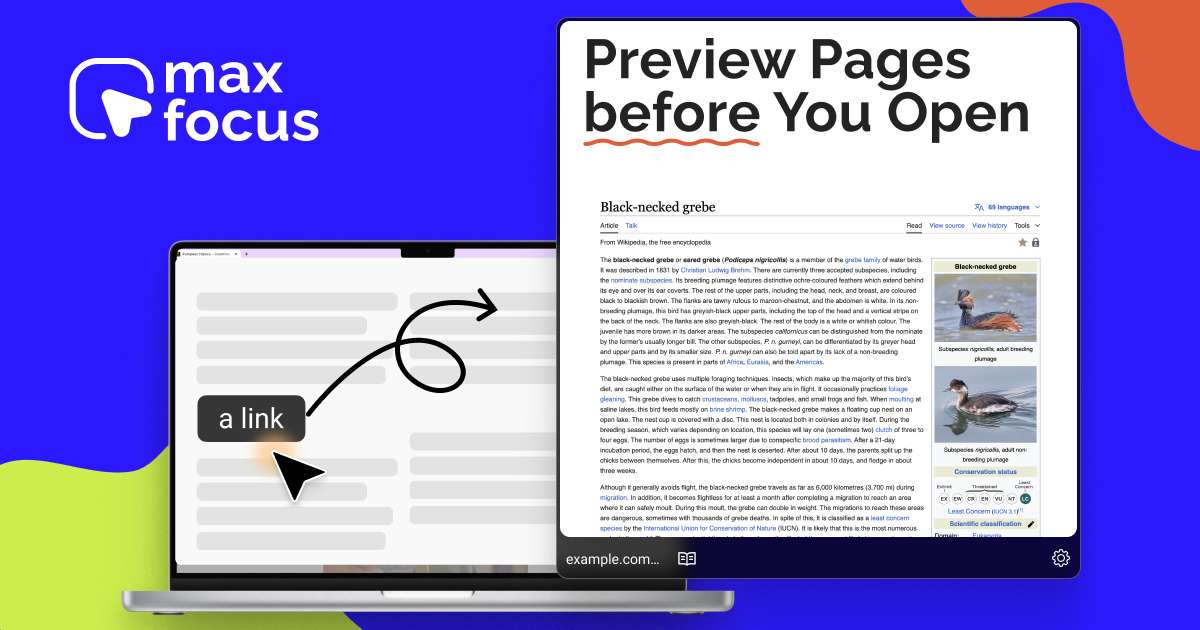
Preview links before you click on any website. Read articles without distractions.

Paid content Multilingual
Visit website
Profile views 0 Outbound visits 0 Normal
MaxFocus Full homepage screenshot

At a glance

Category
Other
Language
English
Paid-content signal
Paid contentObserved
Registered
2024
Hosting
CloudflareInferred
HTTPS certificate trusted
PassedObserved
Last updated

Website review

This review may include AI-generated content and is not individually verified. Domain, certificate and other facts come from the observed data on this page.

What is MaxFocus?

MaxFocus is a browser extension that lets you preview links without leaving the page you're on. Instead of opening a new tab for every link, you hover, click, or use a keyboard shortcut to see the content in an overlay. The stated goal is to cut down on tab clutter and help you stay focused on the current page. It's available for Chrome, Firefox, and Edge, and the site says it's used by more than 10,000 people.

What it does

  • Link previews: Open a preview of an article, video, or page in place, so you can decide whether it's worth a full visit.
  • Reader mode: Strips a page down to clean, ad-free text for distraction-free reading.
  • Video mode: Shows a video in the preview with sidebars and other page elements removed.
  • Customization: Controls how previews are triggered, how they behave, and how they look.
  • AI assistant: Offers answers or summaries on the page you're viewing.
  • Privacy claims: The site says it doesn't track browsing history, doesn't store personal data, and blocks trackers.

Who it suits

The clearest fit is a reader who follows many links from one page — research, news roundups, documentation indexes, or a long list of search results — and wants to triage them quickly. A student working through a reading list, for example, can preview each source and only open the ones that matter. Someone who prefers a calm reading layout may get more use from reader mode than from previews.

Trade-offs to weigh

Previews are only useful if the target site cooperates; the site says it works on "most" websites, so some pages will still need a real tab. Overlays also add a layer between you and the page, which some people find more distracting than a tab. The AI summaries are convenient, but treat them as a shortcut, not a substitute for reading anything you'll rely on.

Next step

Install it and test it on the site where you click the most links — a news aggregator or a search results page. If previews open reliably there and reader mode cleans up pages you actually read, it earns its place; if you keep falling back to normal tabs, the benefit is probably marginal for you.

How do I preview a link without opening a new tab in Chrome, Firefox, or Edge?

Install a link-preview browser extension and use hover, a modifier-click, or a keyboard shortcut to open the target page in an overlay instead of a new tab. MaxFocus is one option built for exactly this: its page describes previewing links by hovering, clicking, or shortcut, and it says it supports Chrome, Firefox, and Edge.

How it works in practice

  1. Install the extension from your browser's official add-on store (Chrome Web Store, Firefox Add-ons, or Microsoft Edge Add-ons).
  2. Open any page with links and hover over a link, or use the configured shortcut, to see the preview.
  3. Read or skim inside the overlay; close it to stay on the original page.
  4. Adjust the trigger (hover vs. click vs. shortcut), preview size, and appearance in the extension's settings so it doesn't fire when you don't want it.

MaxFocus also offers a reader mode that strips ads and clutter, a video-only preview mode, and an on-page AI assistant for summaries, according to its site at MaxFocus. It states that it doesn't track browsing history or store personal data and blocks trackers; treat those as the vendor's claims and check the extension's permissions after installing.

Choosing between options

A simple comparison of what matters for this task:

Consideration What to check
Trigger control Can you set hover vs. click vs. shortcut, and disable previews on specific sites?
Reader and video modes Useful if you preview long articles or videos rather than short pages
Browser coverage Confirm a build exists for your exact browser and version
Permissions Prefer extensions that request access only to pages you preview, if offered
Performance Heavy previews on link-dense pages (news feeds, search results) can feel laggy

For a concrete case: if you scan a research roundup with 40 links, set previews to open on hover with a medium panel, and use reader mode for long pieces so you can judge relevance before committing a tab. If you mostly click short reference links, a shortcut-only trigger avoids accidental pop-ups.

As a next step, install one preview extension, test it on a link-heavy page you use daily, and tune the trigger and site exceptions before adding another tool.

Can MaxFocus's Reader mode remove ads and sidebars for distraction-free reading?

Yes. MaxFocus's Reader mode is described on its page as converting webpages into "a clean, ad-free format for distraction-free reading," so ad and sidebar removal is an intended part of that mode rather than an add-on. The page also lists a separate Video mode that strips sidebars and distractions from videos, which suggests the two modes are meant for different content types.

What that means in practice

  • Reader mode suits long articles, documentation and text-heavy pages where you want the body copy without surrounding clutter.
  • Video mode is the better fit when the distraction is a video page's surrounding panels rather than the article text.

One trade-off worth planning for: stripping a page to its main content can also drop elements you occasionally rely on, such as inline navigation, embedded widgets or comment threads. If a page looks incomplete in Reader mode, switch back to the normal view for that page rather than assuming the site is broken.

A concrete scenario

Suppose you're researching a topic and a search results page gives you fifteen candidate links. Instead of opening each in a new tab, you hover to preview, and for the two or three that look substantive you open Reader mode to read the body text without ads or sidebars. That keeps your tab count low and your attention on one page at a time.

How to decide if it fits

Check whether the sites you read most often render cleanly in Reader mode, since results vary by site structure. If your reading is mostly articles and documentation, Reader mode covers most of the need; if it's mostly video, the video mode matters more. The extension's own customization options let you adjust how previews open and behave, so you can tune the experience to your workflow rather than adapting to a fixed one.

Is MaxFocus free, or do I need the Pro version for certain features?

MaxFocus is a freemium browser extension: there is a free version, and a separate Pro version exists for users who need more. The site itself does not spell out, in the material available, exactly which features sit behind Pro and what the free tier limits are. So the honest answer is: you can start on the free version, but you should check the Pro page before assuming any specific feature is included.

What the free version covers, based on the site

The main page presents link previews, reader mode, video mode, customization, and AI assistance as the product's core capabilities, without marking them as Pro-only. In practice, the free tier is likely aimed at the everyday case the site describes: hovering or using a shortcut to peek at links so you stop piling up tabs.

Where Pro matters

Pro is most relevant if you rely on the extension constantly rather than occasionally. A researcher checking dozens of links a day, or someone who wants the AI summaries and deeper customization as part of a daily workflow, is the natural Pro user. A casual reader who just wants to preview the occasional article can reasonably start free and upgrade only if limits get in the way.

How to decide

  • Start free if your goal is simply fewer tabs and cleaner reading.
  • Check the Pro page first if AI summaries, heavy daily use, or specific customization options are what you're after.
  • Compare with alternatives if link previews are central to your workflow. Chrome Web Store listings show feature breakdowns for similar extensions, and Firefox Add-ons does the same for Firefox users.

A practical next step: install the free version, use it for a week on your normal browsing, and note which features you actually reach for. That tells you more about whether Pro is worth it than any feature list.

How does MaxFocus protect my privacy and prevent tracking while I browse?

MaxFocus says it does not track your browsing history and does not store personal data, and that the extension blocks trackers. In practice, that means the privacy protection comes from three things: previews keep you on the page you're already reading instead of loading many new sites, the extension is described as blocking trackers, and the vendor states your sessions stay private. Those are the product's own claims from its page, not independently verified here.

What this means for you

  • Fewer loaded pages. Each tab you open runs its own scripts and trackers. Previewing links in place means fewer sites get the chance to load in the background, which reduces exposure as a side effect.
  • Reader mode as a cleanup step. Converting a page into a clean, ad-free view strips much of the clutter that surrounds an article, including ad slots that often carry tracking.
  • AI assistance stays on the page. The AI summaries and answers are described as working on the page you're viewing, so you don't need to copy content into a separate service.

Where to be careful

Privacy claims about an extension are only as strong as its permissions and its handling of page content. A preview tool reads the pages you hover over, so it sees more of your browsing than a passive blocker would.

  1. Check the permissions the extension requests in your browser's extension settings, and remove any that seem broader than previewing needs.
  2. Confirm the privacy policy on the vendor's site matches the "no tracking, no stored data" wording before relying on it.
  3. Test on a few sites you trust, then try a sensitive one (webmail, banking) to see whether previews behave as expected.

If your main concern is blocking trackers across all browsing, a dedicated blocker such as Privacy Badger or uBlock Origin is a more direct tool; MaxFocus's value is reducing the number of pages you open in the first place.

What can the MaxFocus AI assistant do with the page I'm currently viewing?

On the page you're currently viewing, the MaxFocus AI assistant can answer questions about the content and produce summaries of it, shown directly on that page rather than in a separate tab or chat window. That is the extent of what the site states: answers or summaries, available while you read.

What that means in practice

  • Summaries: you can get a condensed version of a long article or page without leaving it, which pairs with the reader mode that strips ads and clutter.
  • Questions: you can ask about the material in front of you and get a response on the same page, so you don't have to copy text elsewhere to make sense of it.
  • Where it fits: the site presents the assistant as a way to "dive deeper" into content, so it is aimed at comprehension and quick orientation rather than at editing, translating or extracting structured data. Those uses aren't described.

What isn't specified

The site doesn't say which AI model or provider powers the assistant, whether questions are sent to a third party, or what limits apply to usage. Its privacy statements say browsing history isn't tracked, no personal data is stored and trackers are blocked, but these are general claims about the extension rather than a stated description of how the AI feature handles the text of a page you ask about.

A reader scenario

Suppose you hover a link to a dense research write-up and open it in a preview. Reader mode gives you a clean copy; if a paragraph is unclear, you ask the assistant on that page instead of opening a search tab, and the answer appears alongside the text. That keeps one reading session in one place.

Decision criterion

If your main need is summarising and questioning the page in front of you, this is the advertised use. If you need to know exactly where your page content goes when a question is submitted, ask the developer before relying on it for confidential or paywalled material. For previewing links without the AI layer, a dedicated preview tool such as MaxFocus itself covers that separately, and browsers like Firefox offer built-in reader views if summarisation isn't required.

Related questions

More questions →
What Is a Link Preview Extension and How Does It Help You Browse Without Opening New Tabs?

A link preview extension lets you see what's behind a link without leaving the page you're on. Instead of opening a new tab, you hover, click, or use a shortcut, and the destination loads in an overlay. MaxFocus, for example, describes previews triggered by hover, click, or shortcuts, plus a reader mode that strips ads and sidebars. This suits anyone who opens links to "check something quickly" and ends up with dozens of tabs. It won't replace full browsing—you'll still open a tab when you need to work inside a site—but it cuts the tab churn that comes from quick checks.

How a link preview extension works

The extension watches links on the page you're viewing. When you trigger a preview, it loads the target page inside a temporary overlay on top of the current page rather than in a new tab.

The practical flow:

  1. Input: you hover over or click a link (or press the extension's shortcut).
  2. Action: the extension fetches the linked page and renders it in a preview panel.
  3. Expected result: you read, skim, or watch without your tab bar growing. Close the preview and you're back where you were.

MaxFocus also offers a reader mode that converts a page into a clean, ad-free format, and a video mode that shows just the video with sidebars and distractions removed. Both are useful when the preview itself is cluttered.

Why it reduces tab overload

The tab problem isn't really about tabs—it's about losing your place. Every "I'll just check this" link pulls you away from the page you were reading, and the back button doesn't restore your focus.

A preview keeps the original page visible underneath. You decide whether the link is worth a full tab before committing. One MaxFocus user, Zane Myers, describes the change this way: "I previously would have to open each link and this completely shortened the process - saving me tons of time." Another reviewer, JoJo, notes no longer getting "lost in countless useless Chrome web pages, which make my computer cluttered and slow."

That's the core trade: a small overlay instead of a permanent tab.

Common ways to use it

Mode What it does Good for
Hover preview Shows the page on hover Quick scans of link-heavy articles
Click / shortcut preview Opens preview on demand Deliberate checking without tab clutter
Reader mode Clean, ad-free page view Long articles you want to skim first
Video mode Video only, no sidebars Deciding whether a video is worth watching

MaxFocus says previews work on "most websites," so expect some sites to render poorly or not at all in an overlay—complex apps and login-gated pages are typical weak spots.

Customization matters more than you'd think

Preview tools live or die on how they fit your habits. MaxFocus lets you choose how previews open, how they behave, and what they look like. Reviewer Filip Karlsson calls adjustable preview settings "a fantastic feature that many other similar tools lack"—which is a fair signal that defaults rarely suit everyone. If you preview mostly with the mouse, set hover; if you prefer intent, bind a shortcut.

Browser support and privacy

MaxFocus lists link preview extensions for Chrome, Firefox, and Edge, so the major browsers are covered. On privacy, the site states it doesn't track browsing history, doesn't store personal data, and blocks trackers. Those are the vendor's claims—worth checking against the extension's permissions in your browser's store listing before installing, since a preview tool necessarily reads the pages you visit.

When it's worth installing

Install a link preview extension if you routinely open links just to judge them, read link-dense pages (news, research, forums), or want a distraction-free reader without a separate app. Skip it if you mostly open links to work inside them—the overlay adds a step you don't need. MaxFocus offers a free install and a separate PRO version; check the PRO page for what's included rather than assuming features are free.

What Is Link Preview and How Does It Reduce Browser Tabs?

A link preview lets you see what's behind a link without opening it in a new tab. In a browser extension like MaxFocus, you hover, click, or use a shortcut on a link, and the destination opens in an overlay on the page you're already on. You can read an article, check a video, or skim a page, then close the preview and stay where you were. This is most useful when you're researching or reading and keep encountering links you might want to check — but not necessarily keep.

How a preview replaces a new tab

The usual browsing loop is: see a link, open it in a new tab, read a bit, decide whether to keep it, and either close the tab or leave it open "for later." That last step is where tab clutter comes from. A preview changes the loop: the link opens in place, you judge it immediately, and nothing accumulates in your tab bar.

MaxFocus describes this directly on its site: "Peek at links without leaving your current page — stop multiplying hundreds of tabs." The mechanism is simple — the preview loads the destination inside your current page rather than as a separate tab — but the effect on focus is the point. You evaluate links one at a time instead of queuing them up.

What you actually do

  1. Move your cursor over a link (or click it, or use a keyboard shortcut, depending on your settings).
  2. A preview of the destination appears on the current page.
  3. Read, watch, or skim it.
  4. Close the preview to return to your original page.

The expected result is that you've checked the link without adding a tab. If the page turns out to be worth keeping, you can still open it properly — the preview is a filter, not a replacement for real navigation.

Preview modes that cut distraction further

A plain preview still shows the page as designed, ads and sidebars included. MaxFocus adds two modes that strip that down:

  • Reader mode converts a webpage into a clean, ad-free text format for distraction-free reading. Useful when a previewed article is buried in clutter.
  • Video mode shows just the video, with sidebars and other page elements removed.

Both modes matter for the tab problem in a second way: they make it easier to finish with a link inside the preview instead of deciding "I'll open this later when I have time." A clean reading view in the overlay is often enough.

Where it works and how much you can adjust

MaxFocus states it is compatible with most websites and offers link previews across "various platforms," and its keyword list names Chrome, Firefox, and Edge extensions. If you use one of those browsers, the extension is the relevant form factor; if you use something else, check availability before relying on it.

Customization is a stated feature: you choose how previews open (hover, click, or shortcut), how they behave, and what they look like. One user testimonial on the site, from Filip Karlsson, calls adjustable preview settings "a fantastic feature that many other similar tools lack" — worth noting if your workflow depends on a specific trigger, like hover-only previews so clicks still navigate normally.

Privacy claims to weigh

The site makes three specific claims: it doesn't track browsing history, doesn't store personal data, and blocks trackers. These are vendor statements rather than independently verified facts, so treat them as the product's stated design rather than a guarantee. If privacy is your deciding factor, look for the extension's published privacy policy before installing.

When a link preview extension is the right choice

It fits if you:

  • Read or research in a browser and routinely end up with dozens of tabs.
  • Want to triage links quickly — check a source, confirm a video is the right one, skim a headline — without committing to a tab.
  • Would use reader or video-only views to finish content inside the preview.

It's less clearly a fit if you mostly open links you already know you want to read in full, or if you need previews in a browser the extension doesn't support. The site also links to a PRO version, so some capabilities may sit behind that tier — check the PRO page for what's included before assuming the free experience covers your needs.

The core idea is worth keeping regardless of tool: every link you preview in place is a tab you never had to manage.

What Is Reader View and How Do You Use It to Read Without Distractions?

Reader view is a display mode that converts a webpage into a clean, ad-free format containing mainly the article text and images, with sidebars, navigation, and other clutter removed. In MaxFocus, reader mode is one of the ways to view content inside a link preview, so you can read an article without leaving your current page or opening a new tab. It works best on standard article pages; pages that don't expose their main content in a readable form may not convert cleanly.

What Reader View Removes and Keeps

Reader view works by identifying the main content block of a page and presenting only that. Based on how MaxFocus describes its reader mode ("Convert webpages into a clean, ad-free format for distraction-free reading"), the split is roughly:

Typically kept Typically removed
Article headline and body text Ads and promotional blocks
Inline images and captions Sidebars and related-link lists
Basic formatting (headings, lists, quotes) Site navigation, menus, and footers
Author and date info where present Comment sections and social widgets

The result is a single-column reading layout. The exact result varies by site, because the extension has to detect which part of the page is the article.

How to Activate Reader View in MaxFocus

MaxFocus supports previewing links by hovering, clicking, or using shortcuts, and reader mode is applied to that preview. The general flow:

  1. Install the extension in your browser (MaxFocus lists Chrome, Firefox, and Edge versions).
  2. Open a link in preview — hover over it, click it, or use the configured shortcut, depending on your settings.
  3. Switch the preview to reader mode to strip the page down to its article content.
  4. Read in place — the preview stays on your current page, so you don't add a tab.

Expected result: the linked article appears in a clean, ad-free panel instead of a full cluttered page. If the preview opens in its normal form, the reader toggle is the step that changes the layout.

Common snags:

  • Some pages don't convert well because their main content isn't clearly separable from the rest of the layout.
  • Interactive elements (embedded tools, comment threads, some video players) usually don't survive the conversion.
  • If a preview looks empty or partial, the site may be blocking preview extraction; opening it normally is the fallback.

Reader View vs. Link Preview vs. Video Mode

These three features are related but do different jobs, and MaxFocus treats them as separate modes:

  • Link preview is the container: it lets you peek at a link's content without leaving the page. It reduces tab count by itself.
  • Reader mode is a format applied inside that preview (or to a page): it removes ads and clutter for distraction-free reading.
  • Video mode is a separate format that shows "just video, nothing else," with sidebars and distractions removed.

So reader view is not the same as link preview — preview is where you look, reader mode is how the content is displayed. If your goal is fewer tabs, preview does that; if your goal is a cleaner reading experience, reader mode does that.

When Reader View Is the Right Choice

Use reader mode when you mainly want to read long-form text — articles, blog posts, documentation — and the surrounding page is noisy. Skip it when the page's value is in its interactive or navigational parts, or when the preview fails to capture the content. MaxFocus also states it doesn't track browsing history or store personal data and blocks trackers, which is relevant if distraction-free reading is partly about privacy for you. The extension has a free install and a separate PRO version; check the PRO page for what the paid tier adds rather than assuming feature limits.

What Is a Link Preview Chrome Extension and How Does It Help You Browse Without Opening New Tabs?

A link preview Chrome extension lets you hover, click, or use a shortcut on a link to open a preview of the destination inside your current page instead of a new tab. MaxFocus is one example: it shows articles, videos, and other pages in an overlay, offers a reader mode and a video-only mode to strip distractions, and states that it does not track browsing history or store personal data. It suits people who open many links while researching or reading and want to check destinations before committing a tab to them. Previews work on most websites, but not all, so test the sites you rely on before making it part of your routine.

How link previews work in Chrome

The extension intercepts the link you point at and loads the destination page in a preview layer on top of the page you are already on. You stay in place; the current page is not replaced and no new tab is added.

MaxFocus describes three ways to trigger a preview:

  • Hover over a link to peek at it.
  • Click a link to open it in preview rather than a new tab.
  • Shortcuts to open previews without reaching for the mouse.

The expected result in each case is the same: you see the destination content, decide whether it is worth your attention, and either continue reading in the preview or dismiss it and stay where you were.

How this reduces tab clutter

The core problem the extension targets is tab accumulation. Opening every promising link "just in case" leaves you with dozens of tabs, lost focus, and a slower browser. A preview lets you triage links one at a time:

  1. Point at a link and preview it.
  2. Skim the headline, opening paragraphs, or video.
  3. Close the preview if it is not useful, or keep reading inside it if it is.

Because the preview lives on the current page, you avoid the open-close-reopen cycle that comes from checking links speculatively. One MaxFocus user quoted on the site, Zane Myers, says the tool "completely shortened the process" compared with opening each link, and another reviewer notes no longer getting "lost in countless useless Chrome web pages."

Reader and video modes inside the preview

A preview is only useful if the content is readable. MaxFocus includes two modes that change what the preview shows:

Mode What it does When to use it
Reader mode Converts the page into a clean, ad-free text format Long articles, documentation, news
Video mode Shows only the video, with sidebars and distractions removed Checking a video link before watching it fully

These modes apply inside the preview, so you can judge an article's substance or a video's relevance without loading the full page experience.

Compatibility: check before you rely on it

MaxFocus states it is compatible with "most websites," not all. Preview behavior depends on how a given site structures its links and content, so some pages may not preview cleanly or may fall back to normal navigation.

Before adopting it, test the handful of sites you use most, such as your research sources, documentation, or video platforms. If previews work there, the extension will likely fit your workflow; if a critical site fails, you will still be opening tabs for it.

Customization and privacy

MaxFocus emphasizes configurability: you can choose how previews open, how they behave, and what they look like. One reviewer, Filip Karlsson, calls adjustable preview settings a feature "that many other similar tools lack," which matters if you want previews to match an existing habit rather than replace it.

On privacy, the site makes three claims:

  • It does not track your browsing history.
  • It does not store personal data; sessions remain private.
  • The extension blocks trackers.

These are the vendor's stated practices rather than independently verified facts, so treat them as the product's position when weighing whether to install it.

Deciding whether to install one

A link preview extension is worth trying if you routinely open links to check them and end up with a crowded tab bar. It is less useful if you mostly follow links sequentially and rarely need to peek ahead, or if the sites you depend on do not preview reliably.

To evaluate MaxFocus specifically, install it, preview a few links on your most-used sites, try reader and video modes on one long article and one video, and adjust the settings to match how you already browse. If the previews feel faster than opening tabs, keep it; if not, the tab habit was not the bottleneck.

What Is Website Preview and How Does It Reduce Browser Tabs?

Website preview (also called link preview) lets you peek at a link's content in a small overlay without opening a new tab. In a browser extension like MaxFocus, you hover, click, or use a shortcut on a link, and the page loads in a preview window on top of your current page. This directly reduces tab clutter: instead of opening ten links to see which ones matter, you preview them, keep the one or two worth reading, and never create the rest. It fits anyone who researches, reads news, or follows link-heavy pages and ends up with dozens of tabs.

How previewing links cuts down on tabs

The tab problem is a checking problem. Every uncertain link feels like it needs a tab so you don't lose it, and most of those tabs turn out to be irrelevant. A preview turns each "open it to find out" into "look at it and decide."

MaxFocus describes the workflow as peeking at links without leaving your current page, with the goal of stopping the multiplication of hundreds of tabs. The mechanism is simple:

  1. You point at a link — hover, click, or use a keyboard shortcut.
  2. The page opens in a preview overlay — articles, videos, and other content appear without a new tab.
  3. You decide — close the preview if it's not useful, or open it fully if it is.

The result is that only links you've already judged worthwhile become tabs. One user quoted on the site, Zane Myers, describes previously opening each link and says the preview "completely shortened the process."

Preview modes that replace whole tabs

A preview isn't only a smaller window. MaxFocus offers modes that change what you see, which matters when the reason you'd open a tab is to escape clutter:

  • Reader mode converts a webpage into a clean, ad-free format for distraction-free reading.
  • Video mode shows just the video, with sidebars and other distractions removed.
  • Standard preview shows the page as it is, inside the overlay.

For a long article you're unsure about, reader mode in a preview tells you quickly whether the content is worth a full tab. For a video link, video mode lets you check it without the surrounding page.

Where previews work and how much you can adjust

MaxFocus states it is compatible with most websites and provides link previews and AI support across various platforms. The site lists Chrome, Firefox, and Edge as supported browsers through its extension keywords, so the same preview behavior is available across the major browsers rather than being tied to one.

Customization is a core part of the product: you choose how previews open, how they behave, and what they look like. One user quoted on the site, Filip Karlsson, calls the ability to adjust preview settings to fit his workflow a feature many similar tools lack. In practice, this is the setting to check first — whether previews trigger on hover or click, and whether they stay open or close when you move away, determines whether previews feel helpful or intrusive.

The extension also includes an AI assistant that provides answers or summaries on the page you're viewing, which the site positions as a way to go deeper into content without leaving the page.

Privacy considerations

Preview tools see a lot of the links you encounter, so privacy claims are worth reading. MaxFocus states that it does not track browsing history, does not store personal data, and blocks trackers. These are the vendor's stated policies; if privacy is your deciding factor, verify them against the extension's current listing in your browser's store before installing.

Deciding whether a preview extension fits your workflow

A preview extension is a good fit if you recognize this pattern: you open links "just to check," end up with a crowded tab bar, and lose track of what you meant to read. It's less useful if you rarely follow links from a page or prefer to open everything in tabs deliberately.

Use these questions to decide:

  • Do you routinely open links you don't end up reading? Previews remove that cost.
  • Do you read long articles and want to judge them first? Reader mode in a preview helps.
  • Do you want control over trigger and appearance? Check the customization options before committing.
  • Does privacy matter to you? Compare the stated no-tracking and tracker-blocking policies with your own requirements.

MaxFocus offers a free extension and a separate PRO version; the site does not publish pricing details on the pages reviewed here, so check the PRO page for current terms before upgrading. To try it, install the extension for your browser, open a link-heavy page, and preview a few links using hover, click, and the shortcut to see which trigger suits you. If previews feel disruptive, adjust the behavior settings rather than abandoning the tool — that customization is the main reason users say it fits their workflow.

Website Overview

Page metadata, canonical configuration and social previews work together to provide more consistent search and sharing presentation.

Domain and Registration

Transfer-protection status is present, helping reduce the risk of unauthorized domain transfers. The domain has about 2 years of registration history; its current configuration provides more context than age alone. The domain uses the common .us extension, which is not an independent safety signal.

DNS and Email

Nameservers are provided by Cloudflare, indicating managed DNS hosting. MX records point to the Hostinger Email email service. CAA records restrict which certificate authorities are authorized to issue certificates. No CNAME was found; the observed records resolve directly to addresses. SPF and DMARC are configured. DKIM status is unknown.

TLS and Certificates

The public key uses EC with 256 bits. The server supplied a complete certificate chain. No organization name is present in the certificate; the available fields are consistent with domain validation. The certificate was issued within the Google Trust Services cloud or CDN ecosystem. The certificate's total validity is about 90 days, consistent with a short renewal cycle.

HTTP and Browser Security

The checked browser-security headers were not detected, leaving fewer explicit browser-side safeguards. No X-Powered-By header was found, reducing one common source of backend fingerprinting information. The cf-ray response header indicates a CDN or caching proxy in the delivery path. No obvious internal addresses or debug information were found in the headers. The Server header identifies cloudflare without an exact version.

Technology Stack Analysis

The public page identifies Google Analytics, Cloudflare without precise versions, leaving fewer clues for version-specific scanning.

Search and Social Sharing

The page declares 10 language or regional alternatives using hreflang. The title has 32 characters, within a common display range. A meta description is present, with 82 characters. The observed directives allow indexing and link following. No Generator meta tag is publicly exposed.

Hosting and Email

DNSCloudflare
HostingCloudflare
EmailHostinger Email
Approximate IP geolocation (inferred; a CDN or proxy may differ from the origin server) Location unknown Inferred 104.21.10.170

Registration details

RDAP / WHOIS

RegistrarHosting Concepts B.V. d/b/a Registrar.eu
Registered2024-03-17
Expires2027-03-17
Domain statusclientTransferProhibited https://icann.org/epp#clientTransferProhibited
Nameserverskai.ns.cloudflare.com、saanvi.ns.cloudflare.com
DNSSECunsigned

DNS records

DNS

TypeNameValueTTLPriority
Amaxfoc.us104.21.10.170300—
Amaxfoc.us172.67.146.33300—
AAAAmaxfoc.us2606:4700:3033::6815:aaa300—
AAAAmaxfoc.us2606:4700:3034::ac43:9221300—
MXmaxfoc.usmx1.hostinger.com3005
MXmaxfoc.usmx2.hostinger.com30010
NSmaxfoc.uskai.ns.cloudflare.com86400—
NSmaxfoc.ussaanvi.ns.cloudflare.com86400—
TXTmaxfoc.usahrefs-site-verification_4fe7797f47d04a5fae650be923db633b0989b2ddca27628da872d9cdd2358bd6300—
TXTmaxfoc.usgoogle-site-verification=URvmJH5IHq9_UnvPp_RTq0nCn4BoXzSYsovnOQFQN1M300—
TXTmaxfoc.usv=spf1 include:_spf.mail.hostinger.com ~all300—
CAAmaxfoc.us0 issue "comodoca.com"300—
CAAmaxfoc.us0 issue "digicert.com; cansignhttpexchanges=yes"300—
CAAmaxfoc.us0 issue "globalsign.com"300—
CAAmaxfoc.us0 issue "letsencrypt.org"300—
CAAmaxfoc.us0 issue "pki.goog; cansignhttpexchanges=yes"300—
CAAmaxfoc.us0 issue "ssl.com"300—
CAAmaxfoc.us0 issuewild "comodoca.com"300—
CAAmaxfoc.us0 issuewild "digicert.com; cansignhttpexchanges=yes"300—
CAAmaxfoc.us0 issuewild "globalsign.com"300—
CAAmaxfoc.us0 issuewild "letsencrypt.org"300—
CAAmaxfoc.us0 issuewild "pki.goog; cansignhttpexchanges=yes"300—
CAAmaxfoc.us0 issuewild "ssl.com"300—
DMARC_dmarc.maxfoc.usv=DMARC1; p=none300—
DMARC_dmarc.maxfoc.usv=DMARC1; p=none;300—

TLS and certificates

TLS / SSL

AssessmentNormal configuration
Supported protocolsTLSv1.2、TLSv1.3
Negotiated protocolTLSv1.3
Certificate subjectmaxfoc.us
IssuerGoogle Trust Services
Valid until2027-01-09T23:27 · Remaining when checked: 81 days
Verification detailsCertificate trust: Passed · Hostname match: Passed

HTTP response headers

HTTP

HeaderValue
content-typetext/html
cache-controlmax-age=14400
servercloudflare

Identified technologies

Google AnalyticsCloudflare

Pages, Search and Sharing

Meta descriptionPreview links before you click on any website. Read articles without distractions.
Canonical URLhttps://maxfoc.us/
LanguageEnglish (default) · Multilingual
Twitter CardNot detected
All bots 0 allowed · 4 disallowed
  • Disallow/get/
  • Disallow/welcome/
  • Disallow/api/
  • Disallow/pro/redirect/

User reviews (0)

  • No reviews yet.