Website profiles · Technology insights · Alternatives

metastrip.app

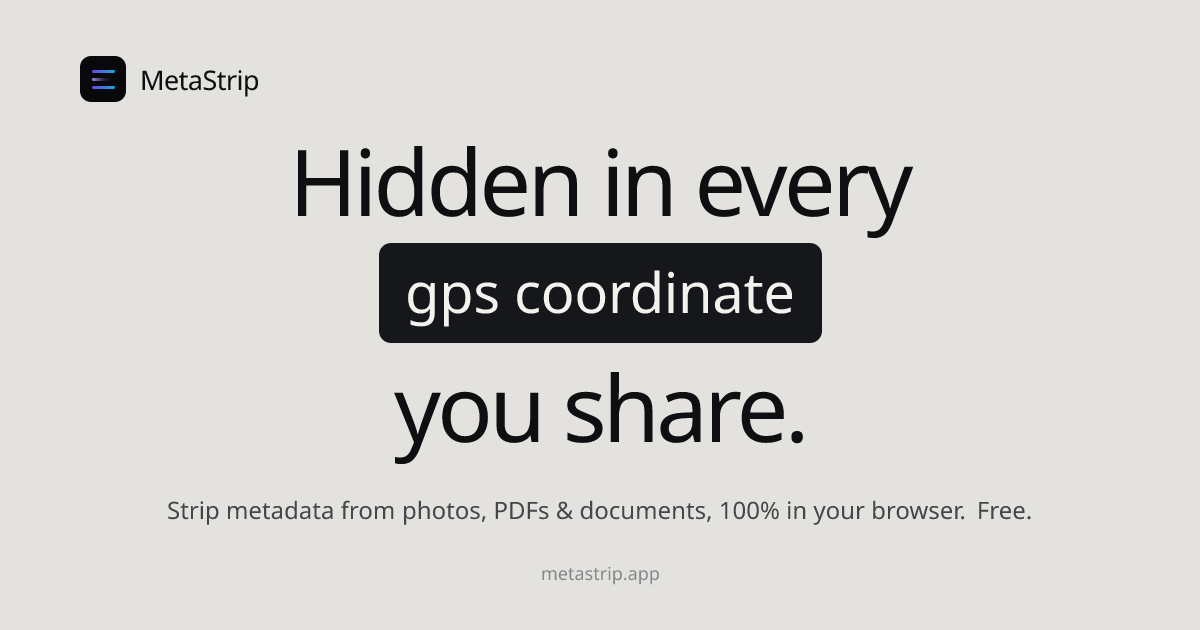
Remove AI tags and C2PA Content Credentials, plus GPS, camera and author details, from photos, videos, PDFs and docs. Free; files never leave your device.

Paid content
Visit website
Profile views 0 Outbound visits 0 Normal
MetaStrip, strip hidden metadata from files Full homepage screenshot

At a glance

Category
Artificial Intelligence
Language
English
Paid-content signal
Paid contentObserved
Registered
2026
Hosting
FastlyInferred
HTTPS certificate trusted
PassedObserved
Last updated

Website review

This review may include AI-generated content and is not individually verified. Domain, certificate and other facts come from the observed data on this page.

What is MetaStrip?

MetaStrip is a browser-based tool for removing hidden metadata from files before you share them. You drop in a photo, video, PDF, Office document or audio file, it shows what's embedded, and it writes out a clean copy. Processing happens locally in your browser, so files are not uploaded to a server, and the project is open source under MIT.

What it targets

  • Photos: GPS coordinates, device and serial numbers, camera details, timestamps.
  • Documents: author names, edit and revision history, software fingerprints.
  • AI-generated images: C2PA Content Credentials and tags from tools such as DALL·E, Midjourney, ChatGPT and Firefly.
  • Supported formats: jpeg, png, webp, gif, heic, avif, pdf, docx, xlsx, pptx, mp4, mov, mp3, m4a, flac and wav.

Who it suits

It's aimed at people for whom metadata is a practical risk rather than an abstract one: someone posting photos taken at home, a freelancer sending a contract or draft with tracked changes to a client, a journalist submitting material, or anyone publishing under a pseudonym. Batch handling of up to 100 files helps when clearing a folder rather than a single image.

Trade-offs to weigh

Stripping metadata is destructive by design. Camera settings, captions, copyright notices and provenance credentials are removed along with the location data, which can matter for archival, licensing or disclosure requirements. If you need to prove an image is AI-generated or preserve attribution, keep an untouched original. Batch processing also means a single pass can remove information you wanted to keep, so check the preview before exporting.

As a next step, test it on one representative file: open the preview, confirm exactly which fields are listed, then compare the cleaned copy against the original. If the fields you care about are gone and the ones you need remain, the batch workflow is safe to use.

How can I verify that my files are actually processed locally and never uploaded?

Check the browser's Network tab while you process a file. If the tool is truly local, you'll see no upload request carrying your file's contents.

A concrete test

  1. Open the tool, then open DevTools (F12 or right-click → Inspect) and switch to the Network tab.
  2. Optionally tick Preserve log and clear the list so you start clean.
  3. Drop in one file and run the strip/save step.
  4. Watch the requests. Page assets (scripts, fonts, icons) will appear. What should not appear is a request whose payload is your file or a large blob heading to a server.
  5. Click the requests that do appear and inspect Payload/Request and Headers to confirm they carry no file data.

MetaStrip states it works this way: "Everything is processed in your browser. No uploads to external servers," and that you can verify it in DevTools with no request carrying the file. That's the product's own claim; the Network-tab check is how you confirm it on your machine rather than taking it on faith.

Stronger checks

  • Go offline after load. Load the page, switch your OS or DevTools to offline mode, then process a file. If it still works, the processing is local. MetaStrip says it works "online or offline."
  • Watch the upload path specifically. A file upload is usually a POST/PUT with a multipart body or a large binary payload. Seeing none during processing is the key signal.
  • Test with a distinctive file. Use a file you can recognize by size; a matching-size request leaving the machine is a red flag.
  • Audit the source. MetaStrip says it is open source under MIT and links its code on GitHub; reading the parsing and save code shows whether any network call touches your file.

When this matters most

This is worth doing before sending contracts to opposing counsel, photos to marketplaces, AI-assisted work to clients, or anything posted under a pseudonym—situations MetaStrip itself lists. For a one-off, the Network-tab glance is enough; for repeated or sensitive use, the offline test plus a look at the source gives firmer assurance. The same local-processing check applies to comparable browser tools you may encounter, such as ExifTool (a command-line alternative that runs on your own machine).

What types of metadata does MetaStrip remove from photos, PDFs, and documents?

MetaStrip targets several distinct categories of embedded metadata, and the type depends on the file format.

Photos (JPEG, PNG, WebP, GIF, HEIC, AVIF)

  • GPS coordinates — location data, described as accurate to within roughly 5 metres.
  • EXIF fields — camera and device details, including device/serial identifiers that can fingerprint a photo to one phone, plus timestamps.
  • AI generation tags — C2PA Content Credentials and similar markers from tools such as DALL·E, Midjourney, ChatGPT and Firefly.

PDFs

  • Author names
  • Edit history
  • Software fingerprints (the application that produced the file)

Office documents (DOCX, XLSX, PPTX)

  • Author names
  • Tracked changes / revision history

Audio and video (MP4, MOV, MP3, M4A, FLAC, WAV)

The page lists these as supported formats and groups them under the general "GPS, EXIF, AI tags, author names" promise, but it does not itemise which specific fields apply to each container.

Practical next step

The tool is built to show you what is embedded before stripping it, so the most reliable way to answer "what will it remove from my file" is to drop the file in and read the exposure list it displays. For example, a phone photo taken at home will typically show GPS plus device identifiers, while a client contract PDF will more likely show an author name and the producing software. Treat the categories above as the expected set, and the on-screen report as the confirmation.

One trade-off worth noting: stripping C2PA credentials also removes provenance information that some clients or platforms may want preserved, so decide per file whether disclosure or anonymity matters more.

Can MetaStrip remove AI generation tags and C2PA Content Credentials from images made by tools like DALL·E or Midjourney?

Yes. MetaStrip lists AI generation tags and C2PA Content Credentials among the metadata it strips, and it names DALL·E, Midjourney, ChatGPT and Firefly as examples of the tags it targets. The page also states that processing happens entirely in your browser: files are read locally and a clean copy is written back out, with no upload or server cache. Supported image formats include JPEG, PNG, WebP, GIF, HEIC and AVIF.

What this means in practice

A designer preparing client deliverables from AI-assisted drafts can drop the images into MetaStrip, review what is embedded, and export clean copies before sending. The same applies to anyone posting under a pseudonym or submitting work where an AI-origin label would change how it is judged. Because the tool shows what is exposed before stripping, it doubles as a quick audit of what a file reveals.

Decision points

  • Disclosure rules matter more than the tool. Some platforms and clients require AI-origin labels. Removing C2PA credentials can conflict with those terms, so check the recipient's policy before stripping.
  • Metadata removal is not provenance laundering. Stripping a tag does not change how an image was made; it only removes the attached record. Treat it as a privacy and hygiene step, not a way to misrepresent authorship.
  • Batch and format coverage. The page mentions batches of up to 100 files and support for documents and video/audio in addition to images, which suits mixed deliverable sets.

For a broader view of metadata and provenance standards, see C2PA.

When should I strip metadata before sharing a file, such as a contract, photo, or AI-assisted work?

Strip metadata whenever the file itself could reveal something you did not intend to share: your location, your device, your identity, your editing history, or the fact that AI was involved. The practical rule is to strip before any file leaves your control—email attachments, client portals, marketplaces, forums, public posts, or anonymous submissions.

When it matters most

  • Photos taken at or near home: GPS coordinates and device/serial details can tie a picture to a specific person and place. Strip before posting to marketplaces, forums, or social media, especially under a pseudonym.
  • Contracts and office documents: Author names, tracked changes, comments, and software fingerprints travel inside Word, Excel, PowerPoint, and PDF files. Remove them before sending drafts to opposing counsel, clients, or the public.
  • AI-assisted work: AI-generated images can carry C2PA content credentials naming the tool used. Strip them when disclosure would change whether the work is accepted—or keep them when transparency is required. That is a judgment call, not an automatic one.
  • Anonymous publishing and journalism submissions: Devices and apps fingerprint files. If your identity must stay hidden, clean the file first.

The trade-off to weigh

Metadata is not always the enemy. Content credentials exist partly to prove provenance, and some clients or platforms now expect them. Removing them can look like concealment if discovered later. Decide based on who receives the file and what they are entitled to know. For a family photo sent to a friend, stripping is harmless housekeeping; for a news image submitted to an editor, provenance may be part of the value.

A concrete workflow

MetaStrip, per its own page, runs entirely in the browser: you drop a file in, it shows what is embedded, and it writes a clean copy without uploading anything. That suits a quick check-and-strip before sending. A reader sending a signed contract to a client could open the file, review the listed author and revision details, strip them, and send the clean copy—keeping the original for their records.

As a next step, before your next send, open the file's properties or drop it into a metadata viewer and ask one question: does anything here reveal where I was, who I am, or how this was made? If yes, strip it and keep the original.

Does MetaStrip support batch processing, and what file formats and devices does it work on?

Yes. MetaStrip supports batch processing of up to 100 files at once, per the site's own description. It reads each file's metadata locally in your browser, shows what's embedded, and writes a clean copy back out.

File formats

The upload area lists these accepted types:

  • Images: jpeg, png, webp, gif, heic, avif
  • Documents: pdf, docx, xlsx, pptx
  • Video: mp4, mov
  • Audio: mp3, m4a, flac, wav

Devices and environment

MetaStrip runs entirely in the browser, so it works on both mobile and desktop, online or offline. Because processing happens locally with no upload or server cache, the practical limit is your device's memory and CPU rather than a server quota—large batches of big video files will be slower on a phone than on a laptop.

Practical takeaway

If you routinely post photos, send contract PDFs, or deliver AI-assisted work, batch mode is the main time-saver: drop a folder's worth of files once rather than one at a time. For a quick check on a single file, the same drag-and-drop flow works. If you want to confirm the privacy claim yourself, the site suggests opening your browser's DevTools Network tab while processing a file and watching for the absence of upload requests.

Related questions

More questions →
When to Use MetaStrip Before Sharing a File

Use MetaStrip before you send, post, or publish any file whose hidden metadata could reveal more than you intend—location, device identity, authorship, edit history, or AI-generation tags. It is most worth doing when the file leaves your control (sent to a client, posted publicly, submitted anonymously) and when the recipient could act on details you never meant to share. MetaStrip processes files in your browser, so nothing is uploaded to a server.

The four situations that justify it

1. Photos taken at home or in private places

Photos can carry GPS coordinates accurate to within about 5 metres, plus device and serial-number details that fingerprint every shot to one phone. If you post photos to forums, marketplaces, or social platforms, strip the metadata first—especially for images taken at home.

2. Documents with author and revision history

PDFs and Office files can carry author names, tracked changes, and software fingerprints. Before sending a contract to opposing counsel or a Word document with revision history to a client, remove those details so the file shows only what you intend.

3. AI-assisted work where tags affect acceptance

AI-generated images can carry C2PA content credentials identifying the tool that made them (for example DALL·E, Midjourney, ChatGPT, or Firefly). If disclosure would change whether your work is accepted, strip those tags before submitting—but only where removing them is honest and permitted.

4. Anything published anonymously

Devices fingerprint themselves through metadata. If you are posting under a pseudonym or submitting journalism, remove identifying details first so the file does not contradict your anonymity.

How to do it

  1. Open metastrip.app and drop a file (or click to browse). Supported types include jpeg, png, webp, gif, heic, avif, pdf, docx, xlsx, pptx, mp4, mov, mp3, m4a, flac, and wav.
  2. Review what MetaStrip reports as embedded—GPS, EXIF, AI tags, author names, and similar fields.
  3. Strip the metadata and save the clean copy.
  4. Verify privacy if you want: open DevTools, go to the Network tab, and process a file—no upload request should appear.

You can batch up to 100 files at once. The tool works on mobile and desktop, online or offline, and is open source under MIT (code on GitHub).

When you can skip it

If the file contains nothing sensitive—a stock image with no location data, a document you wrote and want attributed to you—stripping is optional. The decision rule is simple: if the metadata could identify you, your device, your location, or how the file was made, and that matters to the recipient, strip it first.

How to Compress Images for the Web Without Losing Visible Quality

You can cut most images to a fraction of their original file size without any visible quality loss by doing three things in the right order: resize the image to the dimensions it will actually display at, pick the right format for the content, then apply compression at a quality level that survives a side-by-side check. The single biggest mistake is skipping step one — an oversized image compressed at maximum quality is still far heavier than a correctly sized one.

Why file size and quality are a trade-off, not a fixed setting

Every compressed image is a negotiation between three variables: how many pixels you keep, how precisely each pixel is described, and how much the format is allowed to guess.

  • Dimensions decide how many pixels exist at all. Halving width and height removes 75% of the pixel data before any compression happens.
  • Quality level decides how aggressively the encoder discards detail it thinks you won't notice.
  • Format decides the kind of discarding allowed — some formats throw away color precision, others only remove redundancy.

Because these interact, "quality 80" means something different on a 4000px photo than on a 600px thumbnail. Tune dimensions first, then quality.

Pick the format before you touch the quality slider

Format Best for Compression type Transparency Notes
JPEG Photographs, gradients, complex scenes Lossy No Smallest for photos; artifacts appear around sharp edges and text
PNG Logos, icons, screenshots, flat color, anything needing transparency Lossless (or lossy via quantization) Yes Often 5–10× larger than JPEG for photos; excellent for flat graphics
WEBP Almost everything, as a modern default Both lossy and lossless Yes Typically 25–35% smaller than JPEG at comparable quality; broad browser support
SVG Logos, icons, diagrams, charts Vector (resolution-independent) Yes Stays crisp at any size; not suitable for photos
GIF Short simple animations only Lossless, 256 colors Yes (1-bit) Superseded by WEBP/MP4 for animation in nearly all cases

Practical rule: photos → JPEG or lossy WEBP; flat graphics and transparency → PNG or lossless WEBP; anything vector → SVG.

The four levers, in the order you should pull them

1. Resize to display size (biggest win, zero quality cost)

If your layout renders an image at 800px wide, serving a 2400px original wastes roughly 89% of the pixels. Resize to the largest size it will ever be displayed at, and add a 2× version only if you need retina sharpness.

2. Choose the format

Match the format to the content type using the table above. Converting a photographic PNG to JPEG or WEBP alone can shrink it by 80% or more.

3. Set the quality level

For JPEG and lossy WEBP, most photographs hold up well between quality 70 and 85. Below ~60, banding appears in skies and blur around text. Above ~90, file size climbs steeply for gains nobody can see.

4. Strip metadata

EXIF data, camera info, and embedded thumbnails can add tens of kilobytes. Remove them unless you specifically need copyright or orientation data — and note that stripping orientation can rotate an image, so verify after export.

When lossy compression is fine, and when it isn't

Lossy is acceptable when:

  • The image is a photograph or has natural texture.
  • It's decorative or below the fold.
  • Slight softening won't be noticed at final display size.

Use lossless or vector instead when:

  • The image contains text, UI elements, or thin lines (lossy creates ringing artifacts).
  • It's a logo, icon, or diagram — SVG or PNG keeps edges clean.
  • It will be edited again later; repeated lossy saves compound degradation.
  • It's a screenshot of code or a chart where color accuracy matters.

Compressing vs. resizing: don't confuse them

Compressing reduces the bytes needed to describe the same pixels. Resizing reduces the number of pixels. They're independent, and resizing usually delivers the larger saving. A 3000×2000 photo at quality 95 might be 2 MB; the same photo resized to 1200×800 at quality 80 might be 180 KB. Doing only the quality reduction gets you maybe 40% off; doing both gets you over 90%.

A repeatable workflow

  1. Determine the maximum display width in your layout (inspect the element or check your CSS).
  2. Export at that width (plus a 2× variant if needed).
  3. Convert to the right format — WEBP as a modern default, JPEG as a fallback, PNG/SVG for graphics.
  4. Apply quality 75–85 for lossy formats and compare against the original.
  5. Strip metadata and re-check orientation.
  6. Verify before publishing (see below).
  7. Serve the right file with srcset so small screens don't download the large variant.

How to verify quality before you publish

  • View at 100% at final display size, not zoomed in — artifacts you can't see at real size don't matter.
  • Toggle between original and compressed in a viewer or an online compressor's before/after preview.
  • Check the worst-case areas: skies, smooth gradients, sharp edges, and any text.
  • Compare file sizes and ask whether the extra kilobytes buy visible improvement. If not, go smaller.
  • Test on a mid-range phone, where banding and blur are often more obvious than on a desktop monitor.

Common mistakes

  • Compressing a full-resolution image and calling it optimized.
  • Using PNG for photographs.
  • Setting quality to 100 "to be safe" — it inflates size with no visible benefit.
  • Re-saving a JPEG repeatedly, stacking artifacts each time.
  • Forgetting that GIF animations are usually better as WEBP or video.
  • Ignoring metadata, which can silently add weight.

Quick reference

Goal Do this
Photo on a webpage Resize to display width → WEBP (fallback JPEG) → quality 75–85
Logo or icon SVG; fall back to PNG if vector isn't possible
Screenshot with text PNG or lossless WEBP
Transparent photo cutout Lossy WEBP or PNG
Short animation WEBP or MP4, not GIF

The order matters more than any single setting: resize, then choose format, then tune quality, then strip metadata, then verify at real display size. Follow that sequence and you'll routinely land at 10–20% of the original file size with no quality your visitors can detect.

What Is MetaStrip and What Does It Do?

MetaStrip is a browser-based tool that removes hidden metadata from files before you share them. It strips GPS coordinates, camera and device details, author names, edit history, and AI-generation tags (including C2PA Content Credentials) from photos, videos, PDFs, and Office documents. All processing happens locally in your browser — files are never uploaded to a server. It's useful whenever a file leaves your device and you don't want its embedded details to travel with it.

What kinds of metadata does it remove?

MetaStrip targets the details that files carry silently. According to the site, these include:

File type Metadata removed
Photos (JPEG, PNG, WebP, GIF, HEIC, AVIF) GPS coordinates (to within ~5 metres), device and serial number, camera info, timestamps, AI-generation tags
PDFs Author names, edit history, software fingerprints
Word, Excel, PowerPoint (docx, xlsx, pptx) Author names, tracked changes
Video and audio (mp4, mov, mp3, m4a, flac, wav) Embedded metadata
AI-generated images C2PA Content Credentials identifying the tool used (e.g., DALL·E, Midjourney, ChatGPT, Firefly)

The GPS and device details are the most consequential for everyday sharing: a photo taken at home can reveal where you live, and a device serial number can link every photo to one phone.

How does it work?

The workflow is three steps:

  1. Drop a file into the browser window (or click to browse).
  2. Review what's exposed — MetaStrip reads the metadata locally with its own parsers and libraries such as pdf-lib, then shows you exactly what's embedded.
  3. Strip it — the tool writes a clean copy back out for you to download.

Because everything runs in JavaScript in your browser, there is no upload, no server, and no temporary cache. The site says you can verify this yourself: open DevTools, switch to the Network tab, and process a file — no request carrying your file should appear.

Other practical details from the site:

  • Batch processing of up to 100 files at once.
  • Open source under the MIT licence, with code on GitHub.
  • Works on mobile and desktop, online or offline.

When should you use it?

MetaStrip is worth running before any file leaves your device in a context where the embedded details matter. Concrete cases the site lists:

  • Sending a contract to opposing counsel.
  • Posting photos to forums or marketplaces (especially photos taken at home).
  • Delivering AI-generated work to clients, where generation tags could change whether the work is accepted.
  • Submitting journalism under sensitive circumstances.
  • Publishing anything anonymously, since devices fingerprint themselves through metadata.
  • Sending a Word document with revision history to a client.

What to check before relying on it

  • Confirm the output. After stripping, open the clean copy and re-check its properties (or drop it back into MetaStrip) to confirm the fields you cared about are gone.
  • Keep an original. Stripping writes a new copy; retain the original if you may need its metadata later (e.g., for provenance or archiving).
  • Check format support. The listed formats cover the common cases, but if you work with an unusual format, test one file first.
  • Pricing and account requirements are not specified in the available site information, so check the Pricing page directly if cost or login matters to you.

In short: if you share files and want to control what they reveal about you, MetaStrip is a local, no-upload way to see and remove that hidden layer before sending.

Are My Files Private When I Use MetaStrip?

Yes. MetaStrip processes every file entirely in your browser using JavaScript. There is no upload, no server, and no temporary cache, so the file you drop in stays on your device from start to finish. This applies to all supported formats — photos, videos, PDFs, and Office documents — and to batch runs of up to 100 files at once.

What "in your browser" actually means

When you drop a file onto the page, MetaStrip reads its metadata locally using its own parsers and libraries such as pdf-lib. It shows you exactly what is embedded, then writes a clean copy back out to your device. The original file is never transmitted anywhere.

The practical consequence: privacy does not depend on trusting a company's promise about its servers. There is no server in the path to trust.

How to verify it yourself

The site invites you to check the claim directly rather than take it on faith:

  1. Open your browser's DevTools (usually F12, or right-click → Inspect).
  2. Switch to the Network tab.
  3. Process a file in MetaStrip as you normally would.
  4. Watch the request list. No request carrying your file should appear.

If the tool were uploading your files, you would see outbound requests during processing. Seeing none is the confirmation.

A second check: the source code

MetaStrip is open source under the MIT license, with the code published on GitHub. If you want to go beyond network observation, you can read the parsing and stripping logic itself to confirm what runs on your machine.

Where the privacy claim matters most

The in-browser design is most relevant in situations where a file leaving your device is itself the risk:

  • Contracts and documents sent to opposing counsel — author names and tracked changes stay off someone else's server.
  • Photos posted to forums or marketplaces — GPS coordinates and device serial numbers are removed before the file is shared.
  • AI-assisted work submitted to clients — C2PA content credentials and AI generation tags are stripped locally.
  • Journalism submissions and anonymous publishing — nothing about the file passes through a third party on the way to being cleaned.

Limits worth knowing

  • Privacy of processing is not the same as anonymity of use. The tool keeps your files off its servers; it does not control what you do with the cleaned file afterward.
  • Offline use is supported, which is consistent with local processing — but confirm the page has loaded fully before going offline.
  • Pricing and account requirements are listed on the site's Pricing page; check there for current terms rather than assuming the tool is free or login-free for your use case.

For a quick decision: if your concern is "does this file get uploaded somewhere," the answer is no, and you can confirm it in under a minute with DevTools.

What Hidden Metadata Can MetaStrip Find and Remove?

MetaStrip inspects and strips hidden metadata from photos, videos, PDFs, Office documents, and audio files, all inside your browser. It surfaces GPS coordinates, device and serial numbers, camera details, timestamps, author names, edit history, tracked changes, software fingerprints, and AI generation tags such as C2PA Content Credentials. You see what is embedded before anything is removed, and the cleaned copy is written back to your device. Use it before a file leaves your control — sharing photos publicly, sending contracts, delivering AI-assisted work, or publishing under a pseudonym.

What MetaStrip finds, by file type

File type Metadata MetaStrip surfaces
Photos (JPEG, PNG, WebP, GIF, HEIC, AVIF) GPS coordinates (to within about 5 metres), device and serial number, camera info, timestamps
Documents (PDF, DOCX, XLSX, PPTX) Author names, edit history, tracked changes, software fingerprints
AI-generated images C2PA Content Credentials and generation tags from tools such as DALL·E, Midjourney, ChatGPT, and Firefly
Video and audio (MP4, MOV, MP3, M4A, FLAC, WAV) Embedded file metadata handled by the same local processing flow

The pattern is consistent: anything the file carries beyond its visible content is a candidate for removal.

How the inspection and removal work

  1. Drop or select a file. Supported formats are listed on the page; drag-and-drop and click-to-browse both work.
  2. Review what is exposed. MetaStrip reads the metadata locally with its own parsers and libraries (for example, pdf-lib for PDFs) and shows you exactly what is embedded.
  3. Strip and save. The tool writes a clean copy back out. Batch processing handles up to 100 files at once.

Processing runs entirely in JavaScript in your browser. There is no upload, no server, and no temporary cache, so files never leave your device. You can confirm this yourself: open DevTools, switch to the Network tab, and process a file — no request carries the file out. The tool is open source under MIT, with the code on GitHub, and works on mobile and desktop, online or offline.

When stripping matters most

  • Photos taken at home — GPS coordinates can pinpoint where you stood, and device serial numbers can fingerprint every photo to one phone.
  • Documents sent to clients or opposing counsel — Word, Excel, and PDF files can carry author names, revision history, and tracked changes.
  • AI-assisted work — C2PA credentials identify which tool generated an image, which can change whether a client or platform accepts it.
  • Anonymous publishing — devices fingerprint themselves through metadata, so pseudonymous posts can be traced back.

Limits to keep in mind

MetaStrip removes metadata; it does not alter the visible content of a file. If the concern is what the image or document shows, stripping tags will not address it. The site describes the tool as free and states that files are processed locally, but check the Pricing page for current terms before relying on it for high-volume or commercial use.

Website Overview

Page metadata, canonical configuration and social previews work together to provide more consistent search and sharing presentation. An active inbound-mail setup with incomplete authentication may leave the domain more open to impersonation. Provider hosting alone does not close that gap.

Domain and Registration

The domain was registered less than a year ago and has limited historical evidence to assess. Transfer-protection status is present, helping reduce the risk of unauthorized domain transfers. The registrar is CloudFlare, Inc., a widely used domain service provider. The domain uses the common .app extension, which is not an independent safety signal.

DNS and Email

The observed email authentication setup is incomplete: DMARC is missing. Nameservers are provided by Cloudflare, indicating managed DNS hosting. MX records point to the Apple iCloud Mail email service. No CNAME was found; the observed records resolve directly to addresses. TXT records include verification markers for Google. Such markers may also remain after a service stops being used.

TLS and Certificates

The certificate uses an RSA 2048-bit public key, offering broad client compatibility. The server supplied a complete certificate chain. No organization name is present in the certificate; the available fields are consistent with domain validation. The certificate was issued by Let's Encrypt, commonly associated with automated certificate services. The certificate's total validity is about 89 days, consistent with a short renewal cycle.

HTTP and Browser Security

The checked browser-security headers were not detected, leaving fewer explicit browser-side safeguards. CORS permits any origin to read this response. This is common for public resources; sensitive responses need narrower handling. No X-Powered-By header was found, reducing one common source of backend fingerprinting information. The x-cache, x-served-by, via response header indicates a CDN or caching proxy in the delivery path. No obvious internal addresses or debug information were found in the headers.

Technology Stack Analysis

The public page identifies Next.js, Fastly without precise versions, leaving fewer clues for version-specific scanning.

Search and Social Sharing

Open Graph is partially configured; og:type is missing. Twitter Card metadata is configured. JSON-LD includes Product or Offer data, potentially supporting eligible product search features. The title has 43 characters, within a common display range. A meta description is present, with 154 characters.

Hosting and Email

DNSCloudflare
HostingFastly
EmailApple iCloud Mail
Approximate IP geolocation (inferred; a CDN or proxy may differ from the origin server) United States flagUnited States Inferred 185.199.108.153

Registration details

RDAP / WHOIS

RegistrarCloudFlare, Inc.
Registered2026-03-02
Expires2027-03-02
Domain statusclient transfer prohibited
Nameserversbart.ns.cloudflare.com、melany.ns.cloudflare.com
DNSSECunsigned

DNS records

DNS

TypeNameValueTTLPriority
Ametastrip.app185.199.108.153300—
Ametastrip.app185.199.109.153300—
Ametastrip.app185.199.110.153300—
Ametastrip.app185.199.111.153300—
MXmetastrip.appmx01.mail.icloud.com360010
MXmetastrip.appmx02.mail.icloud.com360010
NSmetastrip.appbart.ns.cloudflare.com86400—
NSmetastrip.appmelany.ns.cloudflare.com86400—
TXTmetastrip.appapple-domain=NxkoFE9Hsziqds2s3600—
TXTmetastrip.appgoogle-site-verification=aFQ5hluA2jrqRTDySwRONhD2BDhYkyNklqS5p5RtjZs3600—
TXTmetastrip.appv=spf1 include:icloud.com ~all3600—

TLS and certificates

TLS / SSL

AssessmentNormal configuration
Supported protocolsTLSv1.2、TLSv1.3
Negotiated protocolTLSv1.3
Certificate subjectmetastrip.app
IssuerLet's Encrypt
Valid until2027-01-10T10:13 · Remaining when checked: 80 days
Verification detailsCertificate trust: Passed · Hostname match: Passed

HTTP response headers

HTTP

HeaderValue
content-typetext/html; charset=utf-8
cache-controlmax-age=600
serverGitHub.com
access-control-allow-origin*

Identified technologies

Next.jsFastly

Pages, Search and Sharing

Meta descriptionRemove AI tags and C2PA Content Credentials, plus GPS, camera and author details, from photos, videos, PDFs and docs. Free; files never leave your device.
Canonical URLhttps://metastrip.app
LanguageEnglish (default)
Twitter Cardsummary_large_image
All bots 1 allowed · 3 disallowed
  • Allow/
  • Disallow/_not-found
  • Disallow/_next/
  • Disallow/terminal

User reviews (0)

  • No reviews yet.