Website profiles · Technology insights · Alternatives

mission-control.app

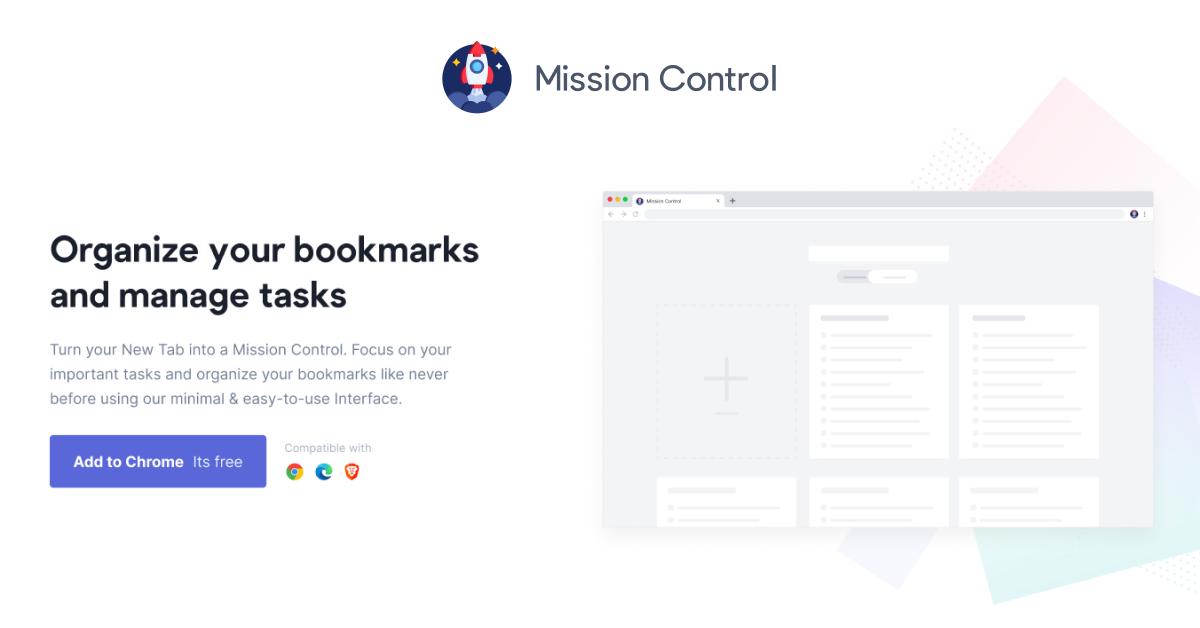
Turn your New Tab into a Mission Control. Focus on your important tasks and organize your bookmarks like never before using our minimal & easy-to-use Interface.

No paid content found
Visit website
Profile views 0 Outbound visits 0 Normal
Mission Control Full homepage screenshot

At a glance

Category
Development
Language
English
Paid-content signal
No paid content foundObserved
Registered
2021
Hosting
VercelInferred
HTTPS certificate trusted
PassedObserved
Last updated

Website review

This review may include AI-generated content and is not individually verified. Domain, certificate and other facts come from the observed data on this page.

What is Mission Control?

Mission Control is a Chrome extension that replaces your browser's New Tab page with a minimal dashboard for two jobs: keeping a short list of priority tasks in view and organizing bookmarks so you can actually find them again. Its stated aim is focus rather than full task management—the page says it doesn't replace your existing to-do app, but helps you concentrate on the important items.

What it actually does

  • Task focus: surfaces the tasks you want to get done, so they're visible every time you open a tab instead of buried in another app.
  • Bookmark organization: a structured alternative to relying on Google searches for sites whose names you've forgotten—the page explicitly addresses that "I know it but can't name it" problem.
  • Local-first storage: bookmarks and tasks are stored in browser storage and, per the page, never leave your system; no personal data is collected or sold.
  • Optional GitHub sync: you can back up your data to GitHub so it survives a browser reset or machine failure.

Who it suits

Someone who already has a task system (Notion, Todoist, a paper list) but wants a lightweight daily prompt in the place they spend most time—the new tab. It's less compelling if you need shared lists, deadlines, reminders or calendar integration; nothing on the page suggests those exist.

Trade-offs to weigh

Consideration What it means for you
New Tab takeover Every new tab becomes the dashboard—great for habit, intrusive if you like a blank page or a different new-tab tool
Local storage Privacy is strong, but data is tied to that browser profile unless you enable GitHub sync
GitHub backup Adds resilience, but assumes you're comfortable with a GitHub account and repo-based storage
Scope Focused by design; not a replacement for a full task manager

The page's testimonials—from Rutik Wankhade, Bhanu Teja P, Arav and Gaurang—praise the interface and the backup feature; those are users' impressions, not verified benchmarks, so treat the "I would pay for this" line as enthusiasm rather than an endorsement of depth.

Next step: before committing, install it and spend a week with your five most-used bookmarks and three current tasks loaded. If the dashboard makes you act on them without thinking, it's earning its place; if you find yourself closing the tab to get to a search box, a dedicated bookmark manager such as Raindrop.io may fit better.

How does Mission Control help me focus on important tasks without replacing my existing to-do manager?

Mission Control is built to sit alongside your existing to-do manager rather than replace it. According to its own description, it turns your browser's New Tab page into a focused workspace: you keep the task list you already use, and Mission Control gives you a lightweight place to pin the few tasks that matter right now so they stay in view each time you open a tab.

How that works in practice

  • A visible shortlist, not a second backlog. You'd copy or note only the current priorities into the New Tab view, while your full project tracking stays where it is. The point is to reduce what you see, not duplicate everything.
  • A built-in reminder for bookmarks. The same page also organizes bookmarks, aimed at the common problem of knowing a site exists but forgetting its name and falling back on a search engine.
  • Local-first storage. The site states that bookmarks and tasks stay on your system in browser storage and are not collected or sold, with optional synchronization to GitHub as a backup.

Trade-offs to weigh

Because the product deliberately avoids replacing a full task manager, it won't give you recurring tasks, project hierarchies or team assignments — those stay in your existing tool. The benefit is a lower-friction daily view; the cost is that you must decide what belongs in the shortlist, or the New Tab page becomes another cluttered list. Someone juggling a large backlog in a dedicated app would use Mission Control as a "today" layer; someone wanting one system for everything would likely find it too thin.

A useful next step: open your current to-do manager and pick the three to five items you'd want to see every time you start a new tab. If that shortlist feels genuinely useful, this kind of New Tab tool fits; if you'd want the whole list there, a full task manager is the better home. For comparison with a mainstream bookmark and tab tool, see Chrome Web Store listings, and for a task-focused alternative, Todoist.

How does Mission Control organize bookmarks so I can find sites I've forgotten the name of?

Mission Control's approach is to make bookmarks part of your New Tab page rather than a buried browser menu, so the sites you've saved are visible the moment you open a tab. The page's framing is aimed squarely at the "I know the site but forgot its name" problem: it acknowledges that people install bookmark managers and still end up googling the site each time. The implied fix is recognition over recall — seeing your saved sites laid out on the tab page lets you spot the one you can't name. The page describes the interface as minimal and easy to use, and says bookmarks and tasks are stored locally in browser storage, with optional synchronization to GitHub as a backup.

What the page does and doesn't specify

The page does not describe folders, tags, search-within-bookmarks, or any automatic grouping of saved sites. So if your forgotten-site problem is really a large collection problem, treat the New Tab visibility as the main mechanism and expect to do your own organizing. The page also states Mission Control is not a replacement for your existing to-do manager; it's meant to surface the important tasks, not hold your whole system.

A practical way to use it

Keep the bookmark set on the New Tab page deliberately small — a couple of dozen sites you actually revisit — and leave the long tail in your browser's native bookmarks. When you notice yourself googling a site you know you saved, add it to the visible set. That habit turns the page into a recognition aid rather than another neglected list.

Decision criteria

If your situation is… Mission Control fits when…
You forget site names but remember roughly what they look like A visual New Tab grid gives you something to recognize
You have hundreds of bookmarks across folders You're willing to curate a short visible set; the page doesn't promise automatic organization
You want your tasks and links in one glance The page pairs task focus with bookmark visibility
Data locality matters to you Local browser storage is the stated default, with GitHub sync as a backup option

If you want a fuller bookmark manager with tagging or search, compare against dedicated tools such as Raindrop.io before committing. Otherwise, install it, prune the visible set to what you genuinely revisit, and test for a week whether you stop reaching for search.

Where is my bookmark and task data stored, and can I back it up to GitHub?

Your bookmark and task data is stored locally in your browser's secure storage, not on Mission Control's servers. The site states that your bookmarks and tasks never leave your system and that it doesn't collect or sell personal information. It also says you can synchronize that data to your GitHub account as a backup, so it survives a lost device or cleared browser.

What this means in practice

  • Local-first: The browser is the source of truth. If you uninstall the extension or clear site data without a backup, the data can be gone.
  • GitHub as an off-device copy: Syncing to GitHub is a backup route, not live multi-device sync in the usual sense. Treat the GitHub copy as a snapshot you can restore from.
  • Privacy trade-off: Keeping data local limits exposure, but backup becomes your responsibility. A repository you own is only as private as its visibility settings.

A sensible setup

  1. Install Mission Control and use it for a week before deciding what deserves backup.
  2. Connect GitHub sync and confirm the first backup actually appears in your account.
  3. Check the repository's visibility. If it's public, your bookmarks and task text are readable by anyone, so make it private or keep sensitive items out.
  4. After adding a batch of bookmarks or tasks, verify a new backup was created rather than assuming it happens automatically.

If you work across several computers and expect changes to appear instantly everywhere, local storage plus GitHub snapshots may feel manual; a service built around account sync would suit that better. If you mainly want a fast, private new-tab workspace and are comfortable owning the backup, this model fits.

How do I install Mission Control as a Chrome New Tab extension, and is it free?

Mission Control installs as a Chrome extension that replaces your New Tab page. The site presents it as a free add-on for Chrome: you open the page, click "Add to Chrome," and confirm the browser prompt. After that, opening a new tab shows the Mission Control interface instead of Chrome's default page.

Its two main jobs are a focused task list and a bookmark organizer. The site is explicit that it does not replace your existing to-do manager; it is meant to surface the few tasks you want to concentrate on. The bookmark side targets the common problem of saving links and then searching Google for them anyway.

On privacy, the page says your bookmarks and tasks stay on your system, stored in local browser storage, and are not collected or sold. It also offers optional synchronization to GitHub for backup. Treat that as the product's stated design rather than a guarantee: local storage is tied to that browser profile, so a cleared profile or a new machine can lose data unless you set up the GitHub backup.

A practical first step: install it, add three to five current priorities and your most-used bookmarks, then test one new tab and one reopened browser to confirm the setup persists. If you use several computers, decide up front whether the GitHub sync is worth configuring, since without it each browser profile is effectively separate.

How does Mission Control compare to using Google search for websites I've already bookmarked?

Mission Control is built for the moment when you know a site exists in your bookmarks but can't recall its name: it turns your New Tab into a searchable, organized view of saved bookmarks and a short list of priority tasks. Google search is built for finding things you haven't saved, which is why it keeps surfacing the same sites you already bookmarked instead of the ones you meant to return to.

The practical difference is intent. With Google, you reconstruct a query from memory and scan results for the right link. With Mission Control, you browse or search a set you already curated, so the answer is drawn from your own collection rather than the whole web.

Dimension Mission Control Google search
Primary use Re-finding and arranging bookmarks; keeping a few tasks in view Discovering anything on the web
Where data lives Locally in browser storage; optional sync to your own GitHub Google's index and your account history
Setup cost Install the Chrome extension and build your bookmark structure None
Best for People with large, messy bookmark collections and a handful of daily priorities One-off lookups and unfamiliar topics

Two trade-offs are worth naming. First, Mission Control's value depends on your bookmarks being reasonably organized; if your collection is chaotic, the New Tab view inherits that chaos until you spend time tidying it. Second, it deliberately does not replace your existing todo manager—the site describes it as a focus aid for important tasks, so expect a lightweight list, not a full project system. The privacy stance is explicit: bookmarks and tasks stay on your system, with GitHub sync as an optional backup.

A concrete scenario: a designer who saves dozens of reference sites each week can open a new tab and jump straight to a saved portfolio or documentation page instead of typing a half-remembered query and clicking through search results. Someone researching an unfamiliar topic should still start with Google.

Next step: for one week, note every time you search Google for a site you had already bookmarked. If that happens more than a few times, the extension's New Tab approach is likely worth trying; if it's rare, your browser's existing bookmark bar is probably sufficient. For broader bookmark-management comparisons, see GitHub for open-source alternatives.

Related questions

More questions →
How to Install Mission Control and Find Its Support Pages

Mission Control is a Chrome extension that replaces your New Tab page with a dashboard for tasks and bookmarks. To install it, open mission-control.app and use the Add to Chrome button on the page; the site states the extension is free to add. For help or source information, the site links to Contact and GitHub pages in its navigation.

Install Mission Control

  1. Open mission-control.app in your Chrome browser.
  2. Select Add to Chrome (the site also repeats this button in its closing "Get started today" section).
  3. Confirm the installation when Chrome prompts you.
  4. Open a new tab. The New Tab page becomes your Mission Control dashboard.

Expected result: Your new tabs show the Mission Control interface for organizing bookmarks and focusing on tasks, rather than Chrome's default new-tab page.

What you need: A Chrome browser and the ability to install browser extensions. The site describes the extension as compatible with Chrome and free to add; it does not list other browsers or account requirements.

Common snags

  • The button doesn't respond: Make sure you are on mission-control.app itself, not a cached or copied page, and that Chrome allows extension installs from the Web Store.
  • New tabs look unchanged: Check that the extension is enabled in Chrome's extension settings, then open a fresh tab.
  • You expected a full todo manager: The site says Mission Control "does not replace your existing todo managers." It is meant to help you focus on important tasks, so keep using your current todo app alongside it.

Where to Find Help and Source Information

The site's navigation includes Contact and GitHub links. Use these when you need support or want to look at the project's source:

Page Use it for
Contact Reaching the team with questions or issues
GitHub Source information and project details

The site does not describe a separate help center, documentation site, or FAQ page, so Contact and GitHub are the listed routes.

What Happens to Your Data

Your bookmarks and tasks stay on your system. The site states it does not collect or sell personal information and that data is stored locally in browser storage. You can also synchronize your data to GitHub as a backup, which the site presents as protection against unfortunate events. For setup details on backup, see the site's own description of the feature rather than assuming a default sync.

Is It the Right Fit?

Mission Control suits you if you want a minimal New Tab dashboard that keeps important tasks visible and makes bookmarks easier to find, while keeping data local. It is not a replacement for a full todo manager, and the site does not publish pricing beyond stating the extension is free to add. If you need multi-browser support or a hosted task service, the site does not describe those options.

How Mission Control Handles Data Privacy and Backup for Bookmarks and Tasks

Mission Control keeps your bookmarks and tasks on your own system: the site states that your data never leaves your device, is not collected or sold, and is stored locally in secure browser storage. For backup, you can optionally synchronize your data to GitHub so it survives a data-loss event. Basic use does not require an account or a cloud service.

Where your data lives

According to the site, two things are true at once:

  • Local by default. Bookmarks and tasks are stored inside the browser's secure storage on your machine. Nothing is sent to Mission Control's servers.
  • No collection or sale. The site explicitly says it does not collect or sell personal information.

This matters because Mission Control is a Chrome extension that replaces your New Tab page. Your bookmark and task data is part of your browser profile, not a hosted account.

How backup works

Backup is opt-in. The site describes synchronizing your data to GitHub "so your data is always safe in the event of any unfortunate events." In practice, that means:

  1. You connect the extension to a GitHub destination you control.
  2. Your bookmarks and tasks are copied there as a backup copy.
  3. If local browser data is lost (profile reset, reinstall, device failure), you can restore from that copy.

The site does not publish the exact backup format, sync frequency, or restore steps, so treat GitHub sync as a safety copy rather than a real-time multi-device sync. If you need the same bookmarks on two machines, verify how restore behaves before relying on it.

What this means for privacy

Concern What the site says
Are bookmarks/tasks sent to the vendor? No — data stays on your system
Is data sold? No
Where is data stored? Local secure browser storage
Is there a cloud account? Not required for basic use
Can I back up? Optional GitHub synchronization

The practical trade-off: local-first storage is private, but it also means your data is only as durable as your browser profile — unless you turn on GitHub backup. Clearing site data, resetting the browser, or losing the device removes local data.

A concrete scenario

Say you reorganize 200 bookmarks and add a week of tasks, then your laptop's browser profile gets corrupted. Without GitHub sync, that work is gone with the profile. With sync enabled, you reconnect the extension and pull the backup back. The same setup means anyone with access to your unlocked browser profile can see your bookmarks and tasks, since there is no separate login gate described on the site.

Before you install

  • Confirm you are comfortable with data living in browser storage rather than a vendor account.
  • Decide up front whether to enable GitHub sync; it is the only backup path the site describes.
  • Check the extension's permissions in the Chrome Web Store listing, since the site itself does not detail them.
  • The site lists the extension as free ("Add to Chrome its free"); no pricing page or paid tier is mentioned, so do not assume paid support or extra storage exists.

For the broader question of what the tool does, see What Is Mission Control and What Can You Use It For?.

What Do You Need to Use Mission Control, and How Does It Fit With Existing Todo Apps?

Mission Control is a Chrome extension that turns your New Tab page into a dashboard for organizing bookmarks and focusing on important tasks. To use it, you need the Chrome browser and the extension installed; it is designed to sit alongside your existing todo manager rather than replace it, so you can keep your current task system and use Mission Control as the surface where priority tasks and bookmarks stay visible.

What you need to get started

  • A Chrome browser. The site presents Mission Control as a Chrome extension with an “Add to Chrome” install action, and the page states it is free.
  • The extension installed. Mission Control works by replacing your New Tab page, so the core experience appears when you open a new tab after installing it.
  • Your existing bookmarks and tasks. The product is built around organizing bookmarks and surfacing important tasks, so it is most useful if you already have both to bring into your workflow.

The site does not describe account creation, a separate web dashboard, or platform support beyond Chrome, so treat the New Tab extension as the primary entry point.

How it fits with existing todo apps

Mission Control is explicitly positioned as a complement, not a replacement. The site says it “does not replace your existing todo managers” and instead “helps you to focus on your important tasks to improve your productivity.” That distinction matters when deciding whether to adopt it:

Question What Mission Control does What it leaves to your existing todo app
Where tasks live Surfaces important tasks on the New Tab page Full task management, projects, and long lists
Purpose Keeps priority work in front of you Planning, scheduling, and detailed tracking
Bookmarks Organizes bookmarks in the same interface —
Workflow change Adds a focus layer to your browser You keep your current task system

If you already use a todo manager you like, Mission Control can act as a lightweight focus layer: you keep planning where you plan, and use the New Tab page to keep the few tasks that matter visible. If you are looking for a full task manager with projects and collaboration, this is not that product.

What the bookmark side adds

The site frames bookmark organization as a response to a common problem: people install bookmark managers but still end up searching Google for a site whose name they have forgotten. Mission Control puts bookmark organization into the same New Tab interface as your tasks, so the two live together rather than in separate tools. The page does not detail folder structures, tagging, or search behavior, so evaluate the bookmark experience after installing rather than assuming specific features.

Data privacy and backup

According to the site, your bookmarks and tasks never leave your system: data is stored locally in browser storage, and the company says it does not collect or sell personal information. For backup, Mission Control offers synchronization of your data to GitHub, which the site describes as a way to keep data safe in the event of an unfortunate event. One user testimonial on the page calls the backup feature “sweet.” If you want a safety net beyond local storage, the GitHub sync option is the documented path; the page does not describe other backup destinations.

A practical way to decide

Use Mission Control if you work in Chrome, want your important tasks and bookmarks on the New Tab page, and are happy to keep your existing todo app for planning. Skip it if you need a standalone task manager, use a browser other than Chrome, or require backup options beyond local storage and GitHub sync. The fastest check is to install the extension, open a new tab, and see whether the focus-on-important-tasks approach matches how you actually work.

What Is Mission Control and What Can You Use It For?

Mission Control is a Chrome extension that turns your browser's New Tab page into a personal dashboard for two jobs: keeping a short list of important tasks in view and organizing bookmarks so you can actually find them again. You'd use it if you open new tabs constantly and want that moment to push you toward what matters instead of a blank page or a search box. It is not a full todo manager — it's designed to sit alongside the one you already use.

What the extension actually does

The tool is built around the New Tab page. Once installed, every new tab shows a minimal interface with two core areas:

  • A task focus area. You keep the tasks you need to get done in front of you each time you open a tab. The product's own framing is that it "does not replace your existing todo managers" — instead it helps you stay focused on important tasks so you finish them and free up time.
  • A bookmark organizer. The pitch targets a common habit: trying many bookmark managers, then still Googling a site whose name you've forgotten. Mission Control is meant to make saved sites findable from the place you already look — the new tab.

The interface is deliberately minimal, which matters here: a dashboard only works if it takes less effort than ignoring it.

How your data is handled

This is the part worth understanding before you install anything.

  • Local by default. Bookmarks and tasks are stored inside browser storage on your own system. The site states that data never leaves your system and that personal information is not collected or sold.
  • Optional GitHub sync. You can synchronize your data to GitHub as a backup, so it survives a lost device or a browser reset. This is opt-in — if you don't connect it, everything stays local.

The practical trade-off: local storage means privacy but also means your data lives with that browser profile. If you work across several machines, the GitHub sync is the feature that makes the setup portable, and it's the one users in the site's testimonials single out ("Backing up is a sweet feature!!").

Where it fits — and where it doesn't

Your situation Mission Control is a good fit if… Look elsewhere if…
You already use a todo app You want a lightweight daily focus layer on top of it You want one tool to replace your todo manager entirely
Bookmark habits You save sites but keep searching for them by name You need cross-browser or mobile bookmark sync natively
Privacy You prefer data stored locally, with backup under your control You want automatic cloud sync with zero setup
Browser You use Chrome and open new tabs often You mainly use Firefox, Safari, or a mobile browser

How to try it

  1. Open the extension's Chrome Web Store listing via the "Add to Chrome" button on the site.
  2. Install it and open a new tab — the Mission Control dashboard should replace your default New Tab page.
  3. Add a few tasks you're actively working on and save two or three bookmarks you frequently search for.
  4. Use it for a few days and check the honest test: did you open the tab and act on a task, or did you click past it?
  5. If it sticks, connect GitHub sync so a browser reset doesn't wipe your setup.

The site lists the extension as free to add. No pricing page or paid tier is described in the available material, so treat any future cost as unconfirmed rather than assuming it stays free forever.

What to expect from the experience

The published testimonials are short and consistent on one point: the interface. Comments describe it as looking "as awesome as advertised" and praise the UI/UX, with one user saying they'd pay for it. That tells you the design is the draw — it doesn't tell you how well bookmark search scales once you've saved hundreds of sites, so judge that yourself during the trial period in step 4.

The extension dates to 2021 and is credited to Web3Templates. If long-term maintenance matters to you, check the Chrome Web Store listing for the last update date before committing your bookmarks to it.

Website Overview

Page metadata, canonical configuration and social previews work together to provide more consistent search and sharing presentation.

Domain and Registration

Transfer-protection status is present, helping reduce the risk of unauthorized domain transfers. The domain has about 5 years of registration history; its current configuration provides more context than age alone. The registrar is Porkbun LLC, a widely used domain service provider. The domain uses the common .app extension, which is not an independent safety signal.

DNS and Email

The lowest TTL is 60 seconds, supporting rapid record changes at the cost of more frequent lookups. Nameservers are provided by vercel-dns.com, indicating managed DNS hosting. CAA records restrict which certificate authorities are authorized to issue certificates. No CNAME was found; the observed records resolve directly to addresses. No MX record was found. A conventional explicit inbound-mail route is not configured.

TLS and Certificates

The certificate uses an RSA 2048-bit public key, offering broad client compatibility. The server supplied a complete certificate chain. No organization name is present in the certificate; the available fields are consistent with domain validation. The certificate was issued by Let's Encrypt, commonly associated with automated certificate services. The certificate's total validity is about 89 days, consistent with a short renewal cycle.

HTTP and Browser Security

The response lacks these common security headers: CSP, X-Content-Type-Options, Referrer-Policy, Permissions-Policy, clickjacking protection. CORS permits any origin to read this response. This is common for public resources; sensitive responses need narrower handling. No X-Powered-By header was found, reducing one common source of backend fingerprinting information. No obvious internal addresses or debug information were found in the headers. The Server header contains the custom value Vercel.

Technology Stack Analysis

The public page identifies Next.js, Vercel without precise versions, leaving fewer clues for version-specific scanning.

Search and Social Sharing

Open Graph is partially configured; og:type is missing. Twitter Card metadata is configured. The title has 58 characters, within a common display range. A meta description is present, with 160 characters. The observed directives allow indexing and link following.

Hosting and Email

DNSvercel-dns.com
HostingVercel
EmailUnknown
Approximate IP geolocation (inferred; a CDN or proxy may differ from the origin server) United States flagWalnut, California, United States Inferred 76.76.21.241

Registration details

RDAP / WHOIS

RegistrarPorkbun LLC
Registered2021-03-30
Expires2027-03-30
Domain statusclient delete prohibited、client transfer prohibited
Nameserversns1.vercel-dns.com、ns2.vercel-dns.com
DNSSECunsigned

DNS records

DNS

TypeNameValueTTLPriority
Amission-control.app76.76.21.2411800—
Amission-control.app76.76.21.931800—
NSmission-control.appns1.vercel-dns.com86400—
NSmission-control.appns2.vercel-dns.com86400—
TXTmission-control.appgoogle-site-verification=JSC4DUZqD95DyMZGgjSIHr-VhdhTnwFPsRYSjlC9sFo60—
CAAmission-control.app0 issue "letsencrypt.org"60—
CAAmission-control.app0 issue "pki.goog"60—
CAAmission-control.app0 issue "sectigo.com"60—

TLS and certificates

TLS / SSL

AssessmentNormal configuration
Supported protocolsTLSv1.2、TLSv1.3
Negotiated protocolTLSv1.3
Certificate subject*.mission-control.app
IssuerLet's Encrypt
Valid until2026-12-02T17:48 · Remaining when checked: 36 days
Verification detailsCertificate trust: Passed · Hostname match: Passed

HTTP response headers

HTTP

HeaderValue
content-typetext/html; charset=utf-8
cache-controlpublic, max-age=0, must-revalidate
serverVercel
strict-transport-securitymax-age=63072000
access-control-allow-origin*

Identified technologies

Next.jsVercel

Pages, Search and Sharing

Meta descriptionTurn your New Tab into a Mission Control. Focus on your important tasks and organize your bookmarks like never before using our minimal & easy-to-use Interface.
Canonical URLhttps://mission-control.app
LanguageEnglish (default)
Twitter Cardsummary_large_image

No robots.txt found

No sitemaps found

User reviews (0)

  • No reviews yet.