
 motorpen.com
No paid content found
motorpen.com
No paid content found
Categories: Other
The easiest animation studio on the web. 100% Free!
 Visit website
 Updated: 2026-09-29 22:33
 Language: English (default)
 Access: Normal
 Profile views 2
 Outbound visits 0
Related questions
More questions →How Do You Draw Vector Graphics in Inkscape?
Inkscape is a professional vector graphics editor for Linux, macOS, and Windows that stores drawings as SVG (Scalable Vector Graphics). You draw by creating and editing objects defined by paths, shapes, and mathematical coordinates rather than pixels, so your artwork can be resized without losing quality. This guide covers the core workflow: setting up a document, drawing with shapes and the pen tool, editing nodes, managing fills, strokes, and layers, and exporting your work.
Vector vs. raster drawing
A raster image (like a photo or a PNG) is a grid of colored pixels. Enlarging it too far reveals those pixels as blur or blocky edges. A vector drawing describes shapes mathematically — a circle is stored as a center point and a radius, not as a pattern of dots — so it stays sharp at any size.
That difference shapes how you work in Inkscape:
- Objects, not paint. You place and transform discrete objects (rectangles, paths, text) instead of brushing pixels.
- Editable at any time. You can return to a shape later and change its size, color, or curve.
- Resolution-independent output. The same file can produce a small icon or a large poster.
Vector graphics suit logos, icons, diagrams, illustrations, posters, and anything that needs clean edges or repeated resizing. Raster graphics remain the better choice for photographs and painterly textures.
Setting up a new document
- Open Inkscape and choose File > New (or start from a template if one fits your output).
- Open File > Document Properties to set the page size and orientation. Match this to your intended output — for example, A4 for a printable poster or a square canvas for an icon.
- Decide on units (px, mm, in) in the same dialog so your measurements stay consistent.
- Save early with File > Save As and keep the
.svgformat. SVG is Inkscape's native format and preserves all editable objects.
A useful habit: set the document size before drawing, because changing it later can shift how your composition sits on the page.
Core drawing tools
Inkscape gives you two broad approaches — draw a predefined shape, or draw a path point by point.
Shapes
The shape tools create objects you can still adjust parametrically:
- Rectangle — drag to draw; use the tool controls to set exact width, height, and corner rounding.
- Ellipse/Circle — drag for an ellipse, or hold Ctrl to constrain to a circle.
- Star/Polygon — set the number of points or sides and the spoke ratio.
- 3D Box — build simple perspective boxes.
Because these stay parametric, you can select a rectangle later and change its corner radius without redrawing it.
Pen and Bezier
The Pen (Bezier) tool draws paths directly:
- Click to place straight-line corner nodes.
- Click and drag to pull out curve handles, creating smooth curves.
- Press Enter to finish an open path, or close it by clicking the first node.
This is the tool for custom outlines — a logo mark, a map boundary, a hand-drawn silhouette.
Pencil (freehand)
The Pencil tool draws freehand paths. You can smooth the result afterward, which makes it useful for quick sketching that you then clean up.
Editing nodes and paths
Once a path exists, the Node tool is where precision happens. Select a path and you can:
- Move nodes to reshape the outline.
- Add or delete nodes to control how much detail a curve carries.
- Convert between corner and smooth nodes to switch between sharp angles and flowing curves.
- Adjust handles to change a curve's direction and tension.
A practical rule: use as few nodes as the shape allows. Fewer, well-placed nodes produce cleaner curves and smaller files than many nodes nudged into place.
You can also combine and modify paths with operations like Path > Union, Difference, and Combine, which merge or subtract shapes to build complex forms from simple ones.
Fills, strokes, and layers
Every object has a fill (its interior) and a stroke (its outline). The Fill and Stroke panel controls both:
- Fill: flat color, gradient, or pattern; plus opacity.
- Stroke: color, width, and style such as dashes and caps.
- The Ctrl+Shift+F shortcut opens this panel directly.
Layers (via the Layer menu) let you separate parts of a drawing — background, main artwork, annotations — and lock or hide each independently. This keeps complex drawings manageable and lets you work on one element without accidentally selecting others.
Exporting your drawing
Inkscape's native save format is SVG, which keeps everything editable. When you need a different format:
- File > Save As and choose SVG to keep the working file.
- File > Export (or Export As) to produce a PNG at a chosen pixel size or DPI, or to export a selected area only.
For print or further editing elsewhere, keep the SVG as your master and export PNG copies as needed. Exporting a PNG at a higher DPI gives you a larger raster version, but the SVG remains the source of truth.
Common sticking points
- "My lines look jagged." You may be zoomed in on a raster preview; vector paths stay smooth. Check the actual path, not the screen rendering.
- "I can't select what I want." Another object or layer may be on top or locked. Check the layer panel and object order.
- "The file got huge." Excessive nodes or embedded raster images inflate SVG size. Simplify paths and link rather than embed large images where possible.
- "Nothing is editable." If you imported a raster image, it stays a bitmap inside the document — you can move and scale it, but not edit its pixels as vectors.
Where to go next
Start with one small project — an icon or a simple diagram — and use only shapes plus the node tool. Once that feels natural, add the pen tool for custom curves and gradients for depth. The Inkscape project publishes documentation and tutorials on inkscape.org, and the software runs on Linux, macOS, and Windows desktops.
Cascadeur Free vs Paid Plans: What You Get and When to Upgrade
Cascadeur's site offers a free way to try the software and links to paid plans, but the public page does not spell out exactly what the free tier includes or where its limits sit. What it does confirm is the feature set — AI-assisted keyframe animation, AutoPosing, AutoPhysics, Ragdoll, Inbetweening, AI motion generation, rigging, retargeting, and UE Live Link — plus file compatibility with .FBX, .DAE, .GLB/.GLTF, and .USD. If you need a definitive free-vs-paid breakdown, treat the Plans page and the trial start as the two places to check, because the homepage itself doesn't publish export limits, watermark rules, or commercial-use terms.
What the public page actually tells you
The homepage positions Cascadeur as "the easiest way to animate" and invites you to "Try for free" or "Watch demo." It lists these capabilities without marking any as paid-only:
- Inbetweening — AI interpolation that generates motion between keyframes
- Ragdoll — procedural reactions to impacts, falls, and collisions
- AutoPosing — get natural poses by moving fewer control points
- Quadrupeds — rigging, AutoPosing, and one-click retargeting for four-legged animals
- AI Motion Generation — running, jumping, combat, acrobatics, idles, and more
- AutoPhysics — a character double showing a physically accurate result, for tuning secondary motion and inertia
- Rigging — drag-and-drop joints to auto-generate a rig for humanoids and quadrupeds
- Retargeting — copy/paste animation between characters regardless of skeleton or proportions
- UE Live Link — stream animation to Unreal Engine with real-time updates
It also names the solution areas: mocap cleanup, previz, animation editing, AI, video games, prototyping, and markerless mocap. Mocap cleanup is described as fixing foot sliding, knee pops, geometry penetration, poses via AutoPosing, weight via AutoPhysics, and edits via Animation Layers.
None of this is labeled "free" or "paid" on the page, so don't assume the list equals the free tier.
The two "free" paths are different things
The page shows two separate entry points, and mixing them up is the most common source of confusion:
| Entry point | What it is | What to expect |
|---|---|---|
| "Try for free" | A trial-style access route | Time-limited or feature-limited evaluation; check the Plans page for terms |
| A long-term free tier | A persistent no-cost version | Not described on the homepage; verify on the Plans page |
The trial link points to cascadeur.com/plans#trial, which means trial terms live on the pricing page, not the homepage. If your decision depends on whether you can keep using it indefinitely at no cost, that answer has to come from the Plans page — the homepage doesn't provide it.
When the free route is likely enough
Based on the feature list alone, a free or trial route is worth starting with if you are:
- Learning the workflow — testing AutoPosing and Inbetweening on a simple humanoid before committing
- Evaluating mocap cleanup — checking whether the foot-sliding and knee-pop fixes fit your pipeline
- Prototyping — blocking previz or game animation without a production deadline
- Testing file compatibility — confirming your .FBX, .DAE, .GLB/.GLTF, or .USD assets import cleanly
When upgrading becomes the real question
Upgrade pressure usually comes from constraints the homepage doesn't state, so verify each against the Plans page before paying:
- Export restrictions — if the free tier limits resolution, format, or adds a watermark, that alone can force an upgrade for client work.
- Commercial use — confirm whether free-tier output can be used in shipped products. The page doesn't say.
- Team or pipeline needs — UE Live Link and retargeting matter more in production; check whether they're gated.
- Volume of work — a single test animation and a full game's combat set have very different tolerance for limits.
A concrete example: if you're cleaning up a markerless mocap take for a game prototype and the free route lets you fix foot sliding and apply AutoPhysics, you may never need to pay. If you're delivering that animation into a commercial build and the free tier restricts export or licensing, the upgrade decision is made for you by the terms, not the feature list.
How to decide without guessing
- Open the Plans page and read the actual tier comparison — this is the only authoritative source in the material provided.
- Start the trial and test the specific features your project needs: AutoPosing, AutoPhysics, Ragdoll, Inbetweening, retargeting, and UE Live Link.
- Test an export end-to-end with your real file format (.FBX, .DAE, .GLB/.GLTF, or .USD) and inspect the output for watermarks or quality loss.
- Check the commercial-use terms in writing before shipping anything.
- Only then compare cost against the limits you actually hit.
The homepage is useful for understanding what Cascadeur does — AI-assisted keyframe animation for character work, mocap cleanup, and game pipelines. It is not a pricing document. For the free-vs-paid question specifically, the Plans page is the answer, and the trial is how you verify it against your own project.
Website Overview
The available information shows a mix of normal operation and configuration gaps. Depending on how the website is used, these gaps may affect secure access or the consistency of its public presentation.
Domain and Registration
Transfer-protection status is present, helping reduce the risk of unauthorized domain transfers. The domain has about 5 years of registration history; its current configuration provides more context than age alone. The domain uses the common .com extension, which is not an independent safety signal.
DNS and Email
Nameservers are provided by spaceship.net, indicating managed DNS hosting. DNSSEC is enabled, allowing validating resolvers to authenticate signed DNS data. No CNAME was found; the observed records resolve directly to addresses. No MX record was found. A conventional explicit inbound-mail route is not configured. The lowest observed DNS TTL is 300 seconds.
TLS and Certificates
The public key uses EC with 256 bits. The server supplied a complete certificate chain. No organization name is present in the certificate; the available fields are consistent with domain validation. The certificate was issued by Let's Encrypt, commonly associated with automated certificate services. The certificate's total validity is about 89 days, consistent with a short renewal cycle.
HTTP and Browser Security
The checked browser-security headers were not detected, leaving fewer explicit browser-side safeguards. No X-Powered-By header was found, reducing one common source of backend fingerprinting information. No obvious internal addresses or debug information were found in the headers. The Server header identifies nginx without an exact version. No explicit CDN or WAF marker was found in the response headers.
Technology Stack Analysis
The public page identifies nginx without precise versions, leaving fewer clues for version-specific scanning.
Search and Social Sharing
No homepage canonical URL was detected. If duplicate URLs exist, consolidation may be less explicit. The title has 8 characters, within a common display range. A meta description is present, with 51 characters. The observed directives allow indexing and link following. No Generator meta tag is publicly exposed.
 Hosting and Email
 Hosting
 Location
 Buffalo, New York, United States
 Pages, Search and Sharing
| Meta description | The easiest animation studio on the web. 100% Free! |
|---|---|
| Canonical URL | Not detected |
| Language | English (default) |
| Twitter Card | Not detected |
Social Sharing Preview
7 fields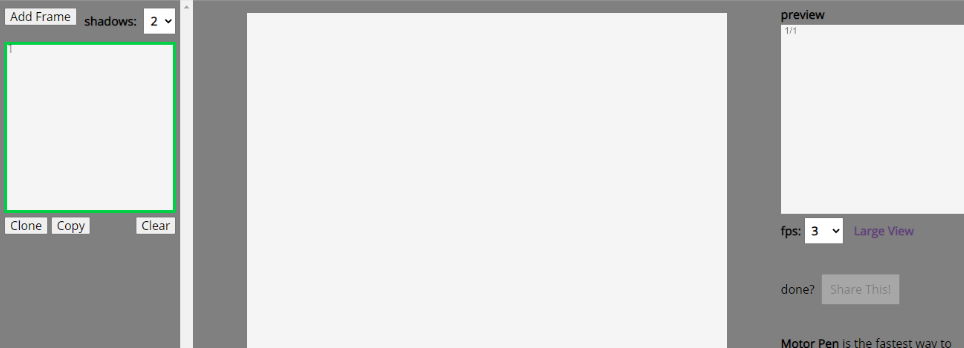
Sharing metadata
| og:url | https://motorpen.com |
|---|---|
| og:type | website |
| og:image | https://motorpen.com/og-image.jpg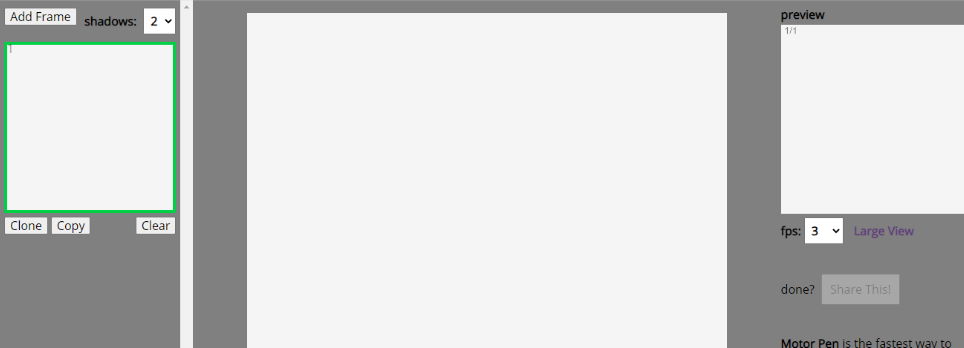 |
| og:title | MotorPen |
| og:description | The easiest animation studio on the web. 100% Free! |
| og:image:width | 964 |
| og:image:height | 348 |
robots.txt (opens in a new tab)
0 rulesAll bots 0 allowed · 0 disallowed

 All bots
No matching rules.
Sitemaps
0No sitemaps found
 Registration details RDAP / WHOIS
| Registrar | Spaceship, Inc. |
|---|---|
| Registered | 2020-12-20 |
| Expires | 2026-12-20 |
| Domain status | client transfer prohibited |
| Nameservers | launch1.spaceship.net、launch2.spaceship.net |
| DNSSEC | signed |
 DNS records
| Type | Name | Value | TTL | Priority |
|---|---|---|---|---|
| A | motorpen.com | 107.173.229.142 | 300 | — |
| NS | motorpen.com | launch1.spaceship.net | 1800 | — |
| NS | motorpen.com | launch2.spaceship.net | 1800 | — |
| TXT | motorpen.com | v=spf1 -all | 3600 | — |
| DS | motorpen.com | 44106 13 2 19ff8800247d73a26edf90b0d34df79509919ba7af5f178ef56b081f88f74be1 | 86400 | — |
| DMARC | _dmarc.motorpen.com | v=spf1 -all | 3600 | — |
 TLS and certificates
| Assessment | Normal configuration |
|---|---|
| Supported protocols | TLSv1.2、TLSv1.3 |
| Negotiated protocol | TLSv1.3 |
| Certificate subject | motorpen.com |
| Issuer | Let's Encrypt |
| Valid until | 2026-12-08T13:54 · Remaining when checked: 69 days |
| Verification details | Certificate trust: Passed · Hostname match: Passed |
 HTTP response headers
| Header | Value |
|---|---|
| content-type | text/html |
| server | nginx |
 Identified technologies
User reviews (0)