Website profiles · Technology insights · Alternatives

new.app.listonic.com

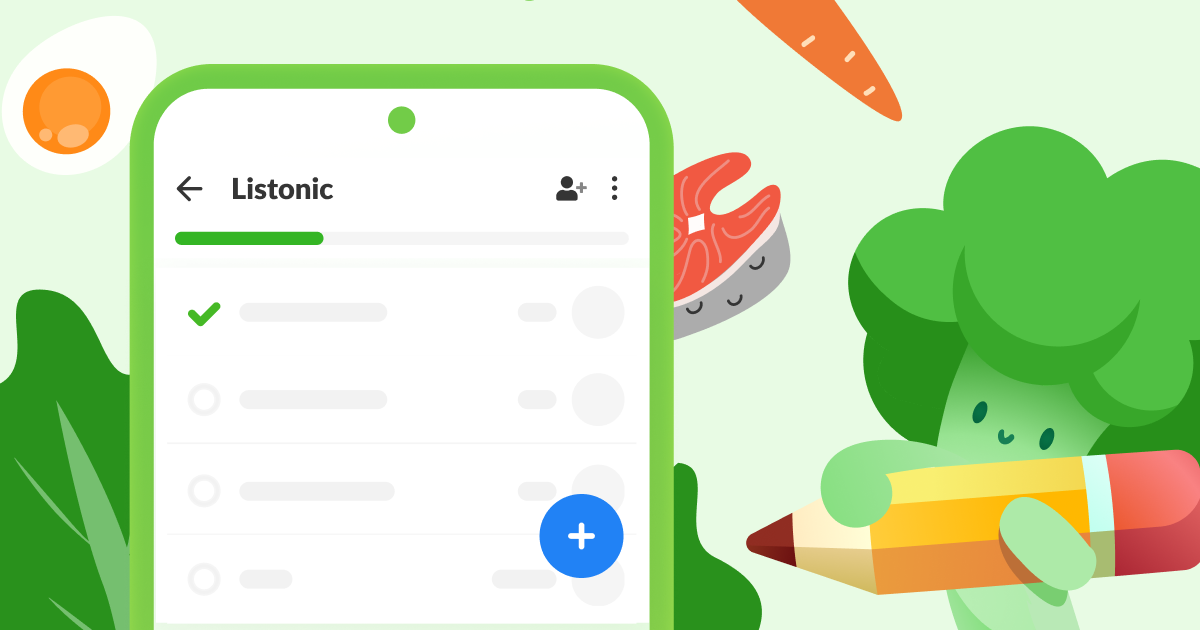
Share shopping lists with friends and family across any device.

No paid content found
Visit website
Profile views 8 Outbound visits 2 Normal
Listonic Full homepage screenshot

At a glance

Category
Shopping
Language
English
Paid-content signal
No paid content foundObserved
Registered
2007
Hosting
listonic.comInferred
HTTPS certificate trusted
PassedObserved
Last updated

Website review

This review may include AI-generated content and is not individually verified. Domain, certificate and other facts come from the observed data on this page.

What is Listonic?

Listonic is a shared shopping-list app: you build a list of items you need, and the people you invite see the same list on their own phones, so whoever is at the store can tick things off while everyone else sees what's still missing. The site's own description puts it plainly — "Share shopping lists with friends and family across any device" — and the page shows it running in a browser as well as through Google Play and the App Store.

What that looks like in practice

A typical use is a household where one person does most of the shopping but not all of it. Someone adds "milk, coffee filters" from the kitchen; a partner adds "bread" on the way home; the person in the store works down one combined list instead of juggling texts. The same pattern fits flatmates splitting a run, a parent coordinating with a teenager, or a small office ordering supplies.

The page also exposes a few supporting areas — Trash, Settings, Help, Privacy Policy, Terms of service — which suggests the usual account-level housekeeping rather than anything exotic.

Where it fits against alternatives

  • If you want the shopping list tied to a broader notes or task system you already use, a general note-taking app may be simpler than adding another app.
  • If you mainly want reminders tied to a calendar or voice assistant, a list app that doesn't integrate with those may annoy you.
  • If several people need to edit the same list simultaneously and see changes quickly, that shared-list core is exactly what Listonic is built around.

A practical next step

Before committing, run a one-week test: have two people install it, add the same five recurring items, and check how quickly a change made by one shows up for the other, and whether the offline behaviour in a store with poor signal is acceptable. That single test tells you more than any feature list. The interface is available in many languages, including English, Polish, German, Spanish, French, Italian, Turkish, Korean and Chinese, so a multilingual household can each use their own.

How do I share a shopping list with someone else on Listonic?

Listonic is built around shared shopping lists, so the sharing flow starts with the list you want to send rather than with a separate "share" menu. The page itself describes the product as a way to "Share shopping lists with friends and family across any device," which tells you the intended model: one list, several people, synced through their own devices.

The typical way it works

  1. Open the list you want to share (or create a new one for the occasion).
  2. Look for the sharing or collaboration option attached to that list — usually an icon or menu item in the list's header or its settings.
  3. Choose how to invite the other person. Most list apps offer a link, an email invitation, or a contact picker.
  4. Send the invitation through whatever channel appears, then confirm the person has accepted it.
  5. Test it: have them add one item while you watch the list, so you both see the same update.

What to expect on the other end

The person you invite normally needs the app installed and an account, since the list syncs across devices rather than travelling as a static message. If they would rather not install anything, a plain text or screenshot of the list is the fallback — but then edits stop syncing, and you are back to copying changes by hand.

A realistic scenario: one person does the weekly shop while another adds items from the kitchen during the week. Sharing the same list means the shopper sees additions in real time instead of fielding messages. That works well for households and flatmates, and less well for one-off lists you would rather not leave permanently on someone else's account.

If you cannot find the option

Sharing is often tied to being signed in, so check that first. If the option still is not visible, the app's own help pages are the quickest route, since menus differ between the Android, iOS and web versions. Listonic's site lists a Help link alongside its settings and legal pages, and the app is distributed through Google Play and the App Store, where the listing screenshots often show the sharing screen directly.

A practical decision rule: if the other person will edit the list more than once, set up proper sharing; if they only need to read it once, send the list as text and skip the invitation.

Can I use Listonic on multiple devices and keep my lists synced?

Yes. Listonic is built around sharing shopping lists “across any device,” so the same lists can be opened on more than one phone or tablet rather than being trapped on a single handset. The practical requirement is that you use the same Listonic account on each device; the app then keeps those lists in step as you add or check off items.

The clearest everyday use is a shared household list. One person adds “milk” at home, another checks it off in the shop, and the change appears for everyone using the same list. It also suits people who switch between a personal phone and a tablet, or who want a list available on both Android and iOS. Listonic lists the Google Play and App Store as download options, so mixed-device households are a normal setup rather than an edge case.

H3 What to expect in practice

  • Sync depends on being signed in to the same account, not merely installing the app twice.
  • Shared lists are the main benefit: several people can view and edit one list.
  • Offline moments are the usual friction point. If one device has no connection, it may show an older version until it reconnects; don’t assume an edit made offline is instantly visible elsewhere.
  • Conflicts are rare in ordinary shopping-list use, but two people editing the same item at the same moment can produce a brief mismatch.

H3 A quick way to test it Create one small list, sign in on a second device, and add an item on each device within a minute. If both changes appear on both screens, your setup is working. If not, check that both devices are signed in to the same account and that each has a working connection.

For a wider look at the app’s features and platform options, see Listonic.

Does Listonic work offline when I don't have an internet connection?

Yes. Listonic is built around shopping lists that stay available on your device, so you can open the app and check off items in a store with poor or no signal. The website itself describes the product as letting you share shopping lists with friends and family across any device, which implies lists sync when a connection is available rather than requiring a constant one.

H3 How offline use typically plays out

  • You add or tick off items while offline; those changes are stored locally.
  • When your phone reconnects, the list syncs so other people sharing it see your updates.
  • Sharing and collaboration are the parts that need connectivity — if you and a family member edit the same list at the same time, the merge happens once both devices are online.

H3 What this means in practice A realistic scenario: you're in a basement supermarket with no signal. You open Listonic, work through the list, and check items off. Back above ground, the app syncs and your partner's copy reflects what you bought. The one thing to avoid is assuming a shared list updates instantly for everyone while you're offline — it won't until you reconnect.

If offline reliability is your main concern, test it yourself before relying on it for a big shop: turn on airplane mode, open your list, add an item, then turn the connection back on and confirm the change appears on a second device. That single check tells you how the app behaves on your phone and account.

For the official app and platform links, see Listonic.

Is Listonic free to use, or are there premium features I have to pay for?

Listonic is free to use for its core purpose: creating and sharing shopping lists. The site presents the app as a free download for both Google Play and the App Store, and the sharing feature — lists you can pass between friends and family across devices — is described as part of the product itself rather than a paid add-on.

What the page evidence does not show is a published pricing table or a list of premium tiers. So the honest answer is: free to download and free for normal list-making and sharing; any paid upgrade, if one exists, is not advertised on the page you provided. Treat that as "no payment required for the basics" rather than "nothing in the app ever costs money."

Who this suits

  • Households splitting chores. One person adds items, another picks them up; the shared-list model is the whole point.
  • People who lose paper lists. Phone-based lists sync across devices, which matters if you shop with a phone but plan at a desktop.
  • Casual users. If you only need a checklist and sharing, the free tier covers the described functionality.

If your needs are heavier — recipe-to-list importing, pantry inventory, or detailed spending reports — check inside the app for any paid options before committing, since the public page doesn't spell them out.

A practical next step

Download it, create one shared list with the person you shop with, and use it for a week. If the free version handles that without prompting you to pay, you have your answer for your own use case. If you hit a paywall on a feature you actually need, that's the moment to decide — not before.

For a second opinion on everyday list apps generally, Todoist and Any.do take different approaches to free tiers and are worth comparing if Listonic's limits turn out to matter to you.

How does Listonic help me save money or plan meals while shopping?

Listonic helps mainly through shared, reusable shopping lists rather than through built-in budgeting or recipe planning. Based on the page information, its core offer is straightforward: "Share shopping lists with friends and family across any device." That means the money- and meal-planning benefits come from how you use the list, not from automated features the page confirms.

H3 Practical ways it supports saving and planning

  • Shop from a list, not from memory. A written list is the simplest defence against impulse buys and duplicate purchases. If you add items as you notice you need them, you arrive at the shop with a plan instead of improvising.
  • Share the list with the people you shop for or with. Because lists sync across devices, a partner, flatmate or family member can add what they need. That reduces over-buying and "I didn't know we already had that" waste.
  • Reuse and repeat. Keeping a running list makes it easier to repeat the same weekly basket, which is where consistent grocery spending habits form.
  • Plan meals before you shop, then list the ingredients. Listonic does not appear from the page evidence to be a recipe or meal-planning tool, so the meal plan itself has to come from you — a notebook, a recipe site or your own rotation — with the resulting ingredients going onto the list.

H3 A concrete scenario

Suppose you plan four dinners for the week. You decide the meals, check what is already in the cupboard, and add only the missing ingredients to a shared Listonic list. Your partner adds breakfast items. At the shop, you work down the list. You buy less that spoils, and you avoid a second trip — the second trip being where extra spending usually hides.

H3 What to weigh

Goal Does a shared list help? What it does not do
Fewer impulse purchases Yes, if you stick to the list No price tracking or spend totals shown
Avoiding duplicate buys Yes, with shared access No inventory or pantry tracking confirmed
Meal planning Only as the place you store ingredients No recipes or meal planner confirmed
Budgeting Indirectly, via planned buying No budget or receipt tools confirmed

H3 Your next step

Before your next shop, build one list covering your planned meals plus household basics, share it with whoever shops with you, and note your total at the till. Compare that figure with a normal week. If the difference is meaningful, the habit — not the app alone — is what is saving you money. For a fuller planning workflow, you could pair the list with a recipe source such as BBC Good Food.

Related questions

More questions →
What Is Listonic and What Can You Do With It?

Listonic is a shopping list app and web service for creating, managing, and sharing shopping lists across devices. You can use it if you want one list that stays in sync between your phone and browser, or if you need to coordinate shopping with family or friends instead of passing a paper list around.

What Listonic Does

The core function is straightforward: build a shopping list, keep it organized, and access it wherever you are. Based on the site, the main capabilities are:

  • Create and manage shopping lists — the primary purpose of the service.
  • Share lists with friends and family — lists aren't locked to one person, so multiple people can work from the same list.
  • Use it across any device — the service is positioned as working across devices, with mobile apps and a web app.
  • Available in many languages — the site lists a wide range of interface languages, including English, Polish, German, Czech, Danish, Finnish, Romanian, Italian, Spanish, Dutch, French, Portuguese, Turkish, Russian, Korean, and Chinese, among others.

How You Access It

Listonic is reachable in two main ways:

Access method Where to get it
Mobile app Google Play (Android) or the App Store (iOS)
Web app Through the Listonic website, using the "Open App" option

The site presents a "Download for free!" call to action alongside the app store links and an "Open App" button, so you can either install the mobile app or open the web version directly.

What You'll Find in the Interface

The site references a few areas beyond the main list view:

  • Shopping lists — the main workspace.
  • Trash — where deleted items go.
  • Help — support resources.
  • Settings — account or app preferences.
  • Privacy Policy and Terms of service — the legal pages.

Is It Worth Using?

Listonic fits well if your main need is a shared, synced shopping list rather than a full task-management or budgeting tool. It's a reasonable choice when:

  • More than one person does the shopping and you want a single shared list.
  • You switch between phone and computer and don't want to re-type items.
  • You want the interface in your own language.

If you need features like price tracking, store inventory integration, or detailed spending analytics, the site doesn't indicate those capabilities, so check the app itself before relying on it for that.

Getting Started

  1. Open the Listonic website and select Open App, or install the app from Google Play or the App Store.
  2. Create your shopping list and add the items you need.
  3. Share the list with the people you shop with, so everyone sees the same items.
  4. Check off items as you shop; removed items go to Trash if you need to recover them.
  5. Adjust preferences in Settings and use Help if you get stuck.

The service is free to download according to the site's call to action. The available information doesn't describe paid tiers or account requirements beyond what's shown, so confirm any account or pricing details inside the app itself.

How to Get the Listonic App or Open It in Your Browser

Listonic is available in two forms: a mobile app you download from Google Play or the App Store, and a web app you can open directly in a browser at new.app.listonic.com. Both are offered as a free download or free access according to the site, and both connect to the same shared shopping lists. If you want the fastest path, open the site and click "Open App" to use it in your browser right away; if you want it on your phone, use the store buttons on the same page.

Opening Listonic in your browser

  1. Go to new.app.listonic.com.
  2. On the landing page, select Open App. The page shows an "Open App" option alongside the download buttons.
  3. The web app loads in your browser. You can then create or open a shopping list and share it with friends and family across devices, which is what the service is built for.

This route needs no install and no store account. It is the practical choice when you are on a desktop or a borrowed device, or when you just want to check a list quickly.

Downloading the mobile app

The site provides two store entry points on the same page:

  • Get it on Google Play — for Android devices.
  • Download on the App Store — for iPhone and iPad.

Select the button that matches your phone, and the store listing handles the install. The page labels this as a free download, so there is no purchase step described before you get the app.

Which option should you pick

Situation Better choice Why
You are at a computer and want to add items now Open App in the browser No install, immediate access
You shop with your phone in hand Google Play or App Store download Native app on the device you carry
You share lists with family who use different devices Either — both reach the same shared lists The service is designed for sharing across any device
You are on a device you do not own Browser Nothing is installed or left behind

Changing the language

The site lists a wide set of interface languages, including English, Polski, Deutsch, Čeština, Dansk, Suomi, Română, Italiano, Español, Nederlands, Français, Türkçe, Русский, 한국어, 中文, and others. If the page opens in a language you do not read, look for the language selector on the page and switch before you start building lists — item names you type stay as you enter them, but menus and buttons follow the selected language.

Common snags

  • Store button does nothing useful on desktop. The Google Play and App Store links are meant for phones. On a computer, use Open App instead.
  • You expected a separate account page. The visible navigation on the site is limited to the app itself plus Trash, Help, Settings, Privacy Policy, and Terms of service. Account and list management live inside the app once it opens.
  • The page shows a loading state. The site loads the app shell dynamically; if you see a loading message, wait a moment or reload before clicking Open App again.

What you get once it opens

Inside the app you can keep shopping lists, share them with friends and family, and reach them from any device you sign in on. The site also exposes Trash, Help, Settings, and the legal pages (Privacy Policy, Terms of service) from the same interface, so support and settings are reachable without leaving the app.

Which languages and devices does Listonic support?

Listonic supports a long list of interface languages and runs on Android, iOS, and in a web browser. If you want to share a shopping list with someone on a different device or in a different language, the app is built for exactly that — cross-device access is one of its core features.

Supported languages

The site lists the following interface languages:

English Polski Deutsch Čeština
Dansk Suomi Română Italiano
Español Nederlands Français Azərbaycan dili
Bahasa Indonesia Português Português (Brasil) Slovenčina
Slovenščina Türkçe Русский 한국어
中文

You can switch the interface language from the language selector, so a shared list can be viewed by each person in their own language.

Supported devices and platforms

  • Android — available through Google Play.
  • iOS — available through the App Store.
  • Web browser — you can open the app directly in a browser without installing anything, using the "Open App" option on the site.

Because the same list is accessible from all three, you can start a list on your phone and check it on a laptop, or share it with someone who uses a different platform than you.

What this means in practice

  • Mixed households work fine. One person on Android, another on iPhone, a third on a desktop browser — all can open and edit the same list.
  • Language isn't a barrier to sharing. Each person can set their own interface language while working on the same list.
  • No install required for occasional use. The browser version covers situations where you just need to check or add something quickly.

How to get started

  1. Open the site in your browser, or install the app from Google Play or the App Store.
  2. Pick your interface language from the selector.
  3. Create a list and share it with friends or family so they can open it on their own device.

The site presents the app as free to download ("Download for free!"), and the browser version is reachable directly from the homepage.

What account, privacy, and help options does Listonic provide?

Listonic provides a Settings area, a Help section, a Trash for managing deleted items, and published Privacy Policy and Terms of Service pages. These are the places to look for account-level controls, data handling details, and support. The site itself does not describe specific account features, privacy controls, or help content in detail, so you will need to open these sections inside the app or site to see what each one offers.

Where to find each option

Based on the Listonic site navigation, these entries are available:

Option What it is for
Settings Adjust app or account preferences
Help Support and guidance for using Listonic
Trash Review and manage deleted shopping list items
Privacy Policy How data is handled
Terms of Service Rules for using the service

What each option tells you

Settings

The Settings section is where account and app preferences live. The site does not list the individual settings available, so treat this as the entry point: open it to see what you can change, such as list behavior or account-related options.

Help

Help is the built-in support area. Use it when you have a question about how a feature works or run into a problem. The site does not publish the Help contents, so the in-app or in-site Help section is the source to check.

Trash

The presence of a Trash feature means deleted items are not necessarily gone immediately — you can typically review or restore them from there. This is useful if you delete a list or item by mistake. The exact retention behavior is not described on the site, so confirm it inside the app.

Privacy Policy and Terms of Service

Both documents are published and linked from the site. Read the Privacy Policy for how your data is collected and used, and the Terms of Service for the rules and conditions of using Listonic. These are the authoritative sources for data and account details rather than any summary.

Practical steps

  1. Open Listonic in your browser or app.
  2. Go to Settings to review account and app preferences.
  3. Open Help if you need guidance or troubleshooting.
  4. Check Trash to recover or clear deleted items.
  5. Read the Privacy Policy and Terms of Service for data and usage terms.

What is not specified

The available site information does not describe:

  • Which specific settings exist or what they control
  • Whether an account is required, or how to create or delete one
  • How long deleted items stay in Trash
  • The contents of the Help section

For any of these, check the relevant section directly inside Listonic, since the site only confirms that these options exist.

How Listonic Lets You Share a Shopping List With Friends and Family

Listonic is built around one core promise: "Share shopping lists with friends and family across any device." To use it for shared shopping, you create a list, invite the people you shop with, and everyone works from the same synced copy — so an item added on one phone shows up for the others. The steps below cover how to set that up and what to expect, based on what the site states about the product.

What sharing in Listonic actually means

The site describes Listonic as a tool for sharing shopping lists with friends and family across any device. That tells you three things about how it works in practice:

  • One list, multiple people. A shared list isn't a copy sent to each person — it's the same list that several people can view and use.
  • Cross-device sync. Because lists work "across any device," the phone in your pocket, a tablet at home, and a family member's device all reflect the same items.
  • Built for a shared task. The framing is specifically about shopping with others, not general note-taking, so the natural use case is a household or group that buys groceries together.

How to set up a shared list

The exact menu labels aren't documented on the page, so treat these as the general flow rather than a click-by-click script:

  1. Get the app. Listonic is available via Google Play and the App Store, and the site also offers an "Open App" option in the browser. Install it on your device first.
  2. Create your shopping list. Start a list and add the items you need. This becomes the list you'll share.
  3. Find the share option for that list. Sharing is the product's stated main feature, so the invite control lives with the list itself rather than in a separate account area.
  4. Invite your friends or family. Send the invitation through the share mechanism the app provides. The people you invite join the same list.
  5. Confirm they can see it. Once someone accepts, they should see the same items you do. Add a test item and check that it appears on their device — that verifies the sync is working.
  6. Keep it updated as you shop. Anyone in the group can add, check off, or remove items, and the changes propagate to everyone.

Keeping the shared list in sync

The value of a shared list is that it stays current while people are in different places — one person at the store, another adding things from home. A few practical habits make this work smoothly:

  • Add items as you notice them. Since changes sync across devices, adding "milk" the moment you run out means it's already on the list when someone else heads to the store.
  • Check items off rather than deleting them. This lets the other shoppers see what's already been picked up, which prevents duplicates.
  • Agree on who shops when. Sync keeps the list accurate, but it can't stop two people from buying the same thing — a quick message about who's going solves that.

What to check before relying on it

  • Everyone needs access to the app. Sharing works across devices, but each person has to be on Listonic to see and edit the list.
  • The site lists many languages, including English, Polish, German, Spanish, French, and others, so mixed-language households can generally use it in their preferred language.
  • Pricing isn't specified on the page. The site shows a "Download for free!" prompt, but no pricing details or plan limits are documented here, so check inside the app if cost matters to you.

For a household that splits shopping duties, the setup is straightforward: one shared list, everyone invited, changes syncing automatically across their devices.

Website Overview

An established domain and managed infrastructure suggest continuity of operations and may support dependable delivery, although neither guarantees service quality.

Domain and Registration

Registered in 2007, this domain has about 19 years of history. That suggests continuity, although ownership and purpose may have changed. Transfer-protection status is present, helping reduce the risk of unauthorized domain transfers. The domain uses the common .com extension, which is not an independent safety signal.

DNS and Email

Nameservers are provided by Cloudflare, indicating managed DNS hosting. MX records point to the Google Workspace email service. SPF and DMARC are configured. DKIM status is unknown. TXT records include verification markers for Google, Microsoft. Such markers may also remain after a service stops being used. DNSSEC signatures were not detected, so this additional DNS authenticity protection is not confirmed.

TLS and Certificates

The certificate uses an RSA 2048-bit public key, offering broad client compatibility. The server supplied a complete certificate chain. No organization name is present in the certificate; the available fields are consistent with domain validation. The certificate was issued by Let's Encrypt, commonly associated with automated certificate services. The certificate's total validity is about 89 days, consistent with a short renewal cycle.

HTTP and Browser Security

X-Powered-By exposes backend information: Next.js. The checked browser-security headers were not detected, leaving fewer explicit browser-side safeguards. No obvious internal addresses or debug information were found in the headers. No explicit CDN or WAF marker was found in the response headers. No CORS permission header was found, so browsers normally restrict cross-origin script access.

Technology Stack Analysis

The public page identifies Next.js without precise versions, leaving fewer clues for version-specific scanning.

Search and Social Sharing

No homepage canonical URL was detected. If duplicate URLs exist, consolidation may be less explicit. The title has 8 characters, within a common display range. A meta description is present, with 63 characters. The observed directives allow indexing and link following. No Generator meta tag is publicly exposed.

Hosting and Email

DNSCloudflare
Hostinglistonic.com
EmailGoogle Workspace
Approximate IP geolocation (inferred; a CDN or proxy may differ from the origin server) Germany flagGermany Inferred 136.243.191.119

Registration details

RDAP / WHOIS

RegistrarOVH sas
Registered2007-05-18
Expires2027-05-18
Domain statusclient delete prohibited、client transfer prohibited
Nameserversagustin.ns.cloudflare.com、alexia.ns.cloudflare.com
DNSSECunsigned

DNS records

DNS

TypeNameValueTTLPriority
Alb.listonic.com136.243.191.119300—
MXlistonic.comaspmx.l.google.com3001
MXlistonic.comalt1.aspmx.l.google.com3005
MXlistonic.comalt2.aspmx.l.google.com3005
MXlistonic.comalt3.aspmx.l.google.com30010
MXlistonic.comalt4.aspmx.l.google.com30010
NSlistonic.comagustin.ns.cloudflare.com86400—
NSlistonic.comalexia.ns.cloudflare.com86400—
TXTlistonic.comMS=ms44493244300—
TXTlistonic.comgoogle-site-verification=0-czTa52rzXUoUaStzzIMpXANQpXwAErL7AhSTCDII0300—
TXTlistonic.comgoogle-site-verification=I3e09aGnL3FhFQU0kZ87KcWgEMJOIOGBe3xkQ69oP2k300—
TXTlistonic.comgoogle-site-verification=QEpStU94OoeKGgiPGgWGnLSVxwjZBGMPHYHIe7xw6cc300—
TXTlistonic.comgoogle-site-verification=y8Xa7cxjwhyXmH0lm_Yq9KrvNBoWKWfrIQvdGfw8ncQ300—
TXTlistonic.comproxy-ssl.webflow.com300—
TXTlistonic.comv=spf1 include:_spf.google.com include:_spf.emaillabs.net.pl include:amazonses.com include:spfa.fakturownia.pl ~all300—
CNAMEnew.app.listonic.comlb.listonic.com300—
DMARC_dmarc.listonic.comv=DMARC1; p=reject; rua=mailto:[email protected]300—

TLS and certificates

TLS / SSL

AssessmentNormal configuration
Supported protocolsTLSv1.2、TLSv1.3
Negotiated protocolTLSv1.3
Certificate subjectapp.listonic.com
IssuerLet's Encrypt
Valid until2026-12-28T08:52 · Remaining when checked: 85 days
Verification detailsCertificate trust: Passed · Hostname match: Passed

HTTP response headers

HTTP

HeaderValue
content-typetext/html; charset=utf-8
cache-controlprivate, no-cache, no-store, max-age=0, must-revalidate

Identified technologies

Next.js

Pages, Search and Sharing

Meta descriptionShare shopping lists with friends and family across any device.
Canonical URLNot detected
LanguageEnglish (default)
Twitter CardNot detected

No robots.txt found

No sitemaps found

User reviews (0)

  • No reviews yet.