
 notepad.js.org
No paid content found
notepad.js.org
No paid content found
Categories: Other
An offline capable notepad powered by ServiceWorker. It's quick, distraction-free, dark mode enabled, mobile compatible(Android, iOS) and minimalist in nature.
 Visit website
 Updated: 2026-09-29 02:56
 Language: English (default)
 Access: Normal
 Profile views 7
 Outbound visits 0
Related questions
More questions →What Is Android and How Does It Fit Into Mobile App Development?
Android is a mobile operating system, developed by Google, that runs on phones, tablets, and other devices — and it is one of the two primary target platforms for any mobile app, alongside iOS. If you are deciding how to build an app, Android matters because it determines your development language, your toolchain, and how you ship to users. You can build for Android natively (typically with Kotlin) or through a cross-platform framework like Flutter, which produces a single codebase for both Android and iOS. The right choice depends on your performance needs, budget, timeline, and how much platform-specific functionality you require.
Android's role in the mobile landscape
Android is an operating system, not a programming language or a framework. That distinction matters because people often conflate the platform with the tools used to build for it.
- The platform: Android is the OS layer that manages hardware, permissions, app lifecycle, and the user interface on a device.
- The apps: Applications are separate software packages installed onto that OS.
- The languages: Android apps are commonly written in Kotlin (Google's preferred language) or Java, though other languages and frameworks can target the platform.
Because Android and iOS together cover essentially the entire smartphone market, most businesses treat them as the two default platforms to support. The question is rarely whether to be on Android, but how to build for it.
How Android apps get built: native vs. cross-platform
There are two broad routes, and they trade off differently.
Native Android development
Native means writing code specifically for the platform — for Android, that is typically Kotlin (with Java still in use on older codebases). Locomotive Mobile describes its native offering as "Native solutions for iOS (Swift) and Android (Kotlin) with maximum performance," listing maximum performance and advanced features as the benefits.
Choose native when you need:
- The highest possible performance and the tightest hardware integration
- Platform-specific features and APIs that cross-platform frameworks may not fully expose
- Long-term maintenance by teams specialized in one platform
The cost is that you maintain separate codebases for Android and iOS, which generally means more development effort and a longer path to launching on both.
Cross-platform development with Flutter
Flutter lets you build one codebase that runs on both Android and iOS. Locomotive Mobile positions it as "Cross-platform apps with native performance and a single codebase," with the stated advantages of optimized performance, simplified maintenance, and reduced time to market.
Choose cross-platform when you need:
- To reach both Android and iOS users without duplicating effort
- Faster time to market and lower maintenance overhead
- A consistent experience across platforms
The trade-off is that you may hit limits when you need deep, platform-specific behavior, and performance — while strong — is not always identical to fully native code.
| Dimension | Native Android (Kotlin) | Flutter (cross-platform) |
|---|---|---|
| Codebase | Separate per platform | Single codebase for Android + iOS |
| Performance | Maximum, per Locomotive Mobile | "Native performance," per Locomotive Mobile |
| Time to market | Longer (two builds) | Reduced |
| Maintenance | Higher (two codebases) | Simplified |
| Best fit | Platform-specific, performance-critical apps | Apps targeting both platforms efficiently |
How Android differs from iOS in practice
If you are planning a project, these are the practical differences that affect your decisions:
- Language and toolchain: Android development centers on Kotlin (or Java); iOS centers on Swift. Locomotive Mobile frames its native work as "Swift for iOS" and "Kotlin for Android."
- Development effort: Building natively for both platforms means two separate efforts. A cross-platform approach like Flutter collapses that into one.
- Release process: Each platform has its own store and review process, so shipping to both means managing two distribution channels.
The takeaway: Android and iOS are distinct targets with distinct native languages, which is exactly why cross-platform frameworks exist — to avoid maintaining two separate codebases when you don't need to.
How to decide for your project
Work through these questions:
- Do you need both Android and iOS? If yes, cross-platform (Flutter) usually reduces time and cost. If you only need one platform, native may be simpler.
- Do you need maximum performance or deep platform-specific features? If yes, lean native. If your app is standard — content, community, forms, commerce — cross-platform is typically sufficient.
- What is your timeline and budget? A single codebase generally means less work and faster launch, which matters if you are validating an idea.
- What is your long-term maintenance capacity? Two native codebases require more ongoing effort than one shared codebase.
A reasonable default for many teams building a new app for both platforms is to start with Flutter and move to native only where a specific requirement demands it. For apps where performance or platform integration is the core value, native Android (Kotlin) is the stronger foundation.
If you are unsure, a technical consulting step — analyzing requirements, architecture, and performance needs — is the standard way to settle the native-versus-cross-platform question before committing to a build.
What Is iOS and How Does It Fit Into Mobile App Development?
iOS is Apple's mobile operating system, the software that runs on iPhone and iPad. In app development, it defines both the platform you build for and the toolchain you use: native iOS apps are typically written in Swift, while cross-platform frameworks like Flutter compile to iOS as one of their targets. Choose native iOS when you need maximum performance and deep access to Apple features; choose a cross-platform approach when you want one codebase to cover iOS and Android together.
iOS as a platform
iOS is the operating system layer between the hardware and the apps users interact with. It ships on Apple's mobile devices and comes with a set of conventions — navigation patterns, permissions, notifications, and design expectations — that apps are expected to follow.
For a development team, that means two things:
- A defined target environment. You build against Apple's SDKs and device capabilities rather than a generic mobile spec.
- A review gate. Distribution through the App Store means your app is checked against Apple's guidelines before users can install it.
iOS vs. Android: user and developer view
| Dimension | iOS | Android |
|---|---|---|
| Made by | Apple | |
| Runs on | iPhone, iPad | Many manufacturers' devices |
| Native languages | Swift | Kotlin |
| Distribution | App Store | Google Play and other stores |
| Device variety | Controlled, limited set | Wide range of hardware |
From a user's perspective the difference is mostly ecosystem and interface conventions. From a developer's perspective the practical difference is fragmentation: iOS runs on a narrower, more predictable set of devices, while Android must account for many screen sizes, chipsets, and OS versions.
Native iOS development with Swift
Native iOS development means writing directly against Apple's platform using Swift. Locomotive Mobile describes its native offering as "Native solutions for iOS (Swift) and Android (Kotlin) with maximum performance," listing Swift for iOS alongside maximum performance and advanced features as the payoff.
Native is usually the right call when:
- The app depends on performance-critical work or heavy graphics.
- You need advanced or newly released Apple features as soon as they're available.
- The product is iOS-first and Android is not an immediate priority.
The trade-off is scope: a native iOS build does not give you an Android app. If you need both, you either build twice or use a cross-platform framework.
Where Flutter fits
Flutter is a cross-platform framework that produces apps for both iOS and Android from a single codebase. Locomotive Mobile positions it as "cross-platform apps with native performance and a single codebase," with the listed benefits being optimized performance, simplified maintenance, and reduced time to market.
That framing sets up the real decision:
- Flutter — one codebase, faster to ship to both platforms, simpler ongoing maintenance.
- Native iOS (Swift) — maximum performance and the deepest platform integration, at the cost of a separate Android effort.
Neither is universally correct. The choice follows from how performance-sensitive the app is, how much it leans on platform-specific features, and whether Android is in scope.
From idea to a published iOS app
The path is broadly the same whether you go native or cross-platform:
- Define the product. Decide what the app does, who it's for, and which platforms it must reach.
- Choose the stack. Native Swift, Flutter, or a mix — driven by the performance and reach requirements above.
- Design the experience. Locomotive Mobile's UI/UX service covers responsive design, prototyping, usability testing, and a design system.
- Build and test. Implement the app and validate it on real devices.
- Distribute. Publish through the App Store, which requires passing Apple's review.
- Maintain. Ship updates as the OS, devices, and user expectations change.
Steps 1 and 2 are where most of the downstream cost is decided. Picking native when cross-platform would have sufficed, or the reverse, is expensive to undo later.
Fitting iOS into a broader mobile strategy
Most products that start on iOS eventually face the Android question. Three common shapes:
- iOS only — justified when your audience is concentrated on Apple devices or you're validating the concept first.
- iOS first, Android later — ship native iOS, then decide whether Android is a second native build or a cross-platform rewrite.
- Both at once with Flutter — one codebase covering iOS and Android from launch, trading some platform depth for reach and speed.
Locomotive Mobile's portfolio shows the range this can cover: Mission Bible, a study app built with Flutter, Firebase, and Python, reports 100K+ downloads, a 4.8 rating, and 12K+ users — an example of a cross-platform build aimed at broad reach rather than a single-platform native app.
The practical rule: let your audience and your feature requirements pick the platform strategy, not the other way around. If you need iOS specifically for its performance ceiling or Apple-only capabilities, go native with Swift. If you need iOS and Android together without doubling the build, Flutter is the more direct route.
Desktop vs Laptop: How to Choose and Buy the Right Computer
Choose a desktop if you want the most performance per dollar, easy upgrades, and don't need to move your computer. Choose a laptop if portability matters more than raw power and future upgradability. If a desktop is right for you, the next decision is prebuilt vs custom build: prebuilt if you want to start using it immediately with a single warranty, custom if you want specific parts, better value at higher budgets, and a clear upgrade path. Newegg sells both ready-made computers and millions of individual PC parts, so all three paths are available from one storefront.
Desktop vs laptop: the core trade-offs
| Factor | Desktop | Laptop |
|---|---|---|
| Performance per dollar | Higher — same budget buys a stronger CPU/GPU | Lower — you pay for miniaturization, battery, and display |
| Upgradability | High — swap GPU, RAM, storage, PSU, cooling | Usually limited to RAM and storage, sometimes soldered |
| Portability | None — fixed to a desk | Built in |
| Heat and noise | Easier to cool quietly with large fans/heatsinks | Constrained by thin chassis; fans spin up under load |
| Total cost | Needs monitor, keyboard, mouse, speakers | Everything included |
| Repair | Individual parts replaceable | Often whole-unit service |
The practical rule: if you game or run heavy workloads at a desk more than 80% of the time, a desktop gives you more machine for the same money. If you need to work or play away from that desk regularly, a laptop is the only option that actually fits the use case.
Prebuilt desktop vs custom build
Once you've picked a desktop, decide how it gets assembled.
Choose a prebuilt if:
- You want to unbox and start using it the same day
- You want one warranty and one point of contact for support
- You're buying at a lower budget, where prebuilts often undercut DIY once you count the OS and peripherals
- You don't want to troubleshoot compatibility, BIOS, or cable management
Choose a custom build if:
- You have specific requirements (a particular GPU, a quiet-focused case, a workstation CPU, ECC memory)
- You plan to upgrade over time and want standard, replaceable parts
- You're comfortable diagnosing a no-boot system with basic steps like reseating RAM and checking power connections
- You want to reuse parts you already own
A middle path worth knowing: many sellers offer configurable systems where you pick the CPU, GPU, and storage at checkout. That gets you custom specs with a single warranty.
Match specs to what you actually do
Don't buy by tier names alone — match the component to the workload.
- Gaming: GPU is the priority. Spend the largest share of your budget there, then on a CPU that won't bottleneck it. 16 GB RAM is a reasonable floor; 32 GB helps with heavily modded games and background apps.
- General work and study: A modern mid-range CPU, 16 GB RAM, and a fast SSD matter more than a discrete GPU. Integrated graphics are fine unless you game or do GPU-accelerated work.
- Workstation and AI tasks: Prioritize CPU core count, RAM capacity, and GPU VRAM. These workloads often care more about memory and VRAM than about clock speed. Check that your chosen software supports your GPU platform before buying.
- Storage: An NVMe SSD for the OS and active projects; add a second drive for bulk storage. Capacity needs vary widely, so size to your actual file volume rather than a default.
For laptops specifically, the same logic applies but with less room to fix mistakes — RAM and storage are often the only upgradeable parts, so buy the configuration you'll want in two years, not just today.
Set a realistic total budget
The sticker price is rarely the full cost. Budget for:
- Desktop: monitor, keyboard, mouse, speakers or headset, and possibly a Windows license if not included
- Laptop: a cooling pad or stand if you'll run sustained loads, plus any dock or extra charger you need
- Both: shipping, and tax where applicable
A useful approach: decide your all-in number first, subtract peripherals, then shop for the machine with what's left. This prevents the common mistake of spending the entire budget on the tower and having nothing left for a display.
Before you order: checks that prevent returns
- Return policy and warranty: Confirm the return window and who honors the warranty — the seller or the manufacturer. Policies differ between prebuilt systems and individual parts.
- Seller reputation: On a marketplace, check the seller's rating and history, not just the product rating.
- Compatibility (custom builds): Verify CPU socket matches motherboard, RAM type (DDR4 vs DDR5) matches the board, GPU length fits the case, and the power supply wattage covers your components with headroom.
- Power and space: Check your wall circuit and desk or floor space for the case you're considering.
- Laptop specifics: Confirm the exact GPU wattage and whether RAM/storage are soldered, since these aren't always obvious from the model name.
A quick decision path
- Do you need to use the computer away from a desk regularly? Yes → laptop. No → desktop.
- Desktop: do you want to use it immediately with one warranty, or specify and upgrade parts yourself? Immediate → prebuilt. Specify/upgrade → custom build.
- Match GPU, CPU, RAM, and storage to your primary workload, not to marketing tiers.
- Add peripherals and shipping to your budget before comparing prices.
- Verify return policy, warranty provider, and — for custom builds — part compatibility before checkout.
Mobile Phones Explained: What "Mobile" Means and How to Research a Handset
In the phone context, "mobile" means a cellular mobile phone — a handset that connects to a carrier network over licensed radio bands — not the general idea of being movable. If you want to identify a specific model, compare specs, or check whether an imported phone will work on your network, GSMArena is built for exactly that: it describes itself as a resource for GSM handset information and publishes phone reviews, news, and specifications. Use the steps below to go from a vague model name to a confident buy/no-buy decision.
Start with the specs that actually decide the purchase
Manufacturer marketing emphasizes camera megapixels and screen size, but a handful of spec groups determine daily experience and long-term usability. On a GSMArena spec page, these are the sections worth reading first:
| Spec group | What to look for | Why it matters |
|---|---|---|
| Display | Size, resolution, panel type, refresh rate | Readability, sharpness, smoothness |
| Chipset | SoC model, CPU/GPU, process node | App speed, gaming, thermal behavior |
| Camera | Sensor resolution, aperture, video modes | Low-light quality, video flexibility |
| Battery | Capacity (mAh), charging wattage | Screen-on time, recharge speed |
| Network | GSM/LTE/5G bands, SIM type | Whether it works on your carrier at all |
| Memory | RAM and storage, expandable or not | Multitasking, how long it stays usable |
Treat the numbers as filters, not verdicts. A larger battery does not guarantee longer runtime if the chipset and display are power-hungry; a higher megapixel count does not guarantee a better photo. The spec page narrows your shortlist — the review tells you how the combination behaves.
Look up a specific model
- Identify the exact variant. Manufacturers ship regional variants with different bands and sometimes different chipsets. Note the full model number, not just the marketing name.
- Search the model on GSMArena. The site's phone finder and search let you locate a handset by brand and model, then open its full specification page.
- Read the spec page top to bottom using the table above as your checklist. Pay particular attention to the network section if the phone was bought outside your country.
- Cross-check against one or two alternatives at the same price point so you are comparing like with like.
Expected result: a shortlist of two or three models with the specs that matter to you written down, plus any red flags (missing bands, small battery, outdated chipset).
Read a review to judge real-world performance
Specs describe potential; reviews describe behavior. When reading a GSMArena review, focus on:
- Measured battery endurance rather than the rated capacity.
- Display measurements such as brightness and color accuracy, which affect outdoor use.
- Camera samples in low light and at night, where most phones separate.
- Performance and thermals under sustained load, not just benchmark peaks.
- Software and update policy, which determines how long the phone stays current.
A common trap: reviewers test the top storage/RAM variant while the model you can actually buy is the base version. Check which configuration was reviewed before you generalize the results.
Check network compatibility before buying an imported or unlocked phone
This is the step most buyers skip, and it is the one that produces a phone that cannot make calls. A handset sold in one region may lack the bands your carrier uses for LTE or 5G, even if it supports GSM.
- Find your carrier's required bands for voice (GSM/ VoLTE) and data (LTE/5G) in your country.
- Open the phone's network section on GSMArena and compare the listed bands against that list.
- Confirm VoLTE support if your carrier has shut down 2G/3G — without it, calls may not work even when data does.
- Check SIM format and dual-SIM behavior if you use two lines.
If the bands do not match, the phone is the wrong purchase regardless of how good the review is.
Decide
Use the spec page to eliminate, the review to confirm, and the band check to verify. If a model passes all three, you have enough information to buy with reasonable confidence. If it fails the band check, stop there — no other spec compensates for a phone that will not connect.
What Is the Web? How It Works and How It Differs from the Internet
The web (World Wide Web) is a system of interlinked documents and resources, accessed over the internet using browsers and identified by URLs. It is one service that runs on top of the internet, not the internet itself. This explanation covers the core building blocks, what happens when a page loads, and how to tell "web" apart from "internet," "browser," and "search engine."
Web vs. internet vs. browser vs. search engine
These terms get used interchangeably, but they describe different things:
| Term | What it is | Example |
|---|---|---|
| Internet | The global network of connected computers and infrastructure | Cables, routers, data centers, Wi-Fi |
| Web | A service on the internet made of linked documents and resources | Websites, web apps, pages |
| Browser | Software that requests and displays web content | Chrome, Firefox, Safari |
| Search engine | A website/service that indexes web content and helps you find it | Google, Bing |
A useful analogy: the internet is the road system, the web is one type of traffic that travels on it, the browser is your car, and a search engine is a directory that tells you which roads lead where.
Email, video calls, and many mobile apps also use the internet but are not the web. Email, for instance, relies on its own protocols (like SMTP) rather than web pages.
The core building blocks of the web
URLs
A URL (Uniform Resource Locator) is the address of a resource on the web. A typical URL has parts that each do a job:
https://www.example.com/products/item?id=42
https— the protocol (how to communicate)www.example.com— the domain (which server to contact)/products/item— the path (which resource on that server)?id=42— a query string (extra parameters)
HTTP and HTTPS
HTTP (Hypertext Transfer Protocol) is the set of rules browsers and servers use to exchange requests and responses. HTTPS is the same protocol wrapped in encryption (TLS), so the data can't be read or altered in transit. Most sites today use HTTPS, and browsers flag plain HTTP as "not secure."
Browsers
A browser turns code into the pages you see. It sends requests, receives files (HTML, CSS, JavaScript, images), and renders them into a visual layout. It also manages cookies, caching, and security warnings.
Web servers
A web server is a computer (and the software on it) that stores web content and responds to requests. When you visit a page, your browser asks a server for files, and the server sends them back.
What happens when you load a page
- You enter a URL or click a link. The browser reads the address.
- DNS lookup. The domain name (like
example.com) is translated into an IP address so the browser knows which server to contact. - Connection. The browser opens a connection to that server, using HTTPS if available.
- Request. The browser sends an HTTP request for the specific resource.
- Response. The server returns the requested files and a status code (for example,
200for success,404for not found). - Rendering. The browser parses HTML, applies CSS for styling, runs JavaScript for interactivity, and draws the page.
- Follow-up requests. The page may request additional resources — images, fonts, scripts — before it's fully loaded.
If any step fails, you see an error: a DNS failure means the domain couldn't be resolved; a timeout means the server didn't respond; a 404 means the server responded but the resource wasn't there.
Where the web fits in everyday use
The web is what you're using when you:
- Open a site in a browser to read, shop, or log in
- Follow a link from an email or message
- Use a web app (a service that runs in the browser rather than as an installed program)
- Watch a video embedded on a page
It is not what you're using when you:
- Send or receive email through a mail client
- Make a phone or video call over the internet
- Use an installed mobile app that talks to its own servers
Those still depend on the internet, but they don't require a browser or web pages.
Common confusions, cleared up
- "The web is down." Usually a specific site or your connection is down, not the entire web.
- "I found it on the internet." If you found it through a browser and a URL, you found it on the web.
- "My browser is the internet." The browser is a tool for accessing the web; the internet is the underlying network.
- "A search engine is the web." A search engine is one website among many that helps you navigate the web.
Quick reference
- Web = linked documents and resources accessed via browsers over the internet.
- Internet = the global network that carries many services, including the web.
- Browser = software that requests and displays web content.
- URL = the address of a web resource.
- HTTP/HTTPS = the rules for exchanging web requests and responses; HTTPS adds encryption.
- Web server = the machine that stores and serves web content.
Understanding these distinctions makes it easier to describe problems accurately, choose the right tools, and follow technical instructions without mixing up the layers.
Website Overview
An established domain and managed infrastructure suggest continuity of operations and may support dependable delivery, although neither guarantees service quality. Page metadata, canonical configuration and social previews work together to provide more consistent search and sharing presentation.
Domain and Registration
Registered in 1996, this domain has about 30 years of history. That suggests continuity, although ownership and purpose may have changed. Transfer-protection status is present, helping reduce the risk of unauthorized domain transfers. The registrar is NameCheap, Inc., a widely used domain service provider. The domain uses the common .org extension, which is not an independent safety signal.
DNS and Email
Nameservers are provided by Cloudflare, indicating managed DNS hosting. MX records point to the improvmx.com email service. DNSSEC is enabled, allowing validating resolvers to authenticate signed DNS data. No CNAME was found; the observed records resolve directly to addresses. SPF and DMARC are configured. DKIM status is unknown.
TLS and Certificates
The public key uses EC with 256 bits. The server supplied a complete certificate chain. No organization name is present in the certificate; the available fields are consistent with domain validation. The certificate was issued by Let's Encrypt, commonly associated with automated certificate services. The certificate's total validity is about 89 days, consistent with a short renewal cycle.
HTTP and Browser Security
The checked browser-security headers were not detected, leaving fewer explicit browser-side safeguards. CORS permits any origin to read this response. This is common for public resources; sensitive responses need narrower handling. No X-Powered-By header was found, reducing one common source of backend fingerprinting information. The cf-ray, x-cache, x-served-by, via response header indicates a CDN or caching proxy in the delivery path. No obvious internal addresses or debug information were found in the headers.
Technology Stack Analysis
The public page identifies jQuery, Bootstrap, Google Analytics, Cloudflare, Fastly without precise versions, leaving fewer clues for version-specific scanning.
Search and Social Sharing
Twitter Card metadata is configured. The title has 25 characters, within a common display range. A meta description is present, with 159 characters. The observed directives allow indexing and link following. No Generator meta tag is publicly exposed.
 Hosting and Email
 Cloudflare
 Hosting
 Fastly
 Location
 unknown
104.26.8.84
Location
Location unknown
104.26.8.84
 Pages, Search and Sharing
| Meta description | An offline capable notepad powered by ServiceWorker. It's quick, distraction-free, dark mode enabled, mobile compatible(Android, iOS) and minimalist in nature. |
|---|---|
| Canonical URL | https://notepad.js.org/ |
| Language | English (default) |
| Twitter Card | summary_large_image |
Social Sharing Preview
10 fields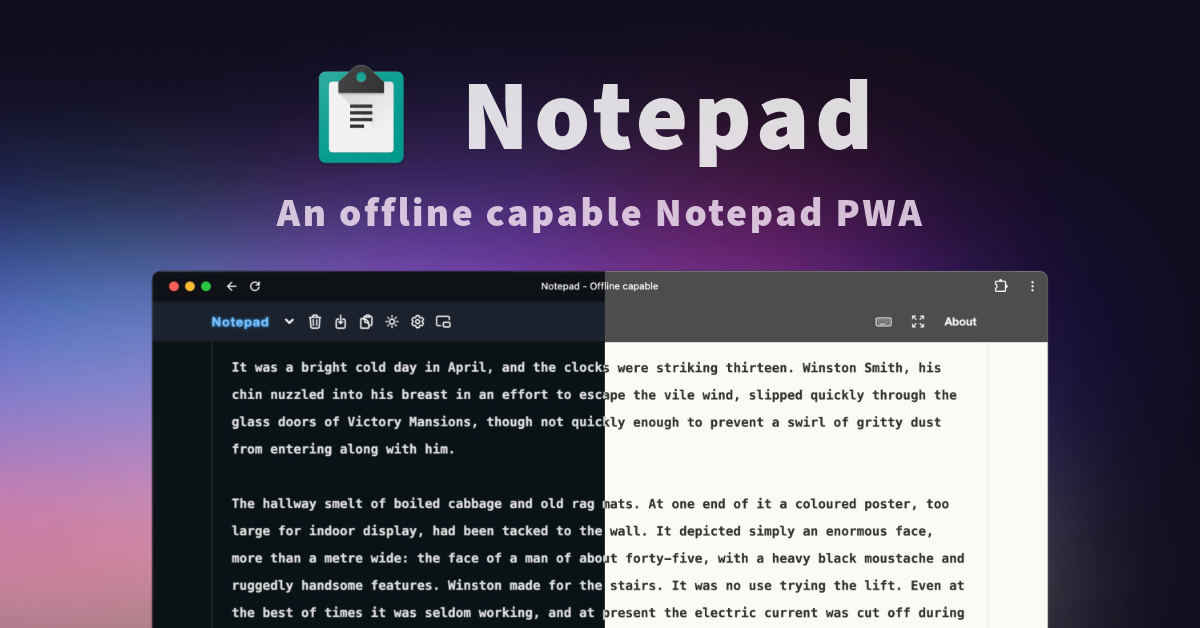

Sharing metadata
| og:url | https://notepad.js.org/ |
|---|---|
| og:type | application |
| og:image | https://notepad.js.org/art/cover.png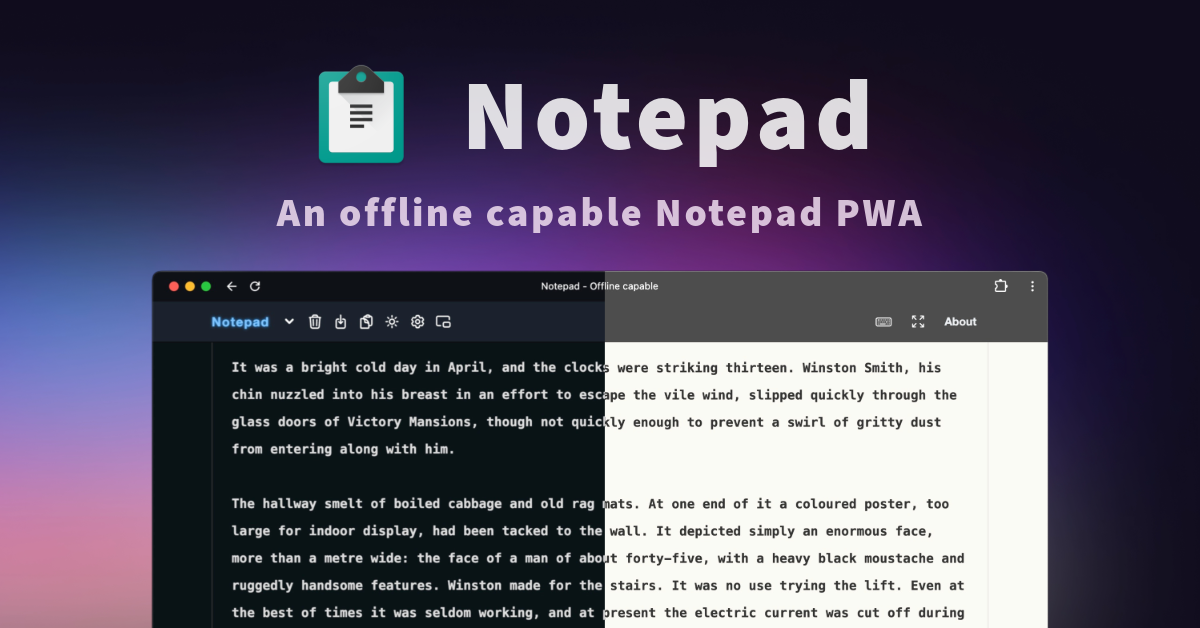 |
| og:title | Notepad - Offline capable |
| og:site_name | Notepad |
| og:description | An offline capable notepad powered by ServiceWorker. It's quick, distraction-free, dark mode enabled, mobile compatible(Android, iOS) and minimalist in nature. |
| twitter:card | summary_large_image |
| twitter:image | https://notepad.js.org/art/cover.png |
| twitter:title | Notepad - Offline capable |
| twitter:description | An offline capable notepad powered by ServiceWorker. It's quick, distraction-free, dark mode enabled, mobile compatible(Android, iOS) and minimalist in nature. |
robots.txt (opens in a new tab)
1 rulesAll bots 1 allowed · 0 disallowed

 All bots

/
No matching rules.
Sitemaps
1 Registration details RDAP / WHOIS
| Registrar | NameCheap, Inc. |
|---|---|
| Registered | 1996-06-26 |
| Expires | 2032-06-25 |
| Domain status | client transfer prohibited |
| Nameservers | miles.ns.cloudflare.com、pam.ns.cloudflare.com |
| DNSSEC | signed |
 DNS records
| Type | Name | Value | TTL | Priority |
|---|---|---|---|---|
| A | notepad.js.org | 104.26.8.84 | 300 | — |
| A | notepad.js.org | 104.26.9.84 | 300 | — |
| A | notepad.js.org | 172.67.73.64 | 300 | — |
| AAAA | notepad.js.org | 2606:4700:20::681a:854 | 300 | — |
| AAAA | notepad.js.org | 2606:4700:20::681a:954 | 300 | — |
| AAAA | notepad.js.org | 2606:4700:20::ac43:4940 | 300 | — |
| MX | js.org | mx1.improvmx.com | 300 | 10 |
| MX | js.org | mx2.improvmx.com | 300 | 20 |
| NS | js.org | miles.ns.cloudflare.com | 86400 | — |
| NS | js.org | pam.ns.cloudflare.com | 86400 | — |
| TXT | js.org | github-verification=Co5XEGjgZ54phI90tdeEbcXBt0LErl0nKNUpqPmR | 300 | — |
| TXT | js.org | v=spf1 -all | 300 | — |
| DS | js.org | 2371 13 2 bb5749b06b705cabaa999f6adc60b60e528c502078e1a1075206a852956d8670 | 3600 | — |
| DMARC | _dmarc.js.org | v=DMARC1; p=reject; pct=100; rua=mailto:[email protected]; sp=reject; aspf=s; | 300 | — |
 TLS and certificates
| Assessment | Normal configuration |
|---|---|
| Supported protocols | TLSv1.2、TLSv1.3 |
| Negotiated protocol | TLSv1.3 |
| Certificate subject | js.org |
| Issuer | Let's Encrypt |
| Valid until | 2026-11-27T14:02 · Remaining when checked: 59 days |
| Verification details | Certificate trust: Passed · Hostname match: Passed |
 HTTP response headers
| Header | Value |
|---|---|
| content-type | text/html; charset=utf-8 |
| cache-control | max-age=600 |
| server | cloudflare |
| access-control-allow-origin | * |
 Identified technologies
User reviews (0)