
 简体中文
简体中文 English
Website review
This review may include AI-generated content and is not individually verified. Domain, certificate and other facts come from the observed data on this page.
What is OneCommander?
OneCommander is a dual-pane file manager for Windows 11 and 10, positioned as a faster, more capable alternative to File Explorer for people who move through folders all day. Its distinguishing feature is Miller-column navigation — a column view for deep folder trees, similar in spirit to macOS Finder but described as improved — alongside side-by-side panes, persistent tabs, and instant file previews via the spacebar.
Who it suits and what it changes in practice
- Developers and admins working across nested project or server directories benefit most from Miller columns, because each level stays visible while you drill down instead of requiring back-and-forth navigation.
- Anyone handling large media or archive folders gets value from the built-in preview and smart caching of thumbnails, icons, folder sizes and metadata, which keeps browsing responsive.
- Power users doing repetitive cleanup can lean on the File Automator for RegEx renaming and batch image conversion rather than reaching for separate utilities.
- Users with deep or non-English paths get long-path and full Unicode support beyond the standard 260-character Windows limit.
- Tinkerers can restyle the interface through editable XAML themes and icons.
A concrete example: a photographer sorting a shoot into dated subfolders can keep the source and destination folders side by side, preview candidates with the spacebar, and batch-convert selected images — all without leaving the window.
Trade-offs to weigh
The column layout and dense feature set carry a learning curve; Explorer users who only occasionally open a folder will see little benefit. The interface assumes a reasonably high-resolution screen (above roughly 100 PPI is recommended), so older low-DPI laptops are a weaker fit. It is Windows-only, so mixed Mac/Windows teams won't get a consistent experience.
Practical next step
If you're deciding, try it on your own messiest folder first: open two panes, navigate a deep tree in column view, and preview files with the spacebar. That single test tells you quickly whether the workflow fits. Note that home use is free while professional or commercial use requires a paid Pro license — check OneCommander for current terms and download options.
Is OneCommander free for personal use, and when do I need to buy a Pro license?
OneCommander is free for personal and home use, with no ads and no tracking. You need a Pro license when you use it for professional or commercial work. The About page states that commercial use requires a Pro license, described there as a lifetime license that adds features and future updates; the site's pricing page (OneCommander) is the place to confirm current terms.
How to decide
- Home, personal projects, study: the free edition covers core features, including dual-pane and tabbed browsing, Miller columns, built-in preview, theming, long-path support and the file automator.
- Work for an employer, client work, or any revenue-generating use: treat it as commercial and plan for Pro. The distinction is the use, not the machine — a work laptop used only for personal files is still a gray area, so check the license text if that applies to you.
- Mixed use: if you mainly browse personal files but occasionally do paid work in the same tool, the simplest safe route is Pro.
A concrete scenario: a freelance designer who renames and batch-converts client image files in OneCommander is using it commercially and should buy Pro; the same person organizing a home photo library is not.
Next step: open the pricing page linked from the site and read the license wording for "commercial use" before installing on a work machine, since that definition — not the feature list — determines whether you owe a license.
How does OneCommander compare with Windows File Explorer for everyday file management?
OneCommander is built for people who find Windows File Explorer too limited for daily navigation, but it is not a like-for-like replacement for everyone. Its main advantages are a side-by-side dual-pane layout, persistent tabs, Miller columns for deep folder trees, and spacebar file preview—features that reduce window-switching and repeated clicking during routine file work. Explorer remains the simpler, zero-setup option that is already integrated with Windows.
Where the difference shows up
| Everyday task | OneCommander (from its page) | Windows File Explorer |
|---|---|---|
| Moving files between folders | Dual-pane view, persistent tabs | Usually two windows or copy-paste |
| Digging through nested folders | Miller columns show the path in columns | One folder level at a time |
| Checking a file before opening it | Built-in preview via Spacebar | Depends on Preview pane or file type |
| Very long or Unicode paths | Long path support beyond 260 characters | Can hit the classic path limit |
| Batch renaming or image conversion | Built-in automator with RegEx renaming | Manual or third-party tools |
| Look and feel | Theming engine with editable XAML | Limited built-in customization |
| Setup and cost | Windows 10/11; free for home use, Pro license for commercial use | Preinstalled with Windows |
Who benefits most
A practical example: someone organizing a photo or document archive across several nested folders can keep the source and destination panes open, preview candidates with the spacebar, and rename batches in place without launching separate utilities. A casual user who mostly opens Downloads and the Desktop gains little from that extra density and may find the column layout busier than Explorer.
How to decide
Try OneCommander for a week on your real folder structure rather than a test directory. If dual panes and preview replace most of your window-switching, it earns its place; if you keep falling back to Explorer's simpler single view, stick with Explorer. Check the vendor's own pages for current licensing terms before using it at work: OneCommander.
Can OneCommander handle very long file paths and Unicode file names that Explorer struggles with?
Yes. OneCommander explicitly supports Unicode paths beyond the standard Windows 260-character limit, which is the main place File Explorer still trips up. If your work involves deep project trees, long generated filenames, or non-Latin folder names, that alone makes it worth testing.
What the page supports
- Long path support: full Unicode support for paths exceeding Windows' 260-character limit.
- Fast navigation: DirectX-accelerated rendering, dual panes and persistent tabs, so moving through deep trees stays quick.
- Miller columns: a column view suited to drilling down through nested folders without losing context.
- Built-in preview: press Spacebar to preview files, with optional QuickLook/Seer integration.
- Batch tools: RegEx renaming and batch image conversion, useful when long or Unicode names need normalizing.
A concrete scenario
Suppose you extract a design archive into C:\Users\name\Documents\Client\2026\Campaigns\... and the resulting paths exceed 260 characters, with some folder names in Japanese or accented Latin. Explorer's copy/rename dialogs may fail or truncate. In OneCommander you can open the deep folder in one pane, keep the destination in the other, preview files before moving them, and rename in bulk with RegEx rather than one file at a time.
Trade-offs and limits
- Windows only: it requires Windows 10 or 11, so it isn't a cross-platform answer.
- Rendering choice: DirectX acceleration favors speed on modern hardware; on very old GPUs or remote sessions, verify responsiveness yourself.
- Licensing: home use is free; professional or commercial use requires a Pro license. Check the terms on OneCommander if you'd use it at work.
- Not a fix for everything: long-path support depends partly on how Windows and individual apps are configured; a file manager can't override limits imposed by other software.
Next step
Install it, open one of your deepest, most awkwardly named folders, and try a copy, a Spacebar preview and a RegEx rename. If those three tasks succeed where Explorer failed, it fits your workflow; if not, the limit is likely outside the file manager.
How do I install OneCommander, and what are the Windows and .NET requirements?
Install OneCommander by running its MSI installer on a Windows 11 or Windows 10 PC; the current v3 build is the recommended path, while the v4 Beta adds a separate .NET requirement. The main steps and requirements are below.
Installation steps
- Download the MSI installer from OneCommander (the page lists the v3 installer as recommended).
- Run the MSI and follow the setup prompts. No account or signup is described on the page.
- Launch OneCommander and use the dual-pane view, tabs and Miller columns to browse folders.
Windows and .NET requirements
| Item | Requirement |
|---|---|
| Operating system | Windows 11 or Windows 10 |
| Display | 4K or other high-PPI screen recommended (above 100 PPI) |
| .NET for v3 | No separate .NET runtime is stated on the page |
| .NET for v4 Beta | .NET 10 Runtime required |
| Architecture | 64-bit x64 build |
If you are unsure which build to use, start with the stable v3 MSI: it avoids the extra .NET 10 Runtime install that the v4 Beta needs. Choose the v4 Beta only if you want to test newer features and are comfortable installing the .NET 10 Runtime first.
Licensing note
The page says OneCommander is free for home use with no ads, while professional or commercial use requires a Pro license. Check the pricing page on the official site before deploying it in a work environment.
Does OneCommander collect any personal data or show ads?
No. OneCommander states that it is free for home use with no ads and no tracking, and that it does not collect, store or transmit personal data. Its privacy-first design is presented as a core part of the product rather than an optional setting, which matters if you want a file manager that behaves like a local utility: browsing, previewing and renaming files without an account or telemetry.
A practical next step is to check the privacy policy and the pricing page before installing, since commercial use is where licensing terms differ from the free home edition. See OneCommander.
For comparison, other Windows file managers such as Files and Total Commander are separate products with their own privacy and licensing terms; verify each on its official site if data handling is a deciding factor.
 Cloudflare
 Google Workspace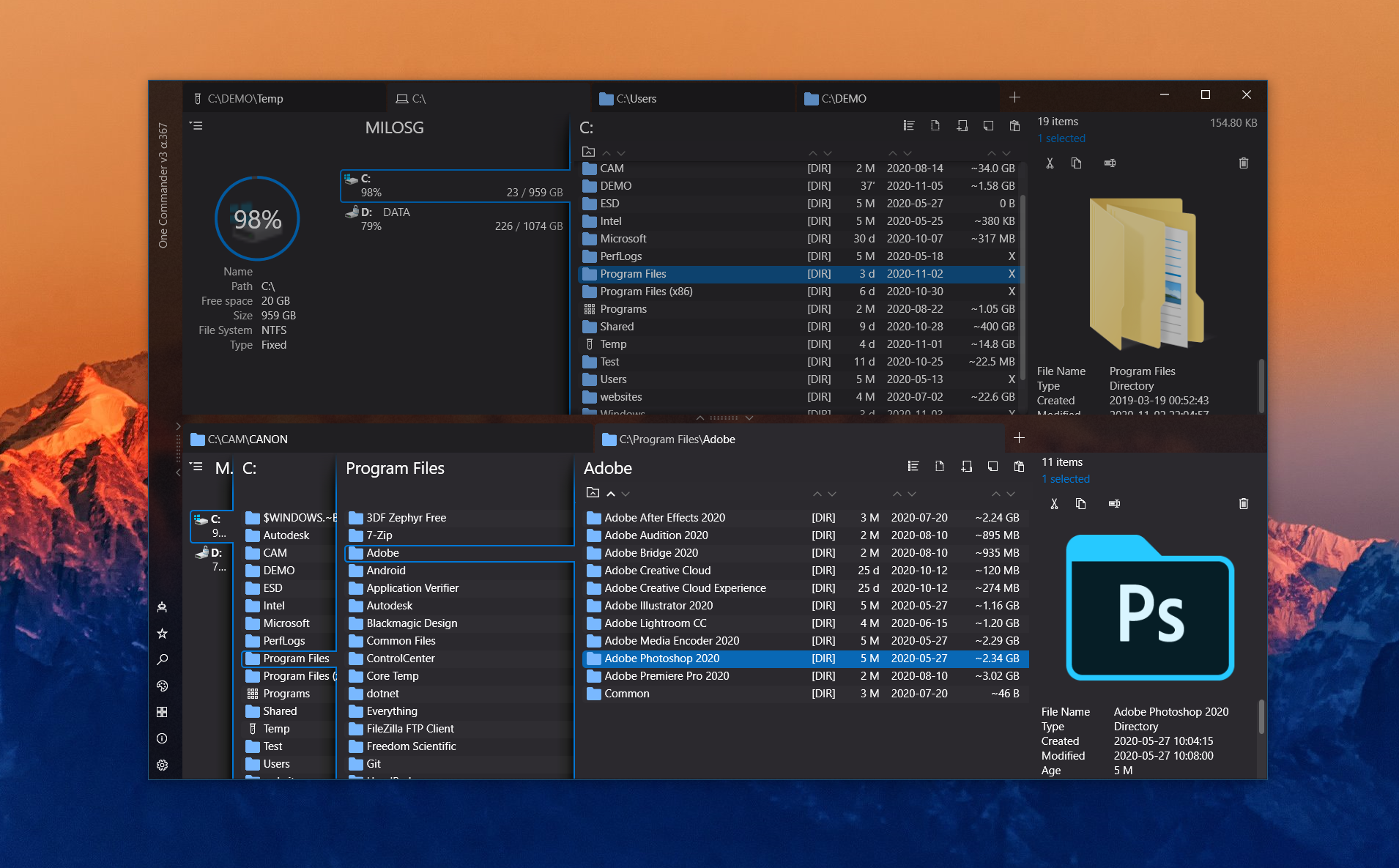

User reviews (0)