
 简体中文
简体中文 English
Website review
This review may include AI-generated content and is not individually verified. Domain, certificate and other facts come from the observed data on this page.
What is Origami Simulator?
Origami Simulator is a browser-based WebGL app that folds an origami crease pattern as a whole rather than step by step. You give it a pattern—one of the built-in examples or your own upload in SVG or FOLD format—and it solves for small displacements across the flat sheet so every crease moves at once. A Fold Percent slider controls the degree of folding: 0% is flat, 100% is fully folded, and negative values fold with mountain and valley assignments reversed. You can drag to rotate, scroll to zoom, and export the folded state as a FOLD file or a 3D model in STL or OBJ.
The practical value is in seeing whether a crease pattern actually folds and how it deforms along the way. An advanced Strain Visualization shows internal strain as the sheet folds, which is useful when a design looks plausible on paper but binds or stretches in simulation. Curved crease patterns are supported through a pre-processing step that triangulates them so the bending between creases is simulated realistically.
Who it suits
- Designers testing a pattern before cutting paper: check foldability and spot problem regions quickly.
- Students and teachers: the simultaneous-fold view makes crease-pattern geometry visible in a way sequential diagrams do not.
- Researchers and tool-builders: the FOLD import/export path and open code make it a workable node in a larger pipeline.
It is less suited to someone who wants a guided, step-by-step folding tutorial, since the app deliberately does not fold in sequence. Treat simulation output as a check on geometry, not a prediction of how a specific paper stock will behave—real paper thickness, stiffness and memory will differ.
A concrete next step
Open the Examples menu, load a pattern close to what you want to make, and sweep the Fold Percent slider slowly from 0 to 100 while watching the strain view. If strain concentrates in one region, adjust the crease pattern before uploading your own SVG or FOLD file. The project was built by Amanda Ghassaei with contributors including Erik Demaine, and its method is documented in the paper "Fast, Interactive Origami Simulation using GPU Computation." Related tools worth knowing include Lang Origami for crease patterns and finished designs, and Origami.me for conventional diagram-based folding.
How do I upload my own crease pattern to the simulator?
Upload your crease pattern as an SVG or FOLD file, then open the Examples menu in Origami Simulator and import it there. The page points to a set of upload instructions you should follow before importing, since the simulator expects the crease lines and their mountain/valley assignments to be encoded in a specific way.
What to prepare
- File format: SVG or FOLD. FOLD is the more explicit option because it stores crease assignments as data rather than relying on line styling.
- Crease encoding: Make sure each crease carries its mountain/valley designation. If your SVG uses colors or line types to mean mountain vs. valley, check the instructions so the import reads them correctly.
- Flat starting sheet: The simulation begins from an initially flat sheet and folds every crease at once, so the pattern should describe the flat crease layout, not a pre-folded 3D model.
- Curved folds: If you have curved creases, the simulator pre-processes them with ruling-aware triangulation, so keep the curves clean and continuous.
After importing
Use the Fold Percent slider to drive the fold: 0% is flat, 100% is fully folded, and -100% folds with reversed mountain/valley assignments. Drag to rotate and scroll to zoom. When you have a result you like, export it under File > Save Simulation as… to FOLD, STL, or OBJ. The Advanced Options menu includes a Strain Visualization if you want to see where the sheet is being stretched during folding.
A practical next step: test with a small, simple pattern first (a few creases with clear assignments) to confirm your file parses correctly, then move to the full design. If your pattern is a good demo, the page notes that Amanda Ghassaei welcomes submissions for the Examples menu.
What file formats can I import for my origami design?
The Origami Simulator accepts two import formats for your own crease patterns: SVG and FOLD. Both are uploaded through the app and then folded by the simulation. The page points to a set of import instructions you should follow when preparing a file, so check those before uploading if a pattern fails to load.
What each format is best for
- SVG: a good fit if your crease pattern already exists as vector linework from a drawing tool. The app uses SVG path parsing, so the pattern needs to be expressed as paths rather than as arbitrary artwork.
- FOLD: a format built for origami data, and the one the simulator itself can export. If you plan to move a design back and forth between the simulator and other folding tools, FOLD is the more natural interchange choice.
A practical next step
Start from a built-in example under the Examples menu, export it as FOLD, and inspect how vertices, edges and fold assignments are recorded. Matching that structure is usually faster than debugging a hand-built file. Once a pattern imports, use the Fold Percent slider to check that every crease folds as intended, and the Strain Visualization under Advanced Options to see where the sheet is being stretched.
For other tools that read or write crease patterns, Origami Tools and Robert J. Lang Origami are useful references; confirm their current format support before relying on them for conversion.
How can I export the folded 3D model of my origami design?
Use the File > Save Simulation as… option in Origami Simulator to export the folded state as an STL or OBJ 3D model. Before exporting, set the Fold Percent slider to the folding degree you want captured (100% fully folded, 0% flat, negative values flip mountain/valley), since the export reflects the current simulation state rather than a single canonical "finished" fold.
Practical workflow
- Load or import your crease pattern (SVG or FOLD) and let the solver settle.
- Drag the Fold Percent slider to the pose you want to keep.
- Choose File > Save Simulation as… and pick STL or OBJ.
- If you also want the editable pattern, export a FOLD file separately.
Choosing STL vs. OBJ
| Format | Best for | Trade-off |
|---|---|---|
| STL | 3D printing, quick mesh viewing | Geometry only; no material or grouping data |
| OBJ | Further editing in 3D software | Larger files; may carry more structure depending on the exporter |
| FOLD | Reopening or re-simulating the pattern | Not a printable/renderable mesh |
A concrete scenario: a designer who wants to 3D-print a folded vase form should set Fold Percent to the target pose, export STL, then check the mesh in a slicer for self-intersections—simulated folds can overlap where real paper would collide. Someone handing the model to an animator is usually better served by OBJ.
Next step: export at a few Fold Percent values (e.g., 50%, 75%, 100%) so you have intermediate poses, and verify each mesh in your target software before committing.
How does the Fold Percent slider affect the simulation?
The Fold Percent slider sets how far the crease pattern is folded: 0% leaves the sheet flat, 100% folds it fully, and negative values fold it fully with mountain and valley assignments reversed. The simulation solves all creases together rather than stepping through them one at a time, so the slider is a continuous control over the whole folding process, not a sequence of numbered steps.
What the range gives you
- 0%: the unfolded starting sheet, useful for checking the imported crease pattern before folding begins.
- Intermediate values: partial folding, which helps you watch how panels move and where the sheet bends or strains.
- 100%: the fully folded state, the one to export if you want a finished 3D model.
- Negative values: the same target shape with mountains and valleys swapped, handy for testing a mirror-image fold without editing the file.
Practical uses
A designer checking a new crease pattern can sweep the slider slowly from 0% to 100% and watch for panels colliding or creases locking early. A student comparing two folding directions can run one pattern at 100% and the same pattern at -100% to see how the assignment changes the motion. When exporting, set the slider to the state you want saved, since the exported FOLD, STL or OBJ file reflects the folded state at that moment.
As a next step, open a pattern from the Examples menu, drag the slider in small increments, and turn on Strain Visualization in Advanced Options to see which creases are working hardest at each stage.
Can I use the simulator to visualize internal strain in my origami design?
Yes. The Origami Simulator includes a Strain Visualization option, found in the left menu under Advanced Options. Once enabled, it shows how internal strain builds up across the sheet as the crease pattern folds, which is useful for spotting areas that stretch or compress more than expected.
How to use it in practice
- Load a crease pattern from the Examples menu or upload your own SVG or FOLD file.
- Open Advanced Options and turn on Strain Visualization.
- Move the Fold Percent slider through its range (0% unfolded, 100% fully folded, negative values flip mountain/valley assignments) and watch where strain concentrates.
- Rotate and zoom to inspect those regions closely.
- Export the folded state as FOLD, STL or OBJ if you need the geometry elsewhere.
What it is and isn't good for
The simulator folds every crease simultaneously by iteratively solving small displacements, rather than walking through step-by-step folding. That makes it well suited to early-stage exploration: comparing crease patterns, checking whether a design folds cleanly, and seeing which hinges or curved regions carry the most strain. It is less suited to mimicking a literal hand-folding sequence or to quantitative engineering stress analysis, since the strain view is a visual diagnostic rather than a validated structural report.
A concrete scenario
A designer working on a curved-fold pattern uploads an SVG, enables strain visualization, and sweeps the Fold Percent slider. If strain spikes along a particular crease, they adjust the ruling or crease placement and re-upload to compare. For readers who want a second perspective on folding behavior, Lang Origami documents many crease patterns that can serve as test cases.
 Namecheap
 Fastly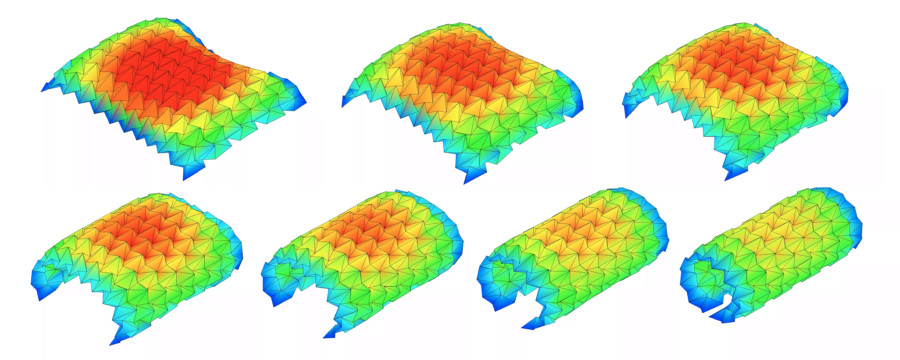

User reviews (0)