
 ossia.io
No paid content found
ossia.io
No paid content found
Categories: Other
Open Software System for Interactive Applications - home of ossia score, a free, open-source, cross-platform intermedia sequencer for precise and flexible scripting of interactive scenarios.
 Visit website
 Updated: 2026-10-05 10:59
 Language: English (default)
 Access: Normal
 Profile views 0
 Outbound visits 0
Related questions
More questions →What Is MIDI and How Is It Used in Music Production?
MIDI is a data protocol that carries performance instructions—which note, how hard, when—rather than sound itself. A sequencer or DAW records those instructions, then routes them to a virtual instrument or hardware synth that actually generates audio. This matters because it separates the performance from the sound: you can edit a wrong note, change tempo, or swap instruments after recording, which you cannot do with a recorded audio waveform.
What MIDI actually transmits
MIDI messages are small packets of numbers. The ones you'll meet most often:
| Message type | What it carries | Typical use |
|---|---|---|
| Note On / Note Off | Pitch (0–127) and velocity (0–127) | Playing and releasing notes |
| Control Change (CC) | Controller number + value | Mod wheel, sustain pedal, filter sweeps |
| Program Change | Patch/instrument number | Switching sounds on a synth |
| Clock | Timing pulses | Keeping devices and software in sync |
Velocity is not volume in the audio sense—it's an instruction the receiving instrument interprets, so the same MIDI part can sound aggressive on one synth and soft on another.
How the pieces connect
MIDI travels over physical DIN ports, USB, or virtual MIDI (software-to-software, no cable). A typical setup:
- A controller (keyboard, pad grid) sends MIDI out.
- A sequencer or DAW receives it and records the messages.
- The sequencer plays the messages back into a virtual instrument or hardware synth.
- That instrument outputs audio, which you then mix.
Virtual MIDI lets a sequencer drive a soft synth on the same machine without any hardware in between.
Recording and editing in a sequencer
When you record MIDI, you're capturing events on a timeline, not a waveform. That gives you editing moves audio can't match: quantize timing, transpose, adjust individual velocities, loop a section, or reassign the whole part to a different instrument. Helio, an open-source sequencer for desktop and mobile, is built around this kind of workflow—its documentation covers hotkeys, refactoring options, and arpeggiators, and the project explicitly aims at experimentation in areas like exotic scales and microtonal temperaments. Those are exactly the cases where MIDI's note-by-note data model pays off, since you're defining pitches numerically rather than playing fixed audio.
Common misconceptions
- MIDI is not audio. It contains no sound. You need a synth or sampler to hear anything.
- General MIDI is a convention, not the protocol. It maps program numbers to standard instrument names so a file plays roughly the same everywhere—useful for compatibility, limiting for expression.
- A MIDI file is just stored messages. It plays back differently depending on what instrument receives it.
If your goal is to compose, edit, and re-voice parts flexibly, MIDI is the layer you work in. If you need a finished recording, MIDI is only the first half—the audio comes from whatever instrument you route it into.
What Is a Music Sequencer and How Does It Work?
A music sequencer is software or hardware that stores and plays back musical events—notes, durations, velocities, and control changes—in a timed order. You use one when you want to compose, arrange, or loop music without performing every part live, or when you need precise control over timing and pitch. The rest of this article explains what a sequencer does, how it differs from related tools, and how to choose and start using one.
What a sequencer actually does
At its core, a sequencer answers one question: what happens, when, and how?
- What — a note (pitch), a drum hit, a MIDI control change, or an audio clip.
- When — its position on a timeline or grid, measured in bars, beats, and ticks.
- How — velocity, duration, articulation, and any automation attached to it.
The sequencer then sends that data to something that makes sound: a software instrument, a hardware synth, or a sampler. The sequencer itself usually does not generate audio; it generates instructions.
This is the key distinction from a DAW (digital audio workstation). A DAW records, edits, and mixes audio, and most DAWs include a sequencer. A sequencer can exist on its own—as a standalone app or a hardware box—focused purely on arranging musical events.
Common types of sequencers
| Type | How you interact with it | Typical use |
|---|---|---|
| Step sequencer | A grid of steps you toggle on/off | Drum patterns, basslines, loops |
| MIDI sequencer | Piano roll or notation view on a timeline | Melodies, chords, full arrangements |
| Software sequencer | App on desktop or mobile | Composition, production, experimentation |
| Hardware sequencer | Buttons, pads, or a screen on a device | Live performance, DAW-less setups |
Many modern tools blend these. A step sequencer may offer a piano roll; a MIDI sequencer may include step input. The label matters less than whether the workflow fits how you think about music.
How a sequencer fits with your other tools
A sequencer rarely works alone. A typical chain looks like this:
- Input — you enter notes with a mouse, a MIDI keyboard, or by drawing them.
- Sequencer — the notes are stored and timed.
- Sound source — a synth, sampler, or VST plugin receives the notes and produces audio.
- Output — the audio is monitored, recorded, or exported.
A MIDI keyboard is an input device, not a sequencer—it sends note data but does not store or arrange it. A drum machine often contains a built-in step sequencer, so the two overlap. Understanding which part of the chain you are missing tells you what to look for.
What to look for when choosing one
Different sequencers optimize for different things. Consider these dimensions:
- Platform — desktop only, mobile only, or both. If you compose on a phone and finish on a laptop, cross-platform support matters.
- Tuning and scale support — most tools assume 12-tone equal temperament. If you work with microtonal temperaments or exotic scales, check whether the sequencer supports them natively.
- Plugin hosting — whether it can load VST or other instrument plugins, or whether you must route MIDI to an external host.
- Interface philosophy — some aim for a minimal, distraction-free UI; others pack in features. Neither is better in the abstract; it depends on whether you want fewer decisions or more options.
- Licensing and cost — open-source and free are not the same thing, and a free download does not always mean unrestricted use. Check the license agreement and any store requirements.
For example, Helio is described as an open-source music sequencer for desktop and mobile platforms, with an explicit aim to rethink the sequencer around a minimalistic, distraction-free UI and to encourage experimentation in underexplored areas such as exotic scales and microtonal temperaments. It lists builds for macOS, iOS, Windows, Linux, and Android, and its documentation covers hotkeys, refactoring options, and arpeggiators. If microtonal composition or a lightweight interface is your priority, that combination is worth evaluating against your own requirements.
Getting started: from install to your first melody
The exact steps depend on the tool, but the general path is consistent:
- Install a build for your platform. Match the build to your operating system and architecture—for instance, a 64-bit installer versus a portable 32-bit package. Portable builds typically do not require installation, which is useful on shared or restricted machines.
- Set your audio and MIDI devices. Choose an output device so you can hear playback, and an input device if you plan to play notes in.
- Create a track and assign an instrument. This may be a built-in synth or an external plugin, depending on what the sequencer hosts.
- Enter notes. Draw them on the timeline or grid, or record them from a MIDI keyboard. Expect to see them appear as timed events you can move and resize.
- Set tempo and length. Define how many bars your loop or section spans.
- Play back and adjust. Listen, then edit pitch, timing, and velocity until it matches your intent.
- Export or record. Render the result to an audio file, or route it onward for mixing.
Verification: after playback, confirm that the notes you entered sound at the times and pitches you intended. If something is silent, the usual causes are a missing instrument assignment, a muted track, or an audio device that is not selected.
Common sticking points
- No sound on playback — the sequencer is sending notes, but nothing is receiving them. Check the instrument assignment and the audio output device.
- Timing feels off — audio buffer size or latency settings can make live input feel delayed even when the sequence itself is accurate.
- Notes play the wrong pitch — a non-standard tuning or scale setting may be active, which is a feature in microtonal workflows but a surprise if you did not intend it.
- A build will not run — architecture mismatches (32-bit versus 64-bit) and missing system packages are frequent causes; try the matching package for your system.
- Mobile and desktop files do not transfer — not all sequencers use a shared project format across platforms, so verify compatibility before relying on it.
The short version
A sequencer arranges musical events in time and sends them to instruments that make sound. Choose one based on platform, tuning support, plugin hosting, interface style, and licensing. Then install the correct build, assign an instrument, enter notes, and verify playback before exporting. If microtonal scales or a minimal interface are central to your work, evaluate tools that explicitly support those goals rather than assuming every sequencer does.
What Is a Timeline and How Do You Use It to Organize Media and Social Content?
A timeline is a chronological view of items—posts, events, releases, or files—arranged from newest to oldest or oldest to newest. You use one to see what happened when, to catch up on recent activity, and to trace a sequence over time. On social platforms like Facebook, the timeline orders your posts and interactions; in media archives like Cover Century, a "recently added" list or date column works the same way, letting you track when covers were uploaded and find older or newer items.
Timeline in Social Media: How Ordering Works
A social timeline is not a simple reverse-chronological list anymore. Most platforms rank or mix content using signals such as recency, engagement, and your past interactions. The practical result:
- Newest-first sections show recent posts, often labeled "Latest" or "Recent."
- Ranked feeds reorder items so popular or relevant posts appear higher, even if older.
- Chronological toggle (where offered) restores strict time order, useful when you want to catch up without missing anything.
On Facebook specifically, your profile timeline collects your posts, photos, and life events in one scrollable history. You control who sees each item through per-post privacy settings, and you can filter your own timeline to review past activity.
Reading a Timeline Efficiently
- Check the timestamp on each item before assuming it's current.
- Use filters (Photos, Posts, Tags) to narrow a profile timeline to one content type.
- Scroll or jump by date rather than reading every item when you only need a specific period.
Timelines in Media and Cover Archives
Media libraries use timelines to track release dates and updates. Cover Century, for example, presents a "Recently Added Covers" table with columns for Title, Type, and Date added—a compact timeline of the archive's newest entries.
From the site's own listing, recent additions include entries dated 2022-09-17, such as:
| Title | Type | Date added |
|---|---|---|
| Me Time 2022 : Label | dvd | 2022-09-17 |
| Medieval 2022 : Label | dvd | 2022-09-17 |
| The ABCs of Death 1 | dvd | 2022-09-17 |
| Bambi | dvd | 2022-09-17 |
This date column is the timeline: sort or scan it to see what's new, then work backward to find older covers. The archive states it holds over 1,000,000 album art covers with weekly updates, so the "recently added" view is the fastest way to spot new audio and DVD covers.
Finding Older or Newer Items
- Newest first: Start at the top of a "recently added" or "latest" list.
- Older items: Scroll down, or use the site's category navigation (CD Covers, DVD Covers, Blu-Ray Covers, console covers, and others) to browse by type rather than by date.
- By category: Cover Century organizes content into CD Covers, DVD Covers, Blu-Ray Covers, Movie Covers, and console-specific sections (PlayStation, Xbox, Nintendo, Sega, and more), so you can combine a category filter with date scanning.
Common Timeline Settings to Know
- Sort order: Newest-first vs. oldest-first changes what you see at the top.
- Filtering: Limit to a content type (photos, posts, a specific cover category).
- Privacy/visibility: On social platforms, decide who can see each timeline item; on archives, visibility is usually public.
- Update frequency: A weekly-updated archive means the timeline changes on a predictable schedule, so checking back yields new entries.
Quick Decision Guide
- Want to catch up on a person's activity? Read their profile timeline, filter by content type, and check timestamps.
- Want the newest media covers? Use the archive's "recently added" date column and scan downward.
- Want a specific older cover? Switch to category browsing and search by title instead of scrolling the timeline.
The core idea is the same everywhere: a timeline turns a pile of items into an ordered sequence, and the date field is what makes it navigable.
What Are Open-Source UI Element Libraries and How Do They Differ From UI Frameworks?
An open-source UI element library is a collection of individual, ready-made interface pieces—buttons, cards, inputs, toggles, loaders—that you copy into your own project and adapt. A UI framework, by contrast, is a structured system of components, conventions, and often a theming layer that governs how your whole interface is built. The practical difference: an element library gives you a snippet; a framework gives you a way of working. If you need a polished button in ten minutes, reach for the element library. If you're building a 40-screen product with a team, you probably want the framework.
What "open-source UI element library" actually means
The term gets used loosely, so it helps to separate the parts:
- Open-source: the code is publicly available, and the license tells you what you may do with it—copy, modify, redistribute, or use commercially.
- UI element: a single, self-contained piece of interface, usually small enough to read in one sitting. A button with hover states, a pricing card, a search field.
- Library: a browsable, searchable collection of those elements, typically contributed by many different people.
On a site like Uiverse, elements are shared by a community and written in plain CSS or Tailwind. You find one you like, copy the markup and styles, paste them into your project, and adjust colors, spacing, and text to fit. There's no package to install and no build step required—which is exactly the appeal, and also the source of most of the confusion.
Element library vs. UI framework: the core differences
| Dimension | Open-source UI element library | UI framework / design system |
|---|---|---|
| Unit of reuse | A single snippet you copy | A component you import or call |
| Installation | None; paste into your code | Package install, config, sometimes a provider |
| Consistency | Depends on you; each element may look different | Enforced by shared tokens and APIs |
| Theming | Manual edits per element | Central theme/config file |
| Updates | You own the copy; no upstream updates | Version bumps bring fixes and changes |
| Accessibility | Varies per contributor; must be checked | Usually tested and documented |
| Best for | Prototypes, landing pages, small sites, one-off needs | Multi-page apps, teams, long-lived products |
| Learning curve | Low—read the CSS | Higher—learn the API and conventions |
The table isn't a verdict. It's a map of trade-offs. Element libraries win on speed and freedom; frameworks win on consistency and maintenance.
Licensing and attribution: what to check before you paste
This is where people get into trouble, and it's worth slowing down for.
- Find the license. Every element or collection should state one. Common open-source licenses include MIT, Apache-2.0, and BSD. Some projects use copyleft licenses like GPL, which can impose obligations if you redistribute your code.
- Understand what the license permits. MIT and Apache-2.0 are permissive: you can typically use the code in commercial and closed-source projects. Copyleft licenses may require you to release derivative source under the same terms.
- Check attribution requirements. Permissive licenses usually require you to keep the copyright notice and license text somewhere in your project. That's a real obligation, not a formality.
- Look for per-element terms. On community sites, the site's overall terms and the individual contributor's stated wishes may differ. If a contributor asks for credit, honor it.
- When in doubt, ask or avoid. If a snippet has no license at all, you don't have clear permission to reuse it. Treat "no license" as "not open source," even if the code is publicly visible.
This article is general information, not legal advice. For commercial products with real exposure, have someone qualified review the licenses you're relying on.
How to use a community element in your project: a practical workflow
Here's a repeatable process that avoids most of the usual mess.
1. Start from a real need, not a browsing session
Decide what you need first—"a compact primary button with a loading state"—then search. Browsing aimlessly produces a pile of pretty snippets that don't fit together.
2. Copy the smallest version that works
Take the markup and the styles. Strip anything you don't need: demo wrappers, extra animations, decorative layers. Less code means fewer surprises.
3. Convert it to your conventions
If your project uses design tokens or CSS variables, replace hard-coded values:
/* Before: hard-coded */
.button { background: #4f46e5; border-radius: 8px; }

/* After: token-based */
.button { background: var(--color-primary); border-radius: var(--radius-md); }
This one step is what keeps a copied element from looking like a foreign object in your UI.
4. Check accessibility before you ship
Community elements vary widely here. Verify at minimum:
- Keyboard focus is visible and the element is reachable by Tab.
- Color contrast meets WCAG AA (4.5:1 for normal text).
- Interactive elements use semantic HTML (
<button>, not a clickable<div>). - Form inputs have associated labels.
- Motion respects
prefers-reduced-motion.
5. Test in context
Paste it into a real page with real content. Long labels, small screens, and dark mode break more copied elements than anything else.
6. Note where it came from
Keep a short comment or an internal credits file: source, license, date. Future you—and your legal reviewer—will be grateful.
Where element libraries genuinely shine
- Prototypes and demos: you need something clickable today, not a design system.
- Landing pages and marketing sites: a handful of distinctive elements, each custom.
- Filling gaps: your framework lacks one specific component, and you don't want to build it from scratch.
- Learning: reading well-made CSS is one of the fastest ways to improve.
- Small projects: a personal site doesn't need a theming architecture.
Where they fall short
- Consistency at scale: ten elements from ten contributors rarely look like one product.
- Maintenance: you own every copy. When your design changes, you edit each one.
- Accessibility debt: you inherit whatever the contributor did or didn't do.
- No upstream fixes: a bug fixed in the original won't reach your copy.
- Integration friction: different naming conventions, different units, different assumptions about resets.
When to choose which
Choose an element library when the scope is small, the timeline is short, or you need a few distinctive pieces rather than a whole system.
Choose a framework or design system when multiple people build multiple screens over months, when consistency is a product requirement, or when accessibility and theming need to be guaranteed rather than checked.
A hybrid works well for many teams: adopt a framework for the structural components—forms, navigation, layout—and borrow individual elements for the places where you want personality. Just route every borrowed element through the same token and accessibility checks, so it lands as part of your system rather than beside it.
The short version: open-source UI element libraries are a fast, flexible way to get good-looking interface pieces into a project. They are not a substitute for a design system, and the license and accessibility details are the part worth reading carefully.
Website Overview
An established domain and managed infrastructure suggest continuity of operations and may support dependable delivery, although neither guarantees service quality. Several search or sharing settings need attention. Together they may make snippets, preview images or preferred URLs less consistent across platforms.
Domain and Registration
Registered in 2017, this domain has about 9 years of history. That suggests continuity, although ownership and purpose may have changed. Transfer-protection status is present, helping reduce the risk of unauthorized domain transfers. The registrar is Gandi SAS, a widely used domain service provider. The domain uses the common .io extension, which is not an independent safety signal.
DNS and Email
The observed email authentication setup is incomplete: DMARC is missing. Nameservers are provided by gandi.net, indicating managed DNS hosting. MX records point to the gandi.net email service. No CNAME was found; the observed records resolve directly to addresses. TXT records include verification markers for Google. Such markers may also remain after a service stops being used.
TLS and Certificates
The certificate uses an RSA 2048-bit public key, offering broad client compatibility. The server supplied a complete certificate chain. No organization name is present in the certificate; the available fields are consistent with domain validation. The certificate was issued by Let's Encrypt, commonly associated with automated certificate services. The certificate's total validity is about 89 days, consistent with a short renewal cycle.
HTTP and Browser Security
The checked browser-security headers were not detected, leaving fewer explicit browser-side safeguards. CORS permits any origin to read this response. This is common for public resources; sensitive responses need narrower handling. No X-Powered-By header was found, reducing one common source of backend fingerprinting information. The x-cache, x-served-by, via response header indicates a CDN or caching proxy in the delivery path. No obvious internal addresses or debug information were found in the headers.
Technology Stack Analysis
The public page identifies jQuery, Google Analytics, Fastly without precise versions, leaving fewer clues for version-specific scanning.
Search and Social Sharing
The meta description has 190 characters and may be shortened in search results. No Open Graph metadata was detected, so social previews may depend on platform inference. Twitter Card metadata is configured. The title has 57 characters, within a common display range. The observed directives allow indexing and link following.
 Hosting and Email
 Hosting
 Fastly
 Location
 United States
 Pages, Search and Sharing
| Meta description | Open Software System for Interactive Applications - home of ossia score, a free, open-source, cross-platform intermedia sequencer for precise and flexible scripting of interactive scenarios. |
|---|---|
| Canonical URL | https://ossia.io/ |
| Language | English (default) |
| Twitter Card | summary_large_image |
Social Sharing Preview
5 fields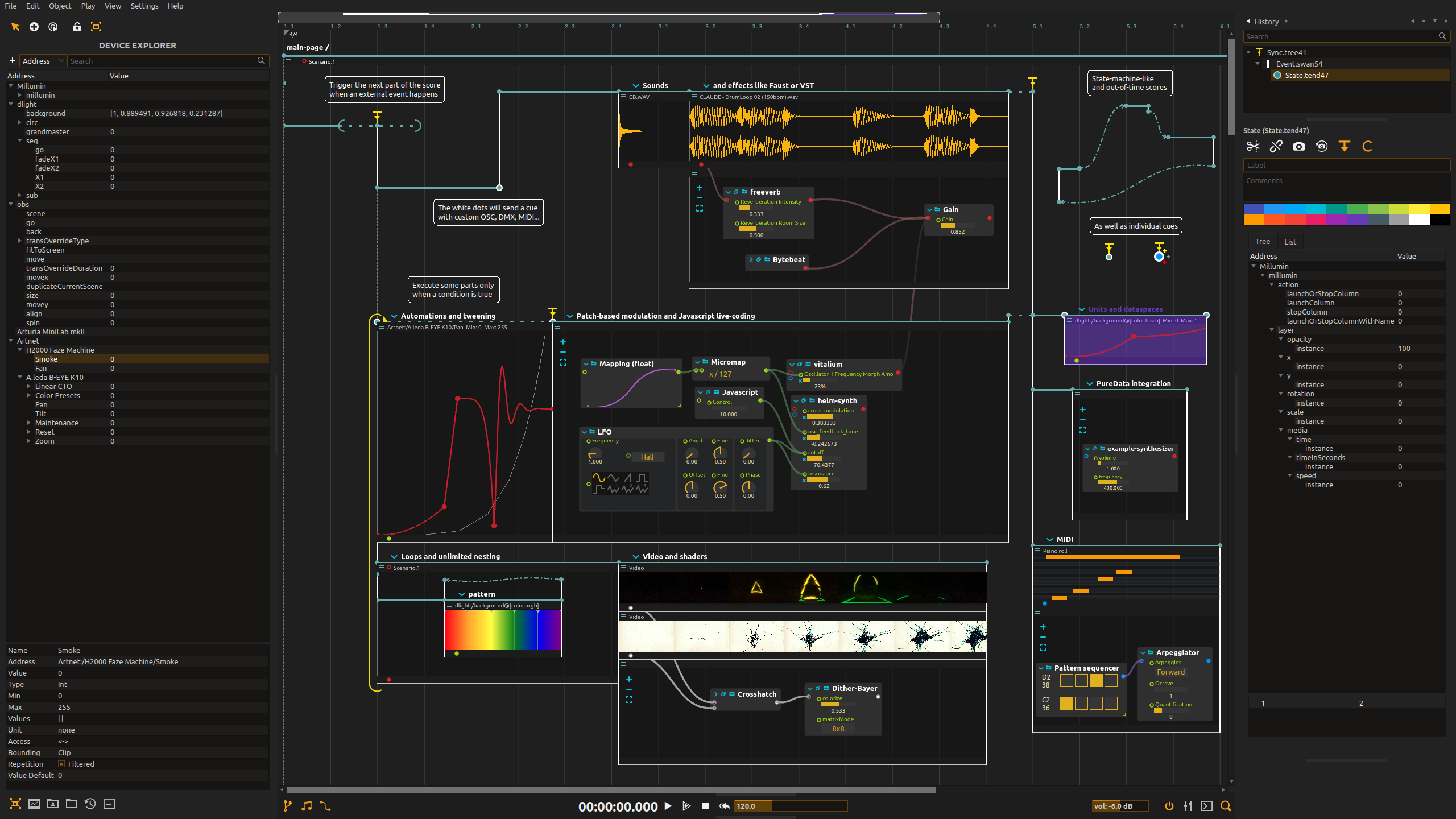
Sharing metadata
| twitter:card | summary_large_image |
|---|---|
| twitter:site | @ossia_io |
| twitter:image | https://ossia.io/assets/score.png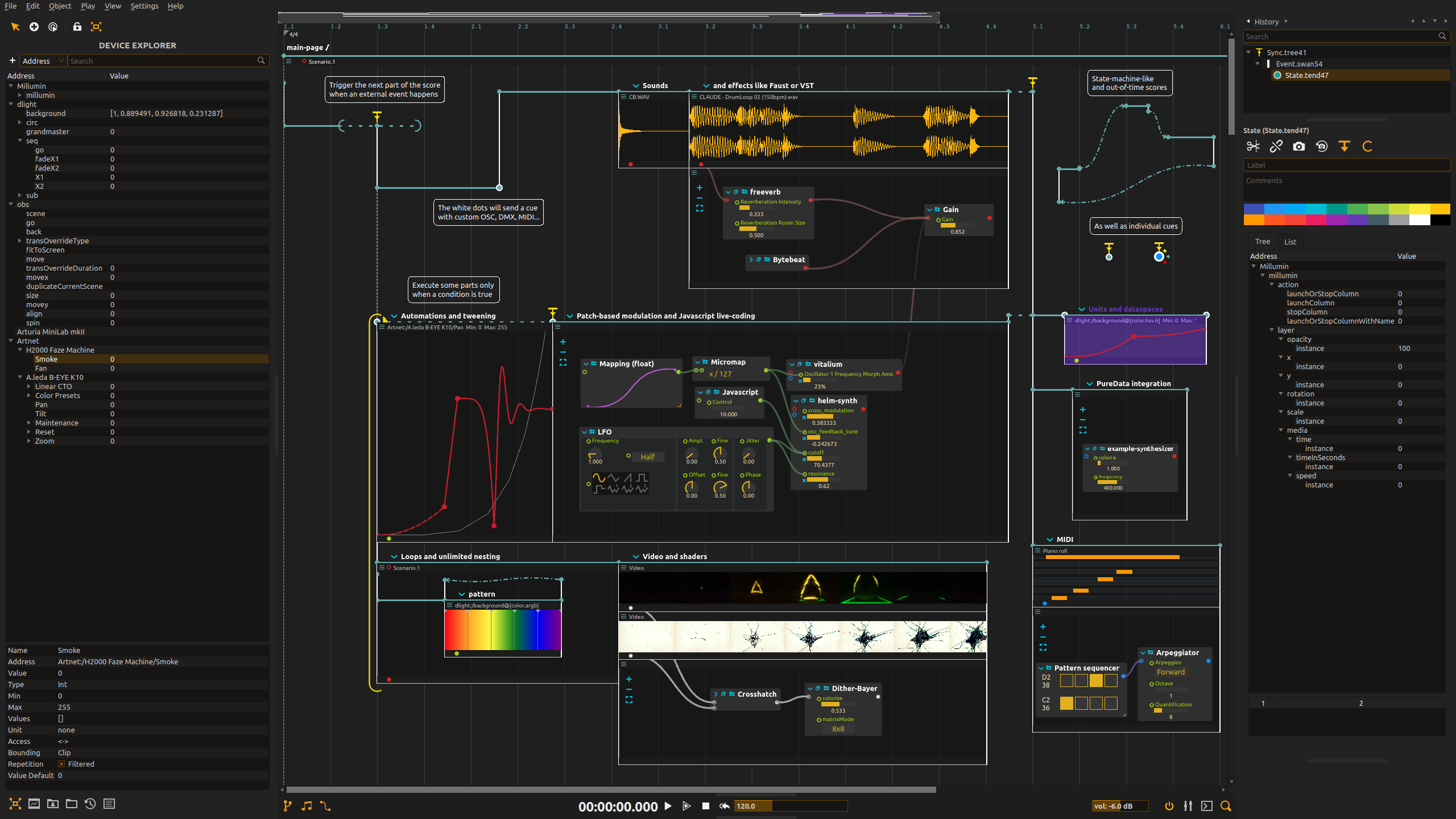 |
| twitter:image:alt | ossia score |
| twitter:description | Home of ossia score and libossia |
robots.txt (opens in a new tab)
0 rules
No rules found
No matching rules.
Sitemaps
1 Registration details RDAP / WHOIS
| Registrar | Gandi SAS |
|---|---|
| Registered | 2017-09-11 |
| Expires | 2027-09-11 |
| Domain status | clientTransferProhibited https://icann.org/epp#clientTransferProhibited |
| Nameservers | ns-12-a.gandi.net、ns-19-b.gandi.net、ns-90-c.gandi.net |
| DNSSEC | unsigned |
 DNS records
| Type | Name | Value | TTL | Priority |
|---|---|---|---|---|
| A | ossia.io | 185.199.108.153 | 1800 | — |
| A | ossia.io | 185.199.109.153 | 1800 | — |
| A | ossia.io | 185.199.110.153 | 1800 | — |
| A | ossia.io | 185.199.111.153 | 1800 | — |
| MX | ossia.io | spool.mail.gandi.net | 10800 | 10 |
| MX | ossia.io | fb.mail.gandi.net | 10800 | 50 |
| NS | ossia.io | ns-12-a.gandi.net | 10800 | — |
| NS | ossia.io | ns-19-b.gandi.net | 10800 | — |
| NS | ossia.io | ns-90-c.gandi.net | 10800 | — |
| TXT | ossia.io | google-site-verification=oKavFjKWLBgOpTq7ZWVE20GDDMMn-fbx1bcqxPOlKTw | 1800 | — |
| TXT | ossia.io | v=spf1 include:_mailcust.gandi.net ?all | 1800 | — |
 TLS and certificates
| Assessment | Normal configuration |
|---|---|
| Supported protocols | TLSv1.2、TLSv1.3 |
| Negotiated protocol | TLSv1.3 |
| Certificate subject | ossia.io |
| Issuer | Let's Encrypt |
| Valid until | 2026-11-24T08:34 · Remaining when checked: 49 days |
| Verification details | Certificate trust: Passed · Hostname match: Passed |
 HTTP response headers
| Header | Value |
|---|---|
| content-type | text/html; charset=utf-8 |
| cache-control | max-age=600 |
| server | GitHub.com |
| access-control-allow-origin | * |
 Identified technologies
User reviews (0)