
 简体中文
简体中文 English
Website review
This review may include AI-generated content and is not individually verified. Domain, certificate and other facts come from the observed data on this page.
What is Run This LLM?
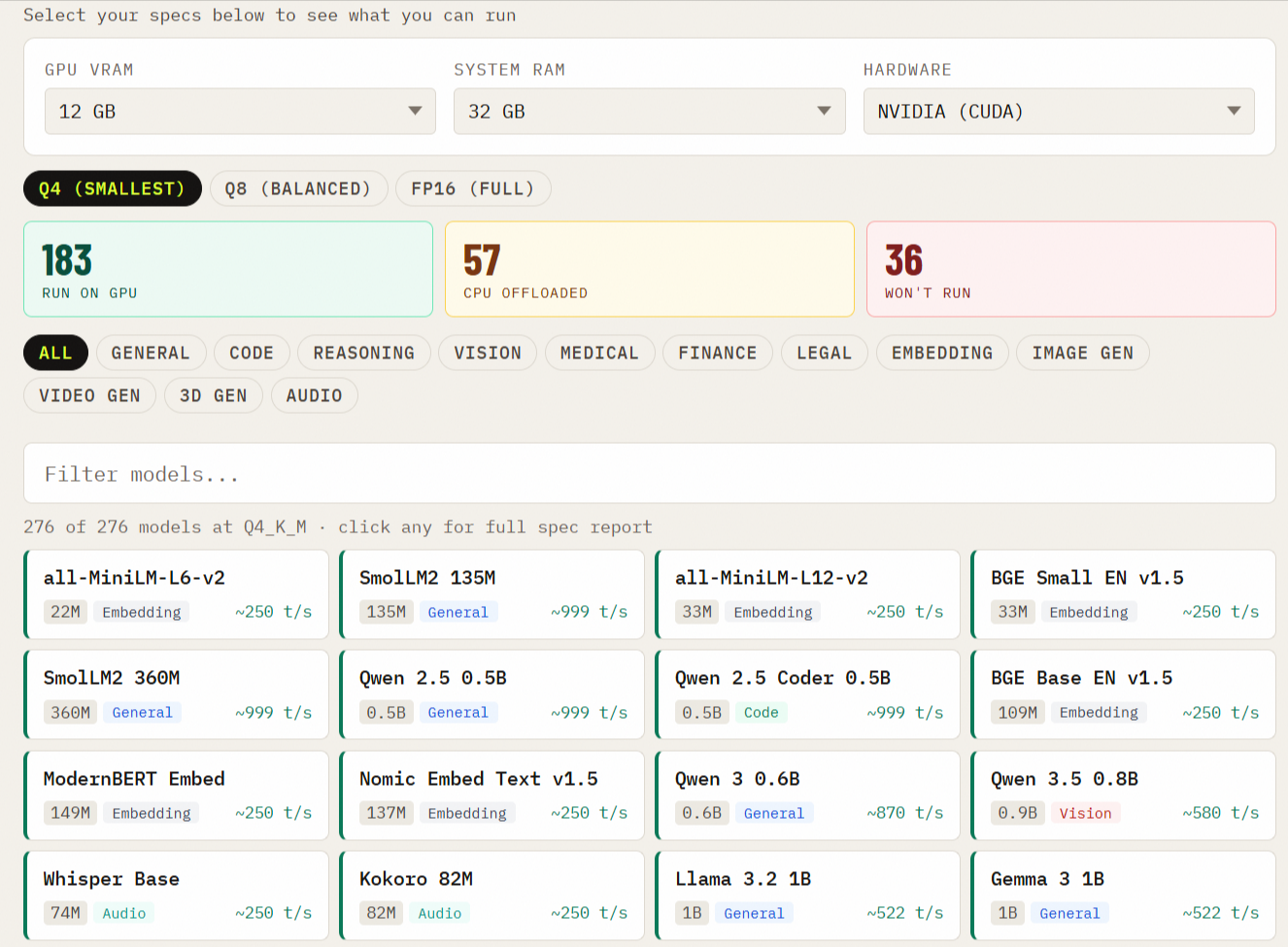
Run This LLM is a hardware-requirements database for running local AI models. Instead of guessing whether your machine can handle a given model, you look it up: the site covers 295+ models across categories like general chat, code generation, reasoning, vision, image, video, audio, embeddings, and domain-specific areas such as medical, finance, legal, and 3D generation. Each entry is meant to give build specs, VRAM requirements, performance estimates, and benchmark scores.
How you'd actually use it
The site frames its search around two directions:
- You have hardware, want to know what runs. Enter your setup and see which models fit.
- You have a model, want to know what it needs. Look up a specific model (Llama, Qwen, DeepSeek, Mistral, Gemma, Phi, FLUX, Whisper, and others are named) and get its requirements.
A concrete case: you have a mid-range GPU and want a local coding assistant. Rather than downloading several models and discovering they don't fit, you check candidate models' VRAM figures first, then narrow to the one whose performance estimates look acceptable on your card.
Trade-offs to keep in mind
Coverage is broad but not exhaustive — 295+ models is a lot, yet new releases appear constantly, so a very recent model may be missing. The performance and benchmark figures are estimates for planning, not guarantees; actual speed depends on your quantization choice, drivers, and workload. And the tool needs JavaScript enabled, so it won't work in a stripped-down browser.
Next step
Start with the "I have hardware" search using your GPU's VRAM, then compare the top two or three results by category. If you're choosing between a smaller model that runs comfortably and a larger one at the edge of your memory, favor the smaller one for daily use and treat the larger as an experiment.
How can I find out which local LLM models my current GPU and VRAM can run?
Use the site's "I have hardware" search path on Run This LLM: enter your GPU and VRAM, and it returns models that fit, with VRAM requirements, performance estimates and benchmark scores. It covers 295+ models across chat, code, reasoning, vision, image, video, audio and embedding categories, so you can check more than text models.
What to check before trusting a result
- VRAM headroom: leave room for context length and the KV cache; a model that "just fits" at short context may fail on long prompts.
- Quantization: the same model needs far less VRAM at 4-bit than at full precision, so compare like with like.
- Your actual use: a 7B chat model and a 7B coding model can behave very differently at the same size, so filter by category first.
A concrete example
If you have an 8 GB card and mainly want a local coding assistant, search with 8 GB, filter to Code generation, then pick the largest model whose VRAM figure leaves a gigabyte or two spare. Cross-check the benchmark scores it lists against your editor's workflow before committing to a download.
For a second opinion on a specific model, the model's own page on Hugging Face usually states memory needs and quantization options.
What VRAM and system specs do I need to run a specific model like Llama, Qwen, or DeepSeek locally?
The site won't give you one fixed VRAM number per model name. Run This LLM is built around two ways in: search by the hardware you already own to see what will run, or search by a model to see the build specs, VRAM requirements, performance estimates and benchmark scores it needs. Because "Llama," "Qwen" and "DeepSeek" each cover a range of sizes and quantizations, the requirement depends on the exact variant you pick, not the family name.
What drives the VRAM figure
- Parameter count. A 7–8B model needs far less memory than a 70B one; the site's per-model entries reflect this.
- Quantization. Lower-bit versions shrink memory use at some quality cost. Look for the specific quant listed, not just the base model.
- Context length. Longer context raises memory use, especially on larger models.
- Modality. Chat, code, reasoning, vision, image, video and audio models have different footprints. Audio models such as Whisper are among the categories the database covers.
- System RAM and GPU. VRAM is the headline constraint, but total system RAM and the GPU itself matter when a model is partly offloaded.
A practical way to use it
- Decide your variant first: family, size and quantization (for example, a mid-size Qwen or Llama at a common 4-bit quant, or a DeepSeek reasoning model at the size you can afford).
- Look that entry up on Run This LLM and read its VRAM requirement and performance estimate.
- Cross-check against your GPU's VRAM and system RAM before downloading anything.
Decision criteria
| Your situation | What to prioritize |
|---|---|
| Single consumer GPU | A quantized mid-size model that fits fully in VRAM |
| Limited VRAM, capable CPU/RAM | Smaller models or heavier quantization; expect slower output |
| Running audio or image models | Check the specific category's requirements, since these differ from chat models |
| Unsure what your machine can do | Start from the "I have hardware" search and work outward |
As a general rule of thumb (advice, not a spec from this site): keep the model plus context inside your VRAM for the best speed, and treat any overflow into system RAM as a trade-off in tokens per second rather than a hard failure.
How do benchmark scores and performance estimates compare across local LLMs for chat, coding, or reasoning tasks?
Run This LLM is a hardware-planning database, not a benchmarking leaderboard. Its page evidence describes per-model "performance estimates, and benchmark scores" for 295+ models across categories including general chat, code generation, reasoning, vision, image, video, audio and embeddings. So the useful comparison is not "which model wins" but "which model fits my hardware, and what score can I expect at that fit." For chat, coding and reasoning specifically, treat the benchmark score as a starting filter and the performance estimate as the practical constraint, since a higher-scoring model that runs slowly on your GPU is often the worse choice.
How to read the two numbers together
| Signal | What it tells you | Where it misleads |
|---|---|---|
| Benchmark score | Relative task quality (chat, code, reasoning) | Ignores quantization, context length and your hardware |
| Performance estimate | Expected speed on a given build | Says nothing about answer quality |
| VRAM requirement | Whether the model runs at all | Doesn't capture quality loss from lower-precision quantized builds |
A concrete scenario: a developer choosing between a larger reasoning model and a smaller coding model for a 12–16 GB GPU. The large model may score higher on reasoning benchmarks but only run in a heavily compressed build at low speed; the smaller coding model may score lower overall yet respond fast enough for an editor-integrated workflow. The database's two-way search ("I have hardware → what can I run" and "I have a model → what do I need") is designed for exactly this trade-off.
Practical decision criteria
- Compare models within one category only; chat, code and reasoning scores aren't interchangeable.
- Filter by your VRAM first, then rank the survivors by benchmark score.
- Check whether the score reflects the quantized build you'd actually run.
- Weight speed heavily for interactive chat and agentic coding loops; weight quality more for one-off reasoning or analysis.
- Cross-check a shortlist against independent evaluations before committing, for example Hugging Face model cards and leaderboards, or LMArena for human-preference comparisons.
Next step: pick your GPU, run the hardware-first search, and shortlist two or three models per task. Then compare their scores side by side and sanity-check the top pick on a few of your own prompts, since published benchmarks rarely match your specific data.
What hardware is required to run image, video, or audio AI models such as FLUX and Whisper locally?
The site doesn't publish a single hardware baseline. Run This LLM is a lookup database: you enter your hardware to see which of its 295+ models fit, or enter a model to see its build specs, VRAM requirements and performance estimates. So the practical answer is to check the specific model page rather than assume one spec covers "image, video or audio."
Why the three categories differ
- Image generation (e.g. FLUX): the binding constraint is usually GPU VRAM, since the model and its text encoder must sit in memory together. Larger FLUX variants and high-resolution workflows push requirements up sharply; quantised versions trade quality and speed for lower VRAM.
- Audio (e.g. Whisper): generally the lightest of the three. Whisper variants run on modest GPUs and often on CPU alone, though speed varies widely by model size. If your goal is transcription rather than generation, a mid-range GPU or a modern CPU is often enough.
- Video generation: the heaviest. Expect the largest VRAM demands and the longest run times, with storage and cooling mattering as much as raw compute.
A concrete way to decide
Suppose you have a 12 GB GPU and want local transcription plus occasional image generation. Look up Whisper and a quantised image model on the site, compare their listed VRAM figures against your 12 GB, then check the performance estimates to judge whether the speed is acceptable. If video generation is on your list, treat it as a separate upgrade decision.
For cross-checking community-reported speeds and quirks on specific models, GitHub repositories and Reddit threads are useful complements to a spec database.
Can I check hardware requirements for specialized models in medical, finance, legal, or 3D generation categories?
Yes. Run This LLM lists Medical, Finance, Legal and 3D generation among its model categories, alongside audio, vision, code and others, and lets you search by model to see what hardware it needs.
What you can do with it
- Search by model: pick a specialized model and check its VRAM requirements, build specs and performance estimates.
- Search by hardware: enter the hardware you already have to see which models in those categories it can realistically run.
- Compare categories: use the same VRAM and benchmark figures to judge whether a niche model is practical on your machine versus a general-purpose one.
Practical example
A clinician-researcher with a single 24 GB GPU could look up a medical model's VRAM figure first, then confirm it fits before downloading tens of gigabytes of weights. The same check applies to a legal team evaluating an on-premises model, or a designer testing a 3D generation model.
Decision criteria
- Fits in VRAM: treat the listed requirement as a starting point; leave headroom for context length and batch size.
- Benchmarks matter more in niche fields: a model that fits may still underperform on domain tasks, so pair the figures with domain-specific evaluation.
- Check licensing and data handling for medical, finance and legal use; hardware fit says nothing about compliance.
For broader comparisons of local model options, see Ollama and Hugging Face.

User reviews (0)