
 简体中文
简体中文 English
Website review
This review may include AI-generated content and is not individually verified. Domain, certificate and other facts come from the observed data on this page.
What is Shortcut Keeper?
Shortcut Keeper is a macOS app for saving the keyboard shortcuts you want to remember, organized by app, so you can look them up instead of searching for them again. It sits in the background and is reached through a menu bar icon or the Command-Option-K shortcut, letting you check saved shortcuts for whatever app you are currently using. The page describes it as lightweight, with a dark theme, filtering and layout options, no ads, and a one-time purchase rather than a subscription.
Who it helps
- People learning a new app who keep meeting shortcuts they want to retain.
- Mac users coming from Windows who want to build up macOS hotkey knowledge.
- Anyone who repeatedly forgets the same shortcut and ends up searching for it again.
How it fits into a workflow
The page frames the core loop as noticing a shortcut, using it once, saving it, and then referring back until it sticks. A practical example: you look up the Safari shortcut for reopening a closed tab, save it, and later find it at a glance rather than searching again. The menu bar icon makes the saved list available while you stay in the app you are working in.
Trade-offs to weigh
The value depends on whether you actually return to your saved list; a plain note or a built-in cheat sheet may be enough if you only collect a handful of shortcuts. If you want them tied to the app in front of you and available without leaving it, a dedicated menu bar tool is the more convenient choice. The page also notes a Windows version, so cross-platform users can check whether the same approach exists on their other machine.
A useful next step is to try it on one app you use daily, save a few shortcuts you keep forgetting, and see whether the menu bar lookup becomes a habit before deciding to rely on it more widely.
How do I save a keyboard shortcut in Shortcut Keeper?
Shortcut Keeper is built around a simple manual habit: when you come across a shortcut you want to remember, you add it to the app yourself. The page describes the flow as encountering a shortcut in an app, using it, then saving it in Shortcut Keeper so you can look it up later instead of searching for it again.
The basic flow
- Come across a shortcut while working in an app — for example, the page uses reopening the last closed tab in Safari (Shift-Command-T).
- Open Shortcut Keeper and add that shortcut, associating it with the app it belongs to.
- Keep it there until you have memorized it, then refer back whenever you forget.
Getting to it quickly
The page notes two ways to bring the app forward without hunting for it: a menu bar icon and the keyboard shortcut Command-Option-K. The menu bar icon is described as showing all the shortcuts you have saved for the app you are currently using, which is the fastest route when you are mid-task and just need a reminder.
Who this suits
- People new to macOS who are learning its hotkeys alongside the apps they use.
- Anyone who repeatedly looks up the same shortcut and wants a single place to check.
- Users who prefer a small background utility rather than a full reference site.
The trade-off is that the value depends on your own discipline: nothing is captured automatically, so the app is only as useful as the shortcuts you take a moment to record. If you would rather browse reference lists someone else maintains, a site like Apple Support covers macOS shortcuts, and Microsoft Support does the same for Windows.
A practical way to start: for one week, every time you look up a shortcut, add it to Shortcut Keeper right then. That builds a personal list of exactly the shortcuts you actually forget, rather than a generic list you will never read.
Can I access my saved shortcuts while using another app on my Mac?
Yes. Shortcut Keeper is built around that exact situation: it lives in the menu bar, so you can pull up your saved shortcuts without leaving the app you are working in. You can also bring it forward with its own keyboard shortcut, Command-Option-K, according to the site.
How it works in practice
Say you are in Safari and cannot recall the shortcut for reopening the last closed tab. Instead of switching to Safari's preferences or searching the web again, you click the menu bar icon and see the shortcuts you have saved for the app you are currently using. The site describes the menu bar icon as showing all shortcuts saved for the active app, which is the key detail: the list is meant to be context-aware rather than one long pile of hotkeys.
The intended workflow is a loop:
- You run into a shortcut you want to learn.
- You use it once.
- You save it in Shortcut Keeper.
- Next time, you glance at the menu bar instead of searching again.
- Once memorized, you can remove it.
Who this suits
- People new to macOS who are coming from Windows and need to learn a different set of modifier keys.
- Anyone juggling several apps with their own shortcut sets, where recall fades between sessions.
- Users who prefer a lightweight menu bar utility over a full documentation or note-taking app.
Trade-offs to weigh
The menu bar approach is fast but small. It is best for short, frequently used shortcuts you are actively trying to memorize, not for storing long reference lists or sharing team documentation. You also need to add shortcuts yourself; the site does not suggest it imports them automatically. And it is a Mac app, with a separate Windows version noted on the site.
If you want to test whether this fits your habits, pick one app you use daily, save five shortcuts you keep forgetting, and work for a week using only the menu bar icon to look them up. If you stop needing to open it by the end of the week, the approach is doing its job.
How does Shortcut Keeper help when switching from Windows to macOS?
Shortcut Keeper helps Windows-to-macOS switchers by giving them a single place to store the Mac shortcuts they keep forgetting, so they can look them up instead of re-searching for the same ones repeatedly. Its page describes the core loop it targets: you search for a shortcut, use it once, forget it, then start over. The app’s answer is to save that shortcut for the app you found it in, then retrieve it from a menu bar icon or with Command-Option-K.
For a switcher, the practical benefit is that macOS replaces familiar Windows habits with different modifier keys and app-specific commands. Shortcut Keeper is designed around per-app storage, so you can group shortcuts by the app where they apply — Safari, Finder, or whatever you are learning — and check only the set that matters in the moment. The page also notes it is especially useful for people coming to macOS from another OS, and that you can keep shortcuts until you have memorized them rather than trying to learn everything at once.
How to use it in a realistic first month
- When a Windows habit fails, find the macOS equivalent once and save it under that app immediately.
- Keep Shortcut Keeper running in the background; use the menu bar icon or Command-Option-K when you need a reminder.
- Review the saved list for the app you are currently using rather than scanning every shortcut you have ever stored.
- Remove entries once they feel automatic, so the list stays focused on what you are still learning.
The main trade-off is that Shortcut Keeper is a memory aid, not a teacher or a system-wide shortcut manager. It does not make macOS behave like Windows; it reduces the friction of building new muscle memory. If you want a reference that covers macOS shortcuts more broadly, Apple’s own support pages are the authoritative starting point at Apple Support, while Shortcut Keeper is best for the personal, app-specific set you actually keep forgetting.
A useful next step is to pick the three apps you use most since switching, add one forgotten shortcut to each, and see whether the menu bar habit sticks. If it does, expand from there; if you rarely open it, a simple note in your existing notes app may be enough.
Does Shortcut Keeper require a subscription or have ads?
No. Shortcut Keeper is a one-time purchase with no subscription, and it shows no ads.
What that means in practice
- Pay once, keep it: The site states “No subscriptions: buy once, use forever,” so there is no recurring monthly or annual fee.
- Ad-free: It also states “No ads,” and the app is described as lightweight and background-friendly rather than ad-supported.
- Updates: The download page says the Mac App Store is “the easiest way to get Shortcut Keeper and its free updates,” so updates are included with the purchase.
- No hidden pricing signals: The page does not list any subscription tiers or payment platforms, which is consistent with a simple one-time app purchase.
A quick scenario
If you save a handful of shortcuts — say, Safari’s reopen-last-closed-tab (Shift-Command-T) and a few editor hotkeys — you can keep them in Shortcut Keeper and check them from the menu bar without worrying about a monthly bill or ads interrupting your workflow.
Next step
Open the Mac App Store listing from Shortcut Keeper to confirm the current one-time price and system requirements before buying.
Is there a Windows version of Shortcut Keeper?
Yes. The Shortcut Keeper page itself points to a Windows version, so the app is not Mac-only.
What this means in practice
- The macOS app is the focus of the page: it lives in the menu bar, lets you save shortcuts per app, and can be brought forward with Command-Option-K or the menu bar icon.
- A Windows version is listed alongside the other contact and social links, which suggests it is a separate build rather than a Mac feature.
- The page does not describe the Windows app's features, so treat the macOS description as macOS-specific until you check the Windows listing.
If you use both platforms
Decide whether you need the same saved-shortcut library on both systems. The page describes a local Mac app with no account or sync mentioned, so the Windows version may be a separate app with its own saved list. If you regularly switch between macOS and Windows, that is the main trade-off to verify before relying on it.
For a next step, open the Windows link on Shortcut Keeper and compare its feature list with the Mac version. If you only use a Mac, the Windows version does not affect your choice; the Mac app's menu bar access and per-app shortcut storage remain the relevant features.
 Cloudflare
 Fastmail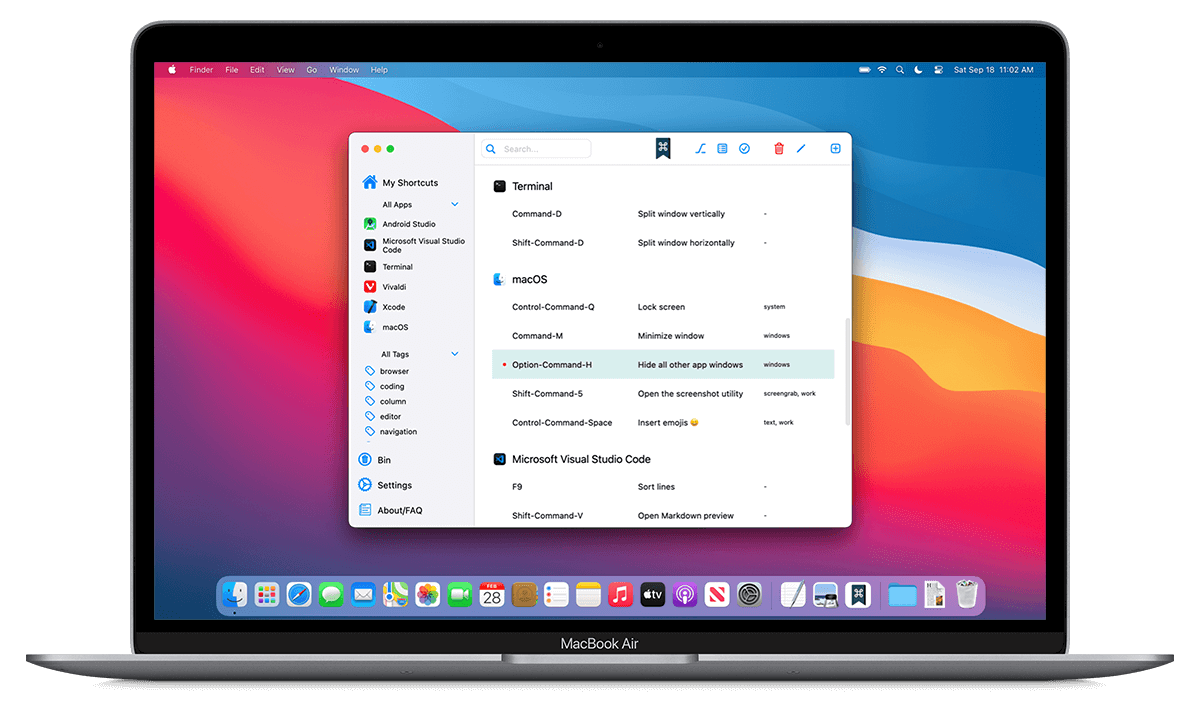
User reviews (0)