Website profiles · Technology insights · Alternatives

smoredboard.com

The SmoredBoard is the ultimate soundboard software for Windows. Unlimited Sound Slots, Built-in Sound Editor, Free Voice Changer, Works In Anything.

No paid content found
Visit website
Profile views 4 Outbound visits 0 Normal
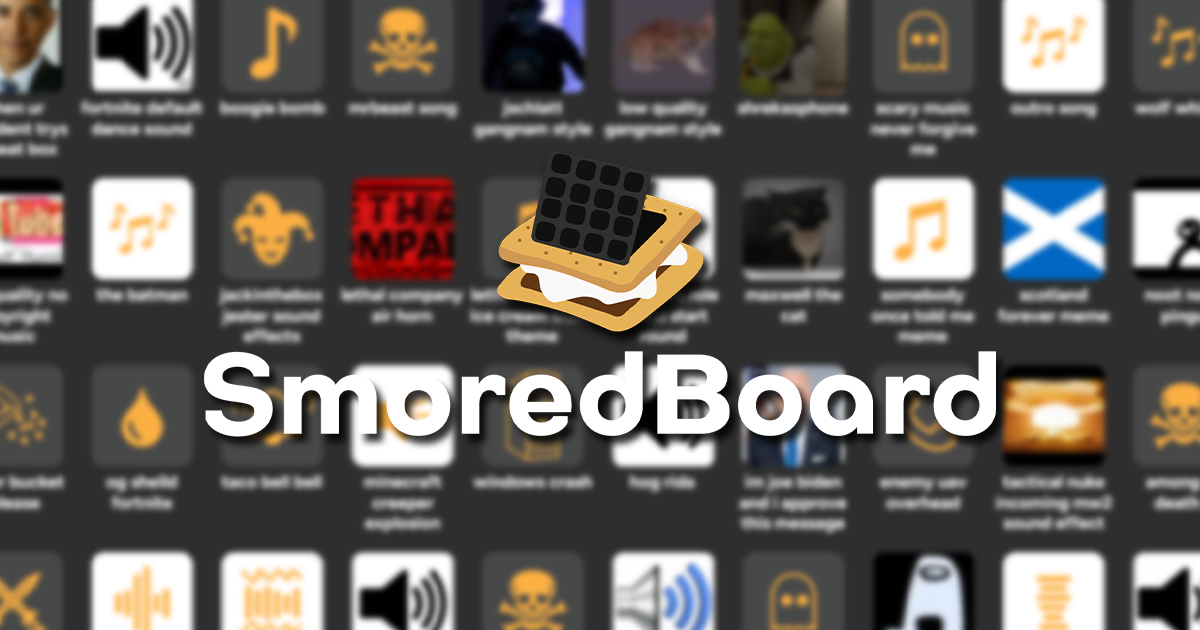
SmoredBoard Full homepage screenshot

At a glance

Category
Other
Language
English
Paid-content signal
No paid content foundObserved
Registered
2024
Hosting
VercelInferred
HTTPS certificate trusted
PassedObserved
Last updated

Website review

This review may include AI-generated content and is not individually verified. Domain, certificate and other facts come from the observed data on this page.

What is SmoredBoard?

SmoredBoard is a free Windows application that combines a soundboard with a real-time voice changer. You load audio clips, trigger them with keybinds, a Stream Deck, or a click, and route the output into whatever app you're already using — Discord, a game, or a streaming setup. The voice changer applies effects to your live microphone input rather than to recorded files.

What it actually does

  • Soundboard: "Unlimited sound slots" are advertised at no cost, and sounds can be added by dragging in audio files or MP4s, or by pulling audio from a website through a built-in browser.
  • Voice changer: A set of built-in voices plus an "Effects Lab" where you stack effects (echo, lo-fi, bass boost, and similar) to build custom voices.
  • Sound editing: Trim and cut clips to remove dead space or jump straight to the part you want.
  • Sharing: Export a soundboard profile to send to friends, or publish sounds through a "Voicy profile maker."
  • Local-first: Sounds and voices are stored on your device, work offline, and require no account.

Who it suits

User Why it fits Trade-off to weigh
Discord/game chat regulars Keybinds and click-to-play make quick reactions easy Everyone in the call needs to tolerate your clips
Streamers Stream Deck plugin and routing into broadcast software Voice changing adds processing that can sound artificial
Casual tinkerers Free, no account, offline, drag-and-drop import You manage your own library and file organization

A concrete scenario

Say you host a weekly game night. You'd import a handful of clips, bind the three you use most to keys you can reach without leaving the action, trim the leading silence so they fire instantly, and leave the voice changer off until you want a bit for a specific moment. Because everything is local, a dropped connection doesn't stop your board from working.

Next step

Download it on the Windows machine you actually play or stream from, add two or three clips, and test the output inside Discord or your game before building out a full board — routing and audio-device setup is the part most people need to get right first. If you want a comparison point, Voicemod is a well-known alternative for voice changing: Voicemod.

How do I set up SmoredBoard with Discord or other apps for streaming and gaming?

SmoredBoard is a Windows soundboard and voice changer that routes audio into other apps rather than integrating with them directly. Setup therefore has two halves: getting sound into SmoredBoard, then making Discord, OBS or a game hear it.

Getting audio into SmoredBoard

  • Drag and drop audio files or MP4s onto the board, or use the built-in browser to pull sounds from a website in one click.
  • Trim and cut clips inside the app to remove dead space.
  • Shape sounds in the Effects Lab (echo, lo-fi, bass boost) and save them to slots.
  • Trigger playback with keybinds, a Stream Deck plugin, or by clicking a slot.
  • Everything is stored locally, so no account or internet connection is required.

Making Discord, OBS and games hear it

Discord, OBS and most games capture whatever Windows presents as a recording device. On Windows you generally need a virtual audio cable: you install it, set SmoredBoard to output to that cable, then choose the cable as the microphone/audio input in Discord's voice settings or as an audio source in OBS. Games that only accept a physical mic input may need the same virtual device set as the default recording device. SmoredBoard's own pages describe it as working "in anything" and being fully local; the virtual-cable step is standard Windows routing advice, not a documented SmoredBoard feature, so check the app's current settings for how it exposes its output.

Voice changer in the same chain

If you also use the realtime voice changer, the routing is identical: voices are generated locally and sent out through the same virtual device, so Discord and OBS pick up the changed voice instead of your raw mic. You can stack built-in voices or build your own by combining effects.

Practical scenarios

  • Discord with friends: one virtual cable, SmoredBoard output to it, cable selected as Discord's input. Keep your real mic on a second device so you can talk and fire sounds without switching.
  • Streaming on OBS: add the cable as an audio input source, keep game audio on its own source, and control levels separately in the mixer.
  • Solo gaming: keybinds matter more than routing — bind sounds to keys your game doesn't use, or use the Stream Deck plugin, so you never alt-tab mid-match.

Sharing setups

Soundboard profiles can be exported and sent to friends, and there's a Voicy profile maker for publishing sounds to a wider community — useful if you want a collaborator's exact board rather than rebuilding it slot by slot.

Next step

Decide first whether you need a virtual audio cable at all. If you only want sounds audible in your own headphones while gaming, no routing is needed — keybinds and local playback are enough. If other people must hear the sounds, install a virtual cable, then test in this order: SmoredBoard output → cable → Discord or OBS input, confirming each stage with a mic test before adding the voice changer. For a second opinion on routing tools, see VB-Audio and OBS Studio.

What steps are needed to create custom voices with SmoredBoard's voice changer?

Creating a custom voice in SmoredBoard is done through the built-in Effects Lab, where you stack and combine effects rather than starting from a dedicated "voice designer." According to the page, the voice changer includes many built-in voices, and you build your own by combining any number of effects to craft the sound you want. The same Effects Lab is also used for sound effects (echo, "low quality," bass boost, and similar), so the workflow is the same tool applied to your microphone input.

Practical steps

  1. Install and open SmoredBoard on Windows. The voice changer is part of the same free Windows app as the soundboard.
  2. Find the voice changer section and browse the built-in voices first. Starting from a preset is faster than building from silence, and you can hear what each effect contributes.
  3. Open the Effects Lab and add effects one at a time. Add an effect, speak, and listen before adding the next one; stacking several at once makes it hard to tell which one is helping.
  4. Combine effects until the voice fits your use case. For a deep "announcer" voice, for example, a pitch shift plus a bass boost is a common starting point; for a robotic or lo-fi character voice, distortion or bitcrush-style effects do more of the work.
  5. Save the result as your own voice so you can switch back to it without rebuilding the chain.
  6. Use it in your target app. The page says the voice changer "works everywhere you need it to," so the intended setup is to select SmoredBoard as your microphone input in Discord, a game, or a streaming app, then let the processed voice pass through.

Things worth knowing before you start

  • Everything is local. Voices are stored on your device and work offline without an account, so there is no cloud voice library to sync across machines.
  • No account requirement also means sharing a voice means exporting or recreating it, not sending a link to a profile.
  • Trade-off: a flexible effects-chain approach gives you far more range than a fixed preset list, but it takes more trial and error. If you just want a quick novelty voice for a call, a built-in preset is the better choice; if you want a consistent character voice for streaming or videos, investing time in a saved custom chain pays off.

A concrete scenario

If you record commentary and want a slightly deeper, warmer mic sound rather than a cartoon voice, start with a mild pitch reduction and a light bass boost, then stop. Heavy effect chains tend to add artifacts and latency, which matters more in live conversation than in recorded audio. Test in the actual app you will use (for example, a Discord call) rather than only in the SmoredBoard preview, because that is where monitoring and routing problems usually show up.

Next step

Open the Effects Lab, load one built-in voice, and modify it one effect at a time until it sounds right, saving each version as a separate voice so you can compare them later.

How can I share my soundboard profiles with friends or the Voicy community?

SmoredBoard handles sharing in two ways, both built around exporting a profile rather than sending individual audio files.

Sharing with friends directly Export a soundboard profile and send the file to them. They import it into their own SmoredBoard install, and the sounds and their slot layout come along. This is the practical route when you have a group of friends who all run Windows and want the same meme set, game callouts or stream stinger bank.

Sharing with a wider audience The site points to a "Voicy profile maker" for publishing sounds to a larger community, so a profile can be turned into something other users can browse and pick up rather than a file you pass around manually.

What to expect either way

  • Sounds stay on your own device and work offline with no account, so sharing is an explicit export step, not an automatic sync.
  • Anything you export leaves your machine as a copy. If you later add or trim sounds, friends keep the old version until you send a new export.
  • Effects, trims and cuts you applied in the Effects Lab travel with the profile, so recipients hear your edited version, not the raw file.

A quick decision rule Use a direct profile export for a handful of friends or a private group; use the Voicy community route when you want strangers to find and reuse your set. If your friends use macOS or a phone, check that they have a compatible player before building a large profile around it.

Next step: build one small test profile with three or four sounds, export it, and have a friend import it. That confirms the workflow and shows whether keybinds and slot order survive the trip before you invest time in a big library.

What audio editing and effects tools does SmoredBoard offer for customizing sounds?

SmoredBoard builds its editing around two tools: a sound editor for trimming clips and an Effects Lab for shaping how they sound. The page describes both as available for free in the Windows app.

Trimming and cutting The sound editor applies trims and cuts, so you can remove dead space at the start or end of a clip or jump straight to the part you want. That matters for soundboard use, where a half-second of silence before the punchline ruins the timing.

The Effects Lab The Effects Lab is the place for sound design. The page gives echo, "low quality" and bass boost as examples, and says you can combine effects to create anything you can imagine. The same lab is used to build custom voice-changer voices, which suggests a single effects chain serves both soundboard clips and real-time voice.

Practical uses

  • Discord or game chat: trim a meme clip tightly, then add echo for a dramatic drop.
  • Streaming: bass-boost a sound sting so it lands over music and game audio.
  • Voice changing: stack effects into a custom voice rather than relying only on the built-in presets.
  • Sharing: exported soundboard profiles carry your edited sounds to friends, so the effects work is portable.

Trade-offs Effects chains are easy to overdo. Heavy echo or "low quality" processing can make a clip hard to understand in a noisy voice call, and stacking many effects usually adds latency, which is more noticeable in real-time voice than in one-shot soundboard playback. Trimming first and adding effects second keeps clips clean.

A next step Pick one clip you use often, cut it to the exact moment you want, then add a single effect and test it in a real call before layering more. If you want a comparison point, Voicemod (Voicemod) and Voicemeter-style routing tools cover similar ground, though SmoredBoard's page stresses local storage and offline use without an account, which is the main reason to choose it over cloud-based alternatives.

Can I use SmoredBoard offline without creating an account?

Yes. According to the website, SmoredBoard is designed to run completely locally: sounds and voices are stored on your device and can be used offline without an account. That makes it a reasonable fit if you want to avoid sign-ups or keep your audio library private, such as a streamer who plays clips on a laptop with unreliable Wi-Fi.

A few practical points:

  • Soundboard: Add sounds by drag-and-drop, from audio or MP4 files, or via the built-in browser; trigger them with keybinds, clicks, or a Stream Deck plugin.
  • Voice changer: Includes built-in voices and an Effects Lab for combining effects into custom voices.
  • Editing: Trim and cut sounds to remove dead space.
  • Sharing: Export soundboard profiles to share with friends, or use the Voicy profile maker to share sounds more widely.

Next step: download it for Windows and test it with your network disconnected to confirm your setup works as expected. If you want to compare alternatives, see Voicemod and EXP Soundboard.

Related questions

More questions →
How to Pick and Set Up a Soundboard for PC (Discord and Gaming)

Pick a soundboard that stores sounds locally and plays them through a virtual audio cable or your mic input, then bind each sound to a key. That combination covers Discord and most games without an account or an internet connection. SmoredBoard is one option built around this model: it's a free Windows soundboard and voice changer with unlimited sound slots, drag-and-drop import, keybinds, a Stream Deck plugin, and a built-in editor, and it keeps all sounds local so it works offline. The rest of this guide covers how to choose between local and web-based tools, how to set up and route audio, and how to fix the usual "no sound in Discord" problems.

Local vs. account-based soundboards

The first decision is where your sounds live and whether you need to log in.

Factor Local offline soundboard (e.g., SmoredBoard) Account-based web tool
Storage Sounds stored on your device Sounds stored on a server
Login No account needed Account typically required
Offline use Works offline Needs a connection
Sharing Export profiles to share with friends Built-in community sharing
Setup effort Install once, configure routing Usually faster to start

Choose local if you care about privacy, want to play sounds with no internet, or dislike creating accounts. Choose a web tool if sharing sounds with a large community matters more than offline access. SmoredBoard covers the local case and still offers sharing by exporting soundboard profiles, plus a Voicy profile maker for community sharing.

What to check before you commit

Run through this list; a soundboard that fails any of these will frustrate you in Discord or a game.

  • Keybinds — you need to trigger sounds without alt-tabbing. SmoredBoard supports keybinds, a Stream Deck plugin, and plain clicking.
  • Import formats — drag-and-drop should accept audio files and MP4s, and ideally pull audio from a website in one click.
  • Editing — trimming dead space and applying effects (echo, bass boost, "low quality") saves you from pre-editing in another tool. SmoredBoard's Effects Lab handles this.
  • Audio routing — the tool must output to a device Discord and games can read, which usually means a virtual audio cable.
  • Voice changer (optional) — if you want one, check it runs in real time and works in the same apps. SmoredBoard includes a free real-time voice changer with built-in voices.

Setting it up

  1. Install the soundboard. Download and install it on Windows. SmoredBoard is a free download for Windows.
  2. Add sounds. Drag and drop audio files or MP4s, or use the built-in browser to grab audio from a website in one click.
  3. Edit each sound. Trim the start and end to cut dead space, then apply effects if you want them.
  4. Bind keys. Assign a keybind per sound, or set up the Stream Deck plugin if you have one.
  5. Route the output. Install a virtual audio cable, set the soundboard's output to that cable, then in Discord set your input device to the same cable. In games, set the mic/input to the cable if the game lets you choose.
  6. Test. Play a sound and watch Discord's input meter move. If it moves but nobody hears it, the issue is on the other side of the call.

Expected result: pressing a bound key plays the sound into your mic input, and everyone in the call or game hears it.

Troubleshooting

  • No sound in Discord. Check that Discord's input device is the virtual cable, not your physical mic, and that the soundboard outputs to that same cable. Confirm Discord's input volume isn't muted.
  • Others hear you but not the sounds. Your mic and the soundboard are on different devices. Point both at the virtual cable, or use a cable that mixes them.
  • Game audio ducks or mutes when you play a sound. Windows or the game is treating the soundboard as a communication device. Disable "duck other audio" in the communication settings, or route the soundboard so it isn't flagged as a mic.
  • Sounds don't play on keypress. The keybind is likely taken by the game or another app. Rebind to a key the game doesn't use, or run the soundboard as administrator so it receives the key first.
  • Sound is too quiet or clipped. Trim and normalize in the editor, and lower the soundboard's output level so it doesn't clip the virtual cable.

Bottom line

For Discord and gaming on Windows, a local soundboard with keybinds, drag-and-drop import, an editor, and virtual-cable routing is the safest default — no account, works offline, and plays into any app. SmoredBoard fits that description and adds a free real-time voice changer. If community sharing matters more than offline use, an account-based web tool is the reasonable alternative.

Which Free Soundboard for Windows Should You Use for Discord and Gaming?

For most people who want a free Windows soundboard for Discord and gaming, SmoredBoard is the strongest fit among the options described here: it advertises unlimited sound slots at no cost, keybinds and a Stream Deck plugin for triggering sounds, a built-in editor and effects lab, and fully local storage with no account required. The trade-off is that it is Windows-only and its "works everywhere" claim depends on routing its audio into your chat or game, which is the step most people get stuck on. If you only need a handful of sounds and no voice changer, a lighter tool may be enough — but if you want editing, effects, and sharing in one free package, this is the one to try first.

What to compare before you download

Use the same criteria for any free soundboard, because "free" and "works in Discord" mean different things across tools.

Feature Why it matters SmoredBoard (per its site)
Sound slots Caps how many clips you can keep loaded Unlimited, free
Trigger method Determines how fast you can fire a sound mid-game Keybinds, Stream Deck plugin, or click
Built-in editor Avoids needing a separate audio editor Trim and cut; Effects Lab for echo, bass boost, "low quality," etc.
Voice changer Needed if you want live voice effects, not just clips Realtime changer with built-in voices, all free
Where it plays Must reach Discord, games, and other apps "Works everywhere you need it to"
Storage and account Affects privacy and offline use Local storage, offline, no account
Platform Rules out non-Windows users Windows only

Two rows deserve emphasis. First, unlimited slots matters more than it sounds: many free soundboards cap you at a small number of pads, and you hit the ceiling fast once you add meme clips, alerts, and game callouts. Second, local storage with no account means your sounds stay on your device and work offline — a real difference from browser-based boards that require a login and an internet connection.

How to add sounds

SmoredBoard describes three input paths, and each produces the same result: a playable slot on your board.

  1. Drag and drop an audio file or MP4 onto the board.
  2. Use the built-in browser to pull a sound from any website in one click.
  3. Edit after import — apply trims and cuts to remove dead space or jump straight to the part you want.

If a clip sounds wrong after import, the fix is usually in the editor rather than the source file: trim the leading silence, then re-test the keybind.

How to trigger sounds in Discord and games

The site lists three trigger options: keybinds, a Stream Deck plugin, or clicking the sound directly. Keybinds are the practical choice for gaming, since you can fire a clip without leaving the keyboard.

The part the site does not spell out is audio routing. For other people to hear your soundboard in Discord or in a game's voice chat, your board's output has to reach the app as an input device. That normally means:

  • Set your soundboard's output to a virtual audio cable or similar virtual device.
  • In Discord (or the game), set the input device to that same virtual device.
  • Keep your own headphones on a separate output so you still hear the game.

This is the single most common setup failure: the sound plays on your end but nobody else hears it, because the board is still going to your speakers instead of the virtual input. If sounds are silent in Discord specifically, check the input device in Discord's voice settings before you touch anything in the soundboard.

Sharing and effects

Two features are worth knowing about before you commit:

  • Sharing: you can export soundboard profiles to send to friends, or use the site's Voicy profile maker to share sounds with a wider community. Useful if you and your friends want identical boards.
  • Effects Lab: combine effects to make a sound echo, sound "low quality," get bass boosted, or build a custom voice. The same lab is what powers the voice changer's custom voices, so you are not limited to the built-in set.

Who should pick something else

  • You are not on Windows. SmoredBoard is Windows-only, so you need a different tool entirely.
  • You want zero setup. Any soundboard that plays into Discord needs virtual audio routing; if that is more than you want to configure, stick to Discord's own built-in soundboard features.
  • You only need a few clips and no voice changer. A minimal board will do, and the editor, effects, and sharing features here go unused.

Otherwise, the combination of unlimited free slots, keybinds, a Stream Deck plugin, a built-in editor, and local no-account storage is what makes SmoredBoard the default pick for Discord and gaming on Windows. Download it, add one sound by drag-and-drop, bind a key, and confirm it plays through your virtual input in Discord before you build out a full board.

What Is a Soundboard and How Do You Use One on Windows?

A soundboard is software that stores short audio clips and plays them on command—usually through a hotkey, a click, or a hardware controller—so the sound goes into whatever app you're already using, such as Discord, a game, or a streaming setup. On Windows, the basic workflow is the same across most tools: add audio files, assign each one a trigger, then fire it live. SmoredBoard is one example of a free Windows soundboard that also bundles a realtime voice changer, unlimited sound slots, a built-in editor, and an effects lab, with all sounds stored locally so it works offline without an account.

What people actually use a soundboard for

The keyword "soundboard" covers a few different jobs, and it helps to know which one you're solving for:

  • Discord and voice chat — dropping a meme clip, a sound effect, or a sting into a call.
  • Gaming — triggering audio without alt-tabbing out of the game.
  • Streaming and content creation — cueing intros, transitions, or reaction sounds on demand.
  • Voice changing — a related but separate feature: altering your microphone input in real time rather than playing clips.

If you only need to play clips, a plain soundboard is enough. If you also want to change how your voice sounds, look for one that includes a voice changer, since running two separate tools adds latency and routing headaches.

The core workflow: add, assign, trigger

Every soundboard follows roughly the same three steps.

1. Add sounds

You bring audio into the board, typically by dragging and dropping files. SmoredBoard accepts audio files and MP4s, and also has a built-in browser that lets you add a sound from a website in one click. Once added, the clip lives in a "slot" on the board.

2. Assign a trigger

Each slot needs a way to fire. The common options are:

  • Keybinds — a keyboard shortcut you press to play that specific sound.
  • Clicking — just clicking the slot in the app window.
  • Hardware controllers — for example, a Stream Deck plugin, which SmoredBoard supports.

Keybinds are what make a soundboard usable mid-game or mid-call, because you don't have to switch windows.

3. Trigger it live

When you press the keybind or click the slot, the sound plays and routes into your chosen output—your mic input, your headset, or a virtual audio device, depending on how you've set up routing in Windows. The expected result is that other people in the call or stream hear the clip.

Features worth comparing before you pick one

Not all soundboards are equal, and the differences usually show up in these areas:

Feature Why it matters
Sound slots A low cap (e.g. 8–16) forces you to swap clips constantly. SmoredBoard advertises unlimited slots for free.
Built-in editor Lets you trim dead space or cut to the part you want without a separate audio editor.
Effects Echo, bass boost, "low quality," etc. SmoredBoard's Effects Lab is where these are applied.
Voice changer Separate from clip playback; useful if you want to alter your live voice.
Trigger options Keybinds, clicking, and controller support (e.g. Stream Deck).
Local vs. cloud Local storage means offline use and no account; cloud means sync across devices but usually a login.
Sharing Exporting profiles or sound packs to send to friends.

Local storage, offline use, and accounts

A meaningful distinction is where your sounds live. SmoredBoard states that all sounds and voices are stored locally on your device and can be used offline without an account. That's convenient if you want zero sign-up friction or you're somewhere without reliable internet. The trade-off is that local-only tools generally don't sync your board across multiple computers automatically—you'd move profiles manually.

If a tool requires an account or cloud storage, check what happens to your sounds if you stop using it, and whether offline playback still works.

Sharing sounds and profiles

Two common sharing models:

  • Profile export — you package your whole board (slots, keybinds, settings) and send it to a friend, who imports it. SmoredBoard supports exporting soundboard profiles.
  • Community packs — a public library or profile maker where people publish sound sets. SmoredBoard mentions a "Voicy profile maker" for sharing sounds with a larger community.

If sharing is important to you, confirm the export format is portable and that the recipient doesn't need the exact same setup to use it.

A quick way to decide

  • Just want to play clips in Discord or a game? Any soundboard with keybinds and enough slots will do; prioritize low latency and easy routing.
  • Want clips and a voice changer in one tool? Pick one that bundles both, like SmoredBoard, to avoid stacking two apps.
  • Need it to work offline with no account? Favor a local-storage tool.
  • Plan to share boards with friends? Check for profile export before committing.

SmoredBoard is free to download for Windows and positions itself around unlimited slots, a built-in editor, an effects lab, a realtime voice changer, and fully local storage. Whether it's the right fit depends on which of the rows above you actually care about—so match the feature list to your use case rather than the other way around.

What Is a Voice Changer and How Do You Use One on Windows?

A voice changer is software that alters your microphone input in real time, so the person on the other end of a call, game, or recording hears a different voice than your own. On Windows, you install the app, pick or build a voice, and route your microphone through it so other programs receive the processed audio instead of your raw mic. SmoredBoard is one example: a free Windows soundboard and voice changer that runs entirely on your device, with no account required, and works offline.

How real-time voice changing works on Windows

Your microphone normally sends audio straight to whatever app is listening — Discord, a game, OBS. A voice changer inserts itself into that path:

  1. Capture — the app reads your microphone input.
  2. Process — it applies effects (pitch shift, echo, distortion, bass boost, and so on) to the audio stream.
  3. Output — it exposes a virtual microphone that other apps select as their input device.

The key detail is that the processing happens live, so there's no file to export and re-import. The other person hears the changed voice as you speak.

Because the output is a virtual microphone, the changer works in "anything" that lets you choose an input device — the same way SmoredBoard describes itself as working everywhere you need it to.

Setting up a voice changer so it works in Discord, games, and other apps

The general sequence is the same across apps:

  1. Install and launch the voice changer on Windows.
  2. Select your real microphone as the input inside the changer.
  3. Choose a voice or build one (see the next section).
  4. In the target app, change the input device to the changer's virtual microphone — not your physical mic.
  5. Test before you commit. Use the app's mic test (Discord has one) or record a short clip to confirm the effect is audible.

SmoredBoard ships with a set of built-in voices, and you can create your own by combining effects in its Effects Lab. All voices are stored locally on your device and work offline without an account.

Where to change the input device

App type Where to look
Discord Voice & Video settings → Input Device
Games In-game audio/voice settings, or the launcher's audio config
Streaming/recording (e.g., OBS) Audio input source settings
System-wide Windows Sound settings → Input

If an app has no input selector, it uses the Windows default — so set the virtual microphone as your default input device.

Built-in voices vs. custom voices

You have two paths, and they suit different needs:

  • Built-in voices — fastest. Pick one and go. Good for quick sessions or when you just want a recognizable effect.
  • Custom voices — more control. In SmoredBoard's Effects Lab you combine any number of effects to craft a specific voice, and the same lab can make sounds echo, sound low-quality, or get bass-boosted.

Choose built-in voices when speed matters; choose custom when you need a specific character or tone and are willing to spend time tuning.

Keeping voice processing local and offline

SmoredBoard stores both sounds and voices locally on your device and can run offline without an account. That matters if you'd rather not send your microphone audio to a remote server. If privacy or offline use is a priority for you, confirm this behavior in whichever changer you pick — not every tool processes locally.

Troubleshooting: apps not detecting the virtual microphone

The most common failure is the target app still listening to your physical mic, or not seeing the virtual device at all. Work through these:

  • Wrong device selected — recheck the input device in the app. It should be the changer's virtual mic, not your hardware mic.
  • App was open during setup — restart the app (and sometimes the changer) so it re-scans available audio devices.
  • Not set as Windows default — if the app has no input picker, set the virtual mic as the default input in Windows Sound settings.
  • No audio at all — confirm the changer is actually running and receiving input from your real mic.
  • Effect not audible — verify you selected a voice and that the effect isn't bypassed, then re-test with the app's mic test.

Getting started

SmoredBoard is available as a free download for Windows and combines a soundboard with the voice changer, so you can trigger sounds and change your voice from the same tool. If your goal is simply to change your voice in real time for calls, games, or recordings on Windows, the setup above is the whole process: install, pick a voice, point your apps at the virtual microphone, and test.

Voice Changer for PC: How It Works and How to Set One Up

A voice changer for PC captures your microphone input, alters it in real time, and feeds the modified audio to other apps as if it were a normal microphone. To use one, you install the software, let it create or select a virtual audio device, set that device as the microphone in Discord, your game, or another app, then pick a voice or build an effect chain. The main things to check before committing are latency, whether processing happens locally or in the cloud, whether an account is required, and how much control you get over custom voices.

Real-time voice changing vs. editing recorded audio

These are two different jobs, and mixing them up is the most common source of confusion.

  • Real-time voice changing processes your mic while you speak, so other people hear the altered voice live in Discord, in-game chat, or a call. This is what people usually mean by "voice changer for PC."
  • Editing recorded audio changes a file after the fact — trimming, adding echo, boosting bass. Useful for clips and videos, but it does nothing for live conversation.

Some tools do both. SmoredBoard, for example, pairs a real-time voice changer with an Effects Lab for shaping sounds and a sound editor for trims and cuts, so the same app covers live voices and prepared audio.

How the audio actually gets routed

The mechanism is the same across most Windows voice changers:

  1. The changer takes your real microphone as its input.
  2. It applies the voice or effect chain.
  3. It exposes the result as a virtual microphone (sometimes via a virtual audio cable or driver).
  4. You select that virtual microphone as the input device in the app you're talking through.

That last step is where most setups succeed or fail. If Discord, your game, or your streaming software is still pointed at your physical mic, you'll hear no change at all — because the changer's output is being ignored.

What to compare before you pick one

Dimension What to look for Why it matters
Voice presets A built-in library of ready voices Fast to start; no setup per voice
Custom voices Ability to combine effects into your own voice Lets you match a specific character or tone
Latency Low delay between speaking and being heard High latency makes conversation awkward
Processing location Local vs. cloud Local keeps audio on your device and can work offline
Account requirement Whether sign-in is needed Affects convenience and privacy
Price Free vs. paid tiers Determines what you can try before paying

SmoredBoard's page states its voice changer includes "tons of built in voices," all free, with custom voices built by combining effects in the Effects Lab. It also states voices are stored locally on your device and can be used offline without an account — a concrete answer to the privacy and account questions above, at least for this tool.

Setting it up on Windows: step by step

  1. Install the voice changer. For SmoredBoard, the site offers a free download for Windows.
  2. Open the voice changer section and confirm your real microphone is selected as the input.
  3. Choose a voice or build one. Pick from the built-in voices, or open the Effects Lab and stack effects until the voice sounds right.
  4. Test locally first. Speak and listen to the output before involving anyone else — this isolates problems to the changer rather than the target app.
  5. Set the virtual mic as input in your target app. In Discord, this is under Voice & Video → Input Device. In games, it's usually in the audio or voice settings. Select the changer's virtual device, not your physical mic.
  6. Verify with another person or a test call. Ask someone to confirm they hear the changed voice, and check whether the delay feels natural.

Common problems and fixes

  • Others can't hear the changed voice. The target app is almost certainly still using your physical mic. Switch its input device to the virtual one.
  • Echo or robotic audio. Usually caused by monitoring your own mic through speakers, or by two apps both processing the same input. Use headphones and make sure only one changer is active.
  • High latency. Close other audio-heavy apps, and prefer a changer that processes locally rather than round-tripping audio to a server.
  • Mic not detected. Check Windows microphone permissions and confirm the changer sees the device before you troubleshoot the target app.
  • Voice sounds wrong only in one app. Some apps apply their own noise suppression or gain. Try disabling those to hear the changer's output cleanly.

Privacy: local vs. cloud, and accounts

Where your audio goes is a real decision point, not a footnote. Cloud-based changers send your voice to a server for processing, which means your audio leaves your device and typically requires a connection. Local changers process on your machine.

SmoredBoard states that all voices are stored locally, work offline, and need no account. If keeping audio on your own device matters to you — or you want the changer to work without internet — that's the condition to look for when comparing tools. If a product's page doesn't say where processing happens, treat that as unknown rather than assuming either way.

A quick decision guide

  • You want to talk live in Discord or games: prioritize real-time processing, low latency, and easy virtual-mic routing.
  • You want to sound like specific characters: prioritize a large built-in voice library and custom effect chains.
  • You care about privacy or offline use: prioritize local processing and no account requirement.
  • You also make clips or videos: prioritize a tool that includes audio editing alongside the live changer.

SmoredBoard fits the free, local, no-account profile and combines a soundboard, real-time voice changer, effects, and a sound editor in one Windows app — worth trying first if those are your priorities. If you need cloud voices or platform-specific integrations, compare against tools that advertise those explicitly.

Website Overview

Page metadata, canonical configuration and social previews work together to provide more consistent search and sharing presentation.

Domain and Registration

Transfer-protection status is present, helping reduce the risk of unauthorized domain transfers. The domain has about 2 years of registration history; its current configuration provides more context than age alone. The registrar is Squarespace Domains LLC, a widely used domain service provider. The domain uses the common .com extension, which is not an independent safety signal.

DNS and Email

Nameservers are provided by Cloudflare, indicating managed DNS hosting. MX records point to the Google Workspace email service. SPF and DMARC are configured. DKIM status is unknown. TXT records include verification markers for Google, Microsoft. Such markers may also remain after a service stops being used. DNSSEC signatures were not detected, so this additional DNS authenticity protection is not confirmed.

TLS and Certificates

The certificate uses an RSA 2048-bit public key, offering broad client compatibility. The server supplied a complete certificate chain. No organization name is present in the certificate; the available fields are consistent with domain validation. The certificate was issued by Let's Encrypt, commonly associated with automated certificate services. The certificate's total validity is about 89 days, consistent with a short renewal cycle.

HTTP and Browser Security

CORS permits any origin to read this response. This is common for public resources; sensitive responses need narrower handling. No X-Powered-By header was found, reducing one common source of backend fingerprinting information. All six checked browser-security headers are present. Their effectiveness still depends on the policy values and application behavior. No obvious internal addresses or debug information were found in the headers. The Server header contains the custom value Vercel.

Technology Stack Analysis

The public page identifies Next.js, Vercel without precise versions, leaving fewer clues for version-specific scanning.

Search and Social Sharing

Open Graph is partially configured; og:image, og:type is missing. Twitter Card metadata is configured. JSON-LD includes Organization data, helping describe the organization as an entity. The title has 59 characters, within a common display range. A meta description is present, with 149 characters.

Hosting and Email

DNSCloudflare
HostingVercel
EmailGoogle Workspace
Approximate IP geolocation (inferred; a CDN or proxy may differ from the origin server) United States flagUnited States Inferred 216.150.1.193

Registration details

RDAP / WHOIS

RegistrarSquarespace Domains LLC
Registered2024-07-21
Expires2027-07-21
Domain statusclient delete prohibited、client transfer prohibited
Nameserverskhalid.ns.cloudflare.com、suzanne.ns.cloudflare.com
DNSSECunsigned

DNS records

DNS

TypeNameValueTTLPriority
A9759b20dd7492931.vercel-dns-017.com216.150.1.193300—
A9759b20dd7492931.vercel-dns-017.com216.150.16.193300—
MXsmoredboard.comaspmx.l.google.com3001
MXsmoredboard.comalt1.aspmx.l.google.com3005
MXsmoredboard.comalt2.aspmx.l.google.com3005
MXsmoredboard.comalt3.aspmx.l.google.com30010
MXsmoredboard.comalt4.aspmx.l.google.com30010
NSsmoredboard.comkhalid.ns.cloudflare.com86400—
NSsmoredboard.comsuzanne.ns.cloudflare.com86400—
TXTsmoredboard.comMS=ms84250847300—
TXTsmoredboard.com_76wmu4jd5hxeneha7qk4ss3g1t5py0r300—
TXTsmoredboard.com_hzuqst1xwfzmqcovpu86at5n904d5d8300—
TXTsmoredboard.comgoogle-site-verification=D214EW-6dWInaRgldnNQF2uUYBJcj_NC5unIPavOYec300—
TXTsmoredboard.comgoogle-site-verification=Ob08oiQj_eJ6879U96ff5uzpg5seRhm__kyBnPm7OdA300—
TXTsmoredboard.comlemonsqueezy-verification=ab92d3e4-cf21-4c25-a8c4-718917ccf5b8300—
TXTsmoredboard.comsmoredboardlogin-fcdbf8ama8bpdrh9.z02.azurefd.net300—
TXTsmoredboard.comstripe-verification=9dcdca18079e51abef9623e8d78a688cf4004d6cec5e33b21375cc2c891bf494300—
TXTsmoredboard.comv=spf1 include:_spf.google.com ~all300—
CNAMEwww.smoredboard.com9759b20dd7492931.vercel-dns-017.com300—
DMARC_dmarc.smoredboard.comv=DMARC1; p=quarantine; rua=mailto:[email protected]; adkim=s; aspf=s; pct=100300—

TLS and certificates

TLS / SSL

AssessmentNormal configuration
Supported protocolsTLSv1.2、TLSv1.3
Negotiated protocolTLSv1.3
Certificate subjectwww.smoredboard.com
IssuerLet's Encrypt
Valid until2026-12-30T15:04 · Remaining when checked: 86 days
Verification detailsCertificate trust: Passed · Hostname match: Passed

HTTP response headers

HTTP

HeaderValue
content-typetext/html; charset=utf-8
cache-controlpublic, max-age=0, must-revalidate
serverVercel
strict-transport-securitymax-age=63072000; includeSubDomains; preload
content-security-policydefault-src 'self'; script-src 'self' 'unsafe-inline' 'unsafe-eval' https://js.stripe.com https://vercel.live https://va.vercel-scripts.com https://www.googletagmanager.com https://www.google-analytics.com https://*.termly.io; style-src 'self' 'unsafe-inline' blob: https://*.termly.io; img-src 'self' data: https: blob:; font-src 'self' data: https://*.termly.io; media-src 'self' https://public.smoredboard.com; connect-src 'self' https://api.stripe.com https://*.b2clogin.com https://accounts.smoredboard.com https://*.api.mailchimp.com https://vitals.vercel-insights.com https://www.google-analytics.com https://analytics.google.com https://*.termly.io wss://localhost:* ws://localhost:* ws://127.0.0.1:8181; frame-src https://js.stripe.com https://checkout.stripe.com https://*.b2clogin.com https://accounts.smoredboard.com https://www.youtube.com https://www.youtube-nocookie.com https://get.smoredboard.com https://*.termly.io; object-src 'none'; base-uri 'self'; form-action 'self' https://*.b2clogin.com https://accounts.smoredboard.com; frame-ancestors 'self'
x-frame-optionsSAMEORIGIN
x-content-type-optionsnosniff
referrer-policystrict-origin-when-cross-origin
permissions-policycamera=(), microphone=(), geolocation=(), interest-cohort=()
access-control-allow-origin*

Identified technologies

Next.jsVercel

Pages, Search and Sharing

Meta descriptionThe SmoredBoard is the ultimate soundboard software for Windows. Unlimited Sound Slots, Built-in Sound Editor, Free Voice Changer, Works In Anything.
Canonical URLhttps://www.smoredboard.com
LanguageEnglish (default)
Twitter Cardsummary_large_image
All bots 1 allowed · 6 disallowed
  • Allow/
  • Disallow/account
  • Disallow/installed
  • Disallow/uninstalled
  • Disallow/purchased-pro
  • Disallow/analytics
  • Disallow/api/

User reviews (0)

  • No reviews yet.