

 Paid content
 Multilingual
 Visit website
 Updated: 2026-09-27 03:54
 Access: Normal
 Profile views 9
  Outbound visits 1
 Website Review
What is Storyboard That?
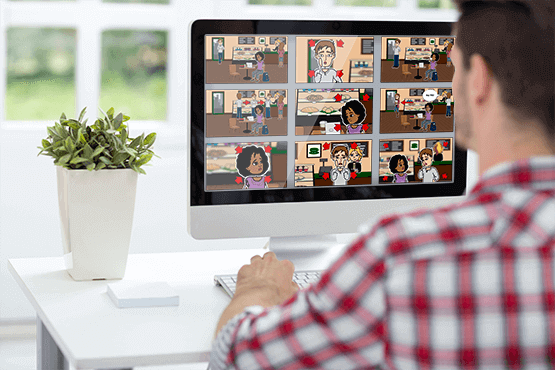
Storyboard That is a browser-based storyboard and comic creation tool. You drag scenes, characters, and items onto a grid of cells, add text, and export the result. Its stated aim is to make visual storytelling possible for people who do not draw, and it bundles ready-made lesson plans, templates, and writing activities alongside the editor.
Who it suits
- Teachers and students. The site leans heavily toward education: Common-Core aligned lesson plans, assignable activities, and separate teacher and individual sign-up paths. It is designed for classrooms where students need to show understanding visually rather than only in prose.
- Writers and planners. Novelists, comic makers, and anyone sketching a sequence of events before committing to a script.
- General visual communication. Posters, timelines, infographics, and video planning are all listed as intended outputs, so it is not limited to film-style storyboards.
How it works in practice
You start from a blank storyboard or a template, then build each panel from the art library. The page describes hundreds of scenes, characters, and items, which is the main trade-off: you get speed and consistency without drawing skill, but you are working inside a fixed visual style rather than producing original artwork.
Free versus paid
The site states you can create two storyboards per week for free, with advanced features behind an upgrade. A trial promotion is advertised, and the page mentions plans starting at a monthly rate afterward. Treat those figures as the site's own current claims and check the pricing page before committing, since they can change.
A concrete next step
If you are a teacher, sign up through the teacher route and open one of the writing activities to see whether the template matches a lesson you already teach. If you are a writer, build one short scene for free and judge whether the panel grid and library give you enough control before paying.
For alternatives with different strengths, Canva is broader in design output, Miro suits collaborative planning on a large canvas, and Boords focuses more narrowly on film and video storyboarding.
How does Storyboard That work for teachers and students in the classroom?
Storyboard That is a browser-based storyboard and comic creator built around drag-and-drop scenes, characters and text boxes, so neither you nor your students need drawing skills to produce a finished visual. For classroom use, the key point is that it is designed as a teaching tool first: the site advertises Common-Core aligned lesson plans, writing activities and templates that teachers can copy, edit and assign to students in a few steps, and it offers separate teacher and individual registration paths.
Storyboard That
H3 How a typical classroom workflow looks
- You pick a template or activity from the writing, history, timeline or novel-study categories, or start a blank storyboard.
- You adapt it — change the text prompts, choose scenes and characters, set how many cells students should fill.
- You assign it to your class, and students log in and build their own version.
- Students submit the storyboard, and you review it as a visual artefact rather than a wall of text.
H3 Where it fits best
- Writing and comprehension: students retell a story, map a plot arc, or summarise a chapter in six panels. The constraint of a fixed number of cells forces concision.
- History and social studies: timelines and cause-and-effect sequences, with each cell carrying a caption.
- Novel and book projects: character studies, chapter summaries, alternate endings.
- Cross-curricular and language learners: the image-plus-caption format lets students show understanding before their written fluency catches up.
H3 Trade-offs to weigh
- Free tier limits: the site states you can create two storyboards per week for free, with more advanced features behind an upgrade. That is workable for a single teacher testing the tool, but a full class producing work weekly will hit the ceiling quickly.
- Art style: the library is cartoon-style and character-driven. That suits narrative and humanities work well; it is a poorer fit for technical, scientific or data-heavy diagrams, where a dedicated charting or diagramming tool will serve you better.
- Template-led vs. open-ended: ready-made activities save planning time but can nudge students toward filling boxes rather than thinking. If you want original analysis, edit the prompts rather than assigning the template as-is.
H3 A concrete decision rule
If your goal is visual narrative — sequencing, character, cause and effect — and you want students producing something in one class period without art instruction, this is a strong fit. If your goal is quantitative or technical representation, or you need unlimited free output for a large cohort, look elsewhere or budget for the paid tier.
Next step: before committing a whole class, run one lesson with a single template you have edited yourself. Check how long students actually take to log in, build and submit, and whether the free weekly limit survives your intended schedule. That one trial tells you more than any feature list.
What are the differences between the free and paid plans on Storyboard That?
The free tier is a genuine working account rather than a demo, but it is capped at two storyboards per week. Paid plans lift that ceiling and unlock the premium features the site marks with an upgrade badge, such as the more advanced art and export options. A teacher-oriented free registration also exists alongside the individual one, and the education side bundles Common-Core-aligned lesson plans and class assignment tools.
What separates the tiers
| Free | Paid | |
|---|---|---|
| Storyboard limit | Two per week | No stated weekly cap |
| Premium features | Locked behind an upgrade prompt | Unlocked |
| Best suited to | Trying the editor, one-off class activities | Regular lesson planning, ongoing projects |
Because the site sells both a personal edition and a teacher edition, the paid feature set is not identical across the two — check which one matches your use before paying.
How to decide
Start free if you are a teacher testing whether students can use the drag-and-drop editor without training, or if you only need a couple of frames for a single lesson. Upgrade when the weekly limit becomes the thing slowing you down, or when a specific premium feature is the reason you opened the tool.
For comparison, other storyboard and comic tools include Canva and Miro, both of which have free tiers with different limits.
A practical next step: build one real storyboard on the free plan this week — a scene breakdown or a class activity — and note whether you hit the two-per-week cap before you finish. That tells you more about whether the paid tier is worth it than any feature list.
Can I use Storyboard That to create comic strips and graphic novels?
Yes. Storyboard That is built around comic-style panels, so it works for both short comic strips and longer graphic-novel projects. The page describes a large art library of scenes, characters and items, plus templates you can copy and edit, which is the core workflow you need for sequential storytelling.
What it suits well
- Single comic strips or one-page gags: quick to assemble with drag-and-drop panels, characters and speech bubbles.
- Multi-page graphic novel drafts: the panel grid structure helps you plan pacing, page turns and dialogue before committing to final art.
- Script-to-visual planning: useful if you want to see whether a scene reads clearly before drawing it properly.
Where it falls short for graphic novels
A graphic novel usually needs consistent character design across dozens of pages, precise lettering control and print-ready output. A template-driven tool tends to make pages look uniform and can feel limiting once your art direction gets specific. Treat it as a scripting and layout stage rather than a finished-art pipeline, unless your style deliberately embraces its library look.
A practical way to decide
Ask what stage you are in. If you are testing whether a story works — panel count, beat timing, whether a joke lands — this is a fast place to do it. If you need finished pages for print or a distinctive visual identity, plan to redraw or restyle afterward.
For comparison, Canva is a general design tool with comic templates and more layout freedom, while Clip Studio Paint targets dedicated comic and manga production with real drawing and lettering tools. Storyboard That sits closer to the planning end than the production end.
A useful next step: storyboard one full scene, not a single panel. If the scene still reads clearly at that scale, the tool is doing its job for your project.
What types of templates and lesson plans does Storyboard That offer?
Storyboard That offers two distinct template streams: classroom-ready lesson plans and general-purpose visual templates. The lesson plans are the more structured of the two, built for teachers who want to assign something immediately rather than build from scratch.
Lesson plans and writing activities
The page describes Common-Core aligned lesson plans, with writing activities marketed as suitable for "all learners, all ages." In practice, these are teacher-facing: you copy a template, edit it, and assign it to students. The intended workflow is fast setup — the site claims you can copy, edit, and assign in seconds.
General templates by output type
The template library is organized around what you want to produce rather than around subject matter. The listed categories include:
- Storyboards (the core format, typically a grid of scenes with captions)
- Comics and graphic novels
- Timelines
- Posters and infographics
- Worksheets
- Novels and writing activities
- History activities
How to choose between them
| If you are... | Start with | Why |
|---|---|---|
| A teacher assigning classwork | Writing activities and lesson plans | Pre-aligned, assignable, minimal setup |
| A student or individual creator | Comics, storyboards, posters | Open-ended frames without curriculum framing |
| Planning a video or presentation | Storyboards and video planning templates | Scene-by-scene structure suits shot planning |
| Building a narrative sequence | Graphic novel or novel templates | Longer-form page layouts |
A practical next step
Pick the format closest to your final output, not the subject. A history teacher sequencing events gets more from the timeline template than from a generic storyboard grid, while a film student planning shots is better served by the storyboard layout. If you need the classroom scaffolding, the lesson-plan route saves the most time; if you just need a visual frame, go straight to the template gallery.
Note that free accounts are limited to two storyboards per week, so testing several template types before committing to a paid plan is a reasonable way to compare them. Storyboard That sits alongside other visual-creation tools such as Canva for posters and infographics, though its scene-and-character library is more oriented toward sequential storytelling than general design work.
How does Storyboard That compare to other storyboarding tools for filmmaking and education?
Storyboard That sits in a different category from dedicated film pre-production tools: it is a fast, template-driven visual builder where the drawing is done for you. That makes it strong for education and early-stage planning, and weaker for professional film work that needs camera-accurate panels.
Where it fits best
Education. This is the clearest fit. The page presents Common-Core aligned lesson plans, class assignment, and a teacher sign-up path, plus templates for timelines, worksheets, and writing activities. A teacher can assign a storyboard as a reading-comprehension or narrative-writing exercise and students produce panels without drawing skill. The free tier's limit of two storyboards per week is workable for a single class activity but tight for a term-long project.
Filmmaking and video planning. The page lists "Video Planning," "Projects and Planning," and "Graphic Novels, Comics, and Books" among intended uses, along with posters and infographics. For a director, the value is speed: shot lists, scene beats, and rough sequences communicated to a client or crew in minutes. The trade-off is control. A library of scenes, characters, and items constrains framing and camera angle, so it suits mood boards and beat sheets more than precise lens and blocking plans.
How it compares in practice
| Need | Storyboard That | Dedicated film tools (e.g. Storyboarder, Boords) | General design tools (e.g. Canva, Figma) |
|---|---|---|---|
| Drawing skill required | None; drag-and-drop art library | Some; often sketch or import | Some for custom panels |
| Camera and shot controls | Limited; art library constrains framing | Built around shot types and sequences | Manual, no storyboard structure |
| Classroom assignment and templates | Strong; lesson plans and assignable activities | Minimal | Templates exist, less curriculum focus |
| Collaboration and client review | Not emphasised on the page | Often a core feature | Strong for design review |
| Best for | Teaching, quick visual planning | Film pre-production, animatics | Polished presentations and mockups |
Choosing between them
Pick Storyboard That when the goal is communication and learning rather than technical accuracy: a teacher building a visual writing task, a marketer sketching a video ad, or a writer blocking out a graphic novel. Choose a film-specific tool when shot size, camera movement, and sequence timing matter to the people executing the plan. Choose Canva or Figma when the output needs to look finished rather than diagrammatic.
For a concrete test, take one scene you already know well and rebuild it in two tools. If Storyboard That gets you a shareable sequence in under fifteen minutes and the panels read clearly to someone who was not in your head, it has done its job. If you find yourself fighting the art library to show a specific angle, that is the signal to move to a film-focused tool.
If you want to weigh alternatives, Boords and Wonder Unit (Storyboarder) are built around film workflows, while Canva covers general visual design. For classroom-specific templates and lesson integration, Storyboard That remains the more direct starting point.
 Hosting and Email
 Azure DNS
 Hosting
 Microsoft Azure
 Google Workspace
 Location
 Dulles, Virginia, United States
 Pages, Search and Sharing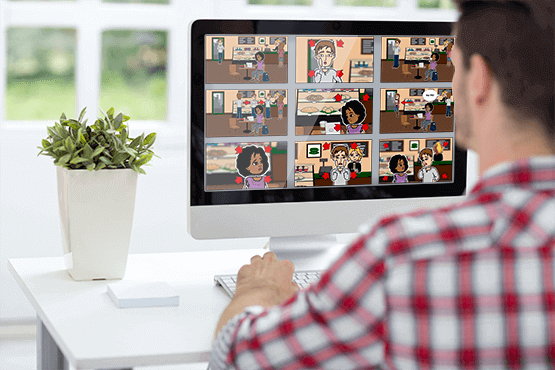



 All bots

 Registration details

 Identified technologies
User reviews (0)