Website profiles · Technology insights · Alternatives

systemuicons.com

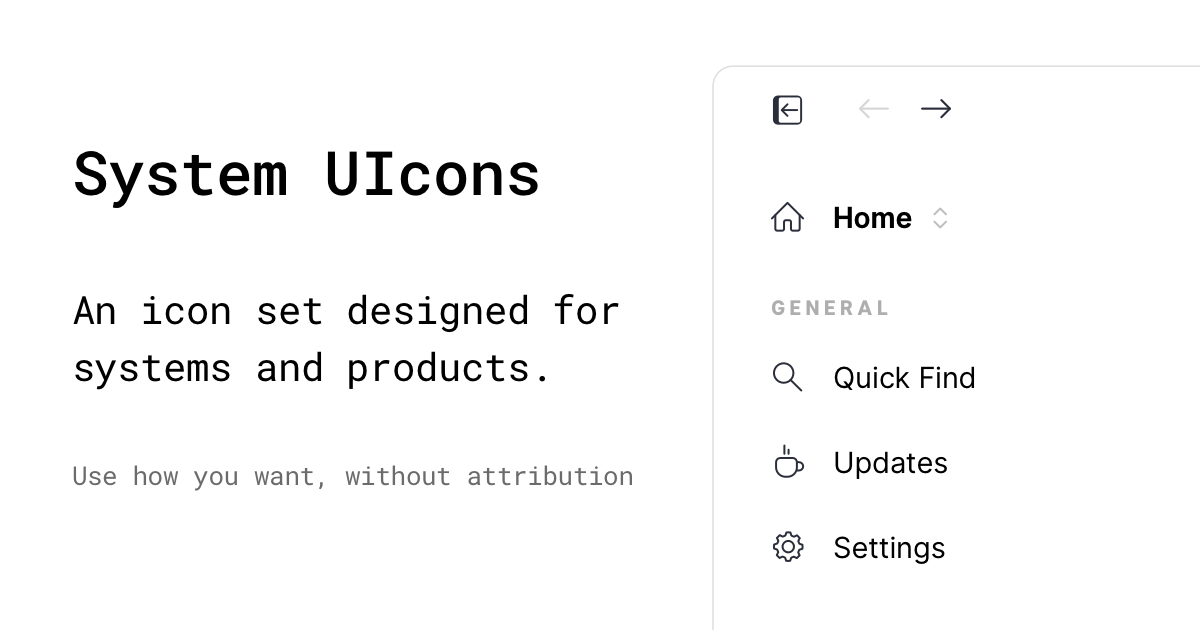
A free icon set designed for systems and products. Use how you want, without attribution.

No paid content found
Visit website
Profile views 10 Outbound visits 14 Normal
System UIcons Full homepage screenshot

At a glance

Category
Development
Language
English
Paid-content signal
No paid content foundObserved
Registered
2018
Hosting
VercelInferred
HTTPS certificate trusted
PassedObserved
Last updated

Website review

This review may include AI-generated content and is not individually verified. Domain, certificate and other facts come from the observed data on this page.

What is System UIcons?

System UIcons is a free icon set made for interfaces and products — websites, apps, dashboards and design systems. Its pitch is simplicity and consistency: the icons share a common visual style so they sit together without clashing. According to the site, you can use them however you want, with no attribution required, and the page offers practical ways to get them into a project: copying the SVG element, copying a CDN link, or downloading individual SVGs or the whole set.

Who it suits

  • Front-end developers who want to drop icons straight into markup via a CDN link or inline SVG.
  • Product designers building a small, coherent icon vocabulary for a UI rather than a sprawling illustration library.
  • Teams that want to avoid licence paperwork, since attribution isn't required.

Trade-offs to weigh

  • A consistent, minimal style is an advantage for UI chrome (navigation, buttons, status) but a poor fit if you need detailed, illustrative or brand-specific artwork.
  • "Use how you want" gives flexibility, but you're still responsible for checking that the set covers the specific metaphors your product needs — missing concepts mean mixing in another set, which can reintroduce the visual inconsistency the set was chosen to avoid.
  • Copying a CDN link is the fastest route, but it introduces an external dependency; downloading and self-hosting the SVGs avoids that at the cost of managing the files yourself.

Next step

Open System UIcons and search for the handful of icons your current screen actually needs. If most are present and the style matches your UI, copy the CDN links or download the SVGs and test them at your real display sizes before committing to the set across the product.

How do I use System UIcons in my project?

You can use System UIcons by copying the SVG markup directly into your HTML, linking to a CDN-hosted file, or downloading individual icons or the full set. The set is designed for systems and products, and the site states you can use it without attribution.

Three practical ways to add an icon

  • Inline SVG: Copy the SVG element from the site and paste it into your component or template. This gives you the most control: you can style it with CSS, animate parts of it, and change colors via currentColor or fill attributes.
  • CDN link: Copy the CDN link for a specific icon and reference it as an external image or asset. This is convenient for prototypes or when you don't want to manage local files.
  • Download files: Download a single SVG or the full set, then keep the icons in your project's assets folder. This works well for production builds where you want versioned, self-hosted assets.

Choosing between them

Method Best for Trade-off
Inline SVG Components that need styling or animation More markup in your files
CDN link Quick prototypes, small sites Depends on an external host
Downloaded files Production apps, offline use You manage updates yourself

A concrete example

If you are building a settings page in a React app, copy the SVG for a gear icon and paste it into a small Icon component. Set width and height to 1em, and use fill="currentColor" so the icon inherits the surrounding text color. That way the same icon works in a light or dark theme without extra files.

Next step

Decide whether you need per-icon control or just a simple image reference. If you need control, start with inline SVG for one icon and confirm it matches your design system's sizing and color rules. If you only need a few icons, download just those; if you expect to use many, download the full set and organize them in an icons/ folder.

You can find the set at System UIcons.

Do I need to credit or attribute System UIcons when using the icons?

No. System UIcons is described as free to use "without attribution," so you do not need to credit the project when you use its icons. The site also presents the set as designed for systems and products, which suggests the license is meant to fit normal commercial and internal product work rather than requiring a visible credit line.

That said, attribution-free use is not the same as having no practical constraints. The page evidence does not spell out a full license text, so if you are embedding icons in a redistributed design system, template or client deliverable, treat a quick check of the project's own terms as due diligence. In most everyday cases — app UI, dashboards, marketing pages, internal tools — you can simply use the icons and move on.

What this means in practice

  • Product and app interfaces: Use the icons directly, no footer or credits page needed.
  • Client work: You can hand over files without adding an attribution requirement.
  • Open-source or public projects: No obligation to mention System UIcons in your README or license file, though it is a reasonable courtesy if you want to support the project.
  • Redistributing the icon set itself: This is the one case where you should verify the exact terms, because "use how you want" is broad but not identical to a formal redistribution license.

A useful next step

If you want to confirm the terms for a specific use, look for the license or GitHub repository link on System UIcons and read the project's own statement. For a typical design or development task, no credit is required.

How can I download all the icons at once?

Use the Download All Icons option on the site. System UIcons provides that bulk download alongside its per-icon actions, so you do not need to save each SVG individually.

A practical workflow:

  1. Open System UIcons.
  2. Choose Download All Icons to get the full set in one archive.
  3. Unzip it into a project folder such as assets/icons/ and commit it to version control.
  4. If you only need one or two, use Download SVG Icon for a single file, Copy SVG Element to paste the markup straight into your code, or Copy CDN Link to reference the icon by URL.

The trade-off is between completeness and control. The bulk archive is fastest for design systems, prototyping and offline work, but it puts every icon in your repository, which increases size and makes updates a manual task. The CDN link avoids storing files locally and keeps icons current, but it adds a network dependency and is a poor fit for offline apps or strict content-security policies. Copying the SVG element is best when you want to inline icons for styling with CSS currentColor and avoid extra requests.

For a concrete case: a small team building a dashboard can download the full set once, keep only the icons actually used in the product, and delete the rest. That keeps the bundle lean while preserving the option to add more later without returning to the site for each file.

Note that the set is described as growing, so a bulk download is a snapshot. If you rely on the CDN links instead, you automatically get any additions without re-downloading.

Can I use System UIcons in a commercial product?

Yes. System UIcons states that its icons can be used "how you want, without attribution," which covers commercial products. You can place them in a paid app, a client website, or a commercial dashboard without crediting the set or paying a fee.

That said, "free to use" is not the same as "no rules." The site's own wording is the permission you're relying on, so treat it as the authority and keep a record of it. A few practical points:

  • Attribution is optional, but crediting the set is still a courteous gesture and costs nothing.
  • Don't resell the icons as an icon pack. Using them inside a product is different from repackaging the set itself as your own competing library.
  • Check before using a logo as a brand mark. Icons work well as UI elements; using one as your company's primary logo is a separate trademark question the set doesn't address.
  • Verify the current terms yourself if your project is high-stakes, since free sets occasionally change licenses.

A quick decision test: if you're embedding icons into an interface your users interact with, you're almost certainly fine. If you're redistributing the files as a product in their own right, look more carefully.

Next step: download the SVG you need, drop it into your project, and note the source and date in your asset credits file so future you knows where it came from.

What file formats are available for the icons?

System UIcons provides its icons in SVG format. From the page evidence, the site offers options to "Copy SVG Element," "Copy CDN Link," and "Download SVG Icon," along with a "Download All Icons" option. All of these point to SVG as the deliverable format.

Why this matters

SVG is a vector format, so icons stay sharp at any size — useful for interfaces that render at different resolutions or scale with user settings. You can drop the markup directly into HTML, style it with CSS (for example, changing fill or stroke), or reference it via a CDN link if you'd rather not bundle the files yourself.

Practical next step

If you're working in a codebase, the fastest route is usually to copy the SVG element inline for icons you need to recolor or animate, and use the CDN link for static ones. If you want the whole collection locally, use "Download All Icons" and add the folder to your project or design tool.

One thing to check

The page evidence lists only SVG. If your workflow requires raster formats like PNG or an icon font, you'd need to convert the SVGs yourself or look elsewhere. For most modern web and app work, SVG alone is enough — it's the format design systems generally standardize on.

Related questions

More questions →
Why can't I find a specific icon in System UIcons?

System UIcons is a growing collection, not a fixed catalog. If a search returns "No Matches Found," the icon you want likely hasn't been added yet. The set is designed for systems and products, and it expands over time, so an icon that's missing today may exist later. You can still use any icon that does appear by copying its SVG element, copying its CDN link, or downloading the SVG file.

Why a specific icon may be missing

The site describes itself as "a growing collection of simple and consistent icons specifically designed for systems and products." That wording matters: the library is intentionally curated and still being built out. It is not a comprehensive icon archive that covers every possible concept.

Common reasons a search comes up empty:

  • The icon hasn't been drawn yet. The set grows over time, so coverage is incomplete by design.
  • Your search term doesn't match the icon's label. A concept may exist under a different name or phrasing.
  • The concept is too specific. System UIcons favors simple, consistent icons for interfaces, so niche or highly detailed subjects are less likely to be included.
  • You're expecting a different style. Even when a similar icon exists, it may not match the visual style you had in mind.

What to do when you get "No Matches Found"

  1. Try broader or alternative search terms. Search for the general action or object rather than a precise phrase. For example, if a specific term fails, try the simpler concept behind it.
  2. Browse instead of searching. If search keeps failing, scan the visible set directly — you may spot a usable icon whose label you wouldn't have guessed.
  3. Use an available icon that fits. When you find something close, you have three ways to take it:
    • Copy SVG Element — copies the icon's SVG markup for pasting into your code.
    • Copy CDN Link — copies a hosted link you can reference directly.
    • Download SVG Icon — saves the individual SVG file.
  4. Check back later. Because the collection is growing, a missing icon may be added in a future update. Revisit the site periodically rather than assuming it will never exist.

Choosing between the available options

Option Best when What you get
Copy SVG Element You want to inline the icon in your markup SVG markup on your clipboard
Copy CDN Link You want to reference a hosted file without storing it A link to the hosted icon
Download SVG Icon You want a local file to manage yourself An SVG file saved locally
Download All Icons You want the whole set at once The full icon collection

If you need one icon now, copying the SVG element or downloading the single SVG is the fastest path. If you're setting up a project that will use many icons, downloading all icons gives you a local set to work from.

Practical workarounds for a missing icon

  • Substitute a close match. Pick an existing icon that conveys the same general meaning, even if it isn't a perfect literal fit.
  • Combine or adapt. Since you can copy the SVG element, you can modify an existing icon's markup to suit your needs.
  • Mix with another source. Nothing in the site's description requires you to use it exclusively, so you can fill gaps from elsewhere while keeping System UIcons for the rest.
  • Revisit as the set expands. Treat the current gap as temporary rather than permanent.

A note on usage

System UIcons states you can "use how you want, without attribution." That removes a common barrier when substituting or adapting icons — you don't need to add credit lines when you swap in a different icon or modify one. The site also shows a GitHub Sponsor option, which is a way to support the project, not a requirement for using the icons.

Quick checklist

  • Search returned nothing? Try a broader term or browse the set directly.
  • Found a close match? Copy the SVG element, copy the CDN link, or download the SVG.
  • Need many icons? Use Download All Icons.
  • Still missing? Substitute, adapt an existing SVG, or check back as the collection grows.
What kinds of projects are System UIcons designed for?

System UIcons is built specifically for systems and product interfaces — dashboards, admin panels, SaaS tools, developer platforms, and similar software UIs. Its simple, consistent style and "use how you want, without attribution" terms make it a practical fit for product teams that need a coherent icon set across an interface. It is less aimed at decorative, illustrative, or brand-heavy design work.

What the set is designed for

The source describes System UIcons as "a growing collection of simple and consistent icons specifically designed for systems and products." That positioning points to a few concrete project types:

  • Product interfaces — buttons, toolbars, navigation, status indicators, and other functional UI elements.
  • Systems and dashboards — admin panels, settings screens, data views, and internal tools where clarity matters more than decoration.
  • Developer-facing products — consoles, editors, and platforms that benefit from a restrained, uniform icon language.
  • Multi-screen products — because the style is consistent, icons hold together across many views and states.

What makes it suitable

Simple and consistent visual style

The icons share one visual language, so mixing them within a single product does not create the mismatched look you get from combining sets from different sources. For a product UI, that consistency is usually the main reason to pick a single set.

Growing collection

The set is described as growing, which matters for products that keep adding features and need new icons over time without switching styles.

Flexible usage terms

The site states you can "use how you want, without attribution." For product teams, that removes the usual licensing friction of crediting an icon author in the UI or documentation.

Where it fits less well

  • Marketing and brand illustration — the set is functional rather than expressive, so it is not a substitute for custom brand artwork.
  • Highly stylized or themed designs — a simple, uniform set will not match a decorative or heavily themed visual identity.
  • Projects needing a fixed, frozen icon library — a growing collection is an advantage for evolving products but less relevant if you need a permanently static set.

How to decide

Your project Good fit? Why
SaaS dashboard or admin panel Yes Functional, consistent icons for UI elements
Developer tool or console Yes Restrained style suits technical interfaces
Product with many screens and states Yes One consistent language across the whole UI
Brand or marketing illustration No Not designed for expressive or decorative use
Heavily themed visual identity Unlikely Simple uniform style may clash

If your goal is a coherent, low-friction icon set for a software product, System UIcons is designed for exactly that. If you need expressive artwork or a branded illustration style, look elsewhere.

How to Add a System UIcons Icon to Your Project

System UIcons gives you four ways to get an icon into your project: copy the SVG element, copy a CDN link, download a single SVG file, or download the whole set at once. Pick the copy options for quick, code-level use, and the download options when you need files stored locally. The set is described as free to use without attribution, so no credit line is required in your project.

Option 1: Copy the SVG element

Best when you want to paste the icon straight into HTML, JSX, or a template.

  1. Find the icon you want on systemuicons.com.
  2. Use the Copy SVG Element action on that icon.
  3. Paste it into your markup where the icon should appear.

Expected result: inline <svg> markup in your file. Because it's inline, you can style it with CSS (for example fill or stroke) and it inherits your page's color rules. No extra network request is made.

Watch out for: pasting the same inline SVG many times bloats your markup. If you repeat an icon dozens of times, a sprite or a downloaded file is usually cleaner.

Option 2: Copy the CDN link

Best when you want to reference the icon by URL instead of embedding markup.

  1. Find the icon on systemuicons.com.
  2. Use the Copy CDN Link action.
  3. Use that URL as an <img src="...">, a CSS background-image, or wherever your project accepts an image URL.

Expected result: the icon loads from the CDN at render time. Your markup stays short, and updates to the hosted file are picked up automatically.

Watch out for: a CDN link depends on an external host being reachable. If your project must work offline or you need strict control over assets, download the SVG instead.

Option 3: Download a single SVG icon

Best when you need one icon as a local file.

  1. Find the icon on systemuicons.com.
  2. Use the Download SVG Icon action.
  3. Save the file into your project's assets or icons folder.
  4. Reference it from your code (for example an <img> tag or an import, depending on your build setup).

Expected result: a local .svg file you control. It works offline and version-controls with your project.

Watch out for: you're responsible for keeping it updated if you later want a revised version of the icon.

Option 4: Download all icons at once

Best when you're building a design system or expect to use many icons.

  1. Use the Download All Icons action on the site.
  2. Unpack the archive into a dedicated icons directory.
  3. Reference individual files from your code, or wire them into your build pipeline.

Expected result: the full set available locally, so you can browse and pick icons without returning to the site.

Watch out for: a full set adds many files to your repo. If you only need a handful, downloading them individually keeps your project lean.

Choosing between the four

Method Output Works offline Best for
Copy SVG element Inline <svg> markup Yes One-off icons you want to style with CSS
Copy CDN link External URL No Short markup, hosted assets
Download SVG icon Local .svg file Yes A few icons you want to control
Download all icons Full local set Yes Design systems and icon-heavy projects

Common snags

  • Icon doesn't show up after pasting inline SVG. Check that you copied the full element, including the opening and closing <svg> tags, and that no CSS rule is hiding it.
  • CDN icon looks broken. Confirm the link was copied in full and that your environment allows external requests.
  • Downloaded icon won't render. Make sure the file kept its .svg extension and that your build tool is configured to handle SVG assets.
  • Search returns nothing. The site shows a "No Matches Found" state, so try a shorter or more general term.

Quick answer on credit and cost

The site describes the set as free to use without attribution, so you don't need to add a credit line when you use an icon. If you want to support the project, the page includes a GitHub Sponsor option.

Do I Need to Credit System UIcons or Pay to Use the Icons?

No. System UIcons is described as a free icon set, and the site states you can "use how you want, without attribution." That means you are not required to credit System UIcons when you use the icons, and there is no pricing mentioned on the site. The set is designed for systems and products, so it is intended to be usable in both personal and product contexts.

What the site says

The site's own description is short and direct:

  • Free icon set — described as "A free icon set designed for systems and products."
  • No attribution — "Use how you want, without attribution."
  • Purpose — icons are "specifically designed for systems and products."

There are no pricing links, payment platforms, or price-related keywords on the page. Nothing on the page suggests a paid tier, a license fee, or a required credit line.

What this means in practice

Question Answer based on the site
Do I have to credit System UIcons? No — the site says no attribution is required.
Do I have to pay? No pricing is mentioned; it is described as free.
Can I use them in a product? The set is designed for systems and products, so product use is the stated intent.
Can I use them for personal projects? The site says "use how you want," which covers personal use.

How to get the icons

The page provides several ways to take an icon:

  • Copy SVG Element — copy the SVG markup directly.
  • Copy CDN Link — copy a hosted link to the icon.
  • Download SVG Icon — download an individual icon file.
  • Download All Icons — download the full set.

If you use the CDN link, the icon is served from an external host, so your page depends on that host being reachable. If you copy the SVG element or download the file, the icon lives in your own project and has no external dependency. For production systems, embedding or self-hosting is usually the more predictable choice.

Points worth checking yourself

The page states no attribution is required, but it does not spell out a formal license name on the material provided here. If your project has strict legal or compliance requirements, confirm the exact license terms on the site or its repository before shipping. Also note that "no pricing mentioned" is not the same as a written guarantee of permanence — if the terms matter to you, keep a record of the license statement at the time you download.

For most everyday uses — a dashboard, an internal tool, a side project, a product UI — the practical answer is simple: use them, no credit line needed, no payment needed.

What Is System UIcons?

System UIcons is a free, growing collection of simple and consistent icons designed specifically for systems and products. You can use the icons however you want, without attribution. If you need a lightweight icon set for a UI, dashboard, or product interface and don't want to deal with licensing paperwork, it's built for exactly that use case.

What the icon set offers

Based on the site's own description, the core value is straightforward:

  • Free to use — no cost is stated, and the set is described as free.
  • No attribution required — you don't have to credit System UIcons anywhere in your product or documentation.
  • Designed for systems and products — the style is meant to fit functional interfaces rather than decorative illustration.
  • Simple and consistent — icons share a uniform visual language, which matters when you're placing many of them side by side.
  • Growing collection — the set is actively expanding rather than frozen.

How you get the icons

The site exposes several ways to pull an icon into your project, which tells you it's aimed at developers as much as designers:

Method What it's for
Copy SVG Element Paste the raw SVG markup directly into your HTML or component
Copy CDN Link Reference the icon from a hosted URL
Download SVG Icon Save an individual icon file locally
Download All Icons Grab the entire set at once

A search field is also present; when a query returns nothing, the page shows "No Matches Found."

When to choose it

System UIcons fits well when:

  • You're building a product UI and want icons that read as functional, not decorative.
  • You want to avoid attribution requirements entirely.
  • You prefer working with raw SVG or CDN links rather than a bundled icon font or framework package.

It may fit less well if you need a fixed, versioned set with a formal release history, or if you need highly detailed or illustrative icons — the description emphasizes simple, consistent, system-oriented design.

Practical notes

  • Licensing: The site states no attribution is required and that you can "use how you want." That's the claim to rely on; check the site directly if you need the exact wording for compliance records.
  • Pricing: The set is described as free. No pricing links or payment platforms appear in the available page information, so there's nothing indicating a paid tier.
  • Workflow: For a quick start, use the search to find an icon, then either copy the SVG element into your code or copy the CDN link if you'd rather not inline the markup. Use "Download All Icons" if you want the full set available offline.

In short: System UIcons is a no-attribution, free SVG icon set built for product and system interfaces, with copy, CDN, and download options for getting icons into your work.

Website Overview

An established domain and managed infrastructure suggest continuity of operations and may support dependable delivery, although neither guarantees service quality.

Domain and Registration

Registered in 2018, this domain has about 7 years of history. That suggests continuity, although ownership and purpose may have changed. Transfer-protection status is present, helping reduce the risk of unauthorized domain transfers. The domain uses the common .com extension, which is not an independent safety signal.

DNS and Email

The lowest TTL is 60 seconds, supporting rapid record changes at the cost of more frequent lookups. Nameservers are provided by vercel-dns-2.com, indicating managed DNS hosting. CAA records restrict which certificate authorities are authorized to issue certificates. No CNAME was found; the observed records resolve directly to addresses. No MX record was found. A conventional explicit inbound-mail route is not configured.

TLS and Certificates

The certificate uses an RSA 2048-bit public key, offering broad client compatibility. The server supplied a complete certificate chain. No organization name is present in the certificate; the available fields are consistent with domain validation. The certificate was issued by Let's Encrypt, commonly associated with automated certificate services. The certificate's total validity is about 89 days, consistent with a short renewal cycle.

HTTP and Browser Security

The response lacks these common security headers: CSP, X-Content-Type-Options, Referrer-Policy, Permissions-Policy, clickjacking protection. CORS permits any origin to read this response. This is common for public resources; sensitive responses need narrower handling. No X-Powered-By header was found, reducing one common source of backend fingerprinting information. No obvious internal addresses or debug information were found in the headers. The Server header contains the custom value Vercel.

Technology Stack Analysis

The public page identifies Alpine.js, Vercel without precise versions, leaving fewer clues for version-specific scanning.

Search and Social Sharing

No homepage canonical URL was detected. If duplicate URLs exist, consolidation may be less explicit. Twitter Card metadata is configured. The title has 13 characters, within a common display range. A meta description is present, with 89 characters. The observed directives allow indexing and link following.

Hosting and Email

DNSvercel-dns-2.com
HostingVercel
EmailUnknown
Approximate IP geolocation (inferred; a CDN or proxy may differ from the origin server) United States flagWalnut, California, United States Inferred 76.76.21.164

Registration details

RDAP / WHOIS

Registrar1API GmbH
Registered2018-10-29
Expires2026-10-29
Domain statusclient transfer prohibited
Nameserversns1.vercel-dns-2.com、ns2.vercel-dns-2.com
DNSSECunsigned

DNS records

DNS

TypeNameValueTTLPriority
Awww.systemuicons.com76.76.21.1641800—
Awww.systemuicons.com76.76.21.221800—
NSsystemuicons.comns1.vercel-dns-2.com86400—
NSsystemuicons.comns2.vercel-dns-2.com86400—
CAAsystemuicons.com0 issue "letsencrypt.org"60—
CAAsystemuicons.com0 issue "pki.goog"60—
CAAsystemuicons.com0 issue "sectigo.com"60—

TLS and certificates

TLS / SSL

AssessmentNormal configuration
Supported protocolsTLSv1.2、TLSv1.3
Negotiated protocolTLSv1.3
Certificate subject*.systemuicons.com
IssuerLet's Encrypt
Valid until2026-11-23T11:35 · Remaining when checked: 54 days
Verification detailsCertificate trust: Passed · Hostname match: Passed

HTTP response headers

HTTP

HeaderValue
content-typetext/html; charset=utf-8
cache-controlpublic, max-age=0, must-revalidate
serverVercel
strict-transport-securitymax-age=63072000
access-control-allow-origin*

Identified technologies

Alpine.jsVercel

Pages, Search and Sharing

Meta descriptionA free icon set designed for systems and products. Use how you want, without attribution.
Canonical URLNot detected
LanguageEnglish (default)
Twitter Cardsummary_large_image

No robots.txt found

No sitemaps found

User reviews (0)

  • No reviews yet.