Website profiles · Technology insights · Alternatives

tailwindpdf.com

Effortlessly transform your HTML files into PDFs or images using our advanced tool, designed specifically for TailwindCSS enthusiasts. Experience a smooth conversion process, perfect for developers and designers alike.

No paid content found
Visit website
Profile views 2 Outbound visits 0 Normal
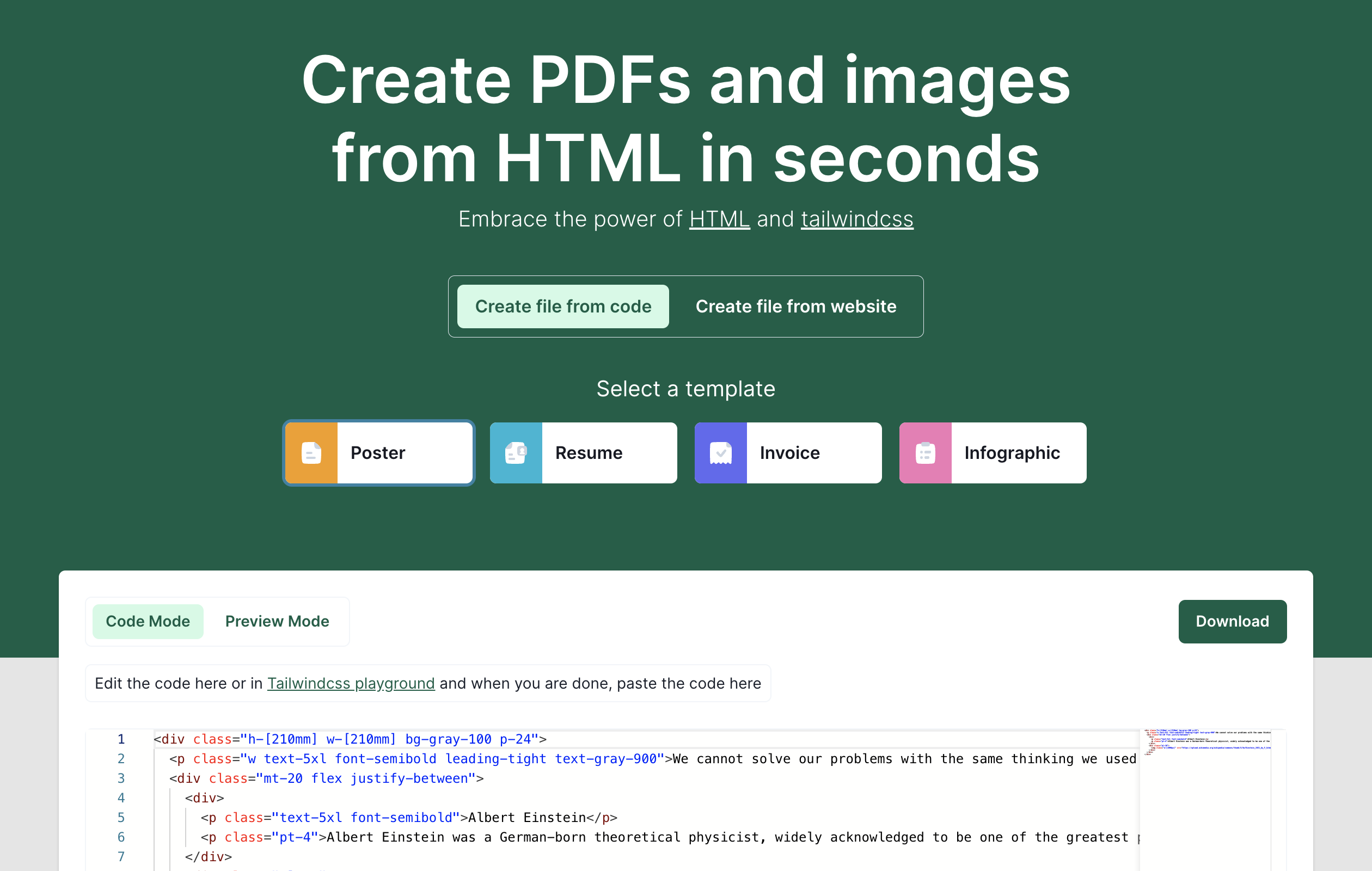
Convert HTML to PDF or Image Seamlessly with Our TailwindCSS Tool Full homepage screenshot

At a glance

Category
Other
Language
English
Paid-content signal
No paid content foundObserved
Registered
2022
Hosting
VercelInferred
HTTPS certificate trusted
PassedObserved
Last updated

Website review

This review may include AI-generated content and is not individually verified. Domain, certificate and other facts come from the observed data on this page.

What is TailwindPDF?

TailwindPDF is a browser-based conversion tool for turning HTML and TailwindCSS markup into PDFs or images. You paste in code you have written or edited elsewhere, preview the result, and download it as a document or image file.

What it is designed for

  • TailwindCSS users. The tool assumes your HTML is styled with Tailwind utility classes, so the preview and output should reflect that styling.
  • Template-driven documents. Its template list points to common business and content formats: poster, resume, invoice, infographic.
  • Quick one-off exports. The workflow is paste, preview, download — no build step or local rendering pipeline is described.

How it fits into a real workflow

A practical example: you draft a resume in HTML with Tailwind classes, check it in the TailwindCSS playground, then paste the final markup into TailwindPDF to produce a PDF for an application. The same applies to an invoice generated from an app or a one-page infographic you want to share as an image.

The trade-off is control. A paste-and-convert tool is convenient for single documents, but if you need automated batch generation, precise print settings, or PDFs produced inside an existing application, a rendering library or headless-browser approach may fit better. For design work where you want to iterate on layout before exporting, keep editing in a live environment first.

A sensible next step

Open TailwindPDF, choose the template closest to your document type, paste your Tailwind-styled HTML, and compare the preview against your source. If the output diverges, simplify the markup or move styling into inline classes before exporting.

How do I convert HTML with TailwindCSS classes into a PDF or image?

Paste your HTML into the tool's code box, keep the Tailwind classes intact, preview the rendered result, then download it as a PDF or image. The page centers on exactly that loop: a code editor, a preview, and a download step, with starter templates for a poster, resume, invoice, infographic and code mode.

What the workflow looks like

  1. Build or copy your markup. The page suggests editing in the TailwindCSS playground first, then pasting the finished code into the tool.
  2. Choose a starting point if you don't have code yet — templates cover common document types.
  3. Switch between code and preview to check that classes actually resolved.
  4. Download as PDF or image.

The catch with Tailwind and print output

Tailwind classes are CSS, so they only survive if the converter loads a stylesheet that defines them. Two things break most attempts:

  • Missing CSS. If your HTML relies on a CDN build of Tailwind that the renderer can't fetch, the output looks unstyled. Inline compiled CSS or a reachable stylesheet is safer.
  • Print-unfriendly utilities. Screen utilities like hover:, fixed, and viewport units behave differently on a fixed page. Use print variants such as print: and explicit page dimensions.

Choosing between PDF and image

Output Best for Trade-off
PDF Resumes, invoices, multi-page documents Text stays selectable; layout must respect page breaks
Image Posters, social graphics, single-page visuals Fixed resolution; text is no longer editable or searchable

Practical next step

Start with the invoice or resume template, replace the content, and download once before customizing. That tells you quickly whether your styling survives the conversion. For Tailwind syntax and utility behavior, the official docs at Tailwind CSS are the reliable reference; general HTML-to-PDF behavior is also documented by MDN Web Docs.

Can I use TailwindPDF to create a resume or invoice from a template?

Yes. TailwindPDF is built around exactly that workflow: you pick a template, edit the HTML and TailwindCSS, preview it, then download the result as a PDF or an image. The templates shown on the page include Poster, Resume, Invoice, Infographic, plus Code Mode and Preview Mode for editing and checking your layout before export.

How the template workflow fits resumes and invoices

  • Resume: choose the Resume template, replace the placeholder text with your own details, adjust spacing and typography with Tailwind utility classes, preview, then download a PDF you can attach to applications.
  • Invoice: choose the Invoice template, swap in your company details, client details, line items, totals and dates, then export a PDF to send to a customer.
  • Code Mode is where structural changes happen (adding or removing sections, reordering blocks); Preview Mode shows what the exported file will look like.

Practical trade-offs

A template gets you a clean starting layout without writing CSS from scratch, but you are still editing HTML and Tailwind classes, so it suits developers and designers comfortable in markup. If you need pixel-level control over a print layout, expect to iterate on margins, page breaks and font sizes in Preview Mode before the PDF looks right. Image export is useful for sharing a quick visual on social media or in a chat, while PDF is the better choice for anything a recruiter or client will print or archive.

A sensible next step

Open the Resume template, replace only the text fields first, preview and export once to confirm the page fits and nothing is clipped. Then refine styling. Once that works, reuse the same approach for the Invoice template — the editing pattern is identical, so the second document takes far less time than the first.

For a broader comparison of HTML-to-PDF approaches if you outgrow a browser-based tool, WeasyPrint and wkhtmltopdf are established options, though neither is Tailwind-specific.

What are Preview Mode and Code Mode in TailwindPDF?

Preview Mode and Code Mode are the two working views in TailwindPDF, a browser tool that turns HTML styled with TailwindCSS into PDFs or images.

  • Code Mode is where you write or paste your HTML and TailwindCSS markup. The page evidence shows the prompt "Edit the code here or in Tailwindcss playground and when you are done, paste the code here," so the intended workflow is to author elsewhere if you like, then drop the finished code in.
  • Preview Mode renders that markup so you can see the result before downloading. The interface pairs both modes with a template picker (Poster, Resume, Invoice, Infographic) and a Download action, so preview is the checking step between writing code and exporting.

How they differ

Code Mode Preview Mode
What you do Write or paste HTML/TailwindCSS Visually inspect the rendered output
Typical moment Start of a task, or after edits Before downloading
Main risk Broken markup or unsupported classes Assuming the preview matches the final PDF or image exactly

A practical scenario

Say you are producing an invoice. You pick the Invoice template, switch to Code Mode to adjust the header and line-item loop, then switch to Preview Mode to confirm spacing and page breaks. Only then do you download. If something looks wrong, you go back to Code Mode rather than re-uploading a file.

Decision criterion

Use Code Mode when precision matters and you are comfortable editing markup; use Preview Mode whenever layout fidelity matters, especially for anything paginated. Because previews are rendered in a browser, treat them as a strong guide rather than a guarantee — check the downloaded file itself for fonts, margins and page breaks.

A useful next step: keep your source HTML in a separate file or in a Tailwind playground so you can re-paste and re-export without losing work. For broader Tailwind reference, the official docs are at Tailwind CSS.

Is TailwindPDF free to use, or does it require payment?

TailwindPDF presents itself as a free browser-based converter for turning HTML and TailwindCSS markup into PDFs or images. The page evidence shows a template picker (Poster, Resume, Invoice, Infographic), a code/preview mode, and a download button, with no pricing page, plan names, or payment platform mentioned anywhere on the site. That absence is a useful signal, but it is not a guarantee: a tool can be free at launch and add paid tiers later.

How to judge the cost for your case

  • If you just need occasional exports: Treat it as free to try. Paste your markup, preview it, and download the result. No account or card prompt appears in the described flow.
  • If you plan to rely on it for client work: Check the live site for any usage limits, watermarking, or terms before you build a workflow around it. Free tools sometimes cap file size, export count, or resolution.
  • If you need guaranteed uptime or support: A free, no-pricing-page tool usually comes without an SLA. For production pipelines, a paid alternative may be worth the cost.

Practical scenario

A freelance designer building an invoice template in TailwindCSS could use the Invoice template, adjust the code, preview it, and download a PDF for a client without paying. A team generating hundreds of documents a month should verify whether bulk use is permitted and whether output quality holds at scale, since those are the points where free tools typically introduce limits or paid tiers.

Next step: Open TailwindPDF, run one real export, and note whether any paywall, quota, or watermark appears. That single test tells you more than the marketing copy.

Can I paste code from the TailwindCSS Playground directly into TailwindPDF?

Yes. TailwindPDF is built around that workflow: you edit HTML and Tailwind classes in the Tailwind Playground (or in the tool's own Code Mode), then paste the finished markup into its code field and convert it to a PDF or image. The page's own instruction — "Edit the code here or in Tailwindcss playground and when you are done, paste the code here" — confirms that pasting from the Playground is an expected path, not a workaround.

What to expect when pasting

  • Code Mode vs. Preview Mode. Code Mode is where the pasted markup lives; Preview Mode renders it so you can check layout before downloading.
  • Templates are a starting point. Built-in templates like Poster, Resume, Invoice, Infographic and Code are useful if you want a working structure rather than a blank canvas.
  • Output choice. The same source can produce either a PDF or an image, so a single paste can serve a print-ready document and a shareable graphic.

Practical caveats

The Playground renders in a browser tab; a PDF or image converter renders to a fixed canvas, which behaves differently in a few common ways:

  • Viewport-dependent classes. md: and lg: breakpoints resolve against the converter's page width, not your monitor, so a layout that looks right on screen may collapse or expand unexpectedly. Design mobile-first, or set explicit widths.
  • Interactive and dynamic content. Hover states, dropdowns, animations, and anything injected by JavaScript after load generally won't survive into a static PDF or image. Convert the state you want frozen.
  • Fonts and external assets. Custom fonts, remote images, and icon sets need to be reachable at conversion time. Self-hosted or inline assets are safer than third-party CDN links.
  • Page breaks. Long documents need deliberate break control; a single tall page and a multi-page PDF are different design problems.

A sensible first test

Paste a short, self-contained snippet — a heading, a Tailwind card, one image — and download both a PDF and an image. Compare them against the Playground preview. If breakpoints, fonts, and spacing hold up, scale up to the real document. If something shifts, fix it in the markup before adding more content, since debugging a 10-line snippet is far quicker than debugging an invoice.

For rendering production HTML beyond a single pasted snippet, dedicated engines such as wkhtmltopdf or a headless-browser pipeline give you scriptable, repeatable control; TailwindPDF's strength is the quick paste-and-download loop for one-off documents and visuals.

Related questions

More questions →
PDF Invoices in Legal Billing: What to Include and When to Use Them

A PDF invoice in legal billing is a fixed-format document that presents the fees and costs owed on a matter in a layout that looks the same on every device. It is the digital equivalent of a printed bill: readable, portable, and easy to attach to an email or upload to a client portal. Its main limitation is that it is not machine-readable in the way a LEDES file is, so a client's e-billing system cannot automatically ingest it. PDF works best for flat-fee matters, small or one-off engagements, and clients who do not run an automated billing platform.

What "PDF" means in a legal billing context

When a billing tool offers to send an invoice "in PDF," it is generating a rendered document rather than a structured data file. The distinction matters:

  • PDF is a presentation format. A human reads it. Line items, totals, and matter details appear as text and tables on a page.
  • LEDES (Legal Electronic Data Exchange Standard) is a structured, delimited text format. An e-billing system parses it, validates it against outside counsel guidelines, and routes it for review.
  • Email delivery is a transport method, not a format. You can email a PDF, email a LEDES file, or email a link to an online invoice.

These three are often confused because a single invoice can combine them: a LEDES file delivered by email, or a PDF attached to an email. The format is what the client's systems can read; the delivery method is how it arrives.

When a PDF invoice is the right choice

PDF is usually appropriate when the client does not require electronic submission through a billing platform. Common scenarios:

  • Flat-fee and fixed-price matters. When the invoice is one or two lines, a structured file adds no value.
  • Small businesses and individuals. Clients without an accounts payable system can open a PDF and pay from it.
  • Retainers and replenishment requests. A simple statement of the retainer balance is easy to read as a PDF.
  • Pro bono or courtesy bills. Where no formal e-billing review applies.
  • Backup documentation. Even when a LEDES file is submitted, a PDF is often attached for the reviewer's convenience.

If the client has outside counsel guidelines requiring LEDES submission, a PDF alone will typically be rejected or returned for manual entry. Check the client's billing requirements before choosing the format.

PDF versus LEDES versus emailed invoice: a quick comparison

Factor PDF LEDES Email (as delivery)
Machine-readable No Yes N/A
Accepted by e-billing platforms Rarely Yes Depends on attachment
Setup effort Low Higher (mapping fields) Low
Best for Flat fees, small clients, backup Corporate and insurer clients Any format
Risk Manual re-entry by client Format rejection if fields are wrong Lost or filtered messages

Core elements of a compliant legal PDF invoice

A PDF invoice should stand on its own. If a client's AP department picks it up with no context, it should still answer who, what, when, and how much.

Firm and client identification

  • Firm name, address, and contact details
  • Tax or VAT identification number where applicable
  • Client name and billing contact
  • Invoice number and invoice date
  • Client matter number or reference

Matter and timekeeper detail

  • Matter name and description
  • For each timekeeper: name, initials, and billing rate
  • Time entries with date, narrative description, and time recorded in tenths of an hour
  • Clear separation of fee earners if rates differ

Fees, expenses, and totals

  • Fees subtotal
  • Disbursements and expenses, itemized with dates
  • Taxes applied
  • Prior payments, credits, or trust retainer applied
  • Total amount due and currency

Payment terms

  • Due date and payment window
  • Accepted payment methods
  • Remittance details or a payment link
  • Late-payment terms if the engagement letter specifies them

A useful test: hand the PDF to someone who has never seen the matter and ask them to confirm the amount due and the period covered. If they hesitate, the invoice is missing something.

Practical limitations to plan around

PDF invoices shift work to the recipient. Someone at the client has to read the document and key the data into their system, which introduces delay and transcription errors. PDFs also cannot be validated against billing guidelines automatically, so a reviewer may reject a line item that a LEDES rule would have caught before submission.

Two habits reduce the friction:

  1. Send a consistent template. Clients learn where to find the total, the matter number, and the payment terms.
  2. Keep a LEDES version in reserve. If a client later adopts an e-billing platform, you can convert rather than rebuild.

Choosing between PDF, LEDES, and email delivery

Work from the client's requirements backward:

  • Does the client mandate LEDES submission? If yes, PDF is a supplement, not a substitute.
  • Is the matter flat-fee or very small? PDF is usually sufficient.
  • Does the client have no billing system? PDF delivered by email or portal is the simplest path.
  • Is the invoice complex with many timekeepers and expenses? A structured format reduces disputes, even if the client accepts PDF.

When in doubt, ask the client's billing contact which format they prefer and whether a PDF attachment is acceptable alongside any required file. That one question prevents most rejected invoices.

Easy Legal Billing supports sending or scheduling invoices in LEDES, email, or PDF formats, which lets you match the format to each client's requirements rather than forcing one approach across every matter.

How Do You Convert Tailwind CSS HTML to PDF or an Image With TailwindPDF?

Open tailwindpdf.com, choose a template or switch to Code Mode, edit or paste your Tailwind CSS HTML, check it in Preview Mode, then download the result as a PDF or image. This works for anyone who has Tailwind-based HTML and wants a shareable PDF or image without setting up a separate rendering pipeline. The tool is built specifically around TailwindCSS, so it is a fit when your markup relies on Tailwind utility classes rather than a custom stylesheet.

What TailwindPDF Is Built For

TailwindPDF is a browser-based converter that turns HTML styled with TailwindCSS into PDFs or images. The page describes it as a way to "create PDFs and images from HTML in seconds" and to "embrace the power of HTML and tailwindcss."

That framing tells you the intended workflow: you bring HTML that already uses Tailwind classes, and the tool handles the conversion step. It is not a general-purpose document editor, and it is not a design tool that generates layouts for you. You supply the markup; it produces the file.

Step-by-Step: Converting Your HTML

1. Open the tool and pick a starting point

Go to tailwindpdf.com. You can either:

  • Select a template — the page lists Poster, Resume, Invoice, and Infographic.
  • Switch to Code Mode to work directly with your own HTML.

If you already have finished markup, Code Mode is the faster path. If you are starting from scratch or want a layout reference, a template gives you working Tailwind structure to modify.

2. Add your Tailwind CSS HTML

You have two ways to get code in:

  • Edit in the built-in editor. The page notes you can "edit the code here."
  • Paste from the Tailwind CSS playground. The page suggests editing "in Tailwindcss playground and when you are done, paste the code here."

The second option is useful if you prefer prototyping in a familiar environment before converting. Build and refine the layout where you normally work, then move the final code into TailwindPDF.

3. Check the render in Preview Mode

The interface separates Code Mode and Preview Mode. Switch to Preview Mode to see how the HTML actually renders before you convert.

This step matters because the preview is your only chance to catch layout problems before the file is generated. Confirm that spacing, fonts, and element positions look the way you expect.

4. Download as PDF or image

Use the Download control to export the result. The page presents PDF and image as the two output types, so pick whichever fits your use case — a PDF for documents you want to print or send, an image for something you want to drop into a chat, slide, or web page.

5. Verify the output

Open the downloaded file and compare it against what you saw in Preview Mode. Check that:

  • No content is cut off at the edges.
  • Colors and fonts match the preview.
  • Multi-page content (if applicable) breaks where you expect.

If the file does not match, return to the editor, adjust, and re-export.

Common Problems and What to Check

Symptom Likely cause What to try
Preview looks unstyled or broken Tailwind classes are not being applied Confirm your markup uses valid Tailwind utility classes and that class names are spelled correctly
Preview is blank HTML structure is incomplete or a tag is unclosed Check for unclosed elements and make sure there is visible content in the body
Download does not produce a file Conversion did not complete Wait for the process to finish (the page shows a loading state), then retry the download
Output differs from preview Content overflows the page or viewport Reduce fixed widths, simplify the layout, and re-check in Preview Mode

The loading indicator on the page ("Loading...") signals that conversion takes a moment. If a download seems to fail, give it time to finish rather than clicking repeatedly.

When This Tool Fits — and When It Does Not

Use TailwindPDF when:

  • Your HTML already uses TailwindCSS classes.
  • You want a quick PDF or image without configuring a headless browser or a server-side renderer.
  • You are producing a one-off document like a resume, invoice, poster, or infographic.

Look elsewhere when:

  • Your styling depends on a custom CSS framework or plain CSS that is not Tailwind-based — the tool is positioned around TailwindCSS specifically.
  • You need automated, high-volume batch conversion as part of a build pipeline; a browser tool is built for interactive, one-at-a-time use.
  • You need precise control over PDF metadata, page numbering, or print-specific rules that a general PDF library would give you.

The page does not state pricing or whether an account is required, so treat those as unknown until you check the site directly.

A Practical Example

Say you need a one-page invoice as a PDF. You could:

  1. Open tailwindpdf.com and select the Invoice template.
  2. Replace the placeholder text with your line items, totals, and client details.
  3. Switch to Preview Mode to confirm the table and totals align correctly.
  4. Download as a PDF and open it to verify nothing is clipped.

The same flow works for a resume (select the Resume template, edit, preview, download) or a social graphic (start from the Poster template, export as an image instead of a PDF).

What Can You Actually Do With a Free Hosted REST API Like ReqRes?

A free hosted REST API like ReqRes gives you a real HTTP endpoint you can call immediately—no signup, no local server, no database setup. You get predictable JSON responses for users, resources, login, and registration, which makes it useful for front-end demos, integration tests, learning HTTP clients, and prototyping. What it is not is a production backend for your app: the data is shared, resets periodically, and you don't control the schema. If you need persistent, private data with auth and logs, that's where an account-based backend or a commercial licence comes in.

What "free REST API for testing and prototyping" actually means

The phrase sounds vague, so it helps to separate two things people often conflate:

  • A mock/sample API — a public, hosted service with fixed or semi-fixed endpoints that return realistic-looking JSON. You don't own the data. It exists so you can point code at a URL and get a response.
  • A real backend you configure — a service where you define collections, schemas, authentication, and logging, and where your data persists and belongs to you.

ReqRes's landing page describes both: a free REST API for testing and prototyping with real responses and no signup, plus an option to build your own backend with collections, auth, and logs at app.reqres.in. Those are different products with different trade-offs. The free public endpoints are the "point and go" part; the account-based backend is the "own your data" part.

What you can do with the no-signup public endpoints

1. Front-end demos without a backend

If you're building a UI and need data to render, you can fetch from a public endpoint instead of hardcoding arrays. This keeps your demo code closer to real fetch logic:

async function loadUsers(page = 1) {
  const res = await fetch(`https://reqres.in/api/users?page=${page}`);
  if (!res.ok) throw new Error(`HTTP ${res.status}`);
  const { data, total, page: current } = await res.json();
  return { users: data, total, page: current };
}

You get pagination fields, a data array, and support metadata—enough to build list views, loading states, and empty states.

2. Integration and contract tests

You can assert that your HTTP layer handles status codes, headers, and JSON shapes correctly. Typical checks:

  • GET /api/users/2 returns 200 with a data object.
  • GET /api/users/23 returns 404 (a non-existent user).
  • POST /api/login with valid credentials returns a token; with missing fields returns 400.

This is useful for testing your client wrapper, retry logic, error handling, and serialization—without spinning up your own server.

3. Learning HTTP clients and tooling

If you're new to fetch, Axios, curl, Postman, or HTTPie, a hosted API is a low-friction target. You can practice:

  • Sending query parameters (?page=2, ?delay=3).
  • Setting headers and reading response headers.
  • Handling POST, PUT, PATCH, DELETE.
  • Observing status codes for success and failure.

4. Deliberate failure and latency testing

Endpoints that return 404 on purpose, or that accept a delay parameter, let you test how your app behaves when things go wrong or slow down. That's hard to do reliably against a happy-path local mock.

What the public endpoints are not good for

Use case Public sample endpoints Account-based backend
Persistent, private data No — shared and reset Yes
Custom schema/collections No Yes
Authentication you control Limited (demo login) Yes
Request logs and debugging No Yes
Production traffic Not intended Depends on plan/licence
Team collaboration No Yes

The key limitation: you don't own the data, and other people are hitting the same endpoints. Treat responses as illustrative, not authoritative.

When you'd move to an account-based backend

Consider app.reqres.in (collections, auth, logs) when any of these are true:

  • You need your own collections and fields, not the fixed demo schema.
  • You need data to persist between sessions and belong only to you.
  • You need real authentication flows you can rely on in a demo or internal tool.
  • You need request logs to debug what your client actually sent.
  • You're working with a team and need shared, stable endpoints.

The trade-off is setup and, eventually, cost. The public endpoints require none; the backend requires an account and configuration.

Where pricing and licensing become relevant

The site signals a commercial licence and an upgrade path (with Stripe as the payment platform), but specific prices, plan tiers, and limits aren't stated here—so don't assume numbers. What you can reason about:

  • Prototyping and learning → free public endpoints are usually enough.
  • Internal tools, demos for clients, or anything you don't want reset → an account-based backend is the natural next step.
  • Production or commercial use → check the licence terms and any paid plan, because "free for testing" and "free for commercial production" are not the same thing.

Before committing, read the current terms on the site rather than relying on secondhand summaries, since pricing and licence scope change.

A quick decision checklist

  1. Do you need data that persists and is private? If yes → account-based backend.
  2. Do you need a custom schema? If yes → account-based backend.
  3. Are you only testing HTTP behavior, UI rendering, or learning a client? If yes → free public endpoints.
  4. Will this touch real users or revenue? If yes → review the licence and any paid plan first.
  5. Do you need logs and team access? If yes → account-based backend.

If you answer "no" to 1, 2, 4, and 5, the free hosted API is likely all you need. If you answer "yes" to any of them, plan for the account-based path.

What Is Tailwind CSS and How Do You Start Building a UI With It?

Tailwind CSS is a utility-first CSS framework: instead of writing custom CSS rules, you style elements by adding small, single-purpose classes directly in your markup (flex, px-4, text-sm, rounded-lg). You start by installing it through your project's package manager, pointing it at your template files so it can scan them, and then composing layouts from those utility classes. It fits best when you want full control over design without leaving your HTML, and it fits worst when a team needs ready-made, pre-styled widgets out of the box.

What "utility-first" actually means

A traditional stylesheet gives a component a name and describes it once:

.card {
  padding: 1rem;
  border-radius: 0.5rem;
  box-shadow: 0 1px 3px rgba(0,0,0,0.1);
}

Tailwind skips the naming step and applies the same result inline:

<div class="p-4 rounded-lg shadow">
  ...
</div>

Each class does one thing. You build complex designs by combining many of them. The trade-off is visible immediately: you stop inventing class names and stop hunting through stylesheets, but the markup gets longer.

How it differs from Bootstrap and similar frameworks

Dimension Tailwind CSS Component frameworks (e.g. Bootstrap)
Unit of styling Single-purpose utility classes Prebuilt components (.btn, .card, .navbar)
Default look None — you design it Opinionated visual theme
Customization Change values in config, classes follow Override framework CSS or use its variables
Markup length Longer, many classes per element Shorter, one or two classes per element
Best when You want a custom design system You want a working UI fast with a known look

Neither is strictly better. Utility-first helps when the design is specific and you'd otherwise fight a framework's defaults. It hurts when you need a standard admin panel this afternoon and don't care about the visual identity.

Setting up Tailwind in a project

The exact commands depend on your build tool, but the shape of the process is consistent:

  1. Install the package. Add Tailwind as a dev dependency via your package manager (npm, pnpm, yarn, or bun).
  2. Create the config. Generate a config file that declares where your content lives and lets you extend the theme (colors, spacing, fonts).
  3. Point it at your files. The content (or equivalent) setting lists the glob patterns for your HTML, JS, and component files. This is the step that matters most — see the pitfalls below.
  4. Add the directives to your CSS. Your main stylesheet imports Tailwind's layers (base, components, utilities).
  5. Run the build. Tailwind scans the files matched by your content patterns, finds which utility classes appear, and generates only those. The output is a CSS file you link or bundle as usual.

The expected result: a small CSS file containing exactly the classes your markup uses, plus any base styles you opted into.

Verify it worked

Add a class you've never used before, like bg-red-500, to an element and rebuild. If the background turns red, the scan is working. If nothing changes, the file containing that class isn't matched by your content patterns — that's the single most common setup failure.

The core workflow

Once configured, day-to-day work is composition:

  • Layout with flex and grid utilities (flex, grid, gap-4, items-center).
  • Spacing with the padding and margin scale (p-6, mt-2, space-y-4).
  • Responsive design with breakpoint prefixes applied inline: text-sm md:text-base lg:text-lg means small by default, larger from the md breakpoint up, larger still from lg.
  • States with variant prefixes: hover:bg-blue-600, focus:ring-2, disabled:opacity-50.
  • Dark mode with a dark: prefix, if enabled in config.

Because variants stack (md:hover:bg-blue-600), you express responsive and interactive behavior without writing a single media query or pseudo-class rule by hand.

Where to get components and templates instead of writing every class

Writing every class by hand is slow for common patterns. Curated directories collect prebuilt options so you can start from something real:

  • Free starter templates to kickstart a project.
  • Premium themes and templates — the Windy Toolbox listing shows examples ranging from roughly $19 to $149+, including dashboard templates, landing pages, SaaS sites, and agency portfolios built with Tailwind alongside tools like Astro, React, Vue, Nuxt, and Gatsby. Some entries are marked as affiliate links.
  • Pre-designed UI kits for adding components faster. The listing names Flowbite UI (a Figma design kit built for Tailwind integration, by Themesberg) and Preline UI (an open-source set of prebuilt components on the utility-first framework, by Htmlstream).
  • Tools and generators for common development tasks.

If you're evaluating a paid template, check which framework version and build tool it targets before buying — a template built for an older Tailwind major version may need migration work.

Common pitfalls

Class-list bloat. A single element can accumulate a dozen or more classes. This is normal, but when the same long list repeats across files, extract it into a component (in React, Vue, etc.) or a reusable partial rather than copy-pasting.

Content configuration mistakes. If a file isn't matched by your content patterns, the classes it uses won't be generated and styles silently disappear. This bites hardest with dynamically constructed class names — Tailwind can't see bg-${color}-500 because the full string never appears in the source. Use complete class names or a safelist instead.

Treating it as a component library. Tailwind gives you no buttons or cards. If you expect drop-in widgets, pair it with a component set like the UI kits above, or you'll spend the first day rebuilding basics.

Skipping the design tokens. Defining your colors, spacing, and fonts in the config once keeps the whole project consistent. Scattering arbitrary values everywhere defeats much of the point.

Deciding whether to use it

Choose Tailwind when you want a custom interface, are comfortable with markup-heavy files, and value not naming CSS classes. Choose a component framework when you need a conventional look quickly and don't want to assemble every element. Either way, starting from a template or UI kit shortens the path from setup to a working screen.

Website Overview

Several search or sharing settings need attention. Together they may make snippets, preview images or preferred URLs less consistent across platforms.

Domain and Registration

The domain has about 4 years of registration history; its current configuration provides more context than age alone. The domain uses the common .com extension, which is not an independent safety signal.

DNS and Email

The lowest TTL is 60 seconds, supporting rapid record changes at the cost of more frequent lookups. Nameservers are provided by vercel-dns.com, indicating managed DNS hosting. CAA records restrict which certificate authorities are authorized to issue certificates. No CNAME was found; the observed records resolve directly to addresses. No MX record was found. A conventional explicit inbound-mail route is not configured.

TLS and Certificates

The certificate uses an RSA 2048-bit public key, offering broad client compatibility. The server supplied a complete certificate chain. No organization name is present in the certificate; the available fields are consistent with domain validation. The certificate was issued by Let's Encrypt, commonly associated with automated certificate services. The certificate's total validity is about 89 days, consistent with a short renewal cycle.

HTTP and Browser Security

The response lacks these common security headers: CSP, X-Content-Type-Options, Referrer-Policy, Permissions-Policy, clickjacking protection. CORS permits any origin to read this response. This is common for public resources; sensitive responses need narrower handling. No X-Powered-By header was found, reducing one common source of backend fingerprinting information. No obvious internal addresses or debug information were found in the headers. The Server header contains the custom value Vercel.

Technology Stack Analysis

The public page identifies Next.js, Tailwind CSS, Google Analytics, Vercel without precise versions, leaving fewer clues for version-specific scanning.

Search and Social Sharing

The meta description has 218 characters and may be shortened in search results. No homepage canonical URL was detected. If duplicate URLs exist, consolidation may be less explicit. Open Graph is partially configured; og:type is missing. Twitter Card metadata is configured. The title has 65 characters, within a common display range.

Hosting and Email

DNSvercel-dns.com
HostingVercel
EmailUnknown
Approximate IP geolocation (inferred; a CDN or proxy may differ from the origin server) United States flagUnited States Inferred 216.198.79.1

Registration details

RDAP / WHOIS

RegistrarAmazon Registrar, Inc.
Registered2022-04-11
Expires2027-04-11
Domain statusactive
Nameserversns1.vercel-dns.com、ns2.vercel-dns.com
DNSSECunsigned

DNS records

DNS

TypeNameValueTTLPriority
Awww.tailwindpdf.com216.198.79.11800—
Awww.tailwindpdf.com64.29.17.11800—
NStailwindpdf.comns1.vercel-dns.com86400—
NStailwindpdf.comns2.vercel-dns.com86400—
CAAtailwindpdf.com0 issue "letsencrypt.org"60—
CAAtailwindpdf.com0 issue "pki.goog"60—
CAAtailwindpdf.com0 issue "sectigo.com"60—

TLS and certificates

TLS / SSL

AssessmentNormal configuration
Supported protocolsTLSv1.2、TLSv1.3
Negotiated protocolTLSv1.3
Certificate subject*.tailwindpdf.com
IssuerLet's Encrypt
Valid until2026-12-14T12:00 · Remaining when checked: 65 days
Verification detailsCertificate trust: Passed · Hostname match: Passed

HTTP response headers

HTTP

HeaderValue
content-typetext/html; charset=utf-8
cache-controlpublic, max-age=0, must-revalidate
serverVercel
strict-transport-securitymax-age=63072000
access-control-allow-origin*

Identified technologies

Next.jsTailwind CSSGoogle AnalyticsVercel

Pages, Search and Sharing

Meta descriptionEffortlessly transform your HTML files into PDFs or images using our advanced tool, designed specifically for TailwindCSS enthusiasts. Experience a smooth conversion process, perfect for developers and designers alike.
Canonical URLNot detected
LanguageEnglish (default)
Twitter Cardsummary_large_image

No robots.txt found

No sitemaps found

Recent Updates

  • Website images
  • Screenshots
  • Network details
  • Website Technologies
  • Pages and Search Information
  • TLS and certificates
  • DNS Information
  • Domain Registration

User reviews (0)

  • No reviews yet.