Website profiles · Technology insights · Alternatives

textpaint.com

ASCII art editor online: draw, shape and decorate a text canvas with ASCII, Unicode and emojis. Free, no signup, works in your browser.

No paid content found
Visit website
Profile views 1 Outbound visits 10 Normal
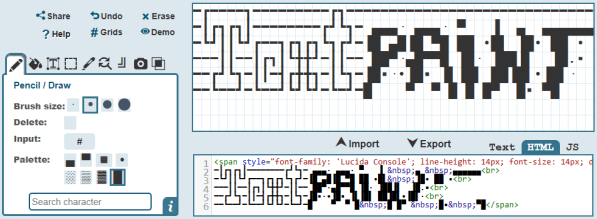
TextPaint Full homepage screenshot

At a glance

Category
Resources & Utilities
Language
English
Paid-content signal
No paid content foundObserved
Registered
2007
Hosting
CloudflareInferred
HTTPS certificate trusted
PassedObserved
Last updated

Website review

This review may include AI-generated content and is not individually verified. Domain, certificate and other facts come from the observed data on this page.

What is TextPaint?

TextPaint is a browser-based tool for drawing with text. Instead of pixels, you paint with ASCII characters, Unicode symbols and emojis on a text canvas — closer to pixel art than to a word processor. You can draw freehand, fill enclosed areas, place typed text, select and move regions, draw lines, convert an uploaded image into character art, and merge two text files. Finished work can be exported as a plain text file, HTML or a JavaScript string. No account or installation is required.

Who it suits

  • Forum and chat regulars who want signature art or decorative messages.
  • Beginners who want to try ASCII art without learning a specialist editor, since the sidebar includes demo files to experiment with.
  • Developers and tinkerers who need character art as a text file, HTML snippet or JavaScript string for a page or console.
  • Anyone converting an image into a quick text-based version for a retro look.

Things to watch

  • Display depends on a monospace font. TextPaint itself recommends Courier or Lucida Console, and the page warns that some wide or odd-width characters can break alignment — the editor can highlight these.
  • ASCII art is a stylistic choice, not a replacement for real graphics: it is small, copyable and works anywhere text does, but it cannot match the detail of an image.
  • Exporting to HTML or JavaScript means you will still need to place the result in your own page.

A sensible first step is to open one of the sidebar demos, switch to a monospace font, and redraw a small shape before trying the image-to-ASCII converter. If you want background on the medium itself, Wikipedia covers its history and conventions.

How do I convert an image to ASCII art with TextPaint?

Use the Image to ASCII tool in the sidebar: upload an image, let TextPaint convert it to character art on the canvas, then adjust the result with the other drawing tools and export it as a text file, HTML, or a JavaScript string.

Step by step

  1. Open TextPaint and find Image to ASCII in the sidebar.
  2. Upload the image you want to convert.
  3. Review the generated character art on the canvas. If it looks too coarse or too dense, check the canvas and font settings, since character width and canvas size affect how the result reads.
  4. Touch up the output: use the Pencil, Paint Bucket, Text Input, or Find & Replace to clean up areas or swap characters.
  5. Export when satisfied, choosing text, HTML, or a JavaScript string depending on where the art will live.

Practical tips

  • Start with a simple, high-contrast image. Clear shapes and strong light-dark separation translate better into characters than busy photos.
  • Display it in a monospace font. TextPaint's page notes Courier or Lucida Console work best; without monospace, spacing breaks on other sites.
  • Watch for wide or odd-width characters. TextPaint flags characters that may break formatting—useful if you mix Unicode or emojis into the art.
  • Use Find & Replace for quick tonal tweaks, for example swapping a dense character for a lighter one across a region.

The conversion is only the starting point; most of the quality comes from the cleanup and font choice afterward.

What is the best way to export and display my ASCII art so it looks right on a website?

Export as plain text and display it inside a <pre> element with a monospace font. That is the most reliable way to keep ASCII art aligned on a website. TextPaint's export options include a text file, HTML, and a JavaScript string, and its guidance is to use monospace fonts so the art renders consistently.

A practical setup

  • Use <pre>: it preserves spaces and line breaks, which ASCII art depends on. Without it, HTML collapses whitespace and the art breaks.
  • Set a monospace font: font-family: "Courier New", Courier, monospace; keeps every character the same width. Lucida Console is another safe option.
  • Control wrapping: add white-space: pre; overflow-x: auto; so long lines scroll instead of wrapping.
  • Watch wide characters: emojis and some Unicode symbols take more than one column and can shift rows. TextPaint flags characters that may break formatting; remove or replace them before publishing.
  • Test at different sizes: view the page on a narrow screen. If the art is wider than the viewport, horizontal scrolling is usually better than wrapping.

Choosing an export format

Format Best for Trade-off
Text file Pasting into <pre>, version control, forums You add the HTML wrapper yourself
HTML Dropping straight into a page Check that the generated markup uses monospace styling
JavaScript string Embedding in a script or template Escaping must be correct; harder to edit by hand

For a simple website, the text export plus your own <pre> block gives the most control. Use the HTML export when you want a quick copy-paste result and can verify the font styling.

Next step

Export one piece, paste it into a test page with the <pre> styling above, and compare it side by side with the editor. If rows misalign, look first for wide characters, then for a non-monospace font. For more character-based design tools, see TextPaint.

How can I draw freehand and fill areas with characters in TextPaint?

In TextPaint, freehand drawing and area filling are two separate sidebar tools. The Pencil lets you draw freehand with whatever character you have selected, so you can sketch strokes symbol by symbol. The Paint Bucket fills closed areas instantly with any character you choose. The intended workflow is to pick a character, sketch or block out the shape with the Pencil, then flood the enclosed regions with the Paint Bucket.

A practical sequence

  1. Choose your character with the Character Picker (it grabs any character already on the canvas) or pick a new one.
  2. Draw the outline or main strokes with the Pencil.
  3. Make sure the area you want to fill is fully closed, then click inside it with the Paint Bucket.
  4. Use Find & Replace to swap characters across the whole piece if a fill looks too dense or too sparse.
  5. Turn on the wide/odd-width character warning before exporting, since the page notes these can break formatting.

Choosing between them

Tool Best for Trade-off
Pencil Outlines, texture, hand-drawn detail Slower for large solid regions
Paint Bucket Solid fills, backgrounds, blocking in shapes Only works on closed areas; can look flat
Text Input Placing words or labels as art Less control over irregular shapes

Next step

Start from a sidebar demo rather than a blank canvas, so you can see how a finished piece combines freehand strokes and filled regions. When displaying the result elsewhere, use a monospace font such as Courier or Lucida Console, as the page recommends, so the artwork keeps its alignment.

Can I combine or merge two text files into one ASCII artwork?

Yes. TextPaint includes a Merge two texts tool in its sidebar, so you can combine two text-based artworks into a single piece, then continue editing on the same canvas.

What merging is good for

  • Combining a title or banner made in one file with a picture or pattern made in another.
  • Stitching together two halves of a large piece that were drawn separately.
  • Reusing an old ASCII signature or logo inside a new design.

How to approach it

  1. Open or paste your first text artwork into the canvas.
  2. Use the merge tool to bring in the second file.
  3. Adjust alignment with the shift, rotate and flip settings so the two parts line up.
  4. Use Find & Replace to clean up stray characters where the pieces meet.
  5. Check that odd-width or wide characters are flagged, since they can break alignment.
  6. Export as a text file, HTML, or a JavaScript string when finished.

Things to watch

Merging combines content, not layout intelligence. If the two files use different line widths or fonts, the seam will look uneven, so match canvas width and use a monospace font such as Courier or Lucida Console for both. If you only need part of a second file, select the area first and copy just that region rather than merging whole files.

If you want a second opinion on how a merged piece will render, compare it in a plain-text editor before publishing.

Which characters or fonts should I avoid to keep my ASCII art from breaking formatting?

Use monospace fonts and avoid wide, double-width or combining characters if your ASCII art must line up on other websites, in code comments or in plain-text files. TextPaint's own canvas features include a warning that highlights characters likely to break formatting, such as wide or odd-width ones, so use that check before exporting.

Characters to avoid

  • East Asian wide characters (CJK ideographs, full-width punctuation, full-width Latin letters): they occupy two columns in most monospace contexts, so a line of them shifts everything after it.
  • Emoji and pictographs, including emoji with skin-tone or zero-width-joiner sequences: widths vary by platform and font, and sequences can render as one glyph or several.
  • Combining marks and diacritics that attach to the previous character: they add no column but may change how the base character is measured.
  • Zero-width characters (zero-width space, joiner, non-joiner, BOM): invisible, so misalignment is hard to diagnose.
  • Tabs: tab stops depend on the viewer's settings; replace them with spaces.
  • Smart quotes, en/em dashes and ellipsis characters if the destination might re-encode text: they can be converted or replaced. Plain ', ", - and ... are safer.
  • Non-breaking spaces where you expect ordinary spaces: they look identical but behave differently when text wraps or is edited.

Fonts to avoid

Avoid proportional fonts (Arial, Helvetica, most system UI fonts) and any font whose symbol or emoji glyphs are wider than its Latin characters. Courier and Lucida Console are the monospace choices TextPaint names as working best; other common safe options are Consolas, Menlo, DejaVu Sans Mono and Courier New. Test in the font your audience will actually see, since fallback fonts differ across systems.

Practical check

Before publishing, paste the export into a plain-text editor set to a monospace font and confirm the right edge of your drawing is straight. If it is, the art will usually survive forums, code blocks and text files. For browser display, TextPaint can export to HTML, which lets you set a monospace font and preserve spacing; plain text files are the safer target when the art will be copied between tools. See TextPaint for the character warning and export options.

Related questions

More questions →
What Canvas Features Does TextPaint Offer for Editing and Formatting ASCII Art?

TextPaint gives you a character-based canvas with drawing tools (pencil, paint bucket, line, text input, image-to-ASCII), layout controls (resize, shift, flip, rotate), character-level editing (find & replace, character picker, area select), and formatting safeguards such as highlighting wide or odd-width characters and monospace font choices. These features matter most when you want to build ASCII art quickly and keep it aligned when pasted into another site or file.

Drawing and decorating the canvas

The sidebar holds the tools you use to put characters on the canvas:

  • Pencil – draw freehand with whatever character you have selected.
  • Paint Bucket – fill closed areas instantly with a chosen character.
  • Text Input – type text and convert it to ASCII art, then place it anywhere on the canvas.
  • Draw Line – create straight or shaped lines in different styles.
  • Image to ASCII – upload an image and convert it into character art.
  • Merge two texts – combine two text files into one.

You are not limited to classic keyboard symbols: the canvas accepts ASCII, Unicode, emojis, or any characters you like. Text and background colors can be adjusted while editing, so you can preview contrast before exporting.

Layout controls: resize, shift, flip, rotate

As your artwork grows, the canvas can be resized and shifted. Additional settings below the main tools let you rotate or mirror the artwork with a click. This is useful when you sketch a shape in one orientation and want to test a mirrored or rotated version without redrawing it.

Editing characters without redrawing

  • Select Area – highlight part of the workspace to copy, delete, or move it.
  • Character Picker – grab any character already on the canvas and reuse it.
  • Find & Replace – swap characters instantly by choosing what to find and what to replace it with.

These three cover most correction work: fixing a repeated symbol, moving a block of art, or reusing a character style you already like.

Formatting safeguards

ASCII art breaks when character widths are inconsistent. TextPaint addresses this in two ways:

Feature What it does
Wide/odd-width character highlighting Flags characters that might break formatting, such as wide or odd-width ones
Monospace font selection Offers clean monospace fonts; Courier or Lucida Console work best

The site also advises using monospace fonts when displaying ASCII art elsewhere, so the alignment you see in the editor survives on other websites.

Exporting the result

When the artwork is finished, export it as a text file, HTML, or a JavaScript string. Copy, paste, and merge are also available for moving work between projects. No account or install is needed—the tool runs in the browser.

A practical workflow: open a demo from the sidebar, pick a character and font, sketch with the pencil or drop in an image, then run find & replace and check the wide-character highlight before exporting.

How to Convert an Image to ASCII Art and Export It from TextPaint

To turn an image into ASCII art in TextPaint, open the Image to ASCII tool from the sidebar, upload your image, and let the tool convert it into character art on the canvas. When you're satisfied with the result, export it as a plain text file, HTML, or a JavaScript string. If you also want to combine two existing pieces, use Merge two texts to join two text files into one. For the artwork to display correctly on other websites, view it in a monospace font such as Courier or Lucida Console.

TextPaint runs in the browser with no account or install required, so you can start from a demo in the sidebar and experiment before committing to a final piece.

Convert an Image to ASCII Art

What you need first

  • An image file you want to convert.
  • A browser session on TextPaint (no signup or installation per the site).
  • A rough idea of the canvas size you want, since the converted art will sit on the canvas you're working on.

Steps

  1. Open the Image to ASCII tool from the sidebar. The sidebar is where TextPaint groups its tools, including Pencil, Paint Bucket, Text Input, Select Area, Character Picker, Find & Replace, Draw Line, Image to ASCII, and Merge two texts.
  2. Upload your image through the Image to ASCII tool. The tool converts the image into character art placed on your canvas.
  3. Adjust the canvas as needed. Canvas features let you resize and shift the canvas as your art grows, and you can flip or rotate the artwork with a click.
  4. Tidy the result with editing tools. Use Select Area to highlight parts of the workspace to copy, delete, or move; use Find & Replace to swap characters instantly; use the Character Picker to grab any character from the canvas and reuse it.
  5. Check formatting risks. TextPaint can highlight characters that might break formatting, such as wide or odd-width ones. Fix or replace these before exporting if the art will be displayed elsewhere.

Expected result: your uploaded image appears as character-based art on the canvas, editable with the same tools used for hand-drawn ASCII art.

Common sticking points

  • Wide or odd-width characters can misalign the art when pasted into other sites. Use the formatting warning highlight and replace problem characters.
  • Font choice matters. Pick a clean monospace font; the site notes Courier or Lucida Console work best. Non-monospace fonts will distort the alignment of character art.
  • Canvas size limits detail. If the converted art looks cramped or too coarse, resize the canvas and re-check the result.

Merge Two Text Files into One

If you have two pieces of text-based art or text files and want a single combined work, use Merge two texts in the sidebar. It combines two text files into one, which is useful when you've created parts of a design separately or want to assemble a larger composition from existing pieces.

After merging, you can still use Select Area, Find & Replace, and the shift/rotate/mirror settings to align the combined result.

Export Your Artwork

When the canvas looks right, export it in one of three formats:

Format Best for
Text file Sharing raw ASCII art, pasting into plain-text contexts, archiving
HTML Displaying the art on a web page
JavaScript string Embedding the art in code or a script-driven project

The export options are listed among the canvas and sidebar settings. Before publishing anywhere, confirm the display font is monospace so the art keeps its shape across websites.

Quick Checklist Before You Export

  • The image conversion or merged text looks correct at your chosen canvas size.
  • Wide or odd-width characters flagged by the tool have been reviewed.
  • A monospace font (Courier or Lucida Console) is selected for display.
  • You've chosen the export format that matches where the art will live: text file, HTML, or JavaScript string.

TextPaint is aimed at people making retro-style designs, forum signatures, and creative projects, and the same workflow applies whether you start from an uploaded image, a merged text file, or freehand drawing with the Pencil and Paint Bucket tools.

How to Get Started with TextPaint's Drawing Tools

Open TextPaint in your browser and start drawing right away—no account, install, or special skills are needed. The fastest way to learn the tools is to open a demo from the sidebar and experiment with the paint tools on the canvas. Everything below works on that same canvas, using ASCII characters, Unicode symbols, or emojis as your "paint."

Before You Start

  • No setup required: TextPaint runs in the browser with no signup.
  • Pick a canvas size and font first: The sidebar lets you choose the canvas size and font style. Use a monospace font such as Courier or Lucida Console so your art displays correctly on other websites.
  • Know the layout: The sidebar holds all the tools and settings; the canvas is where you draw.

Core Drawing Tools

Pencil

Use the pencil to draw freehand with whichever character you have selected. This is the basic brush for sketching shapes, filling in areas by hand, or placing individual symbols.

Paint Bucket

The paint bucket fills closed areas instantly with any character you choose. Draw an outline first, then fill the inside in one click—useful for blocking in large regions without drawing each character.

Text Input

Type text and TextPaint converts it into ASCII art, which you can place anywhere on the canvas. This is the quickest way to add words or labels to a design.

Select Area

Highlight part of your workspace to copy, delete, or move it. Use this to rearrange sections of a drawing or duplicate a motif.

Character Picker

Grab any character already on the canvas to reuse it. Handy when you want to repeat a symbol without hunting for it on your keyboard.

Find & Replace

Swap characters instantly: choose what to find and what to replace it with. This makes quick global tweaks, such as changing a fill character across the whole piece.

Draw Line

Create straight or shaped lines in different styles—useful for borders, frames, and structure.

Image to ASCII

Upload an image and convert it into character art. A good starting point if you want a base to refine with the pencil and paint bucket.

Merge Two Texts

Combine two text files into one, for example to bring together separate parts of a project.

Adjusting and Finishing Your Artwork

The settings below the main tools let you refine the result:

  • Shift, rotate, or mirror the text on the page.
  • Adjust text and background colors while editing.
  • Resize and shift the canvas as your art grows.
  • Watch for the formatting warning: TextPaint highlights characters that might break formatting, such as wide or odd-width ones. Check these before sharing.
  • Export your work as a text file, HTML, or a JavaScript string when you're satisfied.

A Simple First Exercise

  1. Choose a canvas size and a monospace font in the sidebar.
  2. Select the pencil and pick a character.
  3. Sketch a simple outline, then switch to the paint bucket to fill it.
  4. Use text input to add a word or label, and select area to reposition it.
  5. Export as a text file to check how it looks.

Common Sticking Points

  • Art looks misaligned elsewhere: You're likely not using a monospace font. Stick to Courier or Lucida Console.
  • Fill spills outside the shape: The paint bucket needs a fully closed area; check for gaps in your outline.
  • Odd characters break the layout: Use the formatting warning to spot wide or odd-width characters before exporting.

Once you're comfortable with these tools, the sidebar's dedicated feature pages explain each one in more detail.

What Is ASCII Art and What Is It Used For?

ASCII art is visual design made from keyboard characters—letters, numbers, punctuation, and symbols—arranged so that the text itself forms an image. It is used for retro game graphics, forum signatures, terminal banners, creative projects, and any situation where plain text must carry a visual idea. TextPaint (textpaint.com) is a browser-based editor for making this kind of art with ASCII, Unicode, or emoji characters; it requires no account or install according to the site.

How ASCII art works

Each character occupies a fixed-width cell in a monospace font, so a grid of characters behaves like a grid of pixels. Density and shape of the chosen characters create light, shadow, and outline. For example, a portrait might use @ and # for dark areas, + and : for midtones, and . for highlights. The same principle underlies the Image to ASCII feature in TextPaint, which converts an uploaded image into character art.

The main constraint is the font: if the display font is not monospace, columns drift and the picture breaks. TextPaint's feature list includes a warning that highlights characters which may break formatting, such as wide or odd-width ones, and recommends Courier or Lucida Console.

What people use it for

  • Retro and game-style visuals — the site notes ASCII art has been used since early computing, including retro computer games.
  • Forum signatures and online identity — small character drawings that fit in text-only spaces.
  • Terminal and plain-text contexts — banners or logos where images cannot be embedded.
  • Creative and decorative projects — the editor supports Unicode and emoji, so designs are not limited to the classic keyboard set.
  • Converting existing images — turning a photo or logo into character art via the Image to ASCII tool.

Deciding whether a character-based tool fits your task

Your situation ASCII/character art fits? Why
Output must be plain text (README, terminal, forum post) Yes The artwork is text and travels anywhere text does
You need photographic detail or smooth gradients Poorly Character grids are coarse; results read as stylized
You want a quick decorative banner or signature Yes Small canvases are fast to draw and export
The final display font is unknown or proportional Risky Non-monospace fonts distort the alignment

Trying it without commitment

TextPaint's page describes a sidebar with a pencil, paint bucket, text input, area select, character picker, find & replace, line drawing, image-to-ASCII, and a merge-two-texts tool, plus shifting, rotating, mirroring, font choice, and canvas resizing. Finished work can be exported as a text file, HTML, or a JavaScript string. The site states no accounts and no installs are needed and that it runs in the browser; it does not state pricing terms, so treat cost and any limits as unconfirmed until you check the site directly.

A practical first test: open a demo from the sidebar, draw a few characters with the pencil, then use Find & Replace to swap one symbol for another and see how the image changes. If the result looks right in a monospace preview, export it and check it in the place you actually plan to display it.

What Is TextPaint and What Can You Do With It?

TextPaint is a browser-based editor for drawing with text. You use ASCII characters, Unicode symbols, emojis, or any character you choose to paint on a canvas, much like pixel art made from symbols. It requires no account and no installation: you open the site, pick a character, and start drawing. It suits anyone who wants to make traditional ASCII art or modern Unicode-based character designs without design software.

What you can make with it

TextPaint covers both classic and contemporary text art:

  • Traditional ASCII art built from letters, numbers, punctuation, and keyboard symbols.
  • Unicode and emoji designs that go beyond the standard keyboard.
  • Text-based graphics for forum signatures, retro-style projects, or creative experiments.

The site describes the process as similar to pixel art, except every "pixel" is a character you choose.

The drawing tools

The sidebar holds the main tools. You can try each one directly or read its dedicated page on the site.

Tool What it does
Pencil Draw freehand with the character you selected
Paint Bucket Fill closed areas instantly with any character
Text Input Type text, convert it to ASCII art, and place it anywhere on the canvas
Select Area Highlight part of the workspace to copy, delete, or move
Character Picker Grab any character already on the canvas and reuse it
Find & Replace Swap characters by specifying what to find and what to replace it with
Draw Line Create straight or shaped lines in different styles
Image to ASCII Upload an image and convert it into character art
Merge two texts Combine two text files into one

Below these are additional settings for shifting text on the page, rotating or mirroring the artwork, choosing a font style, and setting the canvas size.

Canvas features worth knowing

  • Draw with any character, emoji, or symbol.
  • Adjust text and background colors while editing.
  • Resize and shift the canvas as the artwork grows.
  • Flip or rotate the whole piece with one click.
  • Copy, paste, export, and merge separate projects.
  • Highlight characters that may break formatting, such as wide or odd-width ones.
  • Choose from clean monospace fonts; the site notes Courier or Lucida Console work best.

Exporting your work

When the artwork is finished, you can export it as a plain text file, as HTML, or as a JavaScript string. The site recommends displaying ASCII art in monospace fonts so it renders correctly on any website.

Who it is for

The site lists its audience broadly: hobbyists making forum signatures, people creating retro-computing-style visuals, and anyone experimenting with character-based design. Because there is no signup and everything runs in the browser, it also works well for quick one-off pieces where installing software would be overkill.

Getting started

Open a demo from the sidebar and experiment with the paint tools. If you are new to the format, start with the Pencil and a single character, then try the Paint Bucket to fill enclosed shapes. Use Image to ASCII when you want to convert an existing picture rather than draw from scratch.

Website Overview

An established domain and managed infrastructure suggest continuity of operations and may support dependable delivery, although neither guarantees service quality. Page metadata, canonical configuration and social previews work together to provide more consistent search and sharing presentation.

Domain and Registration

Registered in 2007, this domain has about 19 years of history. That suggests continuity, although ownership and purpose may have changed. Transfer-protection status is present, helping reduce the risk of unauthorized domain transfers. The registrar is NameCheap, Inc., a widely used domain service provider. The domain uses the common .com extension, which is not an independent safety signal.

DNS and Email

Nameservers are provided by Cloudflare, indicating managed DNS hosting. No CNAME was found; the observed records resolve directly to addresses. No MX record was found. A conventional explicit inbound-mail route is not configured. TXT records include verification markers for Google. Such markers may also remain after a service stops being used. DNSSEC signatures were not detected, so this additional DNS authenticity protection is not confirmed.

TLS and Certificates

The public key uses EC with 256 bits. The server supplied a complete certificate chain. No organization name is present in the certificate; the available fields are consistent with domain validation. The certificate was issued within the Google Trust Services cloud or CDN ecosystem. The certificate's total validity is about 90 days, consistent with a short renewal cycle.

HTTP and Browser Security

The checked browser-security headers were not detected, leaving fewer explicit browser-side safeguards. No X-Powered-By header was found, reducing one common source of backend fingerprinting information. The cf-ray response header indicates a CDN or caching proxy in the delivery path. No obvious internal addresses or debug information were found in the headers. The Server header identifies cloudflare without an exact version.

Technology Stack Analysis

The public page identifies Cloudflare without precise versions, leaving fewer clues for version-specific scanning.

Search and Social Sharing

Twitter Card metadata is configured. JSON-LD includes Product or Offer data, potentially supporting eligible product search features. The title has 51 characters, within a common display range. A meta description is present, with 135 characters. The observed directives allow indexing and link following.

Hosting and Email

DNSCloudflare
HostingCloudflare
EmailUnknown
Approximate IP geolocation (inferred; a CDN or proxy may differ from the origin server) Location unknown Inferred 104.21.57.36

Registration details

RDAP / WHOIS

RegistrarNameCheap, Inc.
Registered2007-01-26
Expires2028-01-26
Domain statusclient transfer prohibited
Nameserverscortney.ns.cloudflare.com、kyrie.ns.cloudflare.com
DNSSECunsigned

DNS records

DNS

TypeNameValueTTLPriority
Atextpaint.com104.21.57.36300—
Atextpaint.com172.67.188.239300—
AAAAtextpaint.com2606:4700:3030::6815:3924300—
AAAAtextpaint.com2606:4700:3030::ac43:bcef300—
NStextpaint.comcortney.ns.cloudflare.com86400—
NStextpaint.comkyrie.ns.cloudflare.com86400—
TXTtextpaint.com699 dolcsi volt300—
TXTtextpaint.comgoogle-site-verification=IGcIpfTSMHceY6N69BsqoQDjXXsOCJVPe36x7A7hO-U300—

TLS and certificates

TLS / SSL

AssessmentNormal configuration
Supported protocolsTLSv1.2、TLSv1.3
Negotiated protocolTLSv1.3
Certificate subjecttextpaint.com
IssuerGoogle Trust Services
Valid until2027-01-17T14:03 · Remaining when checked: 84 days
Verification detailsCertificate trust: Passed · Hostname match: Passed

HTTP response headers

HTTP

HeaderValue
content-typetext/html
cache-controlmax-age=3600
servercloudflare

Identified technologies

Cloudflare

Pages, Search and Sharing

Meta descriptionASCII art editor online: draw, shape and decorate a text canvas with ASCII, Unicode and emojis. Free, no signup, works in your browser.
Canonical URLhttps://textpaint.com/
LanguageEnglish (default)
Twitter Cardsummary_large_image
All bots 1 allowed · 1 disallowed
  • Allow/
  • Disallow/img/asciiarts.html

User reviews (0)

  • No reviews yet.