
 简体中文
简体中文 English
Website review
This review may include AI-generated content and is not individually verified. Domain, certificate and other facts come from the observed data on this page.
What is Rodrigo's Tools?
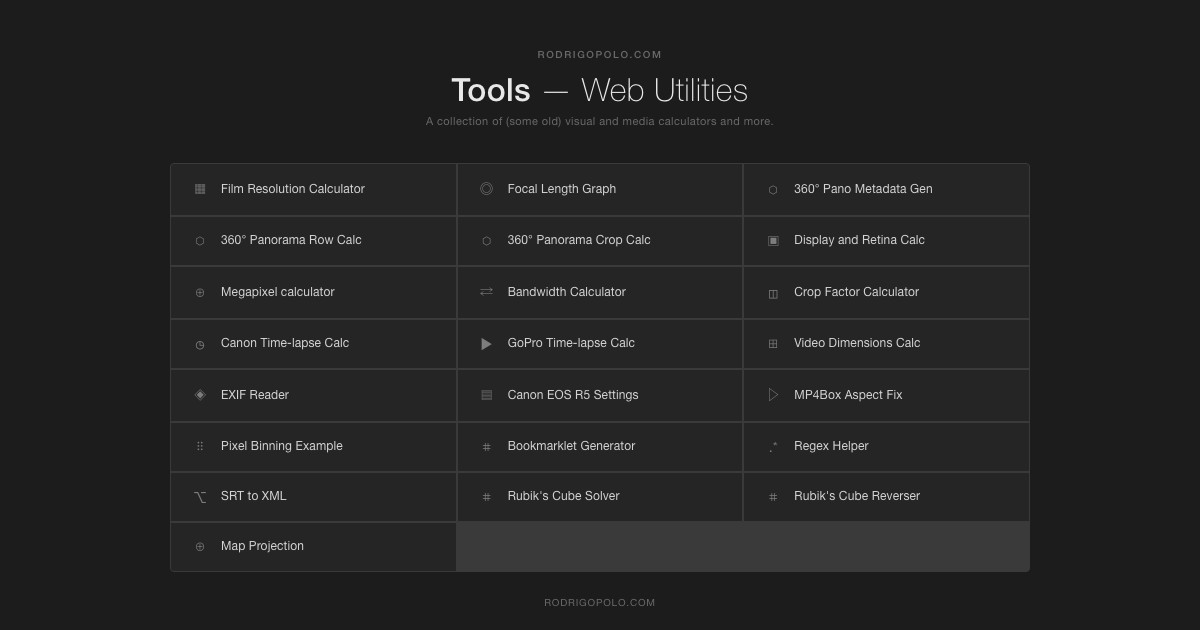
Rodrigo's Tools is a free collection of browser-based visual calculators and utilities for photography, video and 360° panorama work, hosted at Rodrigo's Tools. The page presents it as a set of "visual and media calculators" — some of them, by the site's own description, fairly old — rather than a single integrated application.
What the toolset covers
- Photography and optics: crop factor, focal length graphing, megapixels, exposure, display/Retina calculations and a pixel binning example.
- Video and motion: frame-to-time conversion, video dimensions, bandwidth, plus dedicated time-lapse calculators for Canon and GoPro cameras.
- 360° panorama workflows: GPano metadata generation, a GPano visualizer, panorama row and crop calculations, and an equatorial mount tool.
- File and metadata utilities: an EXIF reader, SRT-to-XML conversion, MP4Box aspect-ratio fixing, a bookmarklet generator, a regex helper and a map projection tool.
- Odd extras: a Rubik's Cube solver and reverser, and a Canon EOS R5 settings reference.
Who it suits
The mix points to a practical audience: a photographer planning a panorama grid, a videographer estimating storage or render time for a time-lapse, or someone who needs to inspect EXIF data or nudge an aspect ratio without installing software. Each tool appears to be a small, single-purpose page, so you use only the one you need.
The trade-off is coherence. Because these are separate calculators accumulated over time, there's no shared project file or unified workflow — you move between tools and carry results yourself. The site's own "some old" note is a fair signal to sanity-check outputs on anything consequential.
Next step: if you're planning a 360° shoot, start with the panorama row calculator to work out how many rows and shots you need, then use the GPano metadata generator to embed the result. If you mainly want exposure or crop-factor math, those standalone calculators are the quicker entry point.
How do I calculate crop factor for a camera and lens combination?
Crop factor compares a camera's sensor diagonal with the 35mm full-frame reference (about 43.3mm). The basic calculation is:
Crop factor = 43.27 ÷ sensor diagonal (mm)
For common formats this gives roughly 1.0 for full frame, 1.5 for APS-C (Nikon/Sony/Fujifilm), 1.6 for Canon APS-C, 2.0 for Micro Four Thirds, and about 2.7 for a 1-inch sensor. If you only know sensor width and height, first compute the diagonal with the Pythagorean theorem: √(width² + height²).
What the number is used for
- Equivalent focal length: multiply the lens's actual focal length by the crop factor. A 50mm lens on a 1.5× body behaves like a 75mm lens in field-of-view terms.
- Equivalent aperture (for depth of field and total light): multiply the f-number by the same factor. An f/2.8 lens on a 2× sensor is comparable to f/5.6 on full frame for depth of field, though exposure brightness is unchanged.
- Field of view: divide the full-frame diagonal angle of view by the crop factor to estimate what the combination captures.
A quick example
A camera with a 23.5 × 15.6mm sensor has a diagonal of √(552 + 243) ≈ 28.2mm. Dividing 43.27 by 28.2 gives a crop factor of about 1.53. A 35mm lens on that body therefore frames like roughly a 54mm lens on full frame.
Where to do it
The Rodrigo's Tools collection includes a dedicated Crop Factor Calculator alongside related utilities such as a focal length graph, megapixel calculator and video dimensions calculator, which helps when you want to compare several bodies or lenses side by side rather than work one sum by hand. For sensor dimensions you don't have to hand, manufacturer spec sheets or databases like DPReview list width and height for most models.
Decision criterion
Use the crop factor when you care about framing, reach or depth of field across formats; ignore it when you only care about exposure, since f-number and shutter speed mean the same thing regardless of sensor size.
How can I plan a time-lapse shoot for a Canon or GoPro camera?
Use the site's dedicated time-lapse calculators for Canon and GoPro bodies, then cross-check the result with the general Frames ⇄ Time calculator before you commit to a shooting schedule.
How to plan the shoot
- Set your clip length and frame rate first. Decide the final video length (e.g., 20 seconds at 24 fps = 480 frames). This fixes the total number of frames you need.
- Pick your interval. Choose how often the camera fires based on how fast the scene changes — clouds and traffic need short intervals (1–5 s); shadows, stars or construction move slowly and can take 10–60 s.
- Run the numbers in the matching calculator. The Canon Time-lapse Calc and GoPro Time-lapse Calc are tailored to each camera's interval and duration controls; the Frames ⇄ Time Calc converts between frame count, interval and total shooting time.
- Check battery and storage against the total duration. A long interval series can run for hours; confirm your card capacity and power plan (mains adapter or spare batteries) suit the calculated runtime.
Which calculator to use
| Situation | Tool to start with |
|---|---|
| Canon body with built-in interval timer | Canon Time-lapse Calc |
| GoPro action camera | GoPro Time-lapse Calc |
| Any camera, or mixing frame rates | Frames ⇄ Time Calc |
Practical tips
- Add a small buffer of extra frames so you can trim the start and end where the camera may be nudged or exposure shifts.
- For 360° time-lapse, the 360° Panorama Row Calc and Crop Calc help size the stitched frames before you sequence them.
- Shoot a short test run at your chosen interval to confirm the motion reads well before committing to a full session.
Start with the Frames ⇄ Time Calc to lock your frame count, then move to the camera-specific calculator to translate that into interval and duration.
How do I generate or visualize GPano metadata for a 360° panorama?
For generating or visualizing GPano metadata, Rodrigo's Tools is the most direct fit: it lists both a 360° Pano Metadata Gen (to create the metadata) and a GPano Visualizer (to inspect it). The same page also has a 360° Panorama Row Calc and Crop Calc, which help you work out the projection parameters before you generate anything.
A practical workflow
- Get the numbers right first. Use the Row and Crop calculators to settle the panorama's rows, field of view and crop, since those values feed the GPano fields.
- Generate the metadata with the Metadata Gen tool and embed it in the image (or keep it alongside for a viewer that reads sidecar data).
- Verify visually with the GPano Visualizer to confirm the projection type and pose values look correct.
Choosing between the two tools
| Need | Tool | When it helps |
|---|---|---|
| Create GPano tags for a finished panorama | 360° Pano Metadata Gen | You have the image and know its projection and dimensions |
| Check or debug existing GPano data | GPano Visualizer | A viewer shows distortion or the wrong starting angle |
If you need a second opinion on how a viewer interprets the tags, Google's own documentation on Photo Sphere metadata is the reference most viewers follow.
Next step: open the Visualizer on an existing panorama first. Seeing which fields are missing or wrong tells you exactly what to enter in the generator.
How do I check a video's EXIF data or fix its aspect ratio?
Use the EXIF Reader for metadata and the MP4Box Aspect Fix tool for aspect-ratio problems; they solve different jobs, so pick based on whether you need to inspect a file or change how it plays.
Checking video metadata
The EXIF Reader is the inspection tool. Upload or point it at a video file to view embedded metadata such as camera model, capture settings and other tags the file carries. This is useful when you have footage from a phone or camera and want to confirm what settings were used, or when you are cataloguing clips and need the embedded details rather than guessing from the filename.
Practical scenario: a client sends a clip that looks soft, and you want to confirm the recorded resolution and frame rate before deciding whether it was a capture problem or a delivery problem. Reading the metadata first is the right order of operations.
One caveat: not every video container stores rich EXIF-style tags. Phone footage often carries more than heavily transcoded exports, so an empty or sparse result does not necessarily mean the file is broken.
Fixing aspect ratio
The MP4Box Aspect Fix tool targets the display aspect ratio stored in MP4 files. This is the common case where a video's pixels are correct but the player stretches or squashes it because the container's aspect flag is wrong. Typical causes are footage converted from anamorphic sources or re-muxed files where the flag was lost.
Practical scenario: a clip plays as a horizontally stretched image in one player but looks fine in another. That inconsistency usually points to the stored aspect flag rather than the actual frame. Fixing the flag corrects playback without re-encoding, which preserves quality and is fast. The trade-off is that it only addresses the container's display flag—if the pixels themselves were resized incorrectly, you need a proper re-encode instead.
Choosing between them
- File plays distorted in some players but not others → aspect fix.
- You need to know what camera, settings or resolution produced the clip → EXIF Reader.
- You are preparing a deliverable and want to confirm the file's own reported dimensions → read metadata first, then fix if needed.
If your workflow also involves 360° footage, the same site's panorama tools (metadata generation and crop/row calculators) are worth knowing, since spherical video has its own projection and metadata requirements that a standard aspect fix will not address.
How can I estimate storage or bandwidth needs for a video project?
Use a bandwidth calculator plus simple arithmetic on your planned bitrate, duration and number of viewers. On Rodrigo's Tools, the Bandwidth Calculator and the Frames ⇄ Time Calc are the directly relevant utilities; the Video Dimensions Calc and Crop Factor Calculator help you settle on the resolution and sensor framing that drive the bitrate in the first place.
A practical estimating workflow
- Fix the delivery spec first. Resolution, frame rate and codec determine bitrate. A 1080p30 web video and a 4K60 master can differ by an order of magnitude in bits per second.
- Convert bitrate to file size. Size ≈ bitrate (Mbps) ÷ 8 × duration (seconds) = megabytes. A 20 Mbps clip of 10 minutes is about 1.5 GB; the same length at 80 Mbps is about 6 GB.
- Multiply by deliverables. Count masters, proxies, review copies and archive versions separately — editors routinely underestimate storage by forgetting proxies and exports.
- Estimate bandwidth for streaming. Concurrent viewers × bitrate gives the peak egress. 500 viewers at 5 Mbps is roughly 2.5 Gbps sustained, which is a CDN-scale figure, not a single-server one.
- Add headroom. Plan for 20–30% spare capacity for retries, caching misses and spikes during a launch or live event.
Storage versus bandwidth are different problems
| Need | What drives it | Typical mistake |
|---|---|---|
| Storage | Total minutes × bitrate × number of versions, plus project files | Counting only the final export |
| Bandwidth | Concurrent viewers × streaming bitrate | Using average, not peak, concurrency |
| Archive | Long-term retention of masters | Assuming cloud storage is free at scale |
Choosing the right tool for your case
If you are a solo editor planning a shoot, the Frames ⇄ Time Calc and Video Dimensions Calc answer "how big will this get" quickly. If you run a small streaming site, the Bandwidth Calculator gives a first-pass egress figure you can sanity-check against your host's plan. For panorama or 360° work, the Pano Row and Crop calculators matter more than bitrate, since stitching multiplies frame counts.
As a next step, write down your bitrate, duration and peak concurrent viewers, run them through the calculator, then double the storage figure — that is usually closer to reality once proxies and revisions are included.

User reviews (0)