
 简体中文
简体中文 English
Website review
This review may include AI-generated content and is not individually verified. Domain, certificate and other facts come from the observed data on this page.
What is Undertale Text Box Generator?
The Undertale Text Box Generator is a free browser tool for building dialogue boxes that imitate the look of Undertale and Deltarune. You pick a border, a font and a portrait, type your line, preview how it appears, and export the result as a still image (PNG), an animated typewriter effect (GIF), or a video clip with sound (MP4). It also produces shareable links to a saved box.
It is aimed at fan creators rather than game developers: people making memes, roleplay scenes, fake screenshots, or short fan animations. The page presents it as a styling and export tool, not a game engine, so treat the output as a visual asset you place elsewhere.
What you can actually do with it
- Match a specific style. Preset borders cover the classic Undertale box, Deltarune's Dark World frame, and several fan-AU looks (Underfell, Underswap, and others), plus a few tribute styles. Fonts follow the same logic: a Determination-style mono for narration, a Comic Sans-style face for casual lines, an uppercase Papyrus-style face for loud ones.
- Start from a scene instead of a blank box. Quick presets such as "Sans Meme," "Papyrus Dialogue," "Battle Text" and a Yes/No choice prompt set text, sprite and export defaults so you can tweak rather than build from scratch.
- Animate the typing. GIF export captures the typewriter reveal, which is what sells the illusion in a meme or a short clip. MP4 is exported separately so it can carry audio.
- Color individual words. The tool accepts inline color codes in the text field, which is handy for highlighting a punchline or mimicking in-game colored speech.
- Queue several boxes. A stack feature holds up to 30 boxes, letting you assemble a short exchange and export them together.
Choosing an export format
| Format | Best for | Trade-off |
|---|---|---|
| PNG | Fake screenshots, thumbnails, static memes | No motion, no sound |
| GIF | Looping typewriter jokes for chat and social posts | Large files, limited colors |
| MP4 | Short clips with audio for video platforms | Heavier to produce; exported separately from the still image |
As a rule of thumb: if the joke depends on the text appearing letter by letter, use GIF or MP4; if it depends on the wording alone, a PNG is smaller and sharper.
A concrete example
Suppose you want a fake Deltarune scene where a character hesitates, then delivers a punchline in red. Pick the Dark World border, choose the Comic Sans-style font, type the hesitant line, insert a color code before the final phrase, preview the typing speed, then export a GIF for a group chat and an MP4 if you plan to drop it into a video edit.
If you want to compare against other options, Demirramon's Undertale Text Box Generator is a long-standing alternative in the same niche.
How do I export a dialogue box as an animated GIF or MP4 with sound?
Use the Animated GIF or MP4 with Sound preset, build the dialogue box, then export with the format-specific button. On the Undertale Text Box Generator page, PNG, GIF and MP4 are listed as separate outputs, and the page notes that MP4 is exported separately so video export can keep sound. So expect to use Export MP4 (rather than the PNG/GIF export) when you need audio.
Practical workflow
- Pick a preset close to your scene — for example Animated GIF for a silent typewriter loop, or MP4 with Sound for a clip-ready dialogue.
- Set the border, sprite, font and text, and preview the typewriter timing before exporting.
- Export GIF if you need a lightweight, loopable file for forums, Discord or meme posts.
- Export MP4 if you need sound or a file for video editing and social platforms.
Choosing between them
| Need | Better export | Trade-off |
|---|---|---|
| Silent looping dialogue for sharing | GIF | Simple and widely supported, but no audio and larger files at high resolution |
| Dialogue with sound or editing into a video | MP4 | Keeps audio and suits video tools, but is a video file rather than a quick inline image |
| A single still frame | PNG | No animation or sound |
For a concrete case: a fan creator making a short Sans-style exchange for a Discord meme would use the GIF preset and export GIF; someone cutting the same box into a YouTube video would use the MP4 preset and Export MP4 so the typewriter sound survives. If you want to compare the source game's presentation, see Undertale.
Which fonts and border presets should I pick to match Sans, Papyrus, or Deltarune's Dark World?
For Sans, pick the Sans Comic Style font with the Official Original Box border; for Papyrus, use the Papyrus Decorative font (the preset is described as uppercase "Papyrus energy"); for Deltarune's Dark World, choose the Official Dark World (Deltarune) border with the Determination Mono font for narration-style lines. These combinations follow the generator's own preset labels, so they are the closest match to each character or setting rather than a guess.
Quick picks
| Target | Font | Border preset | Why |
|---|---|---|---|
| Sans | Sans Comic Style | Official Original Box | Lowercase, laid-back comic tone in the classic frame |
| Papyrus | Papyrus Decorative | Official Original Box | Uppercase, loud decorative lettering |
| Deltarune Dark World | Determination Mono | Official Dark World (Deltarune) | Dark World frame with clean pixel narration text |
Practical notes
- The Sans Meme, Papyrus Dialogue, and Choice Box presets bundle a font, border, and tone in one click, so start there and adjust only what looks off.
- Border presets go well beyond the official styles: Underfell, TS!Underswap, Earthbound, and FNAStale are tribute frames, useful for AU fan work rather than canon recreations.
- If you plan to animate the typewriter effect, test the timing in GIF or MP4 export, since static PNG won't show pacing problems.
Next step: build one box per character with the pairings above, then save each as a PNG for a consistent set before experimenting with AU borders.
Can I add character portraits and typewriter animation to my text box?
Yes. The generator supports both character portraits and typewriter-style animation, and it lets you preview the animation before exporting.
What you can do
- Portraits: Add a character sprite so the dialogue box reads like an in-game scene rather than plain text.
- Typewriter animation: Preview the timing, then export the motion as a GIF or MP4. Static PNG export is also available for a still frame.
- Text styling: Use color codes (the tool notes
\colorcodes) to change text color, and pick fonts such as a Determination-style font, a Sans/Comic-style font, or an uppercase Papyrus-style font. - Borders: Choose from official-style borders (classic Undertale, Deltarune Dark World) or AU/tribute styles, plus custom shapes like octagonal or shaded borders.
Practical scenario
If you're making a short fan comic panel, set the portrait, type the line, preview the typewriter speed, and export a GIF for a looping reveal. For a video edit with sound, use MP4 instead, since the page notes MP4 export is handled separately to keep audio.
Decision criterion
Choose PNG when you only need a still image for a meme or thumbnail; choose GIF/MP4 when the animation timing itself is the point. Start from a preset scene (Classic Undertale, Sans Meme, Papyrus Dialogue, Battle Text, Choice Box, Animated GIF) and then adjust the portrait, font, and border to match your character.
How do I share my dialogue box with others using a link or the Box Stacker?
The generator has two separate sharing routes: Copy Link sends one finished dialogue box to someone, while Box Stacker collects several boxes into a short sequence and exports them together as a set.
Sharing a single box with Copy Link
Build the box as you normally would — border, sprite, font, text — then use Copy Link. The recipient opens the same scene in the generator, so they see your text, border preset and character setup rather than a flat picture. This suits collaboration: a friend can fix a typo or swap the sprite without rebuilding the frame. If you want something that plays anywhere, export PNG instead; a link only works for people opening the generator itself.
Using Box Stacker for a sequence
Box Stacker holds up to 30 boxes (the counter shows "0 / 30"). The workflow is:
- Create the first box and choose Add to Stack.
- Reset or change the text, sprite and border, then add the next box.
- Repeat until the scene is complete.
- Use Export Stack to save the whole sequence, or Clear Stack to start over.
The Random and Random Dialogue controls are handy for filling placeholder slots while you draft a scene, and Play previews the typewriter timing before you commit.
Which route fits your case
| Goal | Best option | Trade-off |
|---|---|---|
| Ask someone to edit your box | Copy Link | Requires opening the generator; no standalone image |
| Post a single meme or reaction | Export PNG | Static; no typewriter effect |
| Show a back-and-forth conversation | Box Stacker + Export Stack | Capped at 30 boxes; larger sets need splitting |
| Share an animated moment with sound | Export MP4 | Heavier file; separate from the Stack export |
A concrete case: a fan-comic writer drafting a six-line exchange between Sans and Papyrus would stack six boxes, preview with Play to check pacing, then export the stack — keeping the single-box link only for the one panel a collaborator needs to adjust. If your scene runs past 30 boxes, split it into acts and export each stack separately so the numbering stays manageable.
Next step: build one box, add it to the stack, and export the stack once to confirm the output looks right before committing to a full scene.
Is the generator free to use, and can I use the exported images in fan content or memes?
Yes. The Undertale Text Box Generator is described as a free online tool, and it's clearly built for exactly that use: the site presents it as "perfect for fan content, memes, and roleplay," with PNG, GIF and MP4 exports. There is a "Buy me a coffee" support link, which suggests the tool is donation-supported rather than paywalled, but the page shows no pricing, subscription or export limits.
For a fan creator, the practical workflow is: pick a border preset (the official Undertale or Deltarune frames, or AU styles like Underfell and Underswap), choose a font such as Determination Mono or the Sans and Papyrus styles, add a portrait, preview the typewriter timing, then export. PNG suits a single meme image, GIF suits an animated typewriter joke, and MP4 with sound suits short clips.
What "free" does and doesn't cover
"Free to use the generator" and "free to publish the output" are two different questions. The tool's own framing supports fan content and memes, which is the normal, low-risk use: a joke image shared in a Discord server or a short fan animation. The bigger caution is commercial use. Undertale and Deltarune characters, fonts and dialogue-box designs belong to their creators, so a free generator can't grant rights it doesn't hold. Selling merchandise, running ads against the images, or using them in a paid product is a different situation from posting a meme, and that's general advice rather than a claim about this site's terms.
As a concrete test, ask yourself: would this be shared for fun in a fan community, or would money change hands? The first is the intended use; the second needs the rights holder's permission. If you're unsure, keep exports to personal, non-commercial sharing and credit the game.
For comparison, other fan-facing tools in this space include Demirramon's Undertale Text Box Generator, a long-standing community option, and FontStruct if you want to build your own pixel font rather than use a preset. Neither changes the underlying rights question, but they're useful if you want to compare border and font options before committing to one tool.
 Cloudflare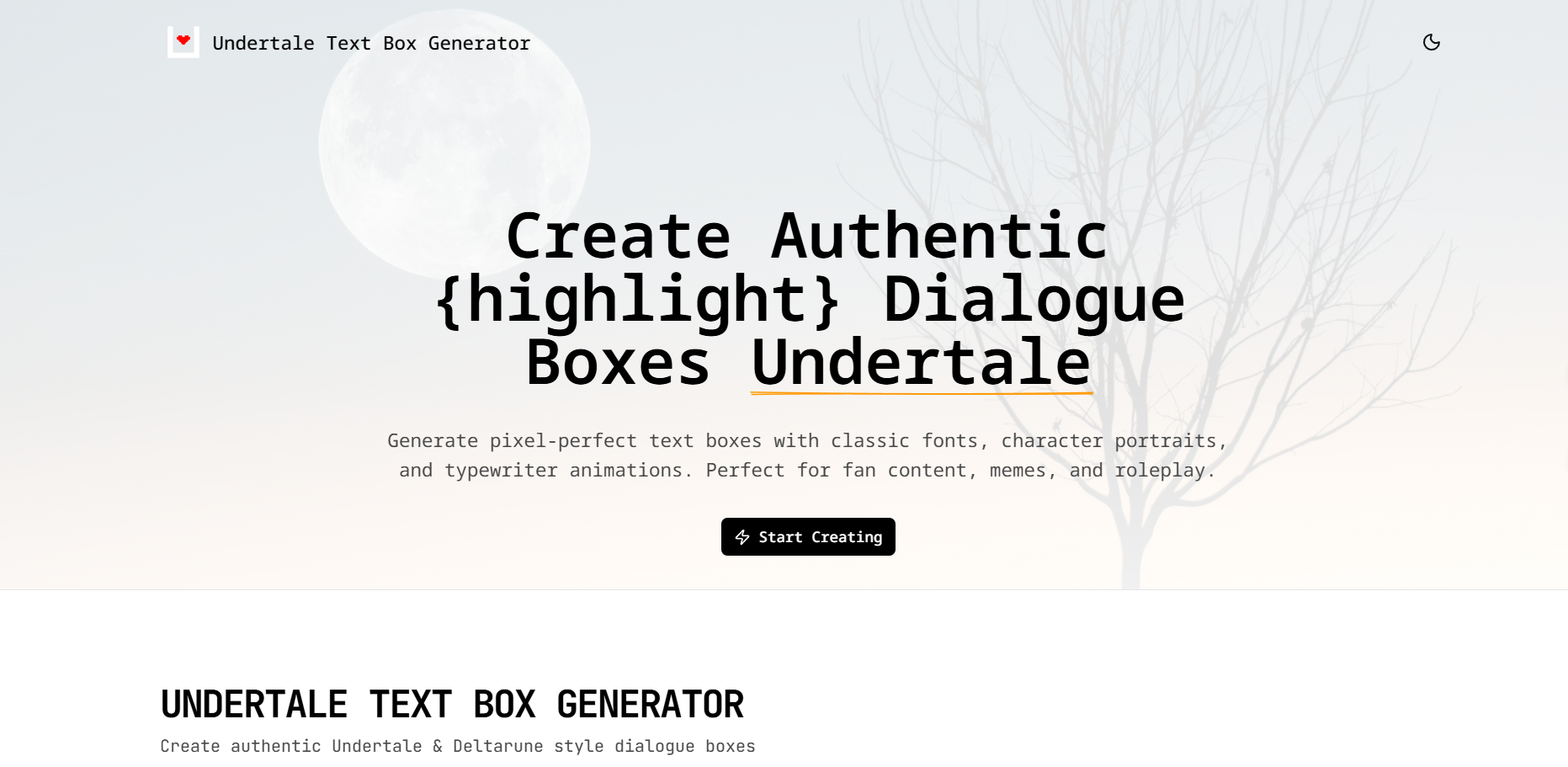

User reviews (0)